
You're staring at a blank draft, a deadline, and a free AI writing assistant that looked great on the pricing page but starts to wobble the moment you need a second rewrite, a clean outline, or one more paragraph that doesn't sound robotic. That's the test. Free tools are easy to compare in a marketing screenshot, but in a working week, the limits on prompts, rewrites, exports, and privacy controls decide whether a tool helps or just slows you down.
This list keeps the focus on workflow, not hype. You'll see where each tool fits in drafting, research, editing, and privacy-sensitive work, and where the free tier runs out. Some tools are better for first drafts. Others are better for cleanup, citations, or final polish. A few are useful only if you accept clear caps and human review. That's fine. The best free choice is the one that still works after the third article of the week, not the one with the flashiest homepage.
Table of Contents
- 1. ChatGPT
- 2. Microsoft Copilot
- 3. Google Gemini
- 4. Grammarly
- 5. QuillBot
- 6. Perplexity
- 7. ProWritingAid
- 8. Zoho Writer Zia AI Assistant
- 9. Wordtune
- 10. Rytr
- Comparison of Top 10 Free AI Writing Assistants
- Build a Free Writing Workflow You Can Keep
1. ChatGPT
ChatGPT is the easiest place to start if you want one free AI writing assistant that can handle drafting, outlining, rewriting, and quick summarizing without forcing you into a complicated setup. The free version is accessible on web and mobile, so you can move from phone notes to a working draft fast. OpenAI launched ChatGPT publicly on November 30, 2022, first as a free research preview, and its rapid adoption made it one of the clearest signs that browser-based AI writing had gone mainstream, not niche (Engadget coverage of ChatGPT's early growth).
For writers, the practical value is simple. You can use it for outlines, tone rewrites, opening paragraphs, headline ideas, and quick fact-checking prompts through web search, within the free plan's usage limits. It's also a good fit when you want to turn rough notes into a cleaner draft before moving into a dedicated editor. If you publish on WordPress, the fastest workflow is often ChatGPT for structure, then a final pass in your CMS. How to create a WordPress blog is a useful companion if you're still shaping that publishing process.
Where it helps and where it stalls
Practical rule: use ChatGPT for the first 70% of the job, not the last 10%. The free plan is strongest when you need momentum, not perfection.
The biggest strength is flexibility. It can draft a product intro, simplify a dense paragraph, or turn bullets into prose without making you jump between tools. The weakness is just as obvious, free usage is capped, so the tool can slow down when you're in a heavy editing session or trying to batch several posts at once.
- Best use case: outlines, rewrites, brainstorming, and quick summaries.
- Watch out for: rate limits and occasional slowdown at peak times.
- Treat it as: a drafting partner, not a final authority on facts, voice, or originality.
Read ChatGPT's watermarking guidance if you care about how generated text may be treated downstream.
2. Microsoft Copilot
Microsoft Copilot fits the moment when you need quick copy help and do not want to leave Microsoft tools for long. The free web version handles short drafts, rewrites, and question-based prompts well. If your team already works in Microsoft accounts, that familiarity saves time. Fewer clicks usually means more writing gets done.
Its best use is simple and low-friction. Paste in a rough paragraph, ask for a tighter version, or request three headline options, and it usually gets you moving. The limit shows up fast once you need a fuller workflow. More advanced features sit inside paid Microsoft 365 plans, so the free version stays useful, but narrow.
If your work lives in Word, Copilot keeps the path short. If your process starts in research notes and ends in a WordPress post, it still helps, but it will not replace the rest of your stack.
Best fit for people who draft inside Microsoft
Use Copilot as a light assistant, not a platform to manage. It works well for office writing, short-form content, and quick ideation, especially when documents already live in Microsoft accounts.
Some free-tier interactions with images and files exist in certain experiences, but the limits vary. That makes Copilot a practical choice for straightforward drafting, not for heavy editing sessions or repeated back-and-forth on the same piece.
If you want speed inside Microsoft apps, it earns a place. If you need deeper control over research, drafting, and revision, pair it with another tool that gives you more room to work.
3. Google Gemini
A free-to-start assistant matters most when you want quick help without changing where you already work. Google Gemini fits that use case well. It handles brainstorming, summaries, and short drafts, and it is especially convenient for people already signed into Google accounts. You can use it on web or mobile and move fast.
The strongest use case is a clean prompt-response loop. Ask for an outline, a simpler explanation, or a short rewrite, and it handles the basics with little setup. It also works well for source-aware prompting because it sits close to Google's search experience. The trade-off is straightforward. Availability and feature depth can vary by region and device, and more advanced Workspace features sit behind paid plans.
Gemini works best when the task is clear and the output is light. It is less useful if you need a deep editorial system with stored drafts, repeated source notes, and strict output rules.
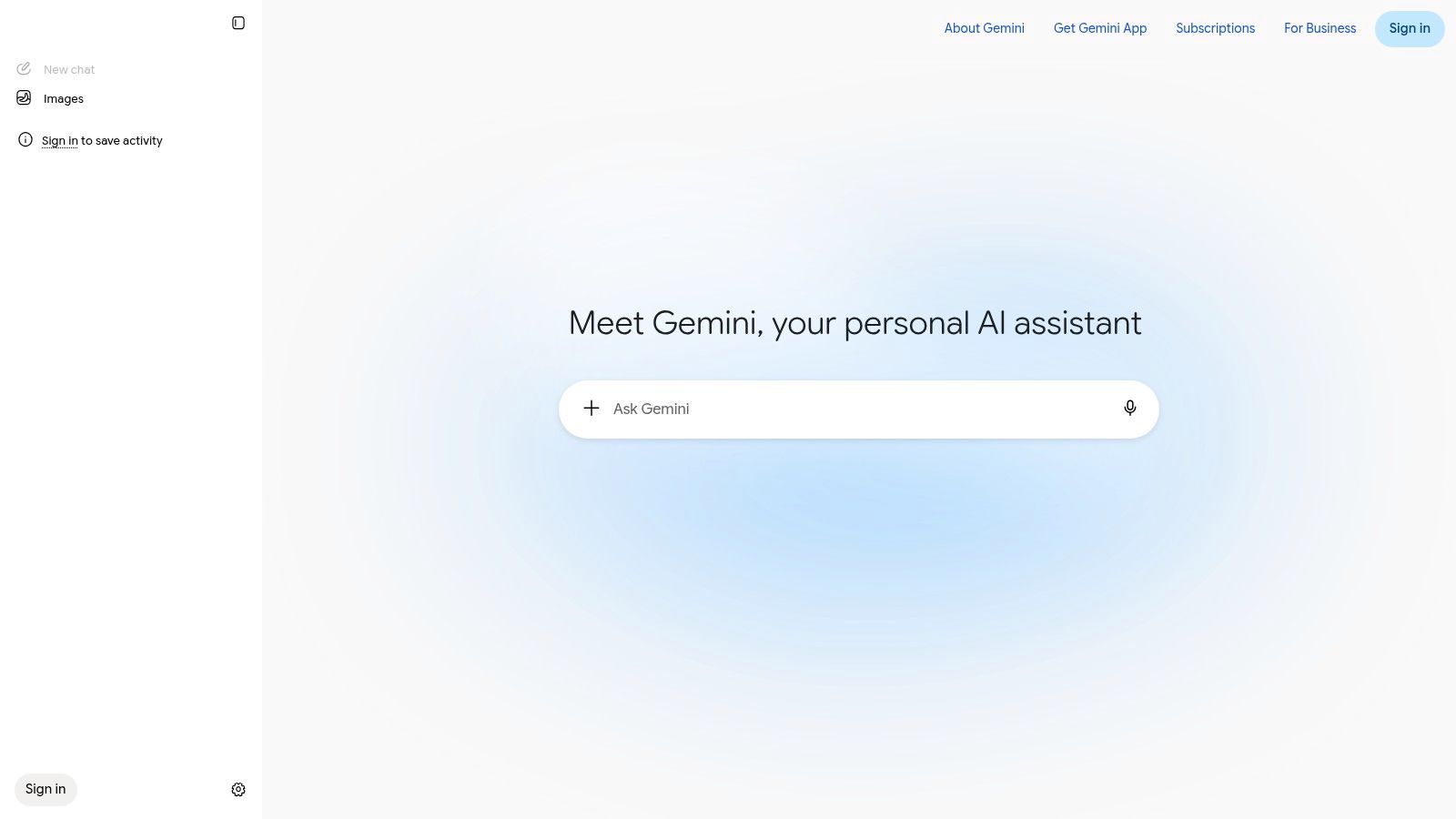
Use it for fast structure, quick summaries, and first-pass wording. Pair it with a stronger editor later if the draft needs careful polish or longer revision cycles. On its own, Gemini is a practical free option for writers who value speed and easy access on phone and desktop.
- Strong at: quick drafts, summaries, and brainstorming.
- Weak at: consistent long-run workflow control on the free tier.
- Best for: writers who want easy access on phone and desktop.
4. Grammarly
A draft can look finished and still need a final pass. Grammarly is built for that stage. The free plan gives you grammar, spelling, clarity, and tone suggestions, plus limited AI prompts for rewriting and short drafting. It earns its place after the messy work is done.
Its value is consistency. Grammarly catches the small errors that survive two or three rounds of revision. It also follows you across common writing surfaces through browser and desktop integrations, so the editing layer stays close to where you work. The free AI prompts are limited, though, so it does not replace a full drafting tool.
Use it after drafting, not instead of drafting
Start somewhere else if you need ideas, an outline, or a first version. Finish in Grammarly if you want cleaner wording and fewer surface-level mistakes. That workflow is the cleanest fit.
Editing note: Grammarly is strongest when the draft is already close. It improves clarity and tone, but it does not fix weak structure on its own.

Grammarly is a control tool, not a creator tool. That is the reason editors keep it installed.
- Best for: polishing, consistency, and final checks.
- Limit to respect: the free plan's AI prompt allowance.
- Why it stays installed: it works across a lot of common writing surfaces.
5. QuillBot
QuillBot fits a specific job in the writing process. If the draft exists but the wording feels clumsy, it gives you paraphrasing, grammar checking, a basic summarizer, and AI chat in one place. That makes it useful for tightening awkward sentences and turning dense notes into cleaner source material.
The free tier is where the trade-offs show up. Word and mode caps limit how much you can rewrite at once, so it works better for targeted fixes than for heavy lifting. A single paragraph, a rough summary, a stubborn sentence, those are the right scale. A full article usually is not.
For paragraph-level cleanup, it is straightforward. Paste in a section, compare a few options, and keep the version that reads most naturally. The point is to improve flow without losing meaning.
- Use it for: paraphrasing, simplification, and short summaries.
- Avoid using it for: long-form generation on the free tier.
- Best fit: refining text that is already drafted.
QuillBot sits in the middle of the workflow. It is not the first tool for ideas, and it is not the final tool for polish. It fills the gap between rough draft and final edit, which is exactly where a lot of writing gets stuck.
6. Perplexity
A short list of search results is rarely enough when a draft needs current facts. Perplexity handles that stage well. It combines web search with AI answers and shows cited results, so you can sort through sources before you start writing. That makes it useful for topic research, comparisons, and quick fact checks.
The free tier gives you the core workflow, but the limits matter. Pro and Research searches are capped, and the more advanced features sit behind paid access. So the tool is best for early-stage research, not endless querying.
Research first, drafting later
Use Perplexity to confirm terms, gather source-aware notes, and shape an outline. Then move those notes into a drafting tool and write for your audience. It is better at sourcing than at tone, and that is the trade-off.
Use it like a research assistant, not a writer. The citations matter most when you are checking facts, not polishing prose.
- Strong use case: cited research summaries and quick comparisons.
- Main constraint: limited Research and Pro search use on the free tier.
- Why it matters: it lowers the chance that your draft starts from a weak premise.
For informational posts, Perplexity fits at the start of the workflow. A strong pairing is Perplexity for research, then a separate drafting tool for the first version.
7. ProWritingAid
ProWritingAid suits writers who want more than a grammar pass. It is built around style and clarity reports, plus AI Rephrase and Sparks prompts, so the editing feels more like a diagnostic review than a quick cleanup. That makes it a practical fit for long-form drafts that need tighter structure, pacing, and readability before publication.
The free plan still has a real use, but only if you accept its limits. ProWritingAid connects with Word, Google Docs, Scrivener, and browsers, which helps if a draft moves across apps. The trade-off is simple. You get depth, not unlimited use. The free version caps word count and report runs, so it works best on a single draft or a focused revision pass.

Best for writers who like diagnostics
Use it after the first draft is done. ProWritingAid is strongest on mechanics, repetition, and structure problems that basic spellcheck misses. If a section drags or the phrasing starts to repeat itself, the reports make that visible fast.
- Good for: style reports, rephrasing, and deeper editorial cleanup.
- Less good for: unlimited daily use.
- Best pairing: a drafting assistant plus ProWritingAid for the edit.
It works best on text that is already close, then needs a sharper editorial pass.
8. Zoho Writer Zia AI Assistant
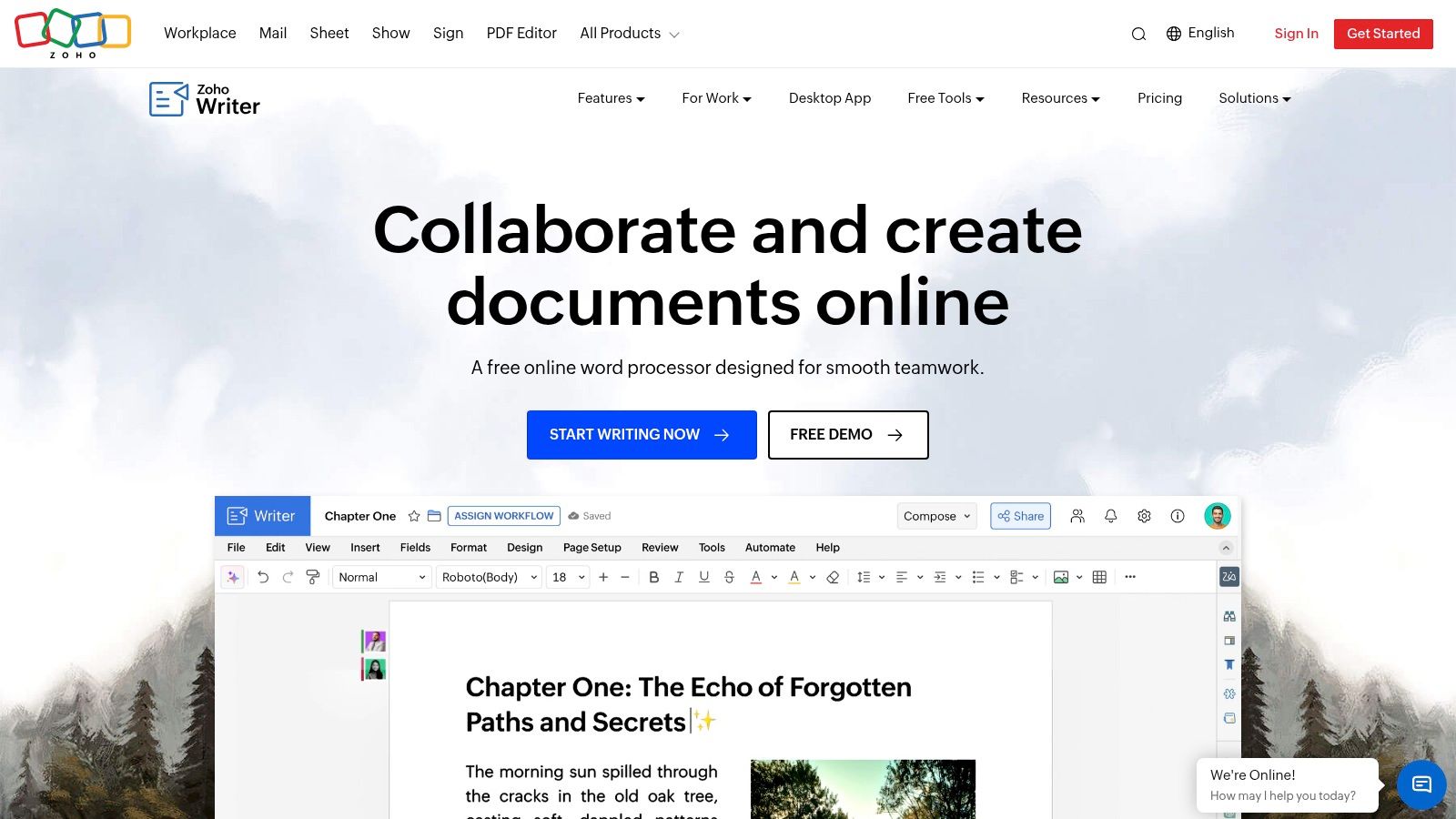
Zoho Writer is a good fit if you want a free document editor with AI built in, not bolted on later. Zia covers content generation, rewriting, summarizing, readability checks, grammar help, and plagiarism scanning inside the editor itself. That matters if you draft in a word processor first and publish later.
The advantage lies in the workflow. You write, revise, and export in one place. That reduces friction for writers preparing posts for WordPress who do not want a separate chat window open beside the draft. Zoho Writer's AI is available to Writer users at no cost by default, which makes it stand out in a market where many free tools hide useful features behind a paywall.
Best for writers who want one clean editor
Zoho Writer suits writers who do not want a fragmented toolchain. If your process starts with a blank page and ends with an export, it keeps the work in one place and the revision history attached to the draft.
Built-in AI helps most during the middle of the process, after the first pass. It is easier to adjust headings, formatting, and rewritten text when everything stays in the same document. A separate chatbot can help with ideas, but it can also pull you away from the draft.
If your site layout matters too, pairing writing discipline with a smart content structure helps. Best WordPress blog layouts is worth a look before you finalize your publishing format.
- Best for: drafting, rewriting, and export-ready documents.
- Why it stands out: the AI lives inside the editor.
- Watch for: long-form generation limits that may still send you to another chat tool for heavier drafting.
Zoho Writer feels more like a working document system than a separate AI add-on.
9. Wordtune
Wordtune is built for revision, not first-draft volume. It helps you rewrite sentences, tighten tone, and cut clutter without making the interface feel heavy. The free plan gives you 10 AI rewrites or suggestions per day and 3 summaries per month, which is enough for careful editing, not for churning out long drafts.
Use it after the draft is already in decent shape. A clumsy paragraph, a line that runs too long, a section that needs to be shorter, Wordtune handles those jobs quickly. It is less useful for building an article from nothing. That narrow scope is the point, and it works best if another tool has already handled the drafting stage.
Wordtune belongs in the finishing pass.

Good when the draft is already there
If you already know what sounds off, Wordtune gives you fast alternatives without forcing a workflow change. Editors get the most value here, especially when the job is phrasing, shortening, or tone cleanup.
- Best for: rewriting, shortening, and tone cleanup.
- Free-tier reality: daily rewrite limits and a small monthly summary allowance.
- Who gets the most value: editors who need quick options, not endless output.
If you only want better phrasing, Wordtune is efficient.
10. Rytr
A tight deadline and a small word count are where Rytr fits best. It is built for blog ideas, outlines, meta descriptions, short copy, and other compact tasks where speed matters more than depth. The free forever plan includes a 10,000 character monthly allowance, enough to test a workflow or draft a few sections, but not enough for steady high-volume publishing.
Rytr's strength is its low-friction template system. You pick a use case, choose a tone, and start fast. That helps when you do not want to spend time shaping prompts. The trade-off shows up quickly. Output usually needs a careful edit before it is ready to publish, and the character cap forces you to ration every run.

Use Rytr for early drafting, not for final polish. It makes sense if you want to test a lightweight AI writer before paying for a larger tool, especially as a solo creator who is still shaping a process. If you want a practical writing setup, start with short-form copy here, then combine it with guidance from Read More Info blog updates for the WordPress side of your publishing flow.
- Good for: short-form copy, outlines, and rough blog sections.
- Main limit: the 10,000 character/month allowance on the free plan.
- Best use: fast testing before you commit to a broader workflow.
Rytr is simple to try, but the free tier runs out quickly.
Comparison of Top 10 Free AI Writing Assistants
| Tool | Key Features | Quality (★) | Value / Price (💰) | Target (👥) | Standout (✨ / 🏆) |
|---|---|---|---|---|---|
| ChatGPT (OpenAI) | Conversational drafting, web search, file/image inputs, web & mobile | ★★★★☆ | 💰 Free tier; paid upgrades for more tools/usage | 👥 Bloggers & creators needing ideation | ✨ Versatile generalist; 🏆 great for brainstorming & outlines |
| Microsoft Copilot (free) | Free web chat, in-app Word/Excel/PowerPoint integration | ★★★★ | 💰 Free web; advanced features via Microsoft 365 | 👥 Microsoft ecosystem users, office writers | ✨ Deep Office integration; 🏆 seamless MS Office workflows |
| Google Gemini (free to start) | Chat drafting, research, Search AI integration, mobile/web | ★★★★ | 💰 Free to start; paid subs for heavier use | 👥 Google users & quick-research writers | ✨ Search-linked prompts; 🏆 source-aware quick drafts |
| Grammarly (Free plan) | Grammar, clarity, tone, limited generative prompts, broad integrations | ★★★★★ | 💰 Free with limited AI prompts; Premium for full features | 👥 Editors & polish-focused bloggers | ✨ Best last-mile editing; 🏆 tone & correctness across apps |
| QuillBot | Paraphraser, grammar checker, summarizer, browser extensions | ★★★★ | 💰 Free limits; Premium lifts caps | 👥 Writers needing fast paraphrase & clarity | ✨ Multiple rewrite modes; 🏆 quick sentence-level rewrites |
| Perplexity | Web research with citations, chat, projects/collections | ★★★★☆ | 💰 Free core features; Pro for advanced searches | 👥 Research-driven writers & fact-checkers | ✨ Cited AI answers; 🏆 strong for source-backed outlines |
| ProWritingAid | 20+ style reports, AI Rephrase, Sparks prompts, integrations | ★★★★ | 💰 Free limited checks; paid for unlimited reports | 👥 Long-form authors & editors | ✨ Deep diagnostics (style/structure); 🏆 in-depth readability tools |
| Zoho Writer (Zia AI) | In-editor AI generation, rewriting, grammar, plagiarism checks | ★★★★ | 💰 Free with built-in AI; paid Zoho plans optional | 👥 Writers wanting full web word processor + AI | ✨ Free AI inside editor; 🏆 integrated drafting & export workflows |
| Wordtune | Focused rewrites, summaries, browser extension, tone tweaks | ★★★★ | 💰 Free daily rewrites; paid for unlimited | 👥 Bloggers polishing paragraphs & tone | ✨ Fast, targeted rewrites; 🏆 concise tone control |
| Rytr | 20+ templates & tones, Chrome extension, 10k char/month free | ★★★☆ | 💰 Free 10,000 chars/month; paid tiers for more | 👥 Budget-conscious creators testing AI drafts | ✨ Many blog templates; 🏆 low-friction ideation and outlines |
Build a Free Writing Workflow You Can Keep
The best free setup is usually not one tool. It's a small stack with one drafting assistant and one editing assistant, chosen for their caps, not their slogans. If you only pick based on features, you'll end up with a tool that feels generous on day one and cramped by week two. If you pick based on workflow, the free tier lasts longer and causes less friction.
A practical workflow starts with one tool for first drafts and another for cleanup. ChatGPT, Copilot, Gemini, Perplexity, or Rytr can handle the early stage depending on how you like to work. Grammarly, ProWritingAid, Wordtune, QuillBot, or Zoho Writer can handle the final pass. That split matters because drafting and editing are different jobs. A good drafting tool helps you move. A good editing tool helps you see what still needs work.
Privacy needs a separate decision. Before you paste unpublished material, client text, or personal data into any free AI writing assistant, check how the tool handles retention, training, and human review. Free access often comes with a hidden trade-off, and that trade-off is usually control. If a tool doesn't make its data practices clear, treat that as a warning sign and keep sensitive material out of it.
The research and evidence behind these tools points in the same direction. Free tools are useful when they're placed inside a structured process, not when they're trusted to do the whole job alone. The strongest results come from deliberate prompting, human review, and a realistic understanding of usage limits. That lines up with what writers, students, and editors already know from practice. The assistant can speed up the work, but it can't replace judgment.
For most writers, the cleanest approach is to keep a small, repeatable stack. Use one tool to start the draft, one tool to tighten the prose, and one human review pass before publication. Recheck limits before each content cycle, because free plans change and usage caps can shift without warning. That habit saves more time than chasing the latest feature drop.
If you want more straightforward WordPress publishing guidance, content workflow ideas, and practical tools that help you keep a site moving, visit Read More Info. The site publishes simple, useful updates for people building and managing content without unnecessary complexity.