It takes roughly 30 minutes to launch a basic WordPress blog if you choose the right path immediately, but skipping that setup decision can cost weeks of migration work later. The practical answer is to choose WordPress.com for convenience or self-hosted WordPress.org for control, then connect a domain, install only the tools you need, publish a focused first post, and check security, speed, and discoverability before sharing it.
You're probably looking at an empty dashboard, an available domain name, and a growing list of tutorials that all seem to start in a different place. Most failed launches don't fail because WordPress is difficult. They fail because the owner chooses the wrong hosting model, installs too many plugins, spends days polishing a theme, or publishes without setting up ownership, backups, search structure, and a reliable content workflow.
WordPress has been officially available since May 27, 2003, and by 2026 it powered about 40.2% of all websites and 58.8% of websites with a known CMS (W3Techs' WordPress market data). That scale matters because the publishing interface, theme ecosystem, documentation, and support community are mature. You can move quickly, but only if you make the important decisions before the cosmetic ones.
Table of Contents
- Choosing Your WordPress Path Before You Start
- Securing Your Domain and Setting Up Hosting
- Building Your Site with the Right Tools
- Creating and Formatting Your First Post
- Optimizing for Search and Performance
- Launching with Confidence and Next Steps
Choosing Your WordPress Path Before You Start
The first decision isn't your logo, homepage color, or theme. It's whether you want WordPress.com, a managed service, or self-hosted WordPress.org, where you arrange hosting and manage the installation yourself.
WordPress.com handles much of the infrastructure for you. That's useful if you want to write, select a design, and avoid server maintenance. Self-hosted WordPress.org gives you more control over plugins, themes, data, monetization, integrations, and the technical stack, but you're responsible for updates, backups, hosting quality, and security.
The platform's broad adoption makes either route viable. Current tracking places WordPress at roughly 40% to 43.5% of all websites globally and about 59% to 61.7% of CMS-based websites, depending on the source and date (WordPress.com's market-share overview). Those figures describe different measurements, not a contradiction. They do show why learning how to create a WordPress blog transfers well across hosts and workflows.
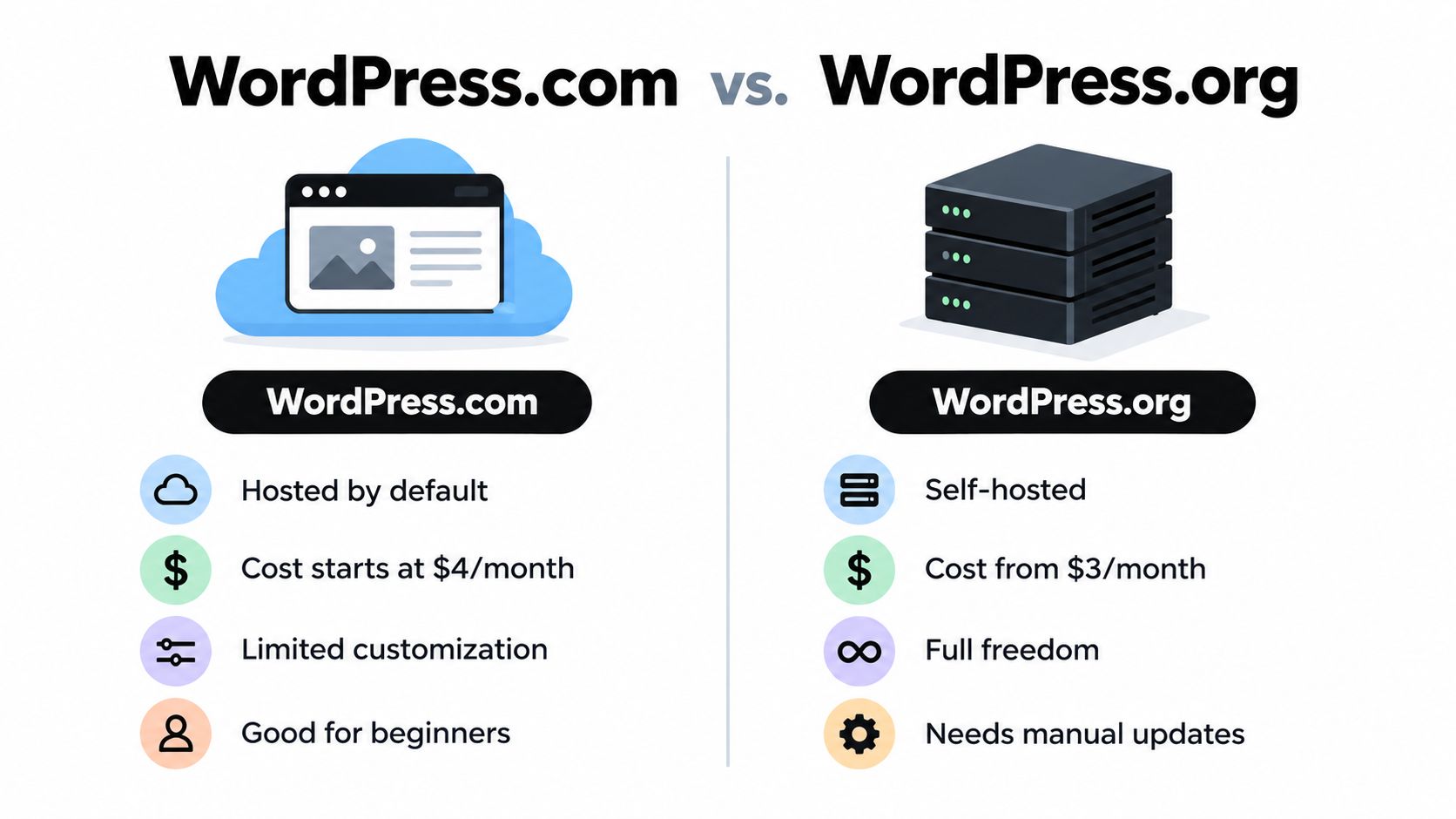
Use this decision matrix
| Feature | WordPress.com | Self-Hosted WordPress.org |
|---|---|---|
| Hosting responsibility | Managed for you | You choose and manage a host |
| Technical maintenance | Lower | Higher |
| Plugin and theme freedom | Depends on the plan | Broad control |
| Data and infrastructure control | More limited | More direct ownership |
| Best fit | Personal publishing and low-maintenance projects | Businesses, publishers, and growth-focused sites |
| Main trade-off | Convenience versus flexibility | Flexibility versus responsibility |
Choose WordPress.com when simplicity is the product. Choose self-hosting when the blog is part of a business, publication, portfolio, membership site, or long-term content asset and you want the ability to change providers and systems without redesigning your entire operation.
Practical rule: If you already know you'll need custom plugins, advanced analytics, complex forms, or full control of your files, don't start on the simpler path just to save an afternoon.
For another practical perspective on the ownership and setup choice, use this guide to starting a blog with Outrank. Decide before you write content, because changing paths later can involve redirects, media transfers, theme rebuilding, plugin replacements, and email-list adjustments.
Securing Your Domain and Setting Up Hosting
A domain is the public name people type into a browser. Hosting is the service that stores your WordPress files, database, images, and other resources so that the domain can display your site. You need both for a self-hosted blog, while WordPress.com bundles the infrastructure into its managed experience.
Pick a domain that's easy to say, spell, remember, and extend into a broader publication if your topic evolves. Avoid names that lock you into one narrow product unless that limitation is intentional. Check the registration terms, renewal conditions, privacy options, migration policy, support quality, backup approach, and staging tools before treating the lowest introductory price as the best deal. For background on choosing and managing a domain, see this domain resource.
A clean self-hosted setup
- Register the domain. Use a reputable registrar and confirm that you control the account email and renewal settings.
- Choose hosting. Look for current WordPress and PHP support, automated backups, SSL, caching, staging, clear restore procedures, and responsive support. A cheap host that makes every problem a ticket can consume more time than it saves.
- Connect the services. Your host will provide the connection instructions needed to make the domain point to the hosting account. Follow the host's current documentation rather than copying values from an old tutorial.
- Install WordPress. Most beginner-friendly hosts provide a guided or one-click installer. Create a unique administrator username and a long password, then record access details in a password manager.
- Confirm HTTPS. Visit the site with the secure address and check that the browser doesn't show certificate warnings. Test the login page, homepage, and a sample image.
WordPress.com users can follow the service's guided onboarding, select a site address, and configure the publishing settings inside the dashboard. The process is easier because the host controls the environment, but that convenience is exactly why you should confirm ownership, export options, domain terms, and plugin availability before building into the platform.
Keep administrator access limited. Create separate author accounts for contributors, use the lowest permission level that fits each person's role, and remove unused accounts. A launch is easier to recover when one compromised login doesn't provide access to every part of the site.
Building Your Site with the Right Tools
A blog can lose speed and consistency before its first post if the setup depends on too many visual effects or plugins. Choose a lightweight theme with clear controls for headings, navigation, featured images, author details, categories, and mobile layouts. A polished demo is not enough. If the theme loads unnecessary scripts or makes routine edits awkward, every future post takes longer to publish.
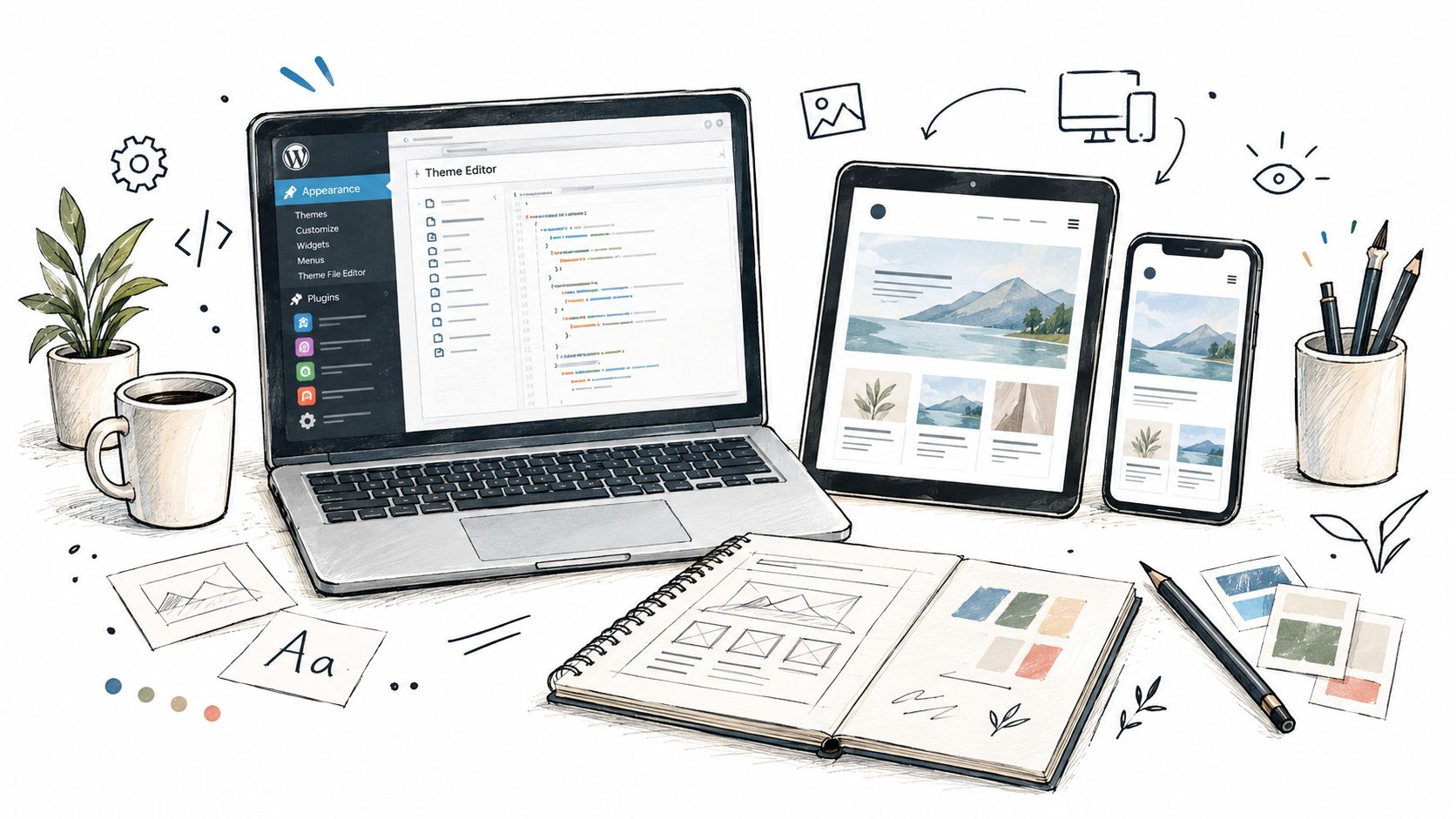
Select the smallest useful stack
Begin with one theme and a short plugin list. Add only the functions your launch needs, such as security, backups, SEO, caching or performance controls suited to the host, forms, or editorial workflows. Test every addition, keep it updated, and remove abandoned plugins. An inactive plugin still creates maintenance work and another piece of software that could expose the site.
Security rewards restraint. Recent WordPress security data attributes roughly 91% of vulnerabilities to plugins and about 6% to WordPress core, while the median time to mass exploitation is about 5 hours (Melapress WordPress security statistics). Those figures support a practical rule: install fewer plugins, select maintained projects, update promptly, and protect accounts with layered authentication. The same source reports that 70% of survey respondents implement 2FA, making two-factor authentication a sensible launch requirement rather than an advanced extra.
Page builders create a real trade-off. They can provide more visual control, but they may add editor complexity, styling dependencies, and performance overhead. Use this guide to compare WordPress page builders before committing. For a content-led blog, the native block editor often covers the job without another builder.
Free tools can support production, but only when each one has a defined role:
- Office documents: ONLYOFFICE Desktop Editors runs on Windows, Linux, and macOS and supports text documents, spreadsheets, presentations, fillable forms, PDFs, comments, and freehand drawings (ONLYOFFICE Desktop Editors).
- Online utilities: Free.ai catalogs 477 free tools across 20 categories without requiring sign-up, including an AI Humanizer, AI OCR, Keyword Extractor, PDF OCR, AI Handwriting OCR, and AI Receipt Scanner (Free.ai's tool directory).
- Free video editing: DaVinci Resolve or CapCut Desktop can export MP4. Compress the finished file with HandBrake before uploading it to WordPress.
- Keyword research: Free.ai's Keyword Extractor can support initial topic collection. Make final choices from audience problems and search intent, not from suggestions alone.
- Blog graphics: Canva handles basic thumbnails, featured images, and image edits without adding a complex design application.
- Wireframes and diagrams: draw.io is free for standalone use and works offline, making it practical for sketching site structures before building them (Zapier's process-mapping roundup).
- Customer management: EngageBay is listed as a free CRM option for small businesses in the same roundup. Add it only if the blog has a real lead-management process.
- Budgets and charts: Wave is listed as a free accounting option, while WPS Office covers budgeting, data organization, and chart creation (WPS Office).
- Diagrams and documents: Use draw.io for wireframes and LibreOffice for documents, spreadsheets, presentations, drawings, and charts. Add specialist software only when it solves a defined publishing or reporting need.
Searches for free daemon tools, free zip tools, free pro tools download, and pro tools free download can lead to unofficial or modified software. Avoid installing those files on the computer used for administrator credentials. Download from official vendors, use built-in operating-system utilities, or choose reputable open-source alternatives.

The strongest launch stack is deliberately ordinary: a fast theme, controlled plugins, protected accounts, repeatable image preparation, and tools the team can explain. That setup saves more time than an elaborate homepage builder and leaves fewer problems to diagnose later.
Creating and Formatting Your First Post
A blog becomes useful when a reader can understand one problem and one answer without fighting the layout. Open Posts, create a new post, write a specific title, and use the block editor to build a clear sequence of headings, paragraphs, lists, images, links, and calls to action.
Start with the reader's outcome. A title such as “How to Create a WordPress Blog” states the topic, while a more useful angle promises a decision or result, such as choosing the right setup without migration regret. Keep the introduction short, explain who the post helps, and answer the core question before adding background.
Build the post for scanning
Use one H1 supplied by the post title, then organize the body with H2 and H3 headings. Keep paragraphs short, use descriptive link text, and place images beside the explanation they support. Add a featured image, choose one primary category, and use tags only when they improve navigation rather than creating a cloud of near-duplicates.
The block editor lets you insert images, buttons, columns, quotes, tables, videos, and reusable patterns. Don't add a block because it exists. Add it when it improves comprehension, gives the reader a next action, or makes a complex idea easier to compare.
Before publishing, inspect four areas:
- Slug: Remove unnecessary words and keep the address readable.
- Media: Add useful alternative text and resize oversized files before upload.
- Links: Connect the new post to relevant pages and older posts, and verify every link.
- Distribution: Confirm the featured image and description that social platforms may use.
RSS is a low-friction distribution channel because readers can subscribe through feed readers and aggregators instead of remembering to revisit your site. WordPress commonly provides a site feed automatically, but you should open the feed URL, confirm that the latest post appears, and check that your theme or plugin hasn't accidentally hidden or replaced it. A practical publishing reference for post setup and formatting is this WordPress blog guide.
Don't mistake a polished draft for a tested post. Preview it at desktop and mobile widths, open the published URL in a private browser window, test the images and internal links, and read the first paragraph as someone who has never heard of your site.
Optimizing for Search and Performance
Search optimization starts with alignment, not plugin scores. Choose a topic that answers a real question, use the language readers use, and make the page easier to understand than competing results. A plugin can identify missing fields, but it cannot decide whether the post is useful enough to earn attention.
Set a readable permalink structure before your archive grows. Use a concise topic-based slug, write a unique title, and create a meta description that explains the page instead of repeating keywords. Question-form headings can work when they match the reader's intent. Answer each question directly, then add the supporting detail.
AI search makes clear structure more useful. Some SEO practitioners recommend question-form headings, FAQ schema when the content qualifies, concise answers for answer engines, and checks of robots.txt for crawler access. Some publishers are also considering llms.txt, but treat it as an optional emerging practice, not a replacement for accessible pages, clear HTML, strong writing, and accurate structured data (answer-engine guidance for WordPress).
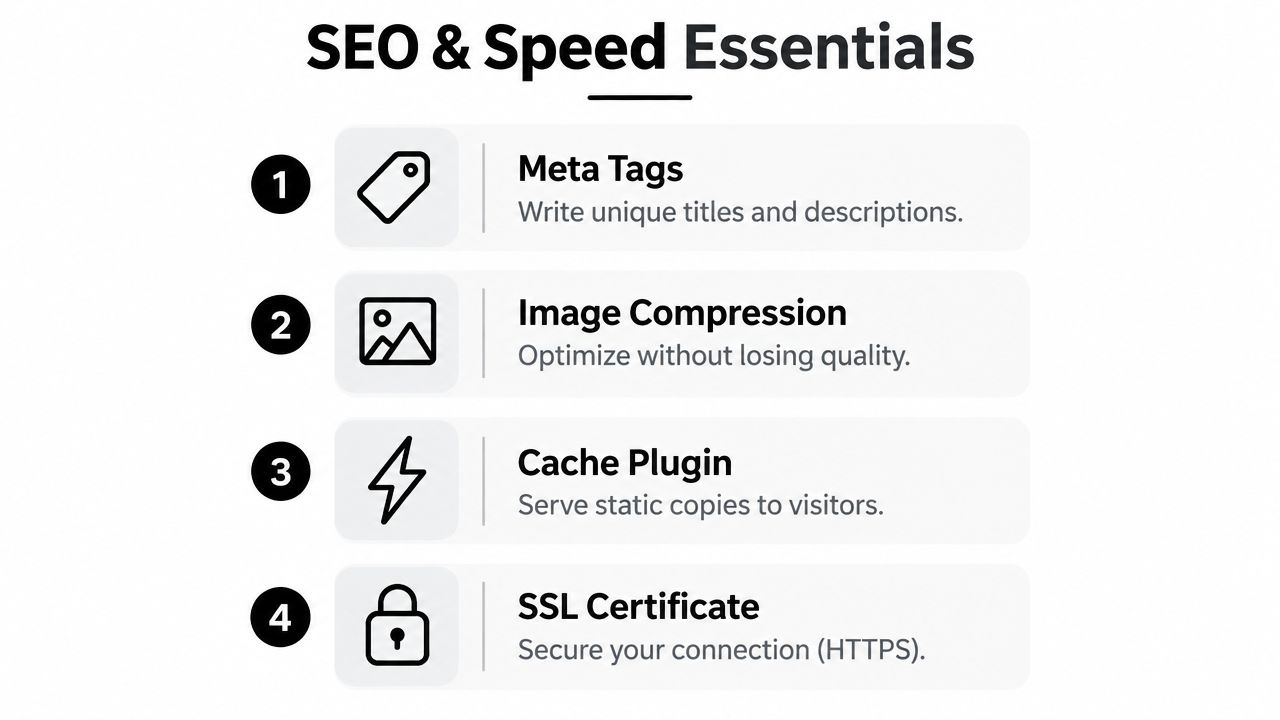
Treat speed as a deployment requirement
Core Web Vitals guidance classifies LCP under 2.5 seconds, INP under 200 milliseconds, and CLS under 0.1 as healthy thresholds (WordPress performance benchmark guidance). The same benchmarking report found that only about 44% to 46% of WordPress sites pass all three metrics on mobile, while about 65% of pageviews pass the TTFB measure. Hosting, caching, and backend response time deserve attention early.
The practical interpretation is simple: test your site with real mobile conditions, not only a fast desktop connection. Reduce oversized images, avoid autoplay media, limit third-party scripts, choose caching that matches your host, and remove plugins that duplicate each other.
Use this launch checklist:
- Check the largest element: Compress the hero image and confirm it is not loaded at an unnecessarily large size.
- Check interaction: Remove decorative scripts that delay menus, forms, or navigation.
- Check layout stability: Reserve image dimensions so content does not jump while assets load.
- Check server response: Ask your host about caching, database load, and backend bottlenecks if the initial response is slow.
- Check crawlers: Review
robots.txt, XML sitemap behavior, canonical URLs, and no-index settings before promotion.
Performance work should protect the reading experience, not turn into a score-chasing exercise. A clear page that loads reliably and answers a defined question has a stronger foundation than a visually ambitious page that keeps readers waiting. The best launch setup removes technical friction without burying the content under unnecessary tools.
Launching with Confidence and Next Steps
A successful launch isn't the moment you click Publish. It's the point at which a stranger can find the site, understand its purpose, read the post on a phone, contact you, and return later without encountering broken links, insecure forms, or missing images.
Run the site as a visitor first. Log out of WordPress, open the homepage, click the logo, test the navigation, search for a phrase that should exist, submit a contact or newsletter form if one is installed, and confirm the success message. Then check the same flow on a phone and in a private browser window.
Use a compact pre-launch review
- Ownership: Confirm domain access, registrar email, hosting access, and administrator recovery options.
- Content: Publish an About page, a contact route, privacy information, and a useful first post.
- Navigation: Make the blog, categories, search, and key pages reachable without guesswork.
- Security: Remove unused plugins and themes, update the active stack, use strong authentication, and verify backups.
- Search: Check indexing settings, titles, descriptions, canonical behavior, sitemap access, and internal links.
- Performance: Test mobile rendering, image sizes, interaction, layout movement, and server response.
- Distribution: Confirm RSS output and prepare a simple way for readers to subscribe or follow updates.
Don't assume that a technical score creates an audience. Search engines need accessible, useful content, but readers need a clear reason to trust the site and return. Publish on a schedule you can sustain, review analytics for questions rather than vanity totals, answer legitimate comments, and update posts when facts, links, or screenshots change.
Keep a small change log. Record the theme, plugins, settings, redirects, tracking tools, and backup location. When a future update causes trouble, that record turns a vague debugging session into a short comparison between what changed and what broke.
As your site grows, an opt-in form can turn one-time visitors into an audience you can reach directly. Plan that connection carefully with an opt-in form resource, and keep the form's promise specific, honest, and easy to understand.
The common assumption is that launching a WordPress blog is mainly an installation task. In practice, installation is the easy part. Ownership, restrained tooling, useful content structure, security discipline, and performance checks determine whether the site remains manageable after the first post.
Read More Info offers a straightforward WordPress publishing environment with informational posts, site search, and RSS feeds for readers who prefer feed readers and aggregators. Visit Read More Info to explore the site and see how a simple publishing structure can support ongoing content discovery.