What Is Themes in WordPress: A Practical Guide for 2026

A WordPress theme is the set of templates, styles and functions that control how your site looks and is laid out, without changing the posts and pages stored in it. The swap the theme, keep the content test captures the idea: your writing stays, while its presentation changes.

You might already have a draft homepage and a few posts, but the site still doesn't look like the demo you liked. Before you install another plugin or rebuild a page, it helps to understand which decisions belong to the theme and which belong elsewhere.

Table of Contents

What a WordPress Theme Actually Controls

A theme works like a library's shelving and room layout. The books stay the same, but their arrangement and the way readers find them can change. On a WordPress site, posts and pages remain stored when you switch themes, as do existing menu items. You may need to assign a menu to a new location, and theme-specific design settings may not transfer.

A theme typically controls:

  • Visual design: Typography, colors, spacing and content widths.
  • Shared structure: Headers, footers and navigation placement.
  • Content layouts: Individual articles, archives and search results.
  • Responsive behavior: How page elements rearrange on smaller screens.
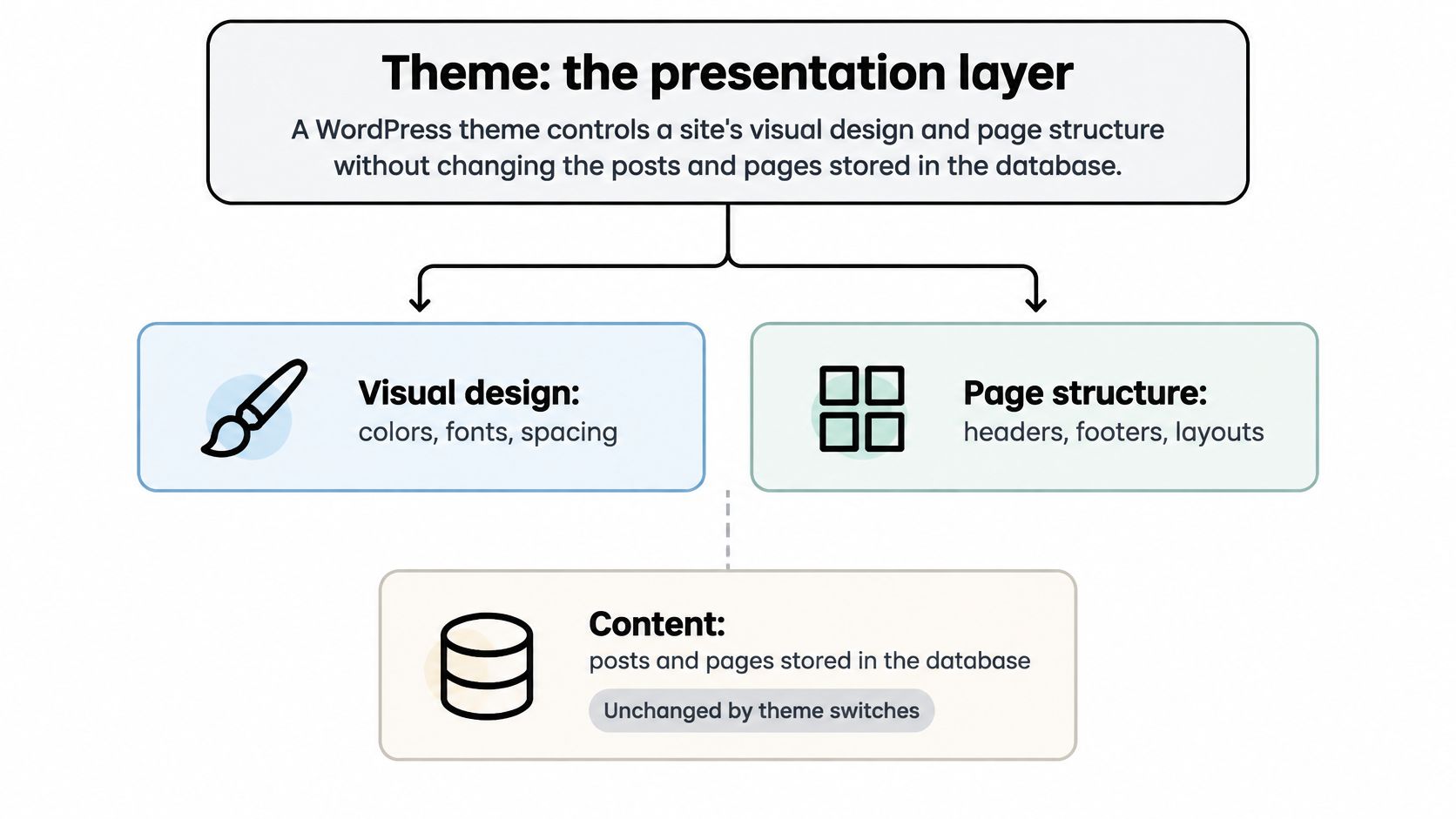
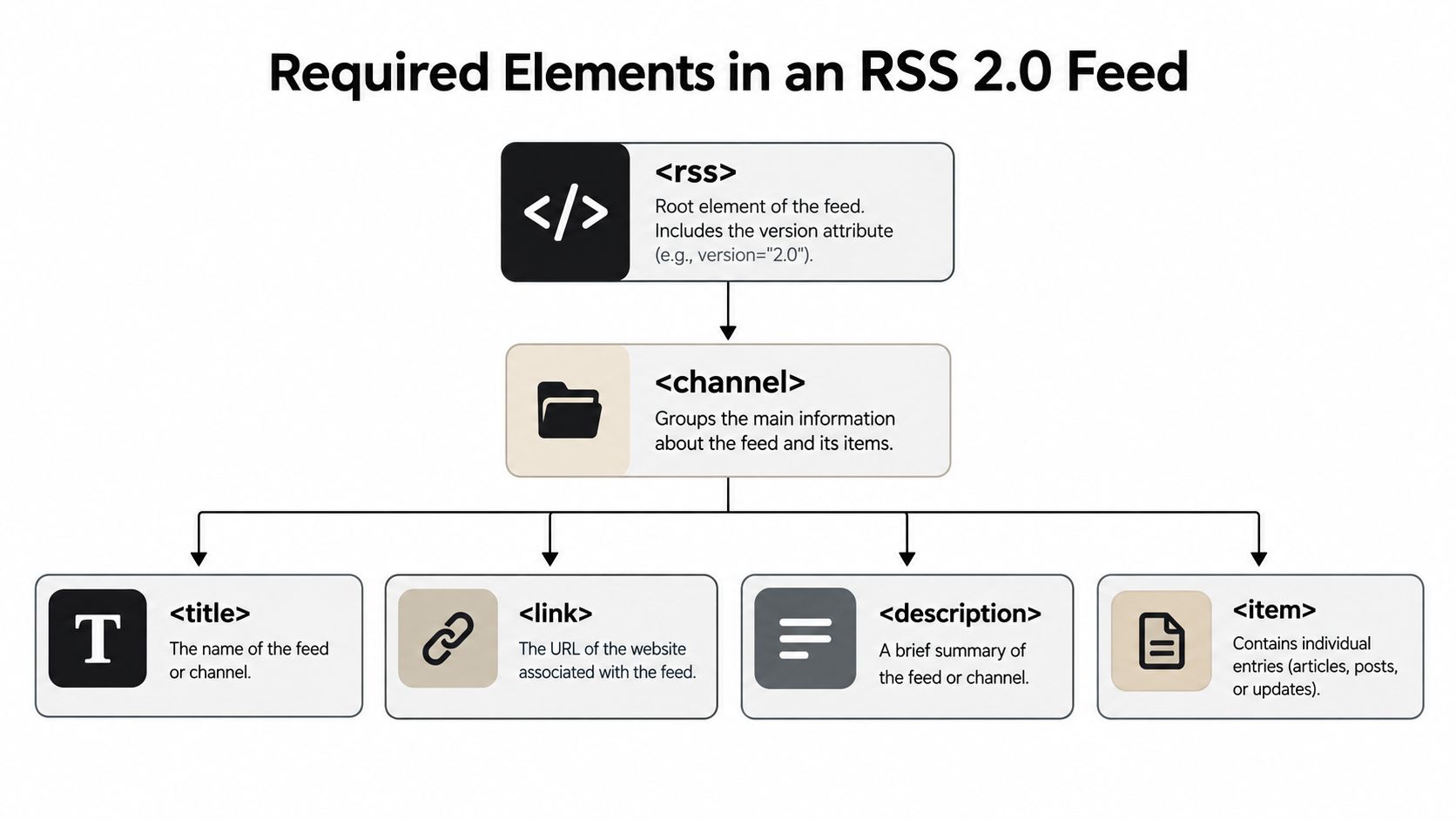
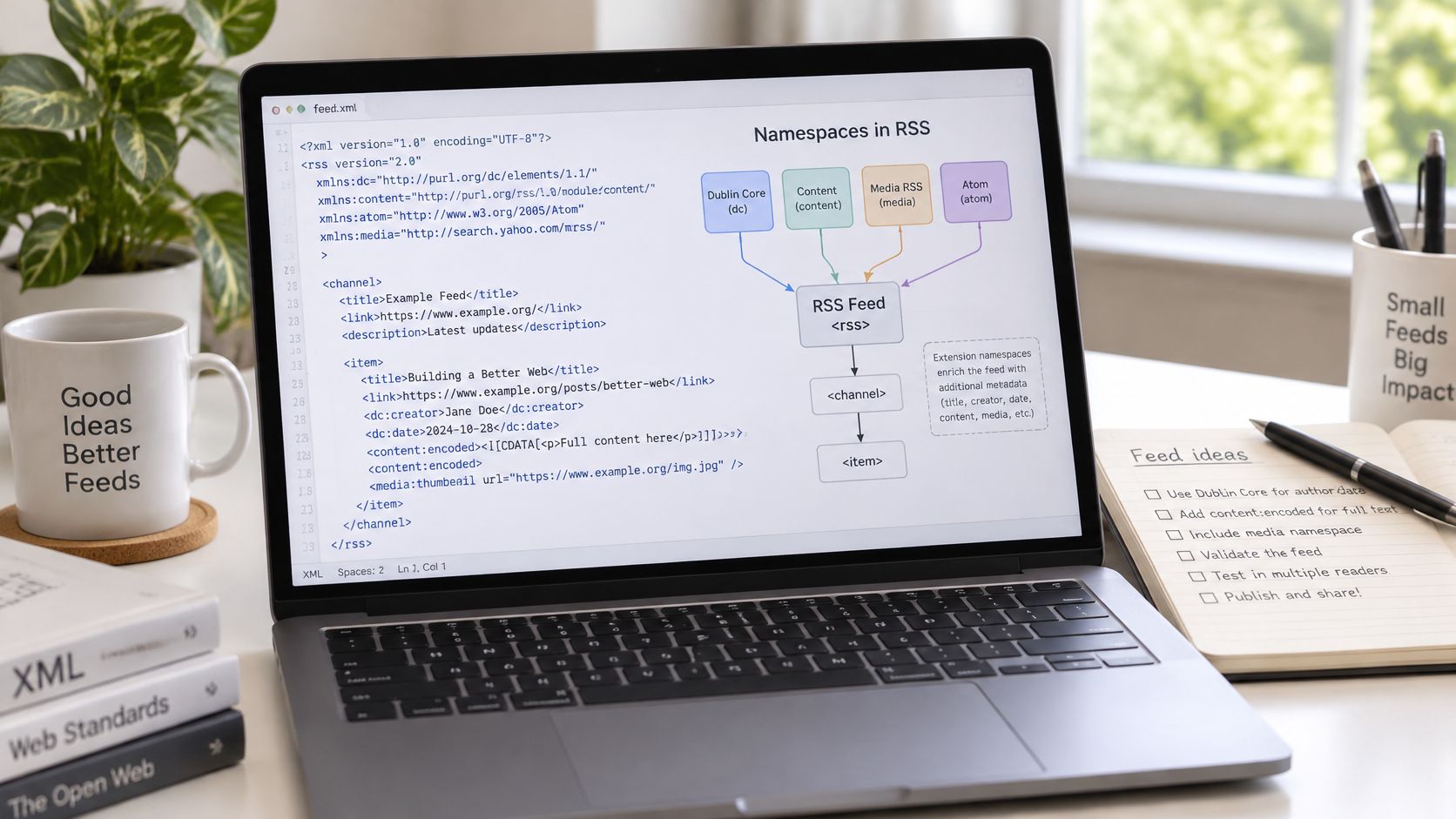
A diagram illustrating how WordPress themes control visual design and page structure while keeping site content unchanged.

The selection is broad: WordPress.com's market-share overview reported in 2025 that WordPress.org had more than 13,000 themes. Rather than comparing every design, consider how WordPress blog layouts present the material you publish, particularly long articles, navigation and archives.

A theme gives your site a layout system, an editing workflow and a starting point for accessibility. It cannot, by itself, improve page speed, strengthen weak content or guarantee accessibility compliance. It also needs ongoing maintenance. Choose a design that supports your content, but treat those other needs as separate jobs.

Templates, Styles and Functions Explained

A theme is a folder of files with distinct responsibilities. Templates arrange content, styles determine its appearance, and functions support theme features.

A useful distinction is that a template isn't the same thing as a page. Your About page contains your introduction; its template determines where the title, text, header and footer appear.

Theme components, what they control and where they live

ComponentWhat It ControlsTypical File or LocationExample Change
TemplatesPage layout for each content typesingle.php, archive.php, templates/index.html in block themesRemove the sidebar from single posts only
Template partsReusable areas such as header and footerheader.php or parts/header.htmlEdit the header once and apply it sitewide
StylesColors, fonts, spacing and element defaultsstyle.css, theme.json, Customizer settingsSet heading font family across all pages
FunctionsTheme features such as menus, widget areas and image sizesfunctions.phpRegister a second navigation menu location
AssetsStylesheets, scripts and images loaded on pagescss/, js/ and images/ foldersLoad a mobile menu script on every page
Theme headerName, version, author and license shown to WordPressComment block at the top of style.cssVersion number shown under Appearance > Themes

Say a site has twelve pages that share a footer template part. Editing that shared footer changes every page that uses it; manually rebuilding the footer inside each page would require twelve separate edits.

Where appearance ends and functionality begins

The comment header in style.css supplies information WordPress uses to identify the theme under Appearance > Themes. The stylesheet can also contain CSS, but block themes often define design settings in theme.json, including palettes, typography and spacing.

The functions.php file supports presentation-related features such as menu locations, widget areas and image sizes. Assets include CSS, JavaScript and images; a theme can load shared assets throughout the site or load particular files only where needed.

A theme doesn't automatically provide every tool mentioned in your content. Say you publish a directory organized around these topics:

  • Everyday work: free office tools, free budgeting tools, free writing tools, free crm tools and free tools online.
  • Creative work: free tools like photoshop, free drawing tools, free wireframe tools, free editing tools for videos and free tools for video editing.
  • Research and reporting: free keyword tools, a free keyword tool, free bi tools, free visualization tools and free map tools.
  • Specialist searches: free ai tools online, free ocr tools, free humanizer tools, free daemon tools and free zip tools.
  • Download queries: free pro tools download, pro tools free download and broader searches for free tools.

Those are content topics, not theme capabilities. The theme can present their articles and category pages; actual tools, integrations or interactive features need separate software or plugins.

For a hands-on check, open an installed theme folder under wp-content/themes/ using a local copy or your host's file manager. Identify its template files, styling files and functions.php without editing them.

How WordPress Picks a Template for Each Page

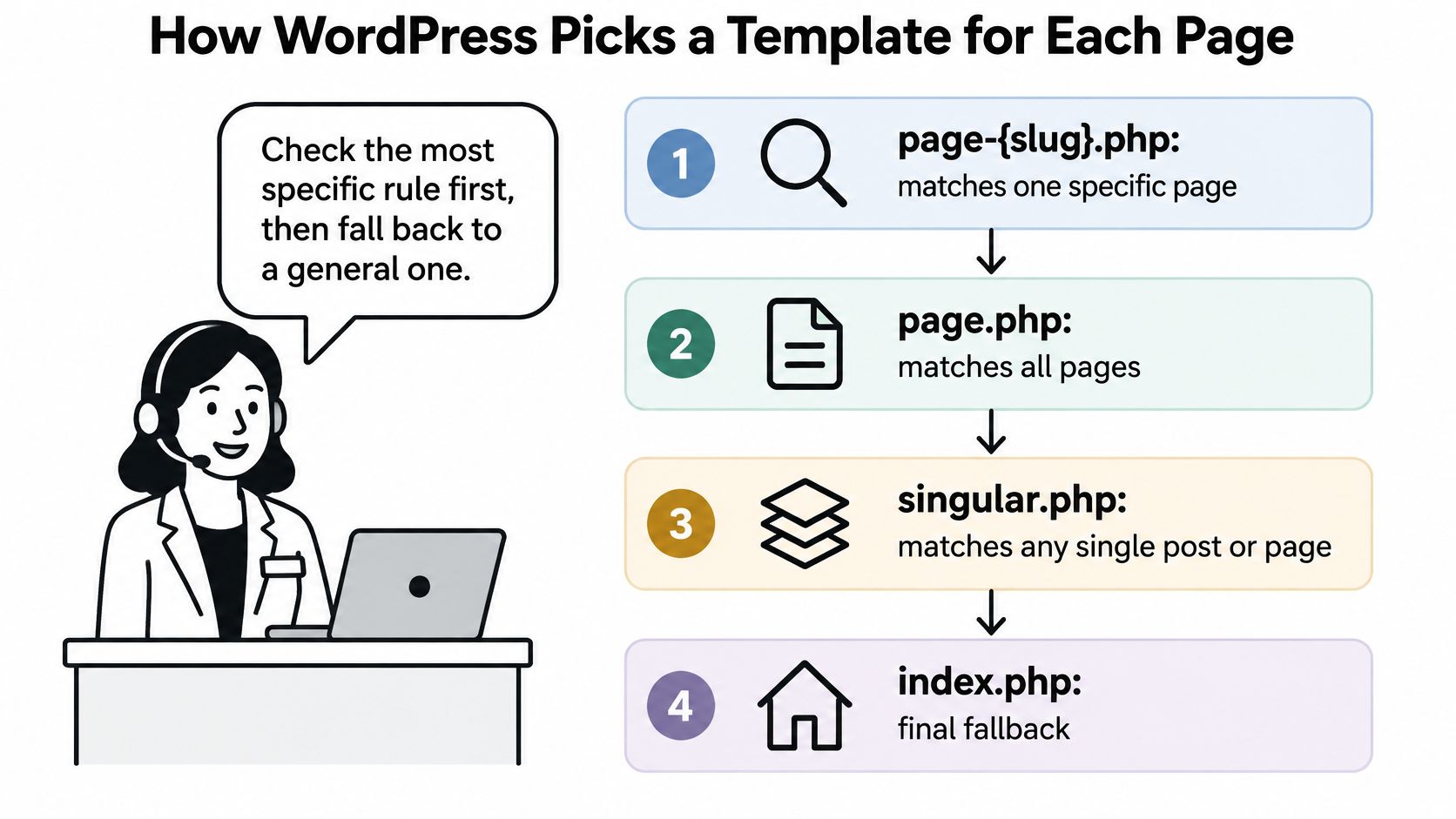
WordPress works like a receptionist following a list of rules. It checks the most specific applicable rule first, then moves toward a general fallback.

The WordPress template hierarchy documentation describes how the requested content determines which template WordPress selects.

  1. A visitor requests a URL. WordPress works out what content the request represents.
  2. WordPress identifies the query type. It might be an individual post, a category archive, search results or the front page.
  3. It checks matching templates in order. A category-specific template takes priority over a general archive template.
  4. It uses the first available match. In a classic theme, index.php is the final fallback.

A diagram illustrating the hierarchical template selection process for pages in WordPress from specific to general.

Template lookup order by query type

Query typeTemplate order checked
Single postsingle-{post_type}-{slug}.php, single-{post_type}.php, single.php, singular.php, index.php
Category archivecategory-{slug}.php, category-{id}.php, category.php, archive.php, index.php
Search resultssearch.php, index.php
Homepagefront-page.php, home.php, index.php, subject to the front-page settings

The homepage row needs care: home.php handles the posts index, which isn't necessarily the front page. When you select a static front page and there's no front-page.php, WordPress checks the page hierarchy instead.

Trace the page before changing its design

Adding search.php changes the search-results layout without changing the stored articles. You could use it to place the search form above results and provide helpful guidance when nothing matches.

If search results look wrong, confirm that you're viewing a search query and inspect its template candidates before editing global CSS. Otherwise, you might alter every page to solve a problem confined to one template.

Block themes use equivalent HTML templates, such as templates/single.html, with templates/index.html as their fallback.

Debugging habit: Find the template responsible for the page before changing the page's content.

Check your understanding: which file handles a product post without a matching product-specific template? Following the standard hierarchy, WordPress next tries single.php, then singular.php, then index.php; a commerce plugin may introduce its own template-loading behavior.

Classic Themes Versus Block Themes

Classic themes usually combine PHP templates with Customizer settings; block themes let you edit site structure visually through Appearance > Editor. Both can produce a readable website, but their day-to-day editing experience differs.
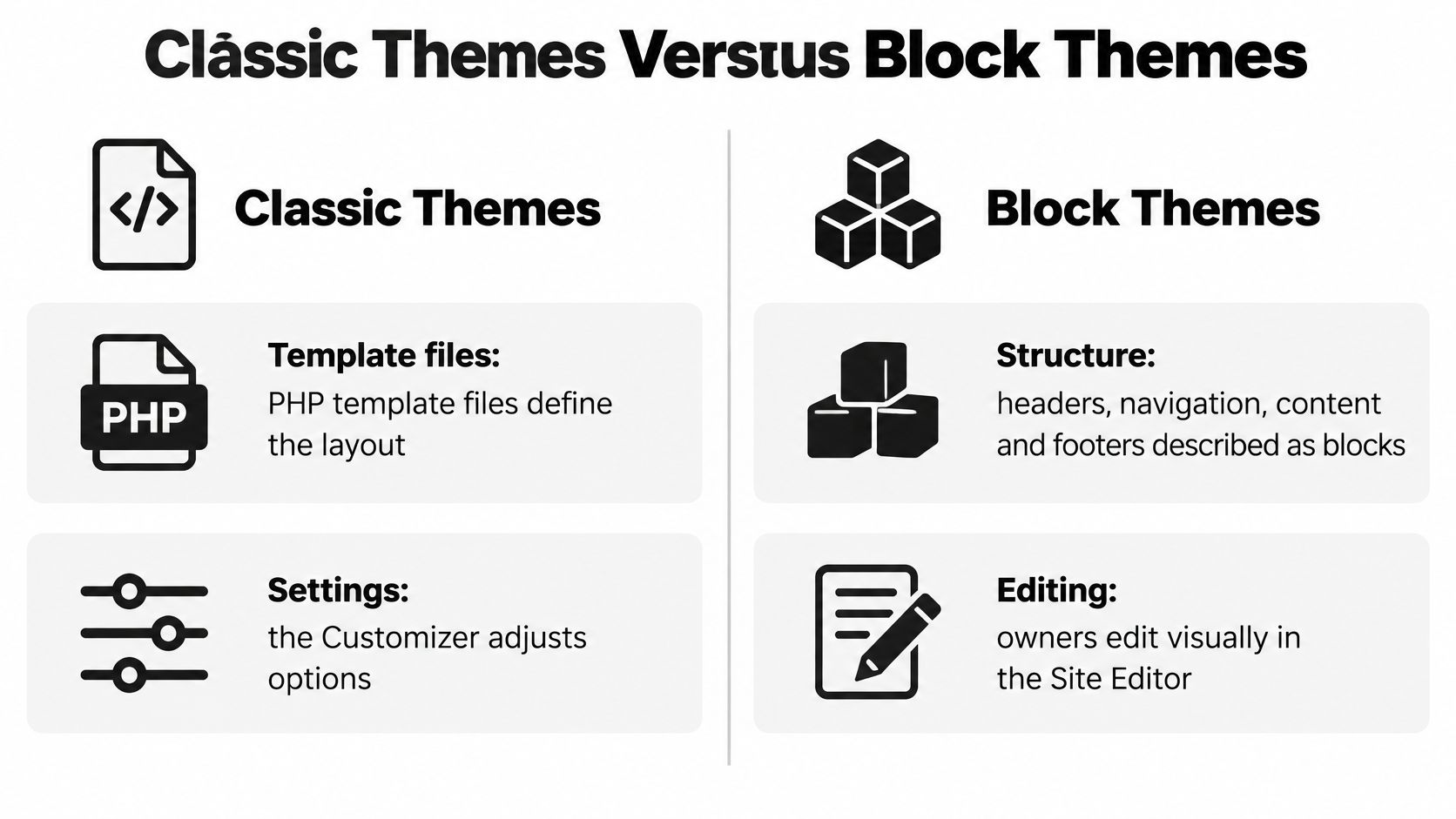
A comparison chart showing the differences between WordPress classic themes and modern block themes with icons.

Classic themes versus block themes at a glance

FactorClassic ThemeBlock Theme
Template formatPHP files such as single.php and index.phpHTML block templates such as templates/index.html
Main editing methodCustomizer and theme options panelsSite Editor with blocks
Header and footer changesUsually edited in PHP or theme optionsEdited visually as reusable template parts
Layout featuresOften added by plugins or page buildersMostly built into the block system
Best fitSites with custom PHP or existing classic settingsOwners who want visual control without writing PHP
Migration frictionLower when the site already runs on classic settingsHigher when the site relies on classic settings or custom code

These are typical patterns, not absolute boundaries. A classic theme can offer extensive visual controls, and a block theme can still require custom development.

Also, using blocks to write a post doesn't mean you have a block theme. The post editor handles article content; the Site Editor handles broader site templates and shared design elements.

Why a file change might not appear

The WordPress block-theme documentation explains that a user-saved template in the database can take precedence over a matching child-theme template and the active theme's template file.

Say you change an archive layout in the Site Editor. Later, a developer updates the corresponding HTML file, but the live archive still shows your saved layout because WordPress is using the database version.

Before removing a customization, preserve it and compare it with the file version. Resetting a saved template can discard intentional design work.

Choose according to the work you'll actually do

A block theme suits an owner who wants to adjust article widths, header spacing or archive layouts without touching PHP. Look for useful search, archive and single-post templates, not just an attractive front page.

A classic theme may be the calmer choice when an established site relies on Customizer options, custom PHP or page-builder layouts. Moving away from those arrangements can require rebuilding design work, even when the underlying writing remains available.

Ask practical questions: Can you edit the navigation confidently? Can you undo a template change? Does your existing content still render properly? The newer editing model isn't automatically the better fit.

Choose a Theme You Can Maintain for the Long Term

Use a five-point check rather than choosing from screenshots alone:

  1. Match the content. A text-heavy publication needs comfortable article pages and discoverable archives, not a portfolio-first grid.
  2. Inspect the templates. Test search, archives and individual posts, and apply sound responsive design principles on smaller screens.
  3. Choose a manageable editor. Pick the model you can confidently use and troubleshoot.
  4. Check portability. Identify plugin dependencies, export options and theme-specific content features.
  5. Review upkeep. Check update activity, compatibility with your WordPress version and accessibility behavior.

WordPress.com's State of the Word recap reported that block-theme adoption grew by more than 40% in 2025 and exceeded 1,000 themes, making the editing-model choice a practical consideration.

We publish general-interest WordPress articles at Read More Info and provide open feeds for posts and comments. For that publishing model, readable archives, search and lightweight presentation matter more than elaborate effects.

Check safety before shortlisting

Download themes only from WordPress.org or the vendor's official store. Avoid nulled copies, which often carry malware, and confirm the last update date and compatibility.

If ongoing technical upkeep isn't work you want to own, 1stNet AI Ltd's guide to alternatives to maintaining a WordPress site offers another decision path. Otherwise, shortlist three themes, run the checks and choose the one you could still maintain after two years.

How to Install and Customize a Theme Safely

Treat a theme change as a small deployment, not a cosmetic click. Before changing the live site, prepare a way back.

This is the kind of backup-and-staging setup to establish first.

A person using a laptop to manage website backups while viewing a staging site on a monitor.

Prepare and install

  1. Back up files and the database. Use your host's backup tool or a backup plugin such as UpdraftPlus, and confirm how restoration works so you can recover promptly. The common slip is activating first and discovering afterward that the backup is incomplete.

  2. Create a staging or local copy. Use your host's staging feature or a local WordPress installation when the site has live traffic or custom code. Don't assume a theme preview will reveal every plugin conflict or layout issue.

  3. Install the theme without rushing activation. Open Appearance > Themes > Add New, search, preview and click Install; for a purchased theme, use Upload Theme with the installable theme ZIP. Uploading the vendor's entire download bundle instead of the theme ZIP is a common mistake.

  4. Activate and inspect the existing structure. Check menu assignments, widget areas and the homepage under Settings > Reading, because the new theme may expose different locations and layouts. Don't mistake an unassigned menu or displaced widget for deleted content.

If you're also setting up the underlying publication, the guide to creating a WordPress blog helps separate initial setup tasks from theme changes.

Customize and verify

  1. Use the editing interface intended for the theme. In a block theme, open Appearance > Editor for templates, template parts and global styles; in a classic theme, use Appearance > Customize for supported colors, fonts and header options. A common slip is editing a shared template when you meant to change only one page.

  2. Keep file-level code changes in a child theme. This protects your work from replacement during parent-theme updates. Don't paste permanent modifications directly into the parent theme's PHP or CSS files.

  3. Test before publishing. Check desktop and mobile views, search, forms, article pages and keyboard navigation, then publish the tested changes. Looking only at the homepage while logged in can hide problems that ordinary visitors encounter.

For help scoping work beyond built-in controls, DesignStack's resource on customising WordPress themes with DesignStack provides context for planning customization.

Use this video alongside your own dashboard, since available controls depend on the active theme.

Before going live: Keep the previous theme installed and the backup accessible until you've checked the replacement as a visitor.

What a Theme Cannot Fix on Its Own

The most consequential myth is that an accessibility-ready theme guarantees an accessible website. The WordPress accessibility guidance says the label represents minimum theme-review requirements, not a guarantee of WCAG 2.2 Level AA compliance; its practical checks also include text resizing to 200%.

Your content, plugins and customizations still matter. A usable theme can't compensate for missing image descriptions, confusing headings, unlabeled forms or color choices that make text difficult to read.

Separate design problems from site problems

A lighter theme can reduce presentation overhead, but it won't repair slow hosting or remove the cost of heavy plugins. Likewise, a polished layout won't improve weak article content, correct missing search-engine settings or make inconsistent source images suitable for every display.

For a larger publication with integrations and complex content structures, Wonderment Apps' discussion of WordPress development for content-rich platforms provides context for work that extends beyond choosing a theme.

Run a reader-focused acceptance check

  • Keyboard access: Move through menus, search and forms without a mouse, and confirm that focus remains visible.
  • Heading order: Use headings to express document structure, not merely to produce larger text.
  • Contrast and resizing: Check readable color combinations and confirm enlarged text doesn't overlap or disappear.
  • Forms and images: Provide meaningful field labels and appropriate alternative text.
  • Skip links: Verify that readers can bypass repeated menus and reach the main content.
  • Reduced dependencies: Check core content and menus with JavaScript or CSS disabled, and investigate blocked functionality.

These checks are a starting point, not a complete accessibility audit or legal determination. Choose a theme that reduces avoidable barriers, then keep testing the actual site you publish: a theme is a starting risk reduction, not a compliance shortcut.


Visit Read More Info for general-interest WordPress articles that help you make practical decisions about your site. Use them while comparing themes, and subscribe to our posts or comments feed in your RSS reader to follow new articles or discussions.

WordPress Scheduled Post Not Publishing: How to Fix It

You scheduled the article, closed the editor, and expected it to appear while you were doing something else. Now the publication time has passed, the homepage hasn't changed, and WordPress says Missed schedule. Or the editor says Published, but your readers still can't find it.

A WordPress scheduled post not publishing isn't always a cron problem. Start by separating a late trigger from a failed publishing event, a timezone mismatch, and a cached page. That distinction determines which fix is worth making.

Table of Contents

Match Your Symptom to Its Cause

Use this symptom table to choose your first check before changing settings.

Scheduled post symptoms, likely causes and first checks

SymptomMost likely causeFirst check
Missed schedule that clears only after a visitor loads the siteWP-Cron ran late, with no requests near the scheduled timeCompare the scheduled time with the first page load after it in your access logs
Missed schedule that persists after a manual cron runStuck or failed publish event, or a post-state problemRun wp cron event list and confirm the publish event is still queued
Post is live but readers see the old versionPage, host or CDN cache serving stale HTMLOpen the post in a private window, then purge all cache layers
Post publishes two hours off, or one hour off after a clock changeFixed UTC offset or timezone mismatchCompare Settings > General time with the post's scheduled timestamp
Post stays in Scheduled after a plugin or theme updatePlugin conflict or a hook that alters publishingOn staging, switch to a default theme and check whether the post publishes
Cron output shows HTTP errors or timeoutsLoopback request blocked by firewall, SSL or host rulesRun Site Health and check the loopback test result
Post is published but missing from the feedCached feed URL, or publication after the last feed refreshLoad /feed/ in a private window after purging cache

Treat the middle column as a working diagnosis, not a verdict. A matching symptom tells you where to inspect first, but you still need evidence before changing the server configuration.

Record the failure before fixing it

Write down the scheduled timestamp, including the timezone, and when the post really became publicly available. If it never appeared, record when you checked and what status WordPress displayed.

Also note the last relevant change: a plugin update, theme switch, hosting move, security rule, or cache adjustment. Keep the post ID with those notes so you don't accidentally compare a draft with a different published article.

Practical rule: Change one thing, run a controlled publishing test, and record the result before changing something else.

WordPress's explanation of its request-triggered scheduling mechanism helps explain why an overdue post doesn't necessarily indicate defective content. Missed schedule is a timing signal, not proof that the article needs rewriting.

If an announcement must be live immediately, publish it manually after recording the evidence. Then troubleshoot with a disposable test post rather than repeatedly changing the date on important content.

How WP-Cron Decides When Your Post Goes Live

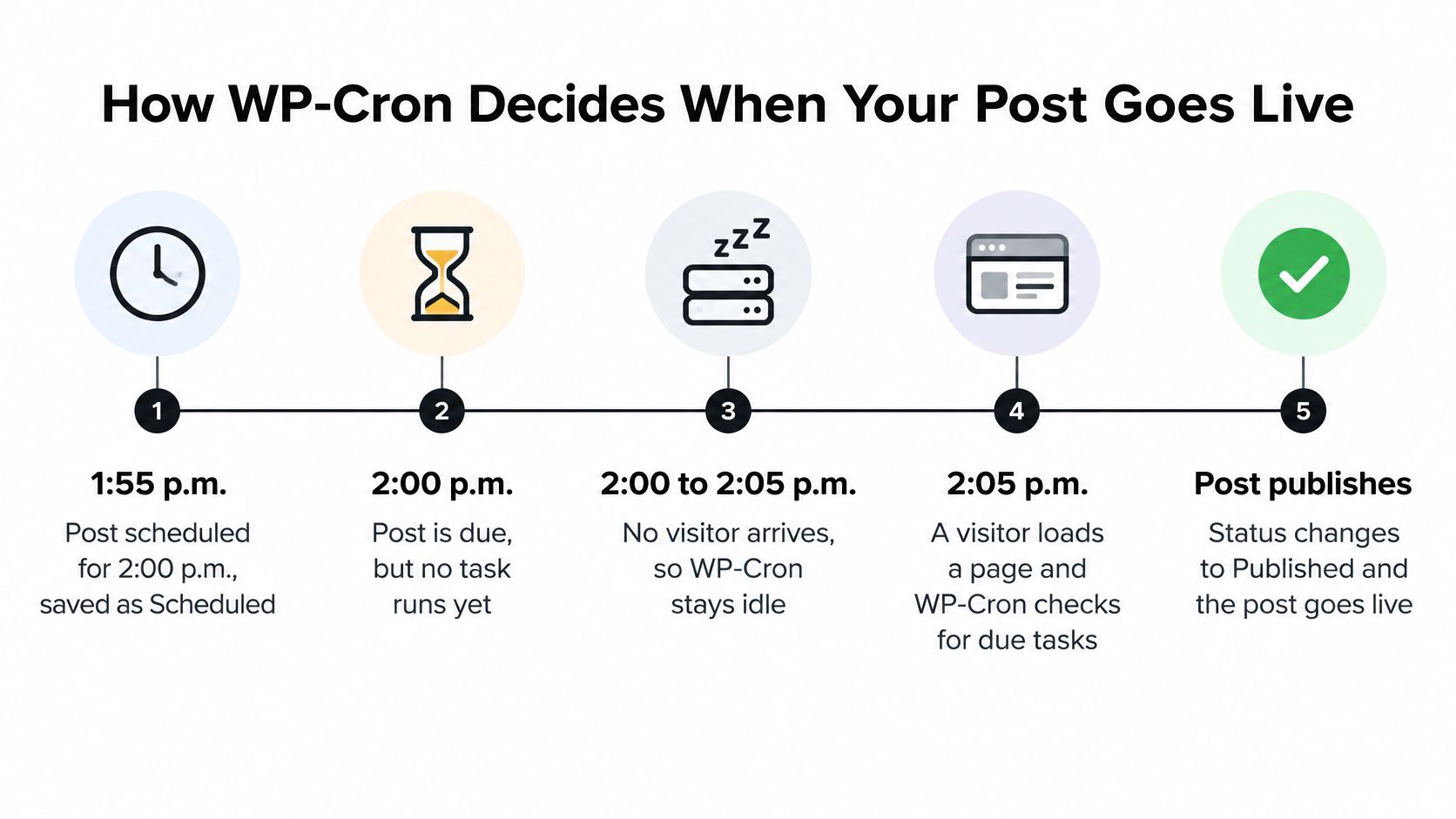
WordPress doesn't have an always-running scheduler checking your post every moment. Its native WP-Cron mechanism checks for due work when a page request reaches WordPress.

The process is easier to understand as a sequence.

An infographic showing the five-step process of how WP-Cron triggers a scheduled WordPress post publication.

Consider the example in the WordPress Cron documentation: a post scheduled for 2:00 p.m. may not be processed until 5:00 p.m. if no page loads occur between those times. That's 180 minutes of lateness in that example, not a universal maximum.

Follow the publishing event

  1. The editor saves a future publication time. WordPress stores the post as scheduled and queues its publishing event.
  2. The scheduled instant arrives. Without a request that triggers WP-Cron, the event remains waiting.
  3. A visitor reaches WordPress afterward. WP-Cron checks the queue and identifies overdue work.
  4. The publishing task executes. The publish_future_post event attempts to publish the associated post.
  5. The post becomes public. Its status changes to Published, making it eligible to appear in the site's public listings and feed.

This is why quiet sites and overnight publishing windows are vulnerable to late triggers. The selected timestamp tells WordPress when the task becomes due; it doesn't independently wake the server.

A system scheduler works differently. It initiates a command on its own clock rather than waiting for visitors, but it doesn't automatically replay a missed invocation. WP-Cron retains due events for a later opportunity.

Separate lateness from failure

Lateness is the gap between the intended publication time and the successful cron trigger. Failure means the event doesn't complete, potentially because execution is disabled, a request is blocked, resources are exhausted, or code interrupts publishing.

The interval between successful triggers governs trigger-related lateness. It doesn't guarantee that the publishing operation itself will succeed once invoked.

For a visual walkthrough, the accompanying video provides another way to follow the scheduling workflow.

If your evidence points to a late trigger, editing the article or switching themes won't address that mechanism. You need a dependable way to invoke scheduled work.

How to Set Up a Server Cron Job Step by Step

A server cron job is useful when publication shouldn't depend on visitors. It replaces the trigger, not WordPress's publishing logic, so it won't repair every stuck post.

Before editing configuration, save a backup and confirm the correct WordPress directory and hosting account. If you're still establishing the site, the WordPress blog setup guide provides the broader setup context.

Configure the replacement safely

  1. Prepare the configuration change. Open wp-config.php and locate the line telling you to stop editing. The setting to add above it is define('DISABLE_WP_CRON', true);, but don't activate it until the replacement job works.

  2. Create the server job. In cPanel's cron interface or your account's crontab, use an every-minute schedule with the command cd /path/to/wordpress && wp cron event run --due-now. Replace the directory with the actual installation path, and use the full WP-CLI executable path if your host requires it. In crontab format, the schedule fields are * * * * *.

  3. Run the command manually. Execute it as the same account that will run the scheduled job. Check for PHP errors, permission failures, and an incorrect working directory. A successful shell session under a different user doesn't prove the hosting scheduler has the same access.

  4. Inspect the pending event. Run wp cron event list while your test post is still scheduled. Look for publish_future_post, check its arguments against the post ID, and compare its next run with the intended publication time.

  5. Confirm unattended execution, then disable visitor-triggered cron. Verify that the host actually invokes the job, activate the prepared DISABLE_WP_CRON setting, and observe a scheduled post without loading the public site. Use the scheduler's logs and the editor to check the result.

If WP-CLI isn't available, configure the host scheduler to request wp-cron.php using curl on a five-minute interval. With SITE_URL set to your site's real base address, the command can use curl --fail --silent --show-error "$SITE_URL/wp-cron.php". This introduces a wider trigger window and still depends on a successful HTTP request.

Check the result, not just the configuration

Diagnostic commands and healthy results

CheckCommand or locationHealthy result
List pending eventswp cron event listThe matching publish_future_post event appears with a next run near its scheduled time
Run due events nowwp cron event run --due-nowNo PHP errors, and a due test post changes to Published
Test cron spawningwp cron testCron spawning and loopback succeed when testing native WP-Cron
Confirm WP-Cron is disabledwp-config.php, DISABLE_WP_CRONSet to true only after the replacement job is confirmed
Confirm loopback worksTools > Site HealthNo unexplained loopback or REST errors
Confirm host job existsHost cron panel or crontab -lThe every-minute job has the correct WordPress and executable paths

wp cron test can warn when native WP-Cron is intentionally disabled. That warning alone doesn't invalidate a working direct WP-CLI job.

If shell access is blocked, send hosting support the exact command and ask them to configure and verify it. Never disable the existing trigger without a working replacement.

Fix Stuck Events and Missed-Schedule Loops

A real cron job isn't the end of the fix. A WordPress Trac report documents posts remaining in Missed schedule despite an every-minute system job running wp cron event run --due-now.

That report supports a narrower conclusion than “cron is broken”: successful invocation doesn't prove a specific post completed its publishing transition.

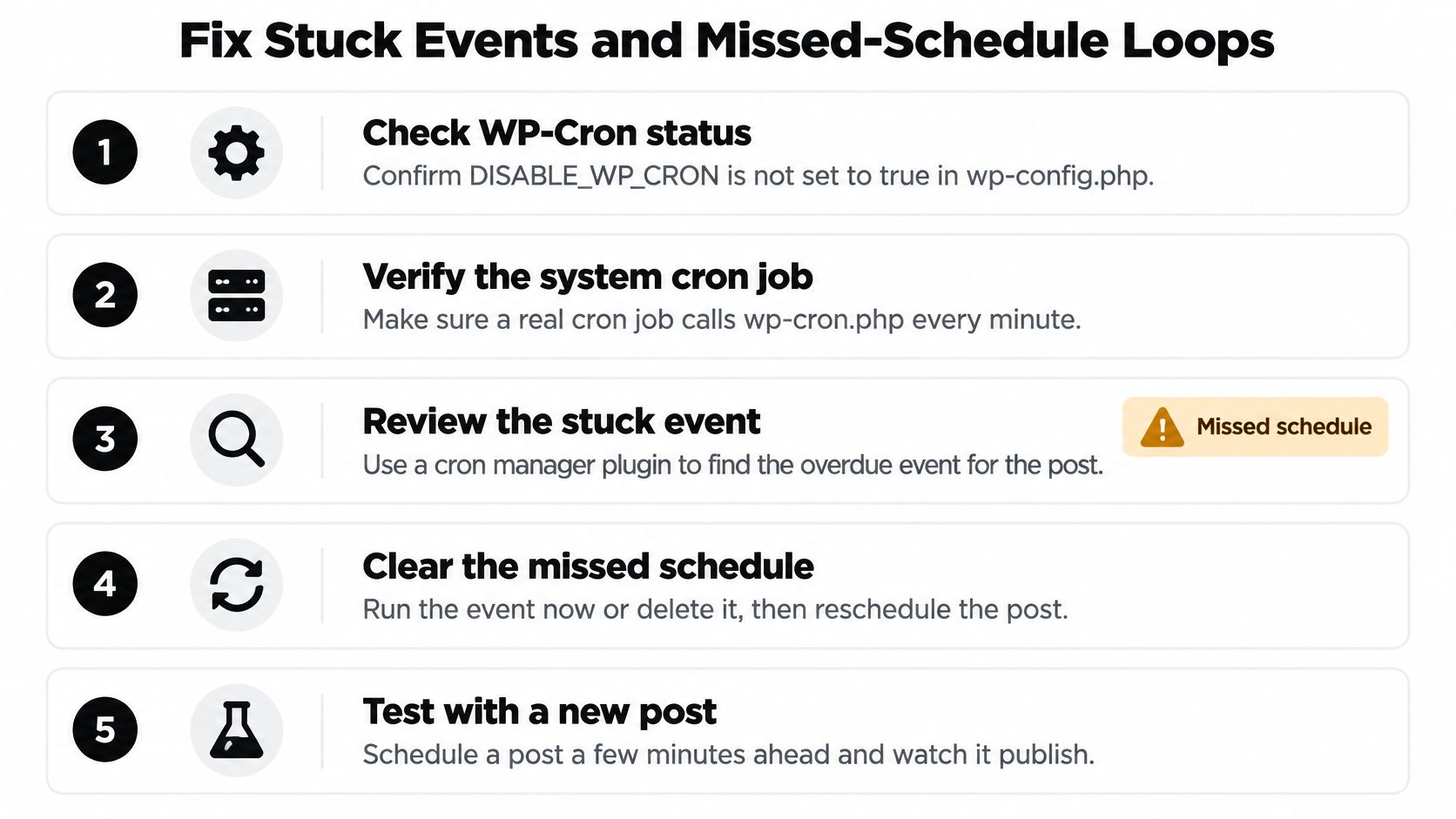
Use the checklist as a reminder, while keeping the distinction between native WP-Cron and a verified replacement job clear.

A step-by-step infographic titled Fix Stuck Events and Missed-Schedule Loops for troubleshooting WordPress scheduling issues.

Inspect the event before changing the interval

Start with the queue. Run wp cron event list and locate the event associated with the affected post. If it's missing while the post remains scheduled, re-save the intended date and time, then inspect the queue again.

A missing event is evidence of a scheduling or state inconsistency, not proof of a particular plugin's guilt. Avoid deleting unrelated events while investigating.

Next, execute due work. Run wp cron event run --due-now, preserve the output, and check the post's status immediately afterward. If the command runs but the post remains overdue, inspect PHP and server logs covering that execution.

Look for a fatal error, timeout, or interrupted request rather than assuming a shorter interval will help. A command's overall success message isn't a substitute for checking the affected post.

Distinguish HTTP restrictions from post-state problems

Then check loopback behavior. Review Tools > Site Health and investigate firewall, SSL, authentication, or hosting restrictions when HTTP requests fail. An HTTP-based cron job can be invoked successfully by the scheduler yet fail to reach WordPress.

Direct WP-CLI execution is different: it doesn't require that same HTTP loopback path to invoke due events. Don't diagnose a CLI publishing failure solely from a loopback warning.

Finally, inspect the post itself. Confirm you're looking at the intended post ID, not a second draft or a similarly named article. Check for a confusing slug, unexpected status changes, or publishing customizations before re-saving or manually publishing.

Keep cron output, server logs, Site Health results, and the post's status together. None tells the whole story alone.

If the same post fails after two controlled manual runs, escalate with the exact command, timestamps, post ID, and relevant log lines. Repeatedly installing cron plugins or changing intervals can obscure the original fault without resolving it.

Timezone and Daylight Saving Traps to Check

Before treating a post as overdue, compare WordPress's displayed current time, its configured timezone, the audience's local time, and the post's scheduled timestamp. Write those values together so you're comparing actual instants rather than clock labels.

Open Settings > General and check both the timezone selector and the displayed time. The timezone troubleshooting explanation distinguishes named regional zones from fixed UTC offsets, which don't adjust for daylight saving.

Timezone setting types and how they behave

Setting typeExampleDaylight saving behaviorRisk for scheduled posts
Named city zoneEurope/BerlinAdjusts automatically at regional seasonal transitionsLowest risk for single-region publishers
Fixed UTC offsetUTC+1Doesn't adjust; local expectations can shift by an hour in summerOften a hidden cause after manual setup
UTCUTC+0Never shiftsUseful for global embargoes, but readers must convert time
Server or PHP timeHost-definedCan differ from WordPress time after custom codeInvestigate when displayed time looks wrong

Test the intended instant

A fixed offset can produce a post that appears late even though WordPress has correctly queued it for the configured instant. For example, an intended local morning publication can appear an hour later during summer when the site remains on a winter offset.

Don't assume the direction of the discrepancy. Compare the actual regional offset on the publication date, especially around a clock change.

Choose the convention that matches your editorial operation:

  • Regional publication: Use a named city zone when editors and readers expect a consistent local publication hour.
  • Global announcement: Consider UTC when an embargo or coordinated release must refer to the same instant worldwide.
  • Distributed editorial team: Document whether schedule entries mean publisher-local time, audience-local time, or UTC.

Check custom time handling

Server or PHP time can diverge from WordPress display time when custom code or plugins change timezone handling. If the values disagree, inspect that customization rather than repeatedly correcting individual post dates.

During the week of a daylight-saving transition, schedule a disposable post five minutes ahead and confirm the expected local publication time. Record the zone and date with the result so another editor can reproduce the test.

Caching and Plugin Conflicts That Hide Published Posts

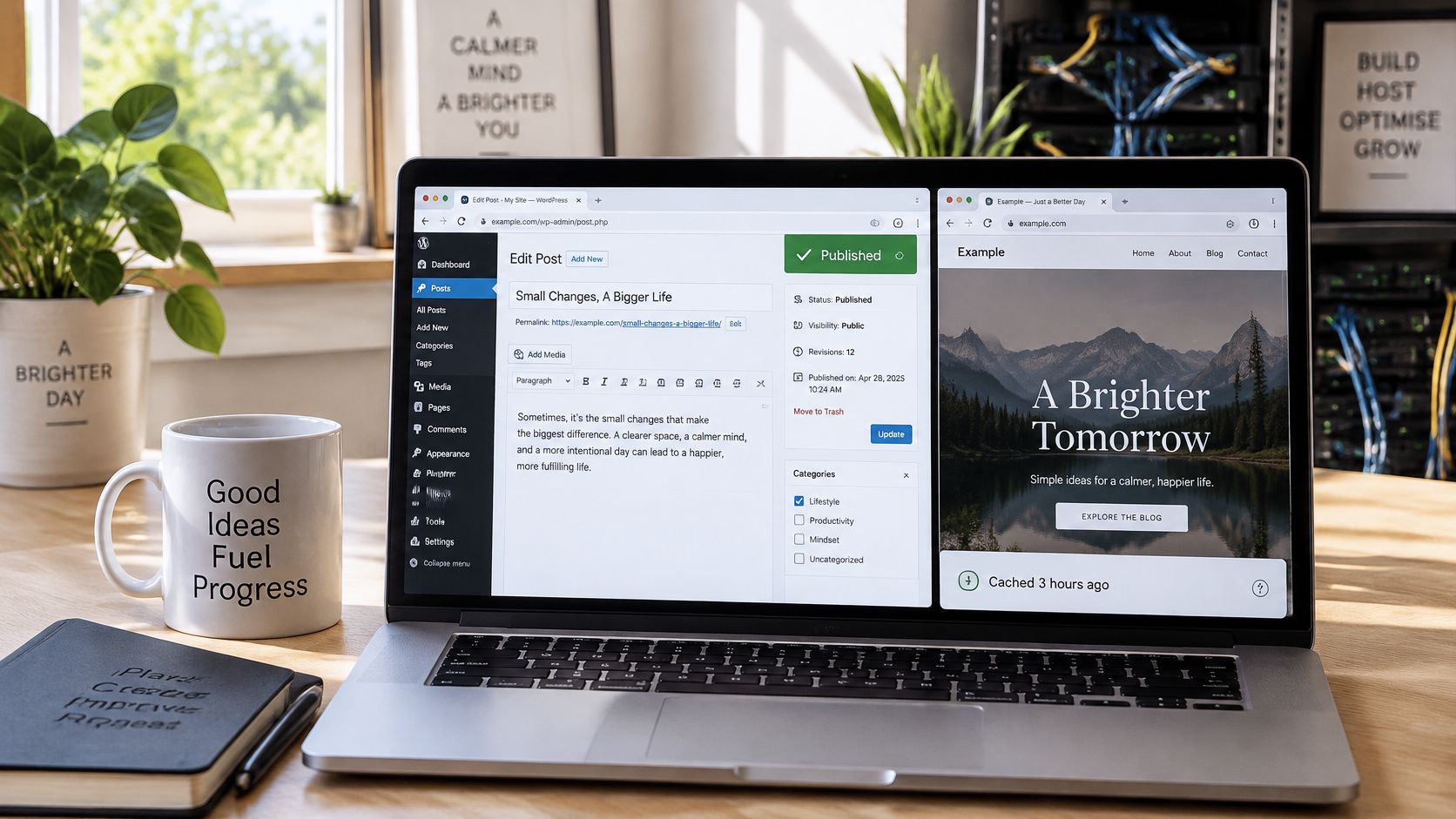
Start with the cheaper question: Did publishing fail, or are you looking at an old response? A Published status next to stale public pages calls for a cache check before any scheduler change. I've watched posts go live on time and stay invisible to visitors because the homepage cache kept serving the pre-publish version.

Compare the editor and public view rather than trusting either alone.

A laptop open on a wooden desk showing a WordPress dashboard with a published post and website view.

Check each public surface

Open a private browser window and inspect the homepage, the post's own URL, and /feed/. Private browsing clears local browser state; it does nothing about a host cache or CDN sitting between you and the server.

Purge the plugin cache, host cache, and CDN separately, checking after each action. If object caching is configured, include it in the investigation rather than assuming a page-cache purge clears everything.

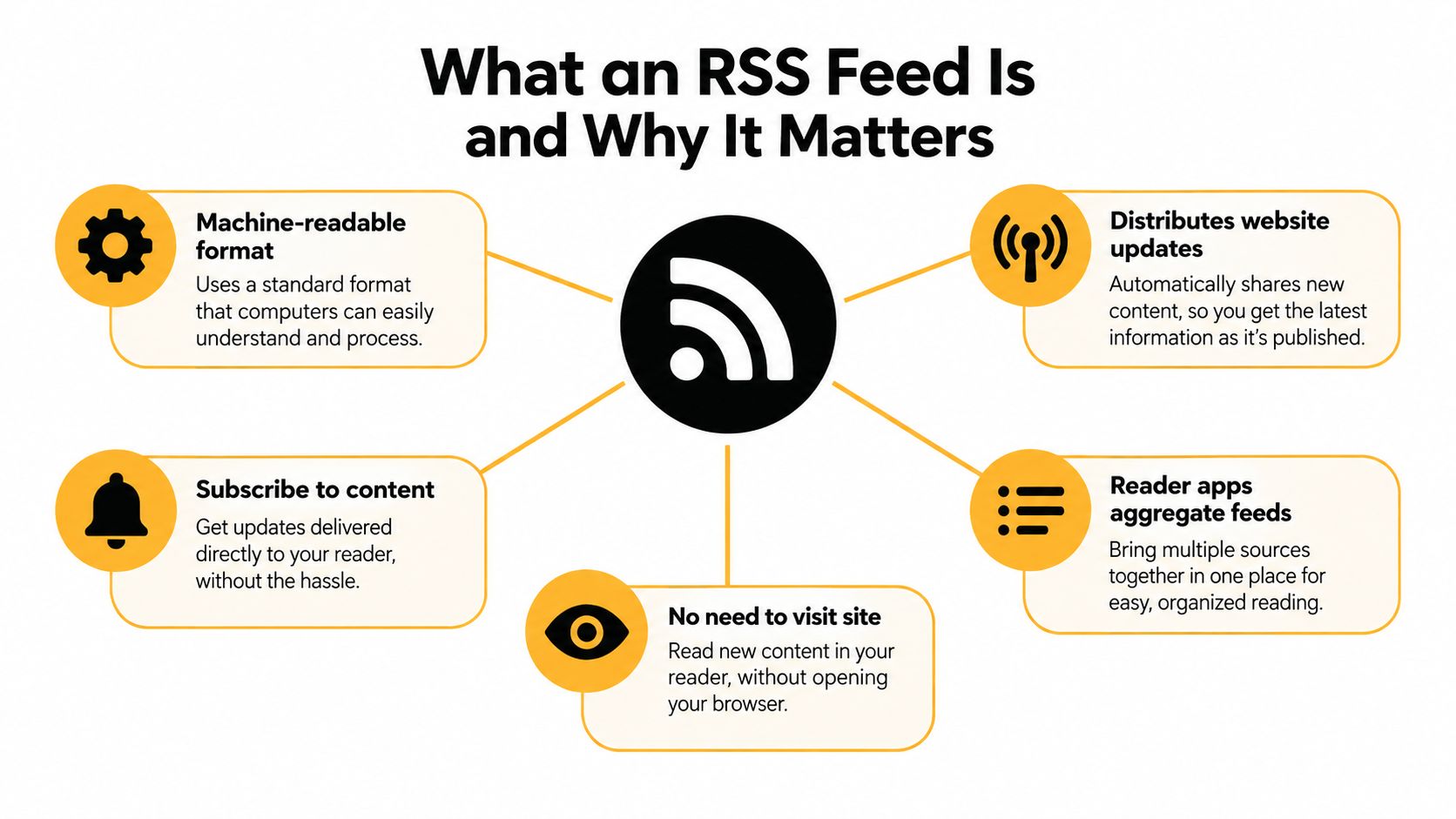
A feed deserves its own check because feed readers poll it independently of the homepage. Use the RSS feed format example to identify the article entry rather than relying on how your browser renders XML.

Isolate conflicts on staging

On a staging copy, disable plugins except the cache and cron components needed to reproduce the setup, switch to a default theme, and schedule a test five minutes ahead. If it publishes, restore plugins in batches of three, then isolate the last batch when failure returns.

If it still fails, test the retained cache and cron components too. Leaving them enabled during the first pass doesn't prove they're innocent.

Prioritize these areas:

  • Caching plugins: Check stale public output and purge behavior.
  • Security plugins: Inspect blocked loopback or cron requests.
  • SEO customizations: Investigate code that alters publishing hooks.
  • Backup and scheduling plugins: Compare their events and execution times with the failure.

Change one variable at a time during isolation. Swapping two plugins, or adjusting a hook and a setting together, leaves you unable to say which change restored publishing. Note which component alters the result so another editor can repeat the test.

Record which update preceded the failure. Run disruptive isolation on staging, because disabling live-site plugins can interrupt readers and site functions.

Confirm the Publish Time and Keep Schedules Reliable

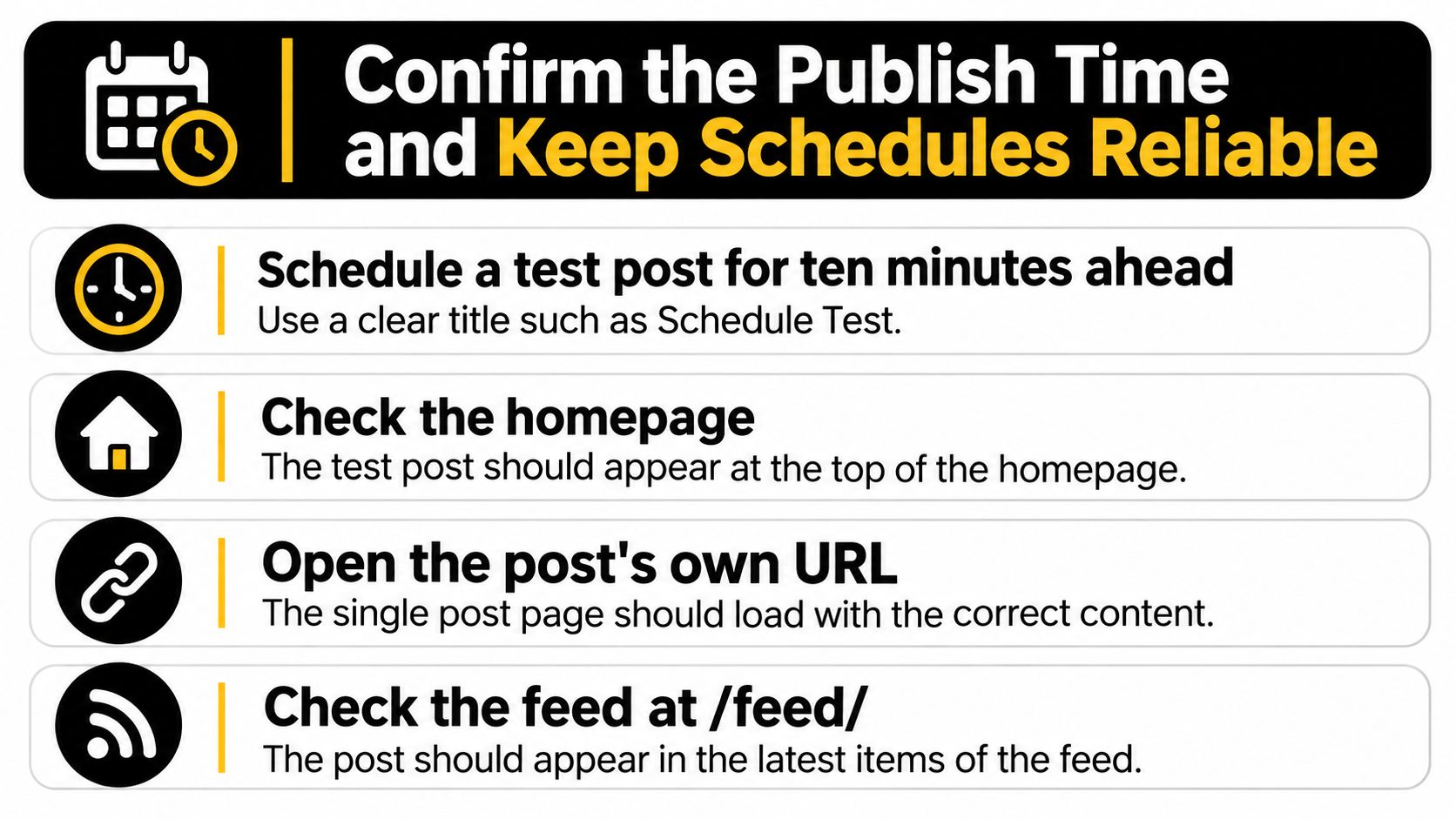
After any repair, schedule a clearly named test post ten minutes ahead. Confirm its appearance on the homepage where your layout normally lists new posts, at its own URL, and in /feed/.

Record when each surface updates instead of checking only the editor's status. For our publication, the feed check matters because Read More Info offers both a posts feed and a comments feed that readers can subscribe to in an RSS reader.

Use this final verification checklist after changing the setup.

An infographic listing four steps to verify that WordPress scheduled posts are publishing correctly.

Keep a small maintenance routine

  1. Verify the replacement scheduler monthly. Check crontab -l or the hosting panel and confirm the every-minute job still points to the right installation. Recheck paths after a migration rather than assuming the old command remains valid.

  2. Try an off-hour publication slot. Scheduling five to ten minutes away from the hour is a reasonable operational precaution if other jobs cluster on the hour. Treat it as a scheduling preference, not a cure for broken execution.

  3. Keep caching understandable. Prefer a clear caching setup over stacking overlapping cache plugins. Purge the relevant layers after a publishing test and keep a note of which layer affected the result.

  4. Retest after platform changes. Repeat the controlled test after WordPress, plugin, theme, or hosting upgrades. Retain the documented timezone convention so a later editor doesn't change what publication times mean without anyone noticing.

These are maintenance recommendations, not guarantees of exact-minute delivery. A working trigger, a valid publishing event, and fresh public output still need separate confirmation.

Keep the evidence useful

Save a short operational note with the working command, WordPress path, timezone, cache locations, and the latest successful test. That gives the next person something concrete to compare when scheduling fails again.

If you also use update alerts, check their behavior separately from publication. The site update notification guide provides a related workflow, but an alert should never replace checking the actual public post and feed.

Decision rule: Decide whether the problem is timing, state, cache, or conflict before changing a setting, because each has a different first check.

A dependable setup is one you can verify, not merely one with a cron plugin installed. Keep the test small, preserve the evidence, and stop making changes once the scheduled post completes the full public publishing path.


Read More Info publishes general-interest WordPress articles and provides open feeds for posts and comments. Visit Read More Info for related publishing guidance, then add its posts feed to your RSS reader to follow new articles without repeatedly checking the homepage.

What Is Semantic HTML? a Clear Guide with Examples

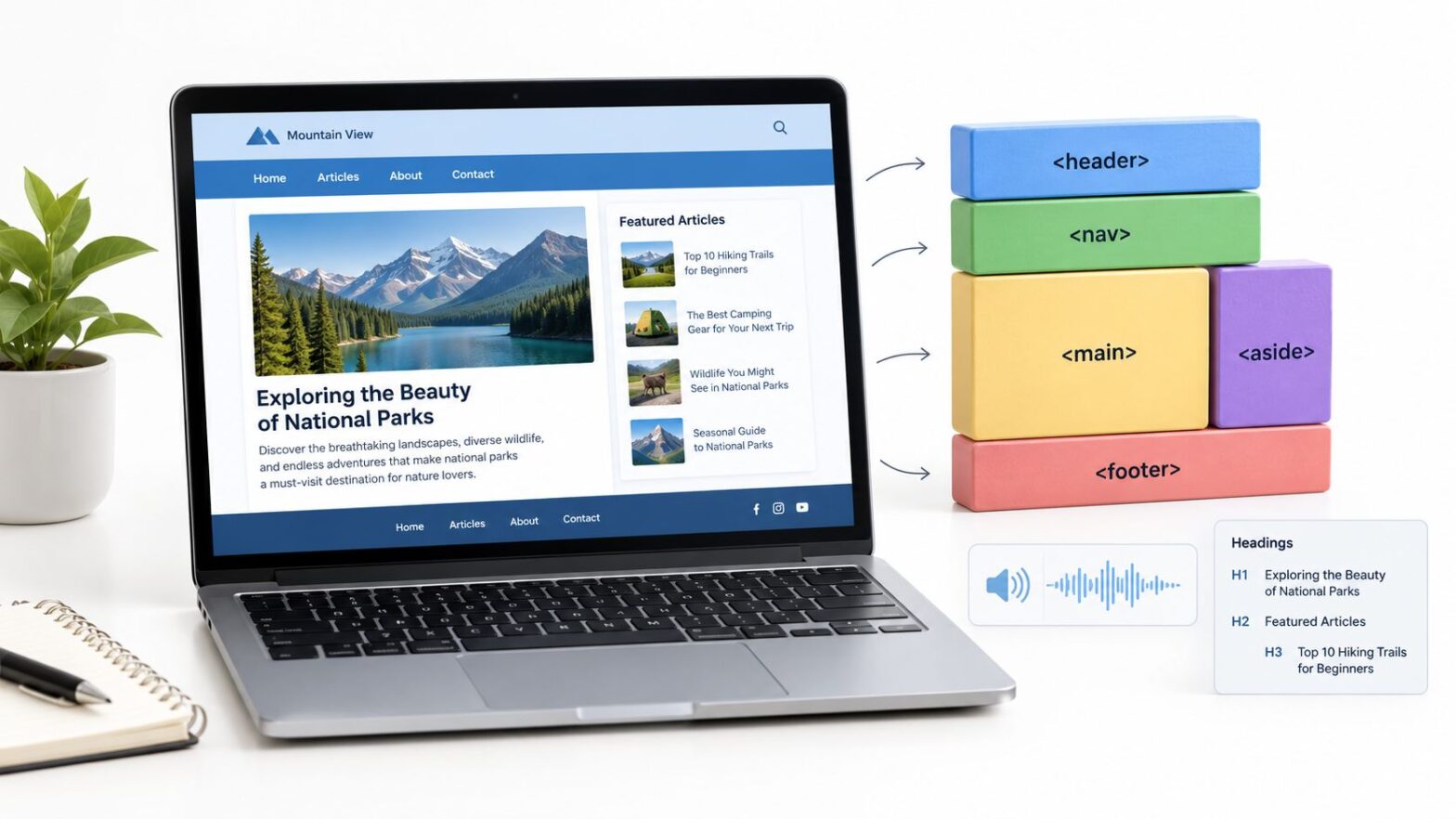
A page can look polished while its structure remains hard to read. Semantic HTML uses elements that describe each part's role, helping browsers and people understand how the page is organized.

Open a WordPress template and you may find nested div elements named wrapper, inner, and box. They can create the desired layout, but they don't make it clear where the post starts, the menu ends, or the footer begins. Editing one class can then feel like pulling a thread without knowing what else is attached.

Elements such as header, nav, main, article, and footer give those areas recognizable names. The header marks introductory content, nav identifies navigation, main marks the page's primary content, article identifies a self-contained post, and footer marks closing information. It's like labeling rooms on a floor plan: the labels make the layout easier to follow before you change anything.

This structure also gives assistive technology meaningful landmarks and lets browsers provide native behavior. It is a foundation for accessibility, not proof of better search rankings. Search systems can interpret page structure, but semantic tags alone do not establish that rankings will improve. The practical gain is clarity: readers, developers, and tools can identify what each part of the page does. Building that habit makes pages easier to understand and maintain over time.

Table of Contents

What Semantic HTML Means in Plain Terms

Think of moving house. A box labelled Kitchen, Fragile tells the mover what's inside and how to handle it. An unlabelled box of the same size could hold books, plates, or shoes, so the mover has to guess.

A div is the unlabelled box. An element such as header, nav, or article is the label. That's the plain meaning behind semantic HTML as markup that communicates meaning and structure rather than appearance. You're choosing tags that say what the content is before CSS decides how it looks.

One Line of History

HTML5 introduced elements such as header, nav, main, article, section, aside, footer, figure, and time. The W3C published HTML5 as a Recommendation on October 28, 2014, and its elements reflected common authoring practices.

Practical rule: If you removed all your CSS, the tags alone should still explain the page.

A semantic page can still be styled however you want. CSS changes the paint and layout, while the tags expose relationships that browsers, search systems, developers, and assistive technologies can interpret.

Here's the contrast in one line. A div class='post' tells a machine nothing beyond a class name you invented. An article class='post' says this is a self-contained post, and it keeps your existing class for styling. The sections below map each element to its job, test the accessibility and search claims, fix common mistakes with native elements, migrate a div-heavy template, and finish with a pre-publish checklist.

The Elements That Describe Each Part of a Page

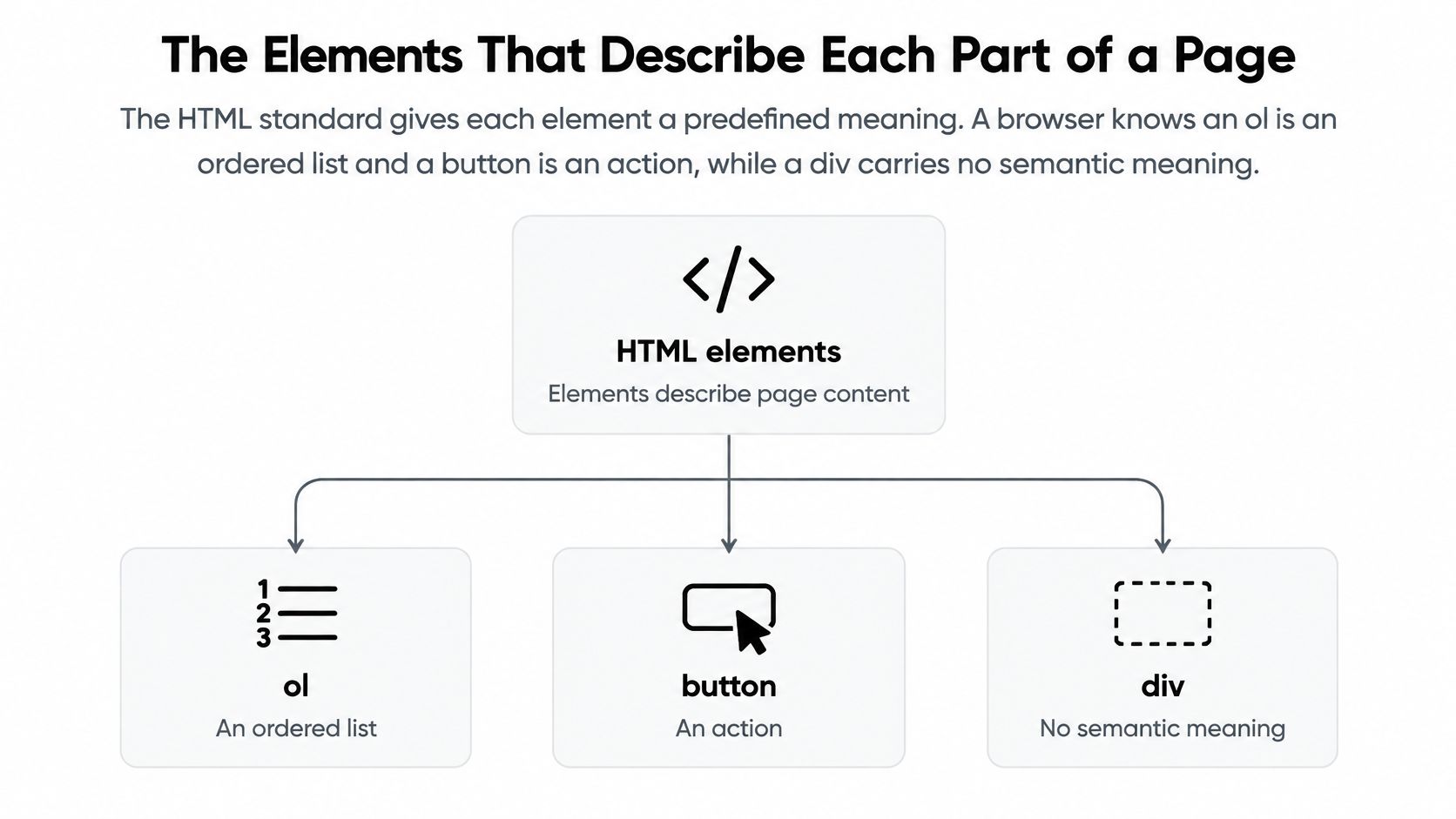
The HTML standard gives each element a predefined meaning, so a processor knows an ol is an ordered list and a button is an action. A div carries no comparable meaning, as set out in the WHATWG explanation of HTML semantics and presentation.

A diagram explaining semantic HTML elements, showing how tags like ol, button, and div define page content.

The table below covers the elements a content site uses most, what each one communicates, and where it belongs on a typical blog post.

ElementWhat it communicatesTypical use on a blog post
headerIntroductory or banner content for a page or sectionSite logo, post title and byline
navA block of navigation linksMain menu, breadcrumbs, pagination
mainThe primary, unique content of the pageBody of the post, one per page
articleA self-contained item that could stand alone or be syndicatedThe blog post itself, a news story, a comment
sectionA thematic group of content with its own headingSubsections of a long guide
asideContent related to but not central to the main contentAuthor bio, related posts, glossary notes
footerClosing information for a page or sectionCopyright, contact details, legal links
figure and figcaptionSelf-contained media with a captionDiagram, chart or photo with credit
timeA machine-readable date or timePublish date with a datetime attribute
h1 to h6Heading levels that form the document outlineh1 for title, h2 for main sections, h3 beneath them
ul or olA list, unordered or orderedTips with ul, numbered steps with ol
buttonAn action the user performs on the pageSubmit, open menu, toggle a filter
aA link that navigates to another locationLinks to other posts, sources, anchors

Sketch the Page as Nested Boxes

Put header and nav at the top. Let main hold the article, place aside beside it for related material, and close with footer. If you can draw that outline on paper, you can sketch your own template before touching code.

A blog template follows a simple pattern. Use article class='post' containing a header with an h1 for the title and a time element with a datetime attribute. Follow it with section blocks, each opened by an h2, then a footer for the author and copyright.

One common rule needs correcting. HTML5 permits more than one h1, but one h1 for the post title and one main per page is the safest pattern for a content site. It keeps the outline unambiguous for every reader and tool that processes the page.

How Screen Readers Use Semantic Structure

A screen reader user opening a long article may want its main point, not every menu item first. Landmarks and headings provide shortcuts through the page, much like labels on drawers help you find what you need without opening each one.

A woman using assistive technology to navigate a website layout with semantic HTML landmarks and heading structure.

Headings give users a way to scan the page by topic. A logical sequence, with a clear main heading followed by relevant subheadings, lets someone move to a section instead of listening from the beginning. WebAIM guidance on screen reader navigation and heading use explains how heading navigation works and why heading structure matters.

What Each Landmark Gives the User

  • main: Identifies the page's primary content, so users can skip repeated menus.
  • nav: Names a navigation area, rather than leaving users to infer the purpose of a list of links.
  • header and footer: Mark introductory and closing areas as recognisable parts of the page.
  • article: Identifies a self-contained post that can be located and read independently.
  • h1 to h6: Show how topics and subtopics relate when ordered logically.

Compare those elements with a page made from div elements named sidebar and top-bar. Sighted readers can use the visual layout as a guide, but those class names do not announce the page's structure to a screen reader. Semantic elements supply useful landmarks and headings; they do not make every page accessible on their own. For small sites considering inclusive web design for small businesses, that difference can save readers from listening through unrelated content to find the post.

Native elements are like signs at a building's entrances: they identify what each area is for. The browser and assistive technology can use that meaning without a developer recreating it with generic containers and extra labels.

Semantic markup is a habit, not a ranking trick. It gives a page clearer structure and a foundation for accessibility, but it cannot fix poor heading order, vague link text, missing form labels, or low contrast. Check the page with a keyboard, then inspect its heading list in a screen reader. If the headings alone do not make the article's organization understandable, revise the markup before publishing.

What Semantic HTML Does for SEO and Maintenance

The honest verdict comes first. Semantic HTML helps machines understand a page's structure, but nobody can promise you a fixed ranking gain from swapping tags. Anyone who does is selling certainty the evidence doesn't provide.

What it can support is clearer interpretation. Named regions, one unambiguous main content area, and a readable heading outline give automated systems less guesswork, consistent with the W3C technique for using semantic elements to expose meaningful regions. That's improved document understanding, not a guaranteed ranking boost.

What It Cannot Fix

  • Thin content: A well-labelled empty page is still empty.
  • Broken or vague links: Semantic tags don't repair destinations or link text.
  • Inaccessible custom controls: A landmark doesn't add keyboard behaviour to a widget.
  • A broken hierarchy: Jumping from h1 to h4 still confuses the outline.

Maintenance is the stronger practical case. Named regions survive redesigns because a theme can restyle an article or nav without renaming classes to rediscover its purpose. A developer opening the template can see at once where the post body begins.

A class name is a note to your team. A semantic element is information every browser and assistive technology can use.

Compare div class='post-wrapper' with article class='post'. The second tells the next developer what the block is for, even if they've never seen your naming conventions. Since CSS controls appearance, a visual redesign doesn't need to change the meaning underneath.

If you're auditing the wider site at the same time, a practical technical SEO audit checklist can help you separate structural clarity from unrelated ranking factors. WordPress sites gain most when post, page, and archive templates are clean, because one template correction can improve every post that uses it.

Common Mistakes With Native Elements and ARIA

Adding a semantic tag doesn't make a page accessible on its own. That's the mistake I see most often, especially when someone wraps content in main and assumes the work is finished.

Native elements bring roles, focus behaviour, and keyboard expectations with them. Custom widgets still need correct states, focus management, and keyboard handling. MDN guidance on accessibility and native HTML elements makes the same distinction, noting that browsers expose expected roles and behaviours for elements such as links and inputs.

Common mistakeWhat goes wrongNative fix
Clickable div used as a buttonNot focusable and ignores Enter or Space by defaultUse button
a element with href='#' that performs an actionAnnounced as a link but behaves like a buttonUse button for actions and a for navigation
Heading level chosen for font sizeBreaks the outline that screen-reader users rely onChoose the level by hierarchy and style it with CSS
Several main elements on one pageMultiple competing primary regionsOne main per page
nav wrapped around the whole pageFooter text and every link announced as navigationUse nav only for groups of navigation links
ARIA role added to an element with the right native roleRedundant or conflicting rolesRemove the role and keep the native element

The Native-First Rule

Use native HTML first. Add ARIA only when no native element expresses the required behaviour. ARIA can supplement semantics, but it doesn't automatically reproduce keyboard handling, focus handling, validation, or state management.

That boundary is the key idea in the native-first accessibility decision approach. Two controls can look identical on screen while behaving very differently for a keyboard user.

  • Action on this page: Use button, for submitting, toggling, or opening a control.
  • Movement to another place: Use a, for a post, source, or anchor.
  • Simple disclosure: Use details and summary before building a custom widget.
  • Complex pattern such as tabs: Use a custom ARIA pattern only when a native element can't do the job, then implement its keyboard behaviour fully.

Don't ask, can I make this div act like a button. Ask why it isn't a button already.

How to Migrate a Div-Heavy Page Step by Step

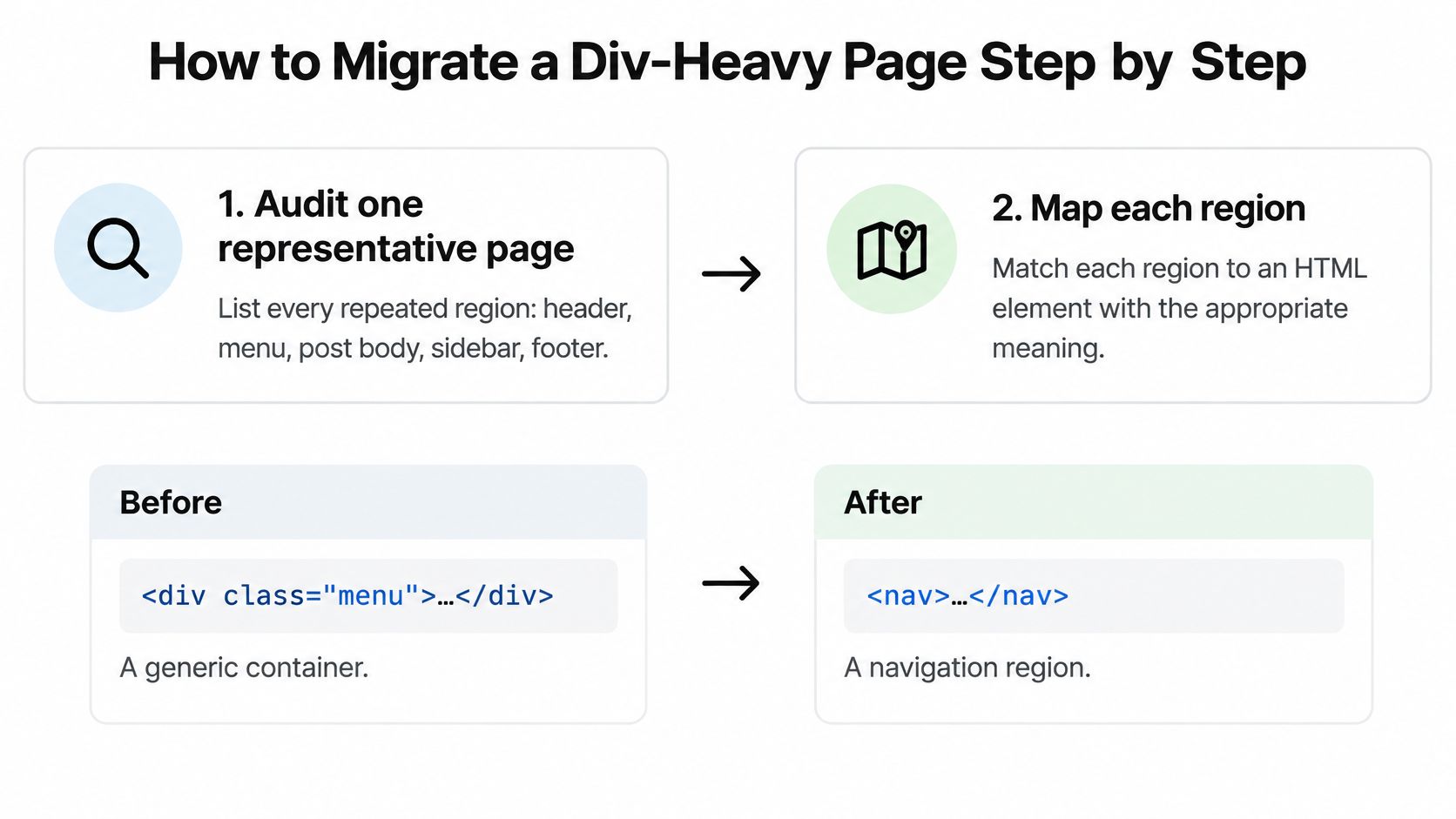
Don't rewrite the whole site in one afternoon. Migrate one representative template, prove the pattern works, then repeat it where the same regions appear.

A visual guide showing a step-by-step process to migrate a div-heavy webpage to semantic HTML elements.

The Migration Sequence

  1. Audit one representative page: List every repeated region, including header, menu, post body, sidebar, and footer.
  2. Map each region: Match each region to the element in the mapping table from the earlier section.
  3. Swap the post template first: It affects the most pages, so replace wrappers with article, header, main, and footer while keeping class names so CSS still matches.
  4. Reconcile heading levels: Use one h1 for the title, h2 for main sections, and h3 beneath them, then handle sizes in CSS.
  5. Replace clickable divs: Use button for actions and a for navigation, and confirm visible focus styles still show.
  6. Roll out the pattern: Apply the same mapping to archives, pages, and sidebars after the post template passes your checks.

Here's the smallest useful before-and-after example. Before, a div class='post' contains a div class='title' and a div class='menu'. After, an article class='post' contains an h1 and a nav. The classes can stay during the first pass, which reduces the chance of breaking your stylesheet.

Migration caution: Changing an element can change default styling, including heading margins and list bullets.

Review the layout after each swap instead of waiting until every region has changed. Keep a copy of the old template for comparison, and test the result on a narrow screen as well as a desktop monitor. Work on layout behaviour alongside the ideas in these responsive design principles for content pages, because a semantic region still needs to remain readable when columns stack.

For content tables, preserve meaning with caption, thead, tbody, th, and scope where appropriate. Don't rebuild a real data table from divs just because it's easier to style. The header associations help users connect each cell with its label.

Finally, test with keyboard-only navigation, a screen reader landmark and heading scan, and the browser's accessibility tree. A visual check can't tell you whether focus disappears or a region is announced with the wrong meaning.

Confirm Your Markup Before You Publish

Run this behaviour checklist on a live post from your own WordPress site, not just in view-source.

  1. One main region: The unique page content sits inside a single main.
  2. Logical headings: There's one h1, levels follow the topic hierarchy, and no level is skipped.
  3. Navigation in nav: Menus, breadcrumbs, or pagination sit inside nav.
  4. Real controls: Links lead to destinations, buttons act, and neither is faked with a clickable div.
  5. Labelled fields: Every form field has a useful, associated label.
  6. Keyboard order: You can reach every control in a sensible sequence and see where focus is.

Pair source inspection with a screen reader or the browser's accessibility inspector, then repeat the checks using the habits in this guide to testing responsive layouts. Choose the post template this week, test one live post, fix that template first, then check two other pages. Every new post inherits the corrected template, so one careful fix compounds across your future articles.


If you're building a WordPress content site and want plain-English guides that separate proven structure from hype, visit Read More Info for practical posts you can apply one template at a time. Start with the checklist above, fix your post template this week, and let every article you publish next inherit the cleaner structure.

10 RSS Feed Readers Free to Use in 2026

There's no single best free RSS reader. Feedly or Inoreader fits hosted reading, while NetNewsWire, FreshRSS, or Fluent Reader suits readers seeking a local app or more control. RSS has several competing formats, but its practical advantage is straightforward: updates from different sites appear in one place. RSS's history helps explain why readers can handle feeds from many publishers.

Judge a free reader by how it handles one task: following Read More Info's posts feed and comments feed. Check that both update reliably and that you can keep up across your usual devices. Feed limits, refresh timing, and sync can shape that experience, so test them before settling on a reader.

Table of Contents

What Actually Matters in a Free RSS Reader

Start with the size of your reading list. If you're following a handful of sites, a modest free-plan limit may never matter. If you're collecting blogs, publications, and reference sources, check the subscription cap before importing an existing OPML file. A reader can feel generous at signup and still become inconvenient once you've organized sources around work, hobbies, and news.

Device sync is the next practical test. A hosted service can keep the same subscriptions and read state available on web and mobile, but usually requires an account. A local app may avoid that account, yet leave you without shared unread status unless you connect a compatible sync service. If you read on more than one device, test whether marking a post read on one updates the other.

Privacy depends on the reader, not on RSS itself. A local reader keeps more of your reading activity on your device; a self-hosted service gives you control over where it runs, but puts maintenance and backups in your hands. Hosted readers are easier to start, though you should check account requirements, data policies, and whether you can export your subscriptions.

Practical rule: Add both Read More Info feeds before committing. The posts feed tests article updates, while the comments feed reveals whether the reader handles discussion activity clearly too.

1. Feedly

Feedly

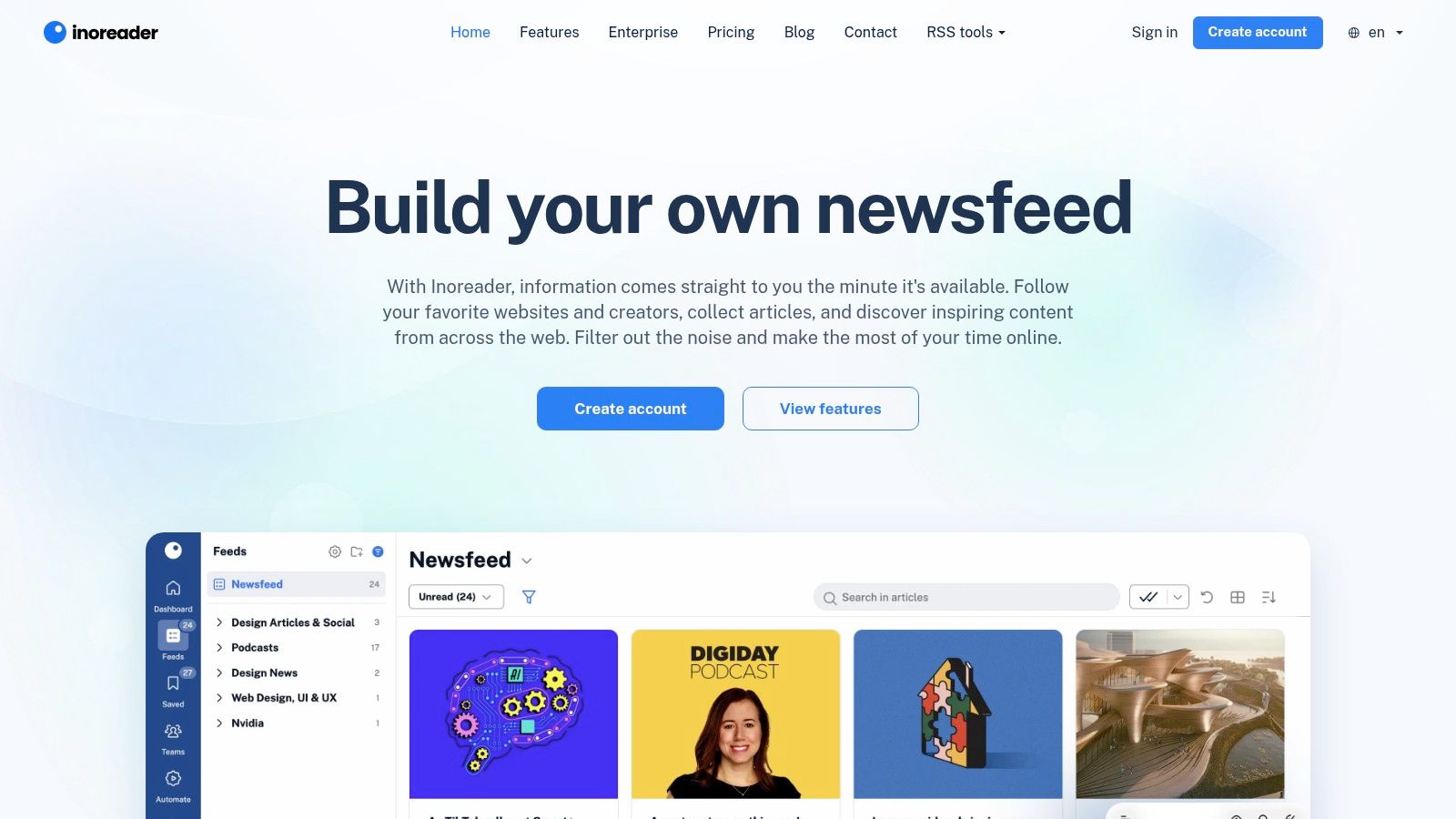
Feedly is a good starting point if you want to subscribe without managing a server or learning much about feed formats. You can search for sources, enter a website address, or choose curated bundles. Feedly can often locate a site's feed from its address, which makes adding a WordPress publication such as Read More Info less fiddly than hunting down an XML endpoint yourself.

Its hosted web and mobile apps keep the experience familiar across devices. You can group sources into collections, so the posts feed and comments feed don't have to sit in one undifferentiated stream. If you're new to feeds, that approachable setup is more useful than an unusually long list of settings. Read More Info's guide to what RSS readers do offers a straightforward primer.

The trade-off is that Feedly's free plan has source and feature limits. Advanced research and AI features belong to paid plans, so don't choose it expecting a free monitoring system for a large, complex reading operation. For ordinary blog reading, though, it's an easy first test: add both feeds, create a collection, and see whether the reading flow feels natural.

Best for: Beginners who want a polished hosted reader and convenient web/mobile access.

Watch for: Limits on the free plan if your feed list grows or you need advanced tools.

2. Inoreader

Inoreader

Inoreader is a stronger fit when you want to do more than skim incoming headlines. Its free plan supports up to 150 RSS subscriptions, along with search across collected articles and Google News alerts. Folders help keep a growing list manageable, and the reading view can be customized for a less crowded feed.

That search is particularly handy if you remember reading a Read More Info post but can't recall when it appeared. Add the posts feed and comments feed, file them into a folder, and search the collected material rather than opening each item one by one. Readers who want to track information more systematically may find this more useful than a stripped-down reader. If Android is your primary reading device, see Read More Info's guide to the best feed readers for Android.

The interface has more options than a bare-bones reader, which is both its advantage and its cost. A casual reader may need time to find the settings that matter, and more advanced automation, monitoring, and customization require a paid plan. But for a hosted free reader with a relatively broad subscription allowance and article search, Inoreader is one of the practical choices.

Best for: Readers who want folders, search, and more room to organize sources.

Watch for: A busier interface and paid upgrades for advanced monitoring or automation.

3. NewsBlur

NewsBlur takes a more active approach to filtering what appears in your reading stream. Its free tier supports up to 64 sites, and its Intelligence Training can emphasize or de-emphasize stories based on authors, tags, and titles. That can help if a publication covers several topics and you're more interested in some than others.

You can follow websites, blogs, and RSS feeds through the web interface or native iOS and Android apps. For the Read More Info test, subscribe to both feeds and see whether the filtering controls improve your routine or just create extra setup. If you mainly want every post and comment update in chronological order, the training features may matter less than a clean unread list.

The main limit is clear: the free plan caps the number of sites, and some search and archive features sit behind paid plans. That makes NewsBlur better for a deliberately curated set of sources than an ever-expanding archive. Its filtering tools are the draw, not an unlimited free monitoring workflow.

Best for: Readers who want to shape which stories stand out.

Watch for: The site limit and paid access for some search and archive functions.

4. Feeder

Feeder

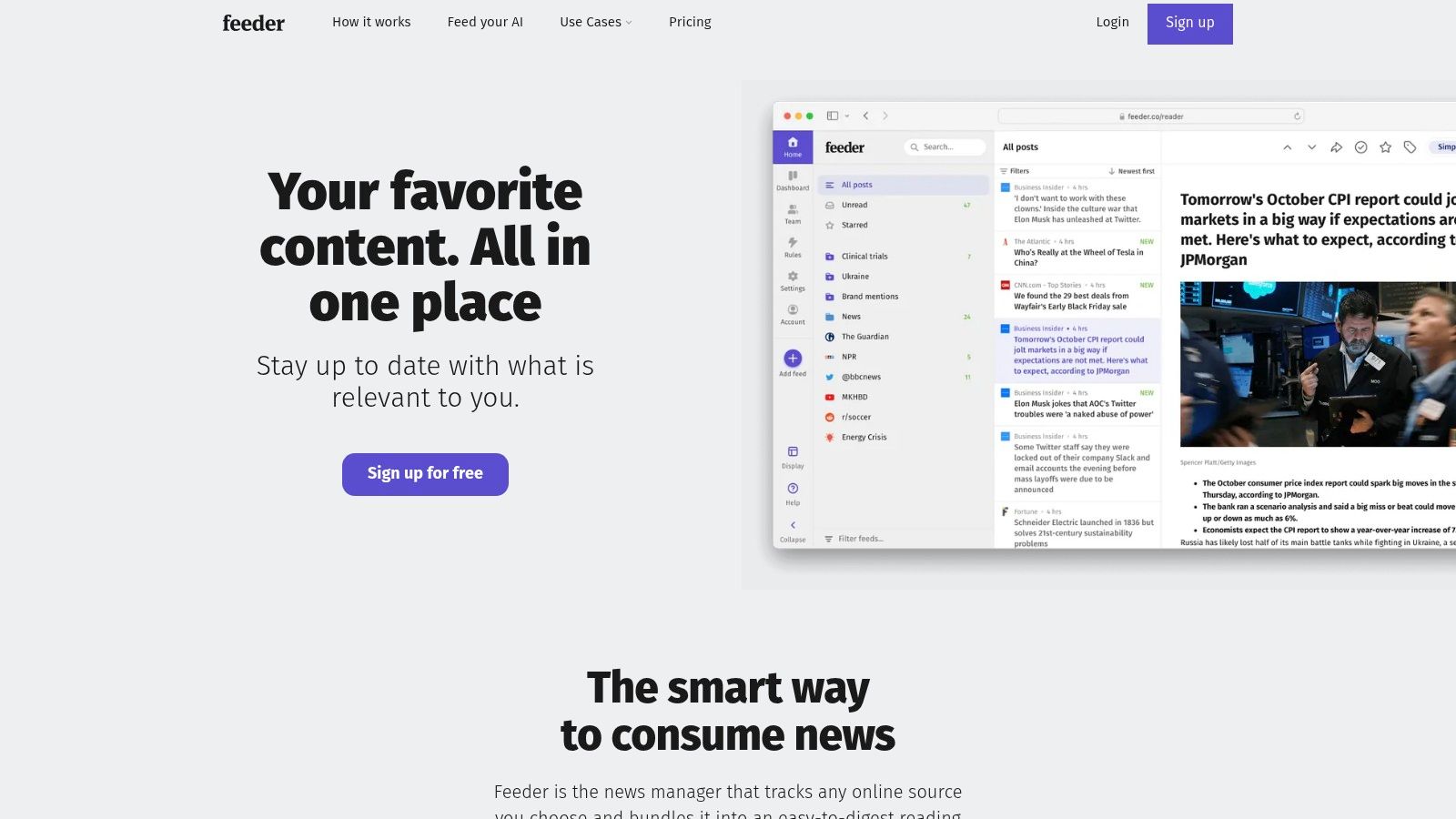
Feeder offers a generous starting point for people who follow a lot of sources: its free plan supports up to 200 feeds and is described as ad-free. You can add sources using a website or feed address, then read through the web interface or use its browser extension and mobile options.

For the Read More Info workflow, the hosted account makes it possible to access associated feeds across supported devices. That convenience has a clear dependency: syncing relies on Feeder's hosted service and account. If your priority is keeping subscriptions local or avoiding a login, this isn't the most suitable choice.

The browser extension is useful when you discover a site while browsing and want to follow it without interrupting what you're doing. Still, don't confuse a high free feed allowance with every feature being free. Advanced tools and monitoring may require a paid plan. If your needs are ordinary reading across a sizeable list, Feeder's capacity and ad-free free plan make it worth testing.

Best for: Readers who want a hosted account, browser integration, and a sizable feed list.

Watch for: Account dependence for syncing and paid access to some advanced capabilities.

5. The Old Reader

The Old Reader

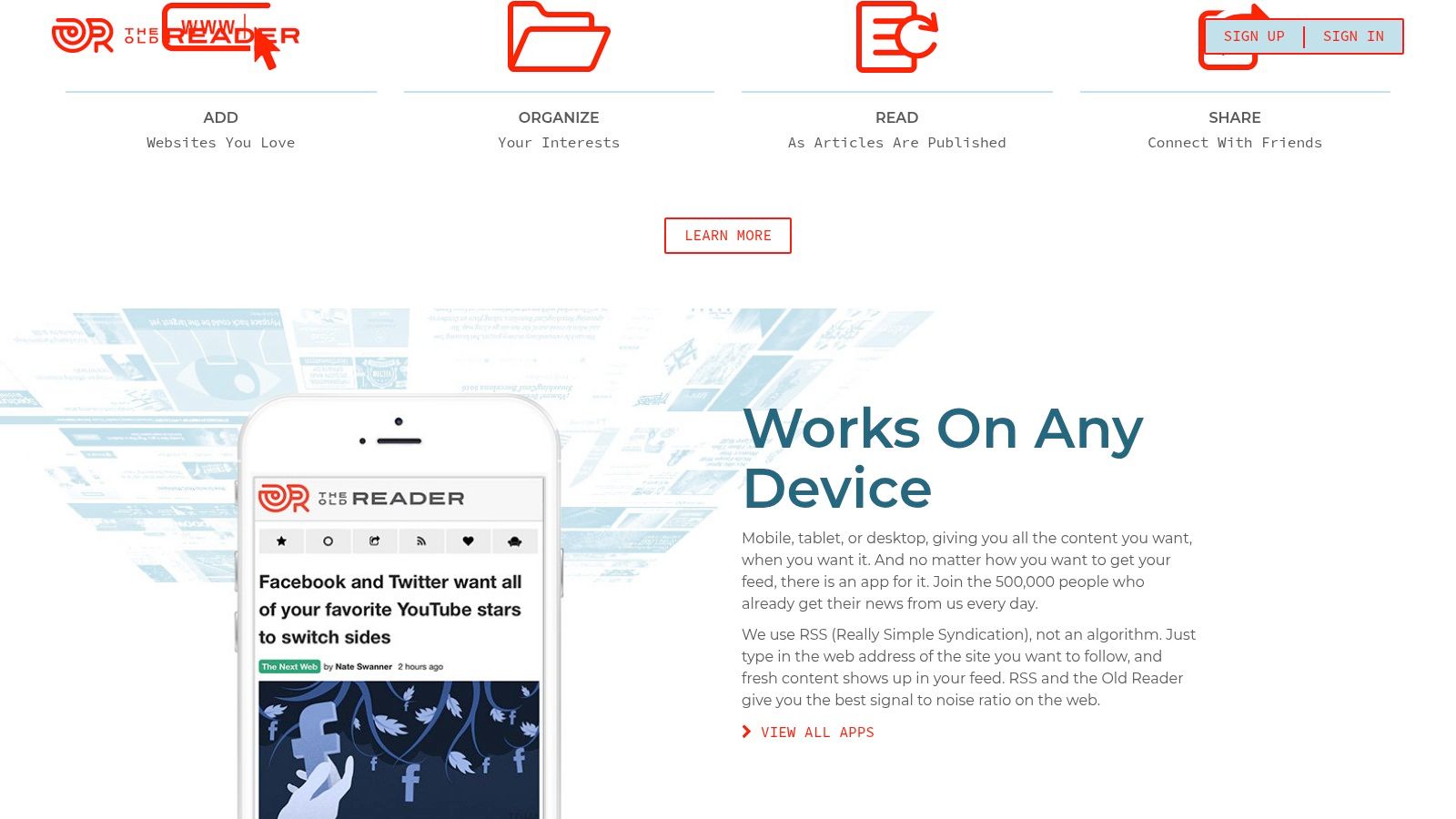
The Old Reader sticks to familiar RSS basics: subscribe, sort feeds into folders, and read from a browser-based interface. You can add a website or direct feed URL, and importing an OPML file makes it easier to move subscriptions from another reader. That portability matters if you're testing several options rather than choosing a permanent home immediately.

The reader suits people who want a conventional feed list instead of a broader research or monitoring workspace. Add Read More Info's posts and comments feeds, keep them together in a folder, and check whether its straightforward organization is enough for your daily reading.

There are meaningful free-account limits. Unread-post retention and the number of posts stored per feed are restricted, refresh timing can vary, and faster updates are a paid benefit for some feeds. Those limits may not disrupt occasional reading, but they matter if you rely on the reader to preserve a backlog or surface updates quickly. Export your OPML file before switching, and don't treat an unread queue as your only archive.

Best for: Readers who want familiar RSS features and a simple way to import subscriptions.

Watch for: Retention limits and variable refresh timing on free accounts.

6. FreshRSS

FreshRSS

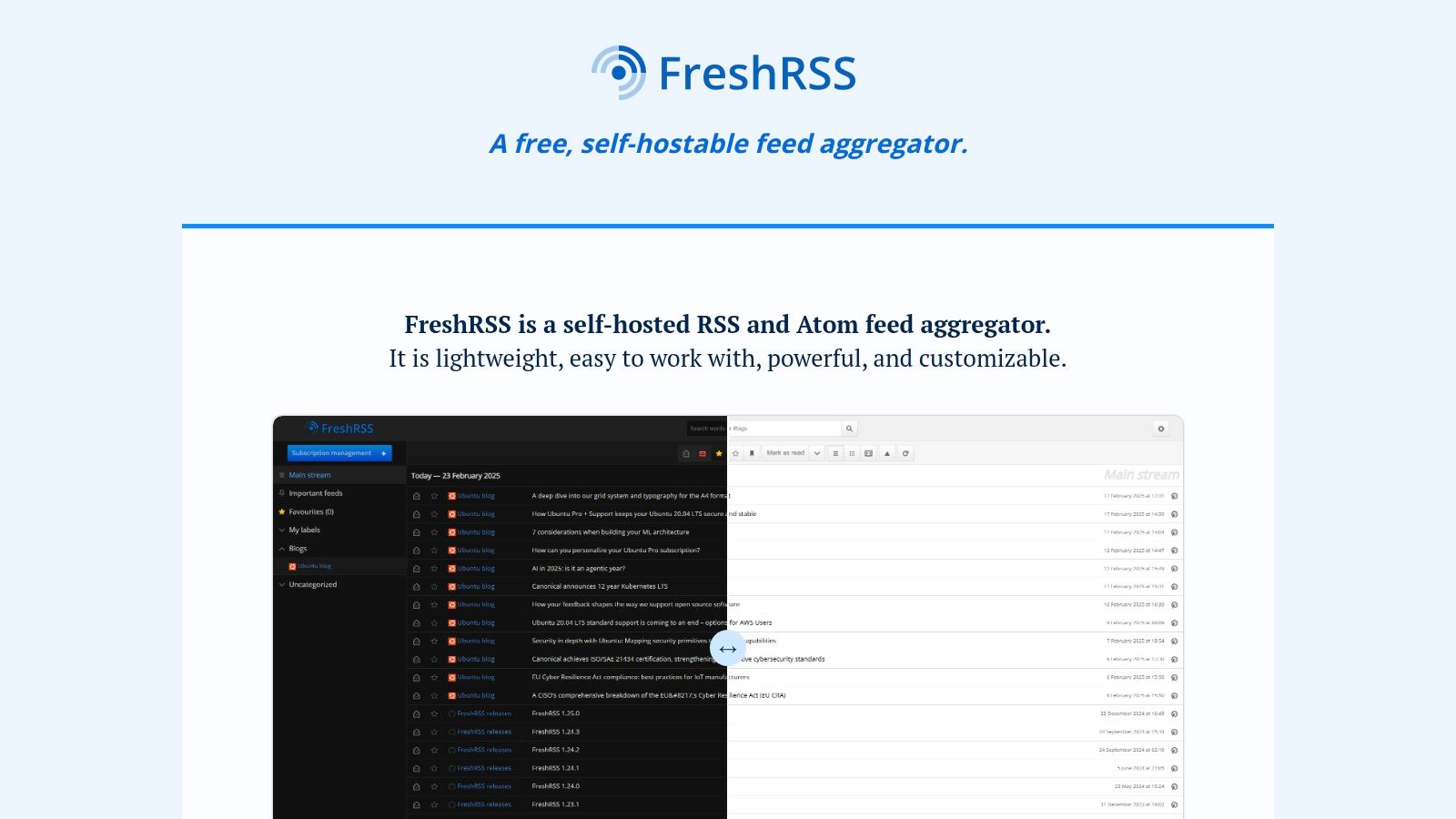
FreshRSS is free, open-source software that you install on your own server. That changes the meaning of “free”: there's no software subscription to pay for, but you're responsible for hosting, setup, maintenance, and backups. If you already manage a server and want more control over feed data, that trade may be worthwhile. Community-hosted instances are another possibility, though their policies and reliability depend on whoever runs them.

FreshRSS supports RSS and Atom, OPML import and export, search, saved queries, extensions, and themes. Its support for feeds from podcasts and video channels makes it more flexible than a blog-only inbox. Subscribe to Read More Info's post and comments feeds, then use a compatible mobile client if you want to read away from the browser.

The privacy benefit depends on your deployment and how you maintain it. Self-hosting can give you more control over where subscriptions and reading history are stored, but a neglected server or missing backup undermines that control. For users who want maximum say over data custody, FreshRSS is a capable option; for people who want instant setup and no upkeep, a hosted reader is easier.

Best for: Technically comfortable readers who want an open-source, self-hosted reader.

Watch for: Server setup, maintenance, and backups remain your responsibility.

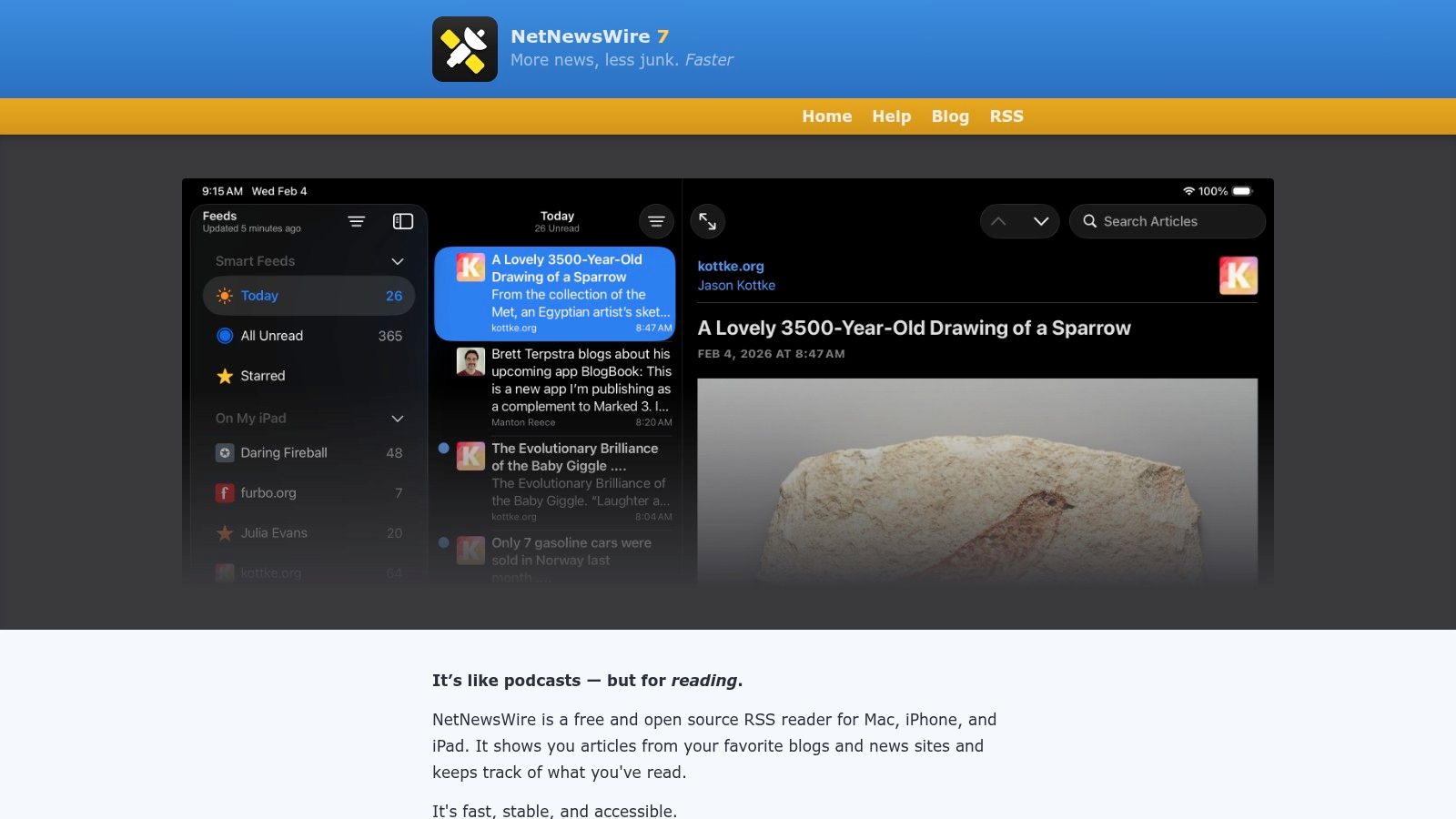
7. NetNewsWire

NetNewsWire

NetNewsWire is a free, open-source reader for Mac, iPhone, and iPad. It's a focused app rather than a hosted web service, and it can download feeds directly or sync through supported services. For Apple users who want to open a dedicated reader and get on with reading, that simplicity is a real advantage.

Its folders, search, starred articles, and OPML import and export cover the everyday workflow. Reader view, dark mode, and keyboard navigation offer useful ways to read without turning the app into a monitoring dashboard. Add Read More Info's two feeds and check whether direct downloading suits you before linking any sync service.

The main constraint is platform support: NetNewsWire is for Apple devices. Direct feed downloading can avoid the need for an account with a sync provider, but keeping multiple devices aligned may require a compatible service and its account. That's a reasonable trade if you'd rather use a free native app than rely on a hosted reader for everything.

Best for: Apple users who want a free, focused native app.

Watch for: Cross-device syncing may require a compatible service account.

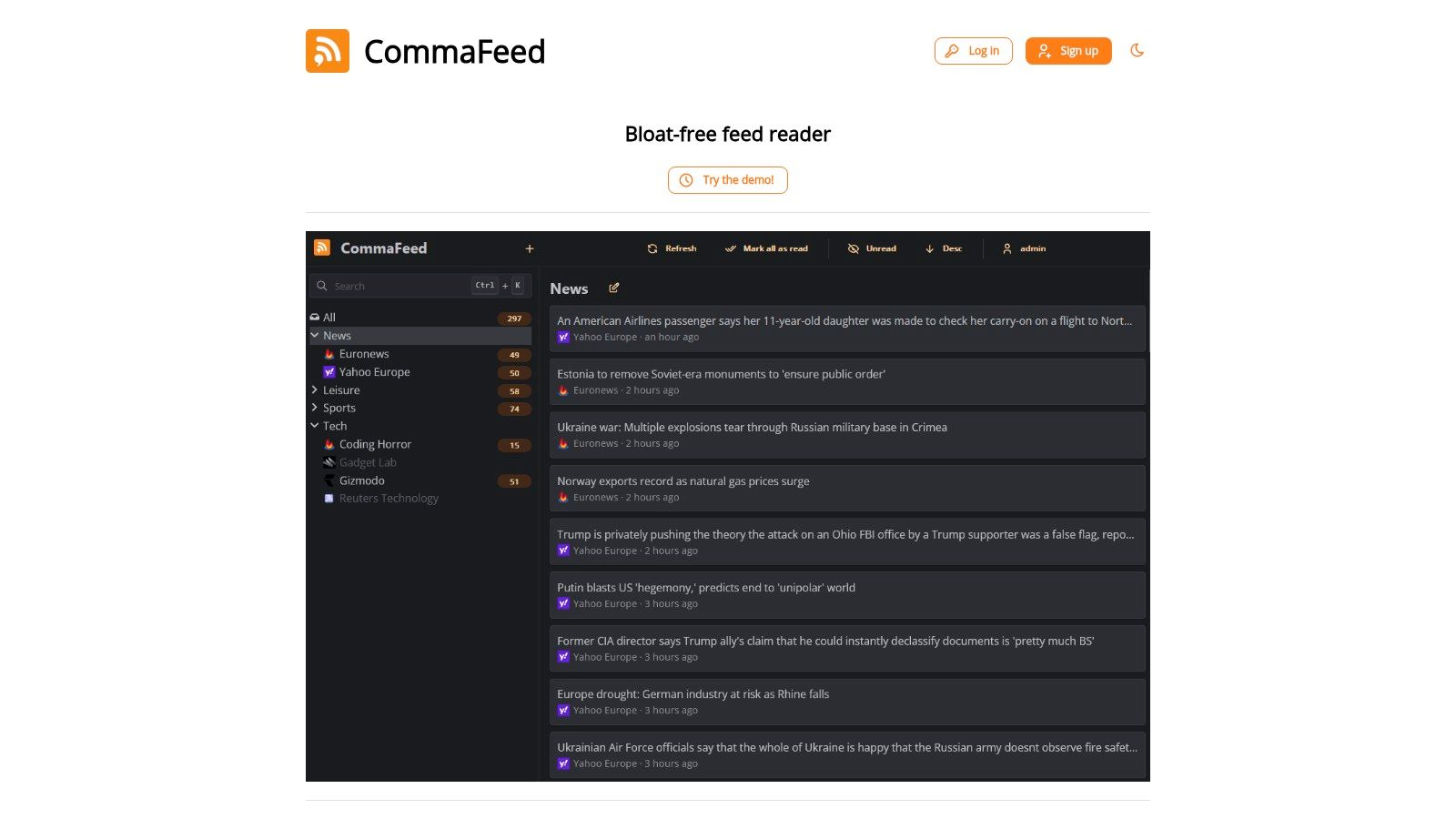
8. CommaFeed

CommaFeed

CommaFeed gives you two routes: use its free public reader or self-host the open-source software. Its responsive web layout works across desktop and mobile browsers, and multiple layouts, themes, and keyboard shortcuts let you adapt the reading experience without installing a native app.

OPML import and export help with migration, while REST, Fever-compatible, and Google Reader-compatible APIs support integrations and third-party clients. For the Read More Info test, add the posts and comments feeds to the public reader first. If you later decide you want control over where the service runs, self-hosting provides that option.

That flexibility comes with distinct trade-offs. Using the public instance means trusting a third-party host with your subscriptions and reading activity. Self-hosting shifts responsibility to you, including the technical work of deployment and upkeep. CommaFeed is appealing when you want an open-source option and can make an informed choice between convenience and control.

Best for: Readers who want a responsive browser reader with a self-hosting path.

Watch for: The public service is third-party hosted, while self-hosting takes technical effort.

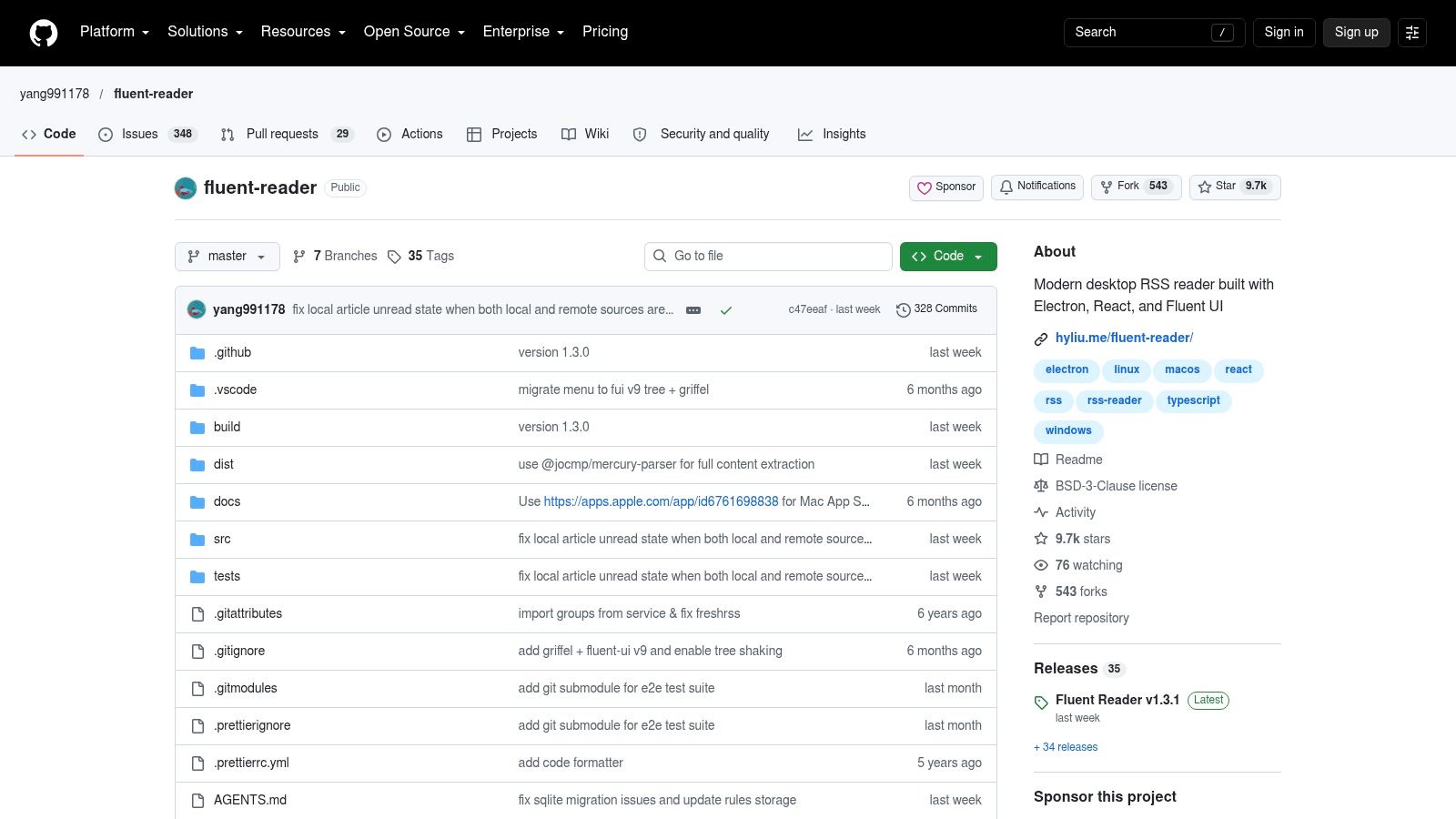
9. Fluent Reader

Fluent Reader

Fluent Reader is a free, open-source desktop reader for Windows, macOS, and Linux. You can read feeds locally or connect to supported services, including Inoreader, Feedbin, The Old Reader, and services using Fever or Google Reader-compatible APIs. That makes it a useful middle ground between a local app and a synced setup.

Its built-in article view, search, filters, dark mode, and customizable layouts give you control over how a reading list looks. OPML import and export help move subscriptions in and out, while application-data backups give you another way to preserve your setup. Add Read More Info's two feeds locally to begin; connect a supported service if you need shared reading state across devices.

Fluent Reader is primarily a desktop option, not a complete hosted service. Its cross-device sync depends on the RSS service you connect, so choosing the app alone doesn't solve synchronization. If you spend most of your reading time on a computer and want a configurable interface without paying for the app, it's a strong fit.

Best for: Desktop readers who want local reading plus optional service syncing.

Watch for: Sync depends on a supported service, and the app isn't a full web reader.

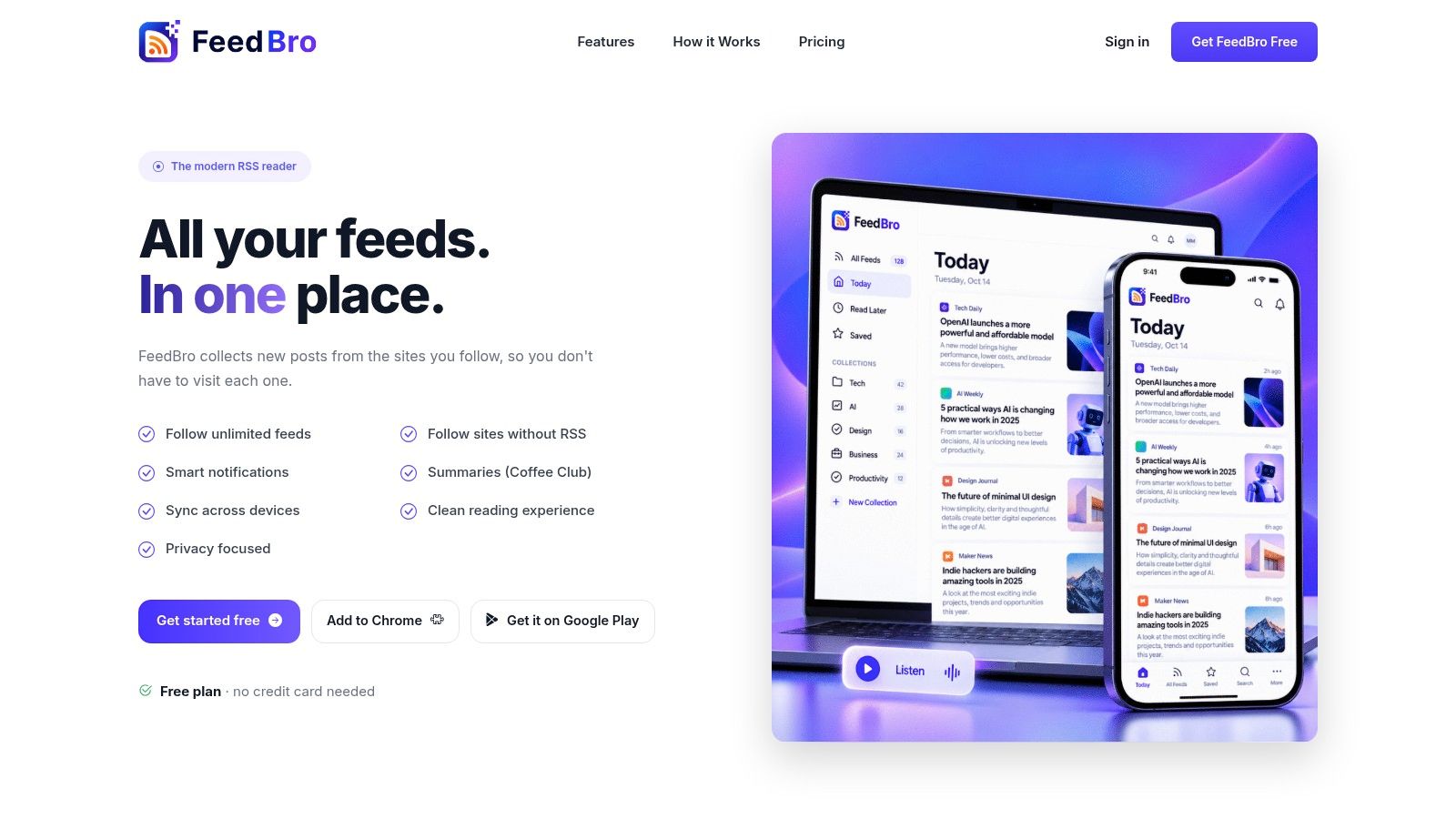
10. FeedBro

FeedBro

FeedBro is built around browser-based reading, with extensions for Chrome and Firefox, a web reader, and an Android app. The free plan supports up to 50 feeds and 10 collections, and includes basic search, saved articles, and a reading view. It can display full article text in the reader, which is handy when you'd rather stay in one interface. For a Firefox workflow, Read More Info's guide to a Firefox feed reader is a useful companion.

The browser extension makes adding a site feel direct: find something worth following and manage it from the browser rather than switching to a separate discovery process. You can test the posts and comments feeds together, save articles, and see whether collections keep them distinct enough for your routine.

The free website plan includes small ads, and feed and rule limits may constrain a larger setup. The paid Coffee Club plan removes ads and raises limits. FeedBro is best judged as a convenient browser-centered starting point, not as a completely unrestricted service. If you prefer a desktop application or want account-free local reading, Fluent Reader or NetNewsWire may suit you better.

Best for: Browser users who want extensions, saved articles, and a reading view.

Watch for: Free-plan limits and small ads on the website.

Top 10 Free RSS Feed Readers Compared

RSS ReaderAccess & PlatformsKey FeaturesBest ForFree Plan & ValueStandout Point
FeedlyHosted; web and mobileSource discovery, collections, curated bundles👥 Beginners wanting simple setup💰 Free with source and feature limits; paid tools available✨ Polished, easy-to-use experience ★
InoreaderHosted; web and mobileFolders, article search, news alerts, reading customization👥 Readers managing larger collections💰 Free for up to 150 subscriptions; advanced tools are paid🏆 Strong free search and organization
NewsBlurHosted; web and mobileFeed aggregation, story filtering, Intelligence Training👥 Readers who want to prioritize stories💰 Free for up to 64 sites; search and archives are paid✨ Train story preferences
FeederHosted; browser and mobile optionsFeed discovery, browser extension, cross-device sync👥 People following many sources💰 Free for up to 200 feeds; described as ad-free🏆 High free feed allowance
The Old ReaderBrowser-based; compatible third-party appsFolders, direct feed adding, OPML import👥 Readers wanting familiar RSS basics💰 Free core service; storage and refresh limits apply✨ Easy OPML migration
FreshRSSSelf-hosted; mobile and third-party clientsRSS/Atom, search, saved queries, extensions👥 Technical users wanting data control💰 Free, open source; hosting and maintenance are your responsibility🏆 Flexible self-hosting
NetNewsWireApple devices: Mac, iPhone, iPadSearch, folders, reader view, OPML, sync options👥 Apple users preferring a dedicated app💰 Free and open source✨ Focused Apple-native reading
CommaFeedPublic web reader or self-hostedThemes, layouts, OPML, APIs, keyboard shortcuts👥 Readers seeking open-source options💰 Free public instance; self-hosting available✨ Compatible APIs and responsive design
Fluent ReaderDesktop: Windows, macOS, LinuxSearch, filters, themes, local reading, service sync👥 Desktop users wanting layout control💰 Free and open source✨ Local reading plus optional sync
FeedBroBrowser extensions, web reader, AndroidSearch, saved articles, full-text view, collections👥 Browser-first readers💰 Free for up to 50 feeds and 10 collections; paid plan removes ads and raises limits✨ Browser integration and article view ★

Pick One Reader and Subscribe Today

Choose the reader that fits the way you want to follow Read More Info's post feed and comments feed. Feedly or Inoreader suits readers who want hosted access across devices. Feedly is simpler to start with; Inoreader offers stronger search and organization, though its interface is busier. NetNewsWire is a focused, free option for Apple users, but syncing across devices may require a compatible service.

For more control over where subscriptions are stored, consider FreshRSS or CommaFeed. Both support self-hosting, which gives you control while leaving deployment and upkeep to you. FreshRSS suits people comfortable maintaining a server. CommaFeed also has a public reader, letting you try its interface without setting up hosting. Fluent Reader fits desktop users who want a configurable local client and can connect it to a supported service for syncing.

Test the two-feed workflow before settling on a reader. Add the post and comments feeds, then check whether new articles and discussion updates are easy to distinguish. If you read on more than one device, mark an item as read on one and see whether its status updates on the other. Hosted convenience can simplify access, while account requirements and data policies may matter more if privacy is your priority.

Once your subscriptions are organized, export an OPML backup. It keeps your feed list portable, so switching readers does not require adding every subscription again. The export preserves subscriptions and their organization, but may not include saved articles or your full reading history. Test with the actual feeds rather than choosing from feature lists alone.

Read More Info publishes general-interest WordPress articles and provides open feeds for posts and comments. Following both lets you keep up with new articles and discussion without checking the site manually. Keep the reader that handles the feeds clearly, syncs as you expect, and fits your devices and privacy preferences.

Visit Read More Info to explore the site and choose a reader for following its updates.

Site Search WordPress: Setup, Plugins, and Relevancy Tips

A visitor lands on your WordPress site, remembers reading something useful, and types a few words into the search box. The results page appears, but the article they want is missing, buried, or surrounded by unrelated posts. They try another phrase, get nowhere, and leave.

That failure isn't always a plugin problem. It can come from how WordPress orders matches, how content is organized, or a search field that doesn't handle the way people phrase questions. A practical site search WordPress setup starts with understanding those gaps, then testing real queries instead of assuming that results are relevant because they appear.

Table of Contents

Why WordPress Site Search Matters

A blog reader may know the topic but not the post title. Someone looking for guidance on an RSS feed, for example, might search “follow comments” rather than the exact words used in the article. If the search tool relies on narrow matching or presents results without useful context, that reader has to guess or retrace their steps.

WordPress search is part of a publishing system built around recognizable content types: posts, pages, categories, tags, archives, and feeds. Its reach makes those conventions familiar to many readers. W3Techs' WordPress usage data reports that WordPress powers 39.6% of all websites and 58.3% of websites with an identifiable content-management system. Those figures describe platform adoption, not how well individual search boxes work. They do show why the default search experience matters across blogs, small-business sites, portfolios, and publications.

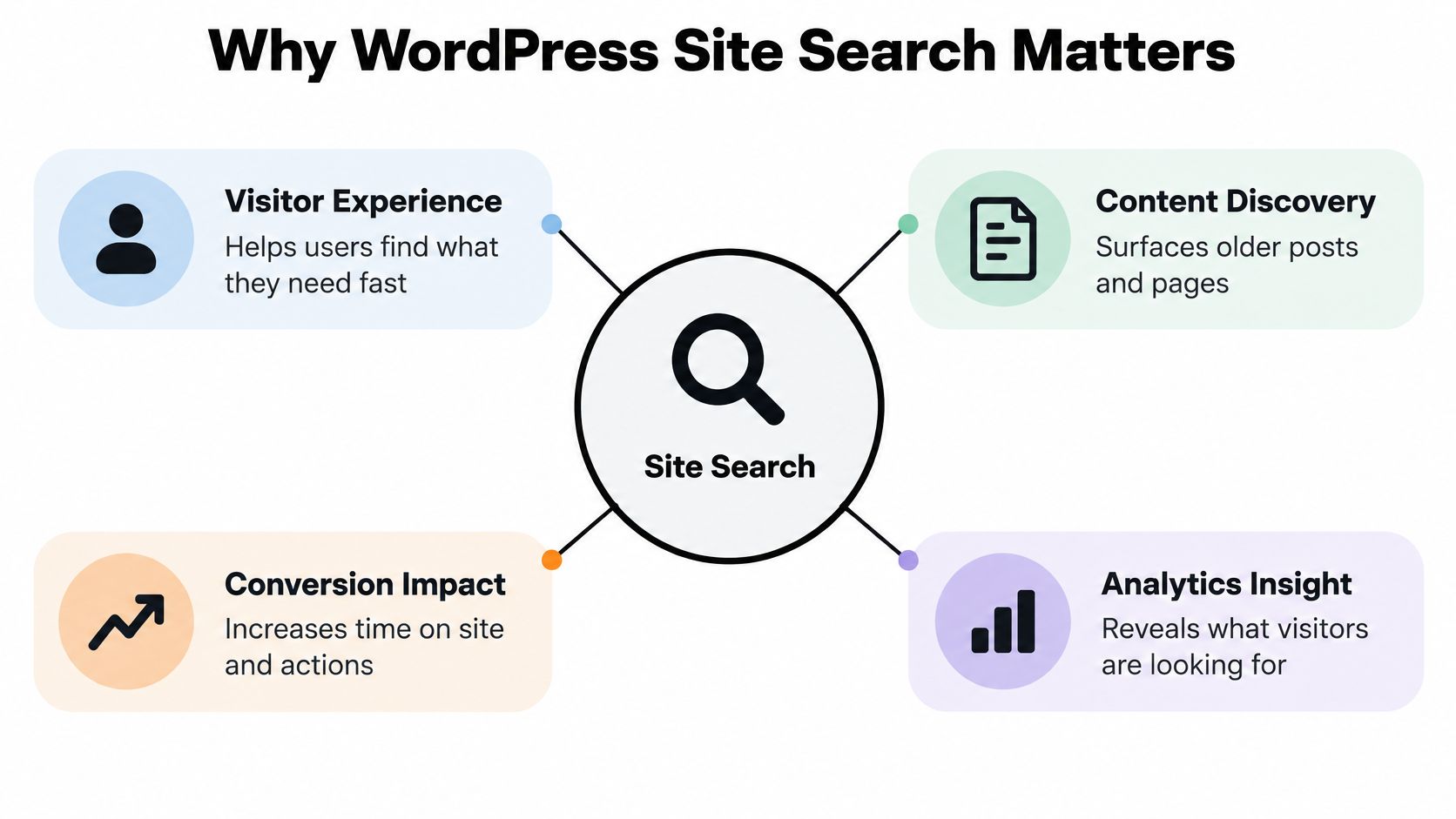
An infographic titled Why WordPress Site Search Matters illustrating benefits like visitor experience, content discovery, and analytics.

What the default search actually does

WordPress core uses a tiered ordering heuristic. It gives priority to exact phrases in titles, then matches all or some title terms, followed by matches in excerpts or content. It doesn't use term-frequency or word-proximity scoring, so a relevant article can lose out when its wording differs from the query. That's a useful starting point for simple searches, but it isn't the same as understanding a reader's intent.

The practical implication is clear: the first results page needs to explain itself. A study of web-search behavior found that about 53% of users entered one query and roughly 54% viewed one results page. That research wasn't specific to WordPress, but it supports a sensible editorial priority: make titles, excerpts, and any category or date context easy to scan immediately. (The study of pages viewed during web searching provides the behavioral context.)

Search also belongs in the wider experience of finding and reading content. A clear search field, useful result page, and sensible route back to browsing can complement website speed and indexing best practices. If you're building a publication from scratch, this guide to creating a WordPress blog offers relevant setup context. Treat search as navigation, not decoration.

Built-In Search vs Search Plugins

A visitor searches “phone feed” for a post titled “mobile RSS subscription” and gets no useful match. That gap between a reader's wording and a site's wording is where built-in WordPress search can fall short. For a small site with straightforward queries, core search may be enough: it requires no extra configuration and avoids another plugin to maintain.

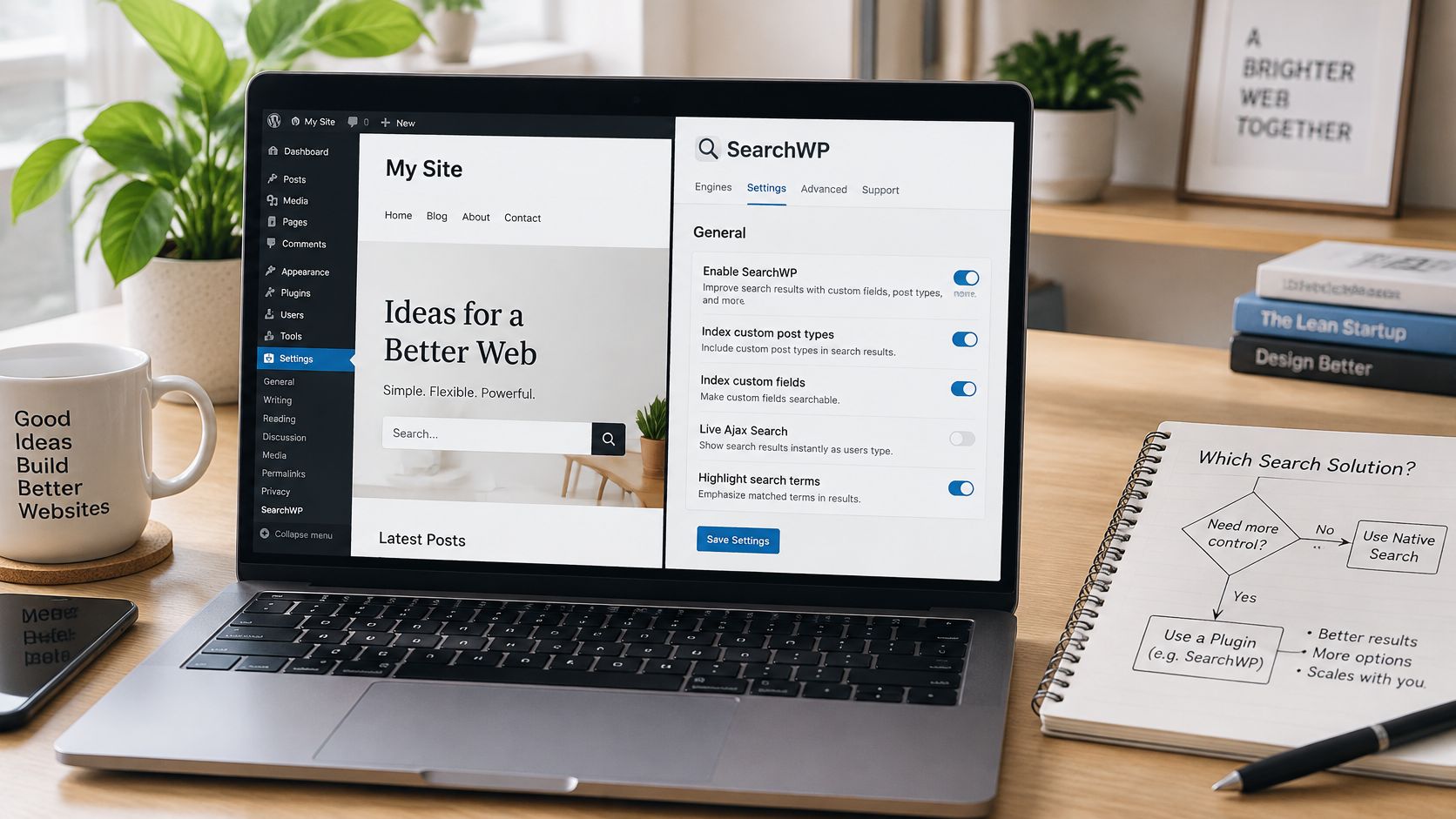
A modern laptop on a wooden desk showing SearchWP plugin settings on a WordPress dashboard website interface.

Core search offers limited control over matching and ranking. It doesn't recognize synonyms or weigh how close query terms appear, so a relevant post may rank poorly when its wording differs from the search. Plugins can add synonym handling, partial matching, field weighting, or live suggestions. Each option also adds settings to test and maintain.

Choose by the job, not the feature list

Start with the failure you need to fix. Relevanssi, Ivory Search, and Better Search extend or replace parts of the native search experience. Check their current features and confirm that they support the content types and controls you need. SearchWP may suit a content-heavy site that needs custom-field indexing or more control over relevance. FacetWP focuses on filtering structured content, so it may complement keyword search rather than replace it.

Practical rule: If you can't name the search failure a plugin should fix, keep the default search and start collecting queries.

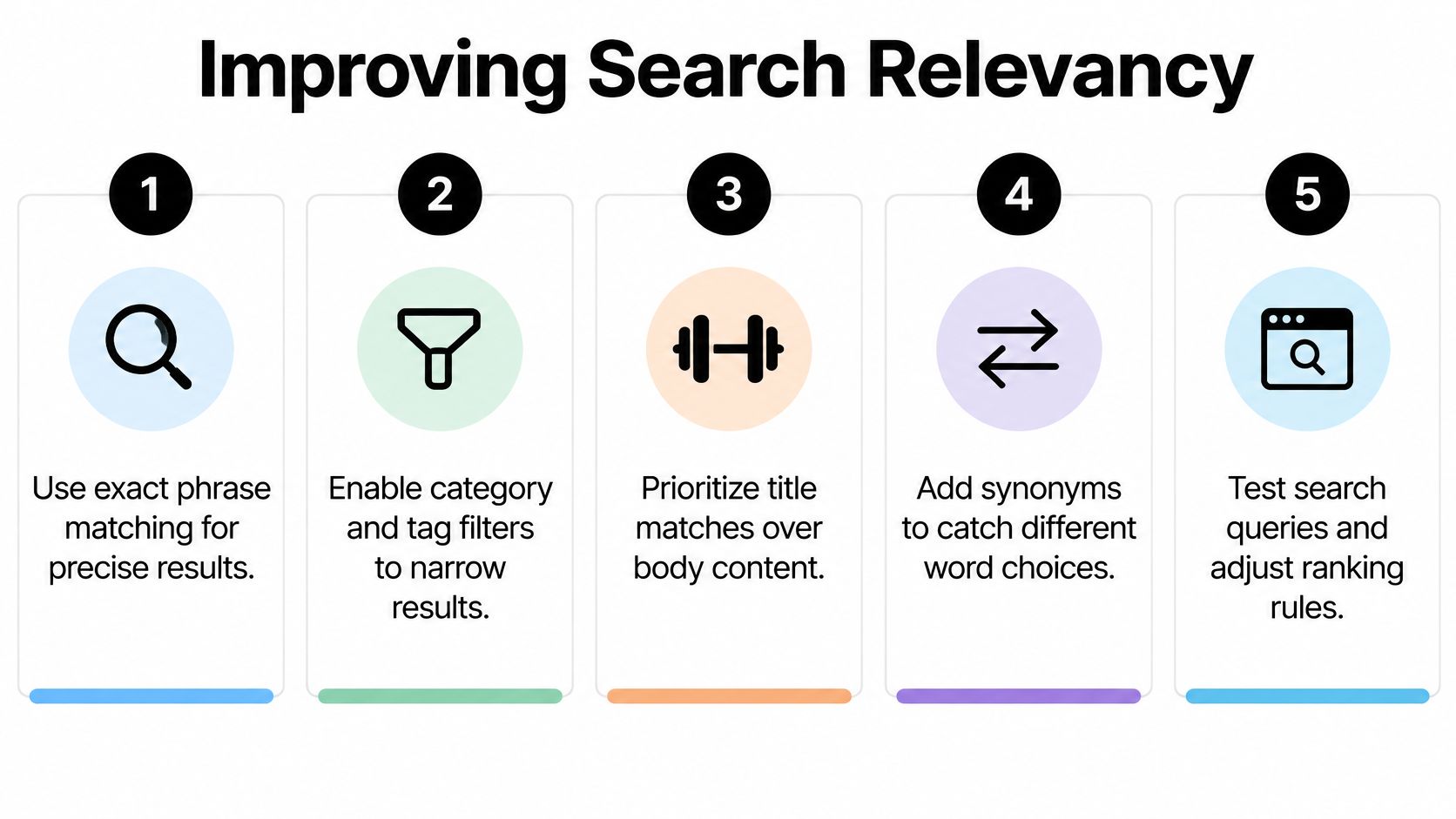
Query logs show where visitors' wording diverges from your content. For example, “phone feed” and “mobile RSS subscription” may express the same intent, while “free tools” and “free OCR tools” point to different needs. Group queries by intent, such as finding a specific page, learning about a topic, or using a tool. If three or more phrasings in your logs point to the same intent, test a synonym or revise the target article's title.

Here's a brief look at a WordPress search setup in action.

Setting Up a Search Plugin

Installing a plugin is the easy part. The important work is deciding what it should search and then checking whether its results improve actual visitor tasks.

Configure the index with intention

Start in a staging environment if your site relies on a complex theme or custom post types. Choose a plugin from the WordPress repository or a vendor you trust, check that it supports your WordPress setup, install and activate it, then review its documentation before changing search behavior on the live site.

  1. Select content types. Include published posts and pages that visitors should find. Add a custom post type only if it contains material readers expect to search. Don't assume every available content type belongs in results.

  2. Decide which fields matter. Titles and body text are a sensible baseline. Add excerpts, categories, tags, or custom fields when those fields contain useful descriptive information. Indexing every field can introduce irrelevant matches, so test each addition rather than enabling everything at once.

  3. Check visibility rules. Confirm that drafts, private content, and attachments aren't appearing unintentionally. A larger index isn't automatically a better index. Search should expose content visitors are permitted and expected to see.

  4. Review excerpts and result templates. Results need enough context for someone to recognize the right article. Use a useful excerpt, a readable title, and, where it helps, category or date information. Keep the result page consistent with the rest of the site so it feels like part of the same publication.

  5. Rebuild or refresh the index. Some plugins require an initial indexing step, and some may not update every indexed item automatically after edits. Check the plugin's indexing process after configuration and again after making substantial content changes.

Don't tune settings by staring at a dashboard. Search for a few known titles, partial phrases, and terms that should return nothing. If the expected content doesn't appear, check the selected post types and fields before adding more complexity. A plugin that indexes the wrong material can make a clean search experience harder, not better.

Improving Search Relevancy

Search relevance is a joint result of plugin settings and editorial structure. Weighting can make title matches more prominent, but it can't reliably compensate for vague titles, inconsistent taxonomy, or content that never uses the terms readers recognize. Write descriptive titles first, then use categories and tags consistently enough that they help readers narrow a topic instead of multiplying near-duplicate labels.

An infographic showing five numbered steps for improving search relevancy on a website or platform.

Match the content structure to the query

Test title, excerpt, taxonomy, and body-content matches separately. If a post is important to a query, check whether the wording appears in the title or excerpt and whether the relevant category is assigned. Then adjust plugin weighting only where the tests reveal a clear mismatch. Pushing every title match to the top can also produce poor results if titles are broad or duplicated.

Long, conversational queries create a different challenge from short keywords. Someone might type “how do I subscribe to the comments feed on my phone?” A search configuration built only around compact phrases may overlook that question, especially if the article uses different language. A small synonym list can connect common variations; fuzzy matching can help with misspellings, but too much fuzziness may surface loosely related material. Keep a record of what you add and verify that it improves the intended queries.

Mobile search needs more than a responsive layout. Make the field easy to locate and use, provide readable results and comfortably spaced controls, and ensure any suggestions work with a keyboard as well as touch. A screen reader should be able to identify the search field, and visitors should be able to dismiss suggestions without losing their place. Advice about search experience optimization for law firms and roofers offers a useful reminder that the search journey is part of the broader experience, not just a ranking setting. For layout decisions that affect how posts are browsed, these WordPress blog layout examples provide related context.

Testing and Measuring Search Performance

A plugin's settings page can show what you've configured. It can't tell you whether readers find the right article. Use query logs when available, or another privacy-conscious way to review site-search activity, and treat the data as a queue of test cases rather than a verdict on your whole content strategy.

The behavior evidence points to a practical priority: many web-search users make a decision after one query and one results page. The study cited earlier examined web-search activity rather than WordPress site search, so don't treat its figures as a measurement of your visitors. Use the implication carefully: the first result set deserves deliberate testing.

Build a repeatable query test

Export a representative period of search terms, then normalize capitalization and punctuation. Group obvious spelling variants and similar phrases, and label each query by what happened. Focus first on clusters that relate to useful or important content, not merely the terms that occur most often.

CategoryDefinitionAction
SuccessfulThe intended content appears and the visitor doesn't reformulate.Keep the result and check that its title and excerpt are clear.
ReformulatedThe visitor searches again with different wording.Compare both phrases and consider a synonym or content-label change.
AbandonedThe visitor leaves or stops after searching.Inspect the result page and whether the next step is obvious.
Zero-resultThe search returns no matching content.Confirm whether content exists; if it does, review indexing and wording.

Create a benchmark of 50–100 queries that covers exact titles, partial titles, synonyms, misspellings, multi-word phrases, and queries that should return no results. For each query, manually check whether the intended article appears on the first results page. Test one change at a time, such as title weighting or synonym handling, so you can tell which setting helped.

Log reformulations rather than counting only searches that returned something. A results page can technically return posts while still failing the reader's intent. Also check that the test content is published, indexed, and assigned the expected taxonomy. Repeat the benchmark after a major plugin change or a substantial update to your content library.

Common Search Problems and Fixes

When a search returns nothing for a phrase you know appears on the site, first check whether the relevant post type and field are indexed. Then compare the visitor's wording with the article's title, excerpt, and body. Add a synonym only when the phrase represents a real alternative, not as a substitute for clearer content.

If the right article appears but sits too low, inspect the ranking rules and check whether a broad title match is outranking a more useful result. Change one weight at a time and retest the same queries. If drafts, private posts, or attachments show up, review inclusion and visibility settings before rebuilding the index.

Fix the parts visitors can see

A search field that's hard to find or operate on a phone needs a layout and accessibility check, not just a new ranking algorithm. Give it a clear accessible label, make its controls usable with touch and keyboard input, and verify that autocomplete doesn't block keyboard navigation. Keep the results page readable and consistent with the rest of the site.

A zero-results page shouldn't be a dead end. Offer a broader retry prompt, links to relevant categories, or a selection of useful posts. Independent UX benchmarking cited in the search configuration guidance reports that 50% of sites provide few useful next steps after zero results (Searchcraft's discussion of WordPress search). Treat that as a reason to examine your own empty state, not as proof of how every WordPress site behaves.

Keep the plugin, theme, and site configuration maintained as you refine search. If you're reviewing broader operational practices alongside search usability, this guide to keeping your WordPress site secure and fast can help frame that maintenance work. A quick final check: submit a valid query, submit an expected no-match query, move through results using the keyboard, and try the search field on a phone.


Read More Info publishes practical information in a straightforward WordPress format, with site search and RSS feeds to help readers discover posts and follow updates. Visit Read More Info to explore the publication and try its search experience for yourself.

RSS Feed Format Example: A Practical Guide

You've just published a new post, shared it once, and watched traffic fade by morning. Your regular readers didn't miss it because they lost interest. They missed it because nothing told them it existed. An RSS feed format example solves that quiet problem by turning each update into structured data a reader app can collect automatically.

Table of Contents

What an RSS Feed Is and Why It Matters

You follow a handful of sites, but you don't want to visit each homepage every day hoping for something new. A feed reader checks for you. It reads a site's RSS feed, a machine-readable XML document that lists recent posts with their titles, links, summaries, and dates.

A diagram explaining the benefits of RSS feeds for website content updates and organized reading.

That simple idea has a long history. Netscape released RSS 0.90 on March 15, 1999, and later branches included RSS 1.0 in 2000 using the Resource Description Framework, then RSS 2.0 published through Harvard in 2003, as traced in the documented history and version timeline of RSS. RSS 2.0 later reached version 2.0.11 on March 30, 2009. Because those branches differ, a good example always states its version explicitly.

What You Gain as a Publisher

  • Automatic distribution: New posts reach subscribers without manual checking.
  • Reader choice: People follow you in the app they prefer.
  • Reuse elsewhere: Aggregators and automation tools can read the same structured list.

For instance, a small business site can publish site updates for rural Utah businesses in the same way a blog publishes articles. If you're still building the site itself, a guide on setting up a WordPress blog from scratch covers the foundation you'll attach the feed to. A WordPress publication's feed typically carries the site title, homepage URL, description, and entries for each post, and it can list roundups covering free tools without readers revisiting the homepage.

Required Elements in an RSS 2.0 Feed

A feed has two levels, and keeping them straight is half the work. The outer level describes the publication as a whole. The inner level repeats once per post. Reader software checks the outer level first, so that is where the required fields live.

A diagram illustrating the hierarchical structure of required elements in an RSS 2.0 feed format.

The outermost tag is <rss>, usually written with version="2.0", and it wraps a single <channel> element. The channel is the part reader software parses before it touches any entry. According to the Harvard-hosted RSS 2.0 specification, three channel elements are required, and each one answers a question a first-time subscriber would ask.

What is this publication called? That answer goes in <title>. Use the name readers recognize, not a file name or an internal label.

Where does the publication live? <link> holds the canonical homepage URL, written in full so any aggregator can resolve it.

What is it about? One plain sentence in <description> helps a subscriber decide whether the feed is worth adding.

Practical rule: Channel fields describe the whole publication, while item fields describe one post. Mixing those two levels is the most common beginner mistake.

Beneath that metadata sit the <item> elements, one per article or update. An item can carry <title>, <link>, <description>, <author>, <category>, <comments>, <enclosure>, <guid>, <pubDate>, and <source>.

The specification technically permits an item containing only a title or only a description. Reader apps, though, need a headline to list and a summary to preview, so practical feeds supply both. The same two-level model also powers a comments feed, where each item describes one discussion entry rather than one post.

A Minimal RSS Feed Example

Start with the smallest feed that works, then add to it later. According to the RSS Advisory Board specification, an RSS 2.0 feed has one root <rss version="2.0"> element containing exactly one <channel>, followed by zero or more <item> elements. Here's that structure in compact form:

<rss version="2.0"><channel><title>Example Publication</title><link>https://example.com/</link><description>Latest articles</description><item><title>Example article</title><link>https://example.com/example-article/</link><guid isPermaLink="true">https://example.com/example-article/</guid><pubDate>Tue, 10 Jun 2025 14:30:00 +0000</pubDate><description>Short article summary.</description></item></channel></rss>

Three details in that snippet matter more than beginners expect. Use absolute URLs so aggregators can resolve links consistently. Encode the file as UTF-8, and escape reserved characters, so & becomes &amp;. Write the date in RFC 822-compatible form, such as Tue, 10 Jun 2025 14:30:00 +0000.

Minimal RSS 2.0 Feed Elements

ElementPurposeRequired
<rss>Root element identifying the format versionYes
<channel>Container for publication metadata and itemsYes
<title>Name of the site or of one itemYes in channel
<link>Canonical URLYes in channel
<description>Site summary or item excerptYes in channel
<item>One post or updateNo, but expected
<guid>Persistent unique identifier for an itemNo, strongly advised
<pubDate>Publication timestampNo, strongly advised

That's the whole trick at this level. Copy the skeleton, replace the values with your own, and you've got a working RSS Feed Format Example you can test.

A Full RSS Feed Example with Optional Elements

Optional elements don't make a feed valid. They make it useful. A reader app can display a bare title and link, but it can't sort, group, or identify authors unless you give it that information.

A modern laptop on a white desk displaying an RSS feed XML file in code editor.

Required tags work like the address on an envelope: enough to deliver the item. Optional tags work like the return address, tracking number, and contents label: the package still arrives without them, but sorting and handling get much smarter.

On a WordPress site such as Read More Info, one <item> using the common optional elements looks like this:

<item>
  <title>Five Free Tools Worth Installing</title>
  <link>https://example.com/five-free-tools/</link>
  <guid isPermaLink="true">https://example.com/five-free-tools/</guid>
  <pubDate>Tue, 10 Jun 2025 14:30:00 +0000</pubDate>
  <author>editor@example.com (Site Editor)</author>
  <category>Software</category>
  <category>Free tools</category>
  <comments>https://example.com/five-free-tools/#comments</comments>
  <enclosure url="https://example.com/media/free-tools-episode.mp3" length="18342755" type="audio/mpeg" />
  <description>A short summary of the article for readers scanning their feed.</description>
</item>

Three things in that block trip up beginners. First, <author> expects an email address, with the writer's name in parentheses as a courtesy, not a plain name. Second, <enclosure> needs three attributes: the file URL, its size in bytes, and its MIME type, because reader apps use those values to decide whether to download the media. Third, an item can repeat <category> as many times as needed, so this post appears for readers filtering by either topic.

The <description> here holds a summary, the common WordPress choice: it keeps the feed file small and sends readers back to the site for the full article.

When Each Optional Element Earns Its Place

  • <author>: Use it when multiple people write for the site and readers follow bylines.
  • <comments>: Points to the discussion page for that post.
  • <enclosure>: Attaches a media file, which is how podcast episodes travel through feeds.
  • <source>: Credits another feed when you're republishing an item.
  • <guid>: Gives the item a stable identity even if the title changes later.

The walkthrough below assembles these pieces into a complete working channel.

The pattern to copy is consistency. If you add categories to one post, add them to all. Reader apps build filters from your habits, so uneven metadata produces uneven results.

Understanding RSS Namespaces and Extensions

Sometimes core RSS doesn't have a tag for what you need. You want to include full article text, episode duration, or a formal creator field. Namespaces solve that by letting you borrow extra elements without breaking the base format.

A laptop screen displaying an RSS feed code example alongside a diagram showing RSS namespaces.

You declare a namespace on the root element with a prefix and a URL that identifies it. Then you use that prefix inside items, like content:encoded for full post content. The prefix tells software, this element comes from that extension, not from core RSS.

Three Namespaces You'll Actually Meet

Dublin Core supplies descriptive fields such as creator and date in a standardized form, which suits archives and libraries. The content module carries the complete article body when a short description isn't enough. The iTunes namespace adds podcast-specific details like episode metadata that podcast apps expect.

An extension only helps if the receiving software understands it. Reader apps that don't recognize a namespace simply ignore those elements, and your core feed still works.

That graceful fallback is why WordPress feeds often look bulkier than a textbook RSS Feed Format Example. They layer extensions on top of a simple core. A site publishing categories like free drawing tools, free writing tools, or free visualization tools can use extensions to carry featured images or full text for each one. Add a namespace when a specific consumer needs it, not because more tags look more professional.

RSS 2.0 vs Atom Which Format Should You Use

This choice isn't about which XML looks cleaner. It's about how strictly each format describes identity and time. That distinction is central to the explanation of what Atom is and why it was created.

RSS 2.0 permits relatively loose item metadata. A date, author, and URI aren't universally required, so two valid feeds can describe posts very differently. Atom is stricter. It requires stronger identity and timestamp semantics, including an entry ID and an updated time for each entry.

Where the Difference Shows Up

Suppose you fix a typo in yesterday's post about a free keyword tool or update pricing in a guide to free keyword tools. In RSS, a stable <guid> tells reader apps this is the same article, not a new one. Atom goes further by explicitly separating published from updated, so revised posts are represented more precisely.

  • Choose RSS 2.0 when broad compatibility with readers, podcast apps, and WordPress defaults matters most.
  • Offer Atom when your consumers need stricter metadata, clear revision handling, or more rigorous timestamps.
  • Either way, document stable GUIDs, canonical links, and timezone-aware dates.

For a small WordPress site, keeping RSS 2.0 is usually the sensible default. The interoperability risk isn't the XML wrapper. It's ambiguous identity, vague dates, and unclear update behavior. Fix those, and RSS 2.0 serves most publishers perfectly well.

Making Your Feed Usable and Safe

A feed can pass every technical check and still be a poor publishing decision. Validity tells you the XML is well formed. It says nothing about whether you should be sending that content to anyone with the URL. The operational concerns in Berkeley's course material on feed security considerations are worth taking seriously before you publish.

Excerpts or Full Content

An item's description can hold a short summary or the entire article. Full text is convenient and accessible, since subscribers read without leaving their app. It also makes unauthorized copying easier and can expose material meant for members. Excerpts protect your traffic and your content, but they add a click for every reader.

Your goalSensible choice
Discovery and site visitsExcerpts with a clear link
Reader-first distributionFull text
Member or paid contentSeparate authenticated or tokenized delivery

Media and Access Boundaries

Don't assume images, audio, or video embedded as ordinary HTML will be interpreted consistently. Use explicit feed markup, including <enclosure> for media files. A feed listing free tools like photoshop or free daemon tools still needs deliberate image handling if you want thumbnails to appear.

Never treat a User-Agent string as access control. Anyone can copy that string, so it proves nothing about who's asking. If content is private, it needs real authentication, not a public feed with a polite request attached.

Decide what your feed exposes before you enable it, not after subscribers and scrapers have already collected it.

How to Validate and Test Your RSS Feed

A feed can load in your browser, look perfectly reasonable, and still fail the moment a reader parses it. Testing works like proofreading: a spell-checker catches typos, reading aloud catches awkward phrasing, and a second reader catches whatever you stopped seeing. Feeds need three similar passes.

First, does it parse? Open the feed URL directly and confirm you see raw XML rather than an error page. Then run it through a validator. Validators are among the most useful free tools online for this job, flagging malformed XML and missing required elements your eyes would skip.

Second, does it display? Subscribe to the feed in a real reader. Titles, dates, and links should appear the way a human expects.

Third, does it update? Publish a test post and confirm it arrives with the right timestamp and a working canonical link.

The failures that surface most often are unescaped ampersands, dates in a local format instead of RFC 822, missing GUIDs, and relative URLs that break outside your domain. Fix the source template rather than the output, since hand-editing means the next post reintroduces the error.

Approach this like any quality review. The discipline behind content audit tips for editors applies here: compare what you published with what you intended. If you rely on free ai tools online for monitoring, check quotas first, since Google Cloud's free AI tools overview lists more than 20 products with free usage subject to product-specific monthly limits.

Quick Reference RSS Elements and Common Issues

Keep this table nearby when you're building or debugging. It compresses the earlier detail into a lookup you can scan in seconds.

RSS 2.0 Element Quick Reference

ElementRequiredPurpose
<rss>YesRoot element with version attribute
<channel>YesHolds publication metadata and items
<title>YesPublication or item name
<link>YesCanonical URL
<description>YesSummary of site or item
<item>NoOne post or update
<guid>NoPersistent unique identifier
<pubDate>NoPublication date in RFC 822 form
<category>NoTopic grouping for filtering
<enclosure>NoAttached media file
<author>NoItem author
<comments>NoLink to discussion page

Fixes for the Problems You'll See Most

  • Feed won't load at all: Look for an unescaped & or an unclosed tag.
  • Posts show the wrong date: Your <pubDate> format or timezone offset is off.
  • Old post appears as new: The <guid> changed, so readers treat it as a fresh item.
  • Images missing: The feed has no explicit media markup for them.

Frequently Asked Questions About RSS Feeds

How Do I Find a WordPress Site's Feed URL

Add /feed/ to the site's address. WordPress generates a posts feed there by default, and a separate comments feed usually lives at /comments/feed/. If a site covers topics like free budgeting tools, free crm tools, or free map tools, category feeds follow the same pattern.

Can I Create a Custom Feed for One Topic

Yes. WordPress supports feeds for categories, tags, and authors, which lets readers follow only free ocr tools or only free zip tools coverage instead of everything. Publishers writing about free pro tools download, pro tools free download, free humanizer tools, free wireframe tools, and free bi tools often split feeds so specialist readers aren't flooded.

Why Doesn't My New Post Appear Immediately

Caching is the usual reason. Your site, a caching plugin, or the reader app itself may serve a stored copy of the feed for a while. Publish, wait for the cache interval to pass, then check the raw feed URL before assuming something's broken. If the item is in the XML, your feed is fine and the delay is downstream.


If you're building a WordPress publication and want more plain language guides on feeds, site structure, and everyday publishing decisions, visit Read More Info for practical articles written for general readers. You'll find approachable explanations you can apply to your own site, starting with getting your RSS feed working correctly.

10 Best Free Color Palette Generators for Every Project

You've chosen a WordPress theme, added your logo, and opened the color settings. Now you're staring at swatches that look good together but don't tell you which color belongs on the page background, the links, or the buttons. Choosing another attractive combination won't resolve that decision.

Choose a palette generator that fits the work. A useful free color palette generator should help you start from scratch, extract colors from an image, explore color harmonies, test an interface, or prepare values for implementation. Those are different jobs, and the right tool depends on which decision you need to make next.

For rapid exploration, start with Coolors. For image matching, choose Canva or Adobe Color. For website implementation, prioritize Realtime Colors. If you're developing graphic design for your brand, establish a visual direction before refining individual shades.

  • Starting without a direction: Use random generation, curated inspiration, or personalized suggestions.
  • Working with existing assets: Extract colors from photography or build around a fixed brand color.
  • Preparing to publish: Check contrast, assign functional roles, and export usable values.

Treat these as free tools with different responsibilities, not interchangeable swatch machines. The recommendations below prioritize practical control and clear handoffs, so you can stop browsing once you have a palette that works in your actual project.

Table of Contents

1. Coolors

Coolors

Choose Coolors for rapid palette discovery. Its generate, lock, and regenerate workflow lets you keep promising colors while replacing everything else. That makes it a strong starting point when you have a logo color but haven't decided on supporting shades.

Coolors combines core palette generation with a community gallery, image color picking, contrast tools, and export options. Core generation is free, while some advanced features and account capabilities require Pro.

Keep Your Starting Color Fixed

Lock the color you must preserve, then generate alternatives around it. Compare candidates by their potential roles, not just whether they look attractive in a horizontal strip.

  • Best fit: Bloggers, solo creators, and small businesses exploring a visual direction.
  • Main advantage: The lock-and-regenerate approach makes experimentation straightforward.
  • Trade-off: Its supporting features can feel excessive when you only need a few HEX values, and some require payment.

My recommendation is to use Coolors to create a shortlist, then move into a website preview rather than endlessly regenerating. For a publication drawing inspiration from the Read More Info blog, judge candidates against article text, navigation, and buttons.

Save the roles alongside the colors. A note identifying a shade as a link candidate is more useful than a screenshot you'll later have to interpret.

2. Adobe Color

Adobe Color

A fixed brand color deserves more deliberate treatment than repeated random generation. Choose Adobe Color when you want to explore color-wheel relationships and understand how supporting colors relate to your starting hue.

Adobe Color supports complementary, analogous, and triadic schemes, alongside image extraction, palette exploration, and accessibility-related tools. Its color tools are free, although saving palettes to Creative Cloud libraries may require signing in.

A color harmony is a starting relationship, not evidence that a palette is ready for body text or buttons.

Use Harmony Without Surrendering Judgment

Begin with your established color and compare different harmony models. Then adjust the resulting shades according to their intended jobs, especially where text must sit on a colored surface.

Adobe Color also offers previews and simulation for some color-vision deficiencies. Use those features to examine combinations, but don't treat a simulation as a substitute for checking the finished interface.

Its strongest advantage is control. You can explore why a combination works instead of accepting whatever a random generator produces, and image extraction gives you another route into the same project.

The trade-off is interface familiarity. Library features are less compelling if you don't use Adobe products, and sign-in adds friction to saving. Choose it for intentional harmony-based design, not just because you need somewhere to copy a HEX code.

3. Canva Color Palette Generator

Canva Color Palette Generator

Start with Canva when the photograph already defines the direction. A product image, portfolio photograph, or editorial hero image can provide a more concrete starting point than an empty color wheel.

The Canva Color Palette Generator extracts colors from an uploaded image and displays the resulting swatches and HEX codes. The generator is free, and you can continue into Canva's broader design tools and templates, where account or paid-plan requirements may differ.

  • Best fit: Matching a website or campaign to existing photography.
  • Main advantage: A straightforward upload-to-palette workflow with little setup.
  • Main limitation: It's an image-extraction tool, not a full workspace for developing schemes around a chosen base color.

Extract the Mood, Then Assign the Roles

Don't automatically use the most prominent extracted color for headings or buttons. Instead, decide which shades should support the photograph and which need adjustment for readable text.

For WordPress, compare the extracted palette against your intended page structure. The spacing, image placement, and content hierarchy in your WordPress blog layout should guide where you apply accent colors.

My recommendation is to use Canva for visual continuity between imagery and supporting graphics. Choose Adobe Color instead when you need stronger harmony controls, or move to Realtime Colors when your next question is how the extracted colors will function on a website.

4. Khroma

Khroma

Random palettes aren't much help when you keep rejecting the same kinds of colors. Choose Khroma for personalized discovery if you have recognizable preferences but struggle to turn them into combinations.

Khroma uses an initial color-selection training step to learn your preferences. You can then search suggestions by color names, hues, types, HEX or RGB values, and descriptive terms, and save or download generator data for reuse.

Personalization Needs a Clear Boundary

The free browser-based project describes itself as being in beta, so availability and planned features may change. Its initial training also takes more effort than opening a conventional random generator.

  • Use it for: Exploring a personal visual style or finding combinations within a preferred direction.
  • Use its filters for: Narrowing suggestions instead of repeatedly accepting unrelated results.
  • Watch for: Overcommitting to colors you personally enjoy without testing whether they suit the project.

Khroma includes a setting intended to avoid combinations that fail WCAG contrast checks. Still validate the actual text and background assignments, because your implementation determines which colors appear together.

My recommendation is to choose Khroma over general-purpose free ai tools online when the task is specifically learning your color preferences. Use its suggestions as candidates, then document the final values and roles separately so your production palette doesn't depend on the discovery interface.

5. Color Hunt

Color Hunt

Choose Color Hunt when you need inspiration before you need controls. Browsing finished combinations can help you articulate a direction when terms such as muted, earthy, or vivid feel too abstract.

Color Hunt is a curated palette library rather than a generator built around an input color. You can browse new, popular, or random palettes, filter by color and theme, view HEX codes, and organize collections; browsing and use are free, with an optional $5 support contribution.

Browse With a Specific Question

Decide what you're evaluating before you open the gallery. You might compare restrained backgrounds, bold accents, or combinations that complement your photography.

The benefit is reduced setup. Hand-reviewed selections provide ready-made starting points, and categories help you narrow your search without adjusting a color wheel.

The limitation is reduced control. If a logo color is settled, a library is less direct than a generator that lets you preserve that exact value.

Save a palette because you can explain where its colors belong, not just because you like the thumbnail.

My recommendation is to use Color Hunt for mood boards and early conversations, then rebuild the chosen direction in a tool with contextual previews. Don't infer accessible text contrast from the appearance of adjacent swatches. A pleasing collection still needs functional text, surface, link, and status assignments before implementation.

6. Realtime Colors

Realtime Colors

Realtime Colors is my first recommendation for website implementation. Instead of asking you to judge isolated swatches, it applies colors to a website-style layout containing text and interface elements.

Realtime Colors lets you set text, background, primary, secondary, and accent colors, check contrast, and export formats including CSS, Tailwind CSS, SCSS, and CSV. The site states that the tool is entirely free.

Test Function Before Exporting

Use the preview to compare readable paragraphs, visible buttons, and restrained accents. Then test your selected colors in your own theme, since the sample layout won't reproduce every content pattern or component.

  • Strongest advantage: You can assess color roles in context rather than infer them from swatches.
  • Best handoff: Developer-friendly exports that preserve usable color values.
  • Trade-off: The web-interface focus is less suitable for print or illustration.

Apply MDN's WCAG contrast guidance: at least 4.5:1 for normal text, 3:1 for large text, and 3:1 for essential interface components or graphical objects under the applicable AA criteria.

If you're learning how to create a WordPress blog, transfer the tested values into the relevant theme settings. Exporting CSS isn't necessary if you're working without code, but keeping a role-based record is. A successful preview is a useful checkpoint, not final approval of your actual site.

7. Huemint

Huemint

Sometimes you need a direction you wouldn't have chosen manually. Use Huemint for machine-learning-assisted exploration, especially when traditional color-wheel relationships aren't helping you get started.

Huemint suggests schemes for branding, websites, and graphics. That makes it relevant when you're considering a shared visual direction across a site and supporting creative assets, rather than choosing colors for an isolated page.

Treat Generation as a Starting Point

Give each promising result a concrete test: a heading, a paragraph, a button, and a graphic. Decide which colors to retain only after you've seen those applications.

  • Choose it for: Early visual identity exploration and alternative starting points.
  • Its advantage: A different approach from manually selecting traditional harmonies.
  • Its limitation: Generated suggestions still require editing and readability checks.

Available feature and export documentation isn't clear enough to make Huemint my first choice for production handoff. Use it to discover a direction, then record the final colors in a more explicit implementation workflow.

For example, keep a proposed accent while adjusting the text and background independently. You don't need to preserve every generated shade to preserve the overall direction.

My recommendation is to choose Huemint when you're creatively stuck, not when the remaining task is documenting approved styles. Move to contextual testing as soon as you have a viable candidate instead of generating indefinitely.

8. Colormind

Colormind

Already have brand colors you can't change? Choose Colormind for AI-generated variations around fixed colors. Its lock-and-regenerate workflow gives you a practical way to preserve existing choices while exploring their surroundings.

Colormind uses a deep-learning model to generate palettes and can also work from uploaded images. Its image-based approach aims to find colors that work together rather than just return the most common colors in the image.

Separate Website Use From API Use

The website generator is free. The API is free for personal and non-commercial use, while commercial API use requires contacting the provider.

That distinction matters for developers. Using a browser tool to explore a palette is different from integrating palette generation into a commercial product.

  • Best fit: Extending an existing identity without replacing its defining colors.
  • Useful control: Lock approved colors and regenerate the supporting choices.
  • Trade-off: Results can be unpredictable, so expect to reject and refine suggestions.

Unlike Khroma's preference-led approach, Colormind is a direct choice when the fixed starting colors matter more than learning your taste. Unlike Canva's simple extraction workflow, it also supports continued generation around colors you retain.

My recommendation is to use Colormind for controlled variation, then stop once the supporting colors cover your actual needs. Additional generated alternatives won't resolve missing decisions about text, links, surfaces, or interaction states.

9. ColorSpace

ColorSpace

Choose ColorSpace when you know the starting color and want supporting options quickly. It's a direct route from an established brand hue to palette and background ideas.

ColorSpace generates palettes from a single input color and includes gradient tools, including a three-color gradient feature. Its browser-based generator page lists no pricing.

Keep Decorative Backgrounds Separate From Text Decisions

Use the palette results to explore supporting shades, and treat gradients as a separate design choice. If you intend to place text over a gradient, evaluate readability against the background areas beneath that text.

The advantage is simplicity. You don't need a preference-training step or a detailed understanding of harmony controls before exploring alternatives.

The trade-off is limited context. ColorSpace offers less detailed control over accessibility and website application than a design workspace.

  • Good use: Finding supporting colors for an existing logo or exploring decorative backgrounds.
  • Poor use: Approving an entire interface without additional testing.
  • Next step: Transfer promising colors into a contextual preview and assign their roles.

My recommendation is to choose ColorSpace over a larger workspace for a narrow exploration task. Once you've found a suitable direction, stop generating and test it. Don't let an appealing gradient determine your paragraph color, link styling, or button contrast without a separate review.

10. Paletton

Paletton

Choose Paletton for hands-on harmony design. It suits creators who want to manipulate relationships and understand their choices rather than repeatedly request another random result.

Paletton is a free color-scheme designer built around a color wheel. It supports monochromatic, complementary, analogous, triadic, and tetradic schemes, with controls for tuning colors, previewing results, simulating some types of color vision, and exporting color values.

Trade Speed for Deliberate Control

Start with the harmony model that matches your intended direction, then tune hues and shades. Compare the preview with the kind of content you'll publish, not just the appearance of the wheel.

  • Main advantage: More manual control than a basic random generator.
  • Learning value: Direct experimentation with related color harmonies.
  • Main drawback: The interface can feel dated or less intuitive, and useful results require more experimentation.

Paletton is my recommendation when you want control and learning in the same session. Choose Coolors instead for faster discovery or Adobe Color if its interface and library workflow better match your existing tools.

Don't mistake manual effort for guaranteed accessibility. A carefully constructed harmony still needs contrast checks and non-color cues for status information. Preserve your chosen relationships where they help the design, but adjust individual shades when readability requires it. The finished interface matters more than strict adherence to the original scheme.

Top 10 Free Color Palette Generators Compared

ToolCore FeaturesBest ForUX & Unique Selling PointPrice & Value
CoolorsGenerate, lock, and export palettes; image picking and contrast tools👥 Fast palette exploration★ Quick to learn; ✨ lock-and-regenerate workflow💰 Free core tools; Pro features paid
Adobe ColorColor-wheel schemes, image extraction, accessibility previews👥 Adobe users and color-harmony learners★ Strong harmony controls; ✨ Creative Cloud library integration💰 Color tools free; sign-in may be needed to save
Canva Color Palette GeneratorExtract colors and HEX codes from images👥 Beginners matching designs to photos★ Simple image-to-palette flow; ✨ connects to Canva design tools💰 Generator free; other Canva features may vary
KhromaPersonalized color combinations, search filters, contrast setting👥 Designers seeking tailored inspiration★ Learns color preferences; ✨ “Never fail WCAG” option💰 Free; currently in beta
Color HuntBrowse, filter, and collect curated palettes👥 Anyone seeking ready-made inspiration★ Easy browsing; ✨ hand-reviewed palette selection💰 Free; optional $5 contribution
Realtime ColorsWebsite preview, contrast checks, developer-friendly exports👥 Web designers and WordPress site owners★ Tests colors in context; ✨ CSS, Tailwind, SCSS, and CSV exports💰 100% free
HuemintMachine-learning palette generation for brands, websites, and graphics👥 Users needing fresh visual-identity ideas★ Quick AI-generated starting points; ✨ alternative to color-wheel methods💰 Pricing details not specified
ColormindDeep-learning palettes, image extraction, lock-and-regenerate👥 Users refining existing brand colors★ Flexible experimentation; ✨ generates around locked colors💰 Website generator free; commercial API terms apply
ColorSpacePalettes from one color; gradient tools👥 Users with an existing brand color★ Simple workflow; ✨ includes three-color gradients💰 No price listed
PalettonColor-wheel harmonies, tuning, previews, and exports👥 Users wanting hands-on color control★ Detailed harmony controls; ✨ useful for learning color relationships💰 Free

Build a Palette You Can Put to Work

The best free color palette generator supports your next decision. Use Coolors for discovery, Canva for image matching, Adobe Color or Paletton for harmony, and Realtime Colors for website testing and export. Choose Khroma, Huemint, or Colormind when their distinct generation approaches solve a specific creative problem.

Generate a shortlist, then test real content. Following Harvard's color accessibility guidance, retain enough variety in hues and values to create accessible combinations without abandoning creative flexibility.

Turn Swatches Into Documented Roles

Record primary, secondary, background, surface, text, muted text, border, link, success, warning, and error colors. The Quillly palette generator illustrates the implementation-oriented export options available beyond visual swatches, but choose the format your workflow needs.

  • Without code: Copy HEX values into the relevant WordPress theme settings and document their roles.
  • With a developer: Supply named tokens, approved pairings, and the appropriate export format.
  • Across interfaces: Review default, hover, active, visited, focus, disabled, success, warning, and error states.

Contrast alone doesn't establish that success and error colors are distinguishable. Add labels, icons, patterns, or explanatory text, and review color-vision simulations. Keep light and dark variants separate rather than assuming the same assignments work in both.

Practical rule: Approve color pairings in context, not colors in isolation.

Treat the palette as a living specification. When you add a component or introduce a dark mode, update the documented roles first, then regenerate swatches to match. One outdated token is how mismatched grays and off-brand blues slip into production.

Once the palette is documented, apply the same role-based discipline to the rest of your design toolkit: pick each tool for a specific task, and keep the exported values in one place so future edits stay consistent. When the palette feeds into social graphics, pair it with image editing platform picks from 3228 Digital so the exported colors survive the full production chain.

For a lean publication such as Read More Info, keep the implementation reader-focused. Search, semantic structure, responsive reading, and machine-readable feeds should support the content. Finish with a usable system, not a folder of attractive screenshots.


Read More Info offers informational articles and practical guidance for readers building and managing a straightforward WordPress site. Visit Read More Info for related reading, use its search to find relevant posts, and follow its RSS feed to keep up with new updates as you refine your site's design.

10 Best Free Link Shorteners for 2026

The most popular advice about a free link shortener is to pick one with the best analytics. That can be the wrong starting point. If your link is only for a quick share, a dashboard adds little; if it's printed on a QR code or embedded in an evergreen post, an editable destination and reliable link ownership may matter more than click reports.

This guide compares ten services by the decisions that affect real workflows: whether analytics are included, whether you can edit aliases or destinations, how links are managed, what privacy trade-offs come with redirects, and whether the tool suits manual, team, or automated use. A short link replaces a long address with a redirect, a model TinyURL helped establish when it emerged in January 2002 to address links that wrapped across lines in online discussions (Cuttly's URL-shortening history). That convenience has a security cost: research has documented how shortened links can conceal phishing and malware destinations (research on shortener abuse).

The right choice depends on where a link will live and who needs to maintain it. For a WordPress publisher, a link in a post or campaign should be judged differently from a one-off message to a friend.

Table of Contents

1. Bitly

Bitly

Bitly's free plan is more than a basic redirect form, but the monthly link allowance makes it a better fit for occasional publishing than for a busy campaign calendar. It includes five new short links per month, with unlimited clicks on those links, alongside QR codes, Bitly Pages, custom back-halves, and API access. Mobile apps and browser extensions make it easier to create links outside the web dashboard.

The important trade-off is measurement. Link-level analytics and branded custom domains aren't included on the free tier, so a polished interface doesn't mean free campaign reporting. The allowance may also run out quickly if you publish regularly.

Where Bitly fits

Choose Bitly if you value an established ecosystem and want to create a limited number of short links, QR codes, or landing pages without paying upfront. Its API allowance can also support a modest automated workflow, though publishers should test the process before relying on it for routine production.

For a WordPress site, think about link continuity before using any service in evergreen content. If the redirect stops working, the page can still be live while the short address fails, so keep a record of each destination and use a short link only where its added convenience justifies the dependency. Read More Info's guide to creating a WordPress blog can help new publishers plan the site around the content they intend to maintain.

Practical rule: Unlimited clicks don't help if you need click reports or create more links than the free allowance supports.

Best for: Occasional publishers who want QR codes and a familiar toolset, and don't need free link-level analytics.

2. TinyURL

TinyURL

TinyURL works well when speed matters more than a detailed marketing dashboard. You can shorten a link without creating an account, then set up a free account if you want custom aliases, basic management, and simple tracking. That makes it practical for someone who needs to share a link immediately but may want to organize links later.

Don't mistake basic tracking for campaign analytics. TinyURL's free account doesn't provide the deeper reporting or branding features available from some competitors, and its QR code options aren't positioned at the same level. If you need to compare campaign performance or manage branded links across a team, you'll likely outgrow the no-frills workflow.

Quick links, with a path to management

For an individual creator or small publisher, the ability to start without signing up is useful. You can create a link first and decide later whether an account is worth the extra step. TinyURL also notes that a new API is replacing a legacy endpoint, so developers should check the current API documentation before wiring it into a script.

A short address can make a printed handout or spoken recommendation easier to use, but it hides the destination from readers. Don't use a shortener to imply that an unfamiliar destination is trustworthy, and avoid shortening URLs that contain private query information. If you're planning the surrounding site as well, these WordPress blog layout ideas can help keep the destination experience clear and readable.

Best for: Quick, occasional links when you want an optional account and don't need advanced reporting.

3. Rebrandly

Rebrandly

Rebrandly is the branding-led choice in this group. Its free plan lets users create branded links on a Rebrandly-provided domain, then manage and track those links from a dashboard. API access and integrations offer a route to automation, which can be useful when links need to be created consistently across a publishing or marketing workflow.

The distinction to keep in mind is branded links versus a custom domain. A Rebrandly domain can make links recognizable within the service's ecosystem, but users who need their own domain and more advanced analytics should expect to compare paid tiers. Free access can be a starting point, not a guarantee that the complete brand experience is included.

Useful for growing campaigns

A branded short link can look more deliberate than a generic redirect, but it doesn't replace good destination design or a clear call to action. Before placing links in email signatures, printed material, or long-lived posts, confirm whether you can change the destination, export link data, and keep the alias if you later change plans.

Rebrandly makes more sense when link management is part of a marketing routine, rather than a one-off task. Its support center and documentation are helpful for users evaluating integrations, but teams should verify the precise free-plan limits they need before building around them. For general WordPress publishing advice and site updates, browse the Read More Info blog.

Best for: Brand-conscious users who want a managed dashboard and a path toward custom domains and richer analytics.

4. Short.io

Short.io stands out for offering custom domains on its free plan, subject to plan limits. That makes it a strong candidate for a small business or creator who wants links to use a recognizable domain from the start. The service also supports editable slugs and destination updates, so a link can remain the same even when the page it points to changes.

Click statistics are available up to the free-tier cap, and the platform offers API access and QR codes across plans. Its integrations include tools such as Zapier, Segment, and Slack, which gives Short.io a practical route from manual link creation to a connected workflow. Commercial use is allowed on the free plan.

What to verify before you commit

Short.io's appeal is strongest when you already have a domain and want to own the visible brand element. The free plan still has limits on domains and statistics, so check how those caps align with your expected usage rather than assuming the custom-domain feature makes the account unlimited.

Advanced controls are a separate consideration. Password protection and cloaking require a paid plan, while deeper geographic targeting is also gated. Cloaking is not a substitute for trust or security: readers should be able to understand where a link leads, and publishers should avoid concealing risky destinations.

A branded domain improves recognition, but it doesn't remove the need to monitor redirects or keep a record of destination changes.

Best for: Users who want a custom domain, editable links, and basic reporting without an initial subscription.

5. T.LY

T.LY is built for fast, occasional link creation. Its web tool and browser extension make it convenient when you're shortening a URL as part of everyday browsing or publishing. The service also offers QR codes and other link tools, so the free experience can cover more than a pasted-and-copied redirect.

The key limitation is that creating a link isn't the same as maintaining one. Saved links, analytics, custom domains, and API access are paid-account features after a trial. If you need an ongoing record of destinations or a report you can revisit, a free one-off link workflow may not be sufficient.

A good fit for simple sharing

T.LY is a reasonable choice for links that don't require long-term management. A browser extension can reduce friction for a solo creator who routinely shares URLs, but before using it for a campaign, check whether you can later edit the destination and retrieve the associated data without upgrading.

That distinction matters for QR codes and printed material. If a destination changes, an uneditable short link can leave an offline asset pointing to the wrong place. For temporary sharing, that may be an acceptable trade; for evergreen materials, choose a service with clear editing and ownership controls.

Best for: People who want a fast browser-based or extension-assisted shortener and don't need persistent free analytics.

6. Cuttly

Cuttly

A free Cuttly account can behave like a small campaign workspace rather than a paste-and-copy form. It is a continuing tier for light use, with shortening and management plus a link-in-bio page, QR codes, campaigns, and link tags. For a solo marketer, that can keep related links organized without assembling several tools.

The catch is capacity, not click volume. Links can receive unlimited clicks, while link creation and analytics have caps; retention, API limits, and history expand on paid plans. On the free plan, check the exact analytics retention window before relying on campaign tags for reporting, since history expands only on paid tiers.

Organization is the real test

Treat the free tier as a workflow decision. Tags and campaigns help separate channels, a bio page can consolidate profile traffic, and the multilingual interface may help mixed-language teams. Those features matter only if your publishing cadence stays under the caps and the links remain manageable after they are distributed.

Before printing a QR code or adding a bio URL, confirm whether you can edit the destination later, whether links can expire, and what routing data the service collects. If automation or shared reporting is likely, review API limits and ownership controls early; a tidy dashboard is less useful when records age out or cannot be moved.

Best for: Light-use campaigns that need tags, QR codes, and a link-in-bio page, with limits checked before the links are everywhere.

7. YOURLS

YOURLS

YOURLS is free software you install on hosting you control. It gives site owners control over their shortener's domain, aliases, plugins, and data, rather than putting every redirect inside a third-party account. For a technically comfortable publisher, that can be a meaningful advantage when branded links and data ownership matter.

The software itself doesn't charge a per-link or monthly service fee, but hosting and maintenance aren't free in effort or necessarily in cost. You need a domain, a suitable hosting environment, and someone prepared to keep the installation working. Capacity and reliability depend on that hosting setup.

Control comes with responsibility

YOURLS' plugin system makes it adaptable, and community extensions can add capabilities. Self-hosting also gives you more direct control over link records and exports. But a server that's neglected, misconfigured, or unavailable can break every short URL built on it.

Choose YOURLS if you're comfortable maintaining a web application, monitoring the hosting account, and handling updates. If you're a non-technical WordPress beginner, a managed service may be easier to operate, even if it offers less control. A self-hosted redirect service is only as dependable as the domain renewal, hosting, and maintenance behind it.

Ownership has a maintenance cost: you control the redirect infrastructure, so you also have to keep it available and secure.

Best for: Developers and site owners who prioritize control and can manage their own hosting.

8. is.gd

is.gd keeps the workflow deliberately small: paste a URL, shorten it, and optionally choose a custom alias or enable click logging. The service also offers options such as pronounceable and lowercase links, which can make a short address easier to read aloud or type. You don't need an account to create a link.

The same simplicity limits its usefulness for campaigns. There's no account dashboard or advanced analytics, and the statistics page is public when you enable logging. That's a poor fit if your reporting shouldn't be visible to anyone with the stats address or if you need a team to manage links centrally.

Use it for public, low-maintenance links

is.gd is suited to casual sharing where you want a simple alias and don't need a private analytics workspace. Its stated policies say it doesn't use third-party ads, but a short link still hides the destination domain from the person clicking. Shortening shouldn't be treated as a privacy or access-control feature.

Security research has also shown that short-link identifiers can sometimes expose the underlying resources when predictable links are enumerated (Cornell's overview of shortened-link privacy risks). Avoid using public short links for confidential documents, private searches, or destinations that depend on obscurity for protection.

Best for: Fast, no-account shortening when public stats and minimal controls are acceptable.

9. v.gd

v.gd offers a similar minimalist experience to is.gd. You can create links without an account, set a custom alias, and choose whether to log statistics for an individual link. The interface is lightweight and ad-free, and its opt-in statistics make the tracking choice explicit rather than automatic.

That simplicity means you won't find login-based team features or campaign analytics. The stats page is public, so it's unsuitable for sensitive reporting. A public counter can answer a basic question about activity, but it won't replace a dashboard designed to compare sources, devices, or campaign outcomes.

Keep the use case narrow

Use v.gd for straightforward links that need little oversight. The per-link logging option is handy when you want a simple count, but don't enable it without considering who can access that public page. If a link points to a private file or contains sensitive query parameters, don't shorten it as a workaround for setting proper permissions.

As with any redirect service, check the final destination before distributing a link broadly. A short address can be easy to share and difficult for a recipient to inspect, so trust depends on the sender and the destination as much as the service.

Best for: Users who want a no-account short link with optional, public per-link statistics.

10. CleanURI

CleanURI is the most automation-oriented option here. Its shortening endpoint doesn't require an API key, and it returns a simple JSON response that can be used in scripts, serverless functions, or WordPress automations. A web form remains available for manual shortening, but the service is most useful when a workflow needs to create a short link without adding an account-management step.

The trade-off is clear: there's no dashboard, analytics, or branded-domain control. That makes CleanURI a poor choice for teams that need to review link history or report campaign performance. It's better treated as a lightweight utility than a link-management platform.

Test the full automation

A no-key endpoint reduces setup friction, but developers should still test failure handling and store the resulting short links where the team can find them. If the automation creates links that later appear in published content, maintain a destination record and verify that the endpoint's behavior fits your operational needs.

A link shortener doesn't make a destination safe just because a script created it. Keep sensitive values out of URLs, use HTTPS destinations, and review the final redirect before distributing links to a broad audience. For developers who want to explore an integration pattern, browse the shortener API reference.

Best for: Developers who need basic shortening in scripts or WordPress workflows and can live without a management dashboard.

Top 10 Free Link Shorteners: Feature Comparison

Link ShortenerCore FeaturesExperience & TrackingFree-Tier ValueBest For & Standout
BitlyShort links, QR codes, landing pages, API★ Polished apps and extensions; no free link analytics💰 Free: 5 links/month; unlimited clicks👥 Publishers wanting a dependable toolkit; ✨ broad ecosystem
TinyURLNo-account shortening; custom aliases★ Quick and simple; basic tracking with free account💰 Free basic use and link management👥 Casual users; ✨ start without signing up
RebrandlyBranded links, link management, API★ Tracking dashboard; advanced analytics on paid plans💰 Free branded links on a Rebrandly domain👥 Brands building link identity; ✨ brand-first workflow
Short.ioCustom domains, editable slugs, QR codes, API★ Click stats within free-tier limits💰 Free custom domains, subject to limits👥 Businesses and publishers; ✨ branded links without an initial subscription
T.LYOne-off shortening, browser extension, QR tools★ Fast, clean workflow; saved links and analytics require paid plan💰 Free for occasional link creation👥 Users shortening links on the go; ✨ browser extension
CuttlyShort links, QR codes, link-in-bio, tags, campaigns★ Basic analytics; history and limits improve on paid plans💰 Standing free plan with unlimited clicks on created links👥 Light-use marketers and creators; ✨ extra campaign tools
YOURLSSelf-hosted shortener, custom domains, plugins★ Control depends on your hosting and maintenance💰 Free software; hosting and domain costs apply👥 Technical site owners; ✨ data ownership and customization
is.gdNo-account links, custom aliases, readable link options★ Minimal; optional public click statistics💰 Free, no-sign-up use👥 Users wanting quick, simple links; ✨ lightweight, ad-free service
v.gdNo-account links, custom aliases, opt-in stats★ Minimal; statistics appear on a public page💰 Free to use👥 Users seeking a simple shortener; ✨ stats are optional per link
CleanURIWeb form, keyless API, JSON responses★ Simple integrations; no dashboard or analytics💰 Free shortening endpoint👥 Developers and automation users; ✨ no account or API key required

Choose by Link Volume, Tracking Needs, and Control

For occasional sharing, TinyURL, is.gd, v.gd, or T.LY may be enough. TinyURL lets you start without an account and add basic management later; is.gd and v.gd keep creation simple but provide little reporting; T.LY is convenient when you don't need free link history. Choose among them based on whether you value custom aliases, optional public stats, or a browser extension.

For campaign reporting and managed workflows, compare Short.io, Cuttly, Rebrandly, and Bitly against the limits that matter in your work. Don't judge a plan only by whether it offers analytics. Check what the dashboard exposes, how long it keeps the data, how many links you can create, and whether you can export records. A free tier can look generous and still fail if its retention period or creation cap interrupts a campaign.

If you need privacy, a custom domain, and greater control, YOURLS is worth evaluating, provided you can maintain the hosting and security yourself. Developers testing lightweight automations may prefer CleanURI, but should keep link records outside the endpoint if they need a history of what their scripts created.

Before you commit, confirm analytics retention, alias editing, destination updates, link expiry, domain ownership, export options, and the next usage tier's cost. Also test each redirect in a clean browser. Short links can conceal phishing or malware destinations, and ad-based shortening systems have been associated with malicious intermediary requests in security research (study of ad-based shorteners). Avoid shortening login URLs, sensitive downloads, and links containing private query data.

Finally, plan for continuity. A link printed on a QR code or embedded in an evergreen post becomes a dependency on the provider, account, domain, and redirect configuration. Keep a destination record, know how you'll change or replace a link, and don't assume that a short address remains permanent just because it works today.


Read More Info publishes practical WordPress and web guides for bloggers, small businesses, and creators, with site search and RSS feeds for following new posts. Explore Read More Info for straightforward information to support your next publishing decision.

10 Best Free Text to Speech Online Tools for 2026

You've finished a blog post, drafted a short explainer, or opened a document you'd rather listen to than read. You paste the text into a voice generator, like the preview, and then discover that downloading it requires payment, publishing it needs attribution, or the free allowance won't cover your script.

Free text to speech online is enough when you need quick listening, language practice, draft narration, or a short audio clip. It stops being enough when you need dependable commercial rights, repeatable production settings, longer exports, or precise control over pronunciation and delivery. Don't choose a service because it advertises the biggest voice library. Choose it because its free experience lets you finish your actual task.

For listening and study, prioritize comfortable playback and document support. For video narration, prioritize downloadable files, pronunciation, and licensing. For multilingual work, test your actual language and terminology rather than relying on a voice catalog.

Practical rule: Generate a representative passage and test the download before committing your full script. A convincing preview doesn't establish that you can export or publish the result.

These ten options serve different jobs. Some are primarily readers, some are short-clip converters, and others offer a limited introduction to a paid production platform. The recommendations below distinguish those uses without treating every free tier as a complete voiceover studio.

Table of Contents

1. NaturalReader Online

NaturalReader Online

Choose NaturalReader for listening to documents, not for free audio production. NaturalReader Online reads pasted text and uploaded PDFs, DOCX documents, and EPUB files in a browser, without installing desktop software. Its beginner-friendly interface makes it a sensible starting point for study materials and everyday reading.

The service includes a broad voice and language catalog, including neural voices, plus a document library with highlighting and notes. For casual listening, the default voices provide a useful starting point, but evaluate the voice available within your free access rather than assuming every preview is included.

Where the Free Plan Stops

  • Listening: Free in-browser playback suits personal reading and reviewing drafts.
  • Downloads: MP3 export requires a paid plan, so it isn't the right choice for a free downloadable voiceover.
  • Advanced features: Subscription restrictions and daily or monthly limits can apply to particular features.

If you prepare scripts with free office tools, keep the original document and upload a reading copy. Listen for awkward transitions, repeated words, and sentences that are difficult to follow aloud, then correct those issues in the source.

NaturalReader also works well as a companion to free writing tools: write and revise elsewhere, then use playback for an editorial read-through. Upgrade only when you need its paid reading features or export workflow, not just because a premium voice sounds attractive.

2. TTSReader

TTSReader

Need to hear a paragraph without opening another account? TTSReader is the straightforward choice. TTSReader provides free basic browser playback without sign-in and works in modern browsers including Chrome, Firefox, and Safari.

Paste an article, select an available language and voice, and listen. It's better suited to checking straightforward text than building a polished narration track, because its production controls are more limited than those of studio-focused services.

Use TTSReader to answer “Does this read clearly aloud?” rather than “Can I deliver this audio to a client?”

MP3 and WAV export require premium access, and premium voices are paid extras. That distinction makes TTSReader useful for immediate listening but unsuitable when your nonnegotiable requirement is a free audio file.

For bloggers, paste a draft introduction or a passage from the Read More Info blog and listen for sentence flow. Keep the original formatting elsewhere so editing doesn't depend on a temporary playback window.

Treat language support as something to verify with your own material. Test names, abbreviations, and mixed-language sentences before choosing a voice for regular listening. If playback meets your needs, there's no reason to upgrade; if your next step is downloading narration, choose a converter with free export instead.

3. ElevenLabs Text-to-Speech

ElevenLabs Text-to-Speech

ElevenLabs is the pick for evaluating expressive, higher-fidelity narration. ElevenLabs Text-to-Speech offers neural voices, natural prosody, multilingual support, and access through a web app and API. Its free plan provides a monthly credit allowance for testing.

Don't confuse that allowance with a commercial production license. Free-plan use is personal and non-commercial, and published free-plan outputs require attribution. Paid plans provide expanded capacity and commercial rights, while production features such as projects and voice design or cloning sit within paid tiers.

Test Accuracy Alongside Expression

A pleasant voice still needs to pronounce the script correctly. The Artificial Analysis TTS evaluation methodology separates voice preference from pronunciation and other performance characteristics, using at least three independent reviewers for more than 95% of published clips.

Apply that distinction to your own test:

  • Pronunciation: Include brand names, acronyms, numerical information, and specialist vocabulary.
  • Delivery: Compare pauses and emphasis on the same passage.
  • Credits: Finalize the script before repeatedly regenerating long sections.

Use the ElevenLabs audio generation options as an additional comparison resource, then confirm the applicable plan terms before publishing. Among free AI tools online, this is a strong audition platform, but a monetized video or client deliverable calls for the appropriate paid rights.

4. PlayHT

PlayHT

A downloadable audition clip is more useful than a preview you can only hear on a website. PlayHT suits that early comparison stage, particularly when you want to try voices before creating an account.

PlayHT offers guest previews with MP3 downloads, more than 200 public voices, multilingual support, and a 500-character limit per free generation. Its Basic, Pro, and Max model options use a credit system, while daily limits also apply to free previews.

Use It for Voice Auditions

Keep the test passage short but demanding. Include an opening sentence, your product name, and a line that needs a deliberate pause, then compare the downloaded result with your intended visuals.

  • Best use: Short voice auditions and downloadable sample clips without an account.
  • Free restriction: Limited generations and daily preview capacity.
  • Upgrade trigger: Longer scripts, commercial use, additional models, or voice cloning.

If you're comparing free editing tools for videos, import the sample into your preferred editor before selecting the voice. Listen against background music and check whether the pacing fits the scene; don't judge solely through the generator's preview player.

PlayHT's free experience is for testing, not an unrestricted publishing workflow. Choose it when downloading a short audition is the immediate task, then move to a paid plan before commercial production. Avoid stretching a longer project across preview limits to postpone that decision.

5. VoiceMaker

VoiceMaker

Choose VoiceMaker when delivery controls matter more than a minimal interface. VoiceMaker combines multiple neural voices and languages with adjustable pitch, speed, and Speech Synthesis Markup Language, or SSML. The free entry tier lets you evaluate voices and basic conversions.
A useful test is a product introduction that needs a pause before the product name and a slower closing sentence. Try the speech settings on that passage, then decide whether you can achieve the intended delivery without rewriting the entire script.

Production advice: Fix the wording first. Use speech controls to refine a clear script, not to compensate for sentences that are difficult to understand.

Free use has character limits, advanced features require a subscription, and commercial licensing depends on the plan. Higher tiers also provide an upgrade path for larger allowances and API access.

Before choosing VoiceMaker for a deliverable, confirm that your selected voice and tier support the required download format and usage rights. Don't assume that every export or API feature shown in the interface belongs to free access.

Use it alongside free humanizer tools only if you review the resulting text yourself. Preserve names, factual statements, and terminology during any rewriting step, then evaluate pronunciation separately. VoiceMaker is a practical option for controlled speech experiments, but ongoing business narration needs the correct plan rather than a collection of free tests.

6. ttsMP3.com

ttsMP3.com

For a short downloadable audio file, start with ttsMP3.com. ttsMP3.com turns pasted text into MP3 audio through a simple browser workflow, with a choice of voices and languages and little setup.

Unlike listening-first services, downloading is part of the conversion process. That makes it useful for a pronunciation exercise, a draft presentation clip, or a temporary narration track you'll evaluate in an editor.

  • Strength: Straightforward text-to-MP3 conversion without learning a studio interface.
  • Limit: Free use has daily and character restrictions.
  • Trade-off: Minimal editing controls make it a poor fit for elaborate or long-form narration.

Keep your approved script in a separate file and use the converter for short, self-contained passages. Listen to the downloaded MP3 all the way through before importing it into a project, especially when the text contains abbreviations or unusual punctuation.

For creators researching free tools for video editing, separate the audio decision from the editor decision. DaVinci Resolve's free edition includes professional color grading, multicamera editing, and Fusion visual effects, with output up to 4K at 60 frames per second, according to this DaVinci Resolve feature comparison.

ttsMP3.com also offers a basic API for programmatic conversions. Confirm the applicable conditions before automating, and check commercial rights independently of the download button. A file you can save isn't automatically a file you can publish commercially.

7. Text2Speech.org

Text2Speech.org

Text2Speech.org is for basic conversion without a production dashboard. Text2Speech.org provides a long-standing, lightweight interface where you paste text, choose a voice, listen, or download an MP3.

Choose it when a plain spoken version is sufficient. For a personal listening exercise or rough audio placeholder, fewer controls can be convenient because you're not spending time auditioning elaborate voice styles.

Keep Expectations Focused

Its voice selection and customization options are limited compared with AI-first platforms, and character caps apply to individual conversions. Don't choose it for nuanced brand narration if you already know the script needs expressive emphasis or detailed pronunciation control.

A sensible workflow is to prepare a short passage, generate the audio, and check both intelligibility and pacing. If the available voices don't suit your language or terminology, switch tools instead of repeatedly adjusting a script to accommodate unsuitable output.

For scanned source material, use free OCR tools to extract the text, then proofread it before generation. Check names, punctuation, and paragraph order rather than assuming the extracted version is ready to narrate.

Free basic conversion and an MP3 download are useful, but neither establishes commercial permission. Confirm the applicable usage terms before placing the audio in an advertisement, monetized video, or client project. Choose Text2Speech.org for simplicity, and move elsewhere when voice quality or customization becomes the deciding factor.

8. Read-Aloud

Read-Aloud

Read-Aloud combines document listening with downloadable outputs. Read-Aloud accepts TXT, PDF, and DOCX uploads, offers MP3 and SRT subtitle downloads, and doesn't require sign-up.
It uses speech engines available through the browser, including local or network engines and online natural voices in Microsoft Edge. Voice availability and quality depend on the browser and operating system, so test it on the device you will use.

Reading Audio Isn't Complete Accessibility

A TTS webpage converts text to speech; a screen reader also supports navigation through digital interfaces. Research on blind users' screen-reader experiences discusses navigation difficulties and privacy concerns, including a 2025 study with 12 legally blind adults whose preferences included private earbud listening.

For a content site, evaluate headings, links, forms, and reading order as well as the voice. The WordPress blog layout guide is a useful companion when planning how readers encounter your posts.

  • Best fit: Document playback and convenient audio or subtitle exports.
  • Test first: Browser-specific voices, document order, and pronunciation.
  • Privacy check: Determine whether the selected engine sends text over a network.

Don't assume browser-based playback means local-only processing. Read-Aloud is a practical free option for documents, but it's less suited to polished voiceover production and doesn't replace an operating-system screen reader.

9. Narakeet (TTS Maker)

Narakeet (TTS Maker)

If your destination is a narrated presentation or video, Narakeet deserves an audition. Narakeet offers hundreds of voices across many languages, converts scripts to MP3 or WAV, and supports narrated-video creation.

You can try its online TTS without registration. That makes it useful for checking whether the voice, language, and output workflow fit before committing to an ongoing production service.

Free accounts have limited capacity and don't allow commercial use. Choose the trial for personal evaluation, then use an appropriate paid tier for business publishing or larger, repeated projects.

Download availability and publishing permission are separate decisions. Resolve both before building a video around a generated voice.

For multilingual narration, use the same representative passage in each target language. Have a competent reader review the script and generated speech, especially where product names or domain-specific terminology must remain consistent.

If you're assembling slides with free drawing tools, free visualization tools, or free map tools, prepare narration that explains the important visual information rather than merely reading labels. A spoken summary should give listeners enough context to understand what the slide communicates.

Narakeet's production-oriented outputs make it more relevant to creators than a basic reading webpage. Choose it for testing an audio-to-video workflow, but don't treat free capacity as a sustainable commercial production plan.

10. Speechify

Speechify

Speechify is the choice for reading across devices. Speechify reads web pages and documents through a web app, browser extensions, and desktop and mobile apps, with cross-platform syncing.

That combination suits readers who move between articles, PDFs, and study materials. The free plan covers core listening, but voice choices and speeds are limited, while premium features and the best audio quality require payment.

Choose It for Reading Continuity

  • Best fit: Study, productivity, and listening across supported platforms.
  • Free compromise: Restricted voices and playback speeds.
  • Production caution: Don't assume a reading subscription includes downloadable commercial narration.

Accessibility is a substantive reason to evaluate spoken content, not just a convenience feature. In an October 2017 survey of 1,792 screen-reader users, 89.2% reported using a screen reader because of a disability, as documented in this website accessibility overview.

For aspiring bloggers, use the guide to creating a WordPress blog alongside an audible review of your draft. Check whether the introduction establishes the topic clearly and whether headings make sense when encountered in sequence.

Choose Speechify when a polished reading experience across devices is the priority. Choose a dedicated exporter when you need an audio asset for publication, and check that exporter's license rather than assuming personal listening rights cover commercial distribution.

Free Text-to-Speech Tools: Top 10 Comparison

ToolCore CapabilitiesExperience & QualityBest ForPrice & ValueStandout Feature
NaturalReader OnlineReads text, PDFs, DOCX, and EPUB★★★★☆ Easy to use; quality voices👥 Casual listening and study💰 Free listening; exports and advanced features paid✨ Document library with highlights and notes
TTSReaderBrowser-based text and article playback★★★★☆ Fast, no sign-in for basic use👥 Quick article listening💰 Free playback; exports and premium voices paid✨ Works across major browsers
ElevenLabs Text-to-SpeechNeural speech, multilingual tools, API★★★★★ Highly natural voices👥 Creators and developers💰 Free allowance; paid plans add capacity and commercial rights🏆 Voice design and cloning on paid tiers
PlayHTVoice generation, previews, MP3 downloads★★★★☆ Broad voice selection👥 Users comparing voices and creators💰 Limited free previews; subscriptions expand use✨ 200+ public voices
VoiceMakerText-to-speech with speech controls★★★★☆ Adjustable and flexible👥 Users who want voice customization💰 Free tier; paid plans add capacity and usage rights✨ SSML, pitch, and speed controls
ttsMP3.comConverts pasted text to MP3★★★☆☆ Simple and quick👥 Short audio clips💰 Free with daily and character limits✨ MP3 download built into conversion
Text2Speech.orgBasic text playback and MP3 downloads★★★☆☆ Lightweight and straightforward👥 Basic, occasional conversions💰 Free for basic use; character caps apply✨ Minimal setup
Read-AloudReads TXT, PDF, and DOCX; MP3 and SRT downloads★★★★☆ Quality depends on browser and device👥 Document listeners seeking free downloads💰 Free; no sign-up required✨ Uses browser-accessible speech engines
Narakeet (TTS Maker)Multilingual TTS, audio, and narrated video★★★★☆ Production-oriented options👥 Video creators and voiceover users💰 Limited free capacity; commercial use requires paid plan✨ Creates narrated videos
SpeechifyReads web pages and documents across devices★★★★☆ Polished, cross-platform experience👥 Students and productivity-focused readers💰 Free core listening; premium features paid✨ Syncs across web, desktop, and mobile

Choose the Free Speech Tool That Fits the Job

A tool that works for a quick listen may fall short when you need a polished, downloadable voiceover. Choose NaturalReader, TTSReader, or Speechify for listening and study. For production, use PlayHT for downloadable auditions, VoiceMaker for delivery controls, and ttsMP3.com for short MP3 conversions. Consider ElevenLabs or Narakeet for higher-fidelity narration, but check licensing, account requirements, and usage limits before committing.

Read-Aloud fits document listening when downloadable outputs matter; Text2Speech.org covers basic conversions. The top TTS tools for creators offers another comparison, but test your own script and confirm that the required export is available on the free plan.

Test the Workflow, Not Just the Voice

Before generating a final file, check pronunciation, punctuation, pauses, language accuracy, and export format. Confirm whether attribution or an account is required, and review commercial rights and rules for redistribution, sensitive content, and uploaded text. Save a reviewed transcript with the finished audio.

Voice cloning requires a separate consent check. The discussion of nonconsensual voice-cloning risks explains why identity and permission matter beyond ordinary plan comparisons. For routine narration, choose a licensed stock voice rather than imitating someone without permission.

For a WordPress listening feature, test how quickly playback starts on mobile connections. A 2025 speech-service latency benchmark measured median end-to-end responsiveness of approximately 0.4–1.8 seconds for cloud services including GTTS and EdgeTTS. Test time to first audio yourself, then consider short chunks, streaming, or pre-generated files if playback feels slow.

Build a Focused Free Toolkit

Keep your workflow tied to the audio task. Pair TTSReader for draft listening with ttsMP3.com for short MP3 exports. Use Read-Aloud when you need to listen to documents and download outputs. Before publishing commercial narration, check the licensing terms for ElevenLabs or Narakeet and confirm that the free tier covers your intended use.

Treat software downloads as a separate acquisition question, and verify legitimate distribution before installing anything. For research, Google Keyword Planner requires Google Ads setup and campaign creation. Apply the same scrutiny to free speech tools: access does not guarantee unrestricted exports or commercial rights.

Choose the service that gives you an acceptable voice, the export you need, and clear permission for your use. Move to a paid plan when your project exceeds the free tier, after checking its limits rather than building around assumptions.


Read More Info publishes informational posts for general readers, with search and RSS options for finding articles and following updates. Visit Read More Info for practical reading as you choose a speech tool, prepare your next post, and build your content workflow.

10 Free Grammar Checker Online Tools Compared for 2026

A blogger can paste a finished draft into a free grammar checker online, accept the obvious fixes, and then hit the wall where the tool asks for an upgrade to show the rest. That's the normal free-tier pattern. Across these tools, the free plan usually handles basic grammar and spelling, while full rewrites, plagiarism checks, and deeper style reports are where paid plans start. The exact difference comes down to four things, accuracy scope, browser coverage, privacy handling, and free-plan limits.

That means the best choice isn't the flashiest interface. It's the one that fits the draft in front of you. A blogger, student, customer-support writer, and multilingual editor don't need the same tool, even if they all search for the same phrase. The comparison below keeps that practical. I'm looking at what each free tier does well, where it stops, and which writing situation makes it worth opening in the first place.

Table of Contents

1. Grammarly

Grammarly feels like the default starting point for many writers because it stays close to the text as you work. It offers real-time grammar and spelling correction, tone insights, and apps across browser, desktop, and mobile, so it fits everyday writing wherever that happens. Its public product page is here, Grammarly, and the experience is polished enough that new users usually understand it fast.

Grammarly

Best for fast cleanup before publishing

For a blog post, Grammarly is strongest when you want quick mechanical fixes before a human pass. That matches how grammar automation has evolved from simple pattern matching toward context-sensitive checking, which is why modern checkers can spot agreement and fluency issues rather than only spelling slips, as described in the history of grammar-checking systems from Bell Labs through Microsoft's later neural checker work (Cambridge overview of grammar-checking development).

Practical rule: Use Grammarly for the obvious surface errors first, then read the sentence aloud before you accept a rewrite.

Its free tier is enough for basic correction, but the boundaries show up quickly. Full-sentence rewrites, plagiarism checks, and deeper style features sit behind a paid plan, so the free version works best as a first-pass editor rather than a substitute for line editing. If you publish on WordPress, pair it with a content workflow like how to create a WordPress blog and keep the tool focused on cleanup, not final approval. For a deeper look at the mechanics, see how AI grammar correction works.

2. LanguageTool

LanguageTool makes the strongest case for writers who don't live in one language all the time. It supports more than 30 languages, offers a web editor, and also has desktop and mobile apps, so it suits multilingual drafts, mixed-language notes, and international teams. The website is LanguageTool, and its broad coverage is the main reason many writers keep it in rotation.

The free tier works well for everyday corrections, especially when you're writing outside standard American English. That matters because grammar checkers often behave as if standard usage is the only valid target, yet multilingual and dialect-sensitive writing needs a tool that can at least keep up with the language in front of it.

When multilingual writing matters more than bells and whistles

LanguageTool is strongest when the draft needs basic correctness across languages rather than fancy rewriting. It also has open-source roots, which gives it a different feel from the fully commercial assistants in this list. The trade-off is that some browser-extension features are restricted for free users, and more checks plus integrations require Premium.

For day-to-day use, the free web editor is the simplest path. If you need API access, that's where the limits become more visible, because usage is bounded. The practical fit is clear, though. It's the better free choice for writers who move between languages, or for teams that care more about correction coverage than brand-name polish.

3. QuillBot Grammar Checker

QuillBot's grammar checker is built for speed. It's web-based, it doesn't require signup for the checker itself, and it sits inside a wider ecosystem that includes paraphrasing, summarizing, and citation tools. The product page is QuillBot Grammar Checker. For writers who want a quick correction pass and then a rewrite in the same place, that convenience matters.

The free checker handles grammar, spelling, and punctuation, which is enough for many short drafts and blog paragraphs. It's also easy to move from checking to rewriting because the surrounding tools live in the same interface. That makes it especially handy when the problem isn't just a typo, but a sentence that needs rephrasing without opening three different tabs.

Good for quick edits, not deep rewriting

QuillBot works best when the draft already has the right meaning and only needs cleanup. Its free version doesn't give you the deeper rewrite power or higher usage caps that Premium provides, and plagiarism checking is paid. So the free tier is practical, but it's not the whole package.

QuillBot Grammar Checker

If your workflow includes citations or paraphrase cleanup, QuillBot can save time because the pieces sit together. If you only need a strict proofreading pass, it may feel like more tool than you need. That's the right kind of problem, though. It means the free tier is generous enough to be useful, but still clearly separated from the paid layer.

4. ProWritingAid

ProWritingAid is the most editor-like tool in this group. It goes beyond grammar and spelling into style analysis, which makes it useful for long-form writers who want to understand why a draft feels heavy, repetitive, or uneven. The site is ProWritingAid, and its free plan includes the Grammar Checker plus limited daily reports.

ProWritingAid

What sets it apart is the diagnostic layer. If your draft is long, the reports help you spot structural habits rather than isolated mistakes. That's why it appeals to authors and editors who want more than a red underline. The free plan, though, keeps the reports limited, and the extensions plus desktop apps are paid, so you only get a slice of the full environment.

Strong for long drafts, less generous for frequent use

If you draft essays, articles, or chapters, ProWritingAid can expose patterns that basic checkers miss. It's especially useful when you're revising a piece for flow, not just grammar. The drawback is obvious once you use it regularly. The free plan is restrictive, and the paid tier is where the best value lives.

For WordPress publishers, the better habit is to use the free reports as a diagnostics pass and then finish the edit elsewhere, especially if you're building out a content site like the one described in Read More Info's blog. That keeps the tool in its best lane, which is analysis rather than automatic correction. It's a strong fit for writers who want feedback they can study, not just suggestions they can accept.

5. Ginger

Ginger has been around long enough that many ESL and EFL writers already know its name. It offers grammar and spelling checks, contextual corrections, a web proofreading page, and browser extensions. The product page is Ginger Grammar Checker. The free use can help with basic correction, especially when the writer wants simple pasted-text checking.

The tool's selling point is context-aware suggestions. That matters because many grammar checkers handle only surface errors well. Ginger tries to go a little further by reading the sentence around the mistake, which can help when the wrong word is technically spelled correctly but still wrong in context.

The right test is not whether the tool flags something. It's whether the suggestion still sounds like your sentence after the correction.

Best for learners who want a simple online pass

Ginger is useful when the goal is to catch obvious grammar and spelling issues without a steep learning curve. Its web proofreading page is easy to use, and the browser extensions make it accessible during regular writing. The catch is that free use is limited, unlimited corrections need a subscription, and the advanced tools are also paid.

That makes Ginger a decent free checker for short texts and language learners, but not the best choice if you need repeated, high-volume editing. It works as a helper. It doesn't try to replace a serious editor, and that's probably the right boundary.

6. Hemingway Editor

Hemingway Editor is not a full grammar checker, and that's exactly why some writers prefer it. It focuses on readability, not exhaustive correction, and it highlights hard-to-read sentences, passive voice, and adverbs. The web editor is free and doesn't require login, with more features available in Editor Plus. The site is Hemingway Editor.

Hemingway Editor

That makes Hemingway a better second-pass tool than a first-line checker. If another grammar tool already caught the mechanical issues, Hemingway helps you see where the prose gets dense or passive. It's especially handy before publishing, when the question shifts from “Is this correct?” to “Is this easy to read?”

Use it to simplify, not to proofread

For blog posts, Hemingway works well when a paragraph has too much weight. It can reveal the sentences that need trimming before the piece goes live. It's also the one tool here that encourages a stylistic review without pretending to be a complete grammar engine.

If you publish to a site that depends on scannable page structure, the readability pass matters as much as the correction pass. That's why a layout reference like best WordPress blog layouts pairs naturally with Hemingway's goal. The limits are clear, though. It has fewer integrations than dedicated grammar suites, and if you need deep correction, you'll need another checker beside it.

7. Sapling

Sapling sits closer to business writing than casual blogging. It offers AI grammar and spelling checks, autocomplete, browser plugins, and a free webpage grammar check that works without signup. The site is Sapling Grammar Check. Its tone is quick and practical, which suits customer support, sales messages, and other professional writing where speed matters.

Sapling

Better for business replies than long-form prose

Sapling's free page is useful because it gives you a fast correction pass without asking for an account. The business orientation shows up in the product design, especially through autocomplete and plugin support. That can be valuable if your writing happens inside email or support systems more than in a long-form editor.

The free tier is still a partial experience. Advanced suggestions and team governance are paid, and that tells you where the product is aimed. It's built for teams that want consistent messaging, not just writers who need a one-off spellcheck.

For solo bloggers, Sapling is usually a secondary tool. For sales or support teams, it can be a practical free checkpoint before a message leaves the inbox. The trade-off is that its strength is specificity, not breadth.

8. Reverso Grammar & Spell Checker

Reverso stands out because grammar is only one part of what it offers. It combines grammar and spelling correction with contextual dictionaries, translation tools, and mobile apps, so it's especially useful for language learners and people writing across languages. The checker is here, Reverso Grammar & Spell Checker.

Reverso Grammar & Spell Checker

The contextual examples help explain why a phrase works or doesn't. That makes the tool feel closer to a language aid than a pure proofreader. If you're switching between writing and translation, that combination can be helpful.

Strong context, visible limits

Reverso is good when you want more than a correction flag. Its dictionaries and conjugation support help explain usage, which is valuable if you're learning or editing in a second language. The interface does lean heavily toward translation, though, so users looking for a simple grammar-only screen may find it busier than they want.

Free use includes ads and capacity limits, while Premium removes ads and adds capacity. That's a straightforward trade-off. If your writing life includes multilingual drafts or language learning, the free version is still worth keeping around.

9. Scribens

Scribens is one of the better choices if you want a checker that teaches while it corrects. It provides grammar, spelling, and punctuation checks, plus explanations for corrections, which makes it useful for users who want to learn the rule behind the fix. The site is Scribens.

Scribens

That explanation-rich approach is still one of the best reasons to choose it. A lot of tools show you the problem and move on. Scribens slows down enough to be educational, which can reduce repeat errors over time.

Best for people who want to improve, not just fix

Scribens also offers extensions for Word, Google Docs, and email clients, plus mobile apps. That gives it useful reach for day-to-day writing. The interface is simpler than newer AI tools, and some features are marketed separately as add-ons, with regional pages varying in what they show.

For learners, that's not a deal-breaker. In fact, the simpler interface can make it easier to focus on the correction itself. If you want a free checker that acts a little more like a coach, Scribens deserves a look.

10. Slick Write

Slick Write is the lightest option in this comparison, and that is its main advantage. It is completely free, browser-based, and does not require an account. It flags grammar and style issues, then adds readability and structure stats so you can spot weak spots fast. The site is Slick Write.

Slick Write

Paste a rough 600-word draft, and the statistics sidebar gives you a quick read on what needs work. If the passive voice share is climbing or sentence structure looks flat, you can fix those problem areas before a deeper edit. That makes it useful for bloggers who want a fast first pass without signup friction.

Simple, fast, and good enough for a first pass

Slick Write works best as a triage tool. It gets a draft cleaned up quickly, then hands you off to a fuller editing round. The trade-off is clear. You get fewer integrations than paid suites and fewer rewriting features than more polished competitors.

If you want to move from a browser-only checker into a fuller writing environment, see these apps like Microsoft Word for writers. For short posts, notes, or rough drafts, Slick Write stays one of the least annoying free options.

Top 10 Free Online Grammar Checkers Compared

Grammar CheckerCore FeaturesStandout StrengthBest ForPrice & Value
GrammarlyGrammar, spelling, tone insights, AI suggestions✨ Works across web, desktop, and mobile👥 Everyday writers and bloggers💰 Free basics; advanced tools are paid
LanguageToolChecks 30+ languages; web, desktop, and mobile apps🏆 Strong multilingual support👥 Multilingual and mixed-language writers💰 Free tier; more checks and integrations require Premium
QuillBot Grammar CheckerGrammar, spelling, punctuation, paraphrasing, citations✨ No-signup checker with companion writing tools👥 Students and writers revising drafts💰 Free checker; advanced rewrites and higher usage limits are paid
ProWritingAidGrammar checks and style reports🏆 Detailed style and structure analysis👥 Long-form writers, authors, and editors💰 Limited free reports; more features are paid
GingerGrammar, spelling, contextual corrections, rephrasing✨ Context-aware suggestions👥 ESL/EFL writers and everyday users💰 Limited free use; unlimited corrections require a subscription
Hemingway EditorReadability grade; flags complex sentences, passive voice, and adverbs✨ Focuses on making prose clearer👥 Bloggers and writers simplifying drafts💰 Free web editor; optional advanced features are paid
SaplingAI grammar checks, spelling, autocomplete, browser plugins✨ Business-focused writing tools👥 Support, sales, and professional teams💰 Free checker; advanced and team features are paid
Reverso Grammar & Spell CheckerGrammar, spelling, dictionaries, translation✨ Contextual examples and language tools👥 Language learners and translators💰 Free with ads and limits; Premium adds capacity
ScribensGrammar, spelling, punctuation, correction explanations✨ Feedback explains errors to support learning👥 Learners and writers seeking detailed corrections💰 Free core checker; some add-ons and features are paid
Slick WriteGrammar, style, readability, and structure insights✨ Fast, lightweight checks without an account👥 Bloggers seeking a quick editing pass💰 Free to use; fewer advanced tools and integrations

Matching a Free Checker to Your Next Draft

The smartest way to use a free grammar checker online is to stop treating any one tool as final authority. Run the same paragraph through two shortlisted tools, then compare which corrections improve the sentence and which ones change your voice. The education research is clear on the bigger point, free checkers can help with revision, but they don't guarantee error-free writing, and the strongest gains show up when feedback is part of an iterative process rather than a one-click fix (Zenodo study on student writing and grammar checkers).

For publishing work, the routine matters more than the brand. Use a checker for mechanical cleanup, then do a separate human review for meaning, tone, factual accuracy, and style. That matches the broader evidence that automated systems are stronger on surface issues than on organization or coherence, and that high-confidence corrections should come before any rewritten phrasing is accepted (Automated writing evaluation review). If the tool is likely to flatten your voice or misread your intent, don't let it drive the edit.

Privacy deserves the same attention as accuracy. Before pasting client copy, unpublished drafts, or sensitive notes, read the tool's retention language, strip identifying details, and try a synthetic sample first. That caution isn't overkill, it's the difference between a convenient helper and a data-sharing decision you didn't mean to make. The same principle applies to dialect and multilingual writing, where a flag isn't proof that a sentence is wrong, just proof that the tool made a judgment.

For most writers, the best workflow is simple. Keep one tool for grammar, one for readability, and a short list of your recurring mistakes. That way the next draft starts cleaner, needs fewer corrections, and spends less time in the upgrade funnel.


Read More Info publishes practical WordPress-friendly guidance for bloggers, small businesses, and solo creators who want clear answers without clutter. If you want more straightforward comparisons like this one, visit Read More Info and use the site's search and RSS feed to keep up with new posts that help you write, edit, and publish with more confidence.