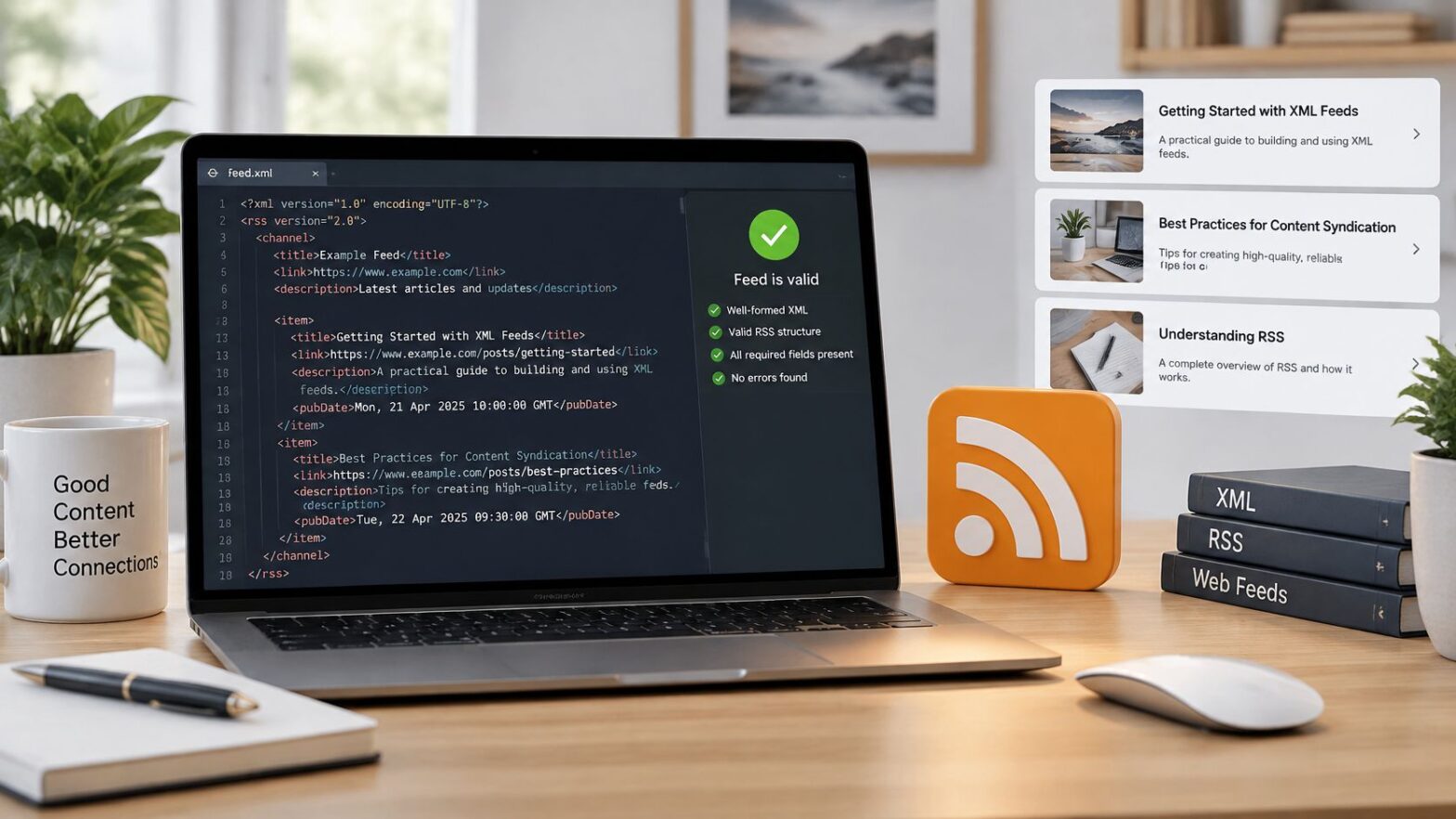
You've just published a new post, shared it once, and watched traffic fade by morning. Your regular readers didn't miss it because they lost interest. They missed it because nothing told them it existed. An RSS feed format example solves that quiet problem by turning each update into structured data a reader app can collect automatically.
Table of Contents
- What an RSS Feed Is and Why It Matters
- Required Elements in an RSS 2.0 Feed
- A Minimal RSS Feed Example
- A Full RSS Feed Example with Optional Elements
- Understanding RSS Namespaces and Extensions
- RSS 2.0 vs Atom Which Format Should You Use
- Making Your Feed Usable and Safe
- How to Validate and Test Your RSS Feed
- Quick Reference RSS Elements and Common Issues
- Frequently Asked Questions About RSS Feeds
What an RSS Feed Is and Why It Matters
You follow a handful of sites, but you don't want to visit each homepage every day hoping for something new. A feed reader checks for you. It reads a site's RSS feed, a machine-readable XML document that lists recent posts with their titles, links, summaries, and dates.
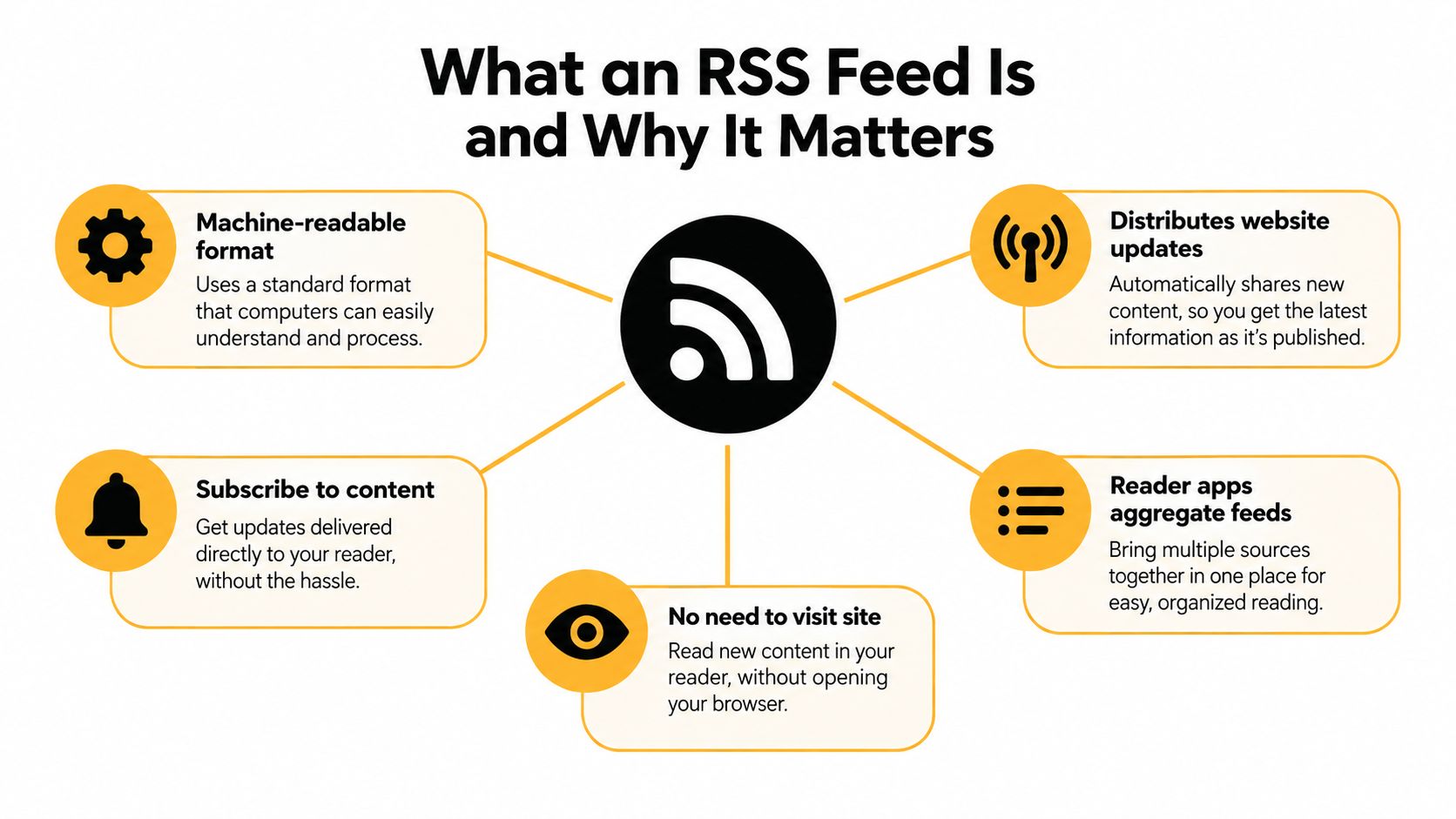
That simple idea has a long history. Netscape released RSS 0.90 on March 15, 1999, and later branches included RSS 1.0 in 2000 using the Resource Description Framework, then RSS 2.0 published through Harvard in 2003, as traced in the documented history and version timeline of RSS. RSS 2.0 later reached version 2.0.11 on March 30, 2009. Because those branches differ, a good example always states its version explicitly.
What You Gain as a Publisher
- Automatic distribution: New posts reach subscribers without manual checking.
- Reader choice: People follow you in the app they prefer.
- Reuse elsewhere: Aggregators and automation tools can read the same structured list.
For instance, a small business site can publish site updates for rural Utah businesses in the same way a blog publishes articles. If you're still building the site itself, a guide on setting up a WordPress blog from scratch covers the foundation you'll attach the feed to. A WordPress publication's feed typically carries the site title, homepage URL, description, and entries for each post, and it can list roundups covering free tools without readers revisiting the homepage.
Required Elements in an RSS 2.0 Feed
A feed has two levels, and keeping them straight is half the work. The outer level describes the publication as a whole. The inner level repeats once per post. Reader software checks the outer level first, so that is where the required fields live.
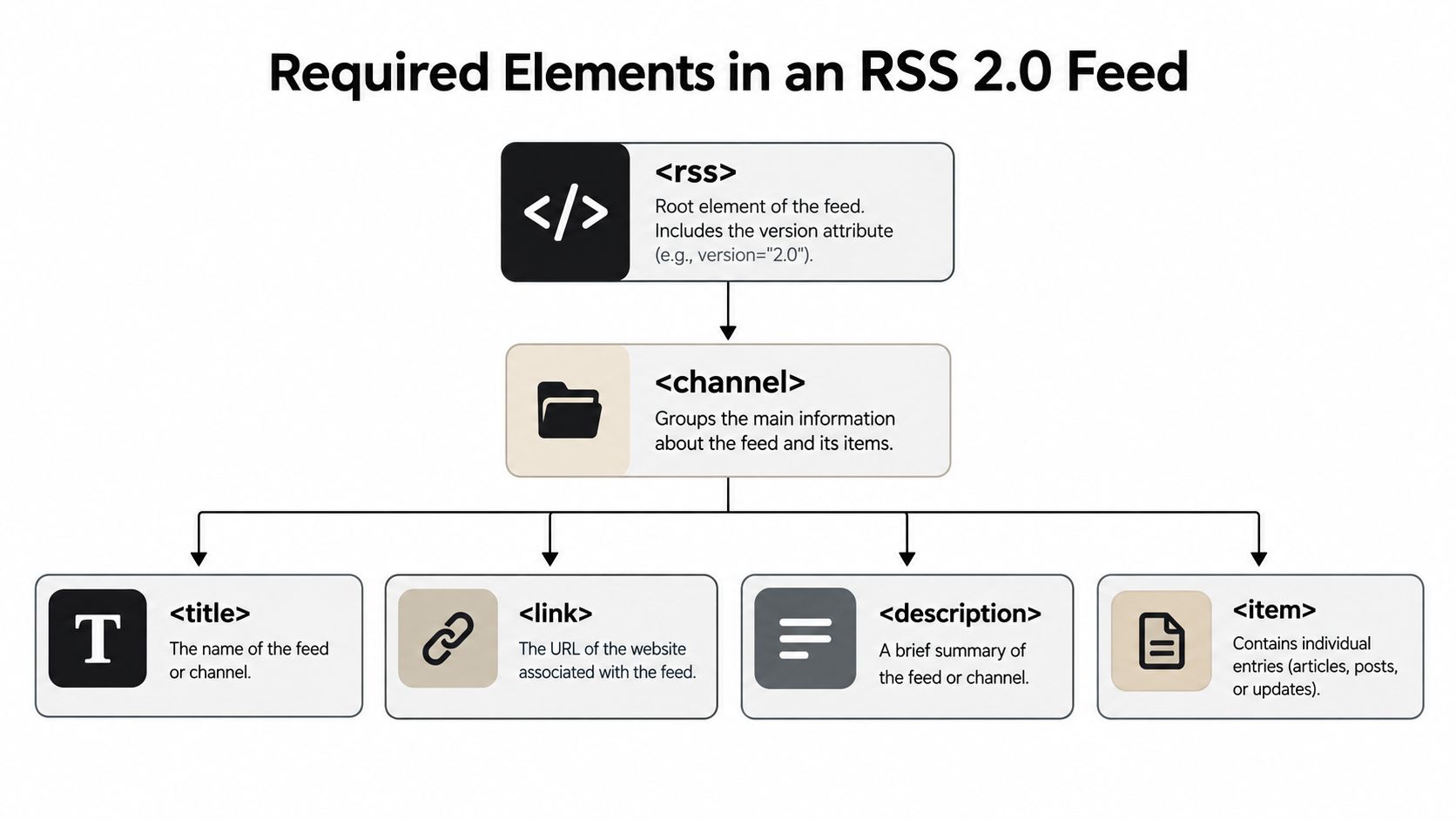
The outermost tag is <rss>, usually written with version="2.0", and it wraps a single <channel> element. The channel is the part reader software parses before it touches any entry. According to the Harvard-hosted RSS 2.0 specification, three channel elements are required, and each one answers a question a first-time subscriber would ask.
What is this publication called? That answer goes in <title>. Use the name readers recognize, not a file name or an internal label.
Where does the publication live? <link> holds the canonical homepage URL, written in full so any aggregator can resolve it.
What is it about? One plain sentence in <description> helps a subscriber decide whether the feed is worth adding.
Practical rule: Channel fields describe the whole publication, while item fields describe one post. Mixing those two levels is the most common beginner mistake.
Beneath that metadata sit the <item> elements, one per article or update. An item can carry <title>, <link>, <description>, <author>, <category>, <comments>, <enclosure>, <guid>, <pubDate>, and <source>.
The specification technically permits an item containing only a title or only a description. Reader apps, though, need a headline to list and a summary to preview, so practical feeds supply both. The same two-level model also powers a comments feed, where each item describes one discussion entry rather than one post.
A Minimal RSS Feed Example
Start with the smallest feed that works, then add to it later. According to the RSS Advisory Board specification, an RSS 2.0 feed has one root <rss version="2.0"> element containing exactly one <channel>, followed by zero or more <item> elements. Here's that structure in compact form:
<rss version="2.0"><channel><title>Example Publication</title><link>https://example.com/</link><description>Latest articles</description><item><title>Example article</title><link>https://example.com/example-article/</link><guid isPermaLink="true">https://example.com/example-article/</guid><pubDate>Tue, 10 Jun 2025 14:30:00 +0000</pubDate><description>Short article summary.</description></item></channel></rss>
Three details in that snippet matter more than beginners expect. Use absolute URLs so aggregators can resolve links consistently. Encode the file as UTF-8, and escape reserved characters, so & becomes &. Write the date in RFC 822-compatible form, such as Tue, 10 Jun 2025 14:30:00 +0000.
Minimal RSS 2.0 Feed Elements
| Element | Purpose | Required |
|---|---|---|
<rss> | Root element identifying the format version | Yes |
<channel> | Container for publication metadata and items | Yes |
<title> | Name of the site or of one item | Yes in channel |
<link> | Canonical URL | Yes in channel |
<description> | Site summary or item excerpt | Yes in channel |
<item> | One post or update | No, but expected |
<guid> | Persistent unique identifier for an item | No, strongly advised |
<pubDate> | Publication timestamp | No, strongly advised |
That's the whole trick at this level. Copy the skeleton, replace the values with your own, and you've got a working RSS Feed Format Example you can test.
A Full RSS Feed Example with Optional Elements
Optional elements don't make a feed valid. They make it useful. A reader app can display a bare title and link, but it can't sort, group, or identify authors unless you give it that information.
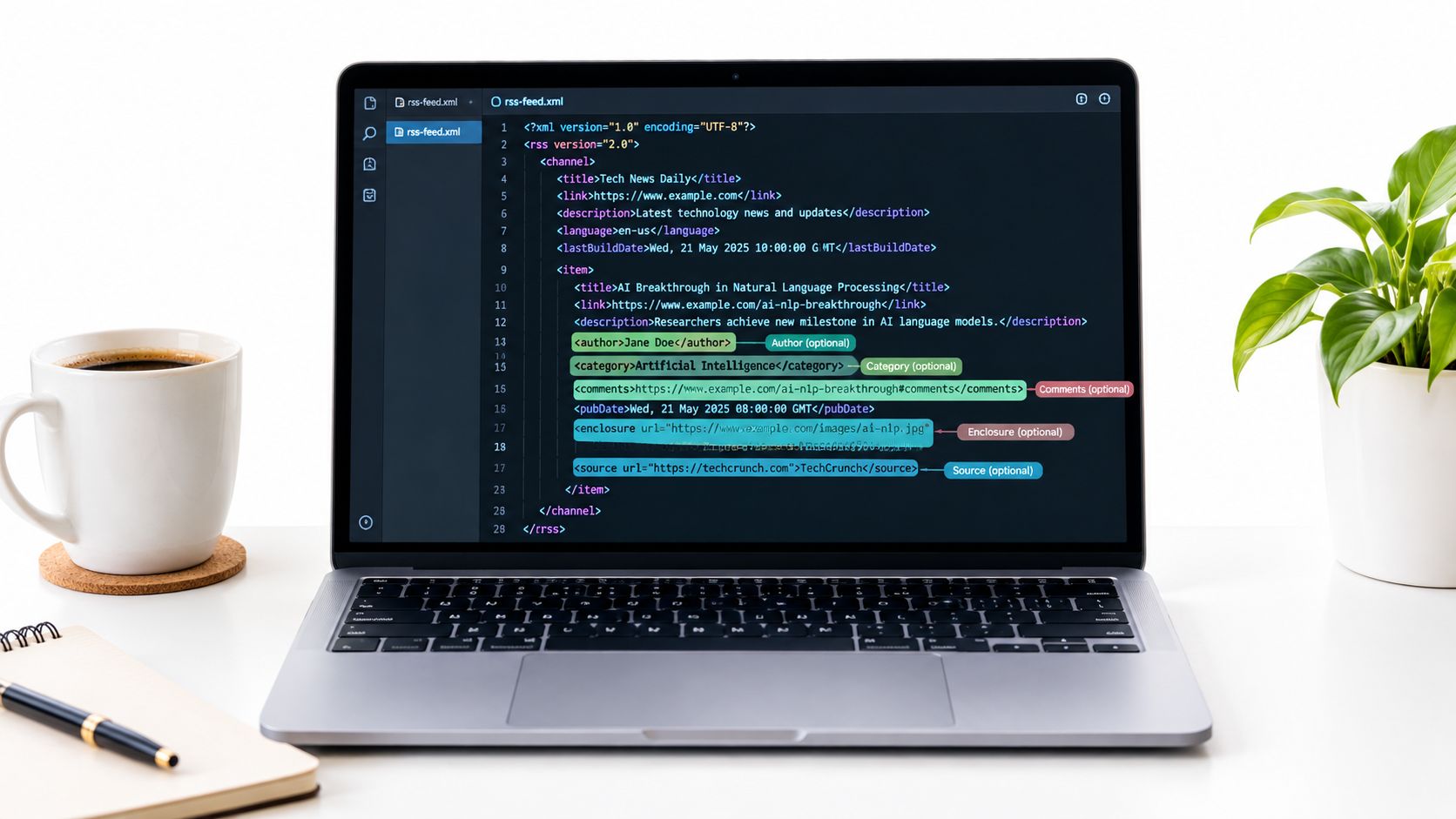
Required tags work like the address on an envelope: enough to deliver the item. Optional tags work like the return address, tracking number, and contents label: the package still arrives without them, but sorting and handling get much smarter.
On a WordPress site such as Read More Info, one <item> using the common optional elements looks like this:
<item>
  <title>Five Free Tools Worth Installing</title>
  <link>https://example.com/five-free-tools/</link>
  <guid isPermaLink="true">https://example.com/five-free-tools/</guid>
  <pubDate>Tue, 10 Jun 2025 14:30:00 +0000</pubDate>
  <author>editor@example.com (Site Editor)</author>
  <category>Software</category>
  <category>Free tools</category>
  <comments>https://example.com/five-free-tools/#comments</comments>
  <enclosure url="https://example.com/media/free-tools-episode.mp3" length="18342755" type="audio/mpeg" />
  <description>A short summary of the article for readers scanning their feed.</description>
</item>
Three things in that block trip up beginners. First, <author> expects an email address, with the writer's name in parentheses as a courtesy, not a plain name. Second, <enclosure> needs three attributes: the file URL, its size in bytes, and its MIME type, because reader apps use those values to decide whether to download the media. Third, an item can repeat <category> as many times as needed, so this post appears for readers filtering by either topic.
The <description> here holds a summary, the common WordPress choice: it keeps the feed file small and sends readers back to the site for the full article.
When Each Optional Element Earns Its Place
<author>: Use it when multiple people write for the site and readers follow bylines.<comments>: Points to the discussion page for that post.<enclosure>: Attaches a media file, which is how podcast episodes travel through feeds.<source>: Credits another feed when you're republishing an item.<guid>: Gives the item a stable identity even if the title changes later.
The walkthrough below assembles these pieces into a complete working channel.

The pattern to copy is consistency. If you add categories to one post, add them to all. Reader apps build filters from your habits, so uneven metadata produces uneven results.
Understanding RSS Namespaces and Extensions
Sometimes core RSS doesn't have a tag for what you need. You want to include full article text, episode duration, or a formal creator field. Namespaces solve that by letting you borrow extra elements without breaking the base format.
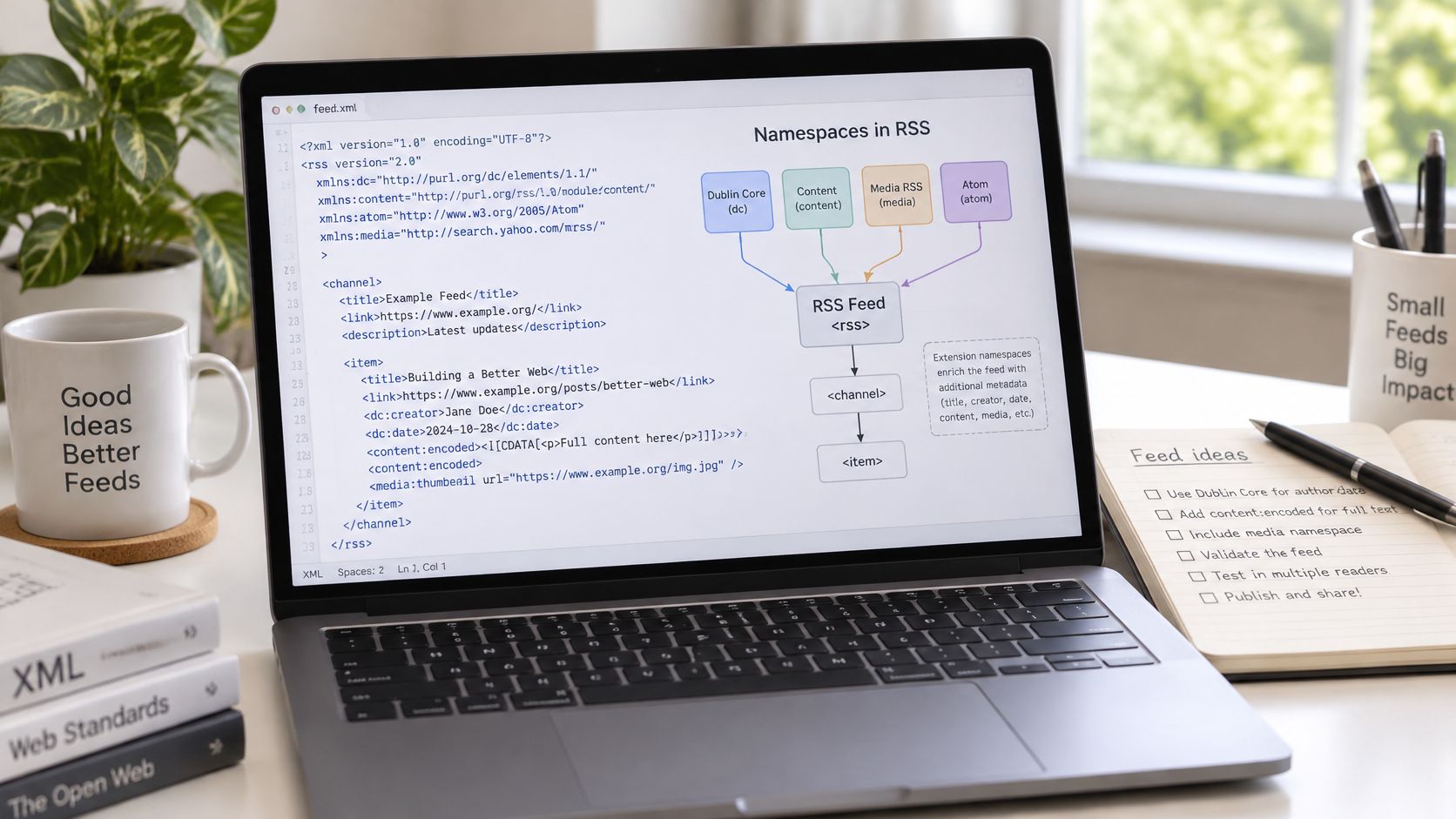
You declare a namespace on the root element with a prefix and a URL that identifies it. Then you use that prefix inside items, like content:encoded for full post content. The prefix tells software, this element comes from that extension, not from core RSS.
Three Namespaces You'll Actually Meet
Dublin Core supplies descriptive fields such as creator and date in a standardized form, which suits archives and libraries. The content module carries the complete article body when a short description isn't enough. The iTunes namespace adds podcast-specific details like episode metadata that podcast apps expect.
An extension only helps if the receiving software understands it. Reader apps that don't recognize a namespace simply ignore those elements, and your core feed still works.
That graceful fallback is why WordPress feeds often look bulkier than a textbook RSS Feed Format Example. They layer extensions on top of a simple core. A site publishing categories like free drawing tools, free writing tools, or free visualization tools can use extensions to carry featured images or full text for each one. Add a namespace when a specific consumer needs it, not because more tags look more professional.
RSS 2.0 vs Atom Which Format Should You Use
This choice isn't about which XML looks cleaner. It's about how strictly each format describes identity and time. That distinction is central to the explanation of what Atom is and why it was created.
RSS 2.0 permits relatively loose item metadata. A date, author, and URI aren't universally required, so two valid feeds can describe posts very differently. Atom is stricter. It requires stronger identity and timestamp semantics, including an entry ID and an updated time for each entry.
Where the Difference Shows Up
Suppose you fix a typo in yesterday's post about a free keyword tool or update pricing in a guide to free keyword tools. In RSS, a stable <guid> tells reader apps this is the same article, not a new one. Atom goes further by explicitly separating published from updated, so revised posts are represented more precisely.
- Choose RSS 2.0 when broad compatibility with readers, podcast apps, and WordPress defaults matters most.
- Offer Atom when your consumers need stricter metadata, clear revision handling, or more rigorous timestamps.
- Either way, document stable GUIDs, canonical links, and timezone-aware dates.
For a small WordPress site, keeping RSS 2.0 is usually the sensible default. The interoperability risk isn't the XML wrapper. It's ambiguous identity, vague dates, and unclear update behavior. Fix those, and RSS 2.0 serves most publishers perfectly well.
Making Your Feed Usable and Safe
A feed can pass every technical check and still be a poor publishing decision. Validity tells you the XML is well formed. It says nothing about whether you should be sending that content to anyone with the URL. The operational concerns in Berkeley's course material on feed security considerations are worth taking seriously before you publish.
Excerpts or Full Content
An item's description can hold a short summary or the entire article. Full text is convenient and accessible, since subscribers read without leaving their app. It also makes unauthorized copying easier and can expose material meant for members. Excerpts protect your traffic and your content, but they add a click for every reader.
| Your goal | Sensible choice |
|---|---|
| Discovery and site visits | Excerpts with a clear link |
| Reader-first distribution | Full text |
| Member or paid content | Separate authenticated or tokenized delivery |
Media and Access Boundaries
Don't assume images, audio, or video embedded as ordinary HTML will be interpreted consistently. Use explicit feed markup, including <enclosure> for media files. A feed listing free tools like photoshop or free daemon tools still needs deliberate image handling if you want thumbnails to appear.
Never treat a User-Agent string as access control. Anyone can copy that string, so it proves nothing about who's asking. If content is private, it needs real authentication, not a public feed with a polite request attached.
Decide what your feed exposes before you enable it, not after subscribers and scrapers have already collected it.
How to Validate and Test Your RSS Feed
A feed can load in your browser, look perfectly reasonable, and still fail the moment a reader parses it. Testing works like proofreading: a spell-checker catches typos, reading aloud catches awkward phrasing, and a second reader catches whatever you stopped seeing. Feeds need three similar passes.
First, does it parse? Open the feed URL directly and confirm you see raw XML rather than an error page. Then run it through a validator. Validators are among the most useful free tools online for this job, flagging malformed XML and missing required elements your eyes would skip.
Second, does it display? Subscribe to the feed in a real reader. Titles, dates, and links should appear the way a human expects.
Third, does it update? Publish a test post and confirm it arrives with the right timestamp and a working canonical link.
The failures that surface most often are unescaped ampersands, dates in a local format instead of RFC 822, missing GUIDs, and relative URLs that break outside your domain. Fix the source template rather than the output, since hand-editing means the next post reintroduces the error.
Approach this like any quality review. The discipline behind content audit tips for editors applies here: compare what you published with what you intended. If you rely on free ai tools online for monitoring, check quotas first, since Google Cloud's free AI tools overview lists more than 20 products with free usage subject to product-specific monthly limits.
Quick Reference RSS Elements and Common Issues
Keep this table nearby when you're building or debugging. It compresses the earlier detail into a lookup you can scan in seconds.
RSS 2.0 Element Quick Reference
| Element | Required | Purpose |
|---|---|---|
<rss> | Yes | Root element with version attribute |
<channel> | Yes | Holds publication metadata and items |
<title> | Yes | Publication or item name |
<link> | Yes | Canonical URL |
<description> | Yes | Summary of site or item |
<item> | No | One post or update |
<guid> | No | Persistent unique identifier |
<pubDate> | No | Publication date in RFC 822 form |
<category> | No | Topic grouping for filtering |
<enclosure> | No | Attached media file |
<author> | No | Item author |
<comments> | No | Link to discussion page |
Fixes for the Problems You'll See Most
- Feed won't load at all: Look for an unescaped
&or an unclosed tag. - Posts show the wrong date: Your
<pubDate>format or timezone offset is off. - Old post appears as new: The
<guid>changed, so readers treat it as a fresh item. - Images missing: The feed has no explicit media markup for them.
Frequently Asked Questions About RSS Feeds
How Do I Find a WordPress Site's Feed URL
Add /feed/ to the site's address. WordPress generates a posts feed there by default, and a separate comments feed usually lives at /comments/feed/. If a site covers topics like free budgeting tools, free crm tools, or free map tools, category feeds follow the same pattern.
Can I Create a Custom Feed for One Topic
Yes. WordPress supports feeds for categories, tags, and authors, which lets readers follow only free ocr tools or only free zip tools coverage instead of everything. Publishers writing about free pro tools download, pro tools free download, free humanizer tools, free wireframe tools, and free bi tools often split feeds so specialist readers aren't flooded.
Why Doesn't My New Post Appear Immediately
Caching is the usual reason. Your site, a caching plugin, or the reader app itself may serve a stored copy of the feed for a while. Publish, wait for the cache interval to pass, then check the raw feed URL before assuming something's broken. If the item is in the XML, your feed is fine and the delay is downstream.
If you're building a WordPress publication and want more plain language guides on feeds, site structure, and everyday publishing decisions, visit Read More Info for practical articles written for general readers. You'll find approachable explanations you can apply to your own site, starting with getting your RSS feed working correctly.