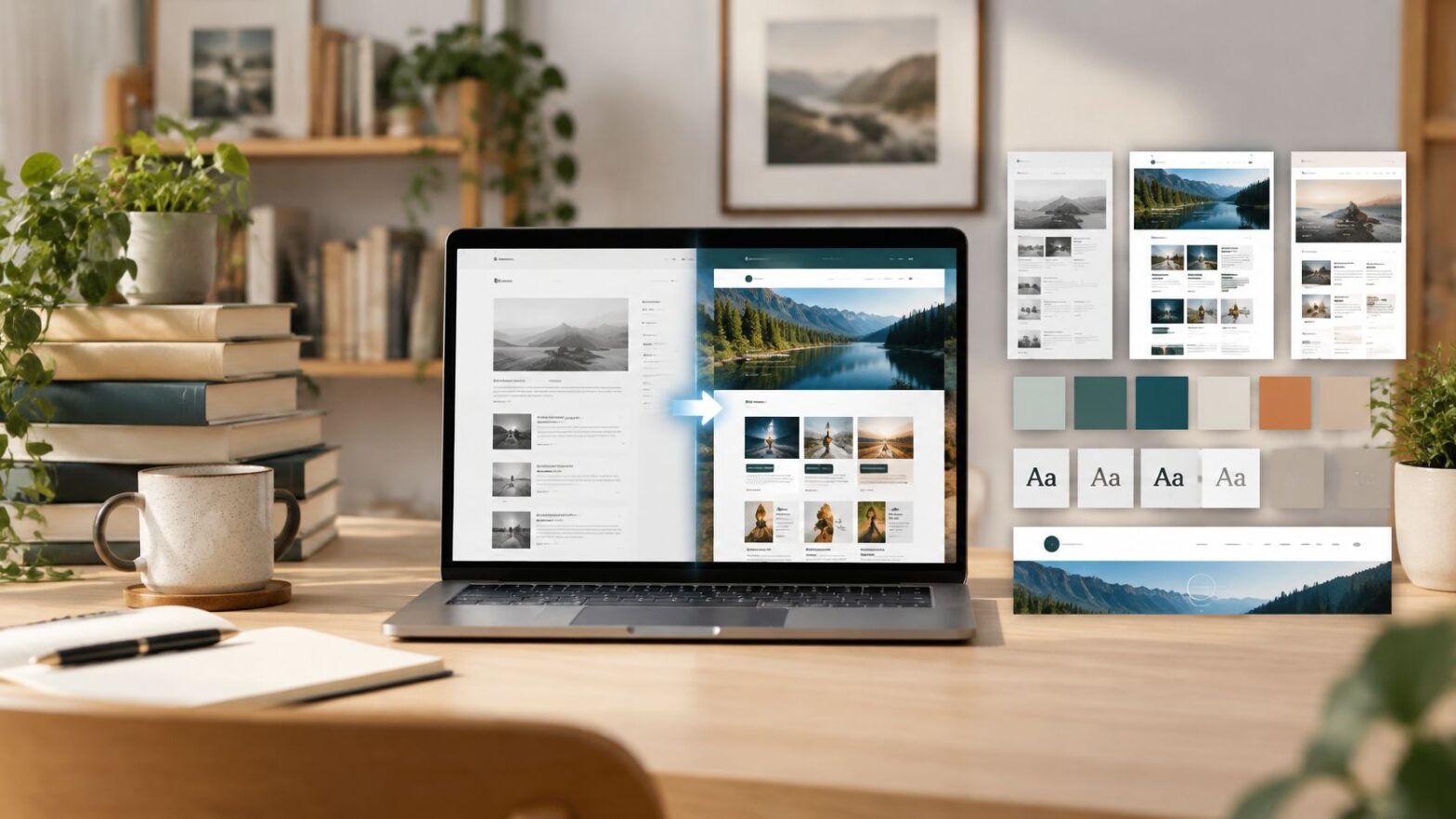
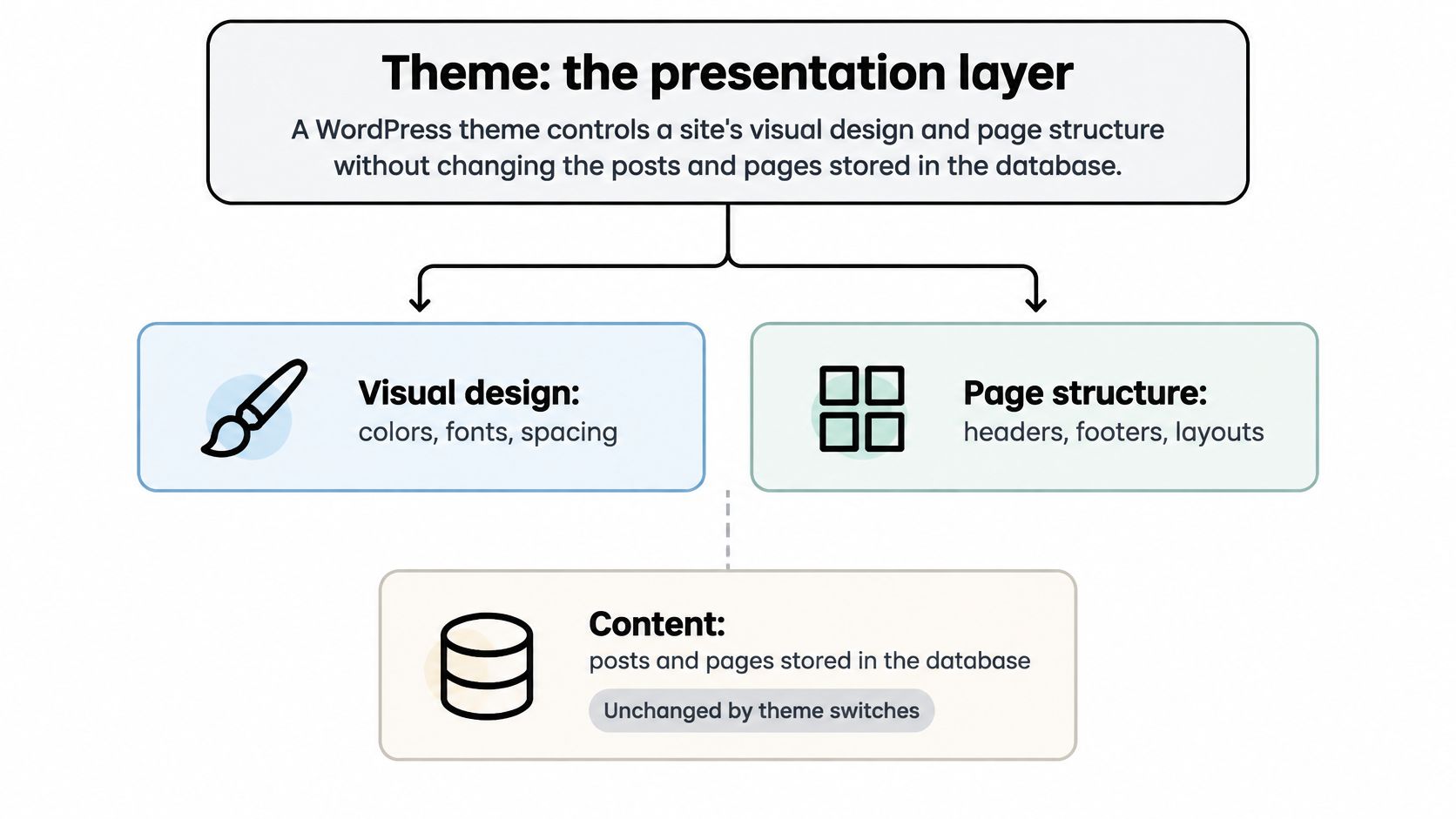
A WordPress theme is the set of templates, styles and functions that control how your site looks and is laid out, without changing the posts and pages stored in it. The swap the theme, keep the content test captures the idea: your writing stays, while its presentation changes.
You might already have a draft homepage and a few posts, but the site still doesn't look like the demo you liked. Before you install another plugin or rebuild a page, it helps to understand which decisions belong to the theme and which belong elsewhere.
Table of Contents
- What a WordPress Theme Actually Controls
- Templates, Styles and Functions Explained
- How WordPress Picks a Template for Each Page
- Classic Themes Versus Block Themes
- Choose a Theme You Can Maintain for the Long Term
- How to Install and Customize a Theme Safely
- What a Theme Cannot Fix on Its Own
What a WordPress Theme Actually Controls
A theme works like a library's shelving and room layout. The books stay the same, but their arrangement and the way readers find them can change. On a WordPress site, posts and pages remain stored when you switch themes, as do existing menu items. You may need to assign a menu to a new location, and theme-specific design settings may not transfer.
A theme typically controls:
- Visual design: Typography, colors, spacing and content widths.
- Shared structure: Headers, footers and navigation placement.
- Content layouts: Individual articles, archives and search results.
- Responsive behavior: How page elements rearrange on smaller screens.
The selection is broad: WordPress.com's market-share overview reported in 2025 that WordPress.org had more than 13,000 themes. Rather than comparing every design, consider how WordPress blog layouts present the material you publish, particularly long articles, navigation and archives.
A theme gives your site a layout system, an editing workflow and a starting point for accessibility. It cannot, by itself, improve page speed, strengthen weak content or guarantee accessibility compliance. It also needs ongoing maintenance. Choose a design that supports your content, but treat those other needs as separate jobs.
Templates, Styles and Functions Explained
A theme is a folder of files with distinct responsibilities. Templates arrange content, styles determine its appearance, and functions support theme features.
A useful distinction is that a template isn't the same thing as a page. Your About page contains your introduction; its template determines where the title, text, header and footer appear.
Theme components, what they control and where they live
| Component | What It Controls | Typical File or Location | Example Change |
|---|---|---|---|
| Templates | Page layout for each content type | single.php, archive.php, templates/index.html in block themes | Remove the sidebar from single posts only |
| Template parts | Reusable areas such as header and footer | header.php or parts/header.html | Edit the header once and apply it sitewide |
| Styles | Colors, fonts, spacing and element defaults | style.css, theme.json, Customizer settings | Set heading font family across all pages |
| Functions | Theme features such as menus, widget areas and image sizes | functions.php | Register a second navigation menu location |
| Assets | Stylesheets, scripts and images loaded on pages | css/, js/ and images/ folders | Load a mobile menu script on every page |
| Theme header | Name, version, author and license shown to WordPress | Comment block at the top of style.css | Version number shown under Appearance > Themes |
Say a site has twelve pages that share a footer template part. Editing that shared footer changes every page that uses it; manually rebuilding the footer inside each page would require twelve separate edits.
Where appearance ends and functionality begins
The comment header in style.css supplies information WordPress uses to identify the theme under Appearance > Themes. The stylesheet can also contain CSS, but block themes often define design settings in theme.json, including palettes, typography and spacing.
The functions.php file supports presentation-related features such as menu locations, widget areas and image sizes. Assets include CSS, JavaScript and images; a theme can load shared assets throughout the site or load particular files only where needed.
A theme doesn't automatically provide every tool mentioned in your content. Say you publish a directory organized around these topics:
- Everyday work: free office tools, free budgeting tools, free writing tools, free crm tools and free tools online.
- Creative work: free tools like photoshop, free drawing tools, free wireframe tools, free editing tools for videos and free tools for video editing.
- Research and reporting: free keyword tools, a free keyword tool, free bi tools, free visualization tools and free map tools.
- Specialist searches: free ai tools online, free ocr tools, free humanizer tools, free daemon tools and free zip tools.
- Download queries: free pro tools download, pro tools free download and broader searches for free tools.
Those are content topics, not theme capabilities. The theme can present their articles and category pages; actual tools, integrations or interactive features need separate software or plugins.
For a hands-on check, open an installed theme folder under wp-content/themes/ using a local copy or your host's file manager. Identify its template files, styling files and functions.php without editing them.
How WordPress Picks a Template for Each Page
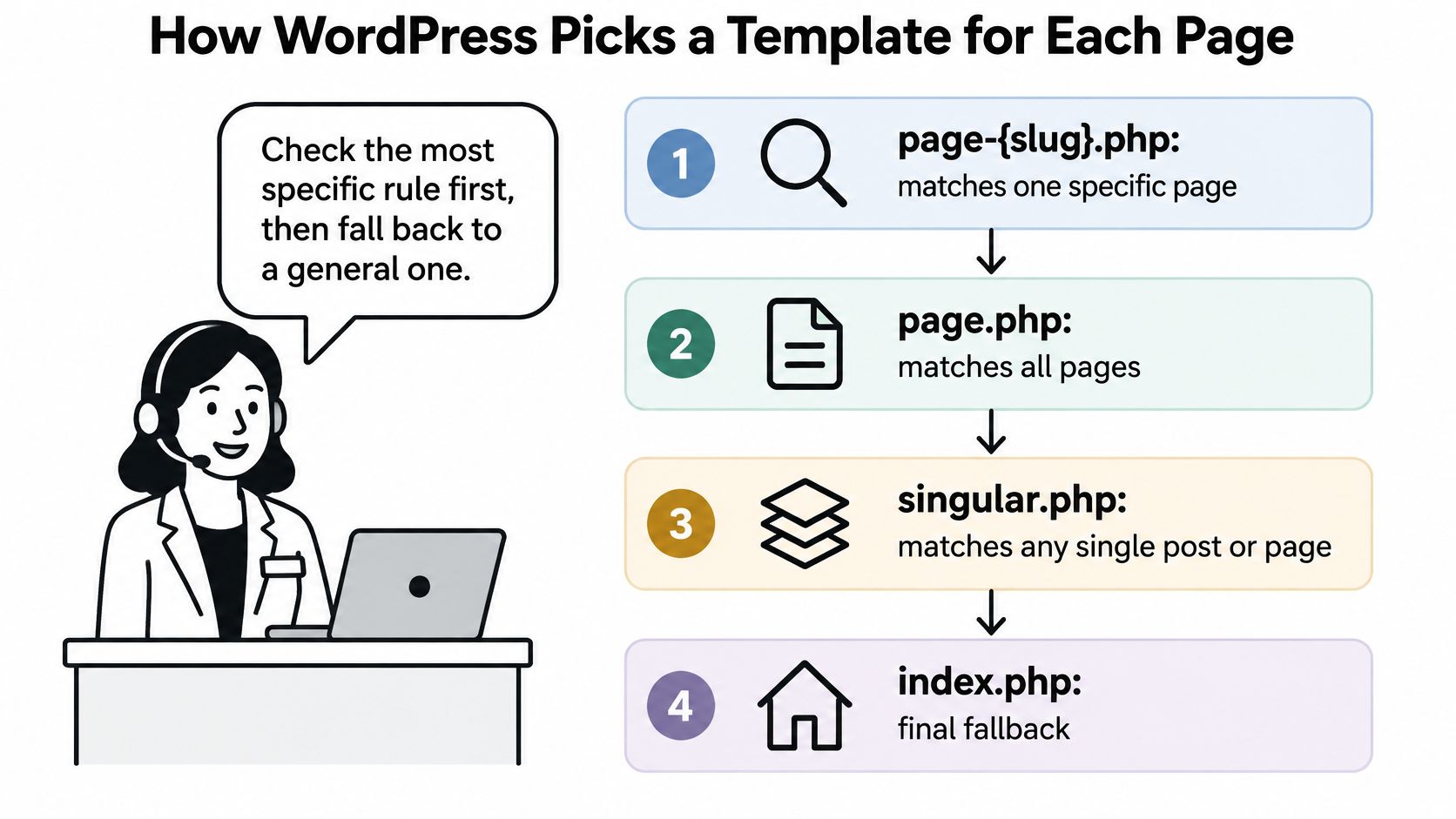
WordPress works like a receptionist following a list of rules. It checks the most specific applicable rule first, then moves toward a general fallback.
The WordPress template hierarchy documentation describes how the requested content determines which template WordPress selects.
- A visitor requests a URL. WordPress works out what content the request represents.
- WordPress identifies the query type. It might be an individual post, a category archive, search results or the front page.
- It checks matching templates in order. A category-specific template takes priority over a general archive template.
- It uses the first available match. In a classic theme,
index.phpis the final fallback.
Template lookup order by query type
| Query type | Template order checked |
|---|---|
| Single post | single-{post_type}-{slug}.php, single-{post_type}.php, single.php, singular.php, index.php |
| Category archive | category-{slug}.php, category-{id}.php, category.php, archive.php, index.php |
| Search results | search.php, index.php |
| Homepage | front-page.php, home.php, index.php, subject to the front-page settings |
The homepage row needs care: home.php handles the posts index, which isn't necessarily the front page. When you select a static front page and there's no front-page.php, WordPress checks the page hierarchy instead.
Trace the page before changing its design
Adding search.php changes the search-results layout without changing the stored articles. You could use it to place the search form above results and provide helpful guidance when nothing matches.
If search results look wrong, confirm that you're viewing a search query and inspect its template candidates before editing global CSS. Otherwise, you might alter every page to solve a problem confined to one template.
Block themes use equivalent HTML templates, such as templates/single.html, with templates/index.html as their fallback.
Debugging habit: Find the template responsible for the page before changing the page's content.
Check your understanding: which file handles a product post without a matching product-specific template? Following the standard hierarchy, WordPress next tries single.php, then singular.php, then index.php; a commerce plugin may introduce its own template-loading behavior.
Classic Themes Versus Block Themes
Classic themes usually combine PHP templates with Customizer settings; block themes let you edit site structure visually through Appearance > Editor. Both can produce a readable website, but their day-to-day editing experience differs.
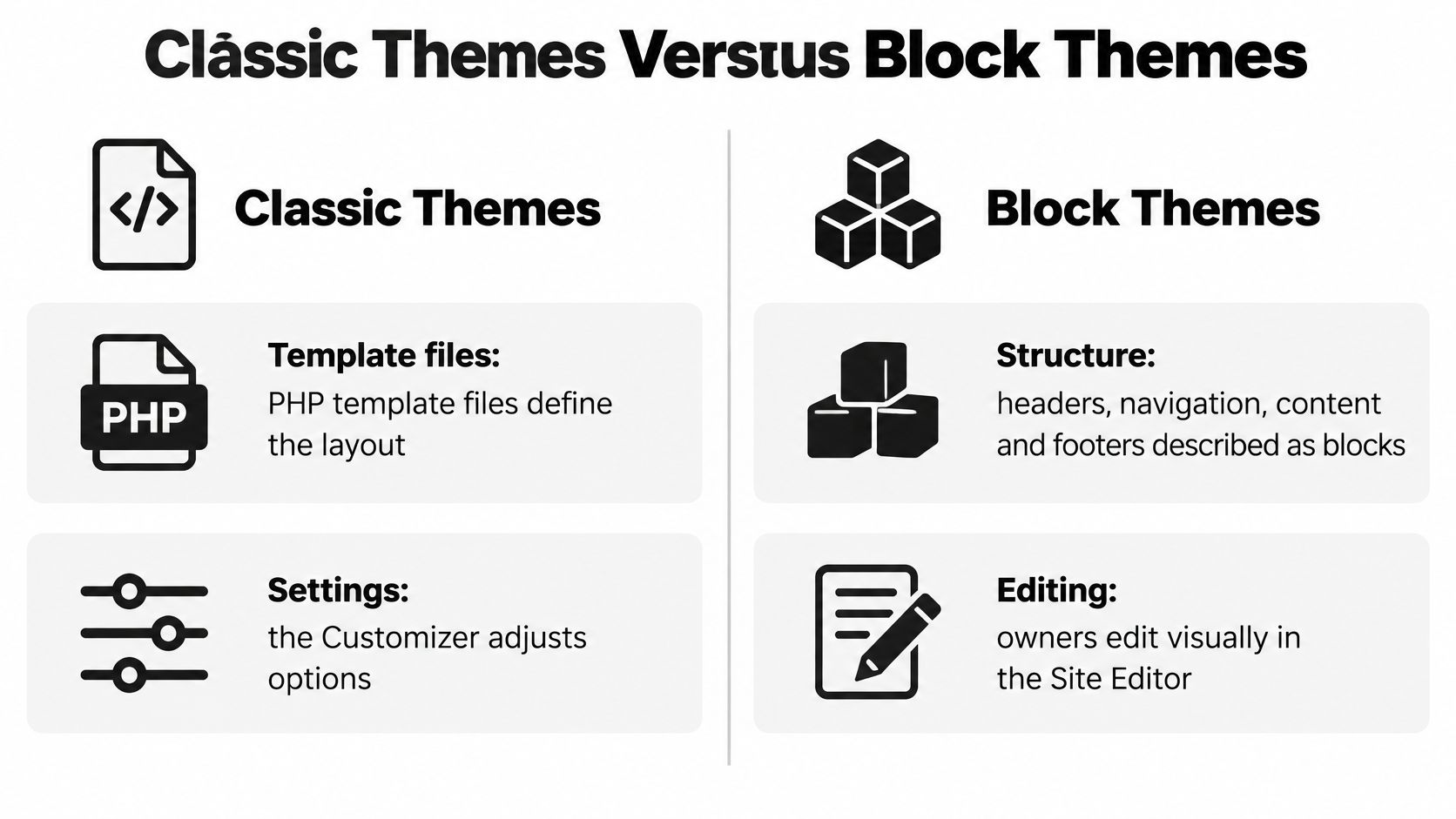
Classic themes versus block themes at a glance
| Factor | Classic Theme | Block Theme |
|---|---|---|
| Template format | PHP files such as single.php and index.php | HTML block templates such as templates/index.html |
| Main editing method | Customizer and theme options panels | Site Editor with blocks |
| Header and footer changes | Usually edited in PHP or theme options | Edited visually as reusable template parts |
| Layout features | Often added by plugins or page builders | Mostly built into the block system |
| Best fit | Sites with custom PHP or existing classic settings | Owners who want visual control without writing PHP |
| Migration friction | Lower when the site already runs on classic settings | Higher when the site relies on classic settings or custom code |
These are typical patterns, not absolute boundaries. A classic theme can offer extensive visual controls, and a block theme can still require custom development.
Also, using blocks to write a post doesn't mean you have a block theme. The post editor handles article content; the Site Editor handles broader site templates and shared design elements.
Why a file change might not appear
The WordPress block-theme documentation explains that a user-saved template in the database can take precedence over a matching child-theme template and the active theme's template file.
Say you change an archive layout in the Site Editor. Later, a developer updates the corresponding HTML file, but the live archive still shows your saved layout because WordPress is using the database version.
Before removing a customization, preserve it and compare it with the file version. Resetting a saved template can discard intentional design work.
Choose according to the work you'll actually do
A block theme suits an owner who wants to adjust article widths, header spacing or archive layouts without touching PHP. Look for useful search, archive and single-post templates, not just an attractive front page.
A classic theme may be the calmer choice when an established site relies on Customizer options, custom PHP or page-builder layouts. Moving away from those arrangements can require rebuilding design work, even when the underlying writing remains available.
Ask practical questions: Can you edit the navigation confidently? Can you undo a template change? Does your existing content still render properly? The newer editing model isn't automatically the better fit.
Choose a Theme You Can Maintain for the Long Term
Use a five-point check rather than choosing from screenshots alone:
- Match the content. A text-heavy publication needs comfortable article pages and discoverable archives, not a portfolio-first grid.
- Inspect the templates. Test search, archives and individual posts, and apply sound responsive design principles on smaller screens.
- Choose a manageable editor. Pick the model you can confidently use and troubleshoot.
- Check portability. Identify plugin dependencies, export options and theme-specific content features.
- Review upkeep. Check update activity, compatibility with your WordPress version and accessibility behavior.
WordPress.com's State of the Word recap reported that block-theme adoption grew by more than 40% in 2025 and exceeded 1,000 themes, making the editing-model choice a practical consideration.
We publish general-interest WordPress articles at Read More Info and provide open feeds for posts and comments. For that publishing model, readable archives, search and lightweight presentation matter more than elaborate effects.
Check safety before shortlisting
Download themes only from WordPress.org or the vendor's official store. Avoid nulled copies, which often carry malware, and confirm the last update date and compatibility.
If ongoing technical upkeep isn't work you want to own, 1stNet AI Ltd's guide to alternatives to maintaining a WordPress site offers another decision path. Otherwise, shortlist three themes, run the checks and choose the one you could still maintain after two years.
How to Install and Customize a Theme Safely
Treat a theme change as a small deployment, not a cosmetic click. Before changing the live site, prepare a way back.
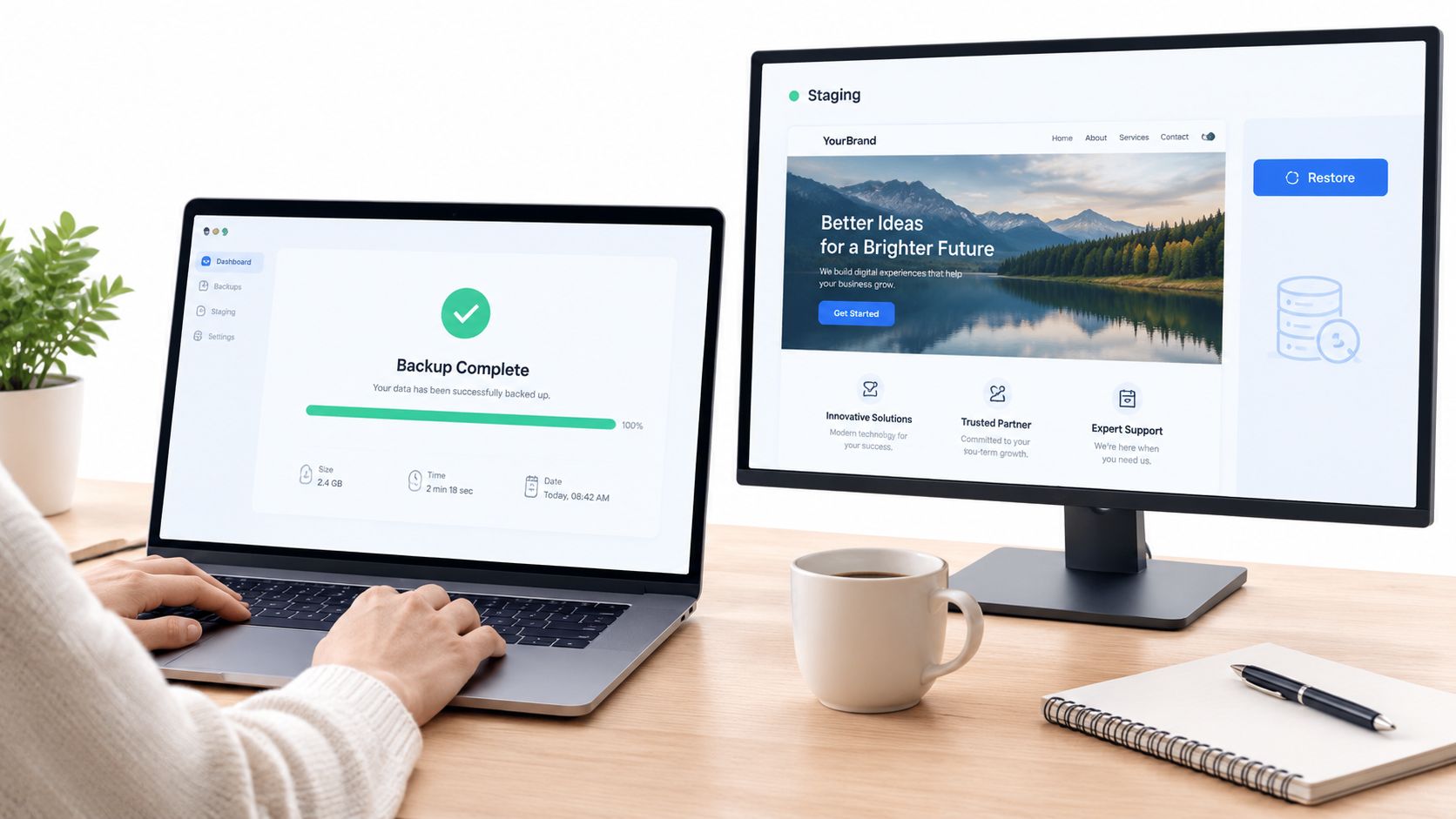
This is the kind of backup-and-staging setup to establish first.
Prepare and install
Back up files and the database. Use your host's backup tool or a backup plugin such as UpdraftPlus, and confirm how restoration works so you can recover promptly. The common slip is activating first and discovering afterward that the backup is incomplete.
Create a staging or local copy. Use your host's staging feature or a local WordPress installation when the site has live traffic or custom code. Don't assume a theme preview will reveal every plugin conflict or layout issue.
Install the theme without rushing activation. Open Appearance > Themes > Add New, search, preview and click Install; for a purchased theme, use Upload Theme with the installable theme ZIP. Uploading the vendor's entire download bundle instead of the theme ZIP is a common mistake.
Activate and inspect the existing structure. Check menu assignments, widget areas and the homepage under Settings > Reading, because the new theme may expose different locations and layouts. Don't mistake an unassigned menu or displaced widget for deleted content.
If you're also setting up the underlying publication, the guide to creating a WordPress blog helps separate initial setup tasks from theme changes.
Customize and verify
Use the editing interface intended for the theme. In a block theme, open Appearance > Editor for templates, template parts and global styles; in a classic theme, use Appearance > Customize for supported colors, fonts and header options. A common slip is editing a shared template when you meant to change only one page.
Keep file-level code changes in a child theme. This protects your work from replacement during parent-theme updates. Don't paste permanent modifications directly into the parent theme's PHP or CSS files.
Test before publishing. Check desktop and mobile views, search, forms, article pages and keyboard navigation, then publish the tested changes. Looking only at the homepage while logged in can hide problems that ordinary visitors encounter.
For help scoping work beyond built-in controls, DesignStack's resource on customising WordPress themes with DesignStack provides context for planning customization.
Use this video alongside your own dashboard, since available controls depend on the active theme.

Before going live: Keep the previous theme installed and the backup accessible until you've checked the replacement as a visitor.
What a Theme Cannot Fix on Its Own
The most consequential myth is that an accessibility-ready theme guarantees an accessible website. The WordPress accessibility guidance says the label represents minimum theme-review requirements, not a guarantee of WCAG 2.2 Level AA compliance; its practical checks also include text resizing to 200%.
Your content, plugins and customizations still matter. A usable theme can't compensate for missing image descriptions, confusing headings, unlabeled forms or color choices that make text difficult to read.
Separate design problems from site problems
A lighter theme can reduce presentation overhead, but it won't repair slow hosting or remove the cost of heavy plugins. Likewise, a polished layout won't improve weak article content, correct missing search-engine settings or make inconsistent source images suitable for every display.
For a larger publication with integrations and complex content structures, Wonderment Apps' discussion of WordPress development for content-rich platforms provides context for work that extends beyond choosing a theme.
Run a reader-focused acceptance check
- Keyboard access: Move through menus, search and forms without a mouse, and confirm that focus remains visible.
- Heading order: Use headings to express document structure, not merely to produce larger text.
- Contrast and resizing: Check readable color combinations and confirm enlarged text doesn't overlap or disappear.
- Forms and images: Provide meaningful field labels and appropriate alternative text.
- Skip links: Verify that readers can bypass repeated menus and reach the main content.
- Reduced dependencies: Check core content and menus with JavaScript or CSS disabled, and investigate blocked functionality.
These checks are a starting point, not a complete accessibility audit or legal determination. Choose a theme that reduces avoidable barriers, then keep testing the actual site you publish: a theme is a starting risk reduction, not a compliance shortcut.
Visit Read More Info for general-interest WordPress articles that help you make practical decisions about your site. Use them while comparing themes, and subscribe to our posts or comments feed in your RSS reader to follow new articles or discussions.