Free Image Compressor Online: 10 Tools Compared for 2026

You've got a blog image that looks crisp in one compressor, then oddly soft in another, even though the file size ends up close. That's normal. Format choice, lossy versus lossless behavior, metadata stripping, and where the file is processed all change the result, and those differences matter more than the label free image compressor online on the landing page. I've pushed the same photo through enough tools to know that the test is not “Did it shrink?”, it's “Does it still look clean at 100% zoom, and will the free tier handle your batch?”

The list below focuses on that trade-off. Some tools keep everything local in the browser, some upload to a server, some are best for one careful hero image, and some are built for messy batches of blog assets. I'm judging each one on quality versus size, speed, supported formats, preview quality, and where the free limits interrupt a real publishing workflow. For a broader publisher workflow around media handling, the PDFKing image compression tool is another useful reference point.

Table of Contents

1. TinyPNG (Tinify)

TinyPNG (Tinify)

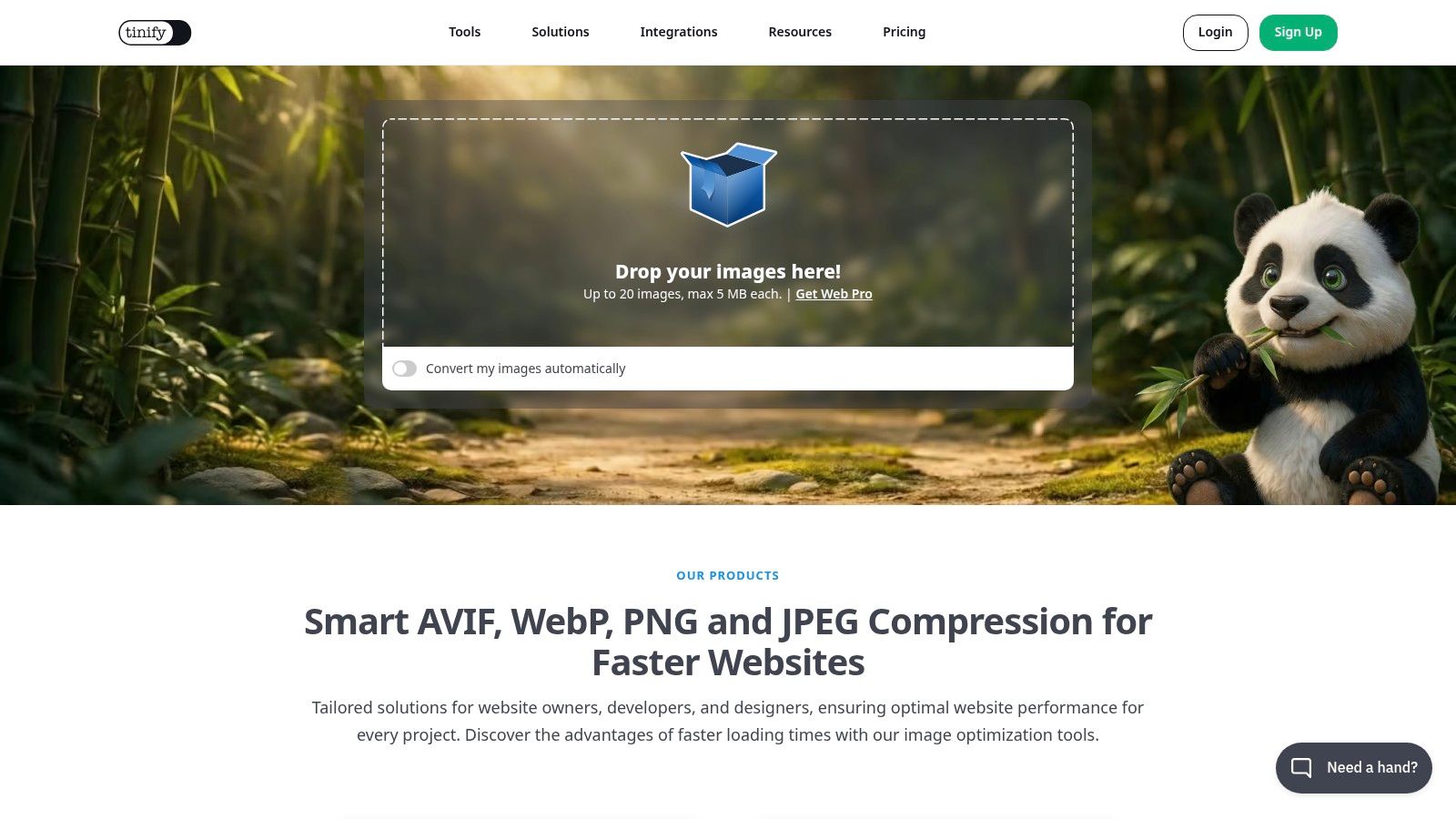
TinyPNG is still the easy choice when you want a browser tool that just works. It supports PNG, JPG, WebP, and AVIF, and the interface stays out of the way while you drag files in and compare the before and after result. The free tier is the catch, because it caps a session at 20 images and 5 MB per image TinyPNG free tier limits.

The trade-off is simple. TinyPNG gives you dependable output for common blog and product images, but it pushes heavier workflows toward paid plans once you start handling larger batches or bigger files. That's fine for a post or two, and less fine when you're preparing an entire media library for WordPress.

Practical rule: If a feature image is already reasonably sized, TinyPNG is usually fast enough and visually safe. If your original is a huge upload, resize first, then compress.

The other reason publishers keep coming back to TinyPNG is the preview. You can see whether the image still holds together before you download it, which helps when you're checking text edges, gradients, or a logo that shouldn't soften. For a simple publishing routine, it's one of the least annoying tools to use, and that matters more than fancy codec controls.

The main downside is that it's not the best tool for experimentation. If you want absolute control over every compression choice, look elsewhere. If you want a quick web compressor with a clean result and can live with the cap, go to TinyPNG and move on.

See also Read More Info guidance for publishers.

2. Squoosh (Chrome Labs / Google)

Squoosh (Chrome Labs / Google)

Squoosh is the opposite of a “one click and forget it” compressor. It runs client-side in the browser, so the image stays on your device, and once the page is loaded it can work offline. That privacy posture is the main reason to use it for client artwork, unpublished product shots, or anything you don't want to upload to a remote server browser-side processing reference.

The strength here is control. Squoosh gives you fine-grained codec settings and a live comparison view, which makes it useful when one JPEG looks good at one setting and bad at another. It is one of the few free tools that feels like a learning instrument as much as a compressor.

Where it shines and where it slows you down

The trade-off is batch work. Squoosh is geared to one image at a time, so it's brilliant for a hero image, less practical for a folder full of blog thumbnails. That makes it a poor fit when you need speed over control.

If the image contains sensitive content, local processing is the cleaner choice. No upload, no server-side handling, fewer privacy questions.

For WordPress publishers, the best use case is usually a single image that matters. You can experiment, compare, and stop when the file is small enough without ruining the visual edge. That's more useful than a long feature list if your priority is one perfect header image.

Squoosh also pairs well with an editorial habit, not just a technical one. I like it when I want to test whether reducing quality is enough, or whether the image should be resized first. Start with Squoosh if you care more about precision than throughput. For a WordPress-oriented publishing workflow, the how to create a WordPress blog guide fits naturally with that kind of image prep.

3. Adobe Express Free Image Compressor

Adobe Express, Free Image Compressor

Adobe Express is the cleanest option for people who want compression without thinking about the mechanics. The free tool accepts common formats like JPEG/JPG and PNG, gives you a simple quality slider, and shows the result right away. Adobe also says the free tool accepts files up to 40 MB Adobe Express compression tool.

That makes it practical for one-off publishing tasks. If you want a smaller file without wrestling with codec settings, Adobe keeps the process plain. It also sits next to the wider Adobe Express editor, so you can crop or filter the image after compression if the file still needs work.

Where it falls short

The trade-off is scope. Adobe Express is polished, but it is not built for deep format testing or specialist optimization. For screenshots, transparent graphics, or a mixed folder of blog assets, it behaves more like a convenience layer than a performance lab.

For a site editor, that still has value. A non-technical user can upload, preview, decide, and export without learning new terms. The limit is control. Power users will miss the finer settings that help squeeze out every last kilobyte when a page layout needs to load fast.

A clean interface helps beginners, but it does not replace judgment. Check the compressed image at full size before you publish it.

If your goal is quick editing plus compression in one place, Adobe Express fits well. If you are planning a WordPress page layout, the best WordPress blog layouts guide is the better next step.

4. iLoveIMG Compress Image

iLoveIMG, Compress IMAGE

iLoveIMG is built for people who want to get through a batch and move on. It handles JPG, PNG, SVG, and GIF, and it sits inside a larger image toolkit that also covers resize and convert tasks. That makes it useful when you're preparing a set of images for a post, a landing page, or a content refresh and don't want to hop between separate tools.

The trade-off is control. The compressor is fast and simple, but it doesn't give you a visible custom compression slider the way some other tools do. That's not a problem if you want a practical default. It is a problem if you need to hit a specific file-size target without guessing.

Why editors keep using it

The cloud import and export options make it easier to move files in and out of a content workflow. If the image already lives in Drive or Dropbox, iLoveIMG saves a step. That convenience matters more than a fancy interface when you're moving between drafts, approvals, and final uploads.

It's also a strong choice when the job isn't only compression. You can resize, convert, and compress in the same place, which reduces the number of chances for a file to be saved badly or renamed wrong. For teams, that lowers friction.

The downside is that it feels more like a utility belt than a precision tool. If you need careful codec choices, look elsewhere. If you need to compress several standard web images without much thought, iLoveIMG gets the job done cleanly.

5. Kraken.io Free Web Interface
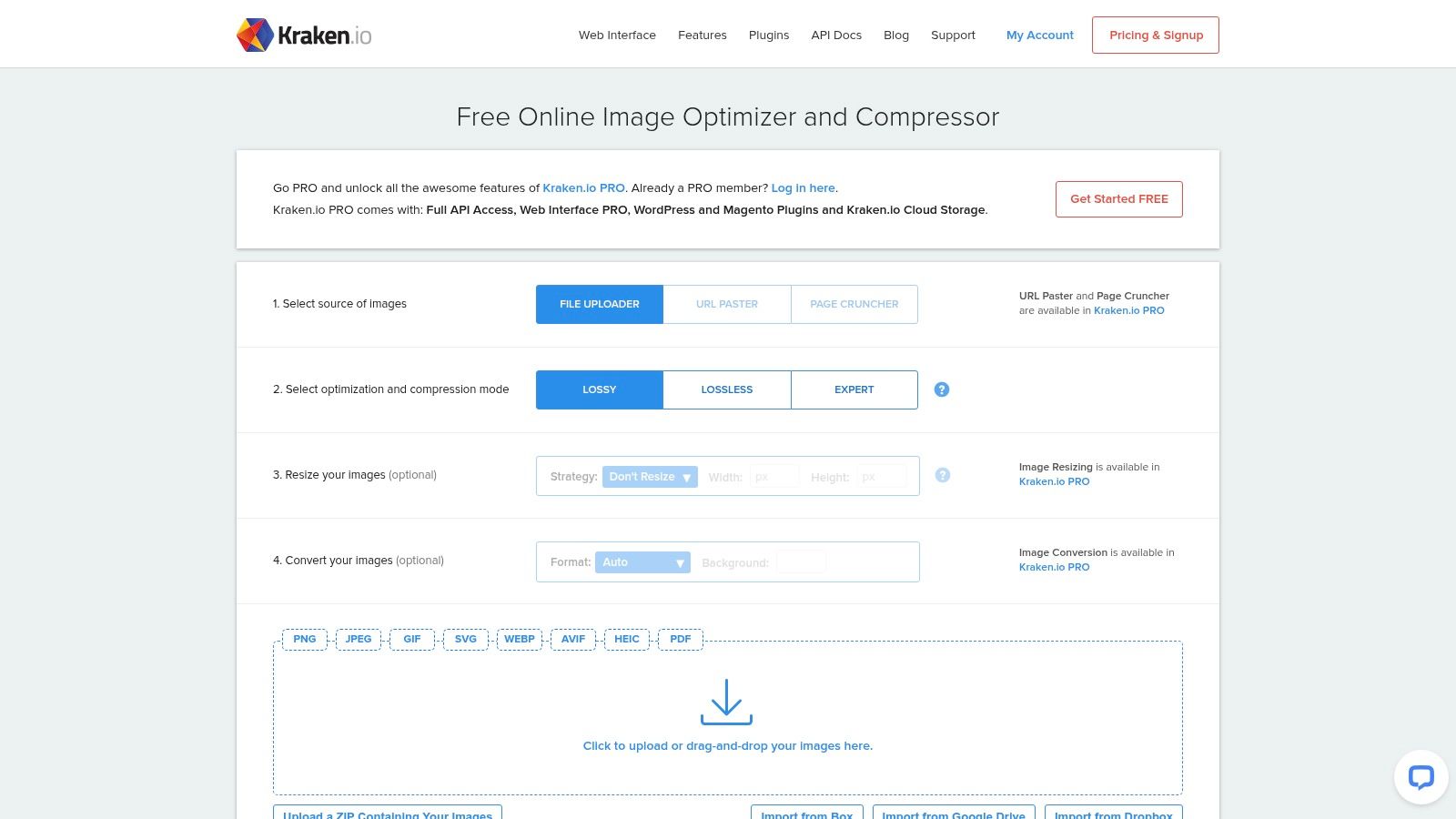
Kraken.io, Free Web Interface

Kraken.io is the option I reach for when a file needs more than a basic shrink. The free web interface gives you lossy, lossless, and expert modes, plus EXIF preservation and JPEG chroma controls, so you can choose whether size or image fidelity takes priority Kraken.io web interface.

The free tier has a clear limit, though. Each file has to stay under 1 MB, which makes it a poor fit for large hero images or camera originals. It works better on smaller files where compression choices matter more than brute-force size reduction.

Where it earns its keep

Kraken.io makes the trade-off visible. The batch results table is easy to scan, and the ZIP download flow keeps a small set of processed files together, which helps when you want to compare output without digging through separate downloads.

The price of that clarity is limited access. API use and higher throughput sit outside the free web workflow, so the tool is best treated as a browser-based check, not a production line for repeated batch jobs.

Use it when the image is small but important, and you want to see how far quality can hold up before size drops. If the file is large or the workflow is repetitive, another compressor fits the job better.

For format-specific tuning, Kraken.io remains one of the stronger free browser options. If you want to test it yourself, the Kraken.io web interface linked above is the place to start, keep the file sizes small.

6. Compressor.io

Compressor.io

Compressor.io is a straightforward generalist. It supports JPEG, PNG, SVG, GIF, and WebP, and it offers both lossy and lossless modes. The appeal is obvious if you regularly handle mixed image types and want a single place to run them through a quick optimization pass.

The trade-off is transparency around limits. The site doesn't prominently spell out free-tier constraints, so the workflow feels simpler than some competitors but also less explicit. That can matter when you're trying to fit a batch of blog assets into a narrow production window.

Best when you want a simple result

The interface is basic in a good way. There's no clutter, no sense that you need to understand image engineering before pressing a button. If you just want a generic web compressor that handles the common formats well enough, that's a win.

It's also useful when you're not yet sure what format you should end up with. Since it supports several common types, it's a reasonable stop for a mixed folder of web graphics and editorial images.

The downside is that advanced users may hit the ceiling fast. If you want target-size tuning, privacy-first browser processing, or a more explicit batch workflow, there are better tools on this list. For a quick pass, though, Compressor.io is easy to recommend.

7. ImageCompressor.com

ImageCompressor.com

ImageCompressor.com is a browser-side compressor, so the file stays local instead of being uploaded. It supports JPEG, PNG, WebP, GIF, and SVG, and it includes familiar controls for quality, color palette, and EXIF removal. That local workflow makes it a strong fit for people who care about privacy or just don't want to wait on server uploads browser-local image compression reference.

The trade-off is that it stays basic. The interface is familiar and fast, but it doesn't try to be a deep editor. For many publishing tasks, that's a feature. For power users, it can feel sparse.

Why the local model matters

Local processing changes the risk profile. If you're compressing client artwork, a confidential screenshot, or personal images, you avoid a remote transfer step entirely. That's not a minor distinction, especially when the image might include embedded metadata you'd rather not send anywhere.

The tool also claims no registration and no stated daily cap, which makes it attractive for light repeat use. That said, “unlimited” in a free tool only matters if the quality is good enough for your content. If the output starts to look soft, the claim doesn't help.

Privacy is only half the story. Check the output at your actual publish size, because a local tool can still over-compress if you push it too far.

If your priority is local processing with a familiar interface, ImageCompressor.com is a sensible pick. It's especially useful for bloggers who want to stay close to the browser and away from account creation.

8. EZGIF Optimizer Suite
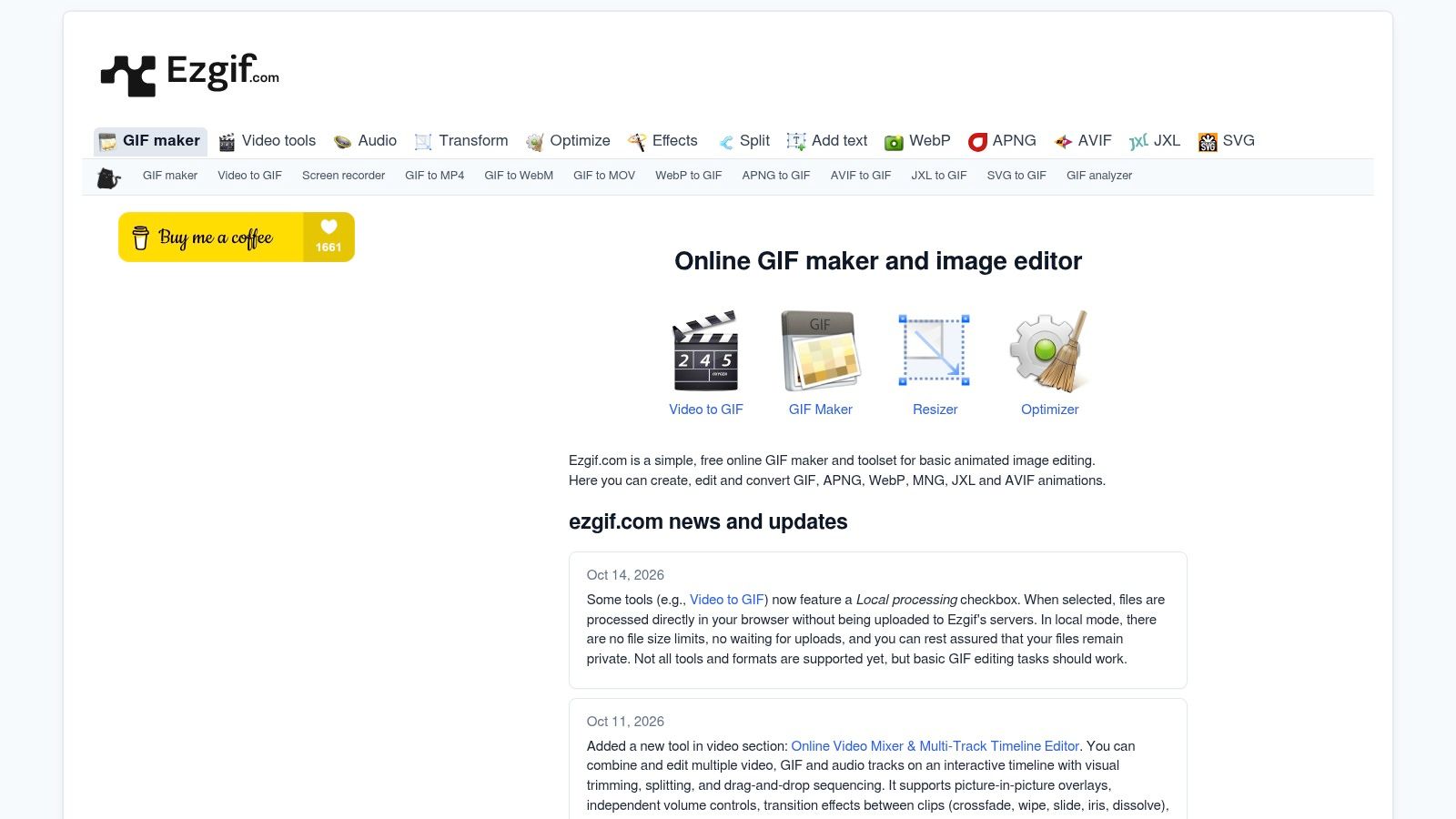
EZGIF, Optimizer Suite

EZGIF is the utility drawer of this list. It's best known for animated image work, but it also gives you JPG, PNG, WebP, and AVIF compressors. That breadth matters when one content team uses still images, animated assets, and quick conversions in the same publishing cycle.

The trade-off is usability. The interface is utilitarian, and it can take a little time to understand which page does what. Once you know it, though, EZGIF is surprisingly practical because it keeps so many adjacent tools in one place.

Strong for exact-size and animated work

EZGIF is especially useful when GIF size and behavior matter. It includes GIF optimization options, bulk handling in the browser, and size-focused controls that help when a platform limit is strict. For animated assets, that's more relevant than pure photo compression.

It's less elegant for people who just want a single polished upload box. But if you've ever had to trim a social GIF, crop it, resize it, and then optimize it again, you know how much time one broad toolkit can save.

The trade-off is that some tools still behave differently from others on the same site, so it doesn't feel as unified as a dedicated compressor. For a mixed-content publisher, though, EZGIF earns its spot by being unusually versatile.

9. FreeConvert Image Compressor

FreeConvert, Image Compressor

FreeConvert is for people who don't want an image-only tool. The platform handles a wide mix of file types, and its image compressor sits alongside other utilities for PDFs, video, and audio. That makes it handy when your publishing day includes more than one file type and you'd rather stay inside one browser tab.

The trade-off is specialization. FreeConvert is convenient, but it's not as photography-tuned as some of the dedicated image compressors above. If your image work is routine and not especially demanding, that's fine. If you need tight visual control, you may want a specialist instead.

Why it works for occasional users

The adjustable compression settings and batch support are the main draw. You can import from a URL or cloud source, process a set of files, and keep moving. That makes it a practical pick for occasional publishing tasks, especially when the source files are scattered across different places.

It's also a low-friction answer for people who need a browser tool without committing to a more technical workflow. The free tier exists, and paid plans are there if you outgrow it, which is predictable enough for small teams.

The downside is throughput. Like many broad tools, the free version can hit constraints once you start treating it like a production system. For casual use, FreeConvert is convenient. For careful optimization, it's more of a stopgap than a favorite.

10. CompressNow
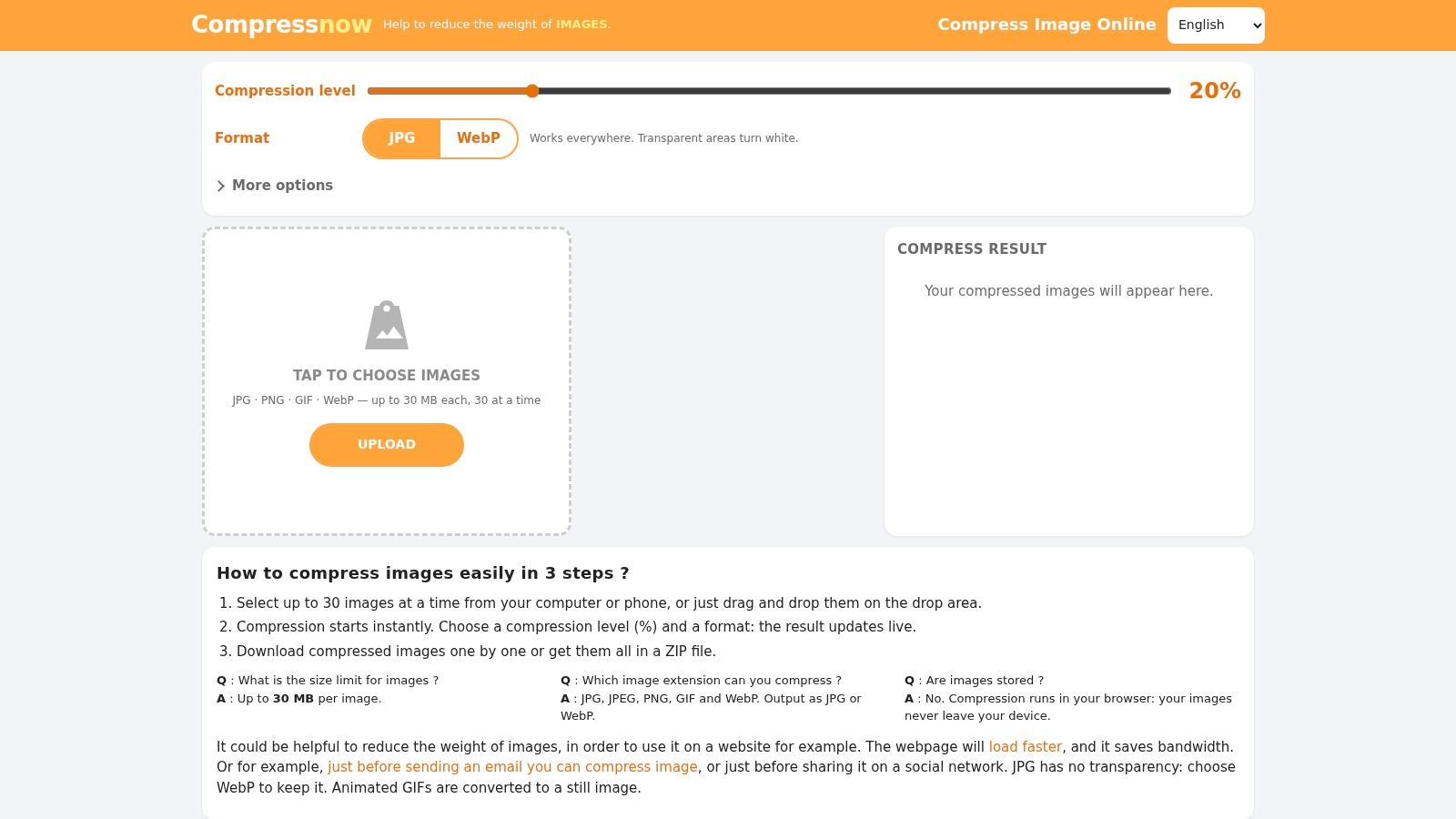
CompressNow

CompressNow is a straightforward browser compressor for JPG, PNG, GIF, and WebP. It gives you two basic controls, a percentage reduction or a target size in KB, and it handles batch work for up to 30 images with a ZIP download afterward CompressNow tool details.

The trade-off is depth. The interface stays simple, and it does not try to manage assets beyond compression. That simplicity helps when you want a file-size result fast, without learning a new workflow.

Best for hitting a target size

Use it when a platform gives you a strict upload ceiling. You can work toward a specific file size instead of guessing at quality settings until the image fits. For a form upload or a CMS limit, that is the practical advantage.

The free setup is useful for small publishing runs, especially when you want to process a batch in the browser and keep the files on your device. There is no extra upload step to a separate server for the compression itself.

The limits show up once you need more control. CompressNow does not give you the format nuance or metadata handling you get from more specialized tools, and it is not built for codec testing. If you want a fast way to land on a usable size, CompressNow does the job.

Top 10 Free Online Image Compressors Comparison

Tool✨ Key features★ UX & Quality💰 Price & Value👥 Best for🏆 Notable strength
TinyPNG (Tinify)Batch drag‑drop; AVIF/WebP/PNG/JPG; preview; strips metadata★★★★☆ Reliable quality, very fast💰 Free limited (20 imgs/session, 5MB); paid tiers to lift limits👥 Bloggers & small sites🏆 Excellent quality-to-size for blog assets
Squoosh (Chrome Labs)Client‑side processing; fine sliders; advanced codecs; offline★★★★☆ Precise controls; learning curve💰 Free & open‑source (runs in browser)👥 Developers, learners, privacy‑conscious users🏆 Privacy (images never leave device) & codec experimentation
Adobe Express, Free Image CompressorJPEG/PNG support; guided quality slider; Adobe edit integration; up to 40MB★★★★ Polished, intuitive preview💰 Free tool (40MB limit); paid Adobe ecosystem extras👥 Non‑technical users, one‑offs🏆 Smooth UI + easy path to further edits
iLoveIMG, Compress IMAGEBatch workflows; cloud import/export; suite of image tools★★★ Fast, get‑it‑done UX💰 Free with limits; paid for higher caps👥 Editors preparing many assets🏆 Integrated toolkit & cloud imports for batch prep
Kraken.io, Free Web InterfaceLossy/lossless/expert modes; EXIF options; cloud imports; ZIP export★★★★ Granular control; clear batch results💰 Free web (1MB/file cap); PRO adds API & higher limits👥 Power users, agencies🏆 Format‑specific tuning and export workflows
Compressor.ioJPEG/PNG/SVG/GIF/WebP; lossy & lossless presets; simple UI★★★ Easy, strong reductions💰 Free web; paid/support options available👥 Generalists needing big reductions🏆 Notable lossy size reductions for mixed batches
ImageCompressor.comClient‑side compression; quality & palette controls; EXIF removal★★★ Privacy‑friendly, simple💰 💰 Free; claims no uploads or daily caps👥 Privacy‑minded users & quick tasks🏆 Local processing + unlimited claims
EZGIF, Optimizer SuiteGIF optimizer, WebAssembly bulk GIF, JPG/PNG/AVIF/WebP tools★★★ Utility UI; feature‑rich but utilitarian💰 Free; mix of client/server tools👥 Animators & social asset creators🏆 Best for animated GIF optimization and exact‑size GIF work
FreeConvert, Image CompressorAdjustable compression; batch; URL/cloud import; multi‑format suite★★★ Convenient multi‑tool flow💰 Free tier with limits; paid for higher throughput👥 Occasional users with varied file types🏆 One‑stop platform for cross‑format tasks
CompressNowPercent or exact KB targets; batch up to 30; client‑side; ZIP output★★★ Simple, exact‑size controls💰 Free; generous per‑file (up to 30MB) & batch allowances👥 Users needing tight upload size limits🏆 Precise KB/percent targeting for upload limits

Pick the Right Free Compressor for Your Next Upload

The quickest way to choose a compressor is to run one representative image through two or three tools at the same target size, then compare the results at 100% zoom. Don't trust the preview thumbnail alone. Look at text edges, gradients, hair, thin lines, and any area where the image has subtle detail. If one tool keeps the file smaller but softens the image too much, it's not the right choice for that asset.

Free-tier limits matter more than the marketing page suggests. A tool that works fine for one hero image can fall apart the moment you push a real batch through it. Check whether the tool processes files in the browser or on a server, whether it strips metadata by default, and whether the cap matches the way you publish.

For privacy-sensitive work, favor local processing. For blog graphics and product shots, favor the tool that keeps quality intact at the smallest usable size. For screenshots, diagrams, and text-heavy images, be conservative, because aggressive compression can make the file technically smaller and practically worse. Keep the original file too, because you'll want it later when the image needs a different crop, format, or quality setting.

If you publish on WordPress sites like readmore.info, the same test is worth doing before images go into the media library. A small upfront check saves you from re-uploading, re-exporting, and second-guessing the file later. For a broader reminder of how image quality changes in transfer, the EventUploader photo quality guide is a useful companion read.


Read More Info publishes practical WordPress guidance for aspiring bloggers, small business owners, and editors who want cleaner publishing workflows. If you're building a content site and want more checklists like this, visit Read More Info for straightforward, useful publishing advice you can apply right away.

Free Font Finder Online: 10 Tools Compared by Use Case

You've got a logo file in one tab, a screenshot of a homepage in another, and a live webpage open in a third. That's exactly where a free font finder online earns its keep, because the right tool depends on the input you have, not the one you wish you had. If the text is baked into an image, you need an image matcher. If the text is live on a page, a browser inspector or a URL-based checker is faster. If you only need the words read out first, a free OCR tool can extract the text without naming the typeface.

That distinction matters because web typography is now normal everywhere, not niche. The 2024 Web Almanac measured web-font adoption at about 87% overall, with WOFF2 on 81% of desktop websites and 78% of mobile websites HTTP Archive's 2024 font data. So the job isn't just “find the font.” It's “find the right next step,” whether that means a quick match, a legally usable substitute, or a check on what's loaded in the browser.

Table of Contents

1. WhatTheFont MyFonts

WhatTheFont (MyFonts)

Use WhatTheFont when the sample is clean and the letters are easy to read. Upload a JPG or PNG, or paste an image URL, and it tries to detect the text and match it against MyFonts' commercial catalog. That makes it a strong first pass for logos, headlines, and polished screenshots where the shapes are crisp and the text is not buried in noise. It is also the better choice when you already expect a purchasable font instead of a free substitute.

Practical rule: Crop tightly around one font style and include a full word if you can. A good image matcher needs letter shapes, spacing, and rhythm, not just a single decorative character.

The trade-off is straightforward. WhatTheFont is not a live-webpage inspector, and it tends to surface commercial matches first, so it is a weak starting point if your main goal is a free alternative. If you are planning brand work, a product page, or a recurring theme system, that bias helps. If you are hunting for an open option, you will usually need a second pass in another tool.

For readers working through WordPress layouts, identification is only part of the job. You still need to judge how a type choice sits inside a content-heavy theme, so this guide to WordPress blog layouts is a useful follow-up. If you are matching typography to motion assets, how to brand your recordings with fonts is a practical companion read. Use WhatTheFont when you have a clear image and want a fast commercial match.

Best fit

  • Clean logos: The tool handles crisp shapes best.
  • Screenshot samples: Good when the text is legible and high contrast.
  • Paid-font discovery: Strong when the likely match is a commercial family.

2. WhatFontIs

WhatFontIs

WhatFontIs works well when you need both paid and free candidates in the same search. It accepts uploads and image URLs, then tags matches by license type, which saves time if you want a usable substitute without sorting every result by hand. That combination of recognition and filtering makes it more practical than tools that only point to a single commercial answer.

The shortlist delivers the value. When a design is close but not exact, the filters separate near-matches from true free alternatives, so you can move toward a workable replacement faster. I find it most useful when implementation matters, because the output is built for choosing something you can use.

Where it slows you down is the free tier. Results pages can feel crowded, and the sharper filtering tools sit behind an account. That is manageable if you are working from a clean image and want to compare options carefully. It is less appealing if the type is already live on a page and you need a fast read.

WhatFontIs fits a practical workflow better than a vanity one. It helps when you care about what you can use, not just what the tool recognizes. That makes it one of the better free tools online for designers who need identification and licensing-aware alternatives in a single pass.

WhatFontIs

Good when

  • You need free equivalents: It surfaces alternatives instead of only one match.
  • You want license labels: The output helps separate commercial and free results.
  • You're comparing options: Filtering makes shortlist building easier.

3. Fontspring Matcherator

Fontspring Matcherator

Fontspring Matcherator is useful when the file you have is messy. Upload a crop, adjust it, and compare the suggestions side by side. That workflow matters because font matching is usually about fit, not perfect certainty. You are checking whether the shape, weight, and spacing can carry the layout without fighting it.

I trust it most after I clean the source image first. A bad crop can make any matcher look weaker than it is, especially with layered artwork, flattened screenshots, or text buried in a busy composition. Test the matcher with the strongest word in the image first, then compare the result with the full phrase. Decorative logos are where that habit pays off fastest.

Its trade-off is scope. The suggestions lean toward Fontspring's own inventory, so it works well if you want a font you can buy or license through that ecosystem. It is less broad than multi-source tools, and that is a limitation if you only want open-source options. If you are setting up the site that will carry the font, this guide on how to create a WordPress blog covers the next step.

Fontspring Matcherator

Why designers keep it around

The main reason is control. Cropping and comparison sit in the same flow, so you can refine the sample without jumping between tools. The results are easy to judge side by side, which helps when several matches are close. The guidance is direct too, and that saves time when the image is awkward.

  • Clean prep controls: Cropping and comparison are built into the process.
  • Straightforward output: The results are easy to compare side by side.
  • Useful guidance: The prompts help when the sample needs cleanup.

4. Font Squirrel Matcherator

Font Squirrel Matcherator

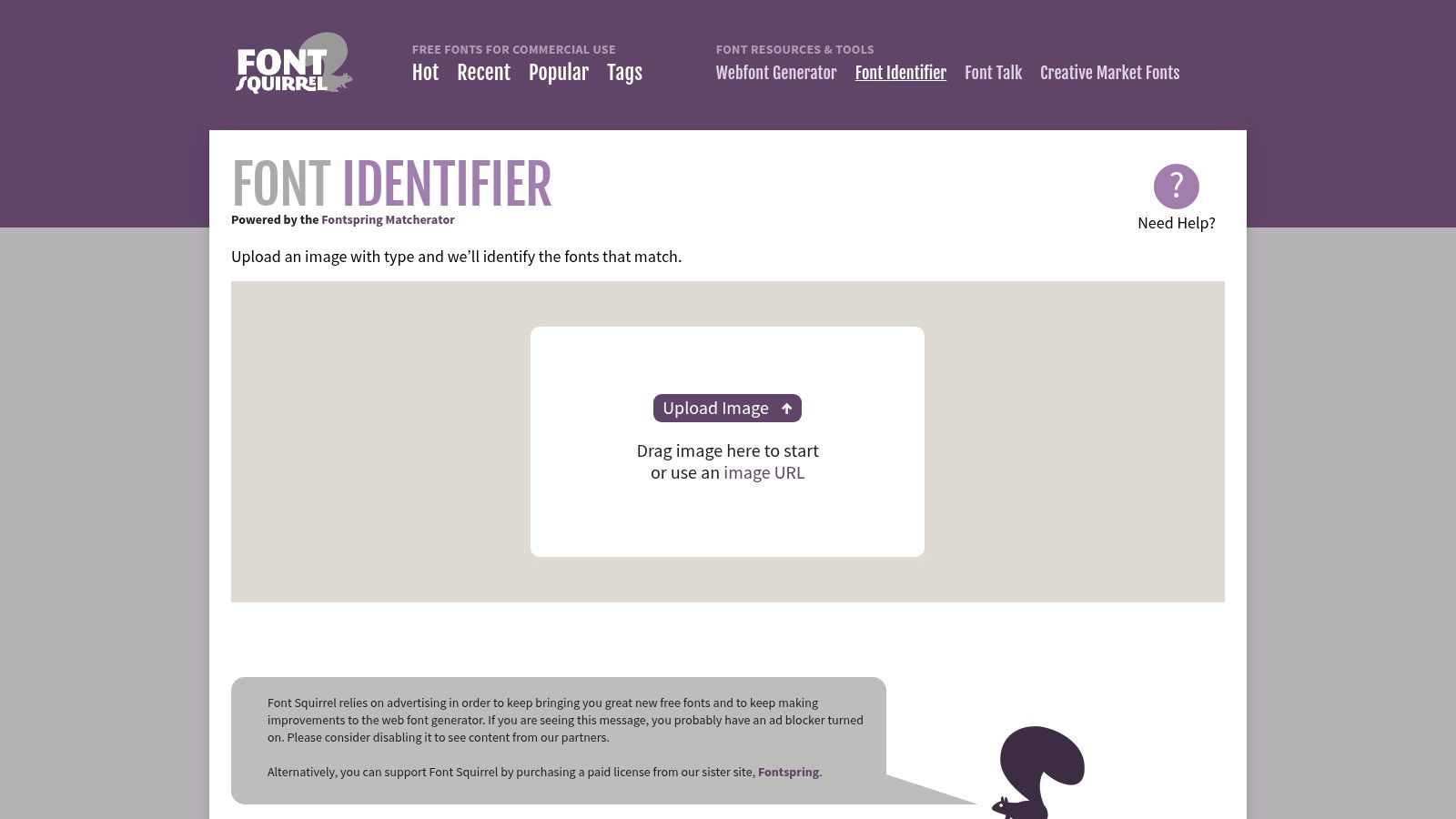
Font Squirrel Matcherator is the tool I'd hand to someone who wants a free, familiar starting point without wrestling a heavy interface. It keeps the process simple, and the manual character mapping helps when auto-detection misses part of a word or struggles with connected scripts and small caps. That makes it more forgiving than tools that stall as soon as the sample gets messy.

The practical advantage is speed. You can upload a screenshot, correct a few characters, and get a usable shortlist without getting buried in settings. It works well for quick client checks and for files where you only need a solid first pass.

Catalog coverage is the main constraint here. Results lean toward partner sources, so a well-known commercial family may appear while an obscure foundry design does not. If you are matching a common typeface, that may be enough. If you are chasing a less familiar design, you may need another tool for a broader search.

Before re-uploading, boost contrast and isolate the letters. A cleaner source image improves the match more than another search attempt does.

Font Squirrel Matcherator

Best for

  • Beginners: The workflow is easy to follow.
  • Manual cleanup: Character mapping helps when detection slips.
  • Quick trials: Useful for a fast first pass.

5. Adobe Fonts Visual Search

Adobe Fonts – Visual Search

Adobe Fonts Visual Search fits a different workflow. You already have an image, and you already work inside Adobe apps. Upload the sample, let Adobe search its curated library, and send the match straight into Creative Cloud when you need to keep designing in Photoshop, Illustrator, or InDesign.

The strength here is control. Adobe is searching a narrower catalog, so the result set is smaller than with broad internet-wide tools, but it is often easier to trust for production work. That matters on brand files, where a close, reliable family is usually more useful than a long list of noisy near-matches.

The trade-off is access. You need an Adobe ID, and font activation is tied to Adobe's ecosystem. For teams already paying for Creative Cloud, that may be a fair exchange. For anyone looking for a purely free standalone finder, it is not the lightest choice.

Adobe Fonts

6. WhatFont Browser Extension

WhatFont (browser extension)

WhatFont is the fastest choice when the type is already live on a webpage. Hover over the text and you get the font family, size, weight, and related styling without leaving the page. For quick reconnaissance, that is hard to beat because there are no uploads, screenshots, or guessing. If the browser is rendering the font correctly, the answer comes almost immediately.

I use it most often for competitor pages and for checking a client's content block. It also helps confirm whether the browser is showing the intended face or falling back to something else. That fallback problem shows up more often than people expect, since CSS can specify one font and the browser can display another.

WhatFont does have a clear boundary. It cannot read logos, flattened screenshots, or PDFs, because it only sees rendered text. It works best on live web content, and it stops there. Treat it as a live-text inspector, and switch to an image matcher whenever the sample is a graphic.

WhatFont

7. Fonts Ninja

Fonts Ninja (Fontface Ninja)

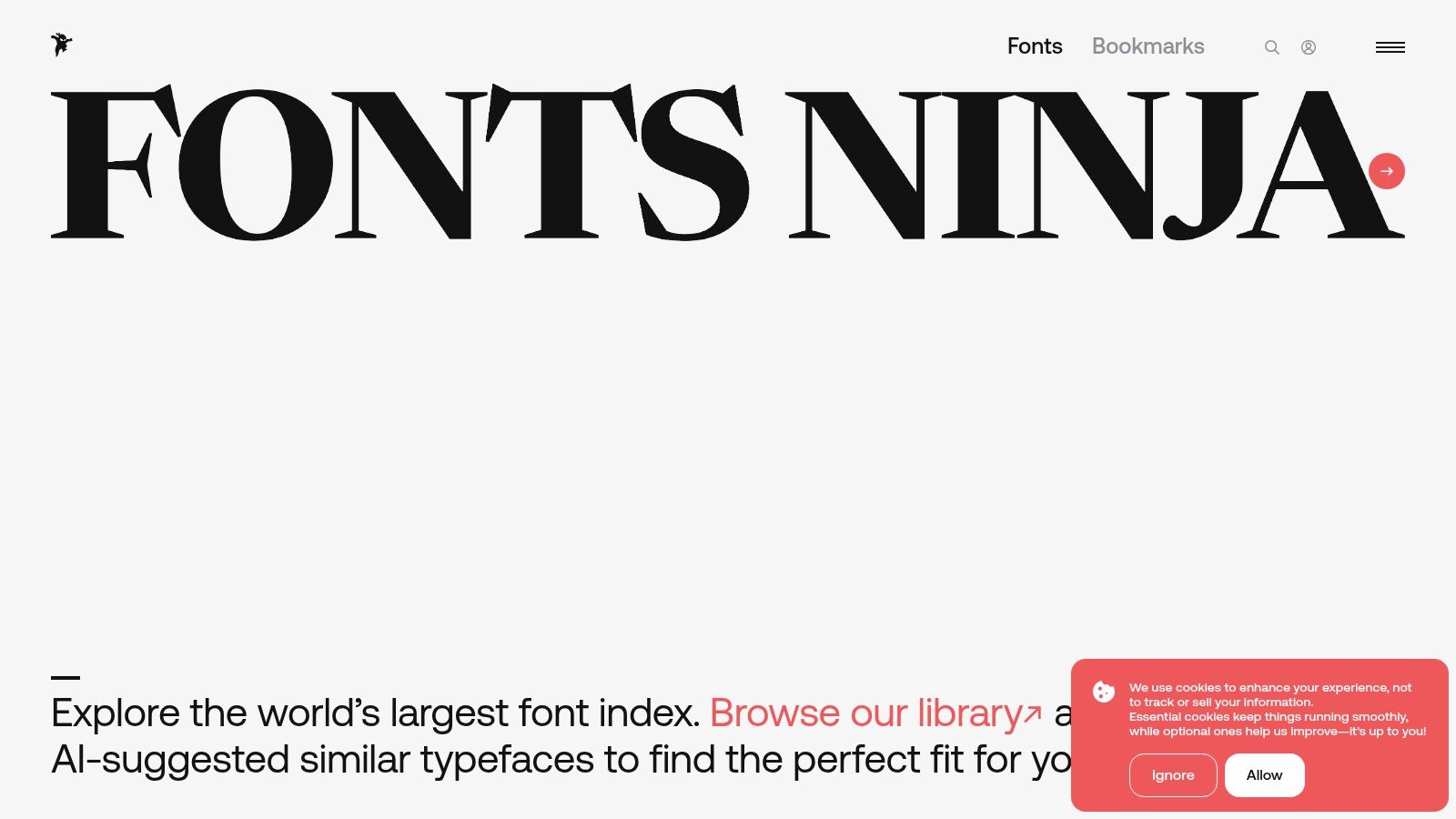
A live webpage is the right input for Fonts Ninja. Open it on the page you are checking, and it reads the rendered type, including font family, weight, line-height, letter-spacing, and color. That makes it useful for audits where the question is not just “what font is this?” but “how did this site build its typography?”

The core value is the page-level view. You can scan the fonts used across the page and save useful finds for later, which helps when I am building a style reference board or comparing a client site with a competitor's layout. It is faster than checking each element one by one, and it gives more context than a simple hover tool.

Its limits are clear. Fonts Ninja still works only with live text, so it will not identify font outlines inside images or PDFs. Some advanced workflows also sit behind paid features. For website typography work, though, it is a practical browser tool, especially when you need both the font name and the surrounding style details.

Fonts Ninja

8. Identifont

Identifont handles a different kind of font search. When the sample is blurry, tiny, distorted, or badly printed, a question-based path can work better than image recognition. You answer visual questions about the letterforms, or search by name fragment, designer, or similar fonts. That makes it useful when an upload is too rough for cleaner matchers.

Its strength is patience. Identifont does not treat the image as the final answer. It asks you to notice the shape of the letters and work through the details. That takes longer, but on damaged scans or awkward print samples, it is often the more reliable route. It also teaches type anatomy as you search, because the prompts force you to look at features you might skip in a hurry.

The trade-off is clear. It is slower than image-based tools, and the result depends on how carefully you answer each step. If you guess your way through, the shortlist can drift. For poor scans and hard-to-read samples, though, it is still one of the more practical choices.

Identifont

9. Fontanello

Fontanello

Fontanello is built for the moment you are already on a live webpage and just need the font details now. Right-click text and it shows the family, size, weight, and line-height. There is no upload step, and no extra inspector to learn before you get an answer.

That makes it useful for quick checks. If a client says the body copy feels wrong, Fontanello lets you confirm what the page is using in seconds. It also helps junior editors read typography in plain language instead of digging through a dev panel.

The trade-off is simple. Fontanello only reads rendered text, so if a web font fails to load, you may see the fallback face instead of the intended one. It is fast and easy, but it works best when the page is loading correctly.

Fontanello

10. Get Font Info

Get Font Info

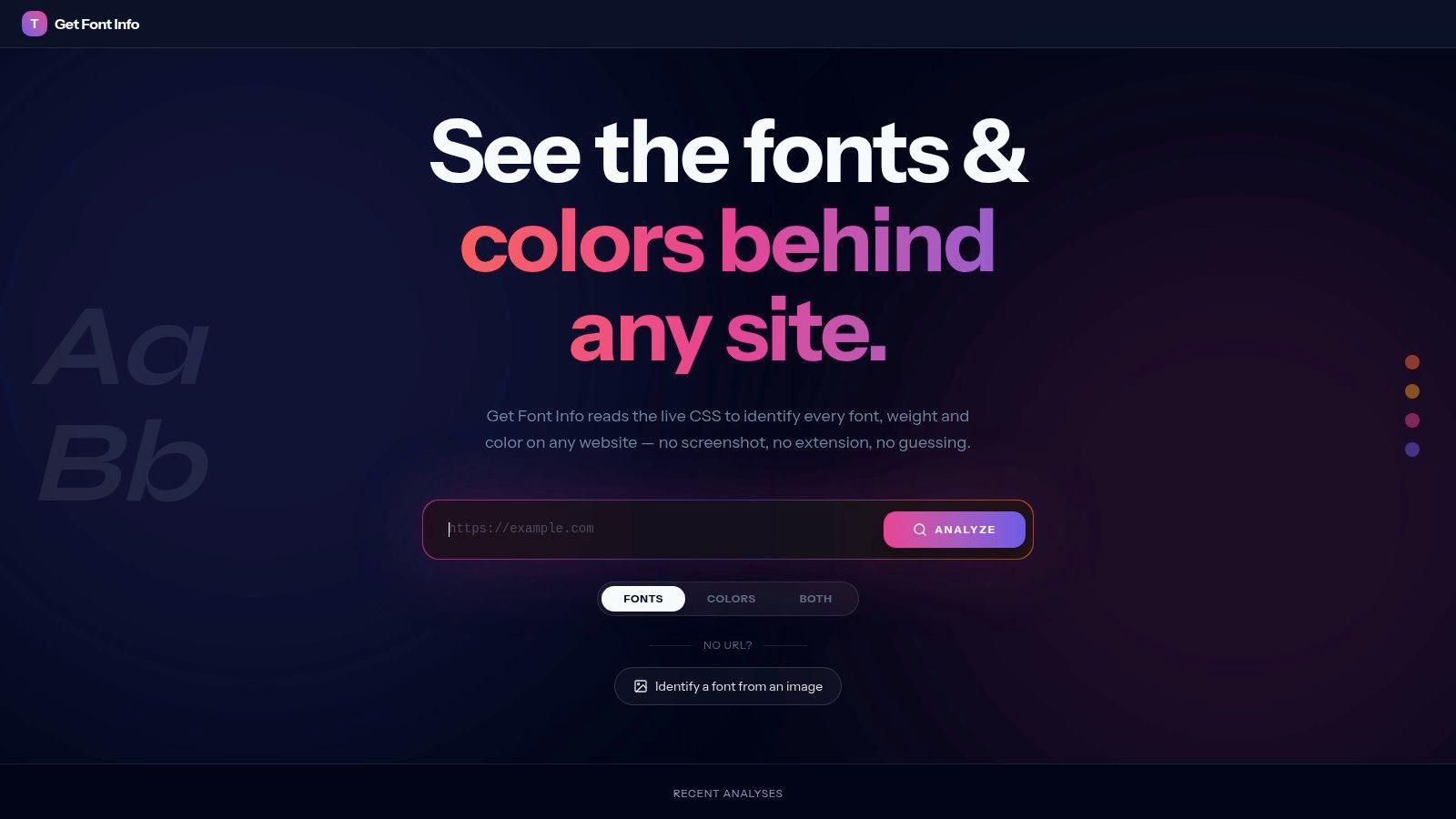
When you already have a public URL and just need the font details, Get Font Info keeps the job simple. It reads a webpage's CSS and @font-face rules, then shows the families, weights, and font sources it finds. That makes it a practical choice on a machine where you do not want to add another browser add-on.

It also gives you quick hover and inspect feedback on the text you are looking at, so you can check the applied font, size, and spacing without opening heavier tools. In practice, that makes it a good companion to image matchers. It answers the “what is this site using?” question faster than manual dev-tools digging, and it stays readable for non-technical editors.

Access is where it stops. Fonts embedded in images are invisible to it, and gated pages, intranets, or scrape-blocking sites return nothing useful. On public pages, though, it is one of the easiest no-install options in the category.

Get Font Info

Top 10 Free Font Finder Tools Comparison

ToolCore featuresQuality ★Value/Price 💰Target 👥Unique ✨
WhatTheFont (MyFonts)Image upload; auto text detection; matches vs 200k+ MyFonts styles★★★★☆ 🏆💰 Free tool; matched fonts usually commercial👥 Designers needing commercial, purchasable matches✨ Deep‑learning matching; direct buy links
WhatFontIsImage upload/URL; free + commercial matches; API & filters★★★★☆💰 Freemium (ads free tier; some paid features)👥 Users wanting free equivalents + devs (API)✨ Labels license type; multi-source results
Fontspring MatcheratorUpload & crop; side‑by‑side compare; prep tips★★★★💰 Free matcher; links to Fontspring catalog👥 Designers working with clear image samples✨ Strong guidance for prepping images
Font Squirrel MatcheratorImage upload; manual char mapping; beginner tips★★★💰 Free👥 Beginners & DIY designers✨ Manual mapping when auto-detect fails
Adobe Fonts – Visual SearchImage upload in Adobe Fonts; one‑click activation to CC★★★★☆ 🏆💰 Requires Adobe ID; activation tied to Creative Cloud plan👥 Creative Cloud users & professionals✨ Activate fonts directly into CC apps
WhatFont (browser extension)Hover to reveal font family, size, weight on live pages★★★★☆💰 Free👥 Quick inspectors & front‑end devs✨ Instant, no-screenshot font info
Fonts Ninja (Fontface Ninja)Hover inspector; page summary; bookmarks & purchase links★★★★💰 Freemium (some paid features)👥 Auditors, designers doing competitive analysis✨ Pulls data from loaded font files; bookmarking
IdentifontQuestionnaire-style ID by appearance, designer or name★★★💰 Free (web); time investment required👥 When no usable image; educators✨ Identify without images; teaches type anatomy
FontanelloRight-click reveal of family, size, weight, line-height★★★★💰 Free👥 Content editors & editors new to typography✨ Very lightweight, context-menu workflow
Get Font InfoURL-based CSS parse; lists @font-face, variants & sources★★★★💰 Free👥 Site auditors & quick live-site checks✨ No install; parses CSS to show exact font sources

Match the Tool to Your Next Font Question

The right free font finder online depends on the sample in front of you. Use an image matcher like WhatTheFont, WhatFontIs, Fontspring Matcherator, or Font Squirrel Matcherator when the font is trapped in a logo, screenshot, or flattened graphic. Use a questionnaire like Identifont when the source is blurry or too awkward for automation. Use a browser extension or URL-based checker when the text is live on a page and you want the rendered font, not a guess.

That workflow matters because identification is only the first step. The 2024 web-font data shows just how common browser-loaded typography has become, with web fonts on about 87% of websites overall and WOFF2 dominant on both desktop and mobile HTTP Archive's 2024 font data. But finding the name doesn't tell you whether the font will read well in body copy, support the scripts you need, or load efficiently on a real site. For that, test the type in context and keep the rest of the design pipeline in view.

Once you have a match, push it through the next practical step. Try it in free drawing tools, mock it in free wireframe tools, or place it inside free tools for video editing if the type needs motion treatment. If you're comparing content workflows or typography choices on a publishing site, the WordPress layout guides on Read More Info are a useful place to keep going. For ongoing updates, the site's RSS feed at Read More Info makes it easy to follow new posts without checking manually.

Before you ship anything, verify the license. A font can look perfect and still be the wrong choice for a logo, a web embed, or a client deliverable. The safest process is still the unglamorous one, identify, compare, test in context, and confirm the rights before the file goes out. For another practical angle on type and presentation, handmade type for ads is worth a look.


Read More Info publishes practical WordPress articles for people who want clear, usable guidance, not fluff. If you're comparing a free font finder online with other everyday tools and workflows, Read More Info gives you the kind of straightforward, utility-first coverage that helps you make the next decision faster.

Free Photo Editor Online: 10 Tools Compared for 2026

Most advice about a free photo editor online starts with popularity, and that's the wrong filter. A homepage can look polished while the editor still blocks the exact job you need, like preserving layers, exporting a transparent PNG, or finishing a file without hitting a paywall. The better comparison is simple, what can the tool actually finish, and what does it force you to hand off somewhere else.

That's why this roundup ranks tools by real editing work, not by name recognition. Each editor below gets one practical example and one honest limitation, so you can match the tool to the task instead of guessing from feature lists. I'm also separating browser-only tools from the ones that lean on ads, accounts, or upgrade gates, because that difference changes how usable a free tool really is. For a broader web-based angle, the MyImageUpscaler editor guide is a useful companion read.

Table of Contents

1. Photopea

Photopea is the closest thing to a Photoshop-like workflow in a browser. It opens and saves PSD files, handles layers, masks, and smart objects, and supports a wide mix of formats including RAW, SVG, PDF, AI, and HEIC. It also runs locally in the browser, so the file doesn't need to leave your machine just to start editing.

Photopea

Best for layered work that needs to stay intact

A practical use case is cleaning up a layered PSD from a designer, then exporting it again without flattening the file. Photopea can also handle one-off background removal and other AI-assisted edits, which makes it useful when a project mixes old-school compositing with quick cleanup. The fact that it runs locally is the big differentiator for privacy-minded users and anyone who just wants to move fast without upload friction.

Practical rule: If you need to keep layers, use a browser editor that behaves like a desktop editor, not a template tool.

The trade-off is the learning curve. Photopea expects you to already understand layer stacks, masks, and file types, so it's less forgiving than beginner editors. The free tier is ad-supported, and some AI actions can push you toward Premium, so it's strongest when you need capability more than convenience. For a deeper workflow angle on restoration, see preserving texture in restorations.

2. Pixlr

Pixlr splits the experience into two paths, Pixlr E for advanced editing and Pixlr X for faster jobs. That makes it easier to match the interface to the work, which matters when you're either compositing a design or just fixing a social image before publish. The browser workflow is quick, and you don't need to install anything to get started.

Fast edits when you don't need a full desktop clone

A good example is removing a background from a product shot, then dropping in a cleaner backdrop and some text. Pixlr's AI background and object removal tools help with that kind of task, and the collage and template utilities make it useful for quick visual packaging. If you've ever bounced between a simple editor and a heavier one, Pixlr's split between E and X can save time.

The limitation is that some useful features sit behind paid plans, so the free version can feel gated once you move from basic fixes to more polished output. Users also report occasional UI changes, which means the interface isn't always as stable as the core feature set. It's a strong browser choice, but it's still a tool you'll want to learn by doing rather than by assuming everything is equally available.

A browser editor with enough depth for real compositing

Pixlr works best when you need more than one-click enhancement but less than a full pro suite. It's not the cleanest answer for every job, but it does give you a practical bridge between quick edits and multi-layer work. For teams that publish often, that middle ground can be the difference between finishing in one tab and exporting to another app.

3. Adobe Express

Adobe Express is the simple option for quick fixes, social graphics, and repeatable brand-friendly edits. It handles background removal, simple adjustments, filters, and templated layouts without asking you to think like a desktop retoucher. That makes it useful when the photo is only one part of the final piece.

Adobe Express

Good for finishing content, not rebuilding it

If you're turning a cleaned-up image into a blog graphic or social post, Adobe Express is efficient. The account-based workflow ties into Adobe's ecosystem and cross-platform access, so it feels familiar if you already work across web and mobile. It's a solid choice for non-designers who want reliable tools without learning a complex interface.

For a WordPress publisher, the value is in how quickly a photo can become a publishable asset, especially when it needs text or layout elements on top. The Read More Info guide to creating a WordPress blog fits that use case well if you're building content around recurring visuals.

The limitation is predictable, the free plan doesn't give you everything. Advanced features and assets are reserved for Premium, so the free tier is best viewed as a finishing tool rather than a full creative suite. It's dependable, but it's not the tool I'd pick for layered reconstruction or heavier retouching.

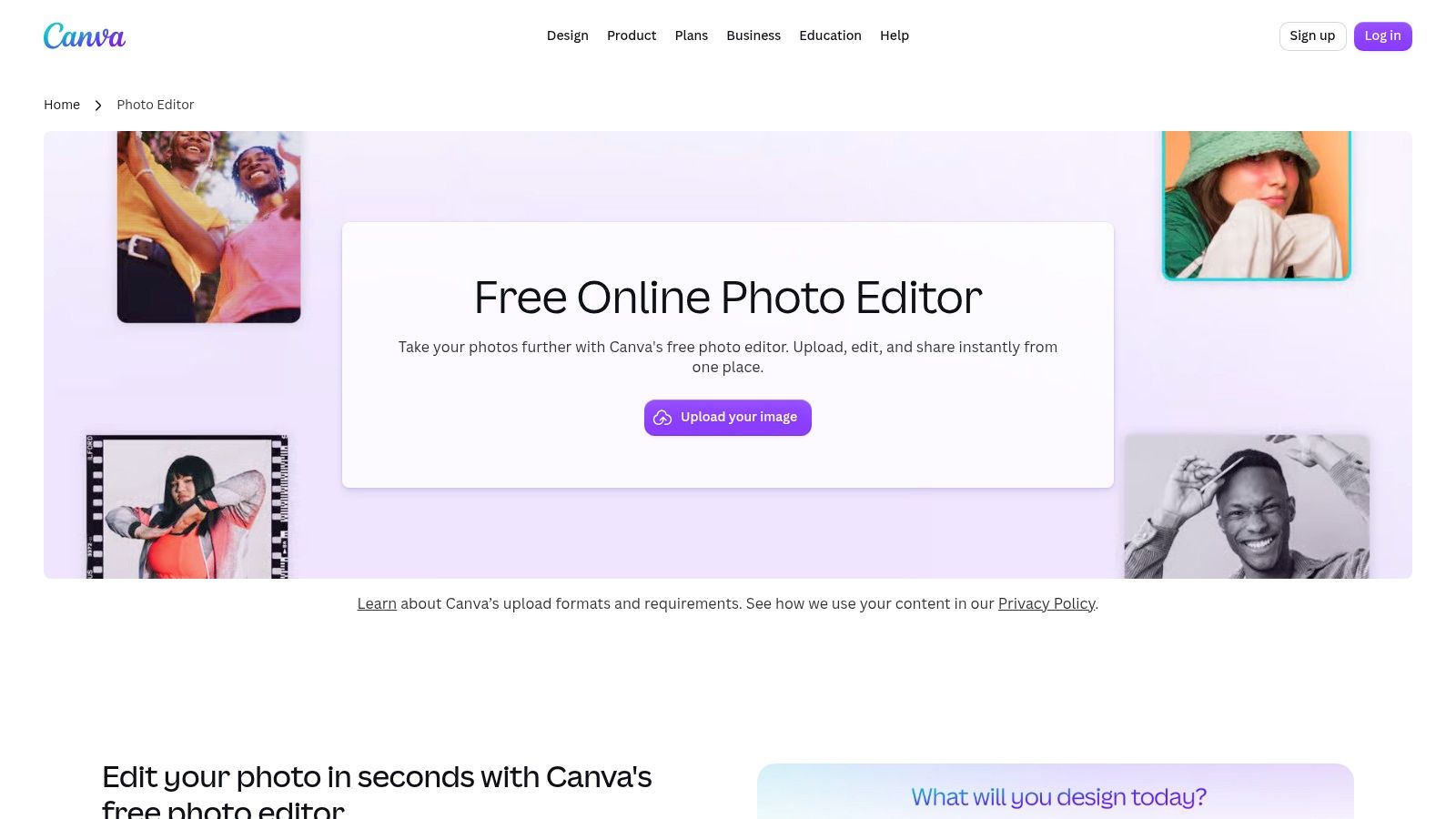
4. Canva Photo Editor

Canva's photo editor is strongest when the image is heading straight into a layout. Adjustments, filters, retouch basics, background removal, and upscaling all sit inside an interface that's built to move you into templates quickly. That's why it's so common in social and marketing workflows.

Canva Photo Editor

The best fit for people who need a finished post, not just an edited image

A realistic example is taking a portrait, cleaning the edges, and dropping it into a post, flyer, or newsletter graphic without leaving the browser. Canva's real strength is the speed of that handoff from edit to layout. It's beginner-friendly, works across devices, and gives you a large template ecosystem that helps if design time is more limited than editing time.

Best use case: Edit the photo just enough to support the design, then let the template system do the rest.

The downside is that a lot of the more attractive extras sit behind Pro or Business plans. That makes the free version feel generous for basic edits, but constrained once you want premium effects or deeper AI help. If your goal is structural editing, Canva is usually not the first stop. If your goal is to publish quickly, it's one of the easiest.

For a layout-first workflow, the best WordPress blog layouts guide can help you see where image editing ends and page design begins.

5. BeFunky

BeFunky sits in the casual-editor lane, but it does enough creative work to stay relevant. Background removal, AI enhance tools, collage creation, templates, and playful effects like Cartoonizer give it a clear identity. It feels made for people who want visible changes fast, without a steep technical ramp.

Creative edits that don't demand technical habits

A good use case is turning a simple portrait or product image into something more stylized for a post or thumbnail. BeFunky's collage tools also help when you need to combine multiple shots into one asset without building a full layout from scratch. The workflow is friendly, and many free tools are available without creating an account, which lowers friction.

The limitation is that premium effects and advanced batch tools are gated. That matters if your work is repetitive, because the free tier is better at single-image creativity than at higher-volume production. It's a useful editor for casual projects, but it won't replace a proper pro workflow.

Some free editors feel broad but shallow. BeFunky is broader than that, but it still stops short of serious retouching.

That balance makes it a decent choice for hobby work, side projects, and content that benefits from a stylized look. It's not the strongest option for layered PSD handling or precision cleanup, but it can get a lot done quickly when the job is visual variety rather than accuracy.

6. Fotor

Fotor leans hard into one-click improvement. Enhancer, upscaler, unblur, and colorize tools are the headline features, and they sit alongside standard crop, resize, exposure, and retouch controls. It's built for people who want the computer to do more of the first pass.

Fotor

Fast improvement tools with a paywall edge

A practical example is rescuing a dull image that needs sharpening, cleaner color, and a quick upscale before publication. Fotor is good at that sort of guided workflow, especially if you want obvious improvement without learning manual correction first. The design and collage tools also make it useful for social and promotional assets.

For a blog-based publisher, the edit often ends up inside a larger content workflow, which is why Read More Info's blog is a sensible place to connect image cleanup with article publishing.

The limitation is that Fotor puts some common features behind Pro or Pro+ plans. That's a real constraint, because it means the free version can feel like a preview of the workflow instead of the full workflow. It's still worth testing if you like AI-assisted editing, but don't assume the free plan covers every routine task.

Best when you want guided edits rather than manual control

Fotor is useful for quick corrections and visual upgrades, less so for precise compositing or layered control. If you want the tool to make the image look better with minimal input, it's strong. If you want every step under your control, another editor on this list will suit you better.

7. LunaPic

LunaPic is the old-school answer for people who just want a free tool that opens and works. It doesn't require login, it stays lightweight, and it covers a wide spread of quick edits, effects, and specialty tools. The interface is dated, but the utility is real.

The fastest path for single-task edits

A typical use case is resizing a file, making a transparent background, or applying a quick effect without setting up an account. LunaPic's browser-based approach makes it especially handy when you're on a low-spec device or just need to finish one job and leave. It also includes draw and annotate tools, which makes it more flexible than some simple crop-and-filter editors.

If the job is small and the deadline is now, LunaPic is often enough.

The limitation is obvious once you use it next to more modern tools. The interface feels older, and it doesn't give you the deeper layer and masking workflow that Photopea or Pixlr can provide. That makes it better for quick actions than for polished editing chains.

For marketplace-ready cleanup, the clean marketplace-ready product images guide pairs well with LunaPic's practical, no-signup style. It's not glamorous, but it is useful, and sometimes useful wins.

8. iPiccy

iPiccy is built for casual users who want easy edits without a lot of setup. Auto-fix, filters, text overlays, and collages cover the common jobs, and the browser workflow keeps things simple. Optional accounts are there if you want to save work, but they're not the whole point.

A straightforward editor for quick fixes and simple layouts

A common example is taking a family photo, applying auto-fix, then adding a caption or title before sharing it. iPiccy is comfortable for that kind of work because it doesn't ask for much before you get to the edit itself. If you're used to basic mobile photo tools, the learning curve is mild.

The drawback is that it doesn't go deep. Advanced layers and masks are limited, which means iPiccy starts to lose ground once you need precise control or professional retouching. It's fine for casual output, but it's not the place for complex composites or print-critical cleanup.

That said, its simplicity is its value. Some editors try to do everything and end up confusing users. iPiccy stays focused on easy fixes, and that clarity makes it a dependable option for light editing jobs.

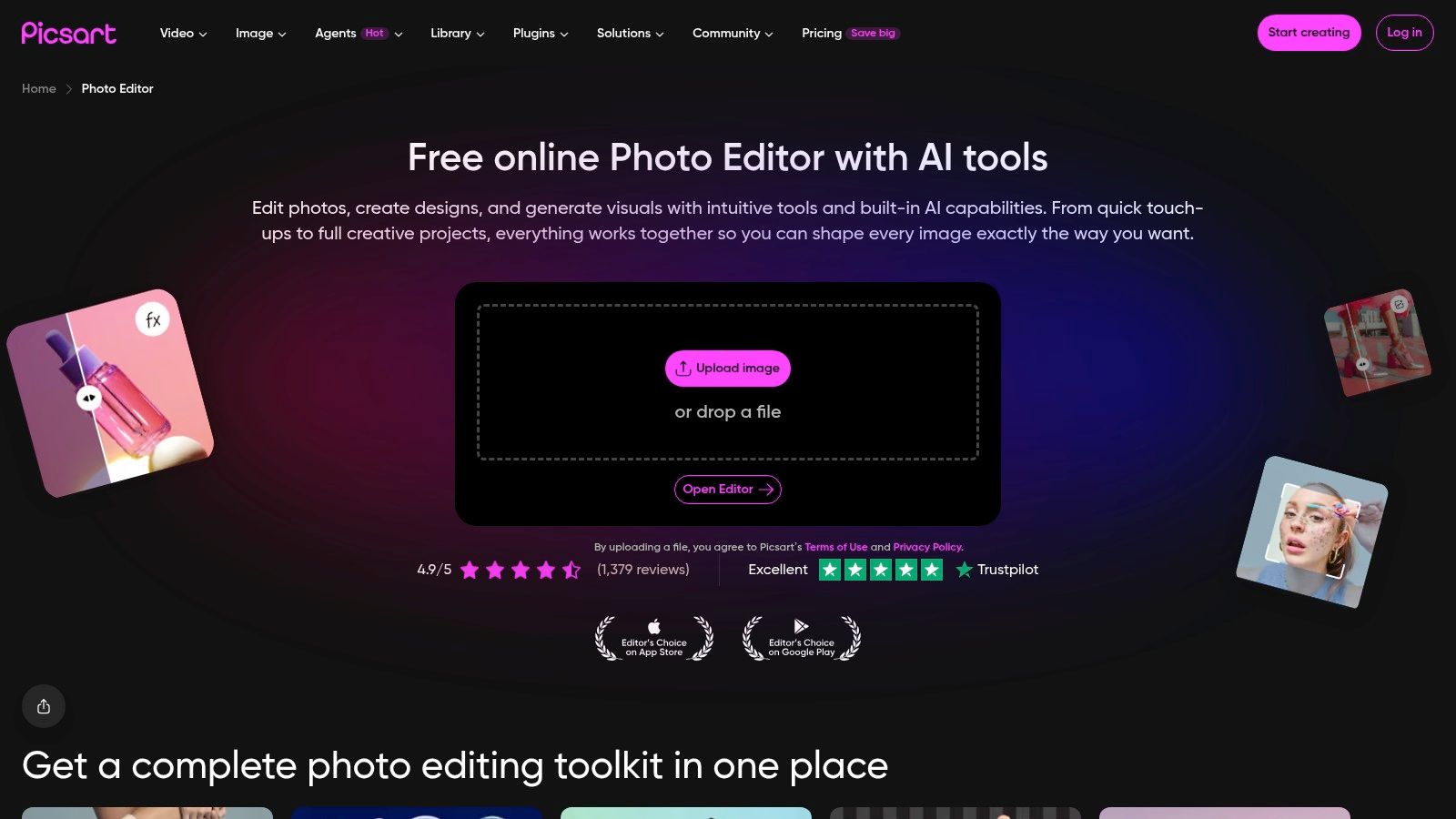
9. Picsart Web Photo Editor

Picsart brings a consumer-friendly mix of AI tools, filters, collages, text, and templates to the web and mobile. It's widely available across platforms, which helps if you start an edit on desktop and finish on a phone. The community and asset ecosystem are part of its appeal.

Picsart Web Photo Editor

Good for fast, social-first visual content

A practical example is creating a social post with a subject cutout, text overlay, and a few decorative elements. Picsart is strong when the output is meant to be shared rather than archived. The AI background and object removal tools help, and the template ecosystem reduces the amount of manual design work.

The limitation is the usual freemium trade-off. Some features and premium assets are gated, so the free tier can feel generous on the front end and narrow on the back end. If you mainly need stylish content for social channels, it earns a look. If you need guaranteed access to advanced tools, you'll hit limits.

Picsart is best treated as a content engine, not just an image fixer. That makes it useful for creators who value speed, variety, and portability more than deep editing control.

10. Sumo Paint

Sumo Paint blends drawing and photo editing in one browser workspace. It includes crop, resize, adjustments, filters, brushes, and layer support, so it works for people who like to sketch, paint, and edit in the same environment. The toolbar feels familiar, which reduces friction.

A solid hybrid for drawing plus image edits

A realistic use case is annotating a visual, then refining it with a few photo edits before export. That kind of blended workflow is where Sumo Paint makes sense, because it doesn't force you to choose between an art app and a photo app. It's also browser-based, so there's no install to manage.

The limitation is depth. Compared with Photopea or Pixlr, it's less advanced for professional photo retouching, and some ad-free or upgraded options sit outside the free version. It's useful when the task is mixed, but it won't satisfy a demanding retoucher who needs precise control over every pixel.

For users who like a familiar toolbar and don't need a specialist tool, Sumo Paint is a reasonable free option. It's not the flashiest editor here, but it does enough different work to stay practical.

Top 10 Free Online Photo Editors, Feature Comparison

EditorCore Features ✨Quality ★Price/Value 💰Target & USP 👥🏆
PhotopeaLayers, PSD/RAW/SVG support, masks, smart objects, AI bg remove ✨★★★★★💰 Free (ads) · Premium available👥 Advanced users · 🏆 Near‑desktop capability; local browser processing
Pixlr (E & X)Pixlr E (layers) + X (quick), AI bg/object remover, templates, collage ✨★★★★💰 Freemium; paid features👥 Beginners→advanced · 🏆 Two UIs to match skill level
Adobe ExpressOne‑click bg removal, quick adjustments, templates, Adobe assets ✨★★★★💰 Free limited · Premium subscription👥 Non‑designers/social creators · 🏆 Reliable Adobe ecosystem
Canva Photo EditorAdjustments, bg remover, upscaler, templates & export integration ✨★★★★💰 Free; Pro unlocks assets👥 Beginners/social creators · 🏆 Huge template ecosystem
BeFunkyOne‑click enhance, creative effects (Cartoonizer), collage, AI bg remove ✨★★★💰 Freemium; paid effects👥 Casual users · 🏆 Easy, playful creative filters
FotorAI enhancer, upscaler, unblur, colorize, retouch & collage tools ✨★★★★💰 Freemium; Pro/Pro+ plans👥 Fast‑fix users · 🏆 Strong one‑click AI improvements
LunaPicFilters/effects, transparent bg, draw/annotate, specialty tools ✨★★★💰 Free · No signup required👥 Quick single‑task edits · 🏆 Completely free & lightweight
iPiccyAuto‑fix, filters, text overlays, collage maker, browser‑based ✨★★★💰 Free; optional account👥 Casual editors · 🏆 Low learning curve, no install
Picsart Web Photo EditorAI bg/object removal, filters, collages, templates, cross‑platform ✨★★★★💰 Freemium; subscription for premium assets👥 Social creators/community · 🏆 Large template & asset ecosystem
Sumo PaintPainting + photo tools, layers, brushes, filters in browser ✨★★★💰 Free tier; paid upgrades👥 Artists & hobbyists · 🏆 Combines drawing/painting with edits

Choosing the Editor That Finishes Your Edit

Start with the edit you repeat most, not the editor you've heard about most. If you routinely need layers, masks, or PSD handling, Photopea and Pixlr deserve the first test. If you mostly clean photos for social posts, Canva, Adobe Express, and Picsart are more efficient. If your job is quick fixes and you don't want to sign in, LunaPic and iPiccy are easier to live with than heavier tools.

Then check the details that break a workflow: layer support, export formats, and paywall triggers. A tool can look free and still block the exact step that matters, such as transparency, high-quality export, or saving an editable file. Browser-only tools are often the most convenient, but ad-supported or account-gated editors can slow you down at the wrong moment.

The simplest test is also the most revealing, open the same real file in two candidates and do the same edit in both. Watch where each tool slows down, removes a feature, or pushes you toward an upgrade. That gap between “looks capable” and “finishes the job” is the whole reason this comparison matters.

Keep the one that completes the task without forcing a format workaround or a paid tier. If the editor can't finish your real file cleanly, it's not the right free photo editor online for your workflow, no matter how polished the homepage looks.


Read More Info publishes straightforward WordPress guides that help readers compare tools without wasting time on hype. If you want more practical breakdowns like this one, visit Read More Info and use the site's search and RSS feed to keep up with new posts that match the work you do.

10 Best Free AI Writing Assistant Tools for 2026

You're staring at a blank draft, a deadline, and a free AI writing assistant that looked great on the pricing page but starts to wobble the moment you need a second rewrite, a clean outline, or one more paragraph that doesn't sound robotic. That's the test. Free tools are easy to compare in a marketing screenshot, but in a working week, the limits on prompts, rewrites, exports, and privacy controls decide whether a tool helps or just slows you down.

This list keeps the focus on workflow, not hype. You'll see where each tool fits in drafting, research, editing, and privacy-sensitive work, and where the free tier runs out. Some tools are better for first drafts. Others are better for cleanup, citations, or final polish. A few are useful only if you accept clear caps and human review. That's fine. The best free choice is the one that still works after the third article of the week, not the one with the flashiest homepage.

Table of Contents

1. ChatGPT

ChatGPT is the easiest place to start if you want one free AI writing assistant that can handle drafting, outlining, rewriting, and quick summarizing without forcing you into a complicated setup. The free version is accessible on web and mobile, so you can move from phone notes to a working draft fast. OpenAI launched ChatGPT publicly on November 30, 2022, first as a free research preview, and its rapid adoption made it one of the clearest signs that browser-based AI writing had gone mainstream, not niche (Engadget coverage of ChatGPT's early growth).

For writers, the practical value is simple. You can use it for outlines, tone rewrites, opening paragraphs, headline ideas, and quick fact-checking prompts through web search, within the free plan's usage limits. It's also a good fit when you want to turn rough notes into a cleaner draft before moving into a dedicated editor. If you publish on WordPress, the fastest workflow is often ChatGPT for structure, then a final pass in your CMS. How to create a WordPress blog is a useful companion if you're still shaping that publishing process.

Where it helps and where it stalls

Practical rule: use ChatGPT for the first 70% of the job, not the last 10%. The free plan is strongest when you need momentum, not perfection.

The biggest strength is flexibility. It can draft a product intro, simplify a dense paragraph, or turn bullets into prose without making you jump between tools. The weakness is just as obvious, free usage is capped, so the tool can slow down when you're in a heavy editing session or trying to batch several posts at once.

  • Best use case: outlines, rewrites, brainstorming, and quick summaries.
  • Watch out for: rate limits and occasional slowdown at peak times.
  • Treat it as: a drafting partner, not a final authority on facts, voice, or originality.

Read ChatGPT's watermarking guidance if you care about how generated text may be treated downstream.

2. Microsoft Copilot

Microsoft Copilot fits the moment when you need quick copy help and do not want to leave Microsoft tools for long. The free web version handles short drafts, rewrites, and question-based prompts well. If your team already works in Microsoft accounts, that familiarity saves time. Fewer clicks usually means more writing gets done.

Its best use is simple and low-friction. Paste in a rough paragraph, ask for a tighter version, or request three headline options, and it usually gets you moving. The limit shows up fast once you need a fuller workflow. More advanced features sit inside paid Microsoft 365 plans, so the free version stays useful, but narrow.

If your work lives in Word, Copilot keeps the path short. If your process starts in research notes and ends in a WordPress post, it still helps, but it will not replace the rest of your stack.

Best fit for people who draft inside Microsoft

Use Copilot as a light assistant, not a platform to manage. It works well for office writing, short-form content, and quick ideation, especially when documents already live in Microsoft accounts.

Some free-tier interactions with images and files exist in certain experiences, but the limits vary. That makes Copilot a practical choice for straightforward drafting, not for heavy editing sessions or repeated back-and-forth on the same piece.

If you want speed inside Microsoft apps, it earns a place. If you need deeper control over research, drafting, and revision, pair it with another tool that gives you more room to work.

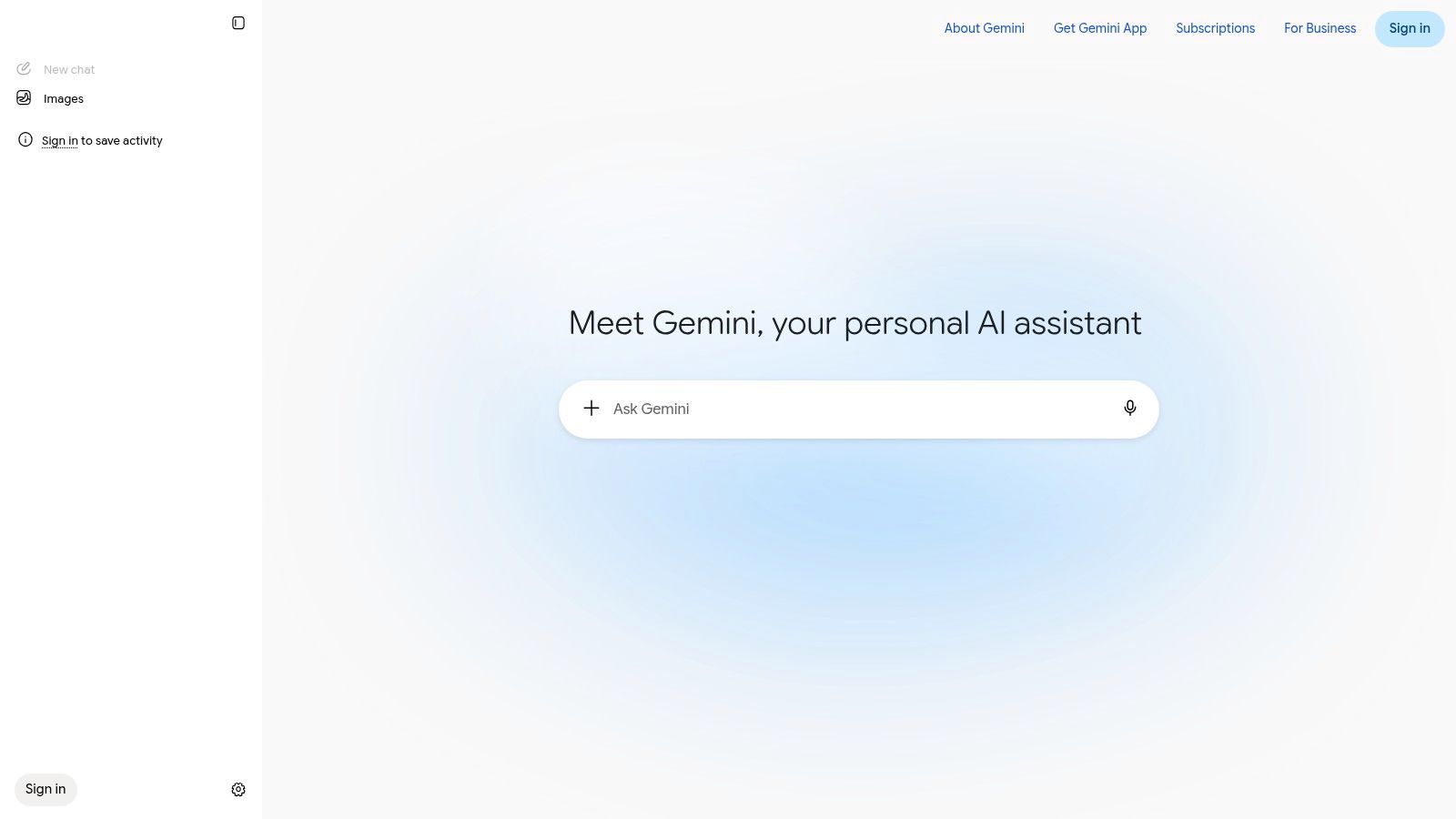
3. Google Gemini

A free-to-start assistant matters most when you want quick help without changing where you already work. Google Gemini fits that use case well. It handles brainstorming, summaries, and short drafts, and it is especially convenient for people already signed into Google accounts. You can use it on web or mobile and move fast.

The strongest use case is a clean prompt-response loop. Ask for an outline, a simpler explanation, or a short rewrite, and it handles the basics with little setup. It also works well for source-aware prompting because it sits close to Google's search experience. The trade-off is straightforward. Availability and feature depth can vary by region and device, and more advanced Workspace features sit behind paid plans.

Gemini works best when the task is clear and the output is light. It is less useful if you need a deep editorial system with stored drafts, repeated source notes, and strict output rules.

Google Gemini (free to start)

Use it for fast structure, quick summaries, and first-pass wording. Pair it with a stronger editor later if the draft needs careful polish or longer revision cycles. On its own, Gemini is a practical free option for writers who value speed and easy access on phone and desktop.

  • Strong at: quick drafts, summaries, and brainstorming.
  • Weak at: consistent long-run workflow control on the free tier.
  • Best for: writers who want easy access on phone and desktop.

4. Grammarly

A draft can look finished and still need a final pass. Grammarly is built for that stage. The free plan gives you grammar, spelling, clarity, and tone suggestions, plus limited AI prompts for rewriting and short drafting. It earns its place after the messy work is done.

Its value is consistency. Grammarly catches the small errors that survive two or three rounds of revision. It also follows you across common writing surfaces through browser and desktop integrations, so the editing layer stays close to where you work. The free AI prompts are limited, though, so it does not replace a full drafting tool.

Use it after drafting, not instead of drafting

Start somewhere else if you need ideas, an outline, or a first version. Finish in Grammarly if you want cleaner wording and fewer surface-level mistakes. That workflow is the cleanest fit.

Editing note: Grammarly is strongest when the draft is already close. It improves clarity and tone, but it does not fix weak structure on its own.

Grammarly (Free plan with AI prompts)

Grammarly is a control tool, not a creator tool. That is the reason editors keep it installed.

  • Best for: polishing, consistency, and final checks.
  • Limit to respect: the free plan's AI prompt allowance.
  • Why it stays installed: it works across a lot of common writing surfaces.

5. QuillBot

QuillBot fits a specific job in the writing process. If the draft exists but the wording feels clumsy, it gives you paraphrasing, grammar checking, a basic summarizer, and AI chat in one place. That makes it useful for tightening awkward sentences and turning dense notes into cleaner source material.

The free tier is where the trade-offs show up. Word and mode caps limit how much you can rewrite at once, so it works better for targeted fixes than for heavy lifting. A single paragraph, a rough summary, a stubborn sentence, those are the right scale. A full article usually is not.

For paragraph-level cleanup, it is straightforward. Paste in a section, compare a few options, and keep the version that reads most naturally. The point is to improve flow without losing meaning.

  • Use it for: paraphrasing, simplification, and short summaries.
  • Avoid using it for: long-form generation on the free tier.
  • Best fit: refining text that is already drafted.

QuillBot sits in the middle of the workflow. It is not the first tool for ideas, and it is not the final tool for polish. It fills the gap between rough draft and final edit, which is exactly where a lot of writing gets stuck.

6. Perplexity

A short list of search results is rarely enough when a draft needs current facts. Perplexity handles that stage well. It combines web search with AI answers and shows cited results, so you can sort through sources before you start writing. That makes it useful for topic research, comparisons, and quick fact checks.

The free tier gives you the core workflow, but the limits matter. Pro and Research searches are capped, and the more advanced features sit behind paid access. So the tool is best for early-stage research, not endless querying.

Research first, drafting later

Use Perplexity to confirm terms, gather source-aware notes, and shape an outline. Then move those notes into a drafting tool and write for your audience. It is better at sourcing than at tone, and that is the trade-off.

Use it like a research assistant, not a writer. The citations matter most when you are checking facts, not polishing prose.

  • Strong use case: cited research summaries and quick comparisons.
  • Main constraint: limited Research and Pro search use on the free tier.
  • Why it matters: it lowers the chance that your draft starts from a weak premise.

For informational posts, Perplexity fits at the start of the workflow. A strong pairing is Perplexity for research, then a separate drafting tool for the first version.

7. ProWritingAid

ProWritingAid suits writers who want more than a grammar pass. It is built around style and clarity reports, plus AI Rephrase and Sparks prompts, so the editing feels more like a diagnostic review than a quick cleanup. That makes it a practical fit for long-form drafts that need tighter structure, pacing, and readability before publication.

The free plan still has a real use, but only if you accept its limits. ProWritingAid connects with Word, Google Docs, Scrivener, and browsers, which helps if a draft moves across apps. The trade-off is simple. You get depth, not unlimited use. The free version caps word count and report runs, so it works best on a single draft or a focused revision pass.

ProWritingAid

Best for writers who like diagnostics

Use it after the first draft is done. ProWritingAid is strongest on mechanics, repetition, and structure problems that basic spellcheck misses. If a section drags or the phrasing starts to repeat itself, the reports make that visible fast.

  • Good for: style reports, rephrasing, and deeper editorial cleanup.
  • Less good for: unlimited daily use.
  • Best pairing: a drafting assistant plus ProWritingAid for the edit.

It works best on text that is already close, then needs a sharper editorial pass.

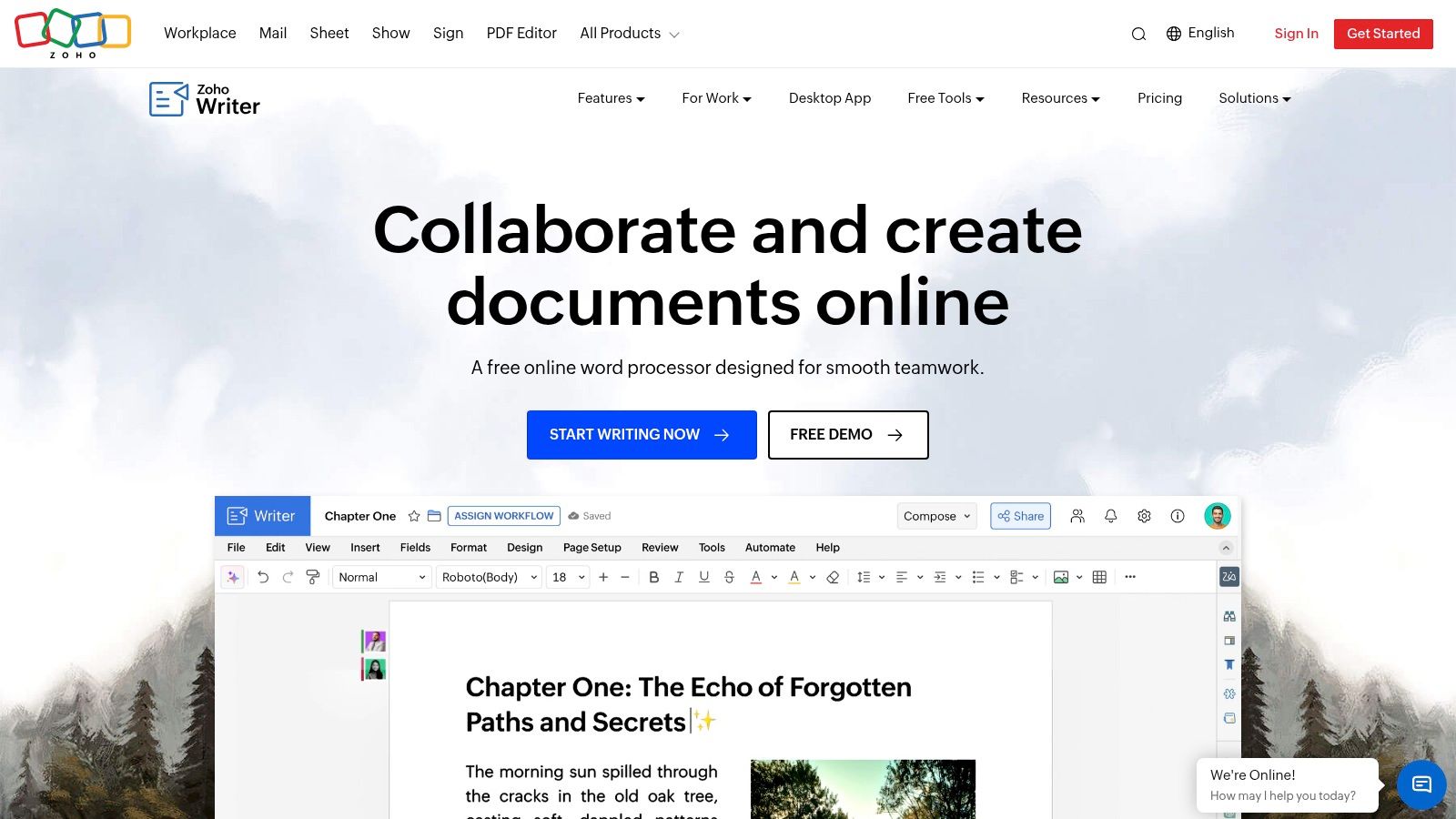
8. Zoho Writer Zia AI Assistant

Zoho Writer is a good fit if you want a free document editor with AI built in, not bolted on later. Zia covers content generation, rewriting, summarizing, readability checks, grammar help, and plagiarism scanning inside the editor itself. That matters if you draft in a word processor first and publish later.

The advantage lies in the workflow. You write, revise, and export in one place. That reduces friction for writers preparing posts for WordPress who do not want a separate chat window open beside the draft. Zoho Writer's AI is available to Writer users at no cost by default, which makes it stand out in a market where many free tools hide useful features behind a paywall.

Zoho Writer (Zia AI assistant – free)

Best for writers who want one clean editor

Zoho Writer suits writers who do not want a fragmented toolchain. If your process starts with a blank page and ends with an export, it keeps the work in one place and the revision history attached to the draft.

Built-in AI helps most during the middle of the process, after the first pass. It is easier to adjust headings, formatting, and rewritten text when everything stays in the same document. A separate chatbot can help with ideas, but it can also pull you away from the draft.

If your site layout matters too, pairing writing discipline with a smart content structure helps. Best WordPress blog layouts is worth a look before you finalize your publishing format.

  • Best for: drafting, rewriting, and export-ready documents.
  • Why it stands out: the AI lives inside the editor.
  • Watch for: long-form generation limits that may still send you to another chat tool for heavier drafting.

Zoho Writer feels more like a working document system than a separate AI add-on.

9. Wordtune

Wordtune is built for revision, not first-draft volume. It helps you rewrite sentences, tighten tone, and cut clutter without making the interface feel heavy. The free plan gives you 10 AI rewrites or suggestions per day and 3 summaries per month, which is enough for careful editing, not for churning out long drafts.

Use it after the draft is already in decent shape. A clumsy paragraph, a line that runs too long, a section that needs to be shorter, Wordtune handles those jobs quickly. It is less useful for building an article from nothing. That narrow scope is the point, and it works best if another tool has already handled the drafting stage.

Wordtune belongs in the finishing pass.

Wordtune

Good when the draft is already there

If you already know what sounds off, Wordtune gives you fast alternatives without forcing a workflow change. Editors get the most value here, especially when the job is phrasing, shortening, or tone cleanup.

  • Best for: rewriting, shortening, and tone cleanup.
  • Free-tier reality: daily rewrite limits and a small monthly summary allowance.
  • Who gets the most value: editors who need quick options, not endless output.

If you only want better phrasing, Wordtune is efficient.

10. Rytr

A tight deadline and a small word count are where Rytr fits best. It is built for blog ideas, outlines, meta descriptions, short copy, and other compact tasks where speed matters more than depth. The free forever plan includes a 10,000 character monthly allowance, enough to test a workflow or draft a few sections, but not enough for steady high-volume publishing.

Rytr's strength is its low-friction template system. You pick a use case, choose a tone, and start fast. That helps when you do not want to spend time shaping prompts. The trade-off shows up quickly. Output usually needs a careful edit before it is ready to publish, and the character cap forces you to ration every run.

Rytr

Use Rytr for early drafting, not for final polish. It makes sense if you want to test a lightweight AI writer before paying for a larger tool, especially as a solo creator who is still shaping a process. If you want a practical writing setup, start with short-form copy here, then combine it with guidance from Read More Info blog updates for the WordPress side of your publishing flow.

  • Good for: short-form copy, outlines, and rough blog sections.
  • Main limit: the 10,000 character/month allowance on the free plan.
  • Best use: fast testing before you commit to a broader workflow.

Rytr is simple to try, but the free tier runs out quickly.

Comparison of Top 10 Free AI Writing Assistants

ToolKey FeaturesQuality (★)Value / Price (💰)Target (👥)Standout (✨ / 🏆)
ChatGPT (OpenAI)Conversational drafting, web search, file/image inputs, web & mobile★★★★☆💰 Free tier; paid upgrades for more tools/usage👥 Bloggers & creators needing ideation✨ Versatile generalist; 🏆 great for brainstorming & outlines
Microsoft Copilot (free)Free web chat, in-app Word/Excel/PowerPoint integration★★★★💰 Free web; advanced features via Microsoft 365👥 Microsoft ecosystem users, office writers✨ Deep Office integration; 🏆 seamless MS Office workflows
Google Gemini (free to start)Chat drafting, research, Search AI integration, mobile/web★★★★💰 Free to start; paid subs for heavier use👥 Google users & quick-research writers✨ Search-linked prompts; 🏆 source-aware quick drafts
Grammarly (Free plan)Grammar, clarity, tone, limited generative prompts, broad integrations★★★★★💰 Free with limited AI prompts; Premium for full features👥 Editors & polish-focused bloggers✨ Best last-mile editing; 🏆 tone & correctness across apps
QuillBotParaphraser, grammar checker, summarizer, browser extensions★★★★💰 Free limits; Premium lifts caps👥 Writers needing fast paraphrase & clarity✨ Multiple rewrite modes; 🏆 quick sentence-level rewrites
PerplexityWeb research with citations, chat, projects/collections★★★★☆💰 Free core features; Pro for advanced searches👥 Research-driven writers & fact-checkers✨ Cited AI answers; 🏆 strong for source-backed outlines
ProWritingAid20+ style reports, AI Rephrase, Sparks prompts, integrations★★★★💰 Free limited checks; paid for unlimited reports👥 Long-form authors & editors✨ Deep diagnostics (style/structure); 🏆 in-depth readability tools
Zoho Writer (Zia AI)In-editor AI generation, rewriting, grammar, plagiarism checks★★★★💰 Free with built-in AI; paid Zoho plans optional👥 Writers wanting full web word processor + AI✨ Free AI inside editor; 🏆 integrated drafting & export workflows
WordtuneFocused rewrites, summaries, browser extension, tone tweaks★★★★💰 Free daily rewrites; paid for unlimited👥 Bloggers polishing paragraphs & tone✨ Fast, targeted rewrites; 🏆 concise tone control
Rytr20+ templates & tones, Chrome extension, 10k char/month free★★★☆💰 Free 10,000 chars/month; paid tiers for more👥 Budget-conscious creators testing AI drafts✨ Many blog templates; 🏆 low-friction ideation and outlines

Build a Free Writing Workflow You Can Keep

The best free setup is usually not one tool. It's a small stack with one drafting assistant and one editing assistant, chosen for their caps, not their slogans. If you only pick based on features, you'll end up with a tool that feels generous on day one and cramped by week two. If you pick based on workflow, the free tier lasts longer and causes less friction.

A practical workflow starts with one tool for first drafts and another for cleanup. ChatGPT, Copilot, Gemini, Perplexity, or Rytr can handle the early stage depending on how you like to work. Grammarly, ProWritingAid, Wordtune, QuillBot, or Zoho Writer can handle the final pass. That split matters because drafting and editing are different jobs. A good drafting tool helps you move. A good editing tool helps you see what still needs work.

Privacy needs a separate decision. Before you paste unpublished material, client text, or personal data into any free AI writing assistant, check how the tool handles retention, training, and human review. Free access often comes with a hidden trade-off, and that trade-off is usually control. If a tool doesn't make its data practices clear, treat that as a warning sign and keep sensitive material out of it.

The research and evidence behind these tools points in the same direction. Free tools are useful when they're placed inside a structured process, not when they're trusted to do the whole job alone. The strongest results come from deliberate prompting, human review, and a realistic understanding of usage limits. That lines up with what writers, students, and editors already know from practice. The assistant can speed up the work, but it can't replace judgment.

For most writers, the cleanest approach is to keep a small, repeatable stack. Use one tool to start the draft, one tool to tighten the prose, and one human review pass before publication. Recheck limits before each content cycle, because free plans change and usage caps can shift without warning. That habit saves more time than chasing the latest feature drop.

If you want more straightforward WordPress publishing guidance, content workflow ideas, and practical tools that help you keep a site moving, visit Read More Info. The site publishes simple, useful updates for people building and managing content without unnecessary complexity.

10 Free OCR Online Tools: Limits, Privacy, and Best Uses

A scanned contract lands in your inbox, or a receipt photo sits in your camera roll, and you need the text out now. That's where free OCR online tools either save the day or waste it. The catch is simple, different tools handle file size caps, page limits, language coverage, output formats, and uploaded-file privacy very differently. Some give you a clean searchable PDF. Others give you plain text that needs cleanup. A few are fine for quick jobs but weak on tables, handwriting, or sensitive files. If your goal is to make a document searchable, a practical overview like how to create a searchable PDF is a useful companion read.

Table of Contents

1. Google Drive and Google Docs OCR

If the file is already sitting in Drive, this is often the fastest route. Open an image or scanned PDF with Google Docs, and Drive's OCR turns it into an editable Google Doc that you can then export as DOCX or TXT through the normal Google workflow. That makes it a solid fit for people who want a free, integrated OCR option without installing anything extra, especially when the source file is already in the Google ecosystem. The official Drive help page explains the basic open-with flow and the text extraction behavior on images and PDFs, which is why this option remains popular for simple office cleanup tasks Google Drive OCR help.

Google Drive / Google Docs OCR

Best fit and what breaks

Google Docs OCR works best when you need editable text, not a faithful visual reconstruction of the page. Layout usually needs cleanup, and the output can lose columns, spacing, and form structure. It's convenient, but it's not the tool I'd pick for a file where the exact page design matters.

Practical rule: use this for drafts, notes, and simple document extraction. Skip it when the layout, tables, or exact placement of text matters.

It also gives you very little OCR tuning. There's no real control surface for tricky scans, so if a file is skewed, noisy, or packed with mixed content, you may spend more time fixing the output than you saved on upload. For a WordPress workflow, that's relevant because clean text can move straight into a post draft, while a messy conversion usually means manual reformatting. A related publishing workflow is covered in Read More Info's WordPress blogging guide.

2. i2OCR

i2OCR is the kind of tool that works well when you just want the text and don't want a login screen in the way. It supports common image types and scanned PDFs, offers broad language support, and keeps the process low-friction. The service positions itself as browser OCR with no registration, which makes it a decent choice for quick extractions from scans, screenshots, and basic PDF pages i2OCR. The cleanest way to think about it is this, it's built for speed and access, not for heavy document editing.

i2OCR

What it's good at

It handles a practical spread of formats, including JPG, PNG, TIF, BMP, GIF, WEBP, and scanned PDFs. That makes it useful for people pulling text from mixed sources, especially when the document isn't going to be republished as a polished layout. The main appeal is that you can get in, extract, and leave without creating another account or subscription trail.

Where it falls short

The output is text-only, so if you need DOCX structure, preserved tables, or detailed layout controls, this is not the strongest choice. That's where the tool feels more like a quick extraction engine than a document production tool. For simple pasted text, it works. For a multi-part report, it usually needs manual cleanup.

Good OCR tools are judged by the job, not the marketing line. If the output is meant to be copied into a CMS or note field, plain text is enough. If the output has to stay visually aligned, this is the wrong category of tool.

3. OCR.space

OCR.space is a stronger fit when you want a browser tool that can also do a bit of API work. It accepts images and multipage PDFs, can create searchable PDFs with visible or invisible text layers, and gives you OCR engine options, including a handwriting engine. That makes it useful for quick one-off conversions, but also for light integrations where a developer needs OCR in a workflow without building everything from scratch OCR.space. The interface is clear, and the text overlay is helpful when you need to inspect what the engine read.

OCR.space

Good for searchable PDFs

This tool stands out when the output needs to stay in PDF form but become searchable. That's a real practical difference. A searchable PDF lets you keep the original page image while making the text indexable and copyable, which is useful for document archives and internal knowledge bases. It's especially handy when you need a result that still looks like the source file.

Limits and privacy trade-off

The free web tier has a 5 MB file size cap per document, and the handwriting engine can be slower than the standard modes. That alone makes it better for targeted use than bulk processing. For sensitive files, the upload step also deserves attention because anything that leaves your local machine should be treated as a privacy decision, not just a convenience.

If you need a quick OCR API for experiments, OCR.space is one of the more approachable free options. If you need stable processing on large or sensitive documents, the web tier's limits show up fast.

4. OnlineOCR.net

OnlineOCR.net is old-school in a way that can still be useful. It converts images and PDFs into editable formats like Word, Excel, and TXT, which makes it a straightforward pick for users who want an Office-friendly export rather than just raw text. The service is built for quick PDF-to-Word-style conversions, and it keeps the workflow simple enough that non-technical users can get through it without much friction OnlineOCR.net. If you need a direct route into an editable Office file, this is one of the cleaner browser-based choices.

OnlineOCR.net

Where it fits

It works best for simple one-off conversions where the goal is to move a scan into Word or Excel with the layout mostly intact. That's the job it does better than plain-text-only tools. It can also be useful when a teammate expects an Office file and doesn't want to paste text from a browser window.

Main limits

The free experience is limited, and ads are part of the trade-off. Advanced features and better handling for larger jobs sit behind paid pages, so this is not the best long-term choice for recurring document workloads. In practice, it's a utility for occasional conversions, not a document pipeline.

Use this when the output needs to look like an editable office document. Don't use it when you need deep cleanup control or repeatable batch processing.

For readers building a content workflow around reusable publishing assets, the supporting site structure at Read More Info's blog is an example of how converted text often ends up being repurposed in a WordPress environment.

5. Convertio OCR

Convertio is a file conversion platform first, and OCR is one part of that broader toolset. The appeal is the output range, it can convert scans and images to DOCX, XLSX, TXT, and searchable PDF, and it supports cloud imports from Google Drive, Dropbox, or a URL. That makes it convenient for small jobs when your source files already live in cloud storage and you want to avoid downloading them first Convertio OCR. It feels smooth when the task is small and the file is already in the right place.

Convertio (OCR)

Best use case

This is a good pick for one-click conversions to Word or Excel, especially when you want a clear UI and don't need to manage local software. The language selection helps when the source isn't English, and the searchable PDF output can be handy for archiving. It's the sort of tool people reach for when they want a broad format menu without a steep learning curve.

Free-tier reality

The free use is limited to a small number of pages per run, with page availability shown on the interface. That means it's useful for small bursts of work but not for long batches. Heavier use pushes you toward credits or subscription territory, so this is a utility, not a no-strings free service.

Convertio is practical when you already know the file is small and the output format matters more than fine-grained OCR control.

6. OCR2Edit

OCR2Edit is a web-based OCR toolkit that keeps things fairly direct. You can upload an image or PDF and convert it to Word, Excel, plain text, or a searchable PDF. The site also advertises multilingual OCR and offers standard versus AI-driven modes, which gives it a bit more flexibility than the simplest browser tools OCR2Edit. It's the sort of site that can be useful for a quick pull of text from a scan without installing anything.

OCR2Edit

Where it helps

It's handy for image-to-text and PDF-to-DOCX conversions when you want a browser-first workflow. The interface is simple enough for casual use, and the upgrade path exists if you later need batch processing or larger files. For people who test OCR tools against real documents, that makes it easy to compare outputs without committing to a new app.

What to watch

The marketing claims are broad, so the safest approach is to test it with your own scans. That's especially important if your documents have tables, mixed layouts, or lighter text on degraded paper. The free browser use is fine for a quick job, but larger-file capacity and higher-volume needs are clearly positioned for paid plans.

Test OCR2Edit with a page that includes the hardest content in your file, not the cleanest page. That's the page that tells you whether the tool is useful.

7. Adobe Acrobat Online OCR

A scanned contract or intake form often needs one thing first, a searchable PDF. Adobe's online OCR handles that job well. It converts scans and images into searchable PDFs, and the workflow is familiar if you already use Adobe tools. That matters for teams that want a known vendor and a simple path from upload to usable PDF Adobe Acrobat online OCR.

Adobe Acrobat (Online OCR)

Strongest use case

Use it when the result needs to stay a searchable PDF. Acrobat is built for preservation and search, not for rebuilding the document into a new Office layout. If your goal is archiving office scans or making source files easier to find later, this is a sensible first pass. If your goal is extraction rather than a searchable PDF, a dedicated tool for extract text from scanned documents may fit better.

Limitations in practice

The free online version is useful for conversion, but editing after OCR often pushes you toward Acrobat Pro. Bulk handling also tends to sit outside the free web flow. For a WordPress writer, making source PDFs searchable is one step, choosing a layout that presents them well is another, as covered in Read More Info's guide to blog layouts for WordPress. That makes Acrobat a practical input step, not a full publishing workflow.

When a clean scan only needs to become a searchable PDF, Adobe's browser tool is a safe, conservative pick. When you need heavy editing, it is not the whole solution.

8. PDF24 Tools OCR PDF

PDF24 is one of the more practical names in free PDF utilities, and its OCR PDF tool is built around making a file searchable rather than overcomplicating the process. The service adds a hidden text layer to PDFs, emphasizes privacy and short retention, and sits inside a broader suite of free PDF tools PDF24 OCR PDF. It's a clean answer for people who care more about the result being searchable than about exporting to a perfect Office layout.

PDF24 Tools – OCR PDF

Why people keep using it

The tool is free with no signup, and the site states no limits. That makes it appealing for occasional document work, especially if you want a fast, simple path from scan to searchable PDF. The workflow is light enough that non-technical users can handle it without a learning curve.

What it's not built for

It's primarily PDF-focused, so it's not the right answer if you need clean DOCX conversion with complex layout fidelity. It also offers fewer OCR controls than more specialized tools, so users who want language tuning or more advanced processing options may feel boxed in. Still, for straightforward searchable PDFs, it does the job cleanly.

PDF24 is a strong “make this searchable” tool. It is not a full document reconstruction suite.

9. Sejda Online OCR

Sejda is a good example of a tool that makes its limits visible. The browser version offers OCR to searchable PDF with a friendly interface, and the desktop app removes the online page limits by processing locally. That split is useful because it lets you choose between convenience and local control without relearning a different product Sejda OCR PDF. For occasional use, the web version is easy. For local processing, the desktop option matters.

Sejda (Online OCR)

Where it works best

Sejda is strong when you want an intuitive PDF OCR workflow and don't want to wrestle with settings. The output is reliable enough for many office tasks, and the browser interface is easy to read. That makes it a practical choice for non-technical users who only OCR documents occasionally.

Limitations that matter

The free web tier has daily and task limits, so it's not a forever-unrestricted browser solution. Some advanced features sit behind paywalls, and the desktop version is the more interesting option if you need to remove the online limits entirely. That makes Sejda useful, but only if you're honest about how often you'll use it.

If you know you'll only OCR a few files each week, Sejda is pleasant to use. If you need repeated runs, the limits will show up quickly.

10. NewOCR

NewOCR is the classic no-login utility that people use when they want text out of an image with as little friction as possible. It supports JPEG, PNG, GIF, BMP, multipage TIFF, PDF, and DjVu, and it offers language selection plus page segmentation modes. It also provides REST API endpoints, which makes it interesting for small integrations and lightweight automation experiments NewOCR. The interface feels older, but the format support is broad.

NewOCR

Best use case

NewOCR is useful when you want single-file extraction and don't want to sign up for anything. The DjVu support makes it stand out a bit, since that format still shows up in some archives and scanned collections. The API support also gives developers a small foothold for testing OCR flows without committing to a paid service.

Trade-offs

The free API quota is small, with 20 images or pages free before credits are needed. The older interface also means fewer convenience features than newer browser tools. That doesn't make it unusable, but it does place it firmly in the “light use” category rather than the polished production category.

NewOCR is a utility, not a platform. Use it for a quick pull of text or a tiny integration test, then move on if the workflow starts to repeat.

Top 10 Free Online OCR Tools Comparison

ToolCore capabilitiesUX / QualityValue / PricingTarget audienceUnique selling point
Google Drive / Google Docs OCRImage/PDF → editable Google Doc (export DOCX/TXT)★★★★ · integrated, may need cleanup💰 Free (Google account)👥 Google Workspace users, casual editors✨ Built-in Drive integration
i2OCRJPG/PNG/TIF/BMP/WEBP + scanned PDFs, 100+ languages★★★ · fast, minimal UI💰 Free · no registration👥 One-off users needing quick extracts✨ No signup + broad language support
OCR.spaceImages & multipage PDFs, searchable PDF, handwriting engine★★★★ · clear UI, inspect overlay💰 Free tier (5 MB cap) / API paid👥 Developers & users needing handwriting search✨ Handwriting engine + API
OnlineOCR.netImage/PDF → DOCX/XLSX/TXT with layout preservation★★★★ · straightforward, ads on free tier💰 Free limited / paid for larger jobs👥 Users wanting PDF→Word with layout✨ Office-ready layout export
Convertio (OCR)Multiple outputs (DOCX/XLSX/TXT/PDF), cloud import★★★★ · clean UI, quick for small jobs💰 Free limited pages / subscription for heavy use👥 Cloud users & occasional converters✨ Cloud import (Drive/Dropbox/URL)
OCR2EditImage/PDF → DOCX/XLSX/TXT/searchable PDF, 120+ languages★★★ · quick browser use, upgrade for batching💰 Free basic / paid for larger files👥 Users needing batch options & more languages✨ AI-driven mode option
Adobe Acrobat (Online OCR)Scans/images → searchable PDF; part of Acrobat tools★★★★ · reliable, predictable output💰 Free searchable PDF; Pro features require subscription👥 Users needing trusted PDF workflows🏆 Trusted vendor + ecosystem
PDF24 Tools – OCR PDFAdds hidden/searchable text layer to PDFs; suite of PDF tools★★★★ · fast, privacy-forward💰 💰 Free · no signup (short retention)👥 Privacy-conscious PDF users✨ Privacy + many adjacent PDF tools
Sejda (Online OCR)OCR → searchable PDF; web limits & desktop app for local processing★★★★ · intuitive, desktop removes limits💰 Free web tier / desktop paid for full features👥 Occasional web users & heavy local users✨ Desktop app for unlimited local OCR
NewOCRSupports JPEG/PNG/GIF/BMP/TIFF/PDF/DjVu; REST API★★★ · older UI, functional API💰 Free small quota / paid credits👥 Developers & users with uncommon formats✨ DjVu support + lightweight API

Choosing the Right Free OCR Tool Before You Upload

The right free OCR online tool depends on the output you need, not on the logo on the homepage. If you want an editable Office file, start with Google Drive and Google Docs, OnlineOCR.net, or OCR2Edit. If you need a searchable PDF, look at OCR.space, Adobe Acrobat Online OCR, PDF24 Tools, or Sejda. If you just need quick plain text with no account creation, i2OCR and NewOCR are the fastest places to test first.

Use one representative page from your own document before you commit a batch. A clean typed page can make almost any tool look good, while a skewed receipt, a table, or a low-contrast scan exposes the weak spots fast. That habit matters because OCR quality depends on document quality, typography, language, and evaluation method, and historical digitization work shows that search usefulness and character perfection are not the same thing OCR accuracy and search performance notes.

Before uploading contracts, medical records, or other sensitive scans, read the privacy and retention terms carefully. That includes whether the file is processed locally or uploaded, how long originals and extracted text are retained, and whether the data can be used for model training. Privacy is not just encryption in transit. A service can still store, log, or retain content after the upload finishes, so treat vague policy language as a risk signal, not a reassurance.

Check the limits before you start a batch. A tool can be perfect for one page and useless for ten. If the service is capped by file size, page count, or daily tasks, the cap should shape your choice before you waste time on uploads. For clean office scans, a browser tool can be enough. For anything sensitive, messy, or recurring, local or desktop OCR is usually the safer path.

Pick one tool for your most common job, run a sample conversion, and proofread the output for missed characters, table structure, and language accuracy. That small test saves more time than arguing with a bad OCR file after the fact.


Read More Info publishes straightforward WordPress articles for readers who want practical, usable guidance without fluff. If you want more hands-on comparisons like this one, visit Read More Info and browse the latest posts on tools, publishing, and content workflows.

10 Best RSS Reader Android Apps Compared for 2026

Your phone is full of unread headlines from a dozen sites, and catching up means opening the same tabs one by one. Some feeds are useful, some are noise, and the reader that works well on a laptop may feel awkward on Android. The best choice depends on three practical decisions: whether you want cloud sync or local storage, whether free features are enough, and how much setup you'll tolerate.

This list sorts ten Android RSS readers by the way people read. Feedly and Inoreader suit hosted accounts and multi-device workflows. NewsBlur and Nextcloud News fit readers who want more control, while Feeder, Read You, Aggregator, and similar apps keep subscriptions closer to the phone. FeedMe and FocusReader sit between those models, offering offline depth with connections to existing services. If your workday already needs a distraction control such as block mobile games during work hours, a clean feed workflow can remove another source of friction.

Table of Contents

1. Feedly

Feedly is the safest starting point for readers who want a polished hosted RSS reader Android experience. Your subscriptions live in a Feedly account, then sync across the Android app and web interface. That arrangement works well if you read news on your phone in the morning, continue on a desktop, and want folders and a shared reading queue rather than a file stored on one device.

The app also goes beyond ordinary website feeds. You can add websites, Google News alerts, and Reddit feeds, then organize them into collections. Discovery is one of Feedly's strongest points because the service makes it easy to follow sources without manually finding every feed URL.

Feedly

Where Feedly stops being free

The free experience is fine for straightforward reading, but advanced search and power features require a paid plan. That matters if you're collecting feeds for research rather than just scanning headlines. Some enterprise-oriented trials and account actions also need to be completed on the web, not inside the Android app.

Feedly is a practical match for a WordPress publisher such as Read More Info's WordPress blog guide, because readers can subscribe to a standard site feed without needing a custom mobile application.

  • Best fit: Readers who want discovery and reliable sync.
  • Main compromise: The most useful research tools sit behind a subscription.
  • Setup effort: Low. Create an account, add sources, and arrange collections.

Choose Feedly when convenience matters more than local control. Don't choose it expecting the free tier to behave like a complete research database.

2. Inoreader

Open Inoreader on a busy morning with fifty unread items and its purpose is obvious. This is the hosted cloud-sync option for readers who treat RSS less like a casual reading list and more like a monitored queue. Your folders, tags, saved items, and read status stay tied to the same account across Android and the web, which makes the setup practical if you review feeds on a phone during the day and clean them up later on a larger screen.

What sets it apart is how much sorting you can do before you start reading. Filters, saved searches, tags, and rules let you separate signal from noise instead of opening every post. That matters once the feed list grows past a handful of blogs. A small business owner, for example, can watch industry publications, track a product name, and keep competitor coverage in its own folder without turning the app into a manual checking routine.

The trade-off shows up fast.

The free tier works for basic following, but rules and deeper search are paid features. If those are the reasons you picked Inoreader, the free plan stops being enough sooner than it first appears. I would test it with a limited set of feeds before importing everything, especially if your workflow depends on filtering terms, tagging aggressively, or sharing saved items with a team.

Inoreader's platform suits editors, researchers, and operators who want a structured inbox they can tune over time. It is less appealing for someone who just wants a quiet, chronological reader with almost no setup. Best fit: monitoring and triage. Main compromise: more setup, more learning, and the useful research tools sit behind a paywall. Setup effort: moderate. Start with folders, then add rules only after you know what you need.

3. NewsBlur

NewsBlur fits readers who want to decide how the service is set up before they worry about polish. You can start with the hosted version and get cross-device sync with less work, or go further and run it yourself if you want the server under your control. That split matters more than a simple feature checklist, because it changes how much maintenance you accept from day one.

The app's defining feature is training. You can tell NewsBlur which titles, authors, and tags deserve more attention, then let it push similar stories higher in the reading flow. On a busy feed list, that can cut a lot of repetitive scanning. It works best after a bit of use, though. Out of the box, it feels more like a tool you shape than a reader that instantly knows what you want.

There is a clear free-tier limit. Per-feed notifications are available, but full-text search, larger archives, faster fetching, and deeper storage are tied to paid use. If your Android RSS setup is just a handful of feeds, that may be fine. If you follow fast-moving sites all day, the free version stops feeling roomy pretty quickly.

Self-hosting is the other trade-off, and it is real work. The option is valuable for people who care about control or already run their own services. It is unnecessary overhead if you only want a good phone reader with synced unread counts.

I would sort NewsBlur as the most flexible app in this group for people choosing between hosted cloud sync and a self-hosted path, not for people who want a local-only reader. NewsBlur is a good fit if you plan to use the training features and you know where your free usage limit is likely to hit.

4. Feeder

Set up Feeder on one phone, import an OPML file, and you can be reading in minutes without creating an account or handing unread history to a hosted service. In this list, that makes it the clearest pick for a local-first RSS reader Android workflow.

It keeps its database on the device and supports RSS, Atom, and JSON Feed. OPML import and export are there for moving a feed list in or out. Offline reading also matters here. If you catch up on trains, in patchy reception, or just prefer to sync on Wi-Fi and read later, Feeder handles that well. It is open source and available through both the Play Store and F-Droid, which gives privacy-focused users a real choice in how they install it.

Feeder (NoNonsenseApps)

The limit is the same thing that makes it appealing. Local means your reading state stays local. Feeder does not try to keep a phone, tablet, and desktop in sync, so anyone who reads across devices will feel that friction quickly. You can export subscriptions and build your own backup habit, but that is manual work, not a built-in sync system.

That trade-off is easy to judge in practice. If free hosted readers keep pushing you toward an account or a paywall just to preserve reading history across devices, Feeder sidesteps that by avoiding cloud sync altogether. If you want one shared queue everywhere, it is the wrong setup.

Download Feeder from NoNonsenseApps if private, no-account reading on a single Android device is the goal. It is also a smart way to test whether fully local reading is enough before you commit to a hosted app.

5. Read You

Open Read You on a modern Android phone and the appeal is obvious. It feels like an app built for reading on Android first, not a web account squeezed into a mobile shell. The Material You styling helps, but the practical part is simpler: unread, starred, and grouped feeds are easy to reach, so daily use stays fast.

It also fits the fully local setup in this list. You can import an OPML file, sort feeds into workable groups, and start reading without signing into a hosted service. That matters if you want to keep subscriptions and reading habits on the device instead of handing them to a cloud provider. In my testing, that setup is quick for standard RSS feeds and much less fussy than some older open source readers.

The trade-off shows up once your feed mix gets weird. Read You is still developing, so edge cases can take patience. Some YouTube and Reddit sources do not behave as cleanly as ordinary site feeds, and unusual formats may need manual fixes or a fallback app. If your setup depends on broad service integrations or cross-device history, a local reader stops being enough.

There is no hosted sync doing extra work for you. That is a benefit for privacy and a limit for anyone reading across phone, tablet, and desktop.

Read You's GitHub project is the best place to check current development activity and install options. For a cleaner local reading experience, it stands out from more utilitarian alternatives. If you also publish content, Read More Info's guide to best WordPress blog layouts is a useful reference for making your own feed-backed site easier to read.

6. FocusReader

A common setup goes like this: you start by reading locally on your phone, then later want better filtering, offline storage, or synced read states without giving up a cleaner Android interface. FocusReader fits that middle ground well.

It is not just a basic on-device reader. FocusReader puts the reading experience first, with readability options, gestures, themes, and full-text fetching for feeds that only publish excerpts. On a real phone, that matters. A partial feed is much more useful when the app can pull the full article instead of bouncing you out to the browser every time.

Its place in this list is clear if you sort by setup style rather than ratings. FocusReader can stay fairly simple at the start, but it also leaves room to connect a third-party service later. That makes it a practical pick for someone who is not ready to commit fully to a hosted sync service on day one, yet knows a purely local setup may stop being enough.

The catch is that the free tier does not tell the whole story. Some features tied to offline use and filtering sit behind in-app purchases or a subscription, so check the limits before you build your routine around them.

Offline headlines, article text, images, and synchronized read states are separate features. Test each one before assuming “offline” means a complete article library.

Full-text extraction also depends on the feed and the publisher's page structure. Standard site feeds tend to work better than awkward excerpt formats.

Try FocusReader with one full-feed source and one excerpt-only source first. That quick test shows whether its mix of reading polish, offline options, and paid extras matches how you read.

7. FeedMe

FeedMe makes the most sense after you have already decided how syncing will work. If your reading setup runs through Feedly, Inoreader, BazQux, Tiny Tiny RSS, or FreshRSS, FeedMe can act as the Android client on top of that backend. It can also work locally, but that is not the main reason to choose it.

What stood out in testing was how well it fits an offline-heavy routine. You can cache article text and images ahead of time, then read on the train or in a weak-signal area without reopening every source site. Text-to-speech, podcast feed support, widgets, and gesture controls add real utility if RSS is part of your daily phone use rather than an occasional check-in.

That flexibility has a cost. The interface is dense, and the setup can take time because FeedMe exposes a lot of decisions at once, sync method, layouts, offline behavior, and account connection. New users who just want a simple local reader will probably get to a usable setup faster elsewhere.

Free is also not the whole story. FeedMe includes in-app purchases, so the actual limit depends on both the app and the service behind it. If you are comparing apps by setup style, this is the point where a "free" backend plus client can still turn into a paid routine.

The FeedMe documentation and project site is the right place to confirm backend support before you commit. Choose FeedMe if you want a capable client for an existing sync stack, especially when offline reading matters.

8. Aggregator

On a phone that you check in short bursts, Aggregator suits a fully local setup better than another cloud account. It keeps feeds on the device, skips ads, and gives you feed-level control without pushing you toward a hosted service. If your way of reading is simple, add feeds, group them, filter the noise, read, that approach feels practical fast.

Filters can match titles and content. Categories, plus OPML import and export, make it easier to move an existing reading list in or out. Per-feed refresh intervals are useful when one source posts all day and another only matters once in a while. Notification settings follow the same logic, so a high-volume feed does not have to behave like a must-read one.

Aggregator (RSS News Reader by Tughi)

The trade-off is straightforward. Aggregator is strongest if one Android phone is the main place you read. There is no built-in cloud sync, so read state and subscriptions do not naturally follow you across devices the way they do with hosted services or self-hosted servers. That also means the free tier question is simple here. You are not bumping into a hosted provider's limits, but you are also giving up multi-device continuity and the extra discovery features that often come with those services.

I would pick it for personal reading, especially if I already had an OPML file and wanted a quiet app that stays out of the way.
Check Aggregator by Tughi for the app itself, and the Read More Info blog if you want broader RSS publishing context.

9. Nextcloud News

Run your own Nextcloud already, and this option makes immediate sense. Nextcloud News sits in the self-hosted part of the Android RSS reader field, not the hosted-sync camp and not the fully local one. The Android app connects to the News app on your Nextcloud server, so feeds and read state stay under your control instead of living inside a separate commercial service.

That setup is the appeal and the catch.

On the reading side, you get folders, tags, offline reading, and two-way sync with the same backend other compatible clients can use. I'd put it in front of someone who reads across a phone, laptop, and tablet and already trusts their own server more than a hosted RSS account. For a household, small team, or one technically confident reader, the model is practical because the sync layer is yours.

The cost is time. You still have to run Nextcloud, install the News app, keep updates applied, secure the server, and fix sync problems when they show up. If all you want is a fast way to follow blogs on one Android phone, a local app is easier. If you want cloud sync without touching server maintenance, a hosted reader is easier too.

Free stops being enough here in a different way. You may avoid a hosted provider's limits, but you are paying with setup work and ongoing maintenance.
Check Nextcloud News for Android before you commit.

10. FeedFlow

Open FeedFlow on a phone after using heavier readers, and the difference is obvious in minutes. The app keeps the experience focused on reading in order, with little pressure to tune rules, train recommendations, or manage a crowded interface. That puts it in the hosted-sync camp for readers who want cross-device continuity without running their own server, but who also do not want a service built around discovery features first.

It runs across Android, iOS, desktop, and Linux, which matters if your feeds follow you between work and personal devices. Categories, site filtering, bookmarking, and sync cover the basics I would expect before recommending it to someone who reads in more than one place. FeedFlow's Kotlin Multiplatform base and active development also make it feel current, though still earlier in its feature growth than long-established RSS services.

That trade-off is the whole point.

FeedFlow suits readers who want a clean queue and low setup effort. It is less convincing for anyone who depends on advanced filtering, deep integrations, or automation. Free can stop being enough here in a practical way too. If your reading setup turns into monitoring, research, or triage across a large feed list, you will notice where the lighter toolset ends.

Start with FeedFlow if your priority is simple synced reading, then see whether your own feed load stays within its limits.

Top 10 Android RSS Readers, Feature Comparison

ProductCore features ✨Quality ★Price 💰Audience 👥Standout 🏆
Feedly✨ Sync web+mobile, add sites/Google Alerts/Reddit, collections★★★★ polished sync & discovery💰 Freemium (paid power features)👥 Discoverers & cross-device users🏆 Large ecosystem & fast discovery
Inoreader✨ Folders/tags, saved searches, filters & automation★★★★ robust, power-user tools💰 Freemium → Pro plans👥 Power users & teams🏆 Advanced rules & organization
NewsBlur✨ Train-by-story, per-feed alerts, archiving; self-hostable★★★ open-source, developer-led💰 Free/self-host; paid tiers for high freq/archive👥 Devs & self-hosters🏆 Story training + self-host option
Feeder (NoNonsenseApps)✨ Local DB, offline reading, OPML/JSONFeed support★★★★ privacy-first, lightweight💰 Free / Open-source👥 Privacy-first single-device users🏆 No-account, local-first offline model
Read You✨ Material You UI, reading/starred views, OPML★★★ clean, modern Android UI💰 Free / Open-source👥 Android users who value native design🏆 Elegant Material You experience
FocusReader✨ Full-text fetch (multiple engines), themes, gestures★★★★ readability-focused, polished💰 Freemium (IAP/subscription)👥 Readers needing full-text extraction🏆 Strong full-text & reading modes
FeedMe✨ Offline caching, broad sync backends, TTS & podcasts★★★★ very capable offline client💰 Paid / IAPs👥 Power users who want offline + media🏆 Extensive offline & service compatibility
Aggregator (Tughi)✨ Title/content filters, per-feed intervals, OPML★★★ minimal, reliable notifications💰 Free / Open-source👥 Users wanting ad-free, simple reader🏆 Lightweight ad-free with per-feed controls
Nextcloud News✨ Server-backed sync, two-way read state, offline★★★ private when self-hosted💰 Free (requires Nextcloud server)👥 Nextcloud admins & privacy teams🏆 Private, server-backed sync & control
FeedFlow✨ Cross-platform sync, category filtering, bookmarks★★★ simple, distraction-free multi-OS💰 Free / Open-source👥 Cross-platform minimal readers🏆 Clean chronological reading across devices

Choose by Setup, Then Test With Your Own Feeds

The best Android RSS reader isn't the one with the longest feature list. It's the one whose storage and synchronization model matches your actual routine.

Choose Feedly or Inoreader if you want a hosted account, discovery, and reading-state synchronization across phone and computer. Feedly is easier to approach, while Inoreader makes more sense for filtering, monitoring, and research. NewsBlur is another hosted choice, with a self-hosting path for readers who want more control and are willing to maintain it.

Choose Feeder, Read You, or Aggregator if you want local reading without an account. These apps keep the workflow close to the phone and avoid dependence on a cloud provider. The cost is continuity. If you replace the device or want to read from a laptop, you'll need an export or a separate synchronization solution.

Choose Nextcloud News if you already operate a Nextcloud server. It provides the private, server-backed model many technical users want, but the server is not optional. FeedMe and FocusReader fit between the categories, because both can combine local offline reading with supported services or backends.

Test offline reading, not just offline labels

Offline support isn't binary. An app may cache a headline, an excerpt, full article text, images, or saved items, and those parts may use different settings. A controlled Android benchmark comparing eight clients on identical Pixel 7 Pro devices running Android 14 with 500 RSS sources found median update-to-render latency from 1.42 seconds for FeedMe to 3.94 seconds for Feedly, idle memory from 11.8 MB to 41.5 MB, and one-hour background battery use from 0.79% to 3.21%. The benchmark report also found that offline rendering worked for clients with local article caching, while one tested client failed after an authentication-token refresh.

Those results don't tell you which app fits your feeds. They do show why feed simplicity and predictable polling matter. A WordPress feed should expose stable item identifiers, publication dates, canonical links, useful summaries, and media metadata rather than forcing the reader to fetch essential information from the webpage every time.

Keep your migration reversible

RSS predates Android by roughly eight years. Netscape published RSS 0.90 in March 1999, followed by RSS 0.91 in July 1999. UserLand advanced the format in 2000, and RSS 2.0 emerged during 2002 to 2003, establishing the basic model for distributing headlines, summaries, links, and publication metadata through an open feed standard. This RSS history explains why a publisher's feed can outlast any particular Android application.

Google Reader later connected web feeds to mobile reading. Google launched it on October 7, 2005, released a mobile interface on May 18, 2006, introduced an Android application in December 2010, and announced its shutdown on March 13, 2013, before discontinuing the service on July 1, 2013. The Google Reader timeline is a useful reminder to keep subscriptions portable rather than treating one provider as permanent.

Import an OPML file when moving existing subscriptions, and export a backup before testing a new service. Keep folders small enough that unread counts remain meaningful. Check which functions sit behind a paywall before committing, especially search, rules, image caching, and full-text extraction. Then trial each reader with several feeds you already follow, including the Read More Info RSS feed.

The broader RSS-reader-app market is estimated at approximately USD 420.4 million in 2025, with a projection of USD 727.7 million by 2033 at a 7.1% compound annual growth rate. Mobile readers represented about 49% of adoption, while more than 58% of users reportedly preferred ad-free, customizable experiences integrated into daily workflows, according to the commercial market estimate. Treat those figures as directional planning context, not as an audited Android-only user count.

The practical next step is simple: install two candidates and compare them for one week. Use the same feeds, sync under the same conditions, open saved items offline, and note whether the app helps you finish reading rather than merely collect more headlines.


Read More Info publishes straightforward WordPress posts and updates with an accessible site feed for readers who prefer open, standards-based subscriptions. Visit Read More Info to explore the latest articles and test its RSS workflow in the Android reader you choose.

Site Update Notification: 4 Ways to Keep Readers Informed

You publish a useful article, share it once, and move on to the next task. A week later, the post is still valuable, but most readers have no practical way to know it exists. They may discover it through search, catch a social post between algorithm changes, or remember to visit your site manually. Most won't.

A sustainable site update notification system gives readers a direct route back to your work. The strongest setup doesn't depend on one channel. It combines an open RSS feed with permission-based email, selective web push, and lightweight social distribution, so readers can choose the level of interruption that suits them.

Table of Contents

Why Readers Miss Your Best Content

A reader who follows several information sites already faces a small daily chore. They open bookmarks, scan social feeds, search for familiar names, and check inboxes for anything useful. Each site asks for attention in a different way, and the reader eventually abandons the routine.

That pattern creates a retention problem for publishers. Search can introduce a new visitor, and social platforms can extend reach, but neither gives readers a dependable subscription path. A person may appreciate an article without remembering the site address or seeing the next post in a crowded feed.

A WordPress publication can solve part of that friction with four complementary channels:

  • RSS feed: A portable, reader-controlled stream for routine updates.
  • Email digest: A permission-based summary for people who prefer their inbox.
  • Web push: An opt-in browser alert for timely posts that justify immediate attention.
  • Social automation: A discovery layer that republishes selected content where readers already spend time.

A clean, sunlit desk workspace featuring a laptop, a coffee mug, sticky notes, and a notification bell.

Practical rule: Don't treat every new post as an emergency. Routine articles belong in RSS or a digest. Push should earn its interruption.

This distinction matters when you design the rest of the site. A clean WordPress blog layout should make the subscription choices visible without turning the page into a control panel. Place a clear “Subscribe to updates” prompt near the end of an article, explain what each channel delivers, and let readers choose one or more options.

RSS is the durable foundation because it doesn't require a proprietary account or a permission token that can expire. Email adds familiarity and editorial control. Push creates immediacy, but it also creates the greatest risk of fatigue. Social automation can help new readers find the content, yet the publisher has limited control over who sees each post.

The practical model is therefore not “send more notifications.” It is match the channel to the reader's preference and the content's urgency. A general information site can keep the baseline quiet and portable, then offer faster channels for readers who actively want them.

Building a Reliable RSS Subscription Workflow

RSS is the simplest site update notification channel to keep available because WordPress already provides standardized feed endpoints. Readers can subscribe through a feed reader, an aggregation service, or an automation tool without creating an account on your website.

Start with feed discovery. On a WordPress site, the main post feed commonly follows the /feed/ path. A comments feed commonly follows /comments/feed/. For a publication with those endpoints, the direct subscription paths are the main post feed and the comments feed.

Choose the right stream

The main feed is for new articles. The comments feed is for discussion activity, which makes it useful when a reader wants to follow responses without subscribing to every post again. Keep the distinction visible in your subscription copy. “New articles” and “New comments” are clearer than presenting two unexplained feed icons.

Test both URLs in a browser and in at least one feed reader. A valid feed should display structured entries rather than a normal web page. Check that each item has a readable title, a working canonical link, a publication date, and enough content for the reader to decide whether to open it.

Excerpt feeds reduce scanning time and keep the reader in the original site, while full-text feeds can be more convenient for offline reading and accessibility workflows. Neither choice suits every audience. A publication built around short updates may benefit from fuller delivery, while a site focused on longer articles may use summaries to preserve the reading journey on the website.

Organize subscriptions before adding more

Choose a reader that fits your habits. Feedly and similar hosted readers offer a quick start, while self-hosted readers appeal to people who want greater control over storage and migration. The important feature isn't the brand. It's whether you can export subscriptions and organize them into useful folders.

A practical folder system might separate research, industry news, personal interests, and client monitoring. Keep the number of feeds manageable enough that the reader can scan titles without feeling buried. RSS has a major advantage here: it gives subscribers a stable URL they can move between compatible tools instead of locking their relationship to one delivery service.

If you're documenting the setup for beginners, explain what happens after the click:

  1. Locate the feed: Copy the site's post-feed URL, then identify the separate comments feed if discussion updates matter.
  2. Open a reader: Add the URL to a trusted feed reader rather than relying on repeated manual visits.
  3. Create a folder: Group related publications so new items can be scanned by topic.
  4. Review the delivery: Confirm that new posts appear with useful titles, links, dates, and readable summaries.

WordPress administrators should also monitor feed reliability. Caching can delay a newly published item, and a malformed plugin output can break parsing even when the homepage looks normal. Keep the feed URL stable, avoid unnecessary feed customizations, and test it after major theme or plugin changes.

RSS isn't obsolete because many readers don't know its name. It remains valuable because the subscription can travel with the reader.

For a practical foundation, the WordPress blog creation guide helps connect the publishing workflow with the feed that readers will use afterward.

Setting Up Email Digests Without Looking Like Spam

Email works best when the reader understands exactly what will arrive and how often. A form that says “Get updates” is weaker than one that says “Receive a weekly summary of new articles.” Clear expectations attract people who actually want the messages and reduce complaints from subscribers who misunderstood the offer.

Connect the form to a mailing service that supports WordPress, consent records, list segmentation, and a visible unsubscribe link. Don't import scraped addresses or add customers who never requested editorial updates. A smaller permission-based list is more useful than a large list that ignores, deletes, or reports messages.

Set a publishing rhythm

Match the digest to your publishing pace. Frequent publishers often need a digest that groups new articles, while occasional publishers may send an update only when there is something meaningful to share. An instant email can suit a time-sensitive publication, but it should be reserved for content where delay would reduce value.

Use a simple editorial format:

  • Subject line: State that new articles are available and identify the central topic.
  • Opening sentence: Tell subscribers what changed since the previous message.
  • Article list: Put the newest or most important item first, with a short useful description.
  • Action link: Send readers to the canonical article URL.
  • Preference path: Make unsubscribe and frequency controls easy to find.

Mobile readability matters more than elaborate design. Keep the content column narrow, use descriptive headings, provide sufficient contrast, and make links large enough to select comfortably. A plain email with strong hierarchy often serves readers better than a heavily decorated template.

Protect trust after publication

Send a test message to desktop and mobile inboxes before activating the automation. Check the subject line, preview text, featured image, article links, sender identity, reply address, and unsubscribe path. Make sure the digest doesn't expose broken HTML or repeat the same post after an edit.

List hygiene is an ongoing task. Remove invalid addresses through the mailing platform's normal process, watch for repeated delivery failures, and don't keep increasing frequency to compensate for weak engagement. Let subscribers change cadence or leave without friction.

A digest should feel like a useful editorial service, not a demand for attention. If a reader can tell why the message arrived, what changed, and how to stop receiving it, the system is doing its job.

Deciding Between Web Push and Lightweight Social Automation

Web push has a clear appeal. A browser can display an alert when the site isn't open, giving a new article a more immediate path to the reader than a feed they may check later. That visibility comes with a cost, permission, interruption, subscription management, and the possibility that a poorly timed message will cause the reader to revoke access.

The technical reach is broad. One industry compilation reports more than 96% global browser support for web push and cites 413 million web-push messages in 2024 compared with 266 million in 2023, an increase of approximately 55%. These are market estimates, not official government statistics, so they indicate channel scale rather than a guarantee for an individual publisher. The industry compilation is useful context, but it shouldn't replace testing on your own audience.

Ask for permission after the reader has seen enough context to understand the value. Avoid showing the browser prompt immediately on page load, especially when the visitor hasn't interacted with the site. Explain what the alerts cover, how often they might appear, and where the reader can change the choice later.

Compare the delivery choices

A comparison chart highlighting the pros and cons of using web push notifications versus social media automation.

ChannelStrong fitMain weaknessSensible control
Web pushReaders who want immediate alertsPermission and interruption fatigueOpt-in, frequency limits, pause, and unsubscribe
Social automationDiscovery and recurring visibilityPlatform algorithms control distributionSchedule selected posts and vary the copy
RSSPortable routine updatesReaders must use or understand a feed readerExplain the feed and provide a direct subscription path
EmailReaders who prefer a personal inboxList hygiene and inbox competitionDigest choices, clear content, and one-click unsubscribe

Social automation is useful when it extends distribution without pretending to be a direct subscription. Schedule a post when the article is published, use a concise description, and avoid sending every minor revision as a new alert. If you're comparing scheduling platforms, a guide to the best features in a scheduler can help you evaluate queueing, channel support, and reuse options.

Push needs operational discipline. After detecting a new feed item, generate a message with the title, canonical URL, and publication time. Queue it asynchronously, record the item ID, and make retries idempotent so a failed job doesn't create duplicates. Set a message TTL so an outdated alert expires instead of appearing long after the reader would find it useful.

Measure the funnel separately. Detection, enqueueing, delivery, display, clicks, unsubscribes, and duplicate alerts are different events. One reported industry dataset cites approximately 33% average push deliverability, while another reports a 26.3% blended view rate and a 38.1% median view rate among established senders. These benchmarks are operational context, not promises, and they appear in web-push performance statistics.

Combining Channels Into a Clear Reader Strategy

Readers shouldn't have to decode your subscription system. Present each option with a plain description of what it delivers, how quickly it arrives, and how the reader can stop or adjust it. “RSS for every post,” “weekly email summary,” and “push for selected alerts” communicate more than a row of unlabeled icons.

A useful strategy starts with channel roles rather than software. RSS handles the durable baseline. Email serves readers who want a scheduled editorial package. Push handles genuinely timely notices. Social posts help people discover the publication, but they don't provide the same control as a direct subscription.

A diagram illustrating a unified reader strategy connecting RSS, email, web push, and social media channels.

Use a simple preference matrix

Reader preferenceRecommended pathMessage style
Wants quiet, portable accessRSSNew post appears in the reader
Checks email regularlyDigest emailCurated list with summaries
Needs immediate awarenessWeb pushOne concise alert with a direct link
Finds content through networksSocial automationScheduled discovery post
Follows discussion activityComments feedNew comment entries only

The interface should make these choices easy to find on desktop and mobile. Put the RSS link near the email form, state whether the email is instant or periodic, and provide a preference center for subscribers who want to switch channels. Use the same site name, logo treatment, and article naming conventions across every message so readers recognize the source quickly.

Accessibility belongs in the strategy, not just the implementation. WCAG guidance says status messages should be programmatically conveyed without forcing users to move focus, and unexpected context changes should be preventable or controllable. That supports a quiet default for routine updates, with accessible in-page confirmation after a subscription action rather than an unsolicited focus jump. The WCAG status message guidance provides the relevant implementation reference.

For teams producing content across many channels, scaling content with AI can help with repurposing and distribution planning, but automation should not decide the interruption level by itself. A human should approve what becomes a push alert, what belongs in a digest, and what can wait for the normal feed.

A small launch group can reveal confusing labels, duplicate messages, broken preferences, and timing problems before the system reaches the whole audience. Review the results by channel and by reader action, not by a single headline metric. The Read More Info blog provides the kind of article archive where these subscription paths should remain easy to discover.

Testing Your Notification Setup for Common Issues

Test the complete reader journey, not just the WordPress publishing screen. Publish a controlled post, confirm that it appears in the feed, check the email output, and verify whether push and social jobs use the same canonical URL.

Use different browsers and devices. Test a mobile feed reader, a desktop reader, a small-screen email inbox, and a browser with notifications denied. Confirm that a reader who declines push can still use RSS or email without seeing repeated permission prompts.

Launch checklist

  • Feed rendering: Open the post and comments feeds and confirm titles, dates, links, and content display correctly.
  • Feed changes: Check that a new item appears once, not repeatedly because of caching or unstable identifiers.
  • Email layout: Test subject, preview text, images, article links, sender details, and unsubscribe controls.
  • Push consent: Verify the explanation, permission state, pause option, expiry behavior, and duplicate prevention.
  • Social timing: Confirm that scheduled posts use the right publication time and destination URL.
  • Accessibility: Use a keyboard to operate subscription controls and test status messages with a screen reader.
  • Error handling: Confirm that failed jobs retry safely and don't send the same alert twice.

For feed polling, store the server's ETag and Last-Modified values. On later checks, send the matching conditional headers. An unchanged feed should return HTTP 304 without a response body, while a changed feed should return HTTP 200 with new XML. Parse entries only after the 200 response, then deduplicate with a stable guid or id, not just a title or date. The RSS parsing workflow guidance explains this cache-aware approach.

After launch, monitor detection delay, delivery failures, clicks, unsubscribes, and duplicate alerts. Use exponential backoff after errors, and don't poll so aggressively that a small publication creates avoidable server load.


Read More Info offers a straightforward WordPress publication with accessible articles, on-site search, and open RSS feeds for posts and comments. Visit Read More Info to explore the content and use the same practical, reader-controlled notification principles on your own site.

What Is RSS Feed: The Open Web Guide

An RSS feed is a machine-readable XML file that lets your reader pull site updates automatically, so you don't have to keep refreshing websites by hand. In RSS 2.0, the feed is an XML document with one <rss> root, one <channel>, and one or more <item> entries, each carrying the latest update metadata for a site.

If you've ever opened a blog, checked for a new post, then jumped to three other tabs and done the same thing again, you already know the problem RSS solves. It gives you one structured stream instead of a scattered routine, which is why it fits so naturally with WordPress sites, lean publishing setups, and readers who want the open web without extra friction.

Table of Contents

Why Manual Checking Fails and What RSS Solves

A lot of people still treat websites like noticeboards. They open a homepage, scroll, come back later, and repeat the same check on every site they care about. That works for one or two sources, but it gets messy fast when you're following blogs, podcasts, documentation sites, or comment threads.

RSS changes that workflow by turning site updates into a subscription interface. A reader periodically checks a feed URL, compares what it finds with saved entries, and shows only the new items. That means you subscribe once, then let the reader do the repetitive part.

For WordPress users, that's especially practical. A post goes live, the feed updates, and a reader can pick it up without the visitor manually hunting for the latest content. The site stays the primary place to read, but the feed becomes a lightweight distribution layer for people who want updates in one place.

Practical rule: if you keep opening the same sites just to see whether anything changed, a feed reader is usually the cleaner workflow.

A modern laptop and smartphone displaying an RSS reader app interface on a clean, bright office desk.

The open-web part matters here. RSS predates modern social timelines and was designed for distributed publishing, not platform lock-in. It lets one publisher expose updates, while many different readers and aggregators interpret them in their own way, which is why it still works across simple blogs and more complex content workflows.

How an RSS Feed Actually Works Under the Hood

An RSS feed is not a separate website. It's an XML document that describes a channel of recent items, and the reader turns that document into a clean list. The structure is simple on purpose, because the point is to move update data around without dragging in webpage design.

At the top sits the channel, which contains the site title, feed link, and description. Under that, each item represents one post or update. Items usually carry a title, a canonical link, a description or excerpt, a publication date, and a unique identifier, so readers can tell whether something is new, edited, or already read.

That separation is why RSS works across very different websites. A news site, a WordPress blog, and a podcast feed can all expose updates in the same basic pattern even if the front-end designs look nothing alike. For a plain-language glossary that lines up with this idea, the RepurposeYourContent podcast glossary gives a useful definition in a podcasting context.

The mental model that helps most

  • Channel first: the feed describes the site as a whole.
  • Items second: the feed lists individual updates inside that channel.
  • Metadata matters: dates, links, and IDs are what let readers keep order.
  • Presentation stays separate: the feed carries data, not the site's visual layout.

A browser can show raw XML because the feed is meant for software first, not for direct reading like a normal page.

The technical details matter because they explain why feed readers can work reliably even when websites redesign their homepage. The reader isn't trying to recreate the site. It only needs the feed structure, and that structure stays much simpler than the page itself.

RSS Feed Versions and Syndication Formats Explained

RSS has a history because it evolved in stages. The earliest public version was RSS 0.90 in March 1999, then RSS 0.91 followed in July 1999, RSS 1.0 arrived in December 2000, and RSS 2.0 came later in 2002. Those versions weren't just cosmetic renames, they reflected different design choices around XML structure and RDF concepts, which is why older documents sometimes sound inconsistent.

That history is also why you'll see several expansions of the acronym. Some references say RDF Site Summary, some say Rich Site Summary, and later usage settled on Really Simple Syndication. The label changed, but the practical job stayed the same, publish recent items in a machine-readable form so readers and aggregators can consume them.

Main feed versus comments feed

On a WordPress site, the main feed usually tracks posts, while a comments feed tracks discussion activity. The main feed is what most readers want if they care about new articles. The comments feed is useful when the conversation matters as much as the post itself.

Feed TypePrimary ContentTypical Use Case
Main site feedNew posts and updatesFollowing articles from a blog or news site
Comments feedNew comments and discussion activityWatching replies on a discussion-heavy site

Atom is related, but it's a distinct syndication format. That distinction matters mostly when you're comparing older documentation or trying to understand why one site exposes one feed style and another uses a different one. The big idea stays stable, though. RSS is a family of XML specifications built for syndication, not one single centrally governed format.

For a practical WordPress benchmark, Read More Info shows how a minimal site can expose both article updates and discussion activity without adding extra complexity to the public interface.

Site Feeds and Comments Feeds in Practice

A common mistake is subscribing to the wrong endpoint and then wondering why the feed does not match expectations. The main feed gives you content updates. The comments feed gives you activity around those posts. They solve different problems, so choose the one that fits the job you need done.

If you are following a WordPress site for new articles, start with the main feed. If you manage or join a discussion-heavy site, the comments feed can be just as useful because it surfaces replies without forcing you to open every article manually. That separation keeps your inbox, browser, or reader cleaner.

How to think about the two feeds

  1. Use the main feed when you want headlines, summaries, and article links.
  2. Use the comments feed when you want to watch reactions or moderation activity.
  3. Test the endpoint in a reader before you rely on it.
  4. Check for overlap if a site publishes both a site feed and category feeds.

WordPress sites often expose predictable feed patterns, so you can usually guess the right URL before you test it. The common examples are the site feed for posts and a separate comments feed for discussion activity. If the endpoint opens as XML in a browser, the feed is live. If it opens as HTML, you are on a normal page, not the feed.

Read More Info shows how a minimal site can expose both article updates and discussion activity without adding extra complexity to the public interface.

How to Subscribe and Read Feeds Correctly

To subscribe, paste the feed address into a compatible reader and let it fetch the channel. A reader then polls the feed on its own schedule, turns new items into a reading list, and keeps the older entries in place so you can catch up later. That's the whole workflow in plain terms.

The Harvard RSS specification overview describes RSS as a machine-readable XML document that publishes a site's updates for feed readers, search systems, and automation tools. That's the practical side most beginners care about, because the feed is built to move updates cleanly between systems.

A person using a tablet to view an RSS feed reader app with various news articles displayed.

A good reader will also let you organize feeds, mark items as read, and keep different publishers separate. That matters once you subscribe to more than a few sources, because the benefit of RSS is consolidation, not another cluttered inbox.

What to check when a feed doesn't look right

  • Raw XML in the browser: that usually means the feed is loading, but you're not inside a reader.
  • Missing excerpts: some publishers choose partial content, so the feed may show only a summary.
  • Duplicate items: unstable identifiers can make an edited post look new.
  • Delayed updates: timing depends on reader polling and server caching, not on instant push delivery.

Feed readers are useful beyond simple reading too. They can support archive habits, lightweight automation, and search-friendly discovery workflows because the feed endpoint stays stable even when the site layout changes. That's why RSS still makes sense for WordPress sites that want an open, low-maintenance distribution layer.

RSS Privacy, Completeness, and Delivery Myths

RSS cuts down on manual checking, but it doesn't make the publisher invisible. A feed reader still requests the feed from somewhere, which means the update request reaches the publisher or an intermediary. That's normal for open syndication, but it's not the same as a private, sealed channel.

The content inside a feed can also vary. Some publishers include full articles, some include excerpts, some attach images, and some use tracking elements or other metadata choices. So if you assume every feed is complete in the same way, you'll run into surprises.

The MDN RSS glossary notes that RSS itself does not prescribe a particular polling interval, ranking algorithm, authentication model, or full-text policy, and delivery timing depends on reader configuration and server caching. That's the right mental model. RSS gives you a format, not a universal behavior layer.

What usually confuses readers

  • “It should be instant.” Not always. Readers check on intervals, and servers cache.
  • “It should be full text.” Not necessarily. The publisher chooses how much content to expose.
  • “It's private because I subscribed.” Not really. The feed still has to be fetched.
  • “If it looks broken, the site is down.” Sometimes the issue is malformed XML, dates, or duplicate IDs.

Malformed markup, unstable identifiers, and missing dates can all create inconsistent behavior in readers. That's why a feed should be treated as a deliberate publishing channel, not just a technical copy of a page. If you want to understand the legal and policy side of handling user data on a site, Read More Info's privacy policy is the right place to check for that kind of site-level detail.

RSS is powerful when you use it with realistic expectations. It's open, efficient, and portable, but it's still a syndication format with trade-offs, not a magic notification system.

Publisher Checklist for Reliable RSS Setup

Good feeds feel boring in the best way. They load cleanly, keep the same links, and let readers trust that each item points to the right post instead of a moving target. That reliability comes from a few habits, not from any fancy plugin trick.

A checklist of five essential practices for creating and maintaining a reliable and effective RSS feed.

A compact setup checklist

  • Validate the XML: make sure the feed parses cleanly and does not break reader software.
  • Keep permalinks stable: once an item has a link, do not keep changing it.
  • Use consistent dates: publication dates help readers sort and compare items correctly.
  • Preserve item IDs: stable identifiers stop edited posts from appearing as brand-new entries.
  • Choose content depth deliberately: full text improves convenience, while excerpts can preserve more site visits.

The RSSBoard draft guidance reflects the same practical concerns, especially around stable links, dates, item identifiers, and how publishers should think about full or partial content. Those choices affect how well readers, aggregators, and automation tools interpret the feed over time.

For WordPress users, this usually means keeping the feed tied to the site's real publishing structure. If a post exists on the site, the feed should point to the canonical version of that post, and this guide to creating a WordPress blog shows the setup path behind that structure. If a comment exists, the comments feed should expose it without inventing a second path.

The safest mindset is simple. Treat the feed like a public contract, not a throwaway output. If the XML is clean, the links are stable, and the metadata stays consistent, subscribers get a feed that works in the background, the way open syndication should.

Site Search Best Practices for WordPress

You've landed on a WordPress site looking for something specific, but you're not sure which words the publisher used. You type “free AI tools online,” misspell a term, or search for “tools like Photoshop,” then get a blank page. The content may exist, but exact-match search has hidden it behind terminology you were never expected to know.

That failure isn't a minor interface problem. Search is a conversation between the visitor and the site, and the first response needs to help the visitor continue. The strongest site search best practices combine relevance, recovery guidance, accessibility, and analytics instead of treating search as a simple database query.

Table of Contents

Why Most Site Searches Fail on the First Try

A visitor searches a general information site for free office tools, free tools, or free writing tools. The relevant article is titled “Open-Source Productivity Software,” so a title-only, exact-match search misses the connection. The visitor sees no useful result and concludes that the site does not cover the topic.

Search failure also reduces the chance of a second attempt. A foundational usability study published by Nielsen Norman Group in 2002 found search success across tested e-commerce sites was 51% for a first query, 32% for a second query, and 18% for a third query. Nearly half of users whose first search failed abandoned immediately, according to the Baymard Institute summary of on-site search research.

That behavior should shape how a WordPress team evaluates its results page. Visitors can return to Google or another site instead of reformulating a weak query several times. A message such as “Nothing Found” offers no explanation, alternative wording, or path back into the content.

Practical rule: Treat the first results page as a recovery interface, not merely a database response.

The first response should retain the submitted wording, surface related concepts, and suggest a useful next move. A search for free OCR tools should connect with optical character recognition, document scanning, or text extraction when those subjects exist on the site. A search for free budgeting tools should also find a budgeting worksheet or monthly spending planner when those resources address the same task.

The same study assessed 20 sites against usability guidelines in mid-2002. The average site followed 48% of the guidelines, as reported in the same research collection noted above. Technology has changed since then, but the implementation lesson still holds: search quality depends on intentional relevance rules, clear content structure, and recovery paths that account for how visitors phrase requests.

Designing for Query Reformulation and Forgiveness

Exact matching assumes that visitors know your taxonomy, remember the exact title, and spell every term correctly. Real visitors search with fragments, synonyms, singular and plural forms, abbreviations, and combinations such as free editing tools for videos, free tools for video editing, and free drawing tools.

A diagram illustrating design principles for improving site search through query reformulation and user-friendly error correction methods.

A forgiving search layer should work across several dimensions:

  • Synonyms: Map phrases such as “video editing” and “editing videos” when the content supports both.
  • Stemming: Connect related word forms so “drawing,” “draw,” and “drawings” don't behave like unrelated terms.
  • Typo tolerance: Handle common mistakes without forcing the visitor to discover the correction alone.
  • Field weighting: Give titles and headings strong relevance while still indexing meaningful body copy.
  • Intent terms: Preserve topic combinations such as “free,” “online,” “download,” “keyword,” or “budgeting” when they distinguish one need from another.

The 2014 Baymard Institute e-commerce search study found that 64% of the 50 highest-grossing U.S. e-commerce sites didn't adequately support product-type searches and required exact internal jargon. The same study found that 34% provided poor or no results when a visitor misspelled even one character. The sample focused on commerce, but the underlying failure appears on article archives too. A WordPress reader shouldn't need to know whether an editor chose “free graphic design software” instead of “free tools like Photoshop.”

Make the index understand the archive

Start by indexing post titles, headings, excerpts, and useful body text. Excluding body content can make an article invisible when the visitor searches for a phrase that appears in the article but not its title. At the same time, don't index administrative pages, duplicate templates, or irrelevant utility content, because noise weakens ranking.

Build a controlled vocabulary from real content. Terms such as free daemon tools, free zip tools, free pro tools download, and pro tools free download can represent very different intentions, so map them deliberately rather than automatically treating every phrase as interchangeable.

A search backend can return a broader result set while displaying a transparent correction. For example, show the original query, then offer “Did you mean…” or “Related searches” instead of replacing what the visitor typed. Users can then decide whether the suggested interpretation is right.

W3C guidance supports this approach by recommending spelling correction, stemming, and synonyms, so users don't have to know a site's exact terminology. Relevance and recovery should be designed together, not added as separate enhancements.

Implementing Helpful Autocomplete and Search Suggestions

Autocomplete works best before the visitor has fully expressed an idea. It's less useful when the query is already long and specific, so don't treat a dropdown as the entire search strategy.

A naturalistic study of 90 Web users found that search-assist features were used for almost 40% of difficult queries. The research also found that autocomplete was most useful during initial formulation, while later reformulation benefited less from it. Successful tasks were more likely to involve query specialization through adding terms, as reported in the study of difficult Web queries.

Use suggestions at the right moment

As the visitor types “free keyword,” suggest meaningful completions such as free keyword tools and free keyword tool, provided those terms reflect actual indexed content. Don't fill the dropdown with unrelated popular searches only because they receive attention. A suggestion should help the visitor add a useful qualifier, not distract them with a generic page title.

For broad queries, encourage precise additions:

  • Year: “free keyword tools for current SEO research”
  • Audience: “free budgeting tools for beginners”
  • Format: “free wireframe tools online”
  • Category: “free BI tools for reporting”
  • Task: “free visualization tools for dashboards”

Keep the first interaction lightweight. Suggestions should be keyboard navigable, easy to dismiss, and clearly associated with the search field. On mobile, they must not cover the submit control or make the page jump unexpectedly.

Autocomplete can also support voice-driven interfaces, where spoken queries are longer and less predictable than typed phrases. If voice input is part of a commerce project, documentation such as the Magento 2 voice search module can help developers evaluate how voice capture fits into a broader search workflow. The important principle is unchanged: captured language still needs correction, ranking, and clear user control.

After submission, shift from autocomplete to result-page assistance. Offer spelling corrections, related searches, and filters based on the query that failed. Avoid expanding every term without explanation, because opaque rewriting can return results that appear unrelated and makes debugging difficult for both users and editors.

Building Accessible Search Interfaces for Every User

Search accessibility begins before relevance. A visitor using a keyboard, screen reader, magnification, or an alternative input method needs to locate the field, understand its purpose, submit a query, and interpret the response without relying on visual changes.

Give the search field a programmatic label, not just placeholder text. Associate it with a clear submit button, expose the result count as readable text, and identify an empty state in words. When a visitor submits a query, preserve a predictable focus position, ideally returning focus to the results heading or an appropriate status message instead of leaving the keyboard user at an unexplained location.

A graphic checklist detailing accessibility best practices for building search interfaces including keyboard navigation and screen readers.

Make correction guidance understandable

A red outline or color change isn't enough to explain that a query contains a typo. Use text such as “No results for ‘free wirefram tools'. Did you mean ‘free wireframe tools'?” Make the suggestion a real control that can be reached with the keyboard and understood by assistive technology.

W3C's guidance on providing suggestions for correcting input errors specifically connects accessible forms with spelling correction, synonyms, and stemming. That combination matters because a technically labeled search box still fails if the underlying system expects exact internal language.

Semantic HTML can do much of the work. Use a real form, a native input, a visible or programmatically associated label, a named button, and a results region that communicates updates without hijacking focus. Autocomplete should expose its relationship to the input and should not unexpectedly change context while someone is typing.

For WordPress teams reviewing broader page patterns, the best WordPress blog layouts are a useful reminder that visual simplicity and semantic structure can coexist. A minimal interface often improves search accessibility when it keeps controls obvious and reduces decorative elements that compete with status messages.

A component library can speed up implementation, but inspect its keyboard behavior and announcement patterns before adopting it. The ogBlocks accessibility component collection can provide starting points, yet every search interaction still needs testing with actual keyboard navigation and screen-reader output.

Handling Zero Results and Guiding User Recovery

A zero-result page can either end the session or redirect it. Compare these two messages:

Dead-end responseRecovery-oriented response
“Nothing Found.”“No results for ‘free visualization tools'. Try ‘data visualization', remove a term, or browse visualization articles.”
No search fieldOriginal query remains editable
No navigationLinks to categories, recent posts, or the homepage
No explanationSpelling and broader-term guidance

The second version acknowledges what happened and offers several low-effort next steps. Preserve the visitor's query so they can edit it rather than retyping. If the query contains a likely typo, show a correction while keeping the original wording visible.

Choose the right fallback

A broad query may need narrowing. A highly specific query may need broadening. The empty state should respond accordingly.

  • For a typo: Offer a visible corrected term.
  • For an overly narrow phrase: Suggest removing a qualifier or searching a broader topic.
  • For an unfamiliar term: Show related categories or synonyms.
  • For a genuine content gap: Link to recent posts, the homepage, or a contact path.
  • For an empty submission: Display popular categories or explain what the archive contains.

Don't redirect every failed query to the homepage. That hides the failure and forces the visitor to restart without context. A homepage link is useful as an escape route, but it shouldn't replace specific assistance.

The same principle applies to topics with many possible interpretations. Someone searching for free tools like Photoshop might want image editing, design software, or browser-based alternatives. The empty state can expose those broader concepts without pretending that every result is an exact match.

Using Search Analytics to Refine Content Strategy

Search logs reveal the language visitors use when navigation and page titles haven't done enough. Track the submitted query, result count, clicked result, repeated searches, refinements, and whether the visitor reformulated immediately after clicking.

A large-scale study covering 964,780 Web-search sessions and 1,523,072 queries found that reformulation and assistance represented approximately 45% of all query-reformulation events. It also identifies consecutive queries with substantial term overlap as a practical indicator of low satisfaction with the first query, as documented in the research on patterns of query reformulation during Web searching.

Turn logs into editorial decisions

Create a query-intent dictionary from recurring patterns. Group common misspellings, singular and plural variants, synonyms, and phrases that should lead to the same categories. Then review each group against the actual archive.

Suppose visitors search for free humanizer tools, free tools online, and free writing tools. Those phrases may point to overlapping content, but they may also signal separate needs. Review the clicked results and immediate refinements before adding a synonym. Search analytics should inform taxonomy, not flatten meaningful distinctions.

Flag these situations:

  • Repeated zero results: Check whether content exists but isn't indexed.
  • Many results with no click: Improve ranking, titles, excerpts, or terminology.
  • Repeated similar queries: Add correction guidance or query expansion.
  • Frequent category terms: Consider a dedicated archive or landing page.
  • Queries with no matching content: Add a topic to the editorial backlog.

For broader WordPress publishing guidance, how to create a WordPress blog provides useful context for structuring content before search has to retrieve it. Good search can't compensate for an archive with unclear subjects, weak headings, or missing supporting pages.

Review logs on a regular schedule, but protect privacy. Store only the search data needed for relevance and editorial decisions, apply suitable retention rules, and avoid collecting unnecessary personal information.

Your Site Search Implementation Checklist

A reliable search system needs a coordinated pass across the index, interface, recovery flow, and measurement. Use this checklist during an audit:

  1. Inspect the index. Confirm that published posts, headings, excerpts, and meaningful body text are searchable. Exclude duplicate and administrative content.
  2. Test everyday language. Search for variations such as free map tools, free CRM tools, free BI tools, and free visualization tools. Check whether the results reflect the visitor's wording rather than only editorial jargon.
  3. Add tolerance. Configure spelling correction, stemming, synonyms, and sensible fuzzy matching. Make corrections visible instead of silently rewriting queries.
  4. Review suggestions. Autocomplete should help visitors add useful terms. Post-submission assistance should focus on spelling, related phrases, filters, and broader navigation.
  5. Audit the form. Verify the programmatic label, named submit control, visible focus state, keyboard operation, readable result count, and text-based error messages.
  6. Rewrite empty states. Preserve the query, explain the failure, suggest alternatives, and provide links to categories, recent posts, or the homepage.
  7. Instrument behavior. Record query text, result count, clicks, repeated searches, refinements, and successful searches, with privacy-conscious retention.
  8. Create an improvement queue. Use zero-result and repeated-query patterns to update synonyms, tags, headings, and future articles.

Advanced teams may connect search with semantic retrieval or a retrieval-augmented generation layer. If you're evaluating custom generative AI development services, keep the same standards for transparency, accessibility, source matching, and user control. A more complex backend isn't automatically a better search experience.

Finally, test the public interface on the Read More Info blog with realistic phrases, misspellings, keyboard-only navigation, and mobile layouts. The best implementation is the one visitors can understand immediately and recover through when their first query isn't perfect.


Read More Info offers a straightforward WordPress information experience where readers can discover posts through site search, responsive pages, and RSS updates. Visit Read More Info to explore the publication and see how a lightweight content site can make discovery clearer and more forgiving.

10 Best RSS Reader Android Apps for Every Reader

Android represented 68.24% of worldwide mobile operating-system share in February 2026, making compatibility and background behavior central to any Android RSS recommendation. For most non-technical users, Feedly is the safest default, while Inoreader, FeedMe, Read You, or a self-hosted option may be better for automation, offline reading, or data ownership.

Popularity alone doesn't identify the best RSS reader Android users should install. A large user base may indicate polished onboarding, but it won't tell you whether an app preserves unread states, caches full articles, survives Android background restrictions, imports OPML cleanly, or keeps your reading history away from a hosted account.

RSS itself predates Android. Netscape released RSS 0.90 in March 1999, followed by RSS 0.91 in July 1999, RSS 1.0 in December 2000, and RSS 2.0 in September 2002. During the blogging boom, Syndic8.com grew from about 2,500 feeds in mid-2001 to 286,000 in January 2005, then indexed 546,069 feeds by August 2008, including RSS and Atom feeds (historical RSS milestones).

That history explains why a good reader should handle more than headlines. Look for dependable syncing, discovery, filtering, offline reading, full-text fallback, privacy controls, backend flexibility, integrations, and long-term maintenance. For testing, Read More Info's WordPress feed and comments feed provide a practical pair, one for posts and one for discussion updates.

The ten apps below are ranked by the reading problem they solve, not by a universal score. Before the list, one practical distinction matters: an RSS reader is part of a broader tool stack. People searching for free office tools, free tools, free AI tools online, free OCR tools, free editing tools for videos, free tools for video editing, free daemon tools, free zip tools, free pro tools download, pro tools free download, free keyword tools, free keyword tool, free tools like Photoshop, free budgeting tools, free humanizer tools, free tools online, free wireframe tools, free BI tools, free visualization tools, free writing tools, free drawing tools, free CRM tools, or free map tools usually need the same thing from RSS: a clear, manageable way to monitor trusted sources without surrendering control of the reading queue.

Table of Contents

1. Feedly

Feedly is the safest general recommendation because it removes the most friction between installing an Android app and reading useful sources. Its onboarding is polished, subscriptions can begin from the web or mobile app, and browser extensions make it easy to capture a site while researching topics such as WordPress blog creation.

Feedly

The strongest case for Feedly is simple cross-device continuity. It offers OPML import and export, a mature Android client, a web interface, browser extensions, and integrations with Zapier, IFTTT, Evernote, Pocket, and OneNote. Its discovery layer also suits readers who know the subject they want to follow but don't yet have a list of individual publishers.

The trade-off is that Feedly's most useful filtering and AI capabilities sit on higher tiers. AI Feeds, Mute Filters, RSS Builder, and Leo-style workflows aren't the reason to choose the free experience. Some free-tier users may also find item retention and advertising less comfortable than a local reader.

Best fit: Choose Feedly if you want a dependable hosted account, easy discovery, and the least demanding setup.

Feedly won't satisfy someone who wants local-only storage or deep backend control. For a non-technical Android user who reads across a phone and browser, though, it is the default that is least likely to create setup fatigue.

2. Inoreader

Inoreader solves a different problem: too much information arriving from too many places. Its Android app is useful on its own, but the value appears when you build rules, filters, keyword monitoring, newsletter ingestion, and output feeds around a larger research workflow.

The free tier supports 150 sources, while Pro supports up to 2,500 sources. Those limits are documented in the supplied comparison material, but the important practical distinction isn't the ceiling. It's whether you need the reader to make decisions before you open the app.

Where Inoreader earns its complexity

Inoreader can create web feeds for sites without usable RSS, ingest newsletters, follow Google News alerts, extract fuller article content, translate text, and provide text-to-speech. It also supports automation through Zapier, IFTTT, and n8n, with output feeds and an API for more controlled workflows. You can monitor YouTube, Telegram, and Bluesky alongside traditional RSS sources.

That power introduces a learning curve. A casual reader may spend more time configuring rules than reading articles, and advanced features require a Pro subscription. The interface also rewards users who understand folders, filters, tags, and automation triggers.

For a site owner researching WordPress blog layouts, Inoreader can separate design sources, competitor updates, comments, and newsletters into distinct streams instead of mixing everything into one unread count.

Best fit: Pick Inoreader when filtering, monitoring, automation, and source expansion matter more than simplicity.

It is the strongest option for a researcher, editor, or marketer who wants RSS to behave like an information operations layer. It isn't the best first app for someone who only wants a calm list of favorite blogs.

3. NewsBlur

NewsBlur is the independent alternative for readers who want a serious hosted service without defaulting to the biggest brands. Its defining feature is trainable filtering. You can teach the service what matters by title, author, tags, and full-text content, which is more useful than a simple folder system when a publication produces many kinds of stories.

The Android and iOS apps support offline reading and saved stories. NewsBlur can also create web feeds for sites that don't publish RSS and handle newsletters, extending its usefulness beyond standard feed URLs.

Why experienced readers choose it

NewsBlur feels more like a tool for people who have already developed a reading method. Its interface is denser than Feedly's, and the extra controls won't appeal to everyone. In exchange, users get thoughtful power features, active development, and an open-source server option for self-hosting.

The self-hosting route changes the responsibility model. You gain more control over the service and its data, but you also take responsibility for deployment, updates, backups, and availability. That makes NewsBlur a particularly good bridge between hosted convenience and ownership, rather than a purely local Android reader.

Its advanced tiers may cost more than basic competitors, so value depends on whether trainable filtering and self-hosting solve a real problem. If you only follow a small set of feeds, the extra depth may remain unused.

Best fit: Use NewsBlur if you want trainable filters, saved stories, and a credible path toward self-hosting.

NewsBlur is less immediately obvious than Feedly, but it rewards readers who want the feed queue to learn their editorial priorities.

4. Feeder

Feeder from feeder.co is a lightweight hosted reader for alerts and monitoring. It should not be confused with the open-source NoNonsenseApps Feeder project. This service uses accounts, supports notifications, and offers cross-device access through Android, iOS, web, and browser extensions.

Feeder (feeder.co)

Feeder follows RSS feeds, YouTube channels, subreddits, and Google News searches. Its background updates and push notifications suit users who need to notice a new mention or announcement rather than process a large reading backlog. Higher tiers add team sharing and monitoring options, which makes the service more relevant to small editorial or marketing teams.

The interface is deliberately uncomplicated. That helps when you want to add a source quickly and check updates without learning a complex rule language. It also means the service has less depth than Inoreader for extensive filtering, output feeds, or elaborate automation.

Feeder's community and ecosystem are smaller than Feedly's or Inoreader's, so tutorials and third-party workflow examples may be harder to find. Advanced capabilities also require a paid plan.

For publishers exploring content distribution with RSS feeds, Feeder works well as an alert surface. It can show when a site publishes, a channel updates, or a search produces a relevant result.

Best fit: Choose Feeder when you want simple monitoring, fast notifications, and a clean cross-device service.

It isn't the right pick for readers whose main priority is local storage or self-hosted synchronization. Its strength is operational awareness, not maximum ownership.

5. FeedMe

FeedMe is the most practical choice for offline-first Android reading and backend flexibility. It can run as a standalone local reader or connect to services such as FreshRSS, Tiny Tiny RSS, BazQux, Inoreader, and The Old Reader through compatible APIs.

Its full-content fetching, readability mode, and offline caching are the features that matter during a commute, on unreliable mobile data, or when a publisher's feed contains only short excerpts. FeedMe also offers podcast playback, text-to-speech, per-feed styling, gestures, and mark-as-read-on-scroll behavior. Sync options include Google Reader and Fever APIs, which gives it unusually broad reach across hosted and self-hosted systems.

The app favors power users. You may need to understand the difference between local subscriptions and server-managed subscriptions, and a self-hosted setup can require extra configuration. That isn't a flaw if you already run FreshRSS or another backend, but it can make FeedMe feel less welcoming than Feedly.

A reported comparison of 12 Android RSS clients measured one leading 4.7-star app at 217 MB of RAM and 4.83 seconds to reach the first paragraph during background synchronization, describing it as more than 2.6 times slower than FeedMe. Because that report is a secondary technology article rather than a transparent benchmark, treat those figures as test targets, not universal results (reported Android RSS performance comparison).

Best fit: Install FeedMe when offline caching and backend choice matter more than beginner-friendly presentation.

6. FocusReader

FocusReader is for users who want a polished Android reading surface on top of an existing backend. It can operate locally or synchronize with Feedly, Inoreader, FreshRSS, Tiny Tiny RSS, BazQux, Feedbin, The Old Reader, and Fever-compatible services.

The app's reading controls are its main advantage. Readability and full-text extraction, per-feed settings, gestures, podcast support, translations, and multiple layouts let you shape the screen around how you consume articles. OPML import also makes it easier to start with an existing collection rather than rebuild subscriptions manually.

A strong middle ground

FocusReader occupies the space between a simple hosted reader and a technical local client. You can keep the backend that already contains your subscriptions while using a more Android-native interface, or start in local mode if you don't need multi-device continuity.

The downside is business-model friction. Advanced features such as filters, unlimited accounts, and backups require an optional subscription. Some users also report occasional syncing quirks, so test the app with your actual backend before moving a large collection.

FocusReader is particularly effective when the problem isn't finding feeds but reading them comfortably on a phone. It gives more attention to typography, gestures, media handling, and article extraction than a service designed primarily around web discovery.

Best fit: Try FocusReader if your reading comfort matters most and you already use, or may later adopt, a compatible sync service.

It won't deliver the same turnkey ecosystem as Feedly, but it gives Android reading a more deliberate, configurable feel.

7. Fluent Reader Lite

Fluent Reader Lite is the mobile companion for people who already use Fluent Reader on desktop and want a minimal Android front end for a self-hosted workflow. It connects through the Fever API, Google Reader API, and Inoreader, rather than offering native Feedly integration.

Pairing matters more than discovery

The app supports Fever-compatible services including FreshRSS, Miniflux, and a Tiny Tiny RSS plugin. QR-based configuration import and export makes pairing with the desktop Fluent Reader straightforward, especially when you don't want to type server details and credentials on a phone.

Its design is fast and restrained. Open-source development and frequent releases appeal to users who want a small client without a large hosted ecosystem layered around it. Local mode is also available, but the app's strongest identity is as a companion to an existing service.

That dependency is the central limitation. You need a backend for convenient synchronization, and users expecting to sign in to Feedly may find the missing integration decisive. Fluent Reader Lite is not trying to be a discovery platform or an all-in-one research system.

Fluent Reader Lite

Best fit: Choose Fluent Reader Lite when your priority is a quick, open-source Android companion for a Fever or Google Reader API backend.

8. Read You

Read You is the best match for a lightweight, local, open-source Android reading experience. Its Material You design feels native to current Android conventions, but its more important advantage is that local mode doesn't require an account.

The app supports OPML import, article extraction, offline reading, and text-to-speech. It can also synchronize with compatible self-hosted services through Fever and Google Reader API implementations, including setups based on FreshRSS.

Local first, sync when needed

Read You works well for someone who wants to collect a controlled set of feeds directly on the phone. Local reading keeps the architecture simple and avoids vendor account dependency, but it also means you won't automatically carry unread states and saved articles across devices unless you configure a compatible backend.

That trade-off is intentional. Read You offers fewer turnkey cloud features than Feedly or Inoreader, and its synchronization capabilities depend on the backend you choose. Users who need newsletter ingestion, advanced web scraping, or extensive automation should look elsewhere.

Accessibility deserves a place in this comparison. An empirical study of more than 13,000 Android apps found that over 97% didn't use accessibility APIs, while 36.96% had no labeled elements at all (Android accessibility study.pdf)). Test whether titles, unread controls, article navigation, text size, and sharing work predictably with TalkBack instead of assuming a clean visual design guarantees an accessible reading flow.

Best fit: Install Read You if you want an attractive local reader with open-source code and no account in its basic mode.

9. Readwise Reader

Readwise Reader is not primarily a traditional RSS client. It is a knowledge-management inbox that combines RSS with newsletters, web clips, PDFs, EPUBs, YouTube, highlights, and annotations.

Readwise Reader

That distinction matters. If your process is “scan headlines, mark a few read, and move on,” Readwise Reader may feel like unnecessary machinery. If your process is “save research, highlight passages, revisit ideas, and send notes to a knowledge base,” it can replace several disconnected tools.

The service provides full-text search, text-to-speech, AI Ghostreader tools, and synchronization across web, desktop, iOS, and Android. Exports and integrations with Obsidian, Notion, Roam, and similar systems support a longer research cycle than a conventional unread queue.

Its weakness is cost and focus. You need a paid Readwise subscription after the trial, and the interface is built around saving and processing material rather than maintaining a minimalist chronological feed. It also creates a stronger dependency on a hosted knowledge workflow, so export behavior should be part of your evaluation.

Read More Info's broader blog is a suitable source to add when you want to test how ordinary WordPress posts behave inside a research-oriented inbox.

Best fit: Use Readwise Reader if RSS is one input into a highlighting, annotation, and personal knowledge workflow.

10. Nextcloud News

Nextcloud News is the clearest choice when data ownership and self-hosting matter most. The Android client connects to a self-hosted Nextcloud News server, giving you a feed workflow that can live alongside files, calendars, notes, and other Nextcloud services.

It supports offline reading, notifications, and OPML import. The open-source project also maintains a visible changelog and releases through GitHub, which helps users assess whether the software remains maintained instead of relying only on an app-store listing.

Ownership has a maintenance cost

The benefit is straightforward. You don't need a third-party RSS cloud to hold your subscriptions, reading history, or cached articles. You control the server environment and can choose whether to self-host directly or use a hosted Nextcloud provider.

The limitation is equally clear. You need a working Nextcloud instance, and that introduces updates, backups, server availability, and troubleshooting. Discovery and AI features are less extensive than those found in hosted services such as Feedly or Inoreader.

Privacy claims should also be concrete. A reader may store feed URLs, reading history, search terms, authentication tokens, and article content locally, remotely, or across both locations. Cloud sync improves convenience, but it can create account dependency and expose behavioral data. A 2025 report citing Yahoo/Ipsos research found that only 12% of U.S. internet users were aware of RSS and 4% knowingly used it, while 27% consumed RSS-powered personalized pages without recognizing the technology (RSS awareness report). That unfamiliarity makes plain-language privacy explanations more important than vague “private” labels.

Best fit: Choose Nextcloud News when your existing infrastructure already centers on Nextcloud and you want the RSS data under your control.

Top 10 Android RSS Readers, Feature Comparison

ReaderCore features ✨UX / Quality ★Price / Value 💰Target audience 👥Standout 🏆
FeedlyOne‑tap subscribe, OPML, web client, Leo AI (paid)★★★★ Polished Android & discovery💰 Free + paid AI tiers👥 Casual readers who want easy cross‑device sync🏆 Large integrations & discovery
InoreaderGranular filters/rules, web‑scrape, API★★★★ Fast, powerful for workflows💰 Free (limited) → Pro for automation👥 Power users & automation fans🏆 Deep filtering & outputs
NewsBlurTrainable filters, web feeds, self‑host option★★★★ Feature‑rich; denser UI💰 Free + paid Pro / self‑hostable👥 Users wanting independent/self‑hosted service🏆 Trainable intelligence & self‑host
Feeder (feeder.co)RSS, YouTube, subreddits, push notifications★★★ Simple, lightweight alerts💰 Freemium; paid for advanced/team features👥 Monitoring & alert-focused users🏆 Fast updates + team sharing
FeedMeFull‑content fetch, robust offline, podcast support★★★★ Excellent offline & customization💰 Free / open‑source (donations)👥 Offline readers & multi‑backend users🏆 Best offline & multi‑service sync
FocusReaderLocal mode or multi‑service sync, layouts★★★★ Clean UI with deep customization💰 Free + optional subscription for pro features👥 Users wanting a polished client for existing backends🏆 Flexible multi‑backend support
Fluent Reader LiteFever/Google Reader API sync, desktop pairing★★★ Fast, minimalist companion app💰 Free / open‑source👥 Self‑hosters & Fluent desktop users🏆 Desktop ↔ mobile pairing & self‑host focus
Read YouLocal reading, Material You, TTS, F‑Droid build★★★★ Lightweight, attractive UI💰 Free / open‑source👥 Privacy‑minded Android users🏆 Native Material You + F‑Droid availability
Readwise ReaderRSS + newsletters + PDFs, highlights, AI tools★★★★★ Excellent for research & notes💰 Paid subscription (trial available)👥 Knowledge workers / PKM users🏆 Unified inbox + export integrations
Nextcloud News (Android)Sync with Nextcloud, OPML, offline★★★ Solid offline; integrates with Nextcloud💰 Free (requires Nextcloud host)👥 Self‑hosters wanting data ownership🏆 Full data ownership & privacy
Feedly (duplicate),,,,,

Choose the Reader You Will Actually Maintain

The best RSS reader is the one that fits the way you make reading decisions. Feedly is the sensible general-purpose choice when you want a polished account, simple discovery, and reliable continuity between Android and the web. Inoreader earns its place when your queue needs rules, filters, newsletters, web feeds, output feeds, or automation. FeedMe is better when Android must work offline and your backend is FreshRSS, Tiny Tiny RSS, Inoreader, or another compatible service.

For a local and open-source experience, Read You is easier to justify than a feature-heavy hosted platform. It keeps the basic workflow small and readable, although cross-device sync depends on your backend. Readwise Reader is the specialist pick for research workflows, where articles become highlights, notes, and linked knowledge rather than disappearing after you mark them read.

Self-hosting divides into two practical paths. Fluent Reader Lite suits readers who already have a compatible backend and want a minimal desktop-to-Android pairing. Nextcloud News is the better fit when the RSS service belongs inside a broader Nextcloud installation. NewsBlur offers another route for readers who want trainable filtering with an open-source server option.

Android background behavior deserves real testing. Android held 68.24% of worldwide mobile operating-system share in February 2026, but that platform figure doesn't prove that any particular reader has the largest audience or best app performance (Android platform share context). It does justify checking synchronization on metered data, after background-process suspension, and with notifications disabled or restricted.

Use a short migration process before committing a large feed collection:

  • Export subscriptions: Create an OPML file from the current reader, including folders where possible.
  • Add a real WordPress feed: Subscribe to Read More Info's post feed and confirm that titles, dates, links, and full-text behavior appear correctly.
  • Test discussion separately: Add the comments feed and give it its own folder or tag so comments don't overwhelm article updates.
  • Check offline limits: Download full articles, images, and a representative mix of short and long posts before leaving Wi-Fi.
  • Test notifications: Confirm that per-feed controls work and that unread states remain consistent after a manual refresh.
  • Review ownership: Check whether feed URLs, reading history, search terms, and authentication data stay local, move to a vendor account, or are stored on your own server.
  • Verify portability: Import the OPML file into a second reader before cancelling the original service.

If you're choosing between free tools for adjacent work, evaluate the same way. The CFPB provides a free budget worksheet that lets users compare income and spending, categorize expenses, and assess whether monthly cash flow supports savings or debt reduction (CFPB budgeting worksheet explanation). For video work, the free edition of DaVinci Resolve includes editing, color correction, audio post-production, and visual effects without a watermark or time limit, with Ultra HD output up to 3840 × 2160 and 8-bit formats up to 60 frames per second (DaVinci Resolve capabilities). Free AI tools online follow a different model, because no-cost access commonly comes with message, upload, model, or rate limits rather than unlimited professional usage (ChatGPT pricing information).

Start with the smallest setup that solves your actual problem. Choose Feedly for the simplest general-purpose experience, Inoreader for automation, FeedMe for offline-first Android reading, Read You for local open-source use, Readwise Reader for research, or Nextcloud News and Fluent Reader Lite when self-hosting is central. Then test your own feeds, because a ranking cannot predict how a specific publisher's excerpts, images, comments, redirects, or full-text extraction will behave.


Read More Info publishes straightforward WordPress posts and updates with open RSS access for both articles and comments, making it a useful test source for any Android reader. Subscribe to Read More Info and use the site's feeds to verify syncing, offline reading, notifications, and discussion tracking in the app you choose.