
A scanned contract lands in your inbox, or a receipt photo sits in your camera roll, and you need the text out now. That's where free OCR online tools either save the day or waste it. The catch is simple, different tools handle file size caps, page limits, language coverage, output formats, and uploaded-file privacy very differently. Some give you a clean searchable PDF. Others give you plain text that needs cleanup. A few are fine for quick jobs but weak on tables, handwriting, or sensitive files. If your goal is to make a document searchable, a practical overview like how to create a searchable PDF is a useful companion read.
Table of Contents
- 1. Google Drive and Google Docs OCR
- 2. i2OCR
- 3. OCR.space
- 4. OnlineOCR.net
- 5. Convertio OCR
- 6. OCR2Edit
- 7. Adobe Acrobat Online OCR
- 8. PDF24 Tools OCR PDF
- 9. Sejda Online OCR
- 10. NewOCR
- Top 10 Free Online OCR Tools Comparison
- Choosing the Right Free OCR Tool Before You Upload
1. Google Drive and Google Docs OCR
If the file is already sitting in Drive, this is often the fastest route. Open an image or scanned PDF with Google Docs, and Drive's OCR turns it into an editable Google Doc that you can then export as DOCX or TXT through the normal Google workflow. That makes it a solid fit for people who want a free, integrated OCR option without installing anything extra, especially when the source file is already in the Google ecosystem. The official Drive help page explains the basic open-with flow and the text extraction behavior on images and PDFs, which is why this option remains popular for simple office cleanup tasks Google Drive OCR help.
Best fit and what breaks
Google Docs OCR works best when you need editable text, not a faithful visual reconstruction of the page. Layout usually needs cleanup, and the output can lose columns, spacing, and form structure. It's convenient, but it's not the tool I'd pick for a file where the exact page design matters.
Practical rule: use this for drafts, notes, and simple document extraction. Skip it when the layout, tables, or exact placement of text matters.
It also gives you very little OCR tuning. There's no real control surface for tricky scans, so if a file is skewed, noisy, or packed with mixed content, you may spend more time fixing the output than you saved on upload. For a WordPress workflow, that's relevant because clean text can move straight into a post draft, while a messy conversion usually means manual reformatting. A related publishing workflow is covered in Read More Info's WordPress blogging guide.
2. i2OCR
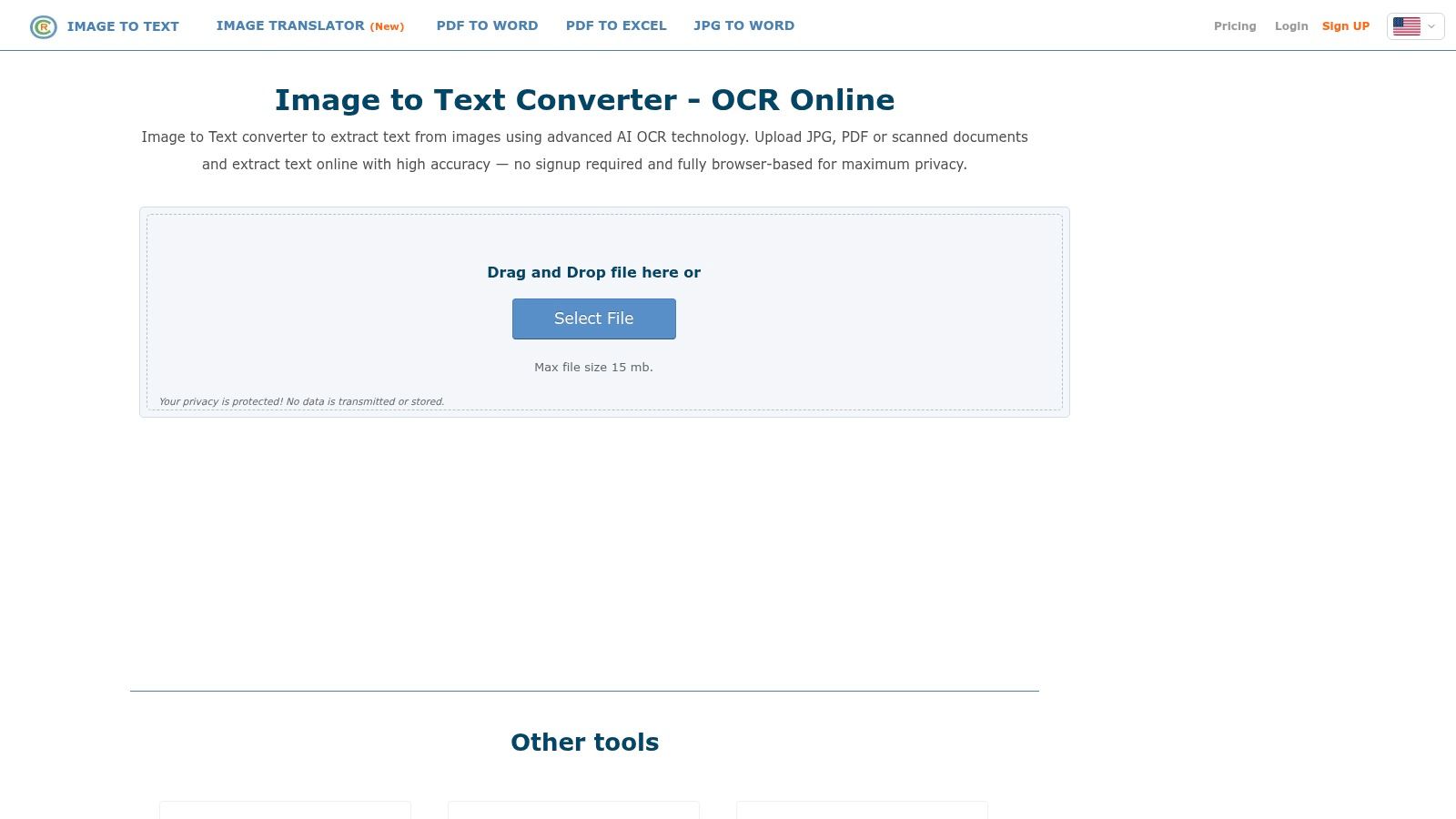
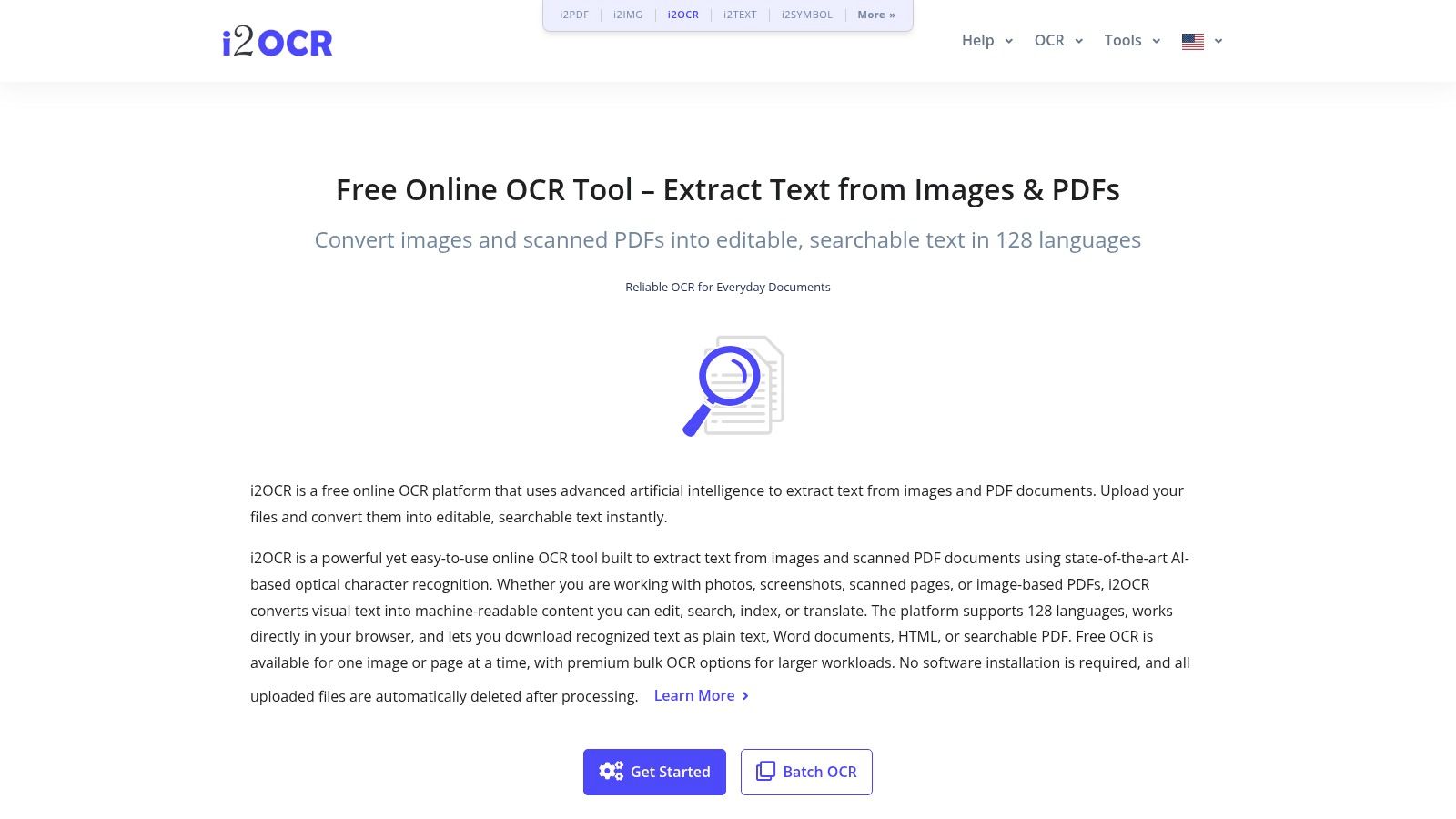
i2OCR is the kind of tool that works well when you just want the text and don't want a login screen in the way. It supports common image types and scanned PDFs, offers broad language support, and keeps the process low-friction. The service positions itself as browser OCR with no registration, which makes it a decent choice for quick extractions from scans, screenshots, and basic PDF pages i2OCR. The cleanest way to think about it is this, it's built for speed and access, not for heavy document editing.
What it's good at
It handles a practical spread of formats, including JPG, PNG, TIF, BMP, GIF, WEBP, and scanned PDFs. That makes it useful for people pulling text from mixed sources, especially when the document isn't going to be republished as a polished layout. The main appeal is that you can get in, extract, and leave without creating another account or subscription trail.
Where it falls short
The output is text-only, so if you need DOCX structure, preserved tables, or detailed layout controls, this is not the strongest choice. That's where the tool feels more like a quick extraction engine than a document production tool. For simple pasted text, it works. For a multi-part report, it usually needs manual cleanup.
Good OCR tools are judged by the job, not the marketing line. If the output is meant to be copied into a CMS or note field, plain text is enough. If the output has to stay visually aligned, this is the wrong category of tool.
3. OCR.space
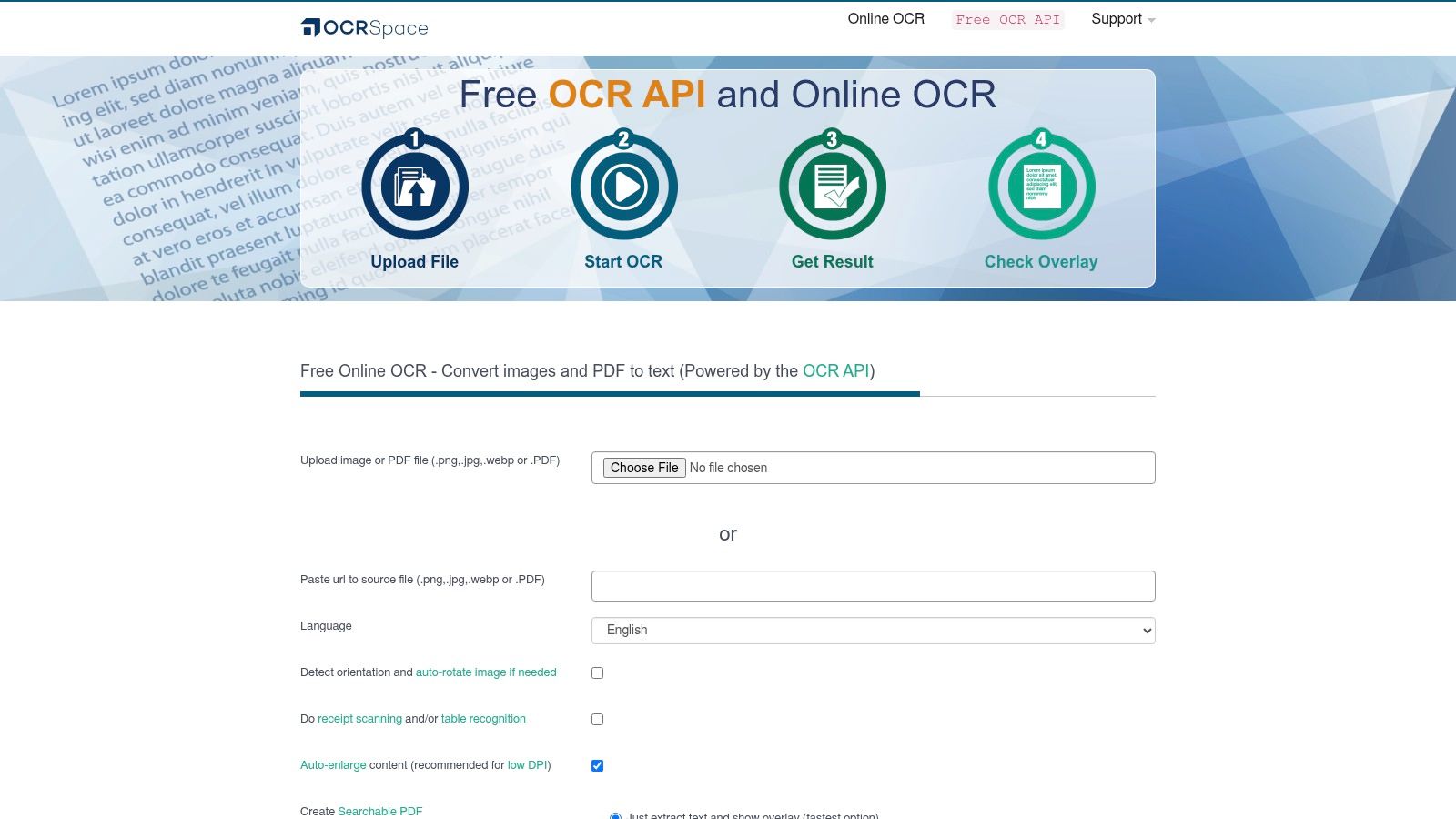
OCR.space is a stronger fit when you want a browser tool that can also do a bit of API work. It accepts images and multipage PDFs, can create searchable PDFs with visible or invisible text layers, and gives you OCR engine options, including a handwriting engine. That makes it useful for quick one-off conversions, but also for light integrations where a developer needs OCR in a workflow without building everything from scratch OCR.space. The interface is clear, and the text overlay is helpful when you need to inspect what the engine read.
Good for searchable PDFs
This tool stands out when the output needs to stay in PDF form but become searchable. That's a real practical difference. A searchable PDF lets you keep the original page image while making the text indexable and copyable, which is useful for document archives and internal knowledge bases. It's especially handy when you need a result that still looks like the source file.
Limits and privacy trade-off
The free web tier has a 5 MB file size cap per document, and the handwriting engine can be slower than the standard modes. That alone makes it better for targeted use than bulk processing. For sensitive files, the upload step also deserves attention because anything that leaves your local machine should be treated as a privacy decision, not just a convenience.
If you need a quick OCR API for experiments, OCR.space is one of the more approachable free options. If you need stable processing on large or sensitive documents, the web tier's limits show up fast.
4. OnlineOCR.net
OnlineOCR.net is old-school in a way that can still be useful. It converts images and PDFs into editable formats like Word, Excel, and TXT, which makes it a straightforward pick for users who want an Office-friendly export rather than just raw text. The service is built for quick PDF-to-Word-style conversions, and it keeps the workflow simple enough that non-technical users can get through it without much friction OnlineOCR.net. If you need a direct route into an editable Office file, this is one of the cleaner browser-based choices.

Where it fits
It works best for simple one-off conversions where the goal is to move a scan into Word or Excel with the layout mostly intact. That's the job it does better than plain-text-only tools. It can also be useful when a teammate expects an Office file and doesn't want to paste text from a browser window.
Main limits
The free experience is limited, and ads are part of the trade-off. Advanced features and better handling for larger jobs sit behind paid pages, so this is not the best long-term choice for recurring document workloads. In practice, it's a utility for occasional conversions, not a document pipeline.
Use this when the output needs to look like an editable office document. Don't use it when you need deep cleanup control or repeatable batch processing.
For readers building a content workflow around reusable publishing assets, the supporting site structure at Read More Info's blog is an example of how converted text often ends up being repurposed in a WordPress environment.
5. Convertio OCR
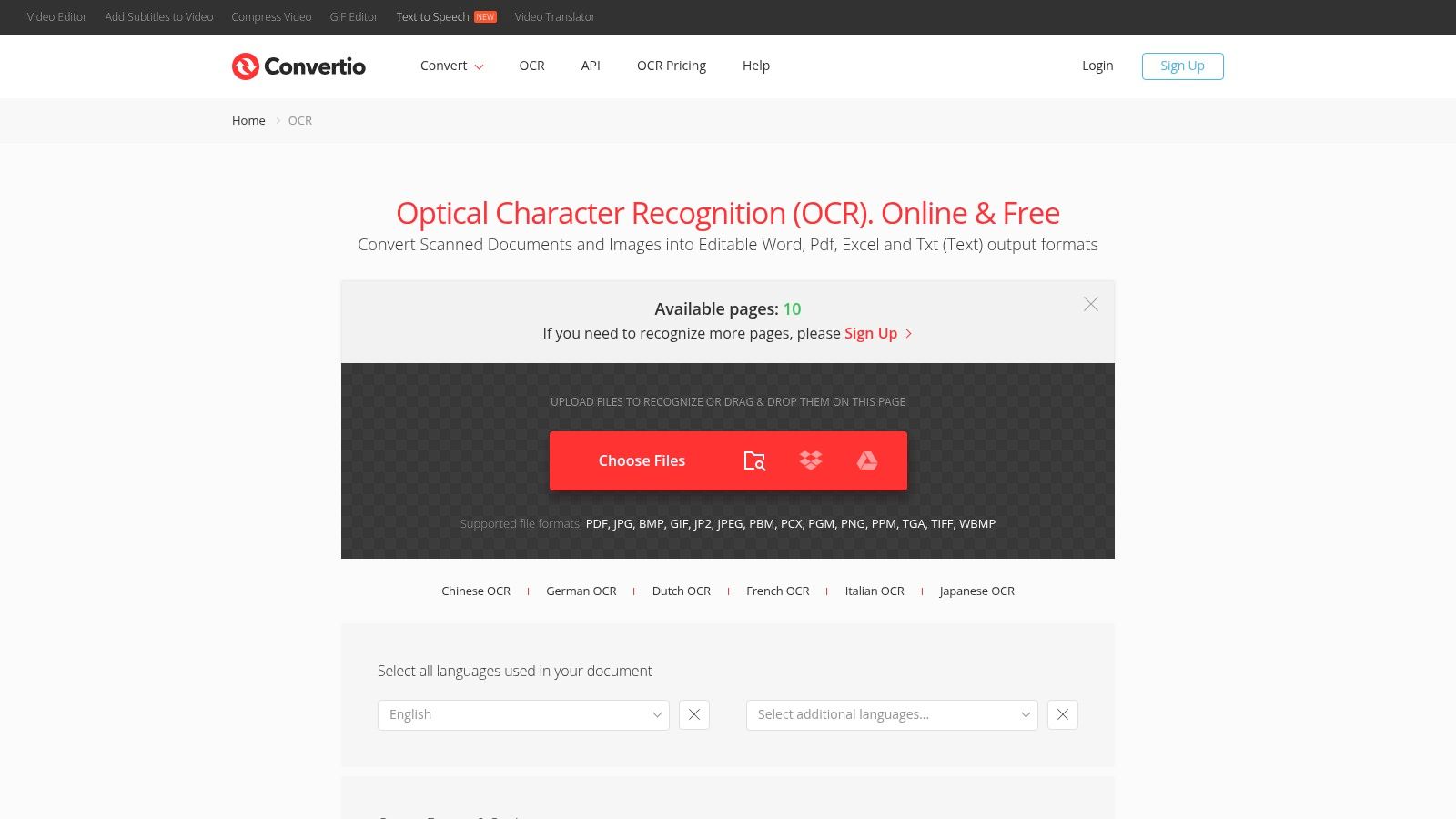
Convertio is a file conversion platform first, and OCR is one part of that broader toolset. The appeal is the output range, it can convert scans and images to DOCX, XLSX, TXT, and searchable PDF, and it supports cloud imports from Google Drive, Dropbox, or a URL. That makes it convenient for small jobs when your source files already live in cloud storage and you want to avoid downloading them first Convertio OCR. It feels smooth when the task is small and the file is already in the right place.

Best use case
This is a good pick for one-click conversions to Word or Excel, especially when you want a clear UI and don't need to manage local software. The language selection helps when the source isn't English, and the searchable PDF output can be handy for archiving. It's the sort of tool people reach for when they want a broad format menu without a steep learning curve.
Free-tier reality
The free use is limited to a small number of pages per run, with page availability shown on the interface. That means it's useful for small bursts of work but not for long batches. Heavier use pushes you toward credits or subscription territory, so this is a utility, not a no-strings free service.
Convertio is practical when you already know the file is small and the output format matters more than fine-grained OCR control.
6. OCR2Edit
OCR2Edit is a web-based OCR toolkit that keeps things fairly direct. You can upload an image or PDF and convert it to Word, Excel, plain text, or a searchable PDF. The site also advertises multilingual OCR and offers standard versus AI-driven modes, which gives it a bit more flexibility than the simplest browser tools OCR2Edit. It's the sort of site that can be useful for a quick pull of text from a scan without installing anything.

Where it helps
It's handy for image-to-text and PDF-to-DOCX conversions when you want a browser-first workflow. The interface is simple enough for casual use, and the upgrade path exists if you later need batch processing or larger files. For people who test OCR tools against real documents, that makes it easy to compare outputs without committing to a new app.
What to watch
The marketing claims are broad, so the safest approach is to test it with your own scans. That's especially important if your documents have tables, mixed layouts, or lighter text on degraded paper. The free browser use is fine for a quick job, but larger-file capacity and higher-volume needs are clearly positioned for paid plans.
Test OCR2Edit with a page that includes the hardest content in your file, not the cleanest page. That's the page that tells you whether the tool is useful.
7. Adobe Acrobat Online OCR
A scanned contract or intake form often needs one thing first, a searchable PDF. Adobe's online OCR handles that job well. It converts scans and images into searchable PDFs, and the workflow is familiar if you already use Adobe tools. That matters for teams that want a known vendor and a simple path from upload to usable PDF Adobe Acrobat online OCR.

Strongest use case
Use it when the result needs to stay a searchable PDF. Acrobat is built for preservation and search, not for rebuilding the document into a new Office layout. If your goal is archiving office scans or making source files easier to find later, this is a sensible first pass. If your goal is extraction rather than a searchable PDF, a dedicated tool for extract text from scanned documents may fit better.
Limitations in practice
The free online version is useful for conversion, but editing after OCR often pushes you toward Acrobat Pro. Bulk handling also tends to sit outside the free web flow. For a WordPress writer, making source PDFs searchable is one step, choosing a layout that presents them well is another, as covered in Read More Info's guide to blog layouts for WordPress. That makes Acrobat a practical input step, not a full publishing workflow.
When a clean scan only needs to become a searchable PDF, Adobe's browser tool is a safe, conservative pick. When you need heavy editing, it is not the whole solution.
8. PDF24 Tools OCR PDF
PDF24 is one of the more practical names in free PDF utilities, and its OCR PDF tool is built around making a file searchable rather than overcomplicating the process. The service adds a hidden text layer to PDFs, emphasizes privacy and short retention, and sits inside a broader suite of free PDF tools PDF24 OCR PDF. It's a clean answer for people who care more about the result being searchable than about exporting to a perfect Office layout.
Why people keep using it
The tool is free with no signup, and the site states no limits. That makes it appealing for occasional document work, especially if you want a fast, simple path from scan to searchable PDF. The workflow is light enough that non-technical users can handle it without a learning curve.
What it's not built for
It's primarily PDF-focused, so it's not the right answer if you need clean DOCX conversion with complex layout fidelity. It also offers fewer OCR controls than more specialized tools, so users who want language tuning or more advanced processing options may feel boxed in. Still, for straightforward searchable PDFs, it does the job cleanly.
PDF24 is a strong “make this searchable” tool. It is not a full document reconstruction suite.
9. Sejda Online OCR
Sejda is a good example of a tool that makes its limits visible. The browser version offers OCR to searchable PDF with a friendly interface, and the desktop app removes the online page limits by processing locally. That split is useful because it lets you choose between convenience and local control without relearning a different product Sejda OCR PDF. For occasional use, the web version is easy. For local processing, the desktop option matters.

Where it works best
Sejda is strong when you want an intuitive PDF OCR workflow and don't want to wrestle with settings. The output is reliable enough for many office tasks, and the browser interface is easy to read. That makes it a practical choice for non-technical users who only OCR documents occasionally.
Limitations that matter
The free web tier has daily and task limits, so it's not a forever-unrestricted browser solution. Some advanced features sit behind paywalls, and the desktop version is the more interesting option if you need to remove the online limits entirely. That makes Sejda useful, but only if you're honest about how often you'll use it.
If you know you'll only OCR a few files each week, Sejda is pleasant to use. If you need repeated runs, the limits will show up quickly.
10. NewOCR
NewOCR is the classic no-login utility that people use when they want text out of an image with as little friction as possible. It supports JPEG, PNG, GIF, BMP, multipage TIFF, PDF, and DjVu, and it offers language selection plus page segmentation modes. It also provides REST API endpoints, which makes it interesting for small integrations and lightweight automation experiments NewOCR. The interface feels older, but the format support is broad.

Best use case
NewOCR is useful when you want single-file extraction and don't want to sign up for anything. The DjVu support makes it stand out a bit, since that format still shows up in some archives and scanned collections. The API support also gives developers a small foothold for testing OCR flows without committing to a paid service.
Trade-offs
The free API quota is small, with 20 images or pages free before credits are needed. The older interface also means fewer convenience features than newer browser tools. That doesn't make it unusable, but it does place it firmly in the “light use” category rather than the polished production category.
NewOCR is a utility, not a platform. Use it for a quick pull of text or a tiny integration test, then move on if the workflow starts to repeat.
Top 10 Free Online OCR Tools Comparison
| Tool | Core capabilities | UX / Quality | Value / Pricing | Target audience | Unique selling point |
|---|---|---|---|---|---|
| Google Drive / Google Docs OCR | Image/PDF → editable Google Doc (export DOCX/TXT) | ★★★★ · integrated, may need cleanup | 💰 Free (Google account) | 👥 Google Workspace users, casual editors | ✨ Built-in Drive integration |
| i2OCR | JPG/PNG/TIF/BMP/WEBP + scanned PDFs, 100+ languages | ★★★ · fast, minimal UI | 💰 Free · no registration | 👥 One-off users needing quick extracts | ✨ No signup + broad language support |
| OCR.space | Images & multipage PDFs, searchable PDF, handwriting engine | ★★★★ · clear UI, inspect overlay | 💰 Free tier (5 MB cap) / API paid | 👥 Developers & users needing handwriting search | ✨ Handwriting engine + API |
| OnlineOCR.net | Image/PDF → DOCX/XLSX/TXT with layout preservation | ★★★★ · straightforward, ads on free tier | 💰 Free limited / paid for larger jobs | 👥 Users wanting PDF→Word with layout | ✨ Office-ready layout export |
| Convertio (OCR) | Multiple outputs (DOCX/XLSX/TXT/PDF), cloud import | ★★★★ · clean UI, quick for small jobs | 💰 Free limited pages / subscription for heavy use | 👥 Cloud users & occasional converters | ✨ Cloud import (Drive/Dropbox/URL) |
| OCR2Edit | Image/PDF → DOCX/XLSX/TXT/searchable PDF, 120+ languages | ★★★ · quick browser use, upgrade for batching | 💰 Free basic / paid for larger files | 👥 Users needing batch options & more languages | ✨ AI-driven mode option |
| Adobe Acrobat (Online OCR) | Scans/images → searchable PDF; part of Acrobat tools | ★★★★ · reliable, predictable output | 💰 Free searchable PDF; Pro features require subscription | 👥 Users needing trusted PDF workflows | 🏆 Trusted vendor + ecosystem |
| PDF24 Tools – OCR PDF | Adds hidden/searchable text layer to PDFs; suite of PDF tools | ★★★★ · fast, privacy-forward | 💰 💰 Free · no signup (short retention) | 👥 Privacy-conscious PDF users | ✨ Privacy + many adjacent PDF tools |
| Sejda (Online OCR) | OCR → searchable PDF; web limits & desktop app for local processing | ★★★★ · intuitive, desktop removes limits | 💰 Free web tier / desktop paid for full features | 👥 Occasional web users & heavy local users | ✨ Desktop app for unlimited local OCR |
| NewOCR | Supports JPEG/PNG/GIF/BMP/TIFF/PDF/DjVu; REST API | ★★★ · older UI, functional API | 💰 Free small quota / paid credits | 👥 Developers & users with uncommon formats | ✨ DjVu support + lightweight API |
Choosing the Right Free OCR Tool Before You Upload
The right free OCR online tool depends on the output you need, not on the logo on the homepage. If you want an editable Office file, start with Google Drive and Google Docs, OnlineOCR.net, or OCR2Edit. If you need a searchable PDF, look at OCR.space, Adobe Acrobat Online OCR, PDF24 Tools, or Sejda. If you just need quick plain text with no account creation, i2OCR and NewOCR are the fastest places to test first.
Use one representative page from your own document before you commit a batch. A clean typed page can make almost any tool look good, while a skewed receipt, a table, or a low-contrast scan exposes the weak spots fast. That habit matters because OCR quality depends on document quality, typography, language, and evaluation method, and historical digitization work shows that search usefulness and character perfection are not the same thing OCR accuracy and search performance notes.
Before uploading contracts, medical records, or other sensitive scans, read the privacy and retention terms carefully. That includes whether the file is processed locally or uploaded, how long originals and extracted text are retained, and whether the data can be used for model training. Privacy is not just encryption in transit. A service can still store, log, or retain content after the upload finishes, so treat vague policy language as a risk signal, not a reassurance.
Check the limits before you start a batch. A tool can be perfect for one page and useless for ten. If the service is capped by file size, page count, or daily tasks, the cap should shape your choice before you waste time on uploads. For clean office scans, a browser tool can be enough. For anything sensitive, messy, or recurring, local or desktop OCR is usually the safer path.
Pick one tool for your most common job, run a sample conversion, and proofread the output for missed characters, table structure, and language accuracy. That small test saves more time than arguing with a bad OCR file after the fact.
Read More Info publishes straightforward WordPress articles for readers who want practical, usable guidance without fluff. If you want more hands-on comparisons like this one, visit Read More Info and browse the latest posts on tools, publishing, and content workflows.