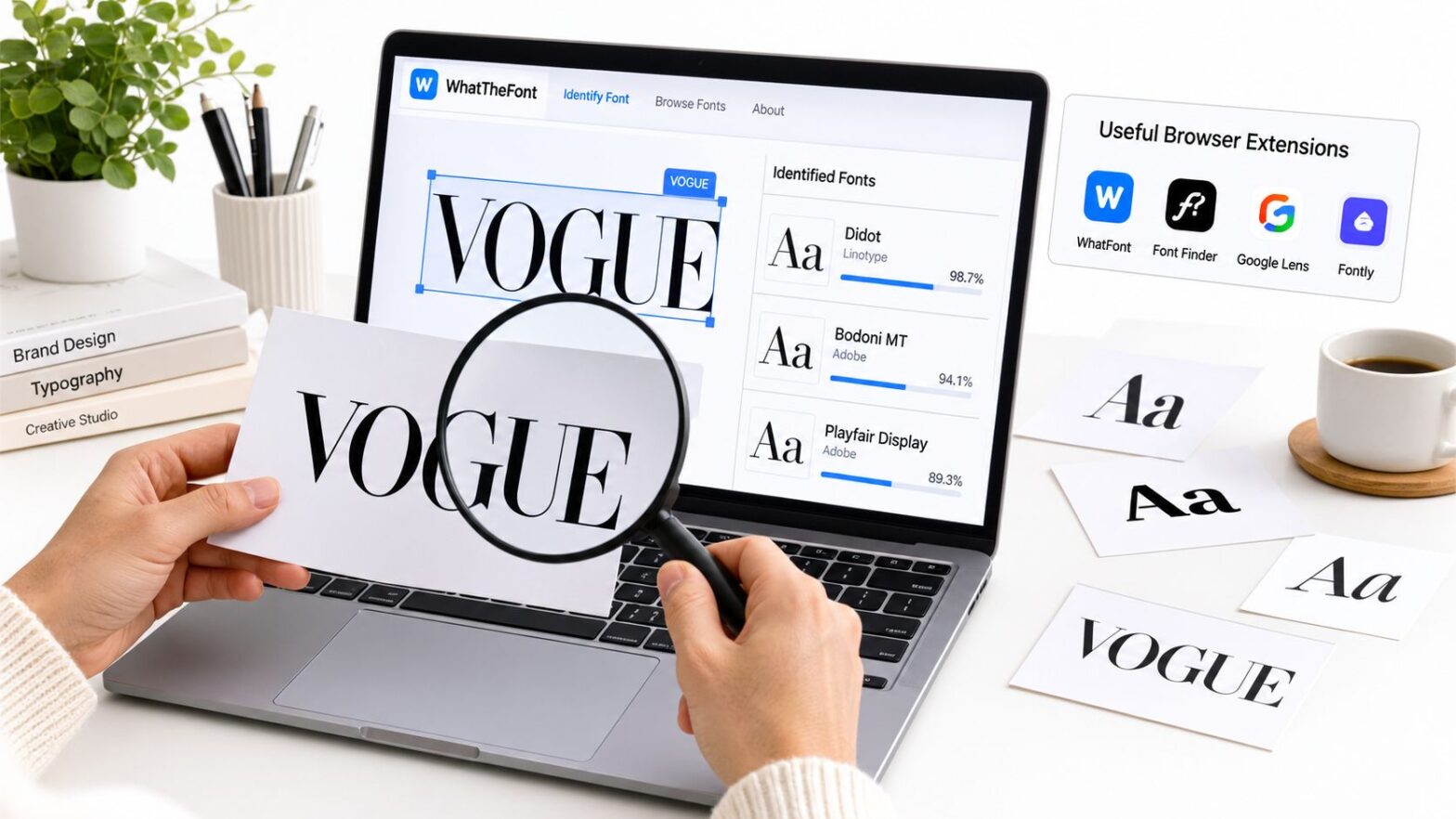
You've got a logo file in one tab, a screenshot of a homepage in another, and a live webpage open in a third. That's exactly where a free font finder online earns its keep, because the right tool depends on the input you have, not the one you wish you had. If the text is baked into an image, you need an image matcher. If the text is live on a page, a browser inspector or a URL-based checker is faster. If you only need the words read out first, a free OCR tool can extract the text without naming the typeface.
That distinction matters because web typography is now normal everywhere, not niche. The 2024 Web Almanac measured web-font adoption at about 87% overall, with WOFF2 on 81% of desktop websites and 78% of mobile websites HTTP Archive's 2024 font data. So the job isn't just “find the font.” It's “find the right next step,” whether that means a quick match, a legally usable substitute, or a check on what's loaded in the browser.
Table of Contents
- 1. WhatTheFont MyFonts
- 2. WhatFontIs
- 3. Fontspring Matcherator
- 4. Font Squirrel Matcherator
- 5. Adobe Fonts Visual Search
- 6. WhatFont Browser Extension
- 7. Fonts Ninja
- 8. Identifont
- 9. Fontanello
- 10. Get Font Info
- Top 10 Free Font Finder Tools Comparison
- Match the Tool to Your Next Font Question
1. WhatTheFont MyFonts

Use WhatTheFont when the sample is clean and the letters are easy to read. Upload a JPG or PNG, or paste an image URL, and it tries to detect the text and match it against MyFonts' commercial catalog. That makes it a strong first pass for logos, headlines, and polished screenshots where the shapes are crisp and the text is not buried in noise. It is also the better choice when you already expect a purchasable font instead of a free substitute.
Practical rule: Crop tightly around one font style and include a full word if you can. A good image matcher needs letter shapes, spacing, and rhythm, not just a single decorative character.
The trade-off is straightforward. WhatTheFont is not a live-webpage inspector, and it tends to surface commercial matches first, so it is a weak starting point if your main goal is a free alternative. If you are planning brand work, a product page, or a recurring theme system, that bias helps. If you are hunting for an open option, you will usually need a second pass in another tool.
For readers working through WordPress layouts, identification is only part of the job. You still need to judge how a type choice sits inside a content-heavy theme, so this guide to WordPress blog layouts is a useful follow-up. If you are matching typography to motion assets, how to brand your recordings with fonts is a practical companion read. Use WhatTheFont when you have a clear image and want a fast commercial match.
Best fit
- Clean logos: The tool handles crisp shapes best.
- Screenshot samples: Good when the text is legible and high contrast.
- Paid-font discovery: Strong when the likely match is a commercial family.
2. WhatFontIs

WhatFontIs works well when you need both paid and free candidates in the same search. It accepts uploads and image URLs, then tags matches by license type, which saves time if you want a usable substitute without sorting every result by hand. That combination of recognition and filtering makes it more practical than tools that only point to a single commercial answer.
The shortlist delivers the value. When a design is close but not exact, the filters separate near-matches from true free alternatives, so you can move toward a workable replacement faster. I find it most useful when implementation matters, because the output is built for choosing something you can use.
Where it slows you down is the free tier. Results pages can feel crowded, and the sharper filtering tools sit behind an account. That is manageable if you are working from a clean image and want to compare options carefully. It is less appealing if the type is already live on a page and you need a fast read.
WhatFontIs fits a practical workflow better than a vanity one. It helps when you care about what you can use, not just what the tool recognizes. That makes it one of the better free tools online for designers who need identification and licensing-aware alternatives in a single pass.
Good when
- You need free equivalents: It surfaces alternatives instead of only one match.
- You want license labels: The output helps separate commercial and free results.
- You're comparing options: Filtering makes shortlist building easier.
3. Fontspring Matcherator

Fontspring Matcherator is useful when the file you have is messy. Upload a crop, adjust it, and compare the suggestions side by side. That workflow matters because font matching is usually about fit, not perfect certainty. You are checking whether the shape, weight, and spacing can carry the layout without fighting it.
I trust it most after I clean the source image first. A bad crop can make any matcher look weaker than it is, especially with layered artwork, flattened screenshots, or text buried in a busy composition. Test the matcher with the strongest word in the image first, then compare the result with the full phrase. Decorative logos are where that habit pays off fastest.
Its trade-off is scope. The suggestions lean toward Fontspring's own inventory, so it works well if you want a font you can buy or license through that ecosystem. It is less broad than multi-source tools, and that is a limitation if you only want open-source options. If you are setting up the site that will carry the font, this guide on how to create a WordPress blog covers the next step.
Why designers keep it around
The main reason is control. Cropping and comparison sit in the same flow, so you can refine the sample without jumping between tools. The results are easy to judge side by side, which helps when several matches are close. The guidance is direct too, and that saves time when the image is awkward.
- Clean prep controls: Cropping and comparison are built into the process.
- Straightforward output: The results are easy to compare side by side.
- Useful guidance: The prompts help when the sample needs cleanup.
4. Font Squirrel Matcherator
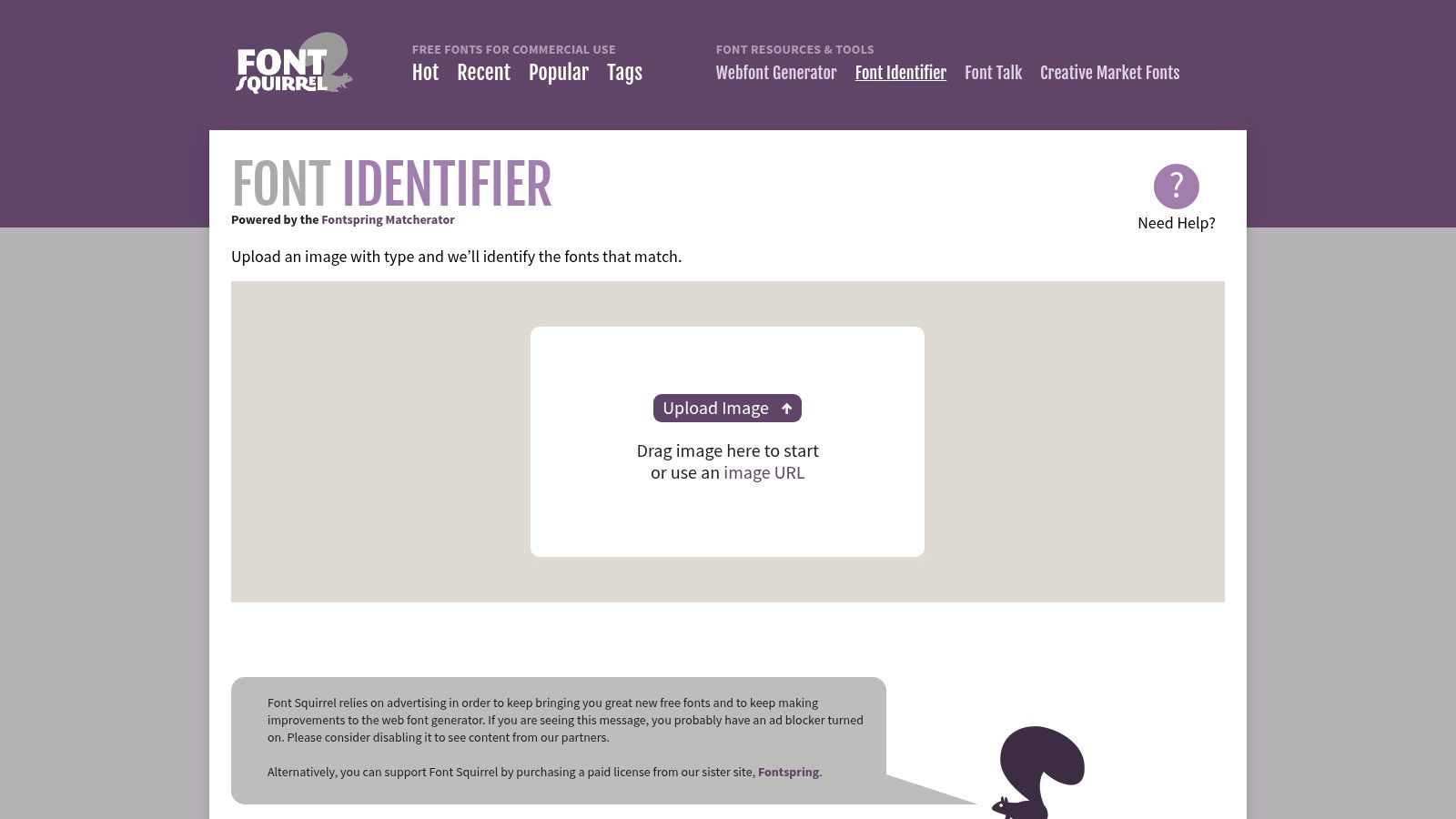
Font Squirrel Matcherator is the tool I'd hand to someone who wants a free, familiar starting point without wrestling a heavy interface. It keeps the process simple, and the manual character mapping helps when auto-detection misses part of a word or struggles with connected scripts and small caps. That makes it more forgiving than tools that stall as soon as the sample gets messy.
The practical advantage is speed. You can upload a screenshot, correct a few characters, and get a usable shortlist without getting buried in settings. It works well for quick client checks and for files where you only need a solid first pass.
Catalog coverage is the main constraint here. Results lean toward partner sources, so a well-known commercial family may appear while an obscure foundry design does not. If you are matching a common typeface, that may be enough. If you are chasing a less familiar design, you may need another tool for a broader search.
Before re-uploading, boost contrast and isolate the letters. A cleaner source image improves the match more than another search attempt does.
Best for
- Beginners: The workflow is easy to follow.
- Manual cleanup: Character mapping helps when detection slips.
- Quick trials: Useful for a fast first pass.
5. Adobe Fonts Visual Search

Adobe Fonts Visual Search fits a different workflow. You already have an image, and you already work inside Adobe apps. Upload the sample, let Adobe search its curated library, and send the match straight into Creative Cloud when you need to keep designing in Photoshop, Illustrator, or InDesign.
The strength here is control. Adobe is searching a narrower catalog, so the result set is smaller than with broad internet-wide tools, but it is often easier to trust for production work. That matters on brand files, where a close, reliable family is usually more useful than a long list of noisy near-matches.
The trade-off is access. You need an Adobe ID, and font activation is tied to Adobe's ecosystem. For teams already paying for Creative Cloud, that may be a fair exchange. For anyone looking for a purely free standalone finder, it is not the lightest choice.
6. WhatFont Browser Extension

WhatFont is the fastest choice when the type is already live on a webpage. Hover over the text and you get the font family, size, weight, and related styling without leaving the page. For quick reconnaissance, that is hard to beat because there are no uploads, screenshots, or guessing. If the browser is rendering the font correctly, the answer comes almost immediately.
I use it most often for competitor pages and for checking a client's content block. It also helps confirm whether the browser is showing the intended face or falling back to something else. That fallback problem shows up more often than people expect, since CSS can specify one font and the browser can display another.
WhatFont does have a clear boundary. It cannot read logos, flattened screenshots, or PDFs, because it only sees rendered text. It works best on live web content, and it stops there. Treat it as a live-text inspector, and switch to an image matcher whenever the sample is a graphic.
7. Fonts Ninja
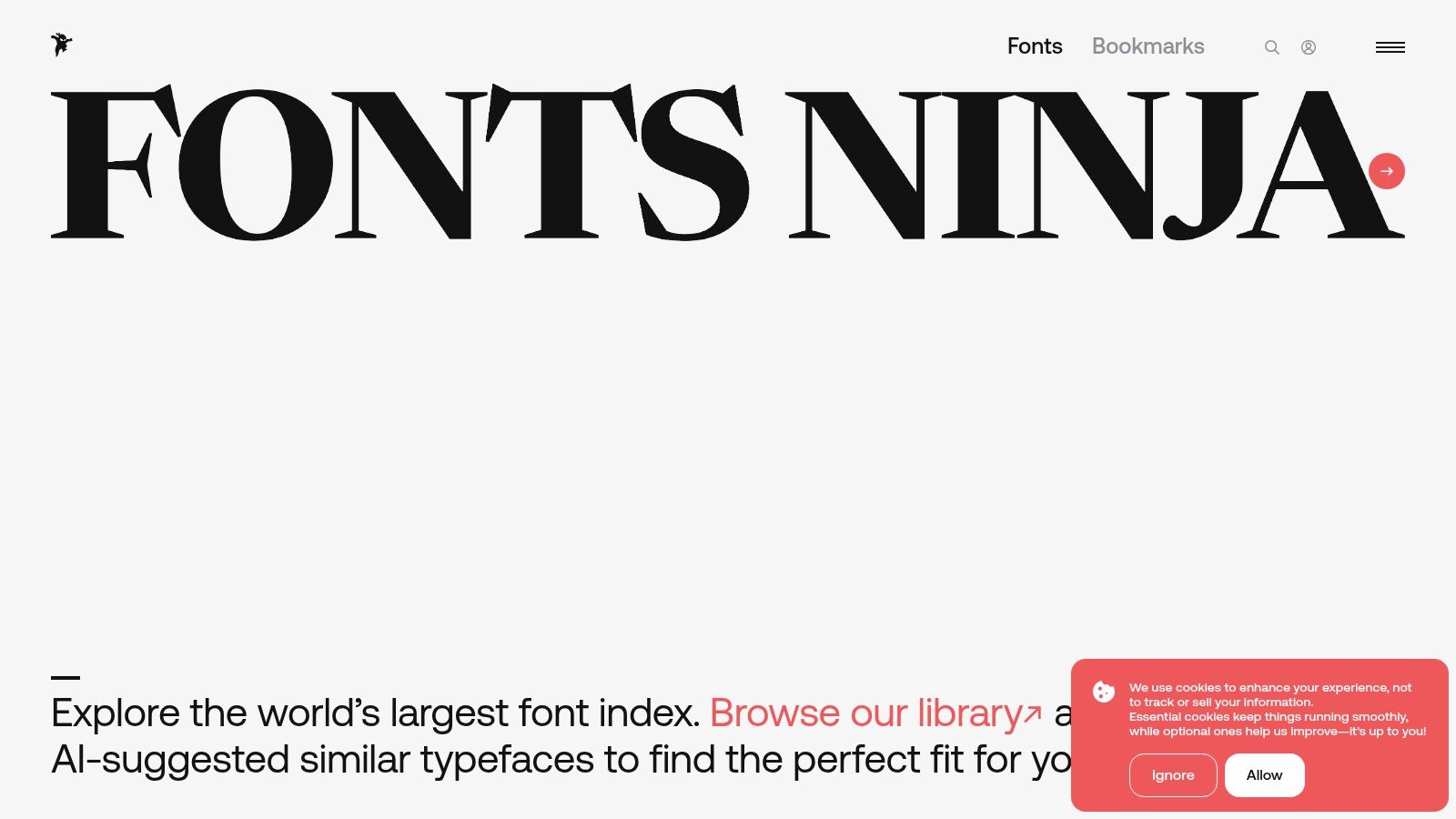
A live webpage is the right input for Fonts Ninja. Open it on the page you are checking, and it reads the rendered type, including font family, weight, line-height, letter-spacing, and color. That makes it useful for audits where the question is not just “what font is this?” but “how did this site build its typography?”
The core value is the page-level view. You can scan the fonts used across the page and save useful finds for later, which helps when I am building a style reference board or comparing a client site with a competitor's layout. It is faster than checking each element one by one, and it gives more context than a simple hover tool.
Its limits are clear. Fonts Ninja still works only with live text, so it will not identify font outlines inside images or PDFs. Some advanced workflows also sit behind paid features. For website typography work, though, it is a practical browser tool, especially when you need both the font name and the surrounding style details.
Fonts Ninja
8. Identifont
Identifont handles a different kind of font search. When the sample is blurry, tiny, distorted, or badly printed, a question-based path can work better than image recognition. You answer visual questions about the letterforms, or search by name fragment, designer, or similar fonts. That makes it useful when an upload is too rough for cleaner matchers.
Its strength is patience. Identifont does not treat the image as the final answer. It asks you to notice the shape of the letters and work through the details. That takes longer, but on damaged scans or awkward print samples, it is often the more reliable route. It also teaches type anatomy as you search, because the prompts force you to look at features you might skip in a hurry.
The trade-off is clear. It is slower than image-based tools, and the result depends on how carefully you answer each step. If you guess your way through, the shortlist can drift. For poor scans and hard-to-read samples, though, it is still one of the more practical choices.
Identifont
9. Fontanello

Fontanello is built for the moment you are already on a live webpage and just need the font details now. Right-click text and it shows the family, size, weight, and line-height. There is no upload step, and no extra inspector to learn before you get an answer.
That makes it useful for quick checks. If a client says the body copy feels wrong, Fontanello lets you confirm what the page is using in seconds. It also helps junior editors read typography in plain language instead of digging through a dev panel.
The trade-off is simple. Fontanello only reads rendered text, so if a web font fails to load, you may see the fallback face instead of the intended one. It is fast and easy, but it works best when the page is loading correctly.
10. Get Font Info
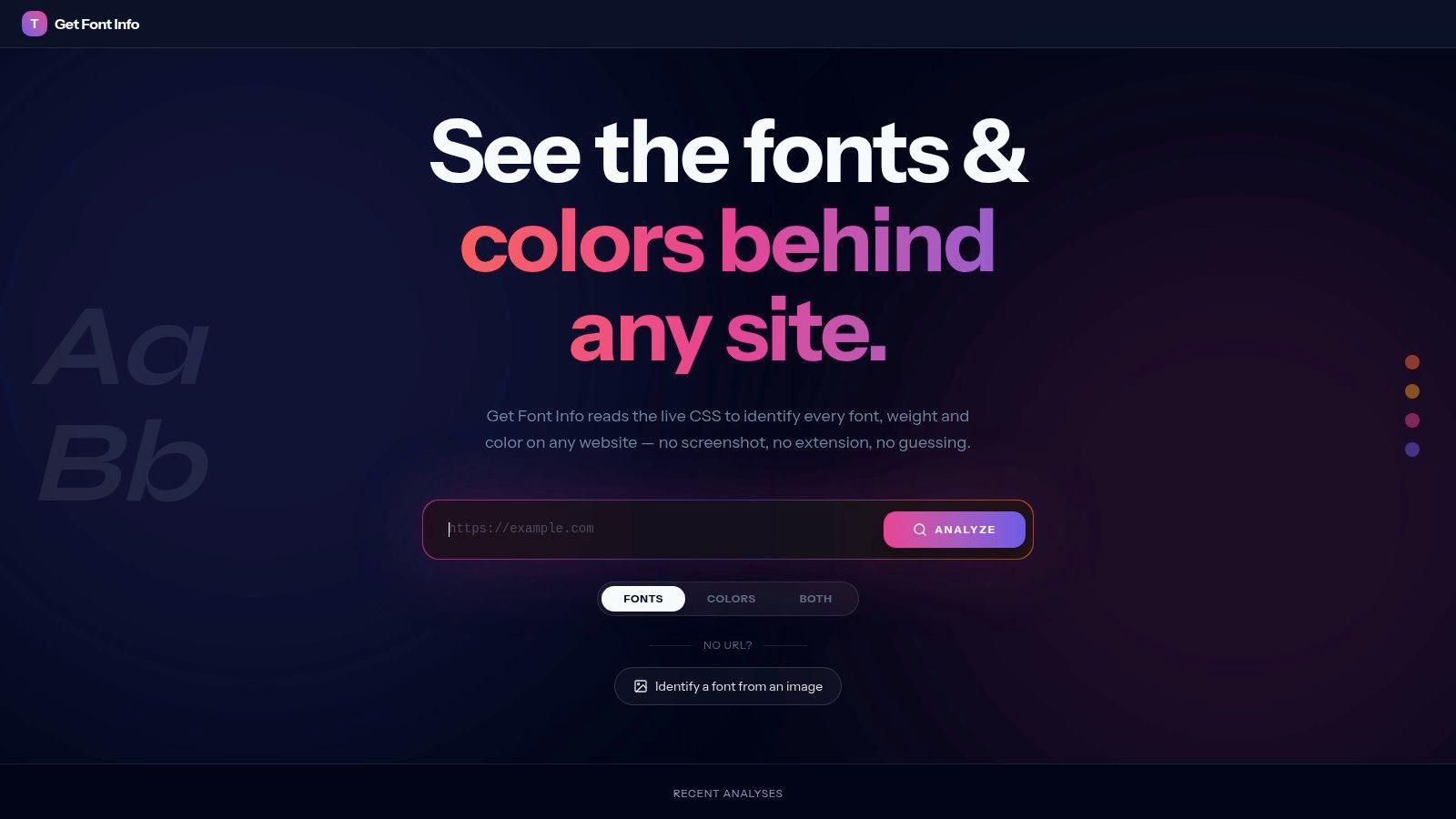
When you already have a public URL and just need the font details, Get Font Info keeps the job simple. It reads a webpage's CSS and @font-face rules, then shows the families, weights, and font sources it finds. That makes it a practical choice on a machine where you do not want to add another browser add-on.
It also gives you quick hover and inspect feedback on the text you are looking at, so you can check the applied font, size, and spacing without opening heavier tools. In practice, that makes it a good companion to image matchers. It answers the “what is this site using?” question faster than manual dev-tools digging, and it stays readable for non-technical editors.
Access is where it stops. Fonts embedded in images are invisible to it, and gated pages, intranets, or scrape-blocking sites return nothing useful. On public pages, though, it is one of the easiest no-install options in the category.
Top 10 Free Font Finder Tools Comparison
| Tool | Core features | Quality ★ | Value/Price 💰 | Target 👥 | Unique ✨ |
|---|---|---|---|---|---|
| WhatTheFont (MyFonts) | Image upload; auto text detection; matches vs 200k+ MyFonts styles | ★★★★☆ 🏆 | 💰 Free tool; matched fonts usually commercial | 👥 Designers needing commercial, purchasable matches | ✨ Deep‑learning matching; direct buy links |
| WhatFontIs | Image upload/URL; free + commercial matches; API & filters | ★★★★☆ | 💰 Freemium (ads free tier; some paid features) | 👥 Users wanting free equivalents + devs (API) | ✨ Labels license type; multi-source results |
| Fontspring Matcherator | Upload & crop; side‑by‑side compare; prep tips | ★★★★ | 💰 Free matcher; links to Fontspring catalog | 👥 Designers working with clear image samples | ✨ Strong guidance for prepping images |
| Font Squirrel Matcherator | Image upload; manual char mapping; beginner tips | ★★★ | 💰 Free | 👥 Beginners & DIY designers | ✨ Manual mapping when auto-detect fails |
| Adobe Fonts – Visual Search | Image upload in Adobe Fonts; one‑click activation to CC | ★★★★☆ 🏆 | 💰 Requires Adobe ID; activation tied to Creative Cloud plan | 👥 Creative Cloud users & professionals | ✨ Activate fonts directly into CC apps |
| WhatFont (browser extension) | Hover to reveal font family, size, weight on live pages | ★★★★☆ | 💰 Free | 👥 Quick inspectors & front‑end devs | ✨ Instant, no-screenshot font info |
| Fonts Ninja (Fontface Ninja) | Hover inspector; page summary; bookmarks & purchase links | ★★★★ | 💰 Freemium (some paid features) | 👥 Auditors, designers doing competitive analysis | ✨ Pulls data from loaded font files; bookmarking |
| Identifont | Questionnaire-style ID by appearance, designer or name | ★★★ | 💰 Free (web); time investment required | 👥 When no usable image; educators | ✨ Identify without images; teaches type anatomy |
| Fontanello | Right-click reveal of family, size, weight, line-height | ★★★★ | 💰 Free | 👥 Content editors & editors new to typography | ✨ Very lightweight, context-menu workflow |
| Get Font Info | URL-based CSS parse; lists @font-face, variants & sources | ★★★★ | 💰 Free | 👥 Site auditors & quick live-site checks | ✨ No install; parses CSS to show exact font sources |
Match the Tool to Your Next Font Question
The right free font finder online depends on the sample in front of you. Use an image matcher like WhatTheFont, WhatFontIs, Fontspring Matcherator, or Font Squirrel Matcherator when the font is trapped in a logo, screenshot, or flattened graphic. Use a questionnaire like Identifont when the source is blurry or too awkward for automation. Use a browser extension or URL-based checker when the text is live on a page and you want the rendered font, not a guess.
That workflow matters because identification is only the first step. The 2024 web-font data shows just how common browser-loaded typography has become, with web fonts on about 87% of websites overall and WOFF2 dominant on both desktop and mobile HTTP Archive's 2024 font data. But finding the name doesn't tell you whether the font will read well in body copy, support the scripts you need, or load efficiently on a real site. For that, test the type in context and keep the rest of the design pipeline in view.
Once you have a match, push it through the next practical step. Try it in free drawing tools, mock it in free wireframe tools, or place it inside free tools for video editing if the type needs motion treatment. If you're comparing content workflows or typography choices on a publishing site, the WordPress layout guides on Read More Info are a useful place to keep going. For ongoing updates, the site's RSS feed at Read More Info makes it easy to follow new posts without checking manually.
Before you ship anything, verify the license. A font can look perfect and still be the wrong choice for a logo, a web embed, or a client deliverable. The safest process is still the unglamorous one, identify, compare, test in context, and confirm the rights before the file goes out. For another practical angle on type and presentation, handmade type for ads is worth a look.
Read More Info publishes practical WordPress articles for people who want clear, usable guidance, not fluff. If you're comparing a free font finder online with other everyday tools and workflows, Read More Info gives you the kind of straightforward, utility-first coverage that helps you make the next decision faster.