
You've got a blog image that looks crisp in one compressor, then oddly soft in another, even though the file size ends up close. That's normal. Format choice, lossy versus lossless behavior, metadata stripping, and where the file is processed all change the result, and those differences matter more than the label free image compressor online on the landing page. I've pushed the same photo through enough tools to know that the test is not “Did it shrink?”, it's “Does it still look clean at 100% zoom, and will the free tier handle your batch?”
The list below focuses on that trade-off. Some tools keep everything local in the browser, some upload to a server, some are best for one careful hero image, and some are built for messy batches of blog assets. I'm judging each one on quality versus size, speed, supported formats, preview quality, and where the free limits interrupt a real publishing workflow. For a broader publisher workflow around media handling, the PDFKing image compression tool is another useful reference point.
Table of Contents
- 1. TinyPNG (Tinify)
- 2. Squoosh (Chrome Labs / Google)
- 3. Adobe Express Free Image Compressor
- 4. iLoveIMG Compress Image
- 5. Kraken.io Free Web Interface
- 6. Compressor.io
- 7. ImageCompressor.com
- 8. EZGIF Optimizer Suite
- 9. FreeConvert Image Compressor
- 10. CompressNow
- Top 10 Free Online Image Compressors Comparison
- Pick the Right Free Compressor for Your Next Upload
1. TinyPNG (Tinify)
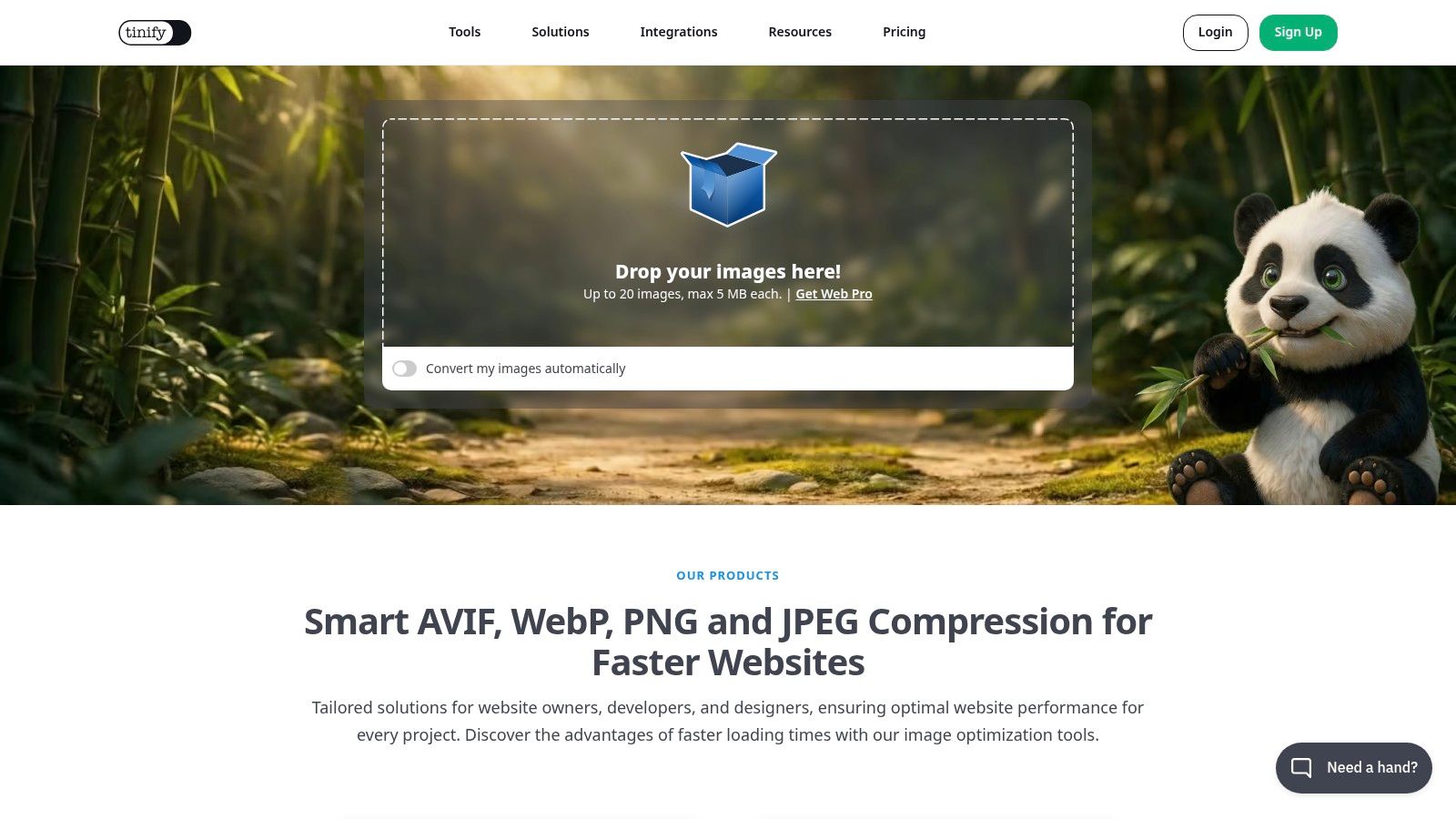
TinyPNG is still the easy choice when you want a browser tool that just works. It supports PNG, JPG, WebP, and AVIF, and the interface stays out of the way while you drag files in and compare the before and after result. The free tier is the catch, because it caps a session at 20 images and 5 MB per image TinyPNG free tier limits.
The trade-off is simple. TinyPNG gives you dependable output for common blog and product images, but it pushes heavier workflows toward paid plans once you start handling larger batches or bigger files. That's fine for a post or two, and less fine when you're preparing an entire media library for WordPress.
Practical rule: If a feature image is already reasonably sized, TinyPNG is usually fast enough and visually safe. If your original is a huge upload, resize first, then compress.
The other reason publishers keep coming back to TinyPNG is the preview. You can see whether the image still holds together before you download it, which helps when you're checking text edges, gradients, or a logo that shouldn't soften. For a simple publishing routine, it's one of the least annoying tools to use, and that matters more than fancy codec controls.
The main downside is that it's not the best tool for experimentation. If you want absolute control over every compression choice, look elsewhere. If you want a quick web compressor with a clean result and can live with the cap, go to TinyPNG and move on.
See also Read More Info guidance for publishers.
2. Squoosh (Chrome Labs / Google)

Squoosh is the opposite of a “one click and forget it” compressor. It runs client-side in the browser, so the image stays on your device, and once the page is loaded it can work offline. That privacy posture is the main reason to use it for client artwork, unpublished product shots, or anything you don't want to upload to a remote server browser-side processing reference.
The strength here is control. Squoosh gives you fine-grained codec settings and a live comparison view, which makes it useful when one JPEG looks good at one setting and bad at another. It is one of the few free tools that feels like a learning instrument as much as a compressor.
Where it shines and where it slows you down
The trade-off is batch work. Squoosh is geared to one image at a time, so it's brilliant for a hero image, less practical for a folder full of blog thumbnails. That makes it a poor fit when you need speed over control.
If the image contains sensitive content, local processing is the cleaner choice. No upload, no server-side handling, fewer privacy questions.
For WordPress publishers, the best use case is usually a single image that matters. You can experiment, compare, and stop when the file is small enough without ruining the visual edge. That's more useful than a long feature list if your priority is one perfect header image.
Squoosh also pairs well with an editorial habit, not just a technical one. I like it when I want to test whether reducing quality is enough, or whether the image should be resized first. Start with Squoosh if you care more about precision than throughput. For a WordPress-oriented publishing workflow, the how to create a WordPress blog guide fits naturally with that kind of image prep.
3. Adobe Express Free Image Compressor

Adobe Express is the cleanest option for people who want compression without thinking about the mechanics. The free tool accepts common formats like JPEG/JPG and PNG, gives you a simple quality slider, and shows the result right away. Adobe also says the free tool accepts files up to 40 MB Adobe Express compression tool.
That makes it practical for one-off publishing tasks. If you want a smaller file without wrestling with codec settings, Adobe keeps the process plain. It also sits next to the wider Adobe Express editor, so you can crop or filter the image after compression if the file still needs work.
Where it falls short
The trade-off is scope. Adobe Express is polished, but it is not built for deep format testing or specialist optimization. For screenshots, transparent graphics, or a mixed folder of blog assets, it behaves more like a convenience layer than a performance lab.
For a site editor, that still has value. A non-technical user can upload, preview, decide, and export without learning new terms. The limit is control. Power users will miss the finer settings that help squeeze out every last kilobyte when a page layout needs to load fast.
A clean interface helps beginners, but it does not replace judgment. Check the compressed image at full size before you publish it.
If your goal is quick editing plus compression in one place, Adobe Express fits well. If you are planning a WordPress page layout, the best WordPress blog layouts guide is the better next step.
4. iLoveIMG Compress Image

iLoveIMG is built for people who want to get through a batch and move on. It handles JPG, PNG, SVG, and GIF, and it sits inside a larger image toolkit that also covers resize and convert tasks. That makes it useful when you're preparing a set of images for a post, a landing page, or a content refresh and don't want to hop between separate tools.
The trade-off is control. The compressor is fast and simple, but it doesn't give you a visible custom compression slider the way some other tools do. That's not a problem if you want a practical default. It is a problem if you need to hit a specific file-size target without guessing.
Why editors keep using it
The cloud import and export options make it easier to move files in and out of a content workflow. If the image already lives in Drive or Dropbox, iLoveIMG saves a step. That convenience matters more than a fancy interface when you're moving between drafts, approvals, and final uploads.
It's also a strong choice when the job isn't only compression. You can resize, convert, and compress in the same place, which reduces the number of chances for a file to be saved badly or renamed wrong. For teams, that lowers friction.
The downside is that it feels more like a utility belt than a precision tool. If you need careful codec choices, look elsewhere. If you need to compress several standard web images without much thought, iLoveIMG gets the job done cleanly.
5. Kraken.io Free Web Interface
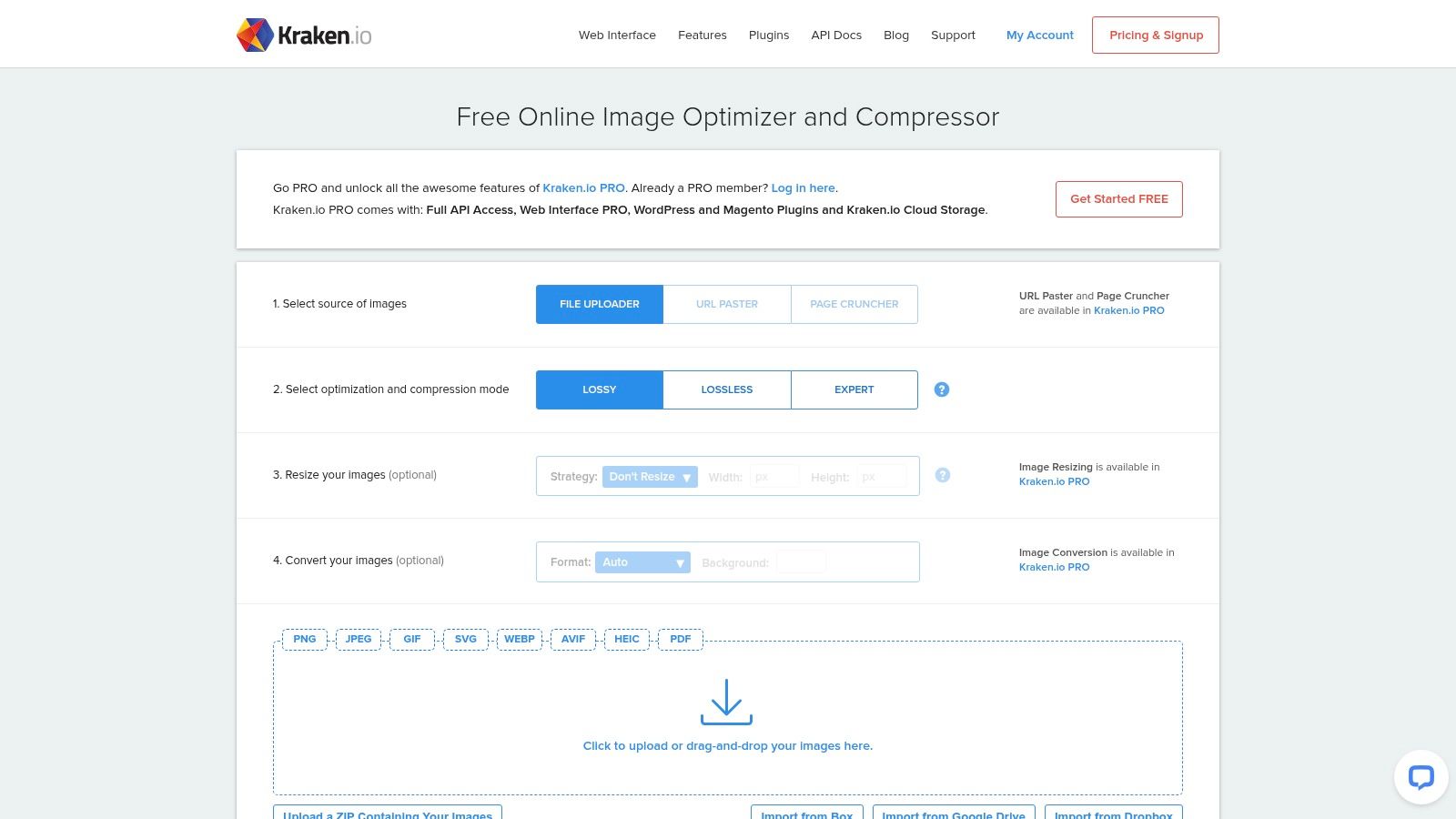
Kraken.io is the option I reach for when a file needs more than a basic shrink. The free web interface gives you lossy, lossless, and expert modes, plus EXIF preservation and JPEG chroma controls, so you can choose whether size or image fidelity takes priority Kraken.io web interface.
The free tier has a clear limit, though. Each file has to stay under 1 MB, which makes it a poor fit for large hero images or camera originals. It works better on smaller files where compression choices matter more than brute-force size reduction.
Where it earns its keep
Kraken.io makes the trade-off visible. The batch results table is easy to scan, and the ZIP download flow keeps a small set of processed files together, which helps when you want to compare output without digging through separate downloads.
The price of that clarity is limited access. API use and higher throughput sit outside the free web workflow, so the tool is best treated as a browser-based check, not a production line for repeated batch jobs.
Use it when the image is small but important, and you want to see how far quality can hold up before size drops. If the file is large or the workflow is repetitive, another compressor fits the job better.
For format-specific tuning, Kraken.io remains one of the stronger free browser options. If you want to test it yourself, the Kraken.io web interface linked above is the place to start, keep the file sizes small.
6. Compressor.io

Compressor.io is a straightforward generalist. It supports JPEG, PNG, SVG, GIF, and WebP, and it offers both lossy and lossless modes. The appeal is obvious if you regularly handle mixed image types and want a single place to run them through a quick optimization pass.
The trade-off is transparency around limits. The site doesn't prominently spell out free-tier constraints, so the workflow feels simpler than some competitors but also less explicit. That can matter when you're trying to fit a batch of blog assets into a narrow production window.
Best when you want a simple result
The interface is basic in a good way. There's no clutter, no sense that you need to understand image engineering before pressing a button. If you just want a generic web compressor that handles the common formats well enough, that's a win.
It's also useful when you're not yet sure what format you should end up with. Since it supports several common types, it's a reasonable stop for a mixed folder of web graphics and editorial images.
The downside is that advanced users may hit the ceiling fast. If you want target-size tuning, privacy-first browser processing, or a more explicit batch workflow, there are better tools on this list. For a quick pass, though, Compressor.io is easy to recommend.
7. ImageCompressor.com

ImageCompressor.com is a browser-side compressor, so the file stays local instead of being uploaded. It supports JPEG, PNG, WebP, GIF, and SVG, and it includes familiar controls for quality, color palette, and EXIF removal. That local workflow makes it a strong fit for people who care about privacy or just don't want to wait on server uploads browser-local image compression reference.
The trade-off is that it stays basic. The interface is familiar and fast, but it doesn't try to be a deep editor. For many publishing tasks, that's a feature. For power users, it can feel sparse.
Why the local model matters
Local processing changes the risk profile. If you're compressing client artwork, a confidential screenshot, or personal images, you avoid a remote transfer step entirely. That's not a minor distinction, especially when the image might include embedded metadata you'd rather not send anywhere.
The tool also claims no registration and no stated daily cap, which makes it attractive for light repeat use. That said, “unlimited” in a free tool only matters if the quality is good enough for your content. If the output starts to look soft, the claim doesn't help.
Privacy is only half the story. Check the output at your actual publish size, because a local tool can still over-compress if you push it too far.
If your priority is local processing with a familiar interface, ImageCompressor.com is a sensible pick. It's especially useful for bloggers who want to stay close to the browser and away from account creation.
8. EZGIF Optimizer Suite
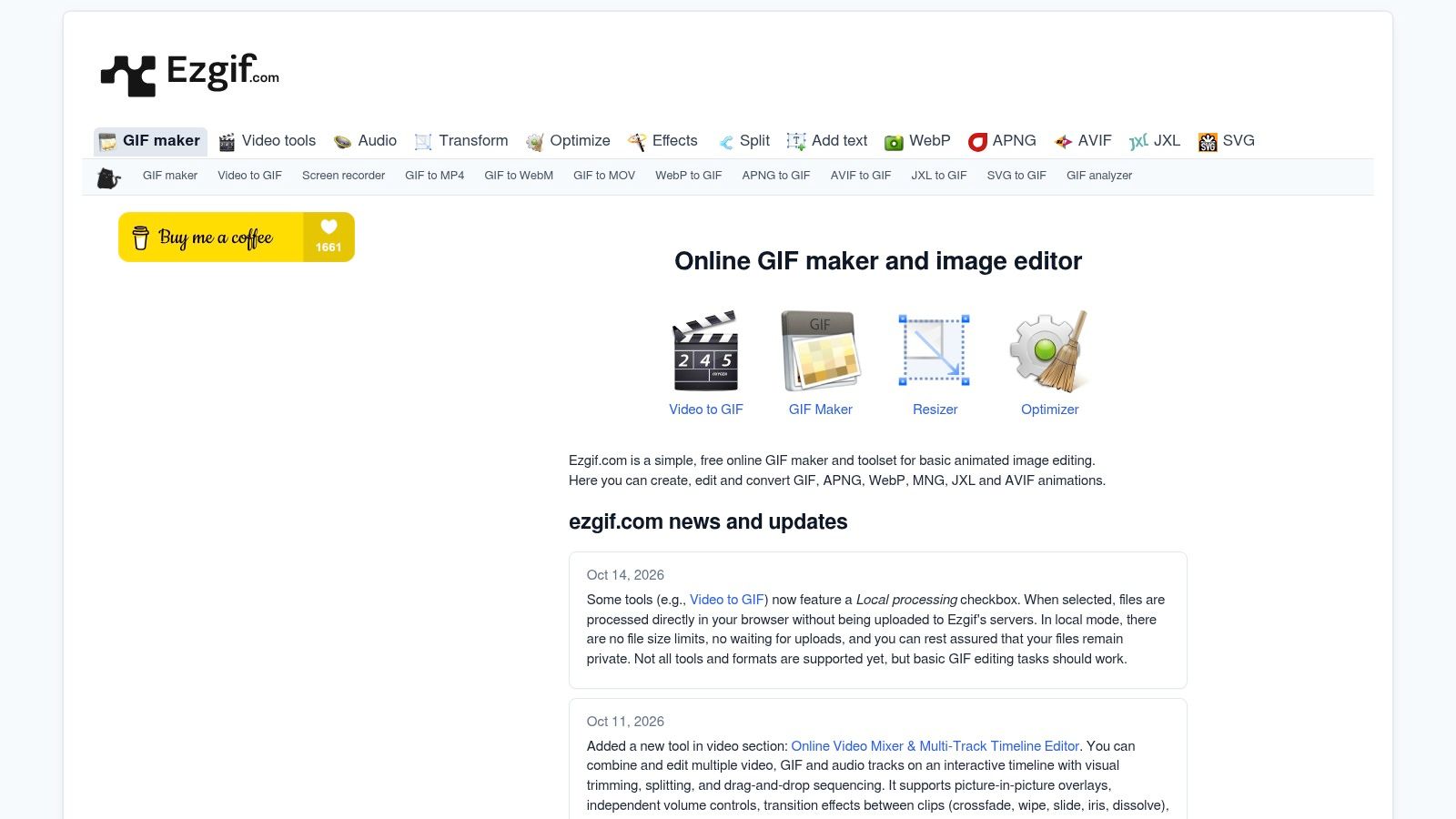
EZGIF is the utility drawer of this list. It's best known for animated image work, but it also gives you JPG, PNG, WebP, and AVIF compressors. That breadth matters when one content team uses still images, animated assets, and quick conversions in the same publishing cycle.
The trade-off is usability. The interface is utilitarian, and it can take a little time to understand which page does what. Once you know it, though, EZGIF is surprisingly practical because it keeps so many adjacent tools in one place.
Strong for exact-size and animated work
EZGIF is especially useful when GIF size and behavior matter. It includes GIF optimization options, bulk handling in the browser, and size-focused controls that help when a platform limit is strict. For animated assets, that's more relevant than pure photo compression.
It's less elegant for people who just want a single polished upload box. But if you've ever had to trim a social GIF, crop it, resize it, and then optimize it again, you know how much time one broad toolkit can save.
The trade-off is that some tools still behave differently from others on the same site, so it doesn't feel as unified as a dedicated compressor. For a mixed-content publisher, though, EZGIF earns its spot by being unusually versatile.
9. FreeConvert Image Compressor

FreeConvert is for people who don't want an image-only tool. The platform handles a wide mix of file types, and its image compressor sits alongside other utilities for PDFs, video, and audio. That makes it handy when your publishing day includes more than one file type and you'd rather stay inside one browser tab.
The trade-off is specialization. FreeConvert is convenient, but it's not as photography-tuned as some of the dedicated image compressors above. If your image work is routine and not especially demanding, that's fine. If you need tight visual control, you may want a specialist instead.
Why it works for occasional users
The adjustable compression settings and batch support are the main draw. You can import from a URL or cloud source, process a set of files, and keep moving. That makes it a practical pick for occasional publishing tasks, especially when the source files are scattered across different places.
It's also a low-friction answer for people who need a browser tool without committing to a more technical workflow. The free tier exists, and paid plans are there if you outgrow it, which is predictable enough for small teams.
The downside is throughput. Like many broad tools, the free version can hit constraints once you start treating it like a production system. For casual use, FreeConvert is convenient. For careful optimization, it's more of a stopgap than a favorite.
10. CompressNow
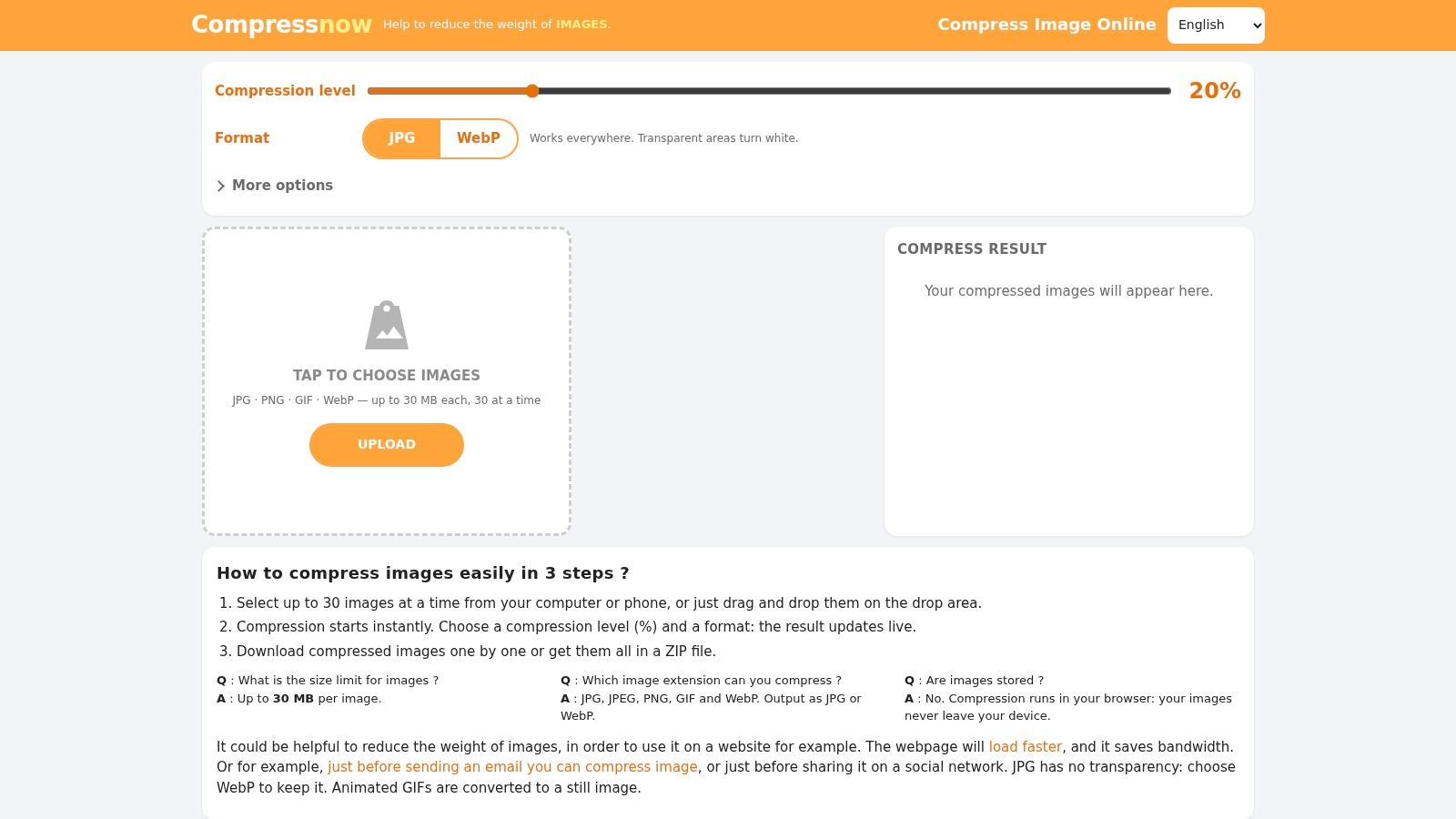
CompressNow is a straightforward browser compressor for JPG, PNG, GIF, and WebP. It gives you two basic controls, a percentage reduction or a target size in KB, and it handles batch work for up to 30 images with a ZIP download afterward CompressNow tool details.
The trade-off is depth. The interface stays simple, and it does not try to manage assets beyond compression. That simplicity helps when you want a file-size result fast, without learning a new workflow.
Best for hitting a target size
Use it when a platform gives you a strict upload ceiling. You can work toward a specific file size instead of guessing at quality settings until the image fits. For a form upload or a CMS limit, that is the practical advantage.
The free setup is useful for small publishing runs, especially when you want to process a batch in the browser and keep the files on your device. There is no extra upload step to a separate server for the compression itself.
The limits show up once you need more control. CompressNow does not give you the format nuance or metadata handling you get from more specialized tools, and it is not built for codec testing. If you want a fast way to land on a usable size, CompressNow does the job.
Top 10 Free Online Image Compressors Comparison
| Tool | ✨ Key features | ★ UX & Quality | 💰 Price & Value | 👥 Best for | 🏆 Notable strength |
|---|---|---|---|---|---|
| TinyPNG (Tinify) | Batch drag‑drop; AVIF/WebP/PNG/JPG; preview; strips metadata | ★★★★☆ Reliable quality, very fast | 💰 Free limited (20 imgs/session, 5MB); paid tiers to lift limits | 👥 Bloggers & small sites | 🏆 Excellent quality-to-size for blog assets |
| Squoosh (Chrome Labs) | Client‑side processing; fine sliders; advanced codecs; offline | ★★★★☆ Precise controls; learning curve | 💰 Free & open‑source (runs in browser) | 👥 Developers, learners, privacy‑conscious users | 🏆 Privacy (images never leave device) & codec experimentation |
| Adobe Express, Free Image Compressor | JPEG/PNG support; guided quality slider; Adobe edit integration; up to 40MB | ★★★★ Polished, intuitive preview | 💰 Free tool (40MB limit); paid Adobe ecosystem extras | 👥 Non‑technical users, one‑offs | 🏆 Smooth UI + easy path to further edits |
| iLoveIMG, Compress IMAGE | Batch workflows; cloud import/export; suite of image tools | ★★★ Fast, get‑it‑done UX | 💰 Free with limits; paid for higher caps | 👥 Editors preparing many assets | 🏆 Integrated toolkit & cloud imports for batch prep |
| Kraken.io, Free Web Interface | Lossy/lossless/expert modes; EXIF options; cloud imports; ZIP export | ★★★★ Granular control; clear batch results | 💰 Free web (1MB/file cap); PRO adds API & higher limits | 👥 Power users, agencies | 🏆 Format‑specific tuning and export workflows |
| Compressor.io | JPEG/PNG/SVG/GIF/WebP; lossy & lossless presets; simple UI | ★★★ Easy, strong reductions | 💰 Free web; paid/support options available | 👥 Generalists needing big reductions | 🏆 Notable lossy size reductions for mixed batches |
| ImageCompressor.com | Client‑side compression; quality & palette controls; EXIF removal | ★★★ Privacy‑friendly, simple | 💰 💰 Free; claims no uploads or daily caps | 👥 Privacy‑minded users & quick tasks | 🏆 Local processing + unlimited claims |
| EZGIF, Optimizer Suite | GIF optimizer, WebAssembly bulk GIF, JPG/PNG/AVIF/WebP tools | ★★★ Utility UI; feature‑rich but utilitarian | 💰 Free; mix of client/server tools | 👥 Animators & social asset creators | 🏆 Best for animated GIF optimization and exact‑size GIF work |
| FreeConvert, Image Compressor | Adjustable compression; batch; URL/cloud import; multi‑format suite | ★★★ Convenient multi‑tool flow | 💰 Free tier with limits; paid for higher throughput | 👥 Occasional users with varied file types | 🏆 One‑stop platform for cross‑format tasks |
| CompressNow | Percent or exact KB targets; batch up to 30; client‑side; ZIP output | ★★★ Simple, exact‑size controls | 💰 Free; generous per‑file (up to 30MB) & batch allowances | 👥 Users needing tight upload size limits | 🏆 Precise KB/percent targeting for upload limits |
Pick the Right Free Compressor for Your Next Upload
The quickest way to choose a compressor is to run one representative image through two or three tools at the same target size, then compare the results at 100% zoom. Don't trust the preview thumbnail alone. Look at text edges, gradients, hair, thin lines, and any area where the image has subtle detail. If one tool keeps the file smaller but softens the image too much, it's not the right choice for that asset.
Free-tier limits matter more than the marketing page suggests. A tool that works fine for one hero image can fall apart the moment you push a real batch through it. Check whether the tool processes files in the browser or on a server, whether it strips metadata by default, and whether the cap matches the way you publish.
For privacy-sensitive work, favor local processing. For blog graphics and product shots, favor the tool that keeps quality intact at the smallest usable size. For screenshots, diagrams, and text-heavy images, be conservative, because aggressive compression can make the file technically smaller and practically worse. Keep the original file too, because you'll want it later when the image needs a different crop, format, or quality setting.
If you publish on WordPress sites like readmore.info, the same test is worth doing before images go into the media library. A small upfront check saves you from re-uploading, re-exporting, and second-guessing the file later. For a broader reminder of how image quality changes in transfer, the EventUploader photo quality guide is a useful companion read.
Read More Info publishes practical WordPress guidance for aspiring bloggers, small business owners, and editors who want cleaner publishing workflows. If you're building a content site and want more checklists like this, visit Read More Info for straightforward, useful publishing advice you can apply right away.