Responsive Design Principles for Modern Sites

You can spot a broken responsive layout in seconds. The desktop mockup looks polished, but on a phone the navigation wraps badly, text feels cramped, and one image pushes half the page off-screen. That gap between “looks fine on my laptop” and “falls apart on a phone” is exactly what responsive design principles are meant to close.

A good responsive site doesn't just shrink content. It preserves reading order, keeps controls usable, and lets the layout respond to the device instead of fighting it. If you've ever opened a page and thought the website looks weird on phone, that's the problem space Bruce and Eddy describe well in their explainer on website looks weird on phone. For a broader reference hub, Read More Info keeps its content simple to scan, which is the same mindset good responsive work should follow.

Table of Contents

The Reality of Modern Multi-Device Browsing

A layout that only works at one width is a fragile layout. The moment a reader switches from a big monitor to a phone, the page has to negotiate with a narrower space, different touch behavior, and a shorter attention span. Fixed-width thinking used to be normal, but it breaks down fast once real people move between devices all day.

That's why responsive design became a baseline rather than a bonus. The idea is to make one site adapt cleanly to many screens, not to build a separate experience for every device class. If the content stays readable, the buttons stay tappable, and the page stays ordered, users don't have to work to understand it.

What usually breaks first

The first failures are predictable. Navigation gets crowded, images overflow their containers, and side-by-side sections that felt elegant on desktop become unreadable stacks or tiny columns on mobile.

Practical rule: if a section only works when the browser window stays wide, it isn't finished yet.

That's why teams often start with the user's frustration, not the code. A useful framing is to ask whether the page still makes sense when the screen gets smaller, the connection gets slower, or the input method changes from mouse to thumb. The easier it is to answer yes, the closer the site is to real responsive design. If you want a quick overview of how publishing sites can stay simple and readable, Read More Info is a practical place to browse that kind of structure.

The Three Pillars of Responsive Web Design

Responsive design started as a named concept in 2010, when Ethan Marcotte described a single site adapting to many screens through fluid grids, flexible images, and media queries in a May 2010 A List Apart article, later summarized on his own site at Responsive Design at 10. That three-part structure is still the cleanest starting point for the discipline.
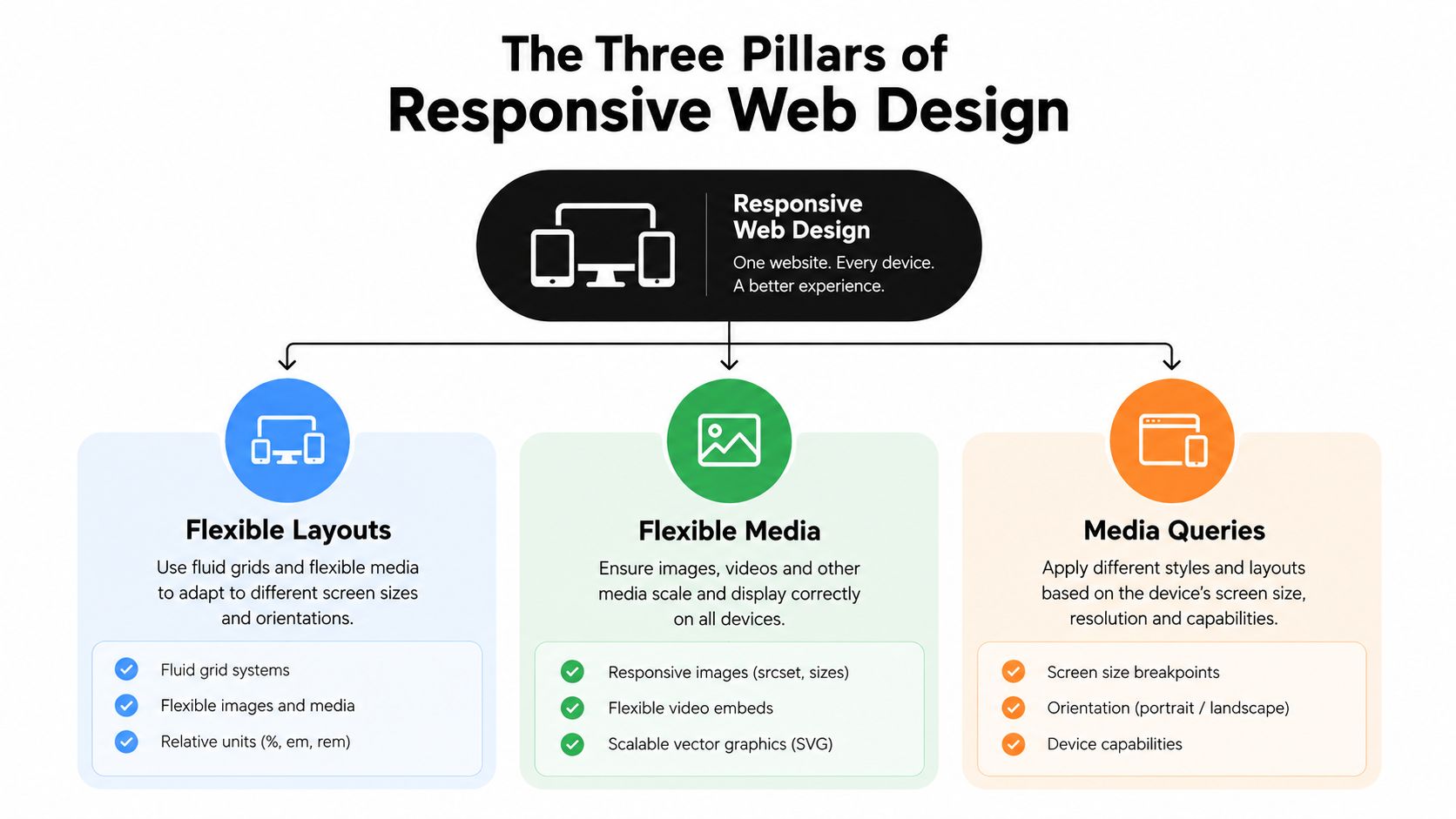
A diagram outlining the three pillars of responsive web design: flexible layouts, flexible media, and media queries.

The first pillar is the layout itself

A fluid grid means widths are relative, not fixed. Instead of locking a column to one rigid size, you let it scale with the available space. That's the difference between a page that survives resizing and one that fractures under it.

The second pillar is media that can flex

Images and other embedded media need to stay inside their containers. If they're allowed to keep a fixed width, they'll blow apart the layout on smaller screens. The practical fix is to let media scale with the space around it so the composition holds together.

The third pillar is conditional styling

CSS media queries apply different styles when the browser matches certain conditions, usually width or orientation. That's what makes a layout shift from one column to two columns, or from compact navigation to expanded navigation, without rebuilding the page.

DesignStack's overview of user experience on any screen is a useful companion here because it keeps the focus on the outcome, not just the technique. By 2012, media queries had become part of mainstream standards, which pushed the field from a clever idea into standard practice. The important lesson is simple, the pillars work together. If one is missing, the whole structure gets shaky.

Viewport Mechanics and Media Queries

Mobile browsers don't always treat a page the way desktop browsers do. Without the right setup, they often assume a wider layout viewport, then scale the page down to fit the screen, which makes breakpoints behave unpredictably. MDN's guide to Responsive Design explains why the viewport meta tag matters here, and why width=device-width, initial-scale=1 aligns the layout viewport to the actual device width.

That setting matters because it tells the browser to stop guessing. Once the viewport matches the device, media queries can do their job with much more precision. If you skip this step, the browser may render your layout as if it has more room than it really does, which is why some sites feel “responsive” in the code but not in the hand.

What media queries can actually target

Media queries are more flexible than many juniors expect. They can respond to width, height, orientation, and touch capability, so the page can adapt to more than just screen size. That's useful when the problem isn't just “small screen” but “small screen held in portrait mode with touch input.”

A breakpoint should match a change in behavior, not a random device model.

That's the reason clean responsive systems feel calm. The browser gets one clear instruction set for phones, another for tablets or layouts, and the page changes only where it needs to. The best results come when the viewport is configured correctly first, then media queries add the adjustments that matter most to the experience.

Fluid Grids and Content-Driven Breakpoints

The old habit was to design for device presets. You'd pick a phone size, a tablet size, and a desktop size, then force the layout to fit each one. That approach still appears in a lot of tutorials, but it's less useful than it looks because content rarely cares about brand-name devices.

The better approach is to let the content tell you where the layout fails. Web.dev's responsive web design basics recommends fluid grids, flexible media, and breakpoints based on failure points rather than arbitrary presets. That shift sounds small, but it changes how you think about layout. You stop asking, “What device is this?” and start asking, “Where does this arrangement stop working?”
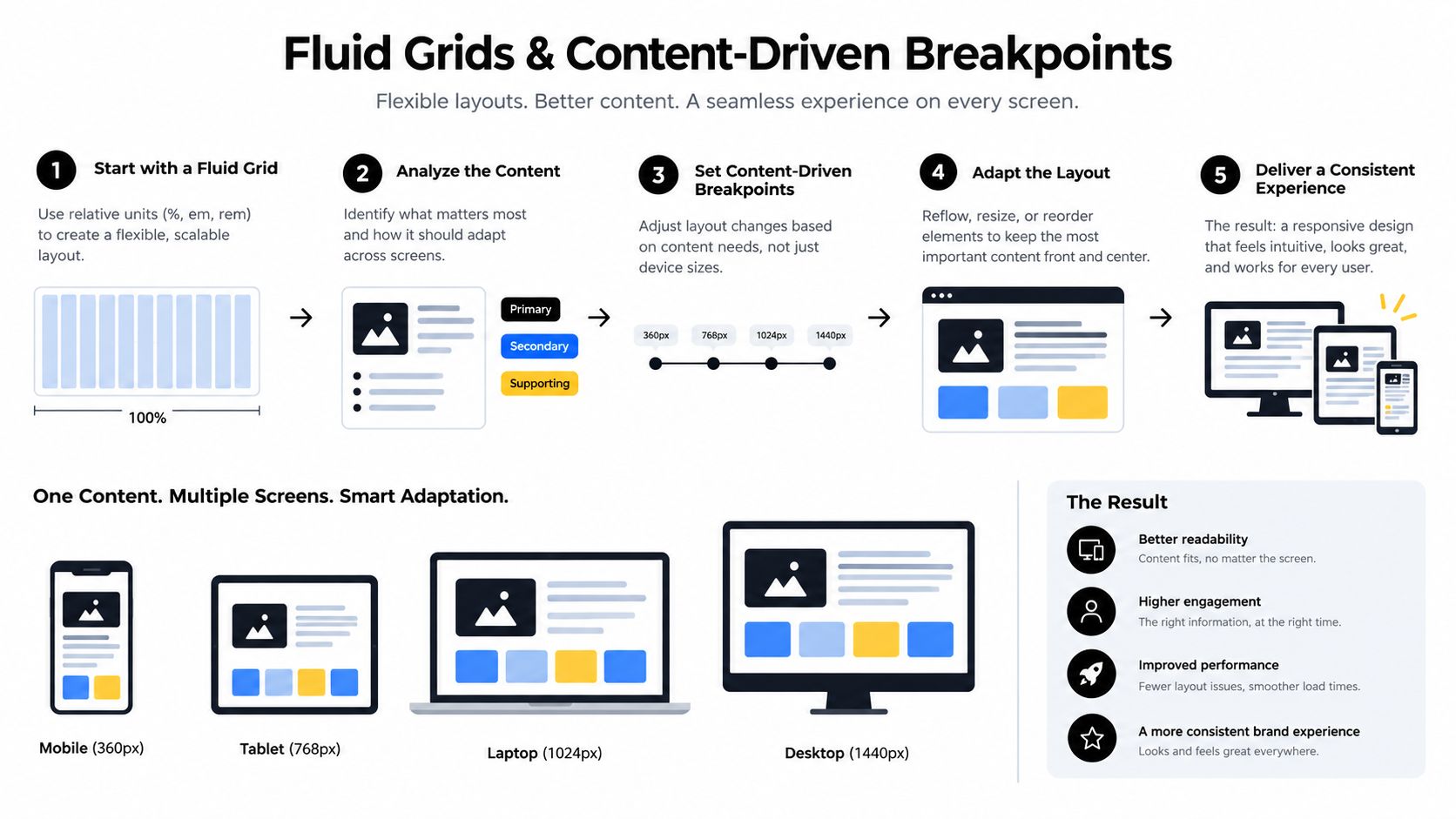
An infographic illustrating five steps for creating responsive design using fluid grids and content-driven breakpoints.

Why relative units make layouts calmer

Units like rem, vw, and percentages let elements scale with context. That gives you a layout that grows and shrinks without snapping to hard edges. W3Schools' guidance on responsive design also reinforces the mobile-first habit of starting narrow and enhancing upward, which pairs naturally with relative sizing.

Images need their own rules

A responsive grid still fails if images don't cooperate. Use maximum-width constraints, lazy loading, and aspect-ratio so images don't overflow, jump around, or shift the page while loading. That's especially important in blog layouts, where a single oversized image can break the reading rhythm.

For WordPress-specific layout planning, best WordPress blog layouts is a useful reference point because the structure of the page affects how easily content can adapt across screens. When the content flow is clean, breakpoints become simpler. When the content is overcrowded, every breakpoint becomes a rescue mission.

Beyond Viewports with Container Queries

A lot of people still think responsive design stops at the browser width. That's understandable, because media queries have been the default teaching tool for years. But modern interfaces need something more local than page-wide breakpoints, especially when the same component appears in different parts of a layout.

Container queries solve that problem by letting a component respond to the size of its parent container instead of the whole viewport. That matters for reusable cards, sidebars, and modules that appear in narrow or wide contexts depending on where they're placed. Scrimba's responsive web design guide captures this shift well, especially the distinction between media queries for page structure and container queries for reusable components.

Where media queries still belong

Media queries still make sense when the page itself changes shape. They're good for rearranging the major layout, moving navigation, or changing overall spacing across screen sizes. If you need to alter the architecture of the page, page-level breakpoints are still the right tool.

Where container queries fit better

Container queries shine when one component needs to adapt inside different wrappers. A product card, for example, might sit in a wide grid on desktop and a narrow column on mobile. The component shouldn't care about the whole screen, only the space it has.

Modern guidance also favors intrinsic layouts, fluid scales, and clamp() for typography and spacing. That combination reduces the need for endless breakpoint patches. The cleanest way to think about it is this, media queries shape the page, container queries shape the parts.

Accessibility and Performance as Responsive Defaults

A site that looks responsive but fails basic reading or interaction checks isn't really responsive. It may resize, but if the text is hard to read, the touch targets are awkward, or the page feels sluggish on weaker devices, the experience still breaks down. The 2025 Web Almanac's accessibility findings at Accessibility make that gap hard to ignore, since the median Lighthouse Accessibility score improved only slightly year over year to above 85, while just 31% of mobile sites met minimum color contrast requirements.

That tells you something important. Many sites have learned how to adapt visually, but not how to stay usable under real constraints. Responsive thinking has to include contrast, keyboard navigation, touch targets, and reduced-motion settings, not just width-based breakpoints.
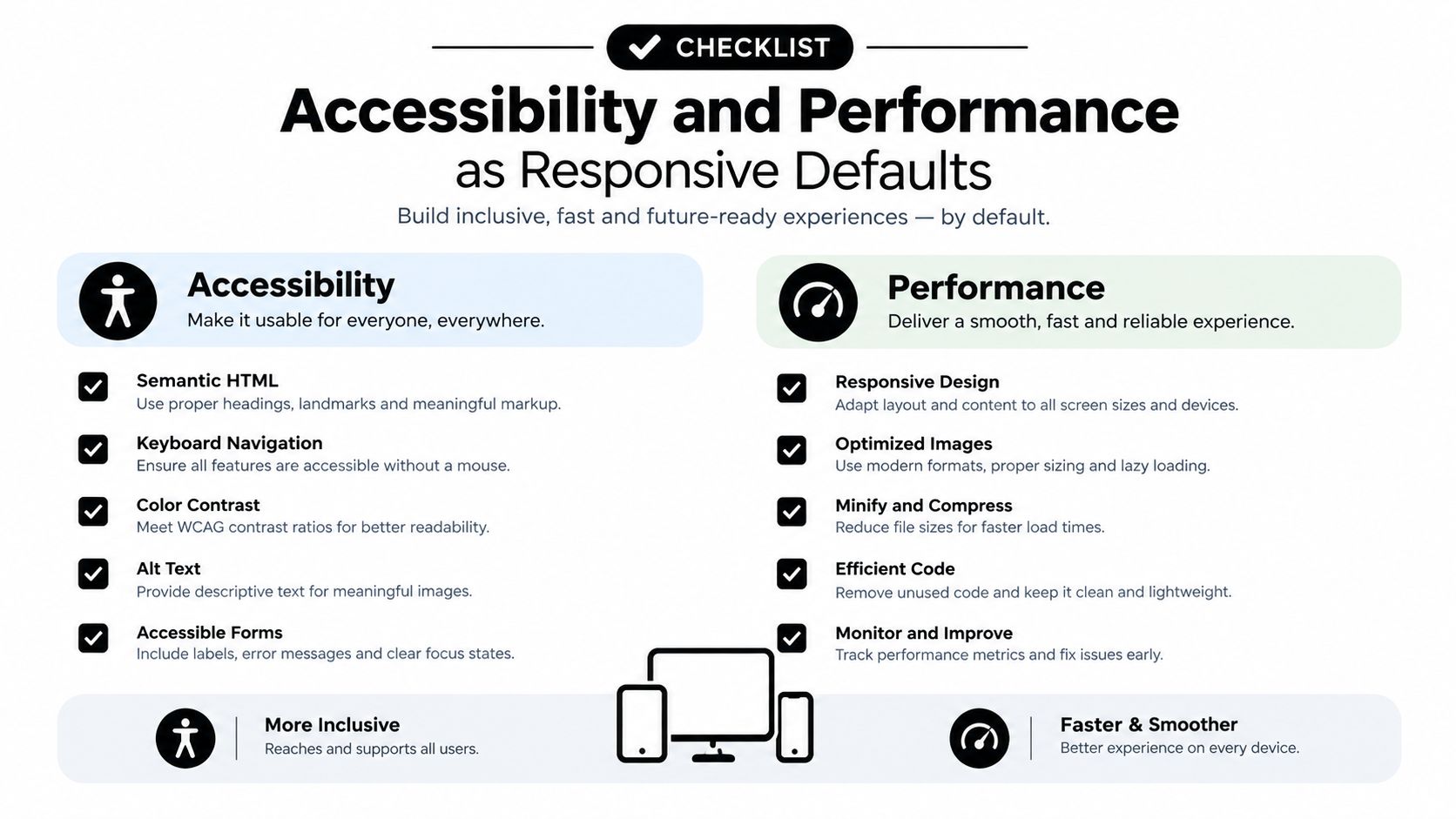
A checklist infographic detailing key accessibility and performance standards for building inclusive and responsive web experiences.

Build for constrained devices, not ideal ones

Performance matters because responsive layouts often run on phones, older tablets, and slower networks. If the page depends on heavy scripts or oversized media, the design may technically fit the screen and still feel broken to use. That's why responsive work and performance work belong together.

Accessibility belongs in the layout layer

Color contrast affects whether text is readable. Keyboard navigation affects whether interactive pieces can be reached at all. Reduced-motion settings matter when animations become part of the interface. These aren't extras, they're part of whether the design responds to the user.

A practical audit starts with the basics. Check reading contrast, verify that controls can be reached without a mouse, and make sure nothing important depends on hover alone. If the site still feels usable after those checks, the responsive system is doing real work.

Implementing Responsive Principles in WordPress

WordPress makes responsive publishing easier when the theme is lightweight and the HTML stays semantic. That matters because clean structure is easier for browsers, assistive tech, and search systems to understand. The WordPress blog setup guide is one useful reference point if you're thinking about a simple publishing workflow instead of a heavy custom app.

WordPress also ships with open feed endpoints. The platform documents a site-wide comments RSS feed and a separate comments feed path in its feeds handbook, and WordPress.com documents the site comments feed structure at Feeds. That kind of syndication fits the same philosophy as responsive design, simple, standards-based access that works across tools and devices.

A practical audit checklist

  • Keep the theme lightweight: Favor semantic HTML and minimal default styling so pages render cleanly on small screens.
  • Check reading flow: Headings, paragraphs, and images should stack in a way that still feels natural when space is tight.
  • Use built-in feeds: Site content and comments should be easy to subscribe to without extra plugins or proprietary tools.
  • Test the reading experience: Search, empty states, and archive pages should still make sense on phones.

Read More Info itself follows that straightforward publishing model, with a basic WordPress structure, search, and RSS access for content and comments. That's a useful reminder that responsive design isn't only about flashy UI work, it's also about making ordinary content easy to consume anywhere.


If you want a practical way to apply these ideas to your own site, explore Read More Info for straightforward WordPress publishing examples, simple site structure, and content patterns that stay readable across devices. Then compare your own layout against those basics, especially on mobile, where responsive design principles either hold up or fail fast.

7 Best WordPress Blog Layouts for Every Blog

A beautiful homepage isn't automatically a useful blog. A masonry grid may help a magazine surface more stories, but it can make a long-form article harder to read. A giant hero section may strengthen a campaign site, yet push the actual post below the fold and slow the first meaningful interaction. The best WordPress blog layouts match how readers browse, not just how a theme demo looks.

This comparison evaluates seven concrete approaches through the publishing problems they solve: discovery, readability, customization, responsive behavior, RSS-friendly publishing, performance, content volume, and maintenance. Read More Info provides a useful reference point because its straightforward WordPress structure prioritizes search, feeds, semantic markup, mobile access, and uncluttered reading rather than visual novelty. It isn't a paid theme or hosted product. It's a practical publication model for a lean site such as Read More Info.

The right choice also depends on what you can maintain. A layout that looks polished on launch day can become expensive when authors add inconsistent blocks, images shift the page, or a builder controls content that should remain portable. Before publishing, test the layout on real archives and posts, then fix Cumulative Layout Shift before visual polish hides a structural problem.

Table of Contents

1. Read More Info

Read More Info solves the most common publishing problem: helping readers find and consume useful information without making them decode the interface. Its layout is deliberately straightforward. Standard WordPress posts remain accessible from the homepage and individual post pages, while built-in search helps visitors locate a specific topic when browsing isn't enough.

That simplicity supports more than aesthetics. The site exposes an open site RSS feed and a comments RSS feed, so readers can follow new posts or discussions through feed readers and automation workflows. This is a strong model for publishers who value open syndication over app-specific engagement loops.

The responsive structure also matters. WordPress's shift toward responsive layouts became foundational after Ethan Marcotte coined the term in 2010. WordPress 4.4, released in December 2015, added native responsive images through srcset and sizes, and its release notes cite 471 contributors in the WordPress version history. For a blog, that means featured images and article media can adapt across phones, tablets, and desktops without requiring separate mobile pages.

Why this model works for lean publications

Read More Info favors lightweight semantic HTML, clear navigation, readable article pages, and useful empty states. When a search produces no result, the “Nothing Found” message points visitors back toward search instead of leaving them at a dead end. That small interaction shows how a publication can treat failure states as part of the layout rather than as an afterthought.

Its featured guide, How to Create a WordPress Blog, extends the model into a practical publishing workflow. The guidance covers hosting choices, security basics, performance checks, and a lean theme and plugin strategy, which makes the site useful to beginners, solo creators, small businesses, and editors who need concise operational advice.

Practical rule: If the content matters more than the interface, start with one dependable reading template, one clear archive pattern, and search that works.

The trade-off is equally clear. Read More Info isn't a hosting service, maintenance provider, paid coaching product, or premium theme marketplace. It doesn't present formal awards, certifications, testimonials, or membership tiers. Its strength is interoperability and practical guidance, not extensive interactive features.

Best for: uncluttered reading, search-led discovery, RSS subscribers, beginners, and publications that want a portable WordPress foundation.

2. Astra

Astra solves a different problem: giving non-technical editors meaningful archive and post controls without forcing them into a heavy visual-building workflow. Its Customizer exposes settings for the content container, sidebars, post structure, featured images, metadata, and title areas. That makes it suitable for a publication that needs to tune presentation while keeping the editorial process familiar.

The theme supports straightforward list archives as well as more visual patterns. Astra Pro adds columns, masonry, a highlighted first post, and deeper spacing controls. Global container settings, including a narrower option, can apply across archives and single posts, which helps maintain a consistent reading width instead of letting every template drift.

That consistency matters for a guide site. A publication such as the WordPress guide archive benefits from predictable cards, visible categories, and a single-post template that moves cleanly from title to metadata to content. Astra's documented blog layout classes and hooks also give developers room to extend the theme without rebuilding the whole front end.

Where Astra earns its place

Astra's strongest advantage is its balance between accessible setup and progressive customization. Editors can make useful changes through familiar controls, while developers can use hooks and theme architecture for more exact behavior. Its broad template and plugin ecosystem also makes it easier to connect a blog to forms, SEO tools, newsletters, or commerce later.

The limitation is the boundary between the base theme and Astra Pro. More advanced grid, masonry, column, and spacing controls sit behind the paid add-on. That isn't necessarily a problem, but it changes the cost calculation for a small blog that only needs a clean list and readable articles.

The marketing site can also feel broader than the actual need. If you're selecting only a theme for a simple publication, ignore bundle language and evaluate the specific archive, single-post, typography, and responsive controls you'll use.

Best for: editors who want familiar controls, developers who value hooks, and blogs that may expand beyond a simple archive.

3. GeneratePress

GeneratePress is the strongest fit when performance discipline and precise template control matter more than visual spectacle. Its clean markup, lightweight styling, and close relationship with the block editor give publishers a stable foundation for reading-focused sites. The theme keeps the content structure separate from decorative effects, which reduces the temptation to build every post as a one-off page.

The free foundation handles the basics. GP Premium adds blog columns, featured-first posts, masonry grids, and more detailed archive behavior. You can configure archive, search, blog, and single-post sidebars separately, so a search result doesn't have to inherit the same clutter as an article page. Infinite scroll is available as an option, though numbered pagination is often easier for readers and editors to understand.

Control without content lock-in

GeneratePress becomes particularly useful through its Theme Builder and Elements features. Those tools let you control blog cards, post templates, hooks, and conditional placements while keeping the actual article content in WordPress blocks. That separation matters if you later change themes or redesign the publication.

For a high-frequency site, the layout can stay intentionally plain. Use a compact archive card with a title, category, date, and short excerpt. Keep the single-post template focused on the headline, byline, featured image, and article body. Avoid adding every available widget just because the system permits it.

A fast blog layout usually comes from fewer decisions, not more controls.

The trade-off is that many of the features people associate with polished blog archives, including columns and masonry, require GP Premium. GeneratePress also asks for more deliberate design work than a theme built around large starter demos. That restraint benefits experienced editors, but beginners may need to establish their own spacing, typography, and card rules.

Best for: speed-focused publishers, developers, and editorial sites that want fine control without builder-heavy content.

4. Kadence Theme

Kadence addresses the publisher who wants visual control without abandoning a performance-minded, blocks-first workflow. The theme provides archive and single-post settings at the theme level, while Kadence Blocks adds reusable sections, cards, and content patterns inside the block editor. That combination makes it easier to create a distinctive site without handing every article to a proprietary page builder.

Starter templates shorten the path from blank installation to a credible blog homepage. They can be useful for small businesses or solo creators who know the content direction but don't want to design every header, footer, and archive card from scratch. The header and footer builders also support more structured navigation than a minimal theme's default controls.

A good middle ground for growing sites

Kadence works well when the publication needs more than a plain list but less than a magazine system. You can establish a branded archive, create reusable blog cards, and apply consistent sections across categories. Accessibility-minded markup and a block-editor workflow also support a more maintainable handoff between editors and developers.

The risk is overbuilding. Kadence Blocks can make a homepage feel polished quickly, but each reusable pattern becomes another component to document and maintain. If authors can insert arbitrary variations everywhere, the site may lose its visual rhythm. Define a small set of approved patterns for archive cards, callouts, author information, and related posts.

The ecosystem is also broader than a simple blog may need. Kadence's connection to products such as Shop Kit and membership tools can help a site expand, but it may make the packaging feel unnecessarily large for a publication focused only on articles.

Best for: non-developers who want branded layouts, block-based reuse, and room to grow into a broader content site.

5. Blocksy

Blocksy is aimed at publishers who need a capable free starting point with detailed control over archives, cards, and individual posts. Its Gutenberg-first approach keeps the editor close to WordPress, while the Customizer exposes settings for archive presentation, card design, metadata, and single-post structure.

That makes Blocksy useful for a publication with several content types but no desire to adopt a large magazine builder. You can create a clear category archive, control which metadata appears, and add related posts without turning the article page into a collection of competing modules. The responsive controls also support a mobile-first approach, where the desktop layout is not just squeezed onto a smaller screen.

Powerful settings need a publishing rulebook

Blocksy's free tier is generous enough for many standard blogs. The Pro add-on adds custom archive and single templates through Content Blocks, along with conditional headers and footers. Those tools are valuable when different sections need different presentation rules, such as a resource archive that requires stronger filtering or a blog archive that emphasizes recency.

The downside is choice overload. Editors can adjust many details, and an unplanned setup can produce inconsistent card heights, metadata order, spacing, and mobile behavior. Establish the content hierarchy before opening the Customizer. Decide whether the archive is a list or a uniform card grid, define the role of the sidebar, and keep the single-post sequence stable.

Blocksy's block-editor compatibility is a practical advantage for portability. Keep article content in core blocks where possible, and reserve custom Content Blocks for reusable layout elements. That approach limits dependence on theme-specific structures while still allowing deeper customization when the publication needs it.

Best for: flexible small businesses, Gutenberg-first blogs, and editors who want strong free features with an upgrade path.

6. Neve

Neve solves the setup problem: launching a clean, responsive blog quickly without asking a beginner to design every component from zero. Its lightweight structure, starter-site library, and Gutenberg-powered demos provide a practical route to a readable homepage and archive. Otter Blocks patterns extend that workflow with reusable sections for editors who want more than the default theme styling.

The theme's header and footer builder supports multiple header rows and drag-and-drop placement. That helps a small publication create a clear primary menu, search access, and utility links without custom code. The main design decision remains simple, keep the article area prominent and make the navigation support discovery rather than compete with it.

Where Neve fits best

Neve's minimal defaults suit reading-focused blogs. A beginner can start from a prebuilt blog layout, replace the demo content, and maintain the result through familiar WordPress tools. That reduces the customization burden for a solo creator or small business owner who needs to publish rather than become a theme developer.

Still, starter sites create a maintenance obligation. Remove unused patterns, plugins, fonts, and decorative sections after importing a design. A demo can look coherent because every component was chosen together. Once you mix templates from different demos, the typography and spacing can become uneven.

Pricing also deserves a careful checkout review. Neve Pro promotions and displayed prices may use different currencies, including EUR, so verify the current USD amount and renewal terms before committing. The important decision isn't the promotional label. It's whether the premium controls solve a real archive, header, footer, or workflow problem.

Best for: beginners, fast launches, simple blogs, and teams that prefer starter patterns over bespoke design.

7. Newspaper

Newspaper solves the content-volume problem: organizing a publication with many categories, featured stories, promotional areas, and magazine-style entry points. The tagDiv theme includes a large Cloud Library with 1,300+ pre-made templates and elements, as described on its ThemeForest product page. It also includes the tagDiv Composer, front-end building, and 120+ one-click demos.

That breadth makes sense for a news or editorial operation. A category homepage can emphasize featured content, secondary stories, topic modules, and advertising positions without assembling every component manually. WooCommerce-ready elements also give a content-heavy site a route toward commerce if that becomes part of the publishing model.

The cost of magazine flexibility

Newspaper is less suitable for a lean, text-first blog that mainly needs an archive, search, and readable single-post template. The builder-dependent workflow adds a layer between WordPress content and the rendered page. If a layout relies heavily on tagDiv Composer, switching themes later may require more cleanup than a site built mostly with core blocks.

The design can also encourage visual density. Featured grids and multiple content rows help readers discover more stories, but they can bury the primary task on mobile. Treat the homepage as a navigation surface, not a miniature version of every article. Keep the single-post template quieter, with a controlled content width, clear headings, and related links after the main text.

For a practical publishing model, pair Newspaper's category strength with editorial rules. Limit the number of featured modules, define which categories receive homepage prominence, and review mobile archives before adding another carousel or promotional block. The theme's capabilities are useful only when the team can maintain the hierarchy.

The blogging tips archive is better served by a restrained content-first layout than by a full magazine front end. Newspaper earns its place when the publication has enough content volume to justify those additional surfaces.

Best for: newsrooms, magazines, and high-volume sites that need prominent categories and featured areas.

Top 7 WordPress Blog Layouts Comparison

ItemComplexity 🔄Resource Needs ⚡Expected Outcomes 📊Ideal Use Cases 💡Key Advantages ⭐
Read More InfoLow, content‑first, minimal setup 🔄Low, WordPress + RSS, no paid tiers ⚡Practical, actionable guides; easy syndication 📊Beginners, solo creators, small biz publishers 💡Standards‑based RSS, accessible, lightweight ⭐
Astra (Brainstorm Force)Medium, Customizer controls; Pro adds depth 🔄Medium, free core; Pro for advanced layouts ⚡Flexible archives and layouts; extensible via hooks 📊Editors needing predictable UI and ecosystem plugins 💡Mature docs, large ecosystem, predictable controls ⭐
GeneratePress (EDGE22)Low–Medium, lightweight by default; Premium for extras 🔄Low, minimal CSS; GP Premium for grids/theme builder ⚡High performance and precise layout control 📊Performance‑focused blogs and block‑editor sites 💡Very lightweight, stable filters, accessible out of the box ⭐
Kadence Theme (KadenceWP)Medium, blocks‑first visual workflow; moderate learning curve 🔄Medium, theme + Kadence Blocks; some paid modules ⚡Visually flexible templates with accessibility focus 📊Editors who want visual design without heavy bloat 💡Strong block integration, starter templates, growing ecosystem ⭐
Blocksy (CreativeThemes)Medium, many options; Gutenberg‑first but initial setup can overwhelm 🔄Low–Medium, capable free tier; Pro unlocks templates ⚡Robust block‑based publishing and customizable archives 📊Gutenberg users wanting powerful free features and customization 💡Generous free features, intuitive Customizer, competitive pricing ⭐
Neve (ThemeIsle)Low, quick setup with starter sites and simple UI 🔄Low, starter library + Otter Blocks; Pro for more ⚡Fast, uncluttered blogs with responsive archives 📊Simple reading‑focused blogs needing fast launch 💡Minimal styling, easy maintenance, good starter demos ⭐
Newspaper (tagDiv)High, builder‑heavy with many templates and options 🔄High, large Cloud Library, heavier asset footprint ⚡Magazine‑style, feature‑rich layouts and ad placements 📊High‑volume news/magazine sites requiring many templates 💡Extensive pre‑made templates, polished featured areas, ThemeForest support ⭐

Choose the Layout That Matches Your Publishing Model

Start with the reading experience, not the theme demo. A Read More Info-style approach is the clearest choice when visitors need uncluttered articles, responsive access, search, and RSS discovery. It keeps the publication portable and gives editors fewer ways to create inconsistency.

Choose Astra, GeneratePress, Kadence, Blocksy, or Neve when you need a balance between performance and progressively deeper customization. Astra suits familiar Customizer controls and a broad ecosystem. GeneratePress is the disciplined performance option for teams comfortable defining their own system. Kadence offers a strong middle ground for block-based visual control. Blocksy gives a capable free foundation with detailed archive options. Neve is the quickest route from starter layout to maintainable blog.

Reserve Newspaper for a different publishing model. Its magazine templates, category surfaces, and featured grids are appropriate when content volume and discovery justify a denser interface. It isn't the default answer for a small informational blog, because builder dependence and visual complexity can add maintenance work without improving the core reading task.

Before choosing, test the actual publishing workflow rather than only the homepage. Use representative posts with long headings, featured images, lists, embeds, and multiple H2 sections. Then check the archive, search results, category pages, and an empty search state on a phone.

Use this final decision checklist:

  • Archive density: Decide whether readers need a calm list, uniform cards, or a magazine grid.
  • Single-post width: Keep the text column comfortable and prevent full-width layouts from creating tiring line lengths.
  • Sidebar purpose: Include a sidebar only when it supports navigation, subscription, or useful context.
  • Mobile behavior: Check menus, cards, images, sticky elements, and content order on small screens.
  • Search and empty states: Make it easy to find content and recover when no result exists.
  • RSS access: Confirm that posts and, where relevant, comments remain available through standard feeds.
  • Accessibility: Test keyboard focus, heading hierarchy, contrast, labels, skip links, and screen-reader flow.
  • Plugin dependence: Identify which layout elements disappear or become difficult to edit if a builder is removed.
  • Maintenance: Document spacing, card structure, image ratios, metadata, and approved blocks before several authors start publishing.

A sustainable layout also supports the broader business goal. If your site must publish consistently, support multiple authors, and evolve without repeated rebuilds, scaling your brand with a content management system depends on repeatable templates more than visual novelty. The best WordPress blog layouts are the ones your team can keep coherent after the launch excitement ends.


Read More Info offers practical WordPress guidance, open RSS access, built-in search, and a lightweight mobile-friendly reading experience for creators and small publishers. Visit Read More Info to study a restrained layout model, browse publishing guides, and find concrete help before you commit to a theme.

How to Create WordPress Blog: The Smart Way

It takes roughly 30 minutes to launch a basic WordPress blog if you choose the right path immediately, but skipping that setup decision can cost weeks of migration work later. The practical answer is to choose WordPress.com for convenience or self-hosted WordPress.org for control, then connect a domain, install only the tools you need, publish a focused first post, and check security, speed, and discoverability before sharing it.

You're probably looking at an empty dashboard, an available domain name, and a growing list of tutorials that all seem to start in a different place. Most failed launches don't fail because WordPress is difficult. They fail because the owner chooses the wrong hosting model, installs too many plugins, spends days polishing a theme, or publishes without setting up ownership, backups, search structure, and a reliable content workflow.

WordPress has been officially available since May 27, 2003, and by 2026 it powered about 40.2% of all websites and 58.8% of websites with a known CMS (W3Techs' WordPress market data). That scale matters because the publishing interface, theme ecosystem, documentation, and support community are mature. You can move quickly, but only if you make the important decisions before the cosmetic ones.

Table of Contents

Choosing Your WordPress Path Before You Start

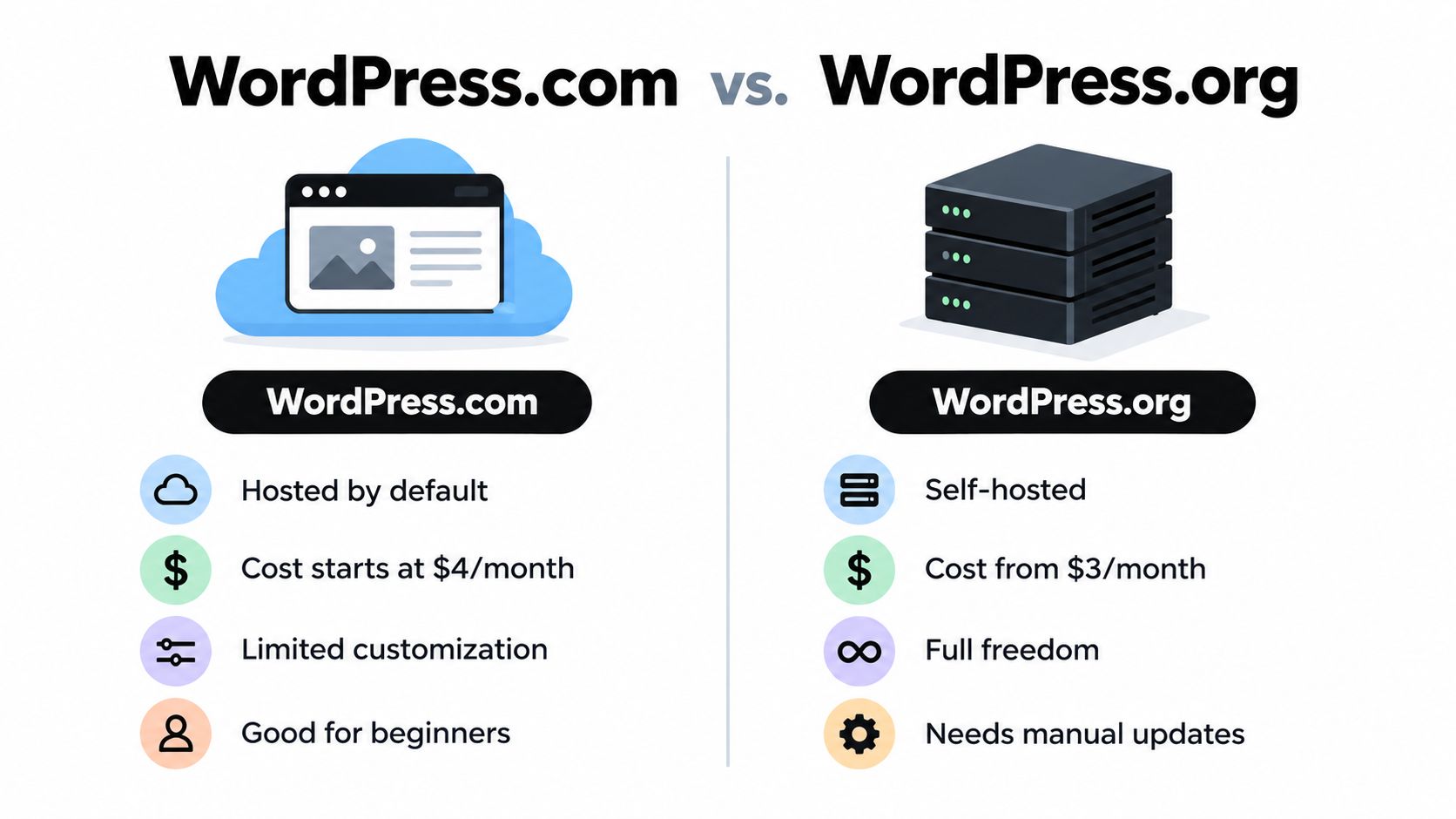
The first decision isn't your logo, homepage color, or theme. It's whether you want WordPress.com, a managed service, or self-hosted WordPress.org, where you arrange hosting and manage the installation yourself.

WordPress.com handles much of the infrastructure for you. That's useful if you want to write, select a design, and avoid server maintenance. Self-hosted WordPress.org gives you more control over plugins, themes, data, monetization, integrations, and the technical stack, but you're responsible for updates, backups, hosting quality, and security.

The platform's broad adoption makes either route viable. Current tracking places WordPress at roughly 40% to 43.5% of all websites globally and about 59% to 61.7% of CMS-based websites, depending on the source and date (WordPress.com's market-share overview). Those figures describe different measurements, not a contradiction. They do show why learning how to create a WordPress blog transfers well across hosts and workflows.

A comparison chart showing the key differences between the WordPress.com and WordPress.org platforms for website building.

Use this decision matrix

FeatureWordPress.comSelf-Hosted WordPress.org
Hosting responsibilityManaged for youYou choose and manage a host
Technical maintenanceLowerHigher
Plugin and theme freedomDepends on the planBroad control
Data and infrastructure controlMore limitedMore direct ownership
Best fitPersonal publishing and low-maintenance projectsBusinesses, publishers, and growth-focused sites
Main trade-offConvenience versus flexibilityFlexibility versus responsibility

Choose WordPress.com when simplicity is the product. Choose self-hosting when the blog is part of a business, publication, portfolio, membership site, or long-term content asset and you want the ability to change providers and systems without redesigning your entire operation.

Practical rule: If you already know you'll need custom plugins, advanced analytics, complex forms, or full control of your files, don't start on the simpler path just to save an afternoon.

For another practical perspective on the ownership and setup choice, use this guide to starting a blog with Outrank. Decide before you write content, because changing paths later can involve redirects, media transfers, theme rebuilding, plugin replacements, and email-list adjustments.

Securing Your Domain and Setting Up Hosting

A domain is the public name people type into a browser. Hosting is the service that stores your WordPress files, database, images, and other resources so that the domain can display your site. You need both for a self-hosted blog, while WordPress.com bundles the infrastructure into its managed experience.

Pick a domain that's easy to say, spell, remember, and extend into a broader publication if your topic evolves. Avoid names that lock you into one narrow product unless that limitation is intentional. Check the registration terms, renewal conditions, privacy options, migration policy, support quality, backup approach, and staging tools before treating the lowest introductory price as the best deal. For background on choosing and managing a domain, see this domain resource.

A clean self-hosted setup

  1. Register the domain. Use a reputable registrar and confirm that you control the account email and renewal settings.
  2. Choose hosting. Look for current WordPress and PHP support, automated backups, SSL, caching, staging, clear restore procedures, and responsive support. A cheap host that makes every problem a ticket can consume more time than it saves.
  3. Connect the services. Your host will provide the connection instructions needed to make the domain point to the hosting account. Follow the host's current documentation rather than copying values from an old tutorial.
  4. Install WordPress. Most beginner-friendly hosts provide a guided or one-click installer. Create a unique administrator username and a long password, then record access details in a password manager.
  5. Confirm HTTPS. Visit the site with the secure address and check that the browser doesn't show certificate warnings. Test the login page, homepage, and a sample image.

WordPress.com users can follow the service's guided onboarding, select a site address, and configure the publishing settings inside the dashboard. The process is easier because the host controls the environment, but that convenience is exactly why you should confirm ownership, export options, domain terms, and plugin availability before building into the platform.

Keep administrator access limited. Create separate author accounts for contributors, use the lowest permission level that fits each person's role, and remove unused accounts. A launch is easier to recover when one compromised login doesn't provide access to every part of the site.

Building Your Site with the Right Tools

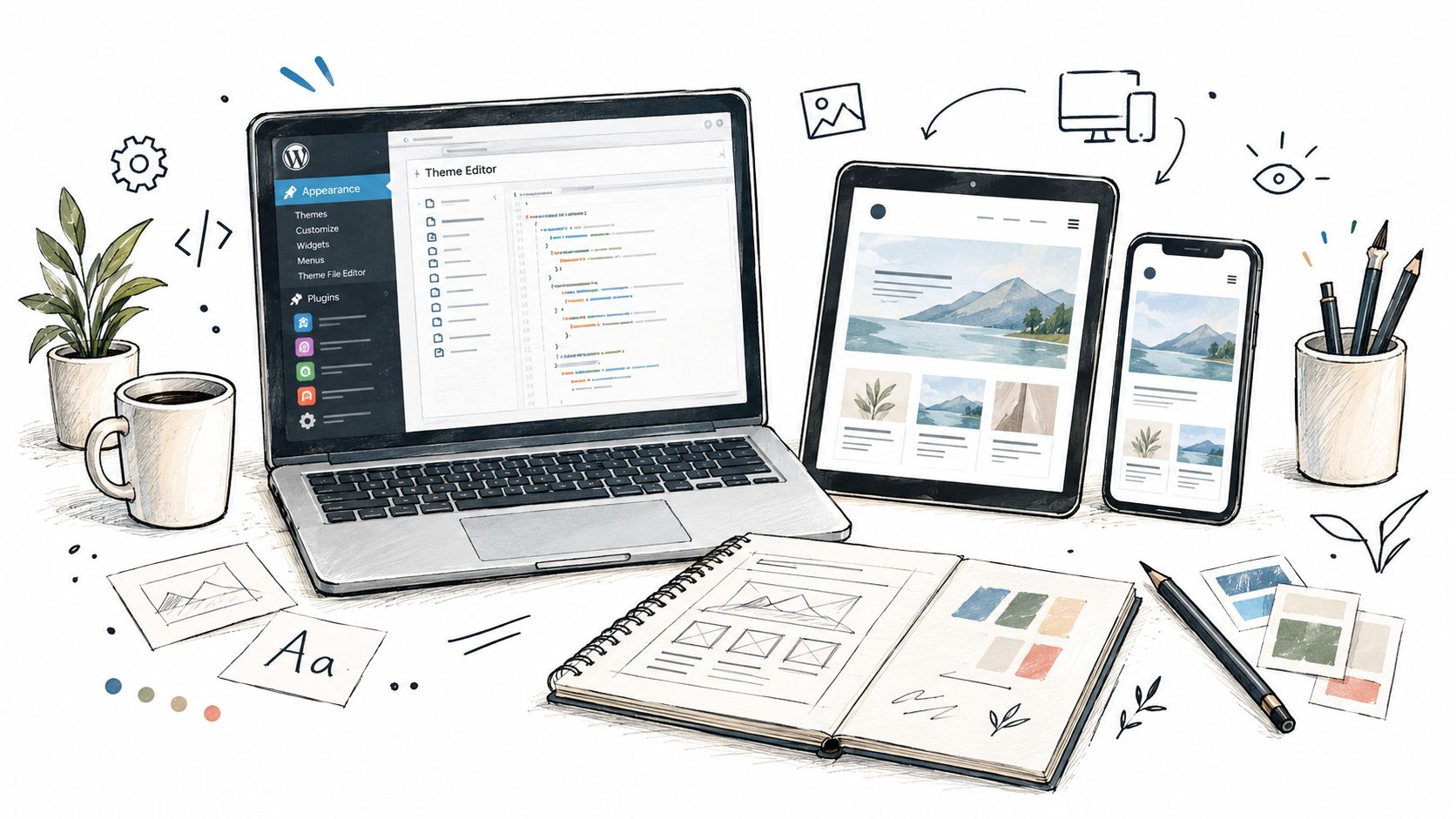
A blog can lose speed and consistency before its first post if the setup depends on too many visual effects or plugins. Choose a lightweight theme with clear controls for headings, navigation, featured images, author details, categories, and mobile layouts. A polished demo is not enough. If the theme loads unnecessary scripts or makes routine edits awkward, every future post takes longer to publish.

A creative workspace featuring a laptop, tablet, and smartphone displaying WordPress development and website design interfaces.

Select the smallest useful stack

Begin with one theme and a short plugin list. Add only the functions your launch needs, such as security, backups, SEO, caching or performance controls suited to the host, forms, or editorial workflows. Test every addition, keep it updated, and remove abandoned plugins. An inactive plugin still creates maintenance work and another piece of software that could expose the site.

Security rewards restraint. Recent WordPress security data attributes roughly 91% of vulnerabilities to plugins and about 6% to WordPress core, while the median time to mass exploitation is about 5 hours (Melapress WordPress security statistics). Those figures support a practical rule: install fewer plugins, select maintained projects, update promptly, and protect accounts with layered authentication. The same source reports that 70% of survey respondents implement 2FA, making two-factor authentication a sensible launch requirement rather than an advanced extra.

Page builders create a real trade-off. They can provide more visual control, but they may add editor complexity, styling dependencies, and performance overhead. Use this guide to compare WordPress page builders before committing. For a content-led blog, the native block editor often covers the job without another builder.

Free tools can support production, but only when each one has a defined role:

  • Office documents: ONLYOFFICE Desktop Editors runs on Windows, Linux, and macOS and supports text documents, spreadsheets, presentations, fillable forms, PDFs, comments, and freehand drawings (ONLYOFFICE Desktop Editors).
  • Online utilities: Free.ai catalogs 477 free tools across 20 categories without requiring sign-up, including an AI Humanizer, AI OCR, Keyword Extractor, PDF OCR, AI Handwriting OCR, and AI Receipt Scanner (Free.ai's tool directory).
  • Free video editing: DaVinci Resolve or CapCut Desktop can export MP4. Compress the finished file with HandBrake before uploading it to WordPress.
  • Keyword research: Free.ai's Keyword Extractor can support initial topic collection. Make final choices from audience problems and search intent, not from suggestions alone.
  • Blog graphics: Canva handles basic thumbnails, featured images, and image edits without adding a complex design application.
  • Wireframes and diagrams: draw.io is free for standalone use and works offline, making it practical for sketching site structures before building them (Zapier's process-mapping roundup).
  • Customer management: EngageBay is listed as a free CRM option for small businesses in the same roundup. Add it only if the blog has a real lead-management process.
  • Budgets and charts: Wave is listed as a free accounting option, while WPS Office covers budgeting, data organization, and chart creation (WPS Office).
  • Diagrams and documents: Use draw.io for wireframes and LibreOffice for documents, spreadsheets, presentations, drawings, and charts. Add specialist software only when it solves a defined publishing or reporting need.

Searches for free daemon tools, free zip tools, free pro tools download, and pro tools free download can lead to unofficial or modified software. Avoid installing those files on the computer used for administrator credentials. Download from official vendors, use built-in operating-system utilities, or choose reputable open-source alternatives.

The strongest launch stack is deliberately ordinary: a fast theme, controlled plugins, protected accounts, repeatable image preparation, and tools the team can explain. That setup saves more time than an elaborate homepage builder and leaves fewer problems to diagnose later.

Creating and Formatting Your First Post

A blog becomes useful when a reader can understand one problem and one answer without fighting the layout. Open Posts, create a new post, write a specific title, and use the block editor to build a clear sequence of headings, paragraphs, lists, images, links, and calls to action.

Start with the reader's outcome. A title such as “How to Create a WordPress Blog” states the topic, while a more useful angle promises a decision or result, such as choosing the right setup without migration regret. Keep the introduction short, explain who the post helps, and answer the core question before adding background.

Build the post for scanning

Use one H1 supplied by the post title, then organize the body with H2 and H3 headings. Keep paragraphs short, use descriptive link text, and place images beside the explanation they support. Add a featured image, choose one primary category, and use tags only when they improve navigation rather than creating a cloud of near-duplicates.

The block editor lets you insert images, buttons, columns, quotes, tables, videos, and reusable patterns. Don't add a block because it exists. Add it when it improves comprehension, gives the reader a next action, or makes a complex idea easier to compare.

Before publishing, inspect four areas:

  • Slug: Remove unnecessary words and keep the address readable.
  • Media: Add useful alternative text and resize oversized files before upload.
  • Links: Connect the new post to relevant pages and older posts, and verify every link.
  • Distribution: Confirm the featured image and description that social platforms may use.

RSS is a low-friction distribution channel because readers can subscribe through feed readers and aggregators instead of remembering to revisit your site. WordPress commonly provides a site feed automatically, but you should open the feed URL, confirm that the latest post appears, and check that your theme or plugin hasn't accidentally hidden or replaced it. A practical publishing reference for post setup and formatting is this WordPress blog guide.

Don't mistake a polished draft for a tested post. Preview it at desktop and mobile widths, open the published URL in a private browser window, test the images and internal links, and read the first paragraph as someone who has never heard of your site.

Optimizing for Search and Performance

Search optimization starts with alignment, not plugin scores. Choose a topic that answers a real question, use the language readers use, and make the page easier to understand than competing results. A plugin can identify missing fields, but it cannot decide whether the post is useful enough to earn attention.

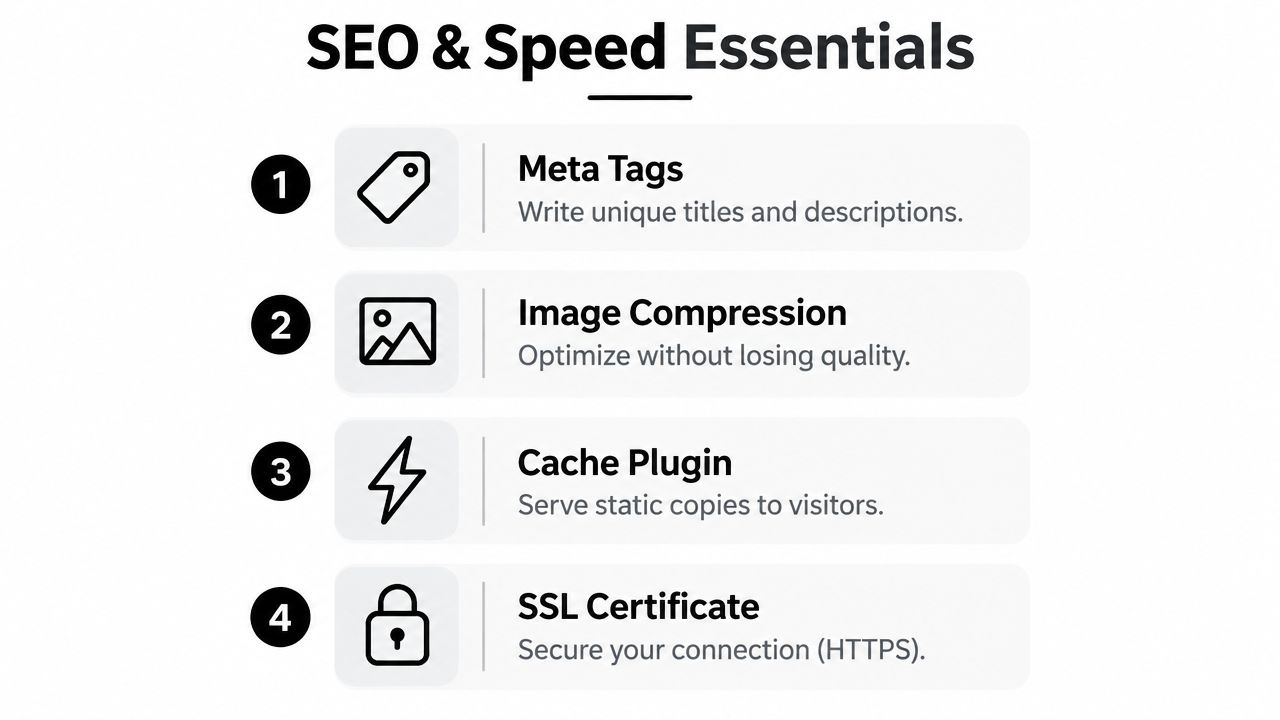
Set a readable permalink structure before your archive grows. Use a concise topic-based slug, write a unique title, and create a meta description that explains the page instead of repeating keywords. Question-form headings can work when they match the reader's intent. Answer each question directly, then add the supporting detail.

AI search makes clear structure more useful. Some SEO practitioners recommend question-form headings, FAQ schema when the content qualifies, concise answers for answer engines, and checks of robots.txt for crawler access. Some publishers are also considering llms.txt, but treat it as an optional emerging practice, not a replacement for accessible pages, clear HTML, strong writing, and accurate structured data (answer-engine guidance for WordPress).

A list of four essential tips for improving SEO and website speed, including meta tags and compression.

Treat speed as a deployment requirement

Core Web Vitals guidance classifies LCP under 2.5 seconds, INP under 200 milliseconds, and CLS under 0.1 as healthy thresholds (WordPress performance benchmark guidance). The same benchmarking report found that only about 44% to 46% of WordPress sites pass all three metrics on mobile, while about 65% of pageviews pass the TTFB measure. Hosting, caching, and backend response time deserve attention early.

The practical interpretation is simple: test your site with real mobile conditions, not only a fast desktop connection. Reduce oversized images, avoid autoplay media, limit third-party scripts, choose caching that matches your host, and remove plugins that duplicate each other.

Use this launch checklist:

  • Check the largest element: Compress the hero image and confirm it is not loaded at an unnecessarily large size.
  • Check interaction: Remove decorative scripts that delay menus, forms, or navigation.
  • Check layout stability: Reserve image dimensions so content does not jump while assets load.
  • Check server response: Ask your host about caching, database load, and backend bottlenecks if the initial response is slow.
  • Check crawlers: Review robots.txt, XML sitemap behavior, canonical URLs, and no-index settings before promotion.

Performance work should protect the reading experience, not turn into a score-chasing exercise. A clear page that loads reliably and answers a defined question has a stronger foundation than a visually ambitious page that keeps readers waiting. The best launch setup removes technical friction without burying the content under unnecessary tools.

Launching with Confidence and Next Steps

A successful launch isn't the moment you click Publish. It's the point at which a stranger can find the site, understand its purpose, read the post on a phone, contact you, and return later without encountering broken links, insecure forms, or missing images.

Run the site as a visitor first. Log out of WordPress, open the homepage, click the logo, test the navigation, search for a phrase that should exist, submit a contact or newsletter form if one is installed, and confirm the success message. Then check the same flow on a phone and in a private browser window.

Use a compact pre-launch review

  • Ownership: Confirm domain access, registrar email, hosting access, and administrator recovery options.
  • Content: Publish an About page, a contact route, privacy information, and a useful first post.
  • Navigation: Make the blog, categories, search, and key pages reachable without guesswork.
  • Security: Remove unused plugins and themes, update the active stack, use strong authentication, and verify backups.
  • Search: Check indexing settings, titles, descriptions, canonical behavior, sitemap access, and internal links.
  • Performance: Test mobile rendering, image sizes, interaction, layout movement, and server response.
  • Distribution: Confirm RSS output and prepare a simple way for readers to subscribe or follow updates.

Don't assume that a technical score creates an audience. Search engines need accessible, useful content, but readers need a clear reason to trust the site and return. Publish on a schedule you can sustain, review analytics for questions rather than vanity totals, answer legitimate comments, and update posts when facts, links, or screenshots change.

Keep a small change log. Record the theme, plugins, settings, redirects, tracking tools, and backup location. When a future update causes trouble, that record turns a vague debugging session into a short comparison between what changed and what broke.

As your site grows, an opt-in form can turn one-time visitors into an audience you can reach directly. Plan that connection carefully with an opt-in form resource, and keep the form's promise specific, honest, and easy to understand.

The common assumption is that launching a WordPress blog is mainly an installation task. In practice, installation is the easy part. Ownership, restrained tooling, useful content structure, security discipline, and performance checks determine whether the site remains manageable after the first post.


Read More Info offers a straightforward WordPress publishing environment with informational posts, site search, and RSS feeds for readers who prefer feed readers and aggregators. Visit Read More Info to explore the site and see how a simple publishing structure can support ongoing content discovery.