You've chosen a WordPress theme, added your logo, and opened the color settings. Now you're staring at swatches that look good together but don't tell you which color belongs on the page background, the links, or the buttons. Choosing another attractive combination won't resolve that decision.
Choose a palette generator that fits the work. A useful free color palette generator should help you start from scratch, extract colors from an image, explore color harmonies, test an interface, or prepare values for implementation. Those are different jobs, and the right tool depends on which decision you need to make next.
For rapid exploration, start with Coolors. For image matching, choose Canva or Adobe Color. For website implementation, prioritize Realtime Colors. If you're developing graphic design for your brand, establish a visual direction before refining individual shades.
- Starting without a direction: Use random generation, curated inspiration, or personalized suggestions.
- Working with existing assets: Extract colors from photography or build around a fixed brand color.
- Preparing to publish: Check contrast, assign functional roles, and export usable values.
Treat these as free tools with different responsibilities, not interchangeable swatch machines. The recommendations below prioritize practical control and clear handoffs, so you can stop browsing once you have a palette that works in your actual project.
Table of Contents
- 1. Coolors
- 2. Adobe Color
- 3. Canva Color Palette Generator
- 4. Khroma
- 5. Color Hunt
- 6. Realtime Colors
- 7. Huemint
- 8. Colormind
- 9. ColorSpace
- 10. Paletton
- Top 10 Free Color Palette Generators Compared
- Build a Palette You Can Put to Work
1. Coolors
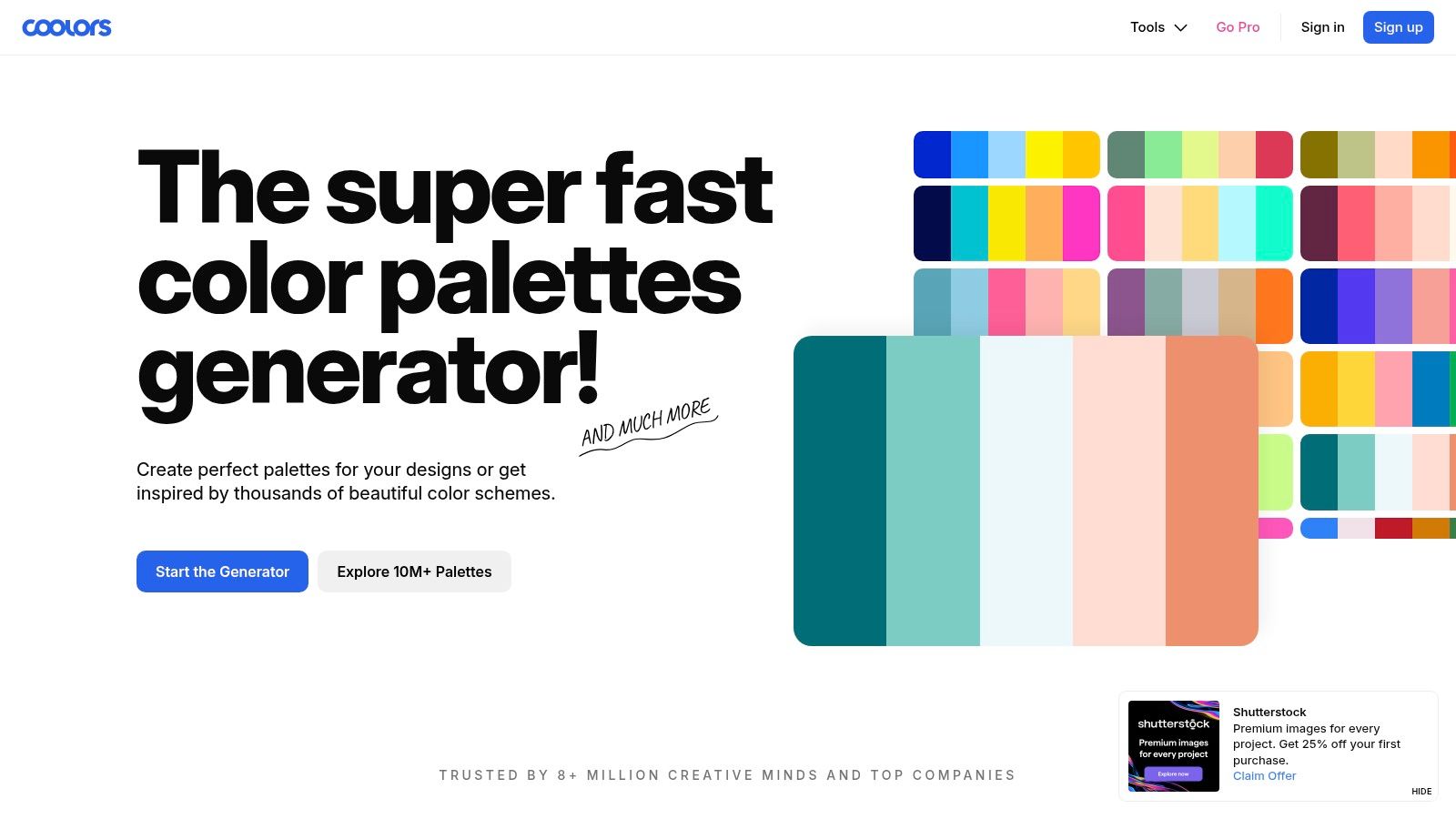
Choose Coolors for rapid palette discovery. Its generate, lock, and regenerate workflow lets you keep promising colors while replacing everything else. That makes it a strong starting point when you have a logo color but haven't decided on supporting shades.
Coolors combines core palette generation with a community gallery, image color picking, contrast tools, and export options. Core generation is free, while some advanced features and account capabilities require Pro.
Keep Your Starting Color Fixed
Lock the color you must preserve, then generate alternatives around it. Compare candidates by their potential roles, not just whether they look attractive in a horizontal strip.
- Best fit: Bloggers, solo creators, and small businesses exploring a visual direction.
- Main advantage: The lock-and-regenerate approach makes experimentation straightforward.
- Trade-off: Its supporting features can feel excessive when you only need a few HEX values, and some require payment.
My recommendation is to use Coolors to create a shortlist, then move into a website preview rather than endlessly regenerating. For a publication drawing inspiration from the Read More Info blog, judge candidates against article text, navigation, and buttons.
Save the roles alongside the colors. A note identifying a shade as a link candidate is more useful than a screenshot you'll later have to interpret.
2. Adobe Color
A fixed brand color deserves more deliberate treatment than repeated random generation. Choose Adobe Color when you want to explore color-wheel relationships and understand how supporting colors relate to your starting hue.
Adobe Color supports complementary, analogous, and triadic schemes, alongside image extraction, palette exploration, and accessibility-related tools. Its color tools are free, although saving palettes to Creative Cloud libraries may require signing in.
A color harmony is a starting relationship, not evidence that a palette is ready for body text or buttons.
Use Harmony Without Surrendering Judgment
Begin with your established color and compare different harmony models. Then adjust the resulting shades according to their intended jobs, especially where text must sit on a colored surface.
Adobe Color also offers previews and simulation for some color-vision deficiencies. Use those features to examine combinations, but don't treat a simulation as a substitute for checking the finished interface.
Its strongest advantage is control. You can explore why a combination works instead of accepting whatever a random generator produces, and image extraction gives you another route into the same project.
The trade-off is interface familiarity. Library features are less compelling if you don't use Adobe products, and sign-in adds friction to saving. Choose it for intentional harmony-based design, not just because you need somewhere to copy a HEX code.
3. Canva Color Palette Generator

Start with Canva when the photograph already defines the direction. A product image, portfolio photograph, or editorial hero image can provide a more concrete starting point than an empty color wheel.
The Canva Color Palette Generator extracts colors from an uploaded image and displays the resulting swatches and HEX codes. The generator is free, and you can continue into Canva's broader design tools and templates, where account or paid-plan requirements may differ.
- Best fit: Matching a website or campaign to existing photography.
- Main advantage: A straightforward upload-to-palette workflow with little setup.
- Main limitation: It's an image-extraction tool, not a full workspace for developing schemes around a chosen base color.
Extract the Mood, Then Assign the Roles
Don't automatically use the most prominent extracted color for headings or buttons. Instead, decide which shades should support the photograph and which need adjustment for readable text.
For WordPress, compare the extracted palette against your intended page structure. The spacing, image placement, and content hierarchy in your WordPress blog layout should guide where you apply accent colors.
My recommendation is to use Canva for visual continuity between imagery and supporting graphics. Choose Adobe Color instead when you need stronger harmony controls, or move to Realtime Colors when your next question is how the extracted colors will function on a website.
4. Khroma
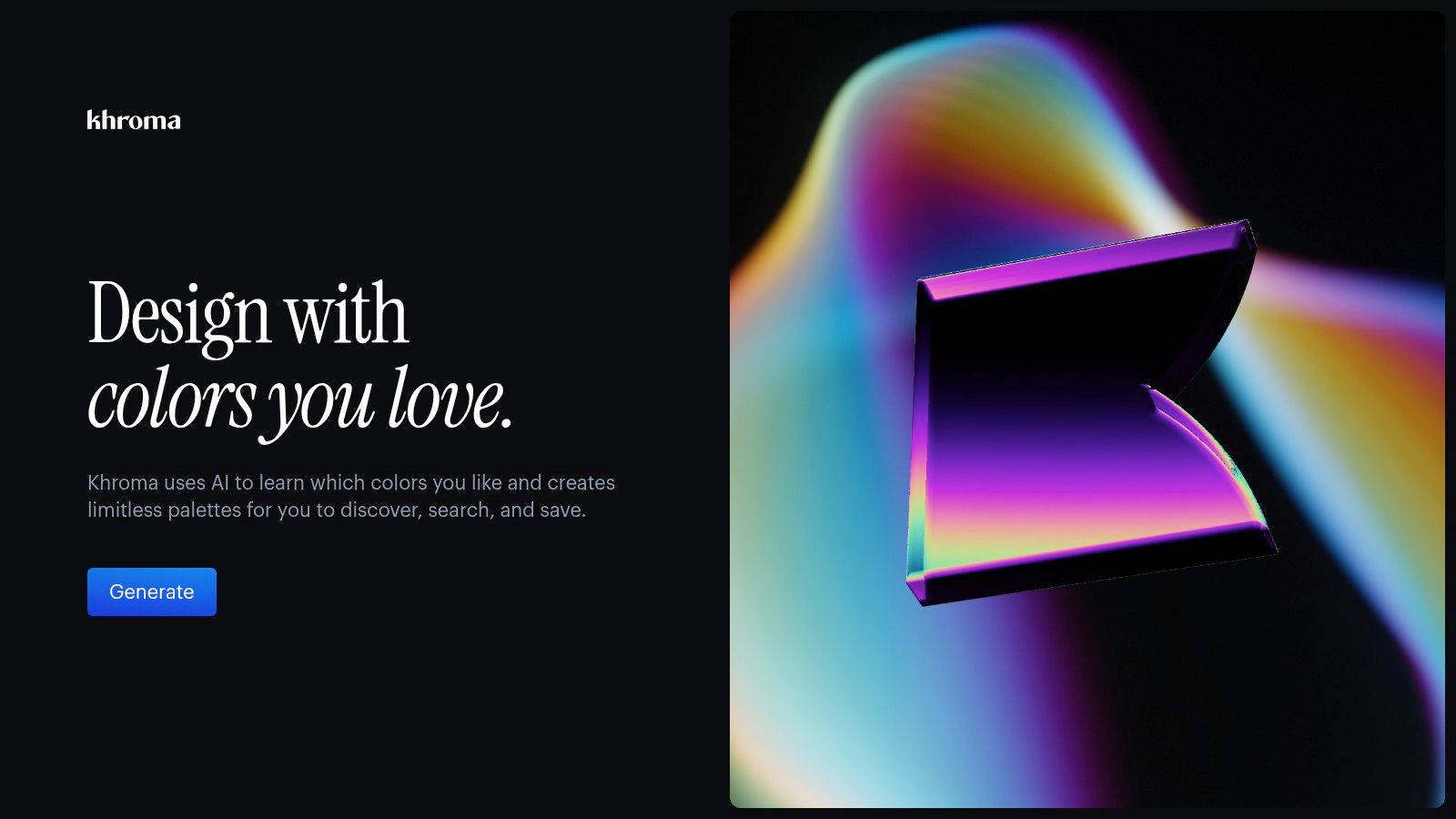
Random palettes aren't much help when you keep rejecting the same kinds of colors. Choose Khroma for personalized discovery if you have recognizable preferences but struggle to turn them into combinations.
Khroma uses an initial color-selection training step to learn your preferences. You can then search suggestions by color names, hues, types, HEX or RGB values, and descriptive terms, and save or download generator data for reuse.
Personalization Needs a Clear Boundary
The free browser-based project describes itself as being in beta, so availability and planned features may change. Its initial training also takes more effort than opening a conventional random generator.
- Use it for: Exploring a personal visual style or finding combinations within a preferred direction.
- Use its filters for: Narrowing suggestions instead of repeatedly accepting unrelated results.
- Watch for: Overcommitting to colors you personally enjoy without testing whether they suit the project.
Khroma includes a setting intended to avoid combinations that fail WCAG contrast checks. Still validate the actual text and background assignments, because your implementation determines which colors appear together.
My recommendation is to choose Khroma over general-purpose free ai tools online when the task is specifically learning your color preferences. Use its suggestions as candidates, then document the final values and roles separately so your production palette doesn't depend on the discovery interface.
5. Color Hunt

Choose Color Hunt when you need inspiration before you need controls. Browsing finished combinations can help you articulate a direction when terms such as muted, earthy, or vivid feel too abstract.
Color Hunt is a curated palette library rather than a generator built around an input color. You can browse new, popular, or random palettes, filter by color and theme, view HEX codes, and organize collections; browsing and use are free, with an optional $5 support contribution.
Browse With a Specific Question
Decide what you're evaluating before you open the gallery. You might compare restrained backgrounds, bold accents, or combinations that complement your photography.
The benefit is reduced setup. Hand-reviewed selections provide ready-made starting points, and categories help you narrow your search without adjusting a color wheel.
The limitation is reduced control. If a logo color is settled, a library is less direct than a generator that lets you preserve that exact value.
Save a palette because you can explain where its colors belong, not just because you like the thumbnail.
My recommendation is to use Color Hunt for mood boards and early conversations, then rebuild the chosen direction in a tool with contextual previews. Don't infer accessible text contrast from the appearance of adjacent swatches. A pleasing collection still needs functional text, surface, link, and status assignments before implementation.
6. Realtime Colors
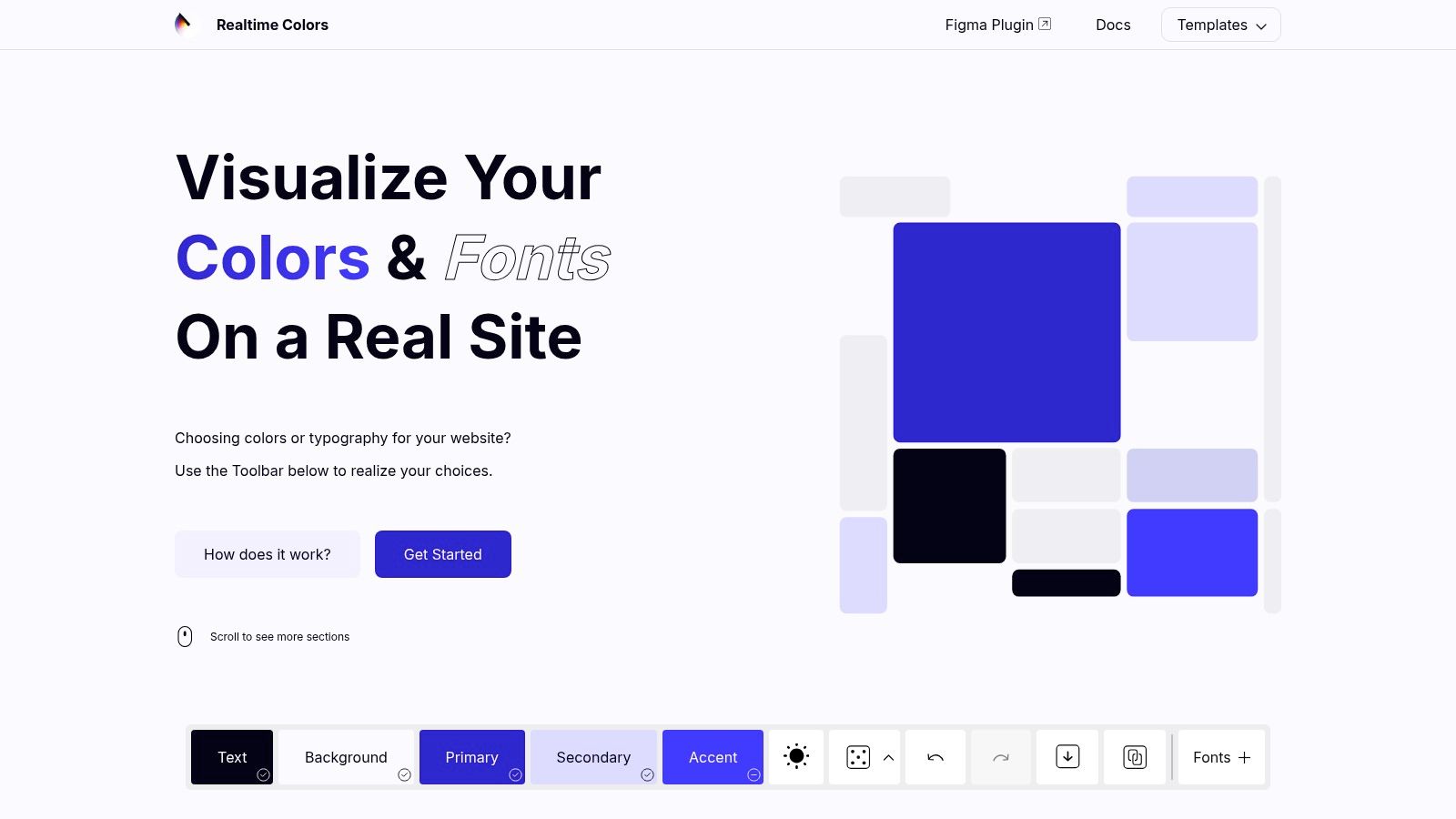
Realtime Colors is my first recommendation for website implementation. Instead of asking you to judge isolated swatches, it applies colors to a website-style layout containing text and interface elements.
Realtime Colors lets you set text, background, primary, secondary, and accent colors, check contrast, and export formats including CSS, Tailwind CSS, SCSS, and CSV. The site states that the tool is entirely free.
Test Function Before Exporting
Use the preview to compare readable paragraphs, visible buttons, and restrained accents. Then test your selected colors in your own theme, since the sample layout won't reproduce every content pattern or component.
- Strongest advantage: You can assess color roles in context rather than infer them from swatches.
- Best handoff: Developer-friendly exports that preserve usable color values.
- Trade-off: The web-interface focus is less suitable for print or illustration.
Apply MDN's WCAG contrast guidance: at least 4.5:1 for normal text, 3:1 for large text, and 3:1 for essential interface components or graphical objects under the applicable AA criteria.
If you're learning how to create a WordPress blog, transfer the tested values into the relevant theme settings. Exporting CSS isn't necessary if you're working without code, but keeping a role-based record is. A successful preview is a useful checkpoint, not final approval of your actual site.
7. Huemint
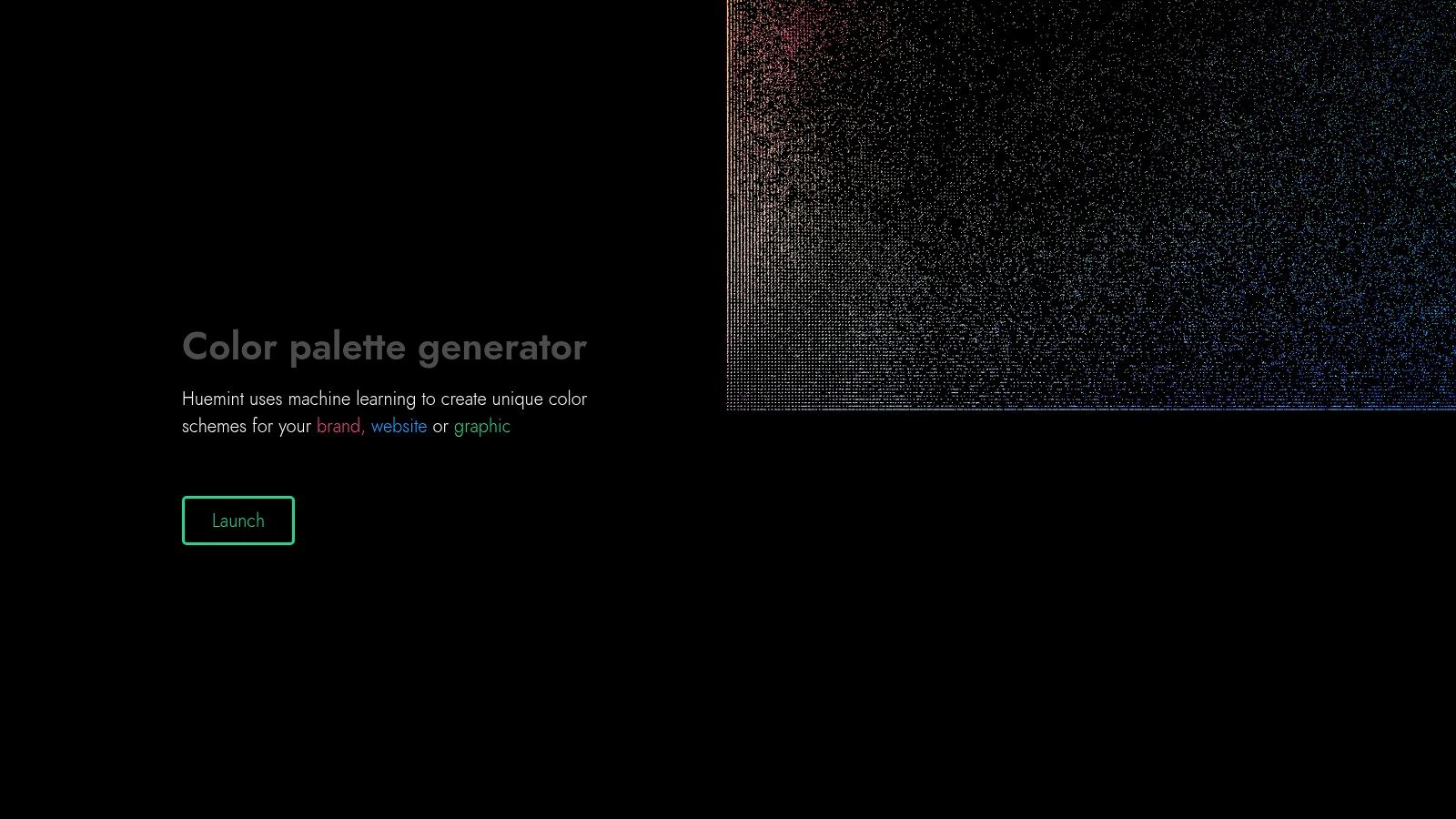
Sometimes you need a direction you wouldn't have chosen manually. Use Huemint for machine-learning-assisted exploration, especially when traditional color-wheel relationships aren't helping you get started.
Huemint suggests schemes for branding, websites, and graphics. That makes it relevant when you're considering a shared visual direction across a site and supporting creative assets, rather than choosing colors for an isolated page.
Treat Generation as a Starting Point
Give each promising result a concrete test: a heading, a paragraph, a button, and a graphic. Decide which colors to retain only after you've seen those applications.
- Choose it for: Early visual identity exploration and alternative starting points.
- Its advantage: A different approach from manually selecting traditional harmonies.
- Its limitation: Generated suggestions still require editing and readability checks.
Available feature and export documentation isn't clear enough to make Huemint my first choice for production handoff. Use it to discover a direction, then record the final colors in a more explicit implementation workflow.
For example, keep a proposed accent while adjusting the text and background independently. You don't need to preserve every generated shade to preserve the overall direction.
My recommendation is to choose Huemint when you're creatively stuck, not when the remaining task is documenting approved styles. Move to contextual testing as soon as you have a viable candidate instead of generating indefinitely.
8. Colormind
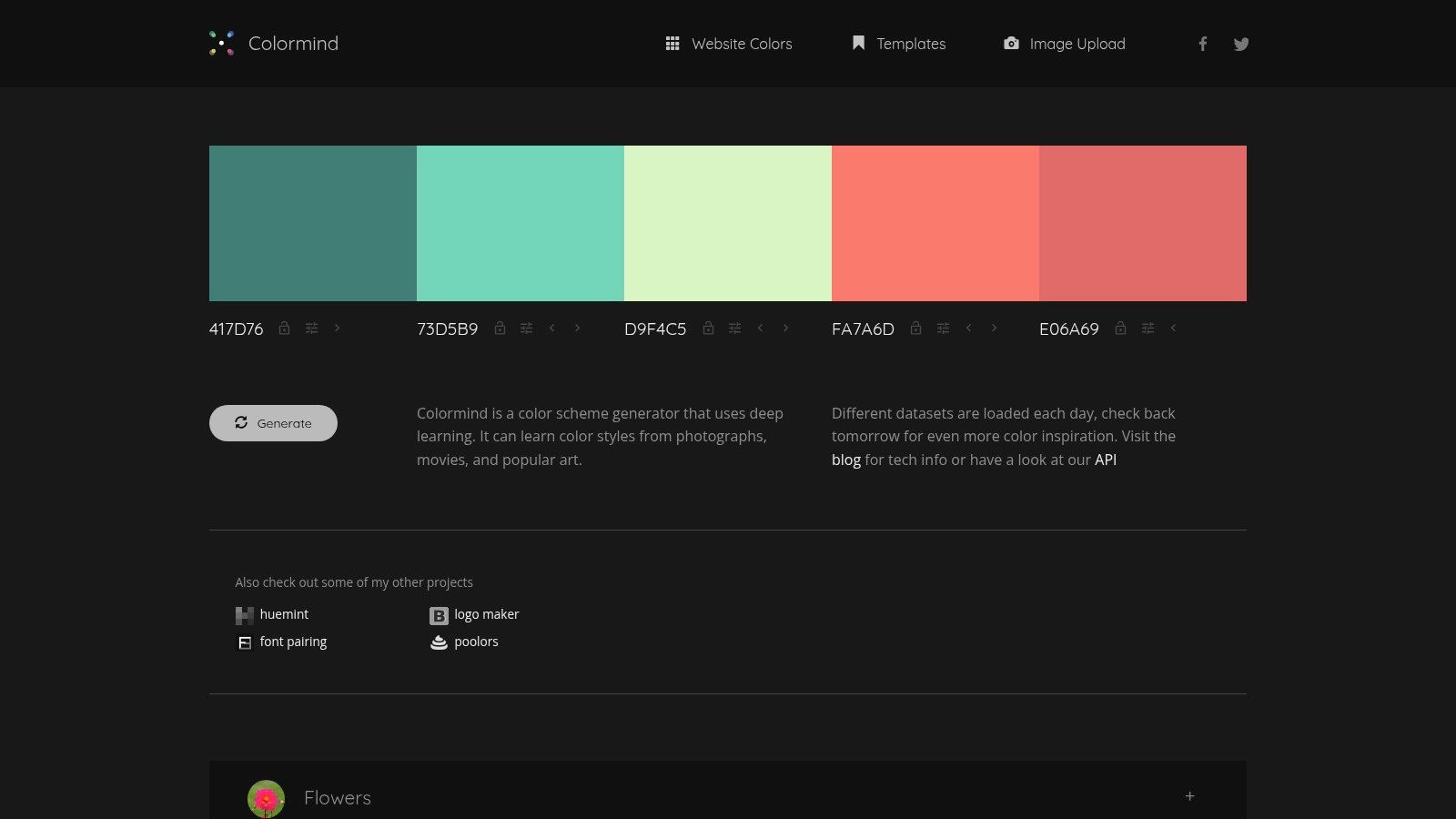
Already have brand colors you can't change? Choose Colormind for AI-generated variations around fixed colors. Its lock-and-regenerate workflow gives you a practical way to preserve existing choices while exploring their surroundings.
Colormind uses a deep-learning model to generate palettes and can also work from uploaded images. Its image-based approach aims to find colors that work together rather than just return the most common colors in the image.
Separate Website Use From API Use
The website generator is free. The API is free for personal and non-commercial use, while commercial API use requires contacting the provider.
That distinction matters for developers. Using a browser tool to explore a palette is different from integrating palette generation into a commercial product.
- Best fit: Extending an existing identity without replacing its defining colors.
- Useful control: Lock approved colors and regenerate the supporting choices.
- Trade-off: Results can be unpredictable, so expect to reject and refine suggestions.
Unlike Khroma's preference-led approach, Colormind is a direct choice when the fixed starting colors matter more than learning your taste. Unlike Canva's simple extraction workflow, it also supports continued generation around colors you retain.
My recommendation is to use Colormind for controlled variation, then stop once the supporting colors cover your actual needs. Additional generated alternatives won't resolve missing decisions about text, links, surfaces, or interaction states.
9. ColorSpace
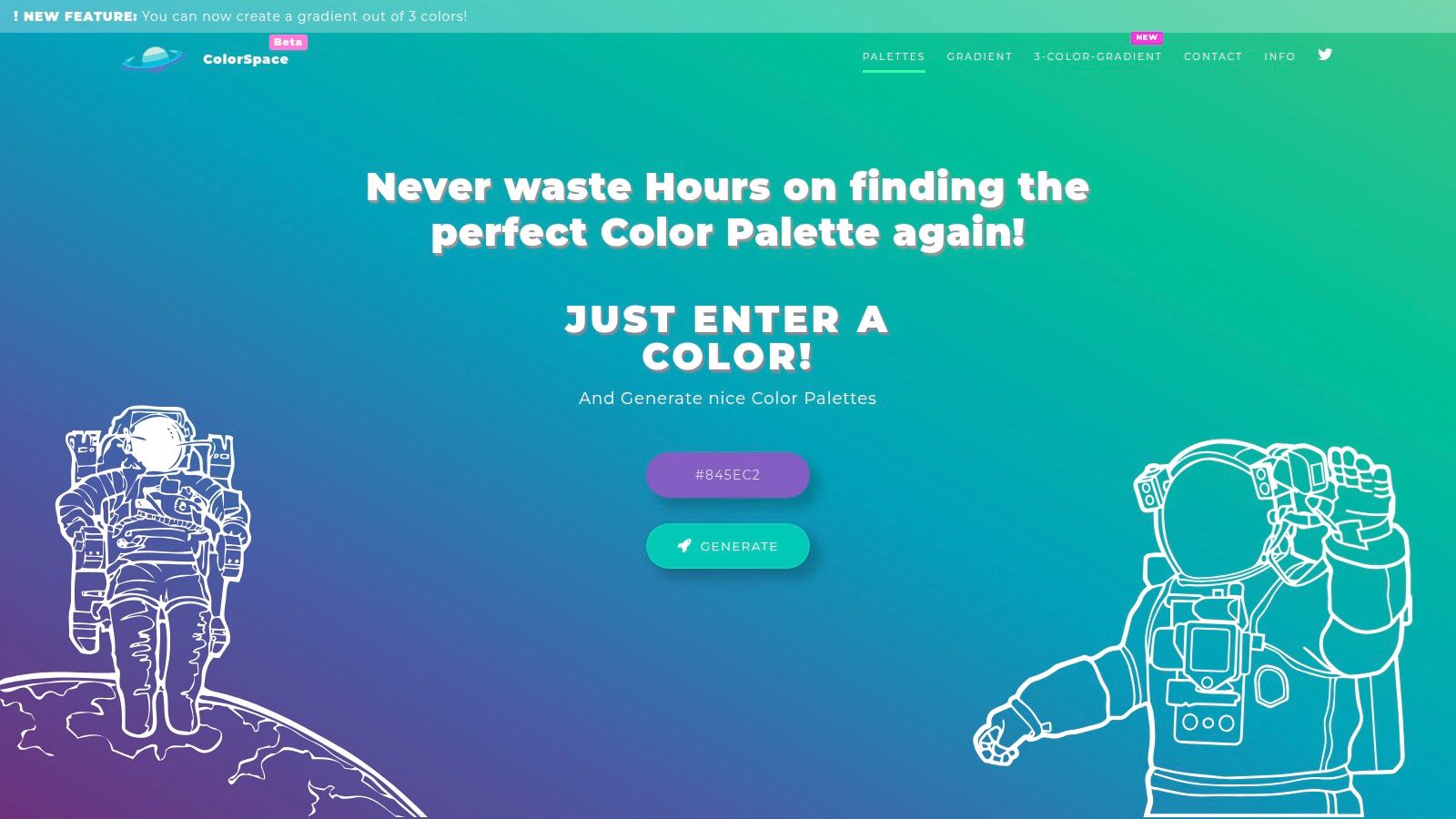
Choose ColorSpace when you know the starting color and want supporting options quickly. It's a direct route from an established brand hue to palette and background ideas.
ColorSpace generates palettes from a single input color and includes gradient tools, including a three-color gradient feature. Its browser-based generator page lists no pricing.
Keep Decorative Backgrounds Separate From Text Decisions
Use the palette results to explore supporting shades, and treat gradients as a separate design choice. If you intend to place text over a gradient, evaluate readability against the background areas beneath that text.
The advantage is simplicity. You don't need a preference-training step or a detailed understanding of harmony controls before exploring alternatives.
The trade-off is limited context. ColorSpace offers less detailed control over accessibility and website application than a design workspace.
- Good use: Finding supporting colors for an existing logo or exploring decorative backgrounds.
- Poor use: Approving an entire interface without additional testing.
- Next step: Transfer promising colors into a contextual preview and assign their roles.
My recommendation is to choose ColorSpace over a larger workspace for a narrow exploration task. Once you've found a suitable direction, stop generating and test it. Don't let an appealing gradient determine your paragraph color, link styling, or button contrast without a separate review.
10. Paletton
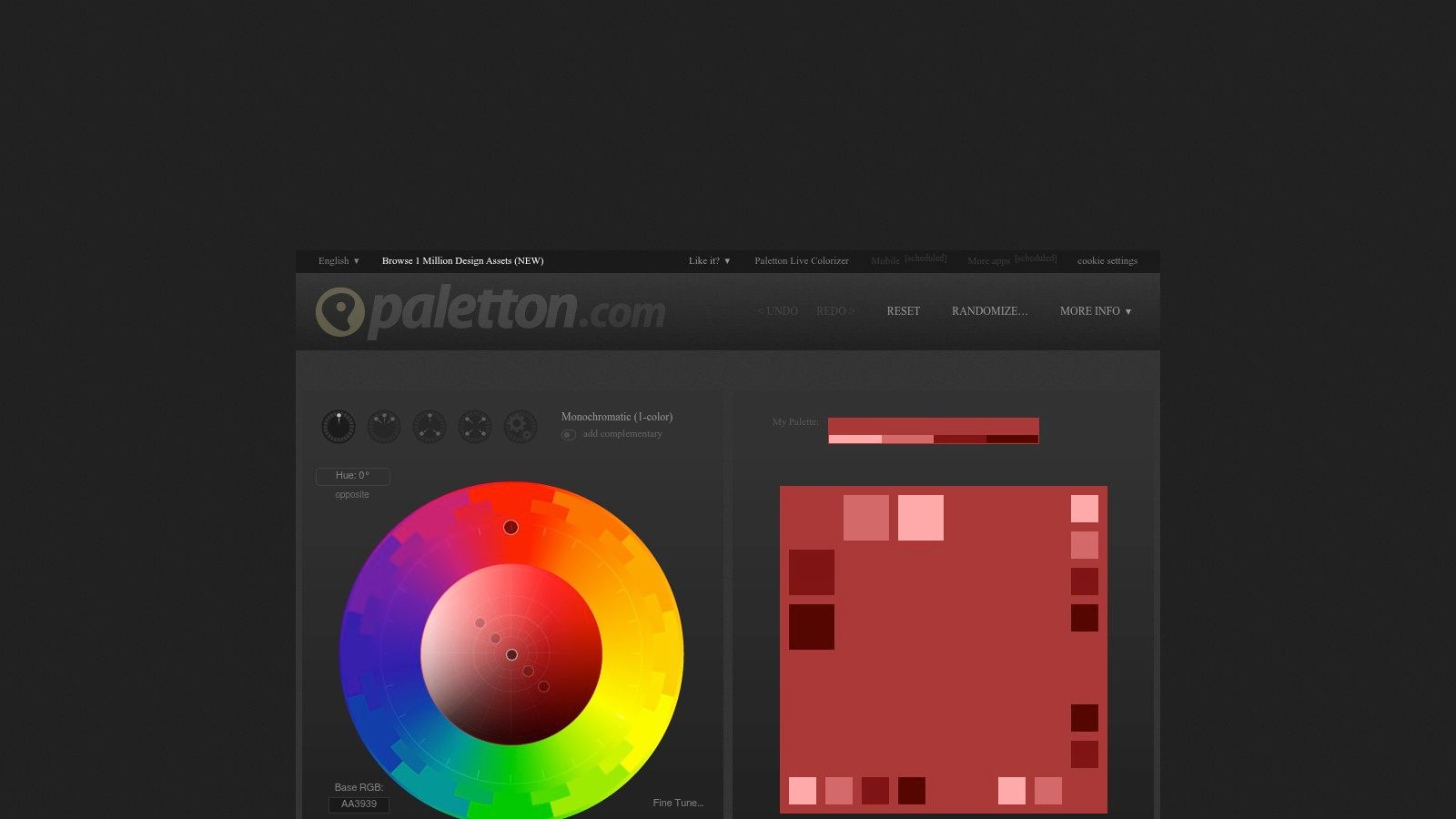
Choose Paletton for hands-on harmony design. It suits creators who want to manipulate relationships and understand their choices rather than repeatedly request another random result.
Paletton is a free color-scheme designer built around a color wheel. It supports monochromatic, complementary, analogous, triadic, and tetradic schemes, with controls for tuning colors, previewing results, simulating some types of color vision, and exporting color values.
Trade Speed for Deliberate Control
Start with the harmony model that matches your intended direction, then tune hues and shades. Compare the preview with the kind of content you'll publish, not just the appearance of the wheel.
- Main advantage: More manual control than a basic random generator.
- Learning value: Direct experimentation with related color harmonies.
- Main drawback: The interface can feel dated or less intuitive, and useful results require more experimentation.
Paletton is my recommendation when you want control and learning in the same session. Choose Coolors instead for faster discovery or Adobe Color if its interface and library workflow better match your existing tools.
Don't mistake manual effort for guaranteed accessibility. A carefully constructed harmony still needs contrast checks and non-color cues for status information. Preserve your chosen relationships where they help the design, but adjust individual shades when readability requires it. The finished interface matters more than strict adherence to the original scheme.
Top 10 Free Color Palette Generators Compared
| Tool | Core Features | Best For | UX & Unique Selling Point | Price & Value |
|---|---|---|---|---|
| Coolors | Generate, lock, and export palettes; image picking and contrast tools | 👥 Fast palette exploration | ★ Quick to learn; ✨ lock-and-regenerate workflow | 💰 Free core tools; Pro features paid |
| Adobe Color | Color-wheel schemes, image extraction, accessibility previews | 👥 Adobe users and color-harmony learners | ★ Strong harmony controls; ✨ Creative Cloud library integration | 💰 Color tools free; sign-in may be needed to save |
| Canva Color Palette Generator | Extract colors and HEX codes from images | 👥 Beginners matching designs to photos | ★ Simple image-to-palette flow; ✨ connects to Canva design tools | 💰 Generator free; other Canva features may vary |
| Khroma | Personalized color combinations, search filters, contrast setting | 👥 Designers seeking tailored inspiration | ★ Learns color preferences; ✨ “Never fail WCAG” option | 💰 Free; currently in beta |
| Color Hunt | Browse, filter, and collect curated palettes | 👥 Anyone seeking ready-made inspiration | ★ Easy browsing; ✨ hand-reviewed palette selection | 💰 Free; optional $5 contribution |
| Realtime Colors | Website preview, contrast checks, developer-friendly exports | 👥 Web designers and WordPress site owners | ★ Tests colors in context; ✨ CSS, Tailwind, SCSS, and CSV exports | 💰 100% free |
| Huemint | Machine-learning palette generation for brands, websites, and graphics | 👥 Users needing fresh visual-identity ideas | ★ Quick AI-generated starting points; ✨ alternative to color-wheel methods | 💰 Pricing details not specified |
| Colormind | Deep-learning palettes, image extraction, lock-and-regenerate | 👥 Users refining existing brand colors | ★ Flexible experimentation; ✨ generates around locked colors | 💰 Website generator free; commercial API terms apply |
| ColorSpace | Palettes from one color; gradient tools | 👥 Users with an existing brand color | ★ Simple workflow; ✨ includes three-color gradients | 💰 No price listed |
| Paletton | Color-wheel harmonies, tuning, previews, and exports | 👥 Users wanting hands-on color control | ★ Detailed harmony controls; ✨ useful for learning color relationships | 💰 Free |
Build a Palette You Can Put to Work
The best free color palette generator supports your next decision. Use Coolors for discovery, Canva for image matching, Adobe Color or Paletton for harmony, and Realtime Colors for website testing and export. Choose Khroma, Huemint, or Colormind when their distinct generation approaches solve a specific creative problem.
Generate a shortlist, then test real content. Following Harvard's color accessibility guidance, retain enough variety in hues and values to create accessible combinations without abandoning creative flexibility.
Turn Swatches Into Documented Roles
Record primary, secondary, background, surface, text, muted text, border, link, success, warning, and error colors. The Quillly palette generator illustrates the implementation-oriented export options available beyond visual swatches, but choose the format your workflow needs.
- Without code: Copy HEX values into the relevant WordPress theme settings and document their roles.
- With a developer: Supply named tokens, approved pairings, and the appropriate export format.
- Across interfaces: Review default, hover, active, visited, focus, disabled, success, warning, and error states.
Contrast alone doesn't establish that success and error colors are distinguishable. Add labels, icons, patterns, or explanatory text, and review color-vision simulations. Keep light and dark variants separate rather than assuming the same assignments work in both.
Practical rule: Approve color pairings in context, not colors in isolation.
Treat the palette as a living specification. When you add a component or introduce a dark mode, update the documented roles first, then regenerate swatches to match. One outdated token is how mismatched grays and off-brand blues slip into production.
Once the palette is documented, apply the same role-based discipline to the rest of your design toolkit: pick each tool for a specific task, and keep the exported values in one place so future edits stay consistent. When the palette feeds into social graphics, pair it with image editing platform picks from 3228 Digital so the exported colors survive the full production chain.
For a lean publication such as Read More Info, keep the implementation reader-focused. Search, semantic structure, responsive reading, and machine-readable feeds should support the content. Finish with a usable system, not a folder of attractive screenshots.
Read More Info offers informational articles and practical guidance for readers building and managing a straightforward WordPress site. Visit Read More Info for related reading, use its search to find relevant posts, and follow its RSS feed to keep up with new updates as you refine your site's design.