You scheduled the article, closed the editor, and expected it to appear while you were doing something else. Now the publication time has passed, the homepage hasn't changed, and WordPress says Missed schedule. Or the editor says Published, but your readers still can't find it.
A WordPress scheduled post not publishing isn't always a cron problem. Start by separating a late trigger from a failed publishing event, a timezone mismatch, and a cached page. That distinction determines which fix is worth making.
Table of Contents
- Match Your Symptom to Its Cause
- How WP-Cron Decides When Your Post Goes Live
- How to Set Up a Server Cron Job Step by Step
- Fix Stuck Events and Missed-Schedule Loops
- Timezone and Daylight Saving Traps to Check
- Caching and Plugin Conflicts That Hide Published Posts
- Confirm the Publish Time and Keep Schedules Reliable
Match Your Symptom to Its Cause
Use this symptom table to choose your first check before changing settings.
Scheduled post symptoms, likely causes and first checks
| Symptom | Most likely cause | First check |
|---|---|---|
| Missed schedule that clears only after a visitor loads the site | WP-Cron ran late, with no requests near the scheduled time | Compare the scheduled time with the first page load after it in your access logs |
| Missed schedule that persists after a manual cron run | Stuck or failed publish event, or a post-state problem | Run wp cron event list and confirm the publish event is still queued |
| Post is live but readers see the old version | Page, host or CDN cache serving stale HTML | Open the post in a private window, then purge all cache layers |
| Post publishes two hours off, or one hour off after a clock change | Fixed UTC offset or timezone mismatch | Compare Settings > General time with the post's scheduled timestamp |
| Post stays in Scheduled after a plugin or theme update | Plugin conflict or a hook that alters publishing | On staging, switch to a default theme and check whether the post publishes |
| Cron output shows HTTP errors or timeouts | Loopback request blocked by firewall, SSL or host rules | Run Site Health and check the loopback test result |
| Post is published but missing from the feed | Cached feed URL, or publication after the last feed refresh | Load /feed/ in a private window after purging cache |
Treat the middle column as a working diagnosis, not a verdict. A matching symptom tells you where to inspect first, but you still need evidence before changing the server configuration.
Record the failure before fixing it
Write down the scheduled timestamp, including the timezone, and when the post really became publicly available. If it never appeared, record when you checked and what status WordPress displayed.
Also note the last relevant change: a plugin update, theme switch, hosting move, security rule, or cache adjustment. Keep the post ID with those notes so you don't accidentally compare a draft with a different published article.
Practical rule: Change one thing, run a controlled publishing test, and record the result before changing something else.
WordPress's explanation of its request-triggered scheduling mechanism helps explain why an overdue post doesn't necessarily indicate defective content. Missed schedule is a timing signal, not proof that the article needs rewriting.
If an announcement must be live immediately, publish it manually after recording the evidence. Then troubleshoot with a disposable test post rather than repeatedly changing the date on important content.
How WP-Cron Decides When Your Post Goes Live
WordPress doesn't have an always-running scheduler checking your post every moment. Its native WP-Cron mechanism checks for due work when a page request reaches WordPress.
The process is easier to understand as a sequence.
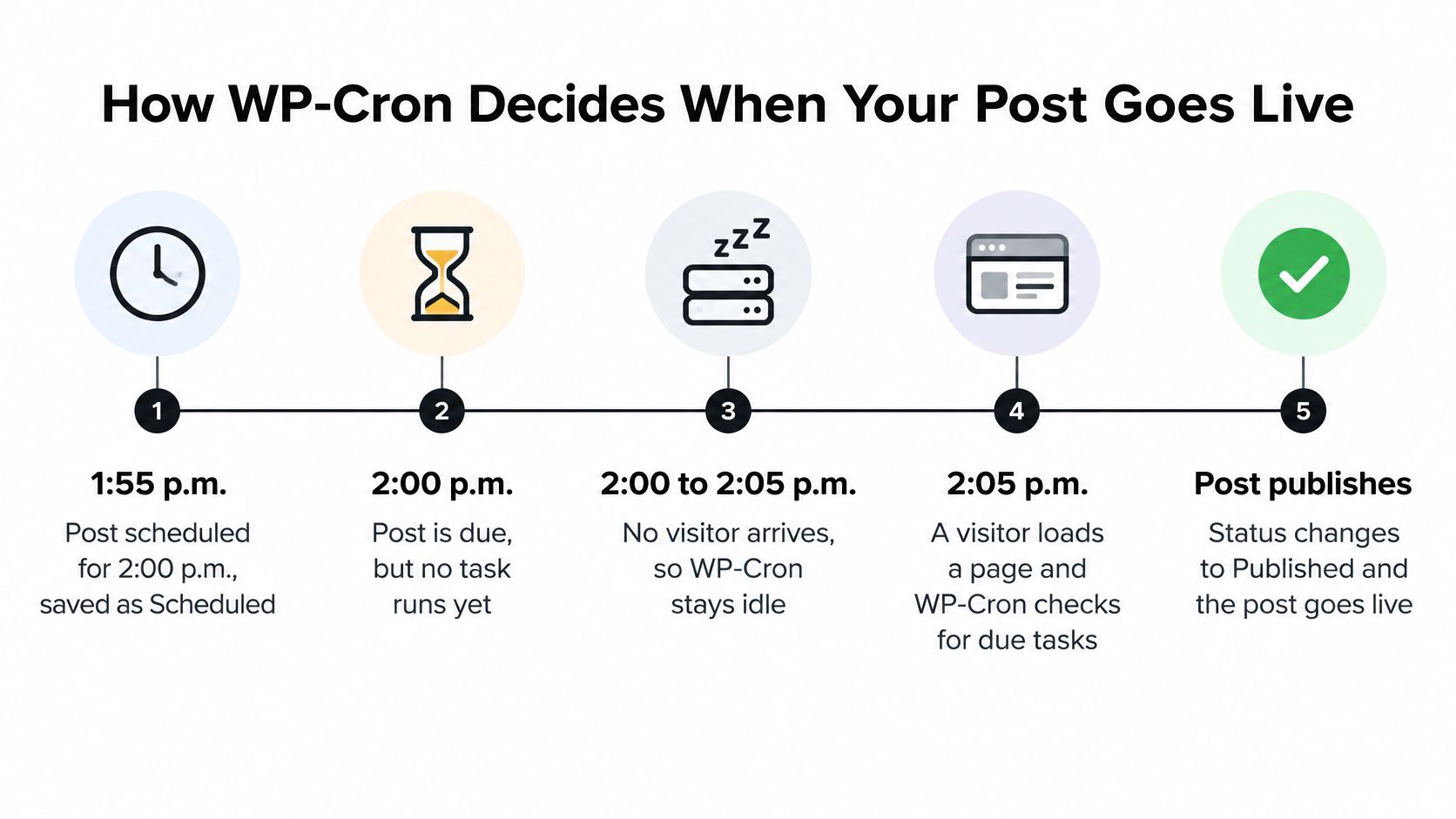
Consider the example in the WordPress Cron documentation: a post scheduled for 2:00 p.m. may not be processed until 5:00 p.m. if no page loads occur between those times. That's 180 minutes of lateness in that example, not a universal maximum.
Follow the publishing event
- The editor saves a future publication time. WordPress stores the post as scheduled and queues its publishing event.
- The scheduled instant arrives. Without a request that triggers WP-Cron, the event remains waiting.
- A visitor reaches WordPress afterward. WP-Cron checks the queue and identifies overdue work.
- The publishing task executes. The
publish_future_postevent attempts to publish the associated post. - The post becomes public. Its status changes to Published, making it eligible to appear in the site's public listings and feed.
This is why quiet sites and overnight publishing windows are vulnerable to late triggers. The selected timestamp tells WordPress when the task becomes due; it doesn't independently wake the server.
A system scheduler works differently. It initiates a command on its own clock rather than waiting for visitors, but it doesn't automatically replay a missed invocation. WP-Cron retains due events for a later opportunity.
Separate lateness from failure
Lateness is the gap between the intended publication time and the successful cron trigger. Failure means the event doesn't complete, potentially because execution is disabled, a request is blocked, resources are exhausted, or code interrupts publishing.
The interval between successful triggers governs trigger-related lateness. It doesn't guarantee that the publishing operation itself will succeed once invoked.
For a visual walkthrough, the accompanying video provides another way to follow the scheduling workflow.

If your evidence points to a late trigger, editing the article or switching themes won't address that mechanism. You need a dependable way to invoke scheduled work.
How to Set Up a Server Cron Job Step by Step
A server cron job is useful when publication shouldn't depend on visitors. It replaces the trigger, not WordPress's publishing logic, so it won't repair every stuck post.
Before editing configuration, save a backup and confirm the correct WordPress directory and hosting account. If you're still establishing the site, the WordPress blog setup guide provides the broader setup context.
Configure the replacement safely
Prepare the configuration change. Open
wp-config.phpand locate the line telling you to stop editing. The setting to add above it isdefine('DISABLE_WP_CRON', true);, but don't activate it until the replacement job works.Create the server job. In cPanel's cron interface or your account's crontab, use an every-minute schedule with the command
cd /path/to/wordpress && wp cron event run --due-now. Replace the directory with the actual installation path, and use the full WP-CLI executable path if your host requires it. In crontab format, the schedule fields are* * * * *.Run the command manually. Execute it as the same account that will run the scheduled job. Check for PHP errors, permission failures, and an incorrect working directory. A successful shell session under a different user doesn't prove the hosting scheduler has the same access.
Inspect the pending event. Run
wp cron event listwhile your test post is still scheduled. Look forpublish_future_post, check its arguments against the post ID, and compare its next run with the intended publication time.Confirm unattended execution, then disable visitor-triggered cron. Verify that the host actually invokes the job, activate the prepared
DISABLE_WP_CRONsetting, and observe a scheduled post without loading the public site. Use the scheduler's logs and the editor to check the result.
If WP-CLI isn't available, configure the host scheduler to request wp-cron.php using curl on a five-minute interval. With SITE_URL set to your site's real base address, the command can use curl --fail --silent --show-error "$SITE_URL/wp-cron.php". This introduces a wider trigger window and still depends on a successful HTTP request.
Check the result, not just the configuration
Diagnostic commands and healthy results
| Check | Command or location | Healthy result |
|---|---|---|
| List pending events | wp cron event list | The matching publish_future_post event appears with a next run near its scheduled time |
| Run due events now | wp cron event run --due-now | No PHP errors, and a due test post changes to Published |
| Test cron spawning | wp cron test | Cron spawning and loopback succeed when testing native WP-Cron |
| Confirm WP-Cron is disabled | wp-config.php, DISABLE_WP_CRON | Set to true only after the replacement job is confirmed |
| Confirm loopback works | Tools > Site Health | No unexplained loopback or REST errors |
| Confirm host job exists | Host cron panel or crontab -l | The every-minute job has the correct WordPress and executable paths |
wp cron test can warn when native WP-Cron is intentionally disabled. That warning alone doesn't invalidate a working direct WP-CLI job.
If shell access is blocked, send hosting support the exact command and ask them to configure and verify it. Never disable the existing trigger without a working replacement.
Fix Stuck Events and Missed-Schedule Loops
A real cron job isn't the end of the fix. A WordPress Trac report documents posts remaining in Missed schedule despite an every-minute system job running wp cron event run --due-now.
That report supports a narrower conclusion than “cron is broken”: successful invocation doesn't prove a specific post completed its publishing transition.
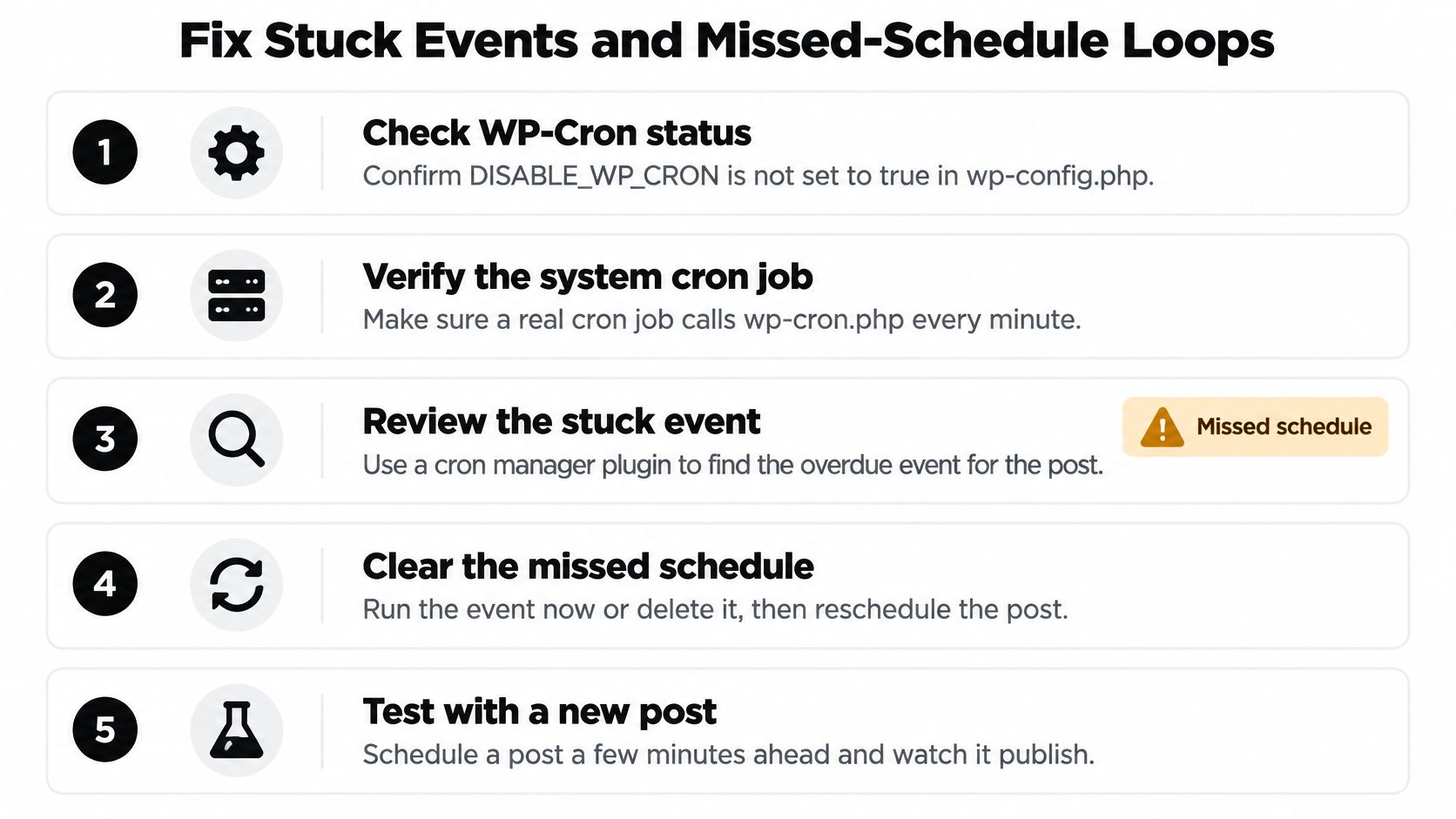
Use the checklist as a reminder, while keeping the distinction between native WP-Cron and a verified replacement job clear.
Inspect the event before changing the interval
Start with the queue. Run wp cron event list and locate the event associated with the affected post. If it's missing while the post remains scheduled, re-save the intended date and time, then inspect the queue again.
A missing event is evidence of a scheduling or state inconsistency, not proof of a particular plugin's guilt. Avoid deleting unrelated events while investigating.
Next, execute due work. Run wp cron event run --due-now, preserve the output, and check the post's status immediately afterward. If the command runs but the post remains overdue, inspect PHP and server logs covering that execution.
Look for a fatal error, timeout, or interrupted request rather than assuming a shorter interval will help. A command's overall success message isn't a substitute for checking the affected post.
Distinguish HTTP restrictions from post-state problems
Then check loopback behavior. Review Tools > Site Health and investigate firewall, SSL, authentication, or hosting restrictions when HTTP requests fail. An HTTP-based cron job can be invoked successfully by the scheduler yet fail to reach WordPress.
Direct WP-CLI execution is different: it doesn't require that same HTTP loopback path to invoke due events. Don't diagnose a CLI publishing failure solely from a loopback warning.
Finally, inspect the post itself. Confirm you're looking at the intended post ID, not a second draft or a similarly named article. Check for a confusing slug, unexpected status changes, or publishing customizations before re-saving or manually publishing.
Keep cron output, server logs, Site Health results, and the post's status together. None tells the whole story alone.
If the same post fails after two controlled manual runs, escalate with the exact command, timestamps, post ID, and relevant log lines. Repeatedly installing cron plugins or changing intervals can obscure the original fault without resolving it.
Timezone and Daylight Saving Traps to Check
Before treating a post as overdue, compare WordPress's displayed current time, its configured timezone, the audience's local time, and the post's scheduled timestamp. Write those values together so you're comparing actual instants rather than clock labels.
Open Settings > General and check both the timezone selector and the displayed time. The timezone troubleshooting explanation distinguishes named regional zones from fixed UTC offsets, which don't adjust for daylight saving.
Timezone setting types and how they behave
| Setting type | Example | Daylight saving behavior | Risk for scheduled posts |
|---|---|---|---|
| Named city zone | Europe/Berlin | Adjusts automatically at regional seasonal transitions | Lowest risk for single-region publishers |
| Fixed UTC offset | UTC+1 | Doesn't adjust; local expectations can shift by an hour in summer | Often a hidden cause after manual setup |
| UTC | UTC+0 | Never shifts | Useful for global embargoes, but readers must convert time |
| Server or PHP time | Host-defined | Can differ from WordPress time after custom code | Investigate when displayed time looks wrong |
Test the intended instant
A fixed offset can produce a post that appears late even though WordPress has correctly queued it for the configured instant. For example, an intended local morning publication can appear an hour later during summer when the site remains on a winter offset.
Don't assume the direction of the discrepancy. Compare the actual regional offset on the publication date, especially around a clock change.
Choose the convention that matches your editorial operation:
- Regional publication: Use a named city zone when editors and readers expect a consistent local publication hour.
- Global announcement: Consider UTC when an embargo or coordinated release must refer to the same instant worldwide.
- Distributed editorial team: Document whether schedule entries mean publisher-local time, audience-local time, or UTC.
Check custom time handling
Server or PHP time can diverge from WordPress display time when custom code or plugins change timezone handling. If the values disagree, inspect that customization rather than repeatedly correcting individual post dates.
During the week of a daylight-saving transition, schedule a disposable post five minutes ahead and confirm the expected local publication time. Record the zone and date with the result so another editor can reproduce the test.
Caching and Plugin Conflicts That Hide Published Posts
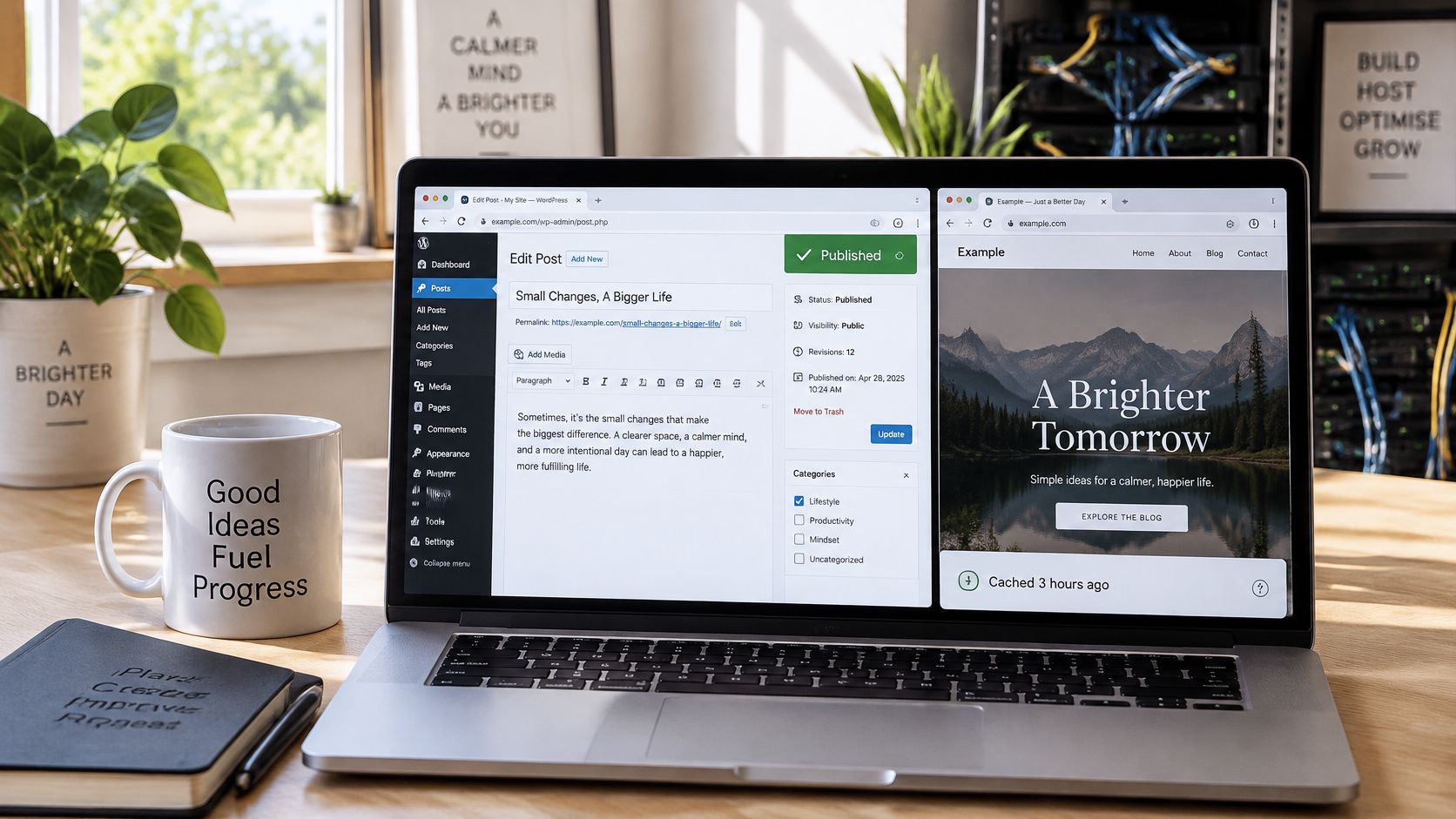
Start with the cheaper question: Did publishing fail, or are you looking at an old response? A Published status next to stale public pages calls for a cache check before any scheduler change. I've watched posts go live on time and stay invisible to visitors because the homepage cache kept serving the pre-publish version.
Compare the editor and public view rather than trusting either alone.
Check each public surface
Open a private browser window and inspect the homepage, the post's own URL, and /feed/. Private browsing clears local browser state; it does nothing about a host cache or CDN sitting between you and the server.
Purge the plugin cache, host cache, and CDN separately, checking after each action. If object caching is configured, include it in the investigation rather than assuming a page-cache purge clears everything.
A feed deserves its own check because feed readers poll it independently of the homepage. Use the RSS feed format example to identify the article entry rather than relying on how your browser renders XML.
Isolate conflicts on staging
On a staging copy, disable plugins except the cache and cron components needed to reproduce the setup, switch to a default theme, and schedule a test five minutes ahead. If it publishes, restore plugins in batches of three, then isolate the last batch when failure returns.
If it still fails, test the retained cache and cron components too. Leaving them enabled during the first pass doesn't prove they're innocent.
Prioritize these areas:
- Caching plugins: Check stale public output and purge behavior.
- Security plugins: Inspect blocked loopback or cron requests.
- SEO customizations: Investigate code that alters publishing hooks.
- Backup and scheduling plugins: Compare their events and execution times with the failure.
Change one variable at a time during isolation. Swapping two plugins, or adjusting a hook and a setting together, leaves you unable to say which change restored publishing. Note which component alters the result so another editor can repeat the test.
Record which update preceded the failure. Run disruptive isolation on staging, because disabling live-site plugins can interrupt readers and site functions.
Confirm the Publish Time and Keep Schedules Reliable
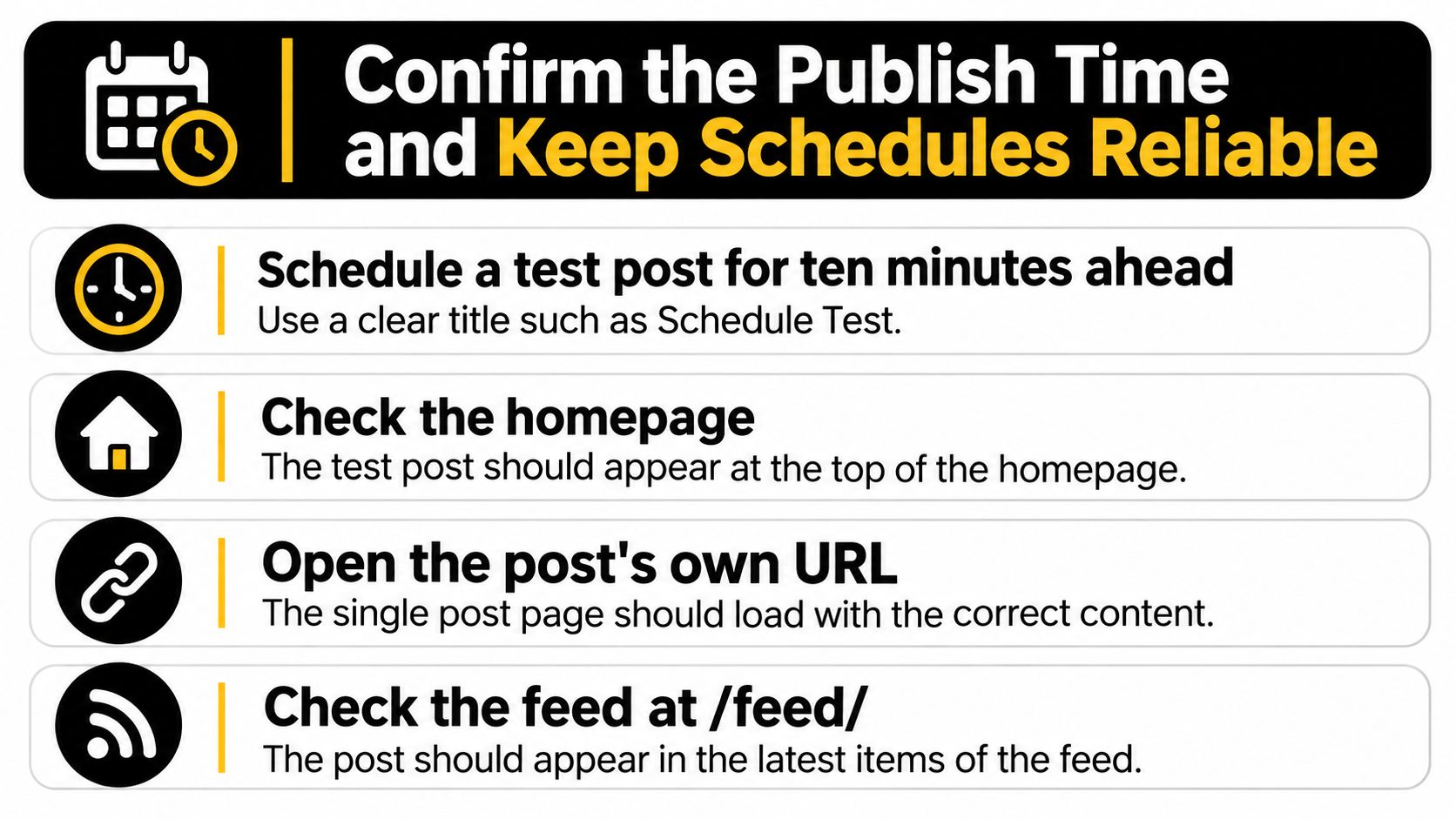
After any repair, schedule a clearly named test post ten minutes ahead. Confirm its appearance on the homepage where your layout normally lists new posts, at its own URL, and in /feed/.
Record when each surface updates instead of checking only the editor's status. For our publication, the feed check matters because Read More Info offers both a posts feed and a comments feed that readers can subscribe to in an RSS reader.
Use this final verification checklist after changing the setup.
Keep a small maintenance routine
Verify the replacement scheduler monthly. Check
crontab -lor the hosting panel and confirm the every-minute job still points to the right installation. Recheck paths after a migration rather than assuming the old command remains valid.Try an off-hour publication slot. Scheduling five to ten minutes away from the hour is a reasonable operational precaution if other jobs cluster on the hour. Treat it as a scheduling preference, not a cure for broken execution.
Keep caching understandable. Prefer a clear caching setup over stacking overlapping cache plugins. Purge the relevant layers after a publishing test and keep a note of which layer affected the result.
Retest after platform changes. Repeat the controlled test after WordPress, plugin, theme, or hosting upgrades. Retain the documented timezone convention so a later editor doesn't change what publication times mean without anyone noticing.
These are maintenance recommendations, not guarantees of exact-minute delivery. A working trigger, a valid publishing event, and fresh public output still need separate confirmation.
Keep the evidence useful
Save a short operational note with the working command, WordPress path, timezone, cache locations, and the latest successful test. That gives the next person something concrete to compare when scheduling fails again.
If you also use update alerts, check their behavior separately from publication. The site update notification guide provides a related workflow, but an alert should never replace checking the actual public post and feed.
Decision rule: Decide whether the problem is timing, state, cache, or conflict before changing a setting, because each has a different first check.
A dependable setup is one you can verify, not merely one with a cron plugin installed. Keep the test small, preserve the evidence, and stop making changes once the scheduled post completes the full public publishing path.
Read More Info publishes general-interest WordPress articles and provides open feeds for posts and comments. Visit Read More Info for related publishing guidance, then add its posts feed to your RSS reader to follow new articles without repeatedly checking the homepage.