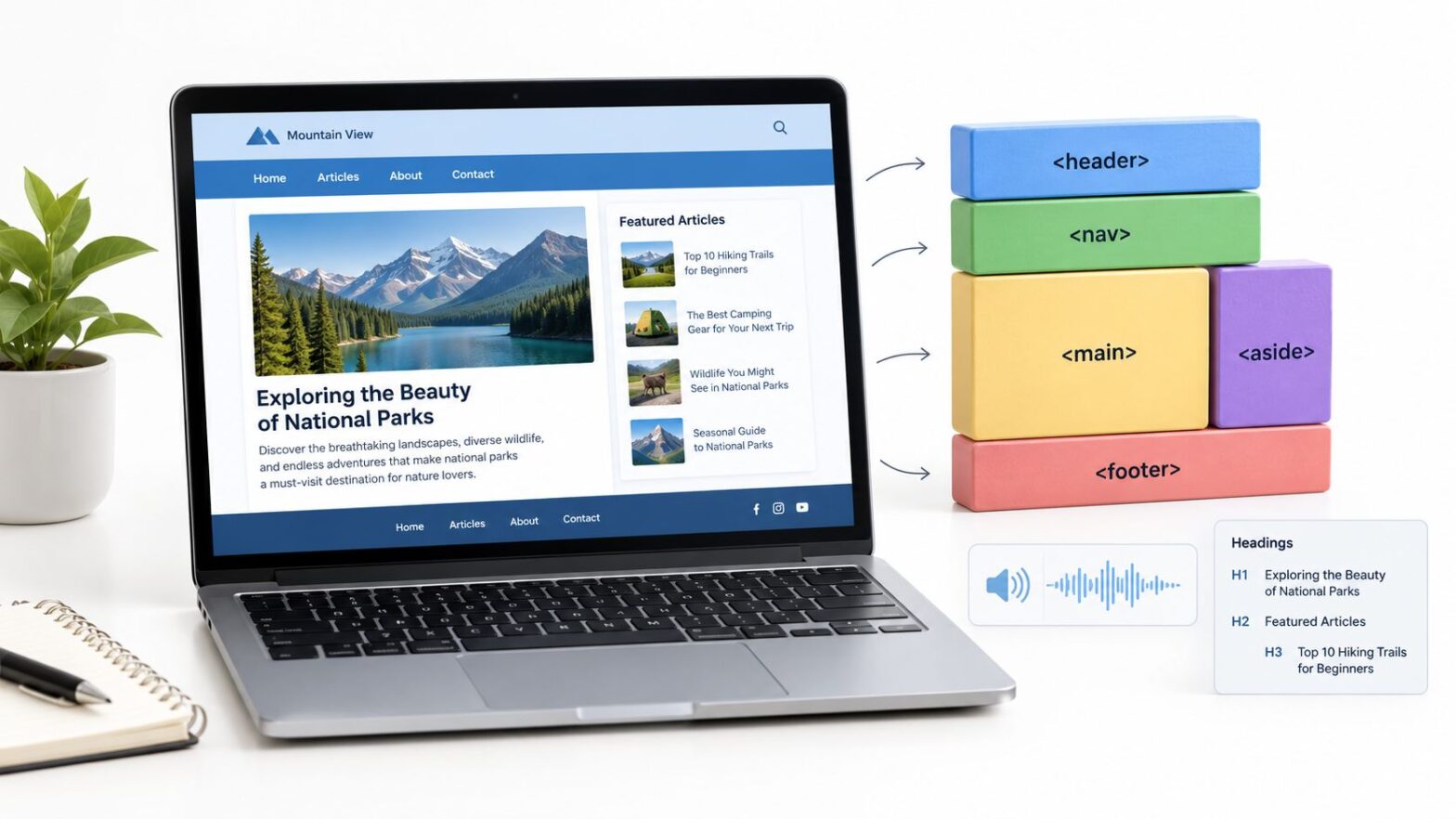
A page can look polished while its structure remains hard to read. Semantic HTML uses elements that describe each part's role, helping browsers and people understand how the page is organized.
Open a WordPress template and you may find nested div elements named wrapper, inner, and box. They can create the desired layout, but they don't make it clear where the post starts, the menu ends, or the footer begins. Editing one class can then feel like pulling a thread without knowing what else is attached.
Elements such as header, nav, main, article, and footer give those areas recognizable names. The header marks introductory content, nav identifies navigation, main marks the page's primary content, article identifies a self-contained post, and footer marks closing information. It's like labeling rooms on a floor plan: the labels make the layout easier to follow before you change anything.
This structure also gives assistive technology meaningful landmarks and lets browsers provide native behavior. It is a foundation for accessibility, not proof of better search rankings. Search systems can interpret page structure, but semantic tags alone do not establish that rankings will improve. The practical gain is clarity: readers, developers, and tools can identify what each part of the page does. Building that habit makes pages easier to understand and maintain over time.
Table of Contents
- What Semantic HTML Means in Plain Terms
- The Elements That Describe Each Part of a Page
- How Screen Readers Use Semantic Structure
- What Semantic HTML Does for SEO and Maintenance
- Common Mistakes With Native Elements and ARIA
- How to Migrate a Div-Heavy Page Step by Step
- Confirm Your Markup Before You Publish
What Semantic HTML Means in Plain Terms
Think of moving house. A box labelled Kitchen, Fragile tells the mover what's inside and how to handle it. An unlabelled box of the same size could hold books, plates, or shoes, so the mover has to guess.
A div is the unlabelled box. An element such as header, nav, or article is the label. That's the plain meaning behind semantic HTML as markup that communicates meaning and structure rather than appearance. You're choosing tags that say what the content is before CSS decides how it looks.
One Line of History
HTML5 introduced elements such as header, nav, main, article, section, aside, footer, figure, and time. The W3C published HTML5 as a Recommendation on October 28, 2014, and its elements reflected common authoring practices.
Practical rule: If you removed all your CSS, the tags alone should still explain the page.
A semantic page can still be styled however you want. CSS changes the paint and layout, while the tags expose relationships that browsers, search systems, developers, and assistive technologies can interpret.
Here's the contrast in one line. A div class='post' tells a machine nothing beyond a class name you invented. An article class='post' says this is a self-contained post, and it keeps your existing class for styling. The sections below map each element to its job, test the accessibility and search claims, fix common mistakes with native elements, migrate a div-heavy template, and finish with a pre-publish checklist.
The Elements That Describe Each Part of a Page
The HTML standard gives each element a predefined meaning, so a processor knows an ol is an ordered list and a button is an action. A div carries no comparable meaning, as set out in the WHATWG explanation of HTML semantics and presentation.
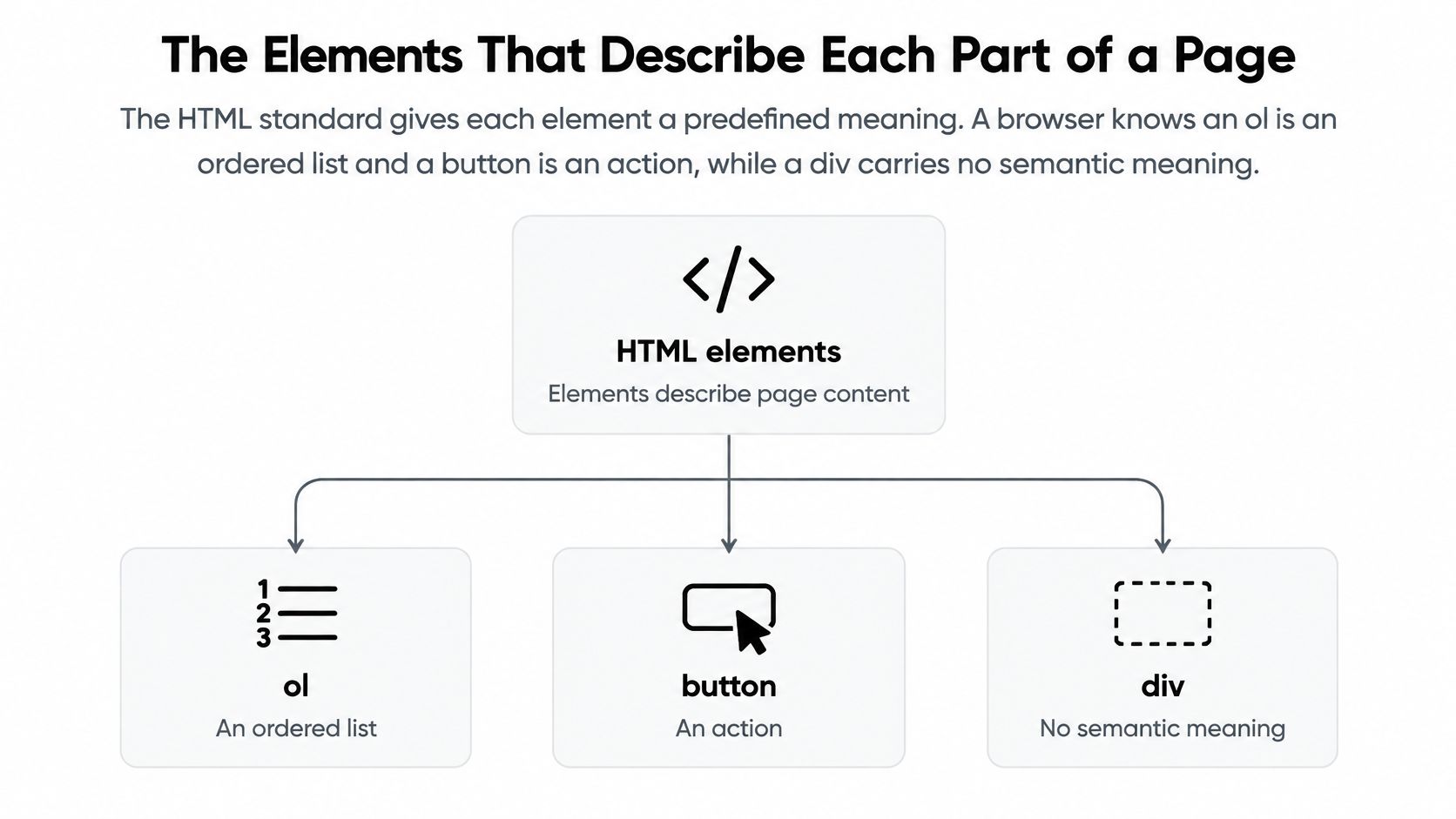
The table below covers the elements a content site uses most, what each one communicates, and where it belongs on a typical blog post.
| Element | What it communicates | Typical use on a blog post |
|---|---|---|
| header | Introductory or banner content for a page or section | Site logo, post title and byline |
| nav | A block of navigation links | Main menu, breadcrumbs, pagination |
| main | The primary, unique content of the page | Body of the post, one per page |
| article | A self-contained item that could stand alone or be syndicated | The blog post itself, a news story, a comment |
| section | A thematic group of content with its own heading | Subsections of a long guide |
| aside | Content related to but not central to the main content | Author bio, related posts, glossary notes |
| footer | Closing information for a page or section | Copyright, contact details, legal links |
| figure and figcaption | Self-contained media with a caption | Diagram, chart or photo with credit |
| time | A machine-readable date or time | Publish date with a datetime attribute |
| h1 to h6 | Heading levels that form the document outline | h1 for title, h2 for main sections, h3 beneath them |
| ul or ol | A list, unordered or ordered | Tips with ul, numbered steps with ol |
| button | An action the user performs on the page | Submit, open menu, toggle a filter |
| a | A link that navigates to another location | Links to other posts, sources, anchors |
Sketch the Page as Nested Boxes
Put header and nav at the top. Let main hold the article, place aside beside it for related material, and close with footer. If you can draw that outline on paper, you can sketch your own template before touching code.
A blog template follows a simple pattern. Use article class='post' containing a header with an h1 for the title and a time element with a datetime attribute. Follow it with section blocks, each opened by an h2, then a footer for the author and copyright.
One common rule needs correcting. HTML5 permits more than one h1, but one h1 for the post title and one main per page is the safest pattern for a content site. It keeps the outline unambiguous for every reader and tool that processes the page.
How Screen Readers Use Semantic Structure
A screen reader user opening a long article may want its main point, not every menu item first. Landmarks and headings provide shortcuts through the page, much like labels on drawers help you find what you need without opening each one.
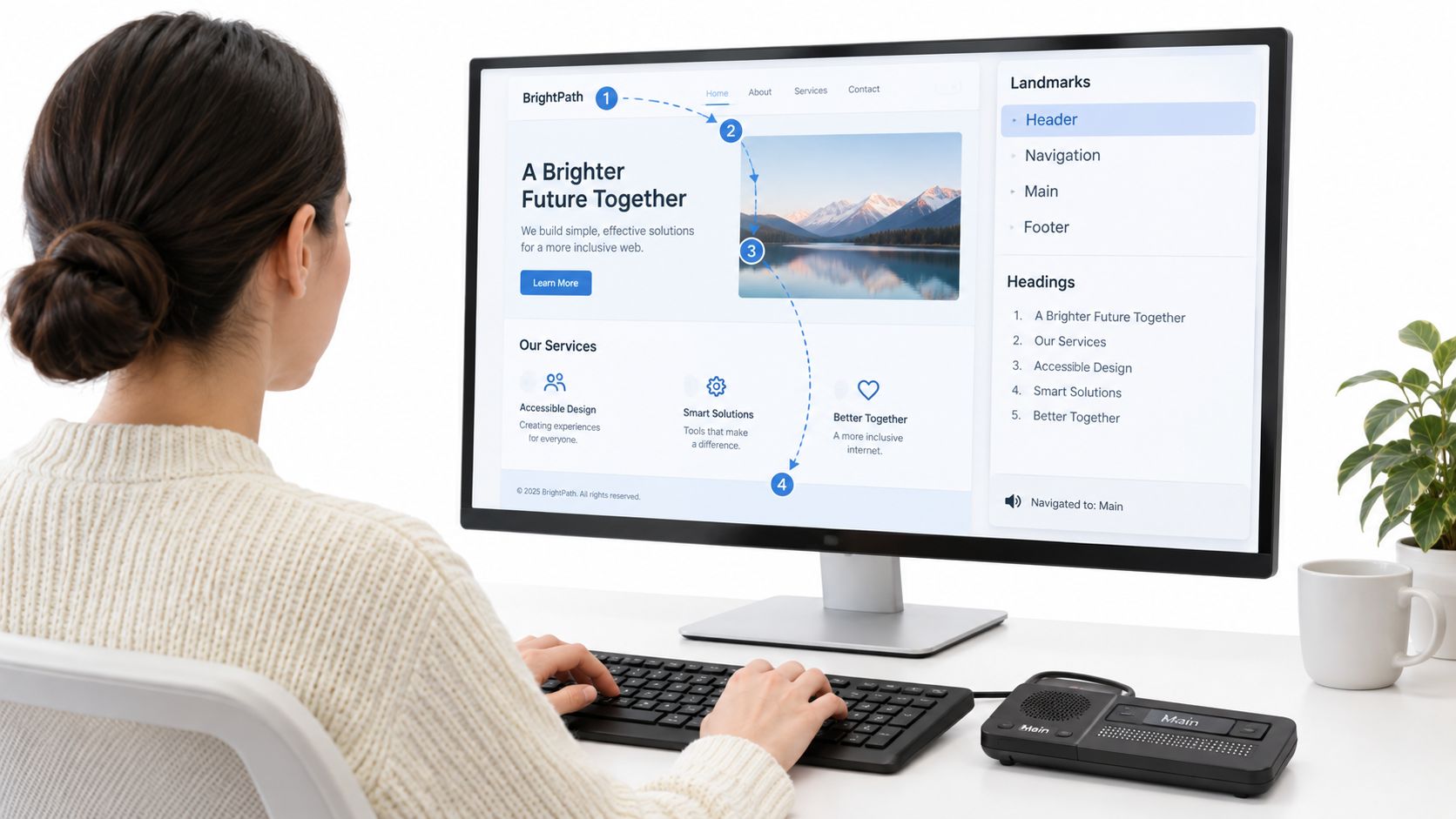
Headings give users a way to scan the page by topic. A logical sequence, with a clear main heading followed by relevant subheadings, lets someone move to a section instead of listening from the beginning. WebAIM guidance on screen reader navigation and heading use explains how heading navigation works and why heading structure matters.
What Each Landmark Gives the User
- main: Identifies the page's primary content, so users can skip repeated menus.
- nav: Names a navigation area, rather than leaving users to infer the purpose of a list of links.
- header and footer: Mark introductory and closing areas as recognisable parts of the page.
- article: Identifies a self-contained post that can be located and read independently.
- h1 to h6: Show how topics and subtopics relate when ordered logically.
Compare those elements with a page made from div elements named sidebar and top-bar. Sighted readers can use the visual layout as a guide, but those class names do not announce the page's structure to a screen reader. Semantic elements supply useful landmarks and headings; they do not make every page accessible on their own. For small sites considering inclusive web design for small businesses, that difference can save readers from listening through unrelated content to find the post.
Native elements are like signs at a building's entrances: they identify what each area is for. The browser and assistive technology can use that meaning without a developer recreating it with generic containers and extra labels.

Semantic markup is a habit, not a ranking trick. It gives a page clearer structure and a foundation for accessibility, but it cannot fix poor heading order, vague link text, missing form labels, or low contrast. Check the page with a keyboard, then inspect its heading list in a screen reader. If the headings alone do not make the article's organization understandable, revise the markup before publishing.
What Semantic HTML Does for SEO and Maintenance
The honest verdict comes first. Semantic HTML helps machines understand a page's structure, but nobody can promise you a fixed ranking gain from swapping tags. Anyone who does is selling certainty the evidence doesn't provide.
What it can support is clearer interpretation. Named regions, one unambiguous main content area, and a readable heading outline give automated systems less guesswork, consistent with the W3C technique for using semantic elements to expose meaningful regions. That's improved document understanding, not a guaranteed ranking boost.
What It Cannot Fix
- Thin content: A well-labelled empty page is still empty.
- Broken or vague links: Semantic tags don't repair destinations or link text.
- Inaccessible custom controls: A landmark doesn't add keyboard behaviour to a widget.
- A broken hierarchy: Jumping from h1 to h4 still confuses the outline.
Maintenance is the stronger practical case. Named regions survive redesigns because a theme can restyle an article or nav without renaming classes to rediscover its purpose. A developer opening the template can see at once where the post body begins.
A class name is a note to your team. A semantic element is information every browser and assistive technology can use.
Compare div class='post-wrapper' with article class='post'. The second tells the next developer what the block is for, even if they've never seen your naming conventions. Since CSS controls appearance, a visual redesign doesn't need to change the meaning underneath.
If you're auditing the wider site at the same time, a practical technical SEO audit checklist can help you separate structural clarity from unrelated ranking factors. WordPress sites gain most when post, page, and archive templates are clean, because one template correction can improve every post that uses it.
Common Mistakes With Native Elements and ARIA
Adding a semantic tag doesn't make a page accessible on its own. That's the mistake I see most often, especially when someone wraps content in main and assumes the work is finished.
Native elements bring roles, focus behaviour, and keyboard expectations with them. Custom widgets still need correct states, focus management, and keyboard handling. MDN guidance on accessibility and native HTML elements makes the same distinction, noting that browsers expose expected roles and behaviours for elements such as links and inputs.
| Common mistake | What goes wrong | Native fix |
|---|---|---|
| Clickable div used as a button | Not focusable and ignores Enter or Space by default | Use button |
| a element with href='#' that performs an action | Announced as a link but behaves like a button | Use button for actions and a for navigation |
| Heading level chosen for font size | Breaks the outline that screen-reader users rely on | Choose the level by hierarchy and style it with CSS |
| Several main elements on one page | Multiple competing primary regions | One main per page |
| nav wrapped around the whole page | Footer text and every link announced as navigation | Use nav only for groups of navigation links |
| ARIA role added to an element with the right native role | Redundant or conflicting roles | Remove the role and keep the native element |
The Native-First Rule
Use native HTML first. Add ARIA only when no native element expresses the required behaviour. ARIA can supplement semantics, but it doesn't automatically reproduce keyboard handling, focus handling, validation, or state management.
That boundary is the key idea in the native-first accessibility decision approach. Two controls can look identical on screen while behaving very differently for a keyboard user.
- Action on this page: Use button, for submitting, toggling, or opening a control.
- Movement to another place: Use a, for a post, source, or anchor.
- Simple disclosure: Use details and summary before building a custom widget.
- Complex pattern such as tabs: Use a custom ARIA pattern only when a native element can't do the job, then implement its keyboard behaviour fully.
Don't ask, can I make this div act like a button. Ask why it isn't a button already.
How to Migrate a Div-Heavy Page Step by Step
Don't rewrite the whole site in one afternoon. Migrate one representative template, prove the pattern works, then repeat it where the same regions appear.
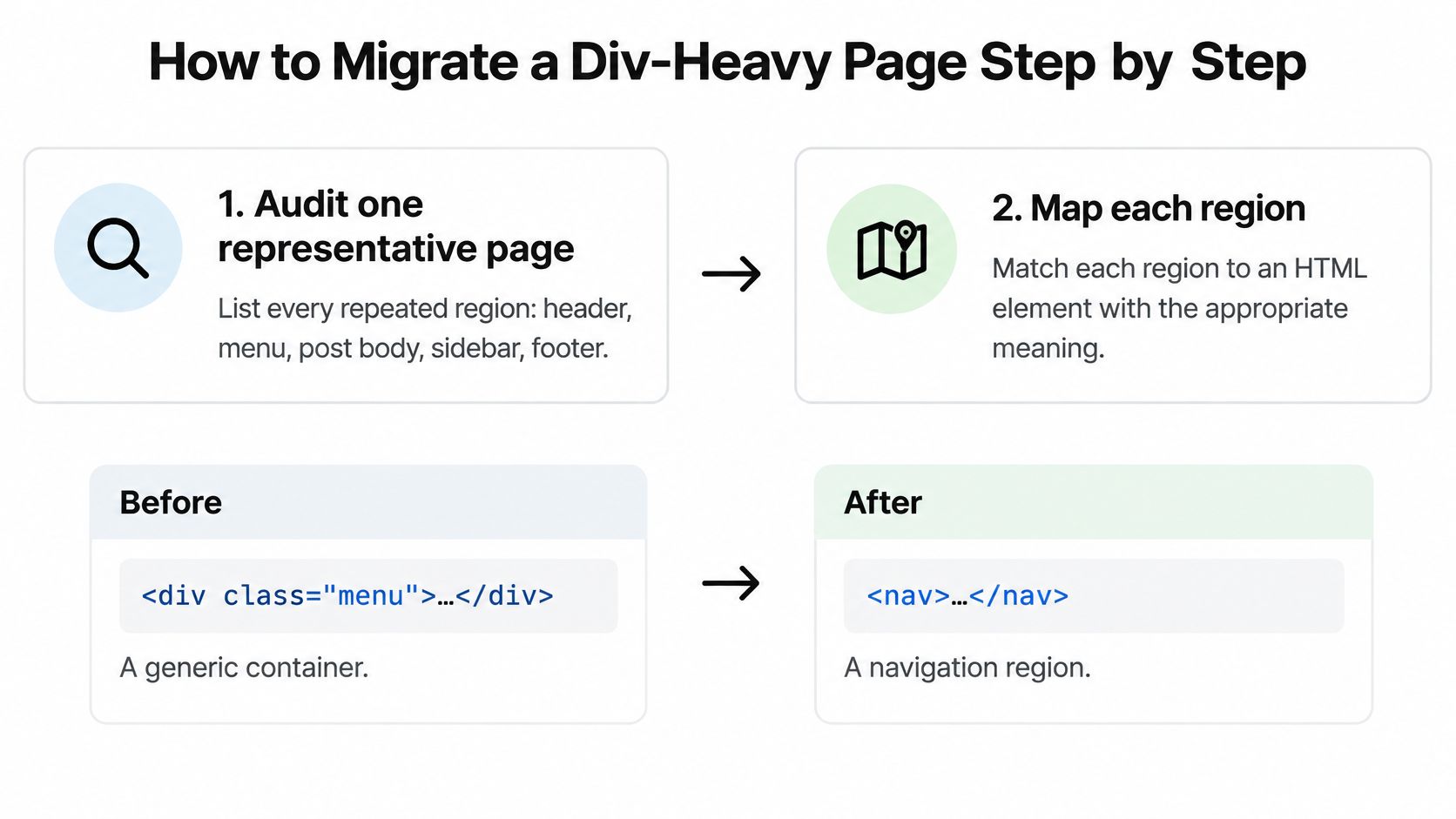
The Migration Sequence
- Audit one representative page: List every repeated region, including header, menu, post body, sidebar, and footer.
- Map each region: Match each region to the element in the mapping table from the earlier section.
- Swap the post template first: It affects the most pages, so replace wrappers with article, header, main, and footer while keeping class names so CSS still matches.
- Reconcile heading levels: Use one h1 for the title, h2 for main sections, and h3 beneath them, then handle sizes in CSS.
- Replace clickable divs: Use button for actions and a for navigation, and confirm visible focus styles still show.
- Roll out the pattern: Apply the same mapping to archives, pages, and sidebars after the post template passes your checks.
Here's the smallest useful before-and-after example. Before, a div class='post' contains a div class='title' and a div class='menu'. After, an article class='post' contains an h1 and a nav. The classes can stay during the first pass, which reduces the chance of breaking your stylesheet.
Migration caution: Changing an element can change default styling, including heading margins and list bullets.
Review the layout after each swap instead of waiting until every region has changed. Keep a copy of the old template for comparison, and test the result on a narrow screen as well as a desktop monitor. Work on layout behaviour alongside the ideas in these responsive design principles for content pages, because a semantic region still needs to remain readable when columns stack.
For content tables, preserve meaning with caption, thead, tbody, th, and scope where appropriate. Don't rebuild a real data table from divs just because it's easier to style. The header associations help users connect each cell with its label.
Finally, test with keyboard-only navigation, a screen reader landmark and heading scan, and the browser's accessibility tree. A visual check can't tell you whether focus disappears or a region is announced with the wrong meaning.
Confirm Your Markup Before You Publish
Run this behaviour checklist on a live post from your own WordPress site, not just in view-source.
- One main region: The unique page content sits inside a single main.
- Logical headings: There's one h1, levels follow the topic hierarchy, and no level is skipped.
- Navigation in nav: Menus, breadcrumbs, or pagination sit inside nav.
- Real controls: Links lead to destinations, buttons act, and neither is faked with a clickable div.
- Labelled fields: Every form field has a useful, associated label.
- Keyboard order: You can reach every control in a sensible sequence and see where focus is.
Pair source inspection with a screen reader or the browser's accessibility inspector, then repeat the checks using the habits in this guide to testing responsive layouts. Choose the post template this week, test one live post, fix that template first, then check two other pages. Every new post inherits the corrected template, so one careful fix compounds across your future articles.
If you're building a WordPress content site and want plain-English guides that separate proven structure from hype, visit Read More Info for practical posts you can apply one template at a time. Start with the checklist above, fix your post template this week, and let every article you publish next inherit the cleaner structure.