
A visitor lands on your WordPress site, remembers reading something useful, and types a few words into the search box. The results page appears, but the article they want is missing, buried, or surrounded by unrelated posts. They try another phrase, get nowhere, and leave.
That failure isn't always a plugin problem. It can come from how WordPress orders matches, how content is organized, or a search field that doesn't handle the way people phrase questions. A practical site search WordPress setup starts with understanding those gaps, then testing real queries instead of assuming that results are relevant because they appear.
Table of Contents
- Why WordPress Site Search Matters
- Built-In Search vs Search Plugins
- Setting Up a Search Plugin
- Improving Search Relevancy
- Testing and Measuring Search Performance
- Common Search Problems and Fixes
Why WordPress Site Search Matters
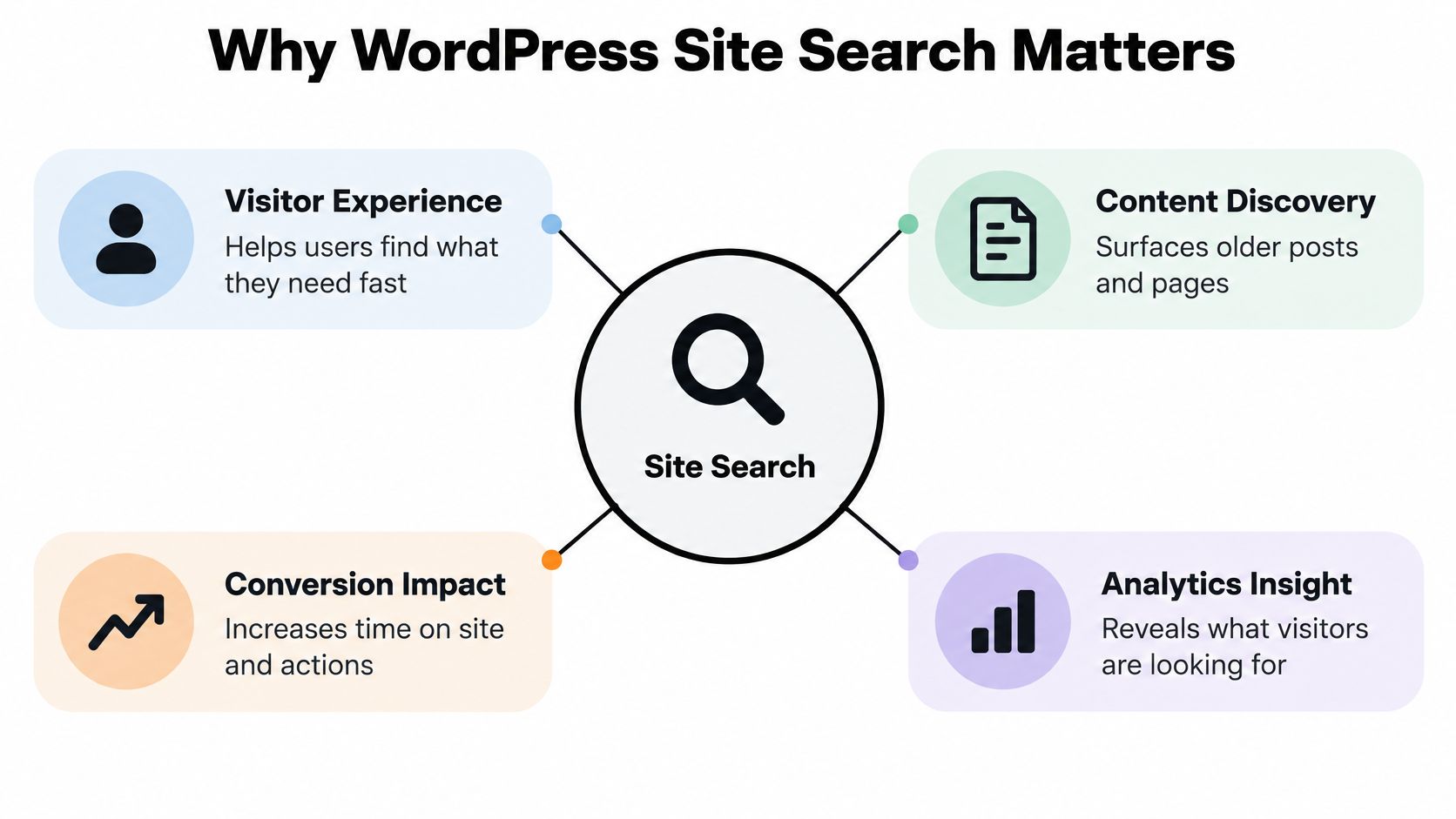
A blog reader may know the topic but not the post title. Someone looking for guidance on an RSS feed, for example, might search “follow comments” rather than the exact words used in the article. If the search tool relies on narrow matching or presents results without useful context, that reader has to guess or retrace their steps.
WordPress search is part of a publishing system built around recognizable content types: posts, pages, categories, tags, archives, and feeds. Its reach makes those conventions familiar to many readers. W3Techs' WordPress usage data reports that WordPress powers 39.6% of all websites and 58.3% of websites with an identifiable content-management system. Those figures describe platform adoption, not how well individual search boxes work. They do show why the default search experience matters across blogs, small-business sites, portfolios, and publications.
What the default search actually does
WordPress core uses a tiered ordering heuristic. It gives priority to exact phrases in titles, then matches all or some title terms, followed by matches in excerpts or content. It doesn't use term-frequency or word-proximity scoring, so a relevant article can lose out when its wording differs from the query. That's a useful starting point for simple searches, but it isn't the same as understanding a reader's intent.
The practical implication is clear: the first results page needs to explain itself. A study of web-search behavior found that about 53% of users entered one query and roughly 54% viewed one results page. That research wasn't specific to WordPress, but it supports a sensible editorial priority: make titles, excerpts, and any category or date context easy to scan immediately. (The study of pages viewed during web searching provides the behavioral context.)
Search also belongs in the wider experience of finding and reading content. A clear search field, useful result page, and sensible route back to browsing can complement website speed and indexing best practices. If you're building a publication from scratch, this guide to creating a WordPress blog offers relevant setup context. Treat search as navigation, not decoration.
Built-In Search vs Search Plugins
A visitor searches “phone feed” for a post titled “mobile RSS subscription” and gets no useful match. That gap between a reader's wording and a site's wording is where built-in WordPress search can fall short. For a small site with straightforward queries, core search may be enough: it requires no extra configuration and avoids another plugin to maintain.
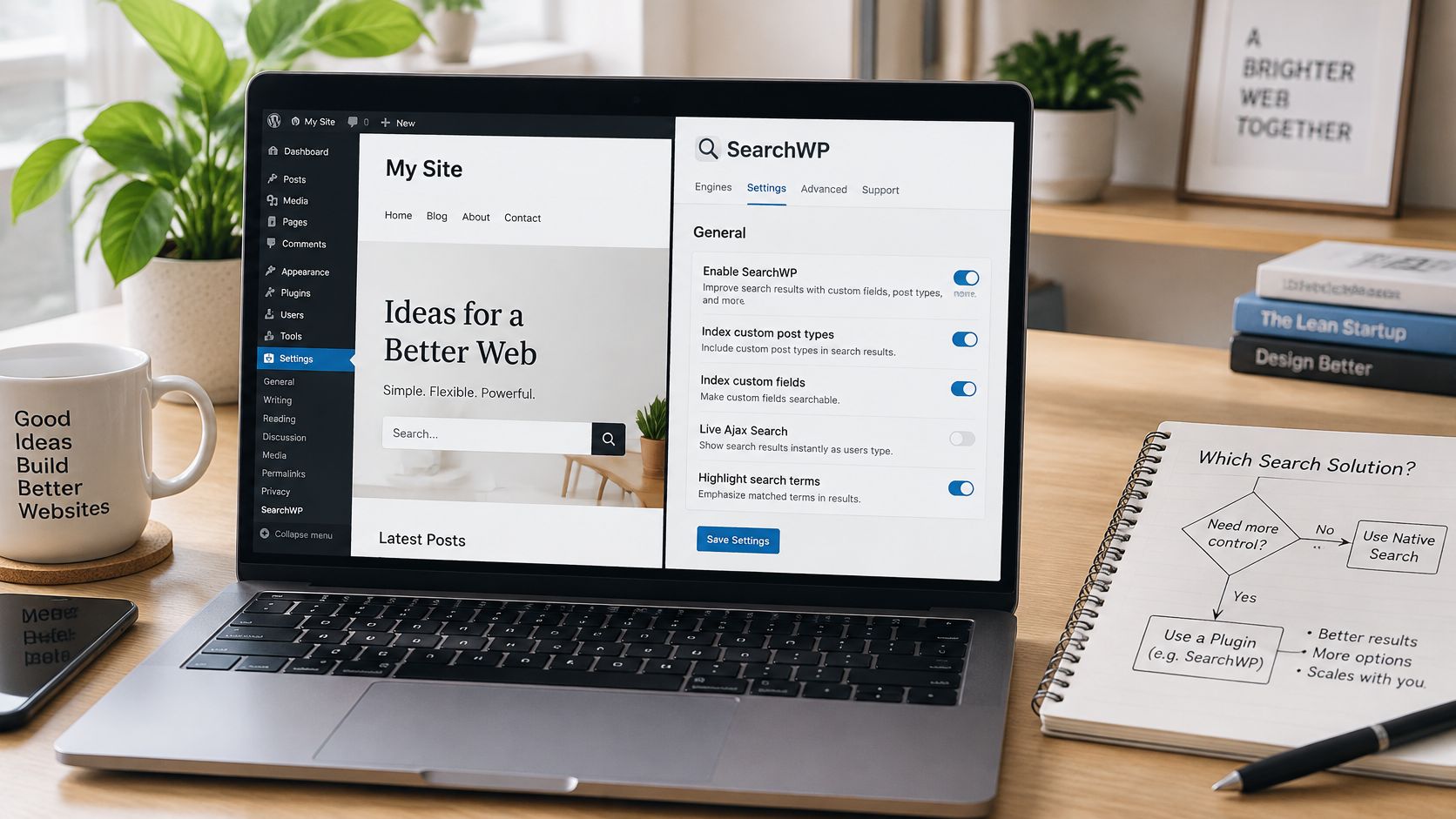
Core search offers limited control over matching and ranking. It doesn't recognize synonyms or weigh how close query terms appear, so a relevant post may rank poorly when its wording differs from the search. Plugins can add synonym handling, partial matching, field weighting, or live suggestions. Each option also adds settings to test and maintain.
Choose by the job, not the feature list
Start with the failure you need to fix. Relevanssi, Ivory Search, and Better Search extend or replace parts of the native search experience. Check their current features and confirm that they support the content types and controls you need. SearchWP may suit a content-heavy site that needs custom-field indexing or more control over relevance. FacetWP focuses on filtering structured content, so it may complement keyword search rather than replace it.
Practical rule: If you can't name the search failure a plugin should fix, keep the default search and start collecting queries.
Query logs show where visitors' wording diverges from your content. For example, “phone feed” and “mobile RSS subscription” may express the same intent, while “free tools” and “free OCR tools” point to different needs. Group queries by intent, such as finding a specific page, learning about a topic, or using a tool. If three or more phrasings in your logs point to the same intent, test a synonym or revise the target article's title.
Here's a brief look at a WordPress search setup in action.

Setting Up a Search Plugin
Installing a plugin is the easy part. The important work is deciding what it should search and then checking whether its results improve actual visitor tasks.
Configure the index with intention
Start in a staging environment if your site relies on a complex theme or custom post types. Choose a plugin from the WordPress repository or a vendor you trust, check that it supports your WordPress setup, install and activate it, then review its documentation before changing search behavior on the live site.
Select content types. Include published posts and pages that visitors should find. Add a custom post type only if it contains material readers expect to search. Don't assume every available content type belongs in results.
Decide which fields matter. Titles and body text are a sensible baseline. Add excerpts, categories, tags, or custom fields when those fields contain useful descriptive information. Indexing every field can introduce irrelevant matches, so test each addition rather than enabling everything at once.
Check visibility rules. Confirm that drafts, private content, and attachments aren't appearing unintentionally. A larger index isn't automatically a better index. Search should expose content visitors are permitted and expected to see.
Review excerpts and result templates. Results need enough context for someone to recognize the right article. Use a useful excerpt, a readable title, and, where it helps, category or date information. Keep the result page consistent with the rest of the site so it feels like part of the same publication.
Rebuild or refresh the index. Some plugins require an initial indexing step, and some may not update every indexed item automatically after edits. Check the plugin's indexing process after configuration and again after making substantial content changes.
Don't tune settings by staring at a dashboard. Search for a few known titles, partial phrases, and terms that should return nothing. If the expected content doesn't appear, check the selected post types and fields before adding more complexity. A plugin that indexes the wrong material can make a clean search experience harder, not better.
Improving Search Relevancy
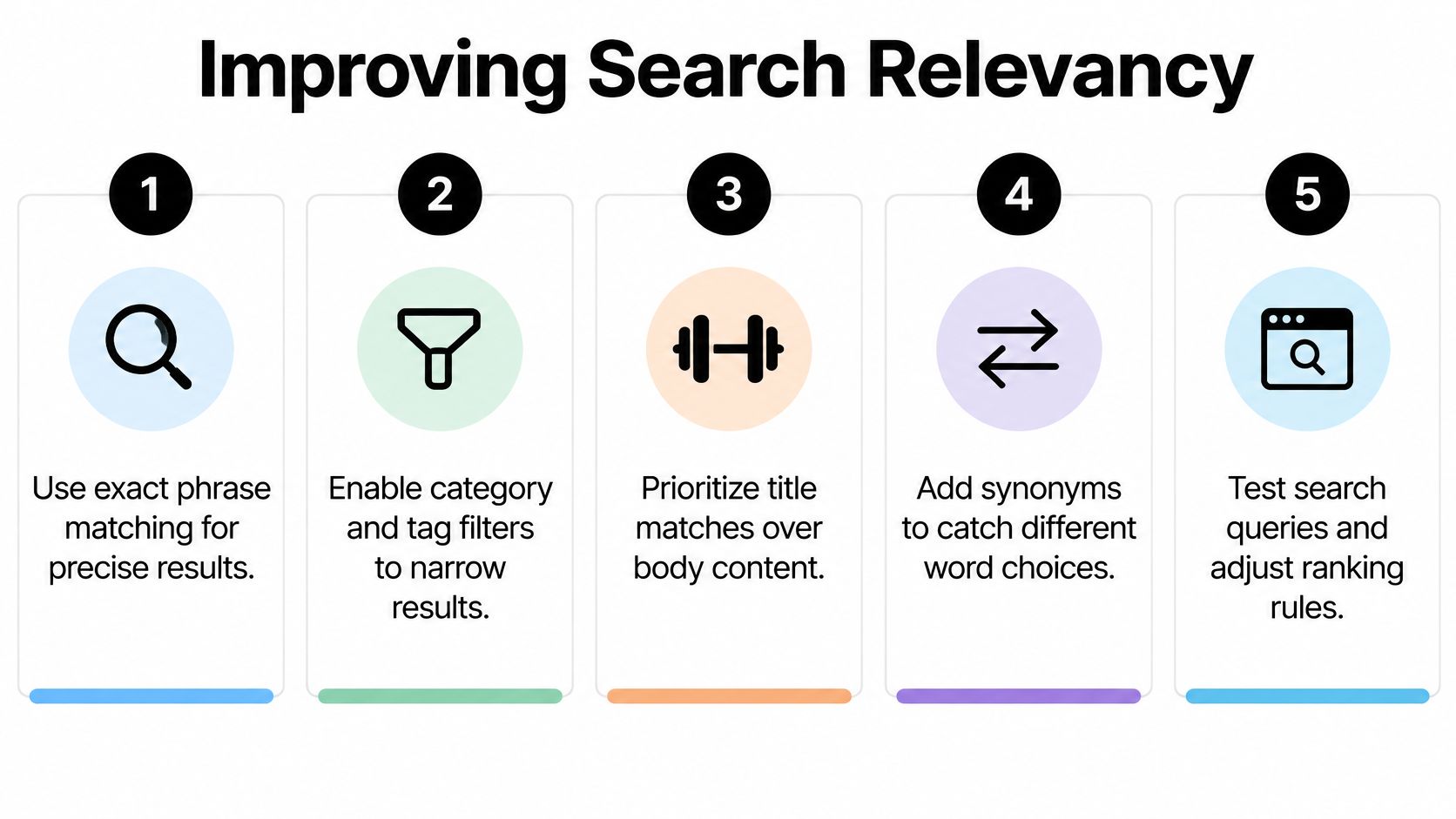
Search relevance is a joint result of plugin settings and editorial structure. Weighting can make title matches more prominent, but it can't reliably compensate for vague titles, inconsistent taxonomy, or content that never uses the terms readers recognize. Write descriptive titles first, then use categories and tags consistently enough that they help readers narrow a topic instead of multiplying near-duplicate labels.
Match the content structure to the query
Test title, excerpt, taxonomy, and body-content matches separately. If a post is important to a query, check whether the wording appears in the title or excerpt and whether the relevant category is assigned. Then adjust plugin weighting only where the tests reveal a clear mismatch. Pushing every title match to the top can also produce poor results if titles are broad or duplicated.
Long, conversational queries create a different challenge from short keywords. Someone might type “how do I subscribe to the comments feed on my phone?” A search configuration built only around compact phrases may overlook that question, especially if the article uses different language. A small synonym list can connect common variations; fuzzy matching can help with misspellings, but too much fuzziness may surface loosely related material. Keep a record of what you add and verify that it improves the intended queries.
Mobile search needs more than a responsive layout. Make the field easy to locate and use, provide readable results and comfortably spaced controls, and ensure any suggestions work with a keyboard as well as touch. A screen reader should be able to identify the search field, and visitors should be able to dismiss suggestions without losing their place. Advice about search experience optimization for law firms and roofers offers a useful reminder that the search journey is part of the broader experience, not just a ranking setting. For layout decisions that affect how posts are browsed, these WordPress blog layout examples provide related context.
Testing and Measuring Search Performance
A plugin's settings page can show what you've configured. It can't tell you whether readers find the right article. Use query logs when available, or another privacy-conscious way to review site-search activity, and treat the data as a queue of test cases rather than a verdict on your whole content strategy.
The behavior evidence points to a practical priority: many web-search users make a decision after one query and one results page. The study cited earlier examined web-search activity rather than WordPress site search, so don't treat its figures as a measurement of your visitors. Use the implication carefully: the first result set deserves deliberate testing.
Build a repeatable query test
Export a representative period of search terms, then normalize capitalization and punctuation. Group obvious spelling variants and similar phrases, and label each query by what happened. Focus first on clusters that relate to useful or important content, not merely the terms that occur most often.
| Category | Definition | Action |
|---|---|---|
| Successful | The intended content appears and the visitor doesn't reformulate. | Keep the result and check that its title and excerpt are clear. |
| Reformulated | The visitor searches again with different wording. | Compare both phrases and consider a synonym or content-label change. |
| Abandoned | The visitor leaves or stops after searching. | Inspect the result page and whether the next step is obvious. |
| Zero-result | The search returns no matching content. | Confirm whether content exists; if it does, review indexing and wording. |
Create a benchmark of 50–100 queries that covers exact titles, partial titles, synonyms, misspellings, multi-word phrases, and queries that should return no results. For each query, manually check whether the intended article appears on the first results page. Test one change at a time, such as title weighting or synonym handling, so you can tell which setting helped.
Log reformulations rather than counting only searches that returned something. A results page can technically return posts while still failing the reader's intent. Also check that the test content is published, indexed, and assigned the expected taxonomy. Repeat the benchmark after a major plugin change or a substantial update to your content library.
Common Search Problems and Fixes
When a search returns nothing for a phrase you know appears on the site, first check whether the relevant post type and field are indexed. Then compare the visitor's wording with the article's title, excerpt, and body. Add a synonym only when the phrase represents a real alternative, not as a substitute for clearer content.
If the right article appears but sits too low, inspect the ranking rules and check whether a broad title match is outranking a more useful result. Change one weight at a time and retest the same queries. If drafts, private posts, or attachments show up, review inclusion and visibility settings before rebuilding the index.
Fix the parts visitors can see
A search field that's hard to find or operate on a phone needs a layout and accessibility check, not just a new ranking algorithm. Give it a clear accessible label, make its controls usable with touch and keyboard input, and verify that autocomplete doesn't block keyboard navigation. Keep the results page readable and consistent with the rest of the site.
A zero-results page shouldn't be a dead end. Offer a broader retry prompt, links to relevant categories, or a selection of useful posts. Independent UX benchmarking cited in the search configuration guidance reports that 50% of sites provide few useful next steps after zero results (Searchcraft's discussion of WordPress search). Treat that as a reason to examine your own empty state, not as proof of how every WordPress site behaves.
Keep the plugin, theme, and site configuration maintained as you refine search. If you're reviewing broader operational practices alongside search usability, this guide to keeping your WordPress site secure and fast can help frame that maintenance work. A quick final check: submit a valid query, submit an expected no-match query, move through results using the keyboard, and try the search field on a phone.
Read More Info publishes practical information in a straightforward WordPress format, with site search and RSS feeds to help readers discover posts and follow updates. Visit Read More Info to explore the publication and try its search experience for yourself.