
To check whether a page is indexed, paste its full address into URL Inspection in Google Search Console. A “URL is on Google” result confirms indexing. An empty site: search doesn't prove the page is missing.
Table of Contents
- How to Check if a Page Is Indexed Fast
- Three Ways to Check Whether a Page Is Indexed
- Interpret Indexing Results Without Guessing
- Inspect A URL In Google Search Console
- Check The Current Page With Test Live URL
- Read The Page Indexing Report
- Calculate Coverage For Published Articles
- Use The Site Operator As A Spot Check
- A Three-Number Indexing Spot Check
- Judge Coverage On a WordPress Blog
- Read Coverage Gaps Without Overreacting
- What to Do When a Page Is Missing
- Check Whether the Problem Affects Other Pages
- Does A Page In The RSS Feed Count As Indexed?
- How Long Should You Wait After Requesting Indexing?
- Why Does Site: Show Fewer Pages Than Search Console?
How to Check if a Page Is Indexed Fast
Just published a WordPress post? The real question is simple: has Google indexed this specific article yet? Google’s URL Inspection guidance shows you how to look up the stored status for any single URL.

Pick the check that fits what you're about to do:
- One newly published post: Use URL Inspection for its indexing status.
- Your whole website: Use the Page Indexing report to review indexed and excluded URLs over time.
- A quick browser check: Try
site:readmore.info, but treat the results as a sample, not an inventory.
Three Ways to Check Whether a Page Is Indexed
They all answer slightly different questions. Here's when to reach for each one:
| Method | What It Confirms | If the Page Is Missing | Best Use |
|---|---|---|---|
| URL Inspection | Individual URL status | Read the reported reason | Checking one article |
| Page Indexing report | Sitewide indexing patterns | Review exclusion groups | Monitoring coverage |
site: search |
URLs appearing in results | Inconclusive without inspection | Quick spot checks |
For a single post, URL Inspection wins every time. For patterns across the site, the coverage report tells you far more.
Interpret Indexing Results Without Guessing
“URL is on Google” means the URL is indexed. That still doesn't guarantee it will show up for every relevant search.
“URL is not on Google” means read the explanation. Don't jump straight to assuming a penalty, as Google’s inspection documentation makes clear.
Here's a mix-up I see a lot. You publish a guide about free keyword tools and instantly spot it in your WordPress RSS feed. That's feed availability only. It doesn't mean Google has crawled and indexed the article. The same is true whether that new post covers free tools, free tools online, free keyword tool, or free tools like photoshop.
Discovery isn’t indexing. A published post, a feed entry, and a Google search listing are different checkpoints.
Google warns that search operator results have limits. So don't keep refreshing an empty search and reading into it.
Copy your newest post's full address, inspect it in Search Console, and record the status before deciding what needs attention next.
For a fresh WordPress post, URL Inspection beats typing the title into Google over and over. It looks at that one exact address, so you can tell whether you have an indexing problem or the page is just not ranking for the phrase you tried.
Inspect A URL In Google Search Console
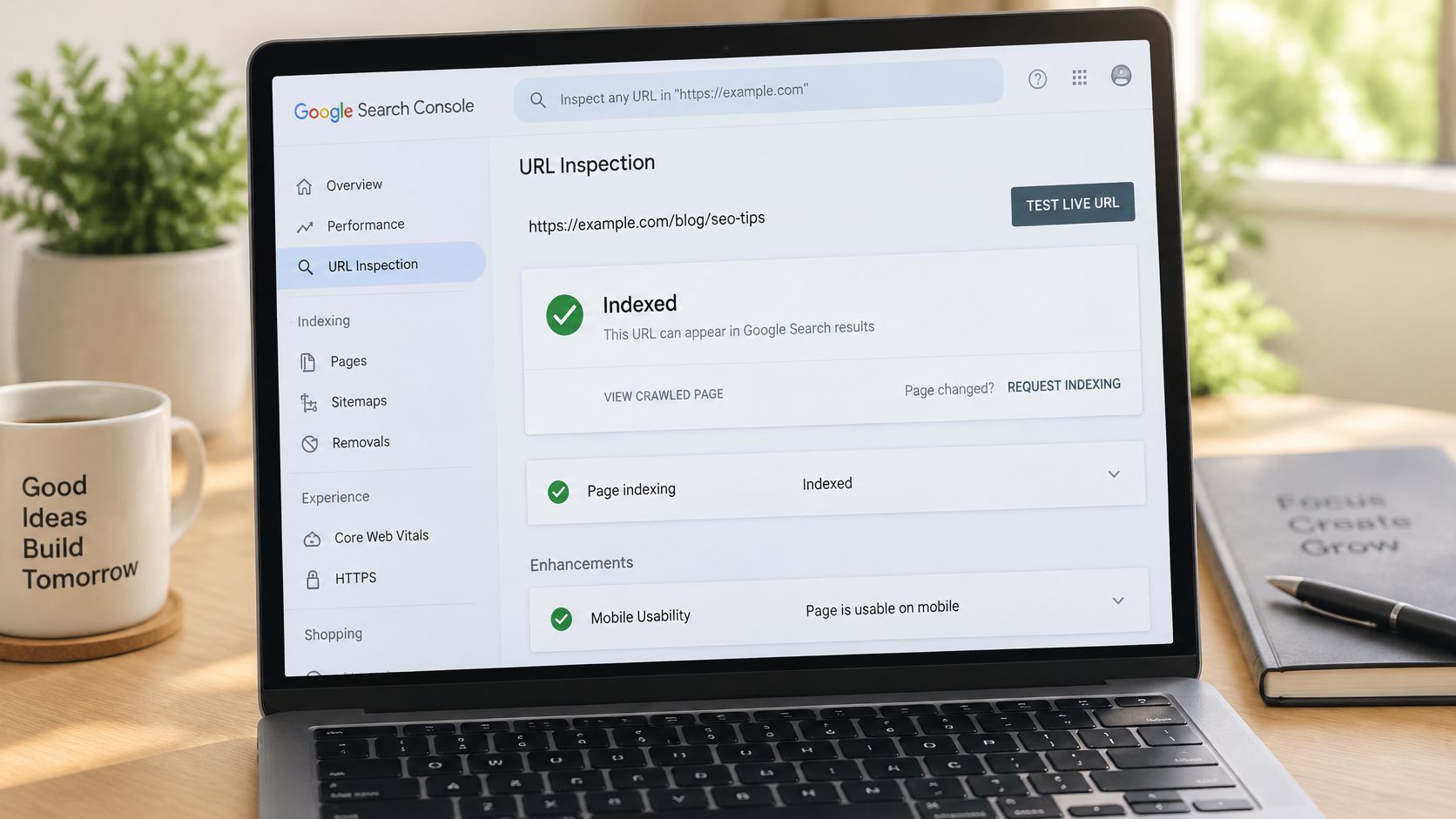
Grab the live article link, not the WordPress edit screen. Say you're checking Read More Info's guide on updating old blog posts — copy the full published URL from the front end.
- Open the right site property in Google Search Console
- Drop the full article URL into the inspect bar at the top
- Read what Google has stored before you run anything else
That report is Google's saved copy of the page. Don't stop at the green headline. Check if indexing is allowed, what canonical URL Google picked, and whether anything broke during crawl or rendering.
- “URL is on Google” — the page is indexed. That still doesn't mean it will show for every search.
- “URL is not on Google” — read the reason on screen and follow the test it suggests.
Check The Current Page With Test Live URL
What Google saved can be older than what you just published. Test Live URL looks at the page as it is right now, which helps after you fixed a blocking issue or flipped an indexing setting.
A passing live test doesn't mean you're indexed. It just means Google can reach and process the page today.
Put the two side by side before you act:
| View | What You're Checking |
|---|---|
| Stored inspection | What Google has on record for indexing |
| Live test | Whether the current page can be accessed and indexed |
If the live page looks fine and eligible but still isn't indexed, hit Request Indexing. Give it one or two weeks — not showing up right away doesn't mean it's failed for good. There's more detail in Google's URL Inspection guidance.
If you want a separate routine to keep an eye on things after this, see the MyMentions Google search monitoring playbook.
Now check your newest post and jot down the status and date. Even if it's already showing in your RSS feed, that feed ping doesn't prove Google has crawled and indexed it. This applies to any topic, from free ai tools online to free ocr tools to free editing tools for videos.
The Page Indexing report is where you stop checking one URL and start looking at the site as a whole. In Search Console, open your property and head to Indexing > Pages to see how coverage has shifted over time.
Read The Page Indexing Report
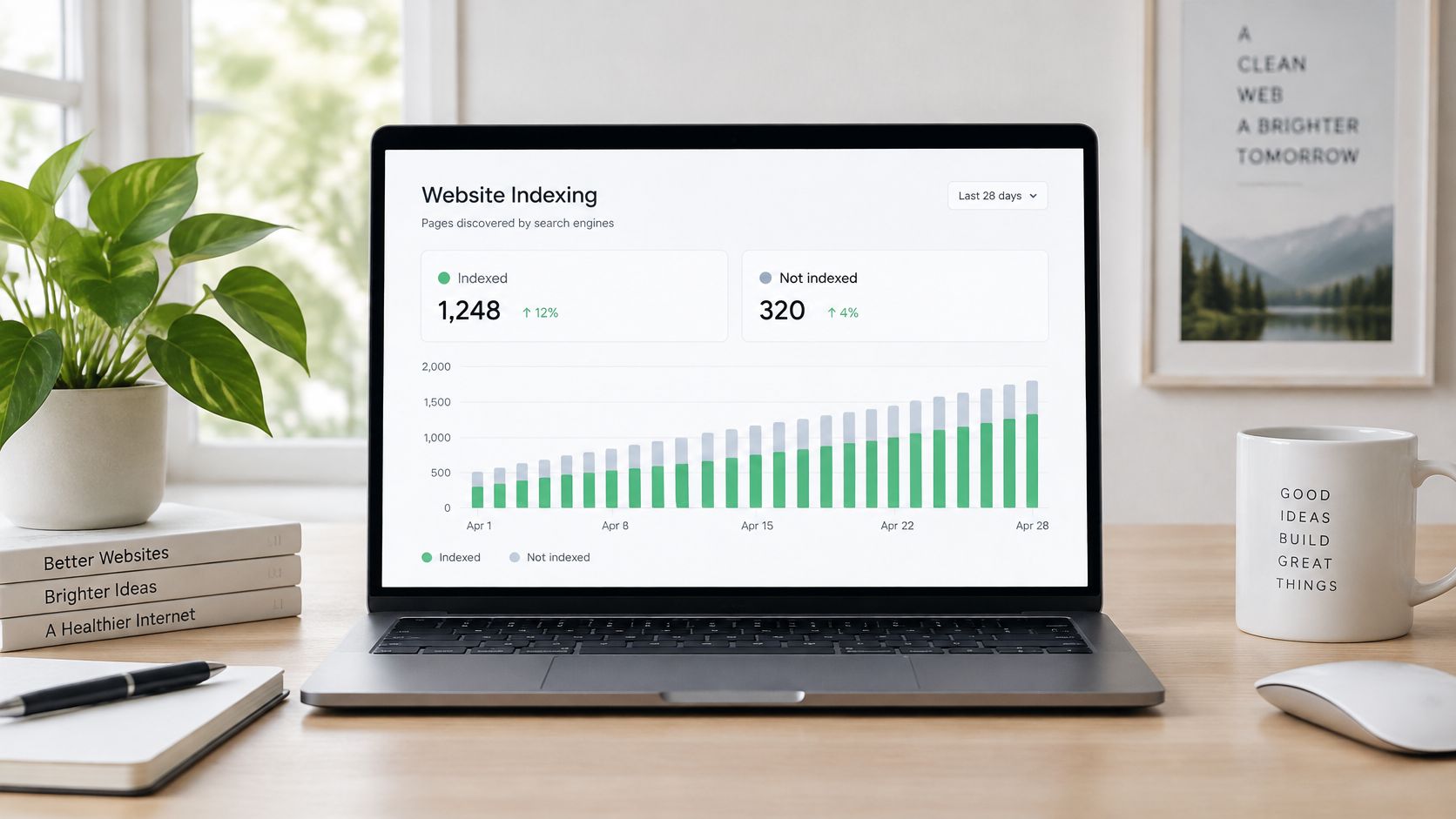
Think of this report as Google's running tally of every URL it knows about, along with what happened when it tried to crawl and index them. One thing that trips people up: those bars are cumulative totals as of each date, not daily activity. Seeing 100 indexed URLs means 100 pages were indexed in total at that point — not that Google crawled 100 pages that day. Google explains the distinction in its Google’s Page Indexing report guidance.
Before you click into anything specific, get comfortable with the two buckets:
- Indexed — pages currently sitting in Google's index.
- Not indexed — pages left out, each with a reason attached so you can see why.
Pay more attention to movement than to a single number. A flat, steady total tells a very different story than a sudden drop.
Say you just published a batch of guides around free office tools or free keyword tools. Line those live URLs up against what the report shows. That batch might also include posts on free tools for video editing, free daemon tools, free zip tools, free pro tools download, and pro tools free download. An excluded URL doesn't automatically mean your new post is missing — context matters.
Calculate Coverage For Published Articles
For a WordPress publication like Read More Info, keep the math apples-to-apples. Count your live articles, then count how many of those same article URLs are actually indexed. Don't compare your post count against a sitewide total that also includes tags, author pages, and other extras.
| Measure | Worked Example |
|---|---|
| Published articles | 90 |
| Indexed article URLs | 72 |
| Internal coverage | 80% |
The formula is simple: indexed article URLs ÷ published articles × 100. So here it's 72 ÷ 90 × 100 = 80%. Treat that as your own internal health check, not a Google ranking score.
Use that percentage as a starting point, not the final answer:
- Write down the date, your article count, indexed count, and coverage percentage.
- Jot down anything that changed — new theme, permalink tweaks, a migration, a big publishing push.
- If indexed numbers fall or errors spike, start with whichever status group moved.
If the problem turns out to be tired older content rather than a technical block, work through this guide to updating old blog posts separately from your index check.
Pull up the report now, save that first baseline, then check it again after your next round of publishing or site changes. For example, after publishing explainers on free budgeting tools, free humanizer tools, free wireframe tools, and free bi tools, re-check those exact URLs individually.
A site: search is a quick browser check. You don't need to open a full report to see if Google can show a page.
It's handy for finding one article. It just isn't a complete inventory of your site.
Use The Site Operator As A Spot Check

This video is hosted by YouTube (Google). Pressing play loads the video from YouTube, which may set cookies and share data with Google.
I usually run one of these in Google when I want a fast answer:
- Enter
site:readmore.infoto request results from that domain - Add a distinctive phrase, like
site:readmore.info "free keyword tools", to narrow things down - Or put
site:right before the article's exact address
If the page shows up, that's good evidence Google can serve that URL. Try the same spot-check pattern with other distinctive titles, such as posts on free visualization tools, free writing tools, free drawing tools, free crm tools, or free map tools.
If it doesn't show up, don't panic yet. Google says site: results aren't exhaustive, especially on larger sites, and operators have indexing and retrieval limits.
URL Inspection is far more reliable for debugging. Read Google’s search operator guidance if you want Google's exact wording.
Use search results to spot a page, not to count everything Google has indexed.
One more thing to check first: the canonical URL. That's the preferred version you actually want readers to find.
Google might index that version while skipping duplicate variations.
A Three-Number Indexing Spot Check
This is where a lot of site owners get tripped up. They compare three different numbers as if they should match.
Here's what that looks like on a small WordPress blog:
| Count | Example | What It Means |
|---|---|---|
| Published posts | 40 | Your article inventory |
| Indexed article URLs | 36 | Search Console’s indexed count |
| Visible site: results | 34 | A limited search listing |
Those numbers almost never line up perfectly, and that's normal.
In this case, 36 ÷ 40 × 100 = 90%, not 85%. That Search Console coverage math matters more than the 34-result listing, as long as you're comparing the same articles.
The gap often comes down to result-selection limits, not missing pages. For background on building your inventory, learn how to crawl every page for SEO audits.
RSS availability, responsive design, and accessible structure can help discovery and usability. None of them confirms indexing on its own, though. That holds for free tools guides as well as roundups of free tools online.
Check your newest article's preferred URL now. Then confirm anything uncertain with URL Inspection and the Page Indexing report.
Make that check part of your monthly routine. Don't wait until traffic drops to wonder if Google can even see your posts.
Judge Coverage On a WordPress Blog
Small WordPress sites do best with one simple log. Same date each month, same scope, same few spot checks. That way tag and category pages don't skew your post numbers.
Jot down these four things:
- Published posts — just the articles you actually track
- Indexed article URLs — compare against the Page Indexing report
- Priority URL checks — homepage, latest post, and one older cornerstone guide, inspected individually
- Growing exclusion reasons — note the URLs involved and anything you changed recently
A handy pairing is a fresh post on free office tools alongside your long-standing WordPress setup article. One tells you if new content is getting in, the other tells you if old trust is holding.
You're not trying to get every URL indexed. You're watching for whether coverage is stable — or just shifted.
Keep the homepage out of your article math. Mix them together and your month-to-month percentage stops meaning much.
Read Coverage Gaps Without Overreacting
A couple of new posts sitting in “discovered” for a few days? Normal. Google's URL Inspection guidance gives one to two weeks for processing a request, and even then inclusion isn't promised. This is common for new free content like free ai tools online or free ocr tools.
A sharp drop right after a permalink or theme change is different. Open whichever exclusion group grew, inspect those posts one by one, and fix the cause before hitting request indexing again.
An RSS feed, responsive layout, and clean HTML help Google reach your content, but they don't guarantee a listing. If the basics still need work, this WordPress blog setup guide is a solid place to tighten them up.
Lock in next month's review now, with your coverage percentage, any rising status reasons, and which URLs need a second look.
Before you tweak anything, double-check you're looking at the exact canonical URL — not a trailing-slash variant, UTM version, or old duplicate of the same post.
What to Do When a Page Is Missing
Open URL Inspection and compare what you pasted with the canonical Google picked. If Google chose a different version, inspect that URL. Otherwise you'll chase a problem that isn't really there.
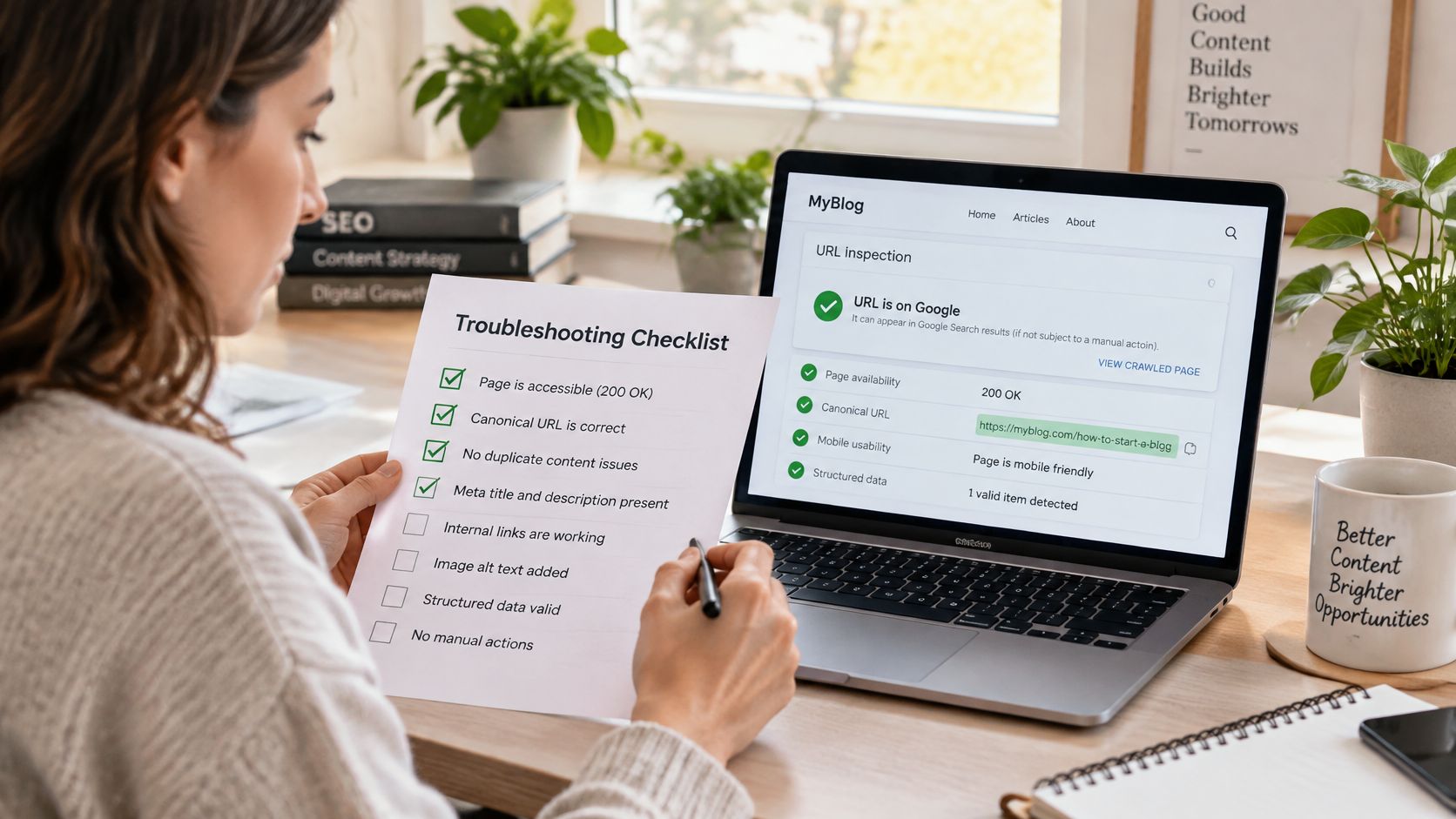
From there, let what you actually see guide you:
- Details look stale: hit Test Live URL to see if the current page can be crawled and indexed right now.
- URL is not indexed: open the reason in the Page Indexing report instead of assuming you've been penalized.
- Page looks fine and eligible: request indexing, then give it one or two weeks, just as Google's inspection guidance explains.
I've seen this a lot with fresh posts. Say you publish a roundup of free budgeting tools — it shows up in RSS instantly, but inspection still says “not indexed.” That feed only proves you published it. It doesn't mean Google has stored it yet. The same delay can affect posts on free editing tools for videos or free tools like photoshop.
A clean live test doesn't mean you're indexed. Stored status and live accessibility are two different things, so don't mix them up when you decide what to fix.
Check Whether the Problem Affects Other Pages
Did your indexed count drop right after a theme switch, permalink change, or migration? Then look at the whole group in the status report.
Inspecting the same article over and over won't reveal a site-wide pattern. For more context on common causes, see 3228 Digital on getting pages indexed. And if you're still getting Search Console set up, our guide to adding a WordPress site to Google Search walks through the basics.
Write down today's URL, status, exclusion reason, and when you requested indexing. Retest the same address after that waiting period, then compare it to your overall indexed total. That's how you know whether you're dealing with one slow page or something bigger.
Does A Page In The RSS Feed Count As Indexed?
No — and this trips up a lot of new site owners.
Your post can show up in the Read More Info feed within minutes, long before Google has even crawled it. Feed delivery is instant. Indexing is not. Whether the post is about free humanizer tools, free wireframe tools, or free bi tools, feed presence is not index proof.
URL Inspection is the page-level confirmation. Drop the exact article URL into Search Console and read what Google actually has stored, just like Google's inspection guidance describes. If it's not there, it's not indexed — no matter what the feed says.
How Long Should You Wait After Requesting Indexing?
Give it time. Google says processing can take up to one or two weeks.
So if that new post on free keyword tools still isn't showing after two days? Totally normal. That's not a penalty, and it's not a sign you did something wrong. The same wait applies to free visualization tools, free writing tools, free drawing tools, free crm tools, and free map tools posts.
An immediate miss is not proof of a lasting problem. Wait out the full window, then retest the same URL.
Still missing after two weeks, dig into the exclusion reason in the Page Indexing report. Don't just hit request indexing again and hope for a different result.
Why Does Site: Show Fewer Pages Than Search Console?
This happens constantly, so don't panic.
In that earlier example, a site: search returned 34 results while Search Console showed 36 indexed URLs. Two pages “missing,” but nothing was actually wrong.
That gap is usually about result limits, not missing pages. Google is clear that site: results are not exhaustive. Think of it as a sample, not a full inventory.
Trust the report over the search count. And once you've checked, move on — rerunning the same query won't change the number.
Ready to put this into practice? Read More Info publishes practical WordPress and web guides for solo editors and small-site owners, from setting up a WordPress blog to adding your site to Google Search. Visit Read More Info and check your first URL today.