
Submitting a sitemap is not the same as adding your site to Google's search results. The common advice to install an SEO plugin, press Submit, and consider the job finished overlooks the checks that tell you whether Google can find and index your articles.
To add a WordPress site to Google Search, you need a discoverable site, accessible pages, and a clear choice of which URLs deserve a listing. Search Console helps you check those conditions, but it doesn't force Google to include a page.
Table of Contents
- Why Submitting a WordPress Site Is Not Indexing
- WordPress URLs to Include and Leave Out
- How to Add Your WordPress Site in Search Console
- Search Console Checks That Prove a Page Is Indexed
- Common WordPress Indexing Failures and Fixes
- Crawl and Mobile Habits That Help Google
- Recheck Status Then Know When to Stop
Why Submitting a WordPress Site Is Not Indexing
A successful sitemap submission proves that you've offered Google a list of URLs. It doesn't prove that Google has visited those pages, stored them, or decided to show them for a search.
Google's sitemap guidance describes a sitemap as a hint, not a guarantee of crawling or indexing, and submitting one doesn't improve rankings. Google may not download the file, visit every listed page, or index everything it visits.
The stages behind a search listing
Discovery means Google learns that a URL exists, usually through links or a sitemap. Crawling means Googlebot visits that URL and retrieves its contents.
Indexing means Google stores a version of the page that it may show in search. Ranking is the separate decision about whether that indexed page answers a particular query well enough to appear.
The distinction is easier to see as a sequence.

What each Google stage does and how long it takes
| Stage | What Google does | What you control | Typical timing |
|---|---|---|---|
| Discovery | Learns the URL exists | Sitemap, internal links, a few external links | Harder on new sites with few links |
| Crawling | Googlebot fetches the URL | robots.txt allows access, page returns HTTP 200, no login wall | A few days to a few weeks |
| Indexing | Stores a page it may show | Search visibility on, no noindex, self-referential canonical, useful content | After the crawl, and not guaranteed |
| Ranking | May show the page for queries | Relevance, links and page experience | Separate from merely being indexed |
For the crawling window in this table, Google's recrawl guidance says a newly added or updated URL can take a few days to a few weeks to crawl. Repeatedly requesting the same URL won't make it happen faster, and requests are subject to a quota.
Choose a better finish line
New sites with few external links can be harder for Googlebot to discover. WordPress's automatic sitemap gives Google a useful discovery route without requiring you to request indexing for every post.
Reserve manual requests for the homepage, important evergreen articles, and recently updated pages. If you're still preparing the site itself, finish the public-site basics in this guide to creating a WordPress blog before treating search visibility as a plugin problem.
Practical rule: Measure progress by the page's indexed status, not by the moment you pressed Submit.
The useful milestone is that Search Console reports the preferred page as indexed and a Google search for its exact URL returns it. Even then, a listing for the URL doesn't promise visibility for a competitive topic.
WordPress URLs to Include and Leave Out
WordPress can expose an article through its individual post page, homepage excerpts, category and tag archives, author archives, feeds, and search results. Those routes help different readers, but they aren't all equally useful Google landing pages.
Start with the destination you want someone to reach from search. Usually, that's the full article, not a feed entry or a filtered copy.
WordPress URLs to submit or keep out of the sitemap
| URL type | Put in sitemap | Reason |
|---|---|---|
| Homepage | Yes | Main entry point for the publication |
| Original posts with substantial text | Yes | The pages you want as search landing pages |
| Important category or key pages | Yes | Help discovery of the posts |
| Preferred HTTPS canonical of each page | Yes | Must match the URL Google should store |
| Posts RSS feed at /feed/ | No | Useful for subscribers, not a sitemap |
| Comments feed | No | Discussion syndication, not a landing page |
| On-site search result URLs | No | Thin and can multiply without limit |
| Thin tag archives and empty states | Usually no | Often duplicate or have no standalone value |
| Comment permalinks and parameterized copies | No | Duplicates of the post |
| HTTP or alternate www host | No | Keep one canonical HTTPS host |
Decide whether each archive earns a listing
Say you're planning a publication about free tools. Its editorial topics might include free office tools, free ai tools online, free ocr tools, free editing tools for videos, free tools for video editing, free daemon tools, and free zip tools.
Other article ideas might target free pro tools download, pro tools free download, free keyword tools, a free keyword tool, free tools like photoshop, free budgeting tools, or free humanizer tools. You might also cover free tools online, free wireframe tools, free bi tools, free visualization tools, free writing tools, free drawing tools, free crm tools, and free map tools.
Those are potential article subjects, not reasons to create an indexable archive for every phrase. Closely related subjects may belong in a single substantial comparison, while different reader needs deserve separate articles.
An archive earns its place when it helps someone browse useful posts. An empty tag page or a page displaying Nothing Found doesn't become useful merely because WordPress generated it.
Make the preferred version unmistakable
A canonical URL is the version you want Google to treat as the main page. On an indexable original article, use a self-referential canonical, meaning the canonical points to that article's own preferred URL.
Google's crawling and indexing FAQ highlights the importance of checking www and non-www versions and using fully qualified absolute sitemap URLs. Use complete HTTPS addresses, with the same preferred host in your sitemap and internal links.
Each sitemap entry should lead directly to a public page returning HTTP 200, the successful page response. Keep alternate hosts and old HTTP versions out of that preferred list.
For a new article, you want the article itself selected, not /feed/ or an old HTTP copy. Remove non-preferred entries from the sitemap, then check the generated file again after publishing.
How to Add Your WordPress Site in Search Console
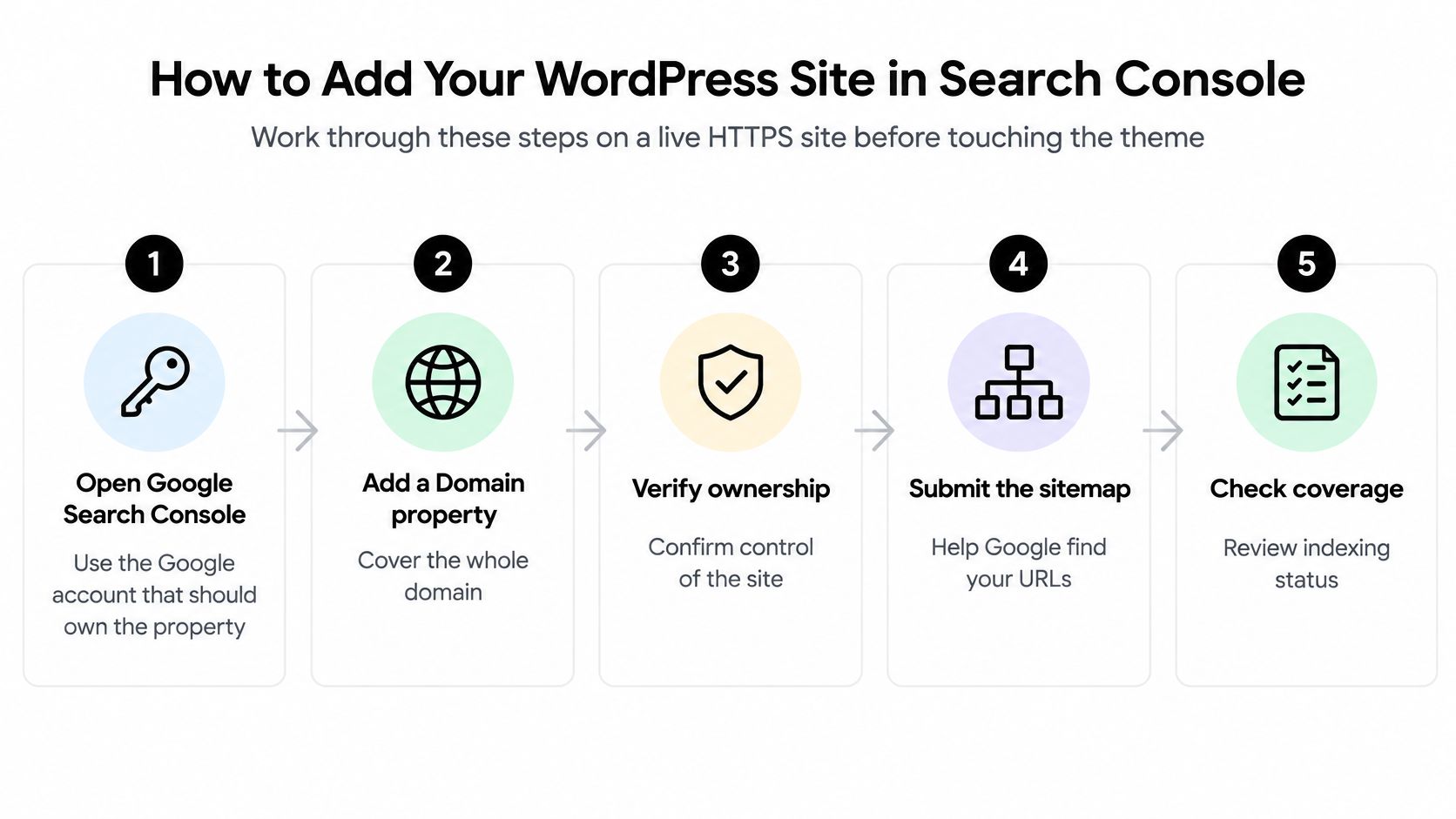
Work on the live HTTPS site before changing the theme or adding more SEO plugins. You'll need access to WordPress and, for Domain verification, access to the domain's DNS management.
This overview shows the setup sequence.
Verify the right property
Open Google Search Console with the intended owner account. Use an account you expect to retain access to. Avoid making a temporary contractor's account the only verified owner.
Choose Add property, then consider Domain. A Domain property covers the domain across protocols and subdomains. A URL-prefix property covers only the prefix you enter, so checking an HTTPS non-www site through an HTTP or www property can send you looking in the wrong place.
If the choices aren't clear, Outrank's explanation lets you compare domain and URL prefix properties before choosing. A Domain property is generally the simpler monitoring choice when you control DNS.
Complete ownership verification. For a Domain property, Search Console supplies a DNS TXT record to add through your registrar or DNS host. Follow its verification screen and wait for confirmation before assuming the reports are available.
Verification proves control of the property. It doesn't publish your site or change the content Google can access.
Check WordPress and submit the sitemap
Open Settings → Reading in WordPress. Make sure the option labeled Discourage search engines from indexing this site is unchecked. This setting is easy to overlook when a staging site becomes the production site.
Visit the public homepage over HTTPS. Open it while logged out, or use a private browser window. You should see the website itself, not a password prompt, maintenance message, or coming-soon screen.
Find and open the XML sitemap. WordPress commonly uses
/wp-sitemap.xml, while an SEO plugin may generate/sitemap_index.xml, as described in Google's Search Console setup guidance. Open the actual file and confirm that it displays XML or a sitemap index, rather than an error or ordinary blog page.In Search Console, select Sitemaps, enter the working sitemap location, and submit it. Don't substitute the posts feed or comments feed for the complete sitemap.
Inspect priority pages. Paste the complete homepage URL into URL Inspection, then do the same for a representative published article. Read the indexing result and available crawled-page information before using Request indexing for a priority page that needs attention.
Verification unlocks reports. Sitemap submission helps discovery and error monitoring. Neither action is an instruction Google must obey.
You don't need to edit theme files to complete this workflow. Keep the initial setup focused so that, if something fails, you can identify which step needs attention.
If you prefer a dashboard demonstration, this video provides another way to follow the process.

This video is hosted by YouTube (Google). Pressing play loads the video from YouTube, which may set cookies and share data with Google.
Once processing begins, leave the sitemap in place. Replacing it repeatedly or submitting the same pages again doesn't resolve an access or content problem.
Search Console Checks That Prove a Page Is Indexed
The Sitemaps report can show Success while an important article remains absent from the index. Discovery and indexing are separate stages, so judge each page from its own inspection result, then use the property-level reports to understand the wider pattern.
Begin with one complete URL
Paste the exact preferred address into URL Inspection. Read the indexed result first, then run the live test when you need to check what Google can access right now.
The two results answer different questions. The indexed result describes what Google has already stored; the live test describes what Googlebot could fetch today. A live page can appear technically indexable without holding a place in the index yet.
Available diagnostics can include crawl access, last crawl, detected sitemaps, referring URLs, canonical information, structured data, and eligible rich results. Look for mobile-related issues where available, but don't expect every page or report interface to expose the same fields.
One stored page is still only one stage cleared. Indexing makes a URL eligible to appear; relevance decides where it ranks.
Where to check indexing and what the result means
| Check | Scope | Pass looks like | Do not assume |
|---|---|---|---|
| URL Inspection | One exact URL | Indexed, and live URL looks indexable | A sitemap listing means the same thing |
| Page indexing report | Whole property | Indexed count rising, examples include priority URLs | Every crawled URL was indexed |
| Sitemaps report | Submitted sitemap | File fetched, submitted versus indexed counts visible | Success means every URL is searchable |
| Full-URL Google search | One page | The exact URL appears | It will appear the same day you submit |
| site: operator | Rough site snapshot | Some preferred URLs show | The count is complete or official |
Check the property and public results
Open Page indexing to review indexed totals, historical changes, and exclusion reasons, and check Google's Search Console inspection documentation for how each diagnostic is defined.
Apply your checks separately to the homepage, a published article, and a useful archive you've chosen to keep. A feed entry isn't evidence that its corresponding article is indexed.
Search Google for the complete article address, then try site:readmore.info as a rough visibility check. If you're trying to locate particular text rather than establish indexing status, these ways to search a site for a word serve a different purpose.
A
site:search works as a quick spot check rather than a complete inventory or an official indexed-page count.
Confirm that Google fetched the sitemap, then compare its submitted set with indexing information. Some interfaces separate those details, so you may need to move between the sitemap and page reports.
If server logs are available, inspect Googlebot requests and repeated client or server errors. The practical pass rule is indexed priority URLs, a successfully fetched sitemap, and exact-URL visibility in Google.
Common WordPress Indexing Failures and Fixes
Waiting can look like failure when a site has just launched. But once a priority page remains missing, the useful next action is to read its exclusion reason, not resubmit the whole archive.
Google's indexing troubleshooting guidance makes clear that accessibility alone doesn't guarantee inclusion: robots rules, low-quality content, or limited relevance can still keep a page out. Diagnose the particular page before changing site-wide settings.
Indexing symptoms, likely causes and fixes
| What you see | Likely cause | Fix |
|---|---|---|
| Submitted, still missing after weeks | Normal crawl lag, or quality or canonical choice | Inspect the URL and read the exclusion reason |
| URL is unknown | Wrong host property | Check www and non-www, prefer the Domain property |
| Crawled – currently not indexed | Thin, duplicate or unclear canonical | Improve the page and link to the preferred URL |
| Blocked by robots.txt | Plugin or manual Disallow | Allow Googlebot to the public pages |
| Excluded by noindex | Discourage search engines still on | Uncheck it and inspect the URL again |
| Login or maintenance HTML | Coming-soon or private site | Publish the real HTTPS page |
| Both HTTP and HTTPS indexed | Inconsistent links and sitemap | Force one HTTPS host everywhere |
| Feed or old URL instead of the post | Feeds or legacy URLs treated as canonical | Self-canonical the post and drop feeds from the sitemap |
Separate access problems from selection decisions
An unknown URL isn't proof of a host mismatch. Check the property first, then investigate whether Google has discovered the page through a sitemap or crawlable link.
A robots.txt block means Google couldn't crawl the page as intended. Check security and SEO plugin settings for a restrictive Disallow rule, but don't remove protections from private areas just to expose public posts.
A noindex exclusion is different: the page tells search engines not to index it. Check WordPress visibility, page-level SEO settings, and any staging controls left active.
Improve pages Google has already fetched
Crawled, currently not indexed means Google visited the page but hasn't included it. It doesn't identify a single guaranteed cause, and another request won't override Google's selection.
Read the article as a visitor would. Replace thin introductory filler with a direct answer, useful examples, clear instructions, and internal links to related material. Up North Media's walkthrough can help you diagnose why Google isn't indexing pages when the technical checks pass but selection remains unresolved.
For a feed or old address appearing instead of the article, inspect Google's selected canonical before changing anything. Correct inconsistent signals, redirect retired versions where appropriate, and retain the article's preferred address in internal links.
After a concrete fix, test the live URL again. Request indexing for corrected priority pages, then allow Google to revisit them rather than installing another plugin immediately.
Crawl and Mobile Habits That Help Google
Search visibility becomes easier to manage when publishing includes a repeatable discovery routine. Don't leave a new article reachable only through a sitemap or buried behind the site's search box.
Link it from the homepage or a useful category using its canonical HTTPS address. Keep the sitemap focused on worthwhile landing pages as the archive grows.
These habits connect the initial setup to everyday publishing.

Build a small publishing routine
- Publish a complete answer. Give readers substantial original text rather than an announcement stub with a promise to add details later.
- Connect the article. Add relevant links from existing public pages, not just navigation generated for logged-in editors.
- Update carefully. Change the visible article when revising it and let the sitemap's modification information reflect meaningful changes. Reserve manual indexing requests for priority updates.
- Review the reports. After a publishing batch, look for sitemap errors and check whether representative new articles have entered the indexed set.
Check the article on a phone as well as in the editor. Text should be readable, the layout should fit the screen, and menus, buttons, or overlays shouldn't obstruct the main content.
Use this responsive design testing guide to turn that check into a consistent habit. Let Google access the CSS and JavaScript your theme needs to render the public page.
These practices help Google discover and understand useful content while making it easier for people to read. They don't purchase a ranking or guarantee a listing on publication day.
Recheck Status Then Know When to Stop
Treat the initial setup as complete when URL Inspection shows the homepage and a real article as indexed, the sitemap fetch succeeds, and searches for those exact addresses return them. That's a practical checkpoint, not a promise that every future post will be included.
If a priority URL is blocked or crawled but not indexed, act on that specific reason. If no fix is indicated, allow time for another crawl rather than repeatedly submitting everything.
Keep a manageable watchlist
- Watch preferred pages. Keep the homepage, newest priority articles, and selected archives on a short review list.
- Review after publishing. Check those URLs for unexpected exclusions and review sitemap errors monthly.
- Stop unnecessary changes. Once preferred pages remain indexed and reporting aligns with your intended URL set, return your attention to publishing.
We publish general-interest WordPress articles and provide open posts and comments feeds that readers can subscribe to in an RSS reader. Those subscription routes help readers follow updates; they aren't substitutes for checking individual article URLs.
You can share a useful public article before indexing completes. Just don't mistake promotion, a feed subscription, or a submission confirmation for proof of a Google listing.
Read More Info offers general-interest articles with open posts and comments feeds for following updates in your RSS reader. Visit Read More Info to continue reading, and use your Search Console watchlist to keep your own WordPress publishing checks focused.