Site Update Notification: 4 Ways to Keep Readers Informed

You publish a useful article, share it once, and move on to the next task. A week later, the post is still valuable, but most readers have no practical way to know it exists. They may discover it through search, catch a social post between algorithm changes, or remember to visit your site manually. Most won't.

A sustainable site update notification system gives readers a direct route back to your work. The strongest setup doesn't depend on one channel. It combines an open RSS feed with permission-based email, selective web push, and lightweight social distribution, so readers can choose the level of interruption that suits them.

Table of Contents

Why Readers Miss Your Best Content

A reader who follows several information sites already faces a small daily chore. They open bookmarks, scan social feeds, search for familiar names, and check inboxes for anything useful. Each site asks for attention in a different way, and the reader eventually abandons the routine.

That pattern creates a retention problem for publishers. Search can introduce a new visitor, and social platforms can extend reach, but neither gives readers a dependable subscription path. A person may appreciate an article without remembering the site address or seeing the next post in a crowded feed.

A WordPress publication can solve part of that friction with four complementary channels:

  • RSS feed: A portable, reader-controlled stream for routine updates.
  • Email digest: A permission-based summary for people who prefer their inbox.
  • Web push: An opt-in browser alert for timely posts that justify immediate attention.
  • Social automation: A discovery layer that republishes selected content where readers already spend time.

A clean, sunlit desk workspace featuring a laptop, a coffee mug, sticky notes, and a notification bell.

Practical rule: Don't treat every new post as an emergency. Routine articles belong in RSS or a digest. Push should earn its interruption.

This distinction matters when you design the rest of the site. A clean WordPress blog layout should make the subscription choices visible without turning the page into a control panel. Place a clear “Subscribe to updates” prompt near the end of an article, explain what each channel delivers, and let readers choose one or more options.

RSS is the durable foundation because it doesn't require a proprietary account or a permission token that can expire. Email adds familiarity and editorial control. Push creates immediacy, but it also creates the greatest risk of fatigue. Social automation can help new readers find the content, yet the publisher has limited control over who sees each post.

The practical model is therefore not “send more notifications.” It is match the channel to the reader's preference and the content's urgency. A general information site can keep the baseline quiet and portable, then offer faster channels for readers who actively want them.

Building a Reliable RSS Subscription Workflow

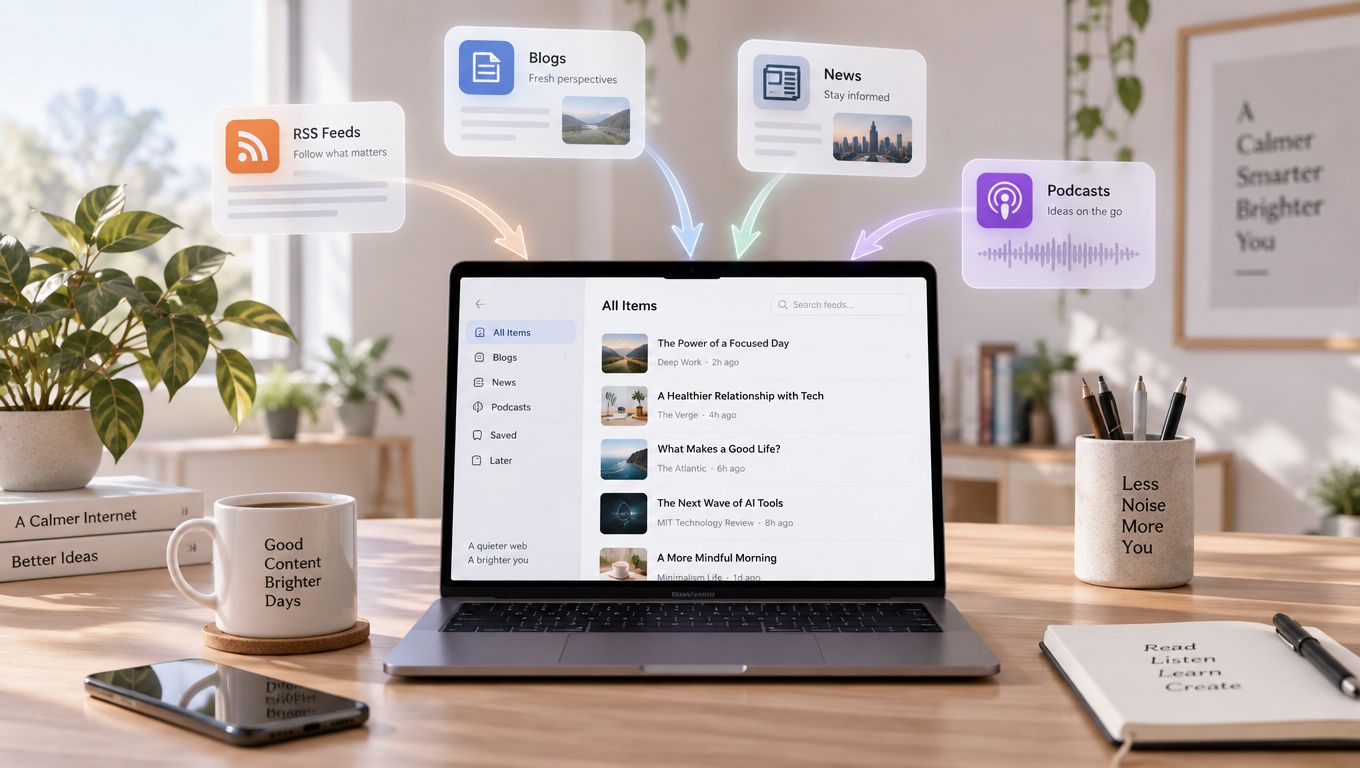
RSS is the simplest site update notification channel to keep available because WordPress already provides standardized feed endpoints. Readers can subscribe through a feed reader, an aggregation service, or an automation tool without creating an account on your website.

Start with feed discovery. On a WordPress site, the main post feed commonly follows the /feed/ path. A comments feed commonly follows /comments/feed/. For a publication with those endpoints, the direct subscription paths are the main post feed and the comments feed.

Choose the right stream

The main feed is for new articles. The comments feed is for discussion activity, which makes it useful when a reader wants to follow responses without subscribing to every post again. Keep the distinction visible in your subscription copy. “New articles” and “New comments” are clearer than presenting two unexplained feed icons.

Test both URLs in a browser and in at least one feed reader. A valid feed should display structured entries rather than a normal web page. Check that each item has a readable title, a working canonical link, a publication date, and enough content for the reader to decide whether to open it.

Excerpt feeds reduce scanning time and keep the reader in the original site, while full-text feeds can be more convenient for offline reading and accessibility workflows. Neither choice suits every audience. A publication built around short updates may benefit from fuller delivery, while a site focused on longer articles may use summaries to preserve the reading journey on the website.

Organize subscriptions before adding more

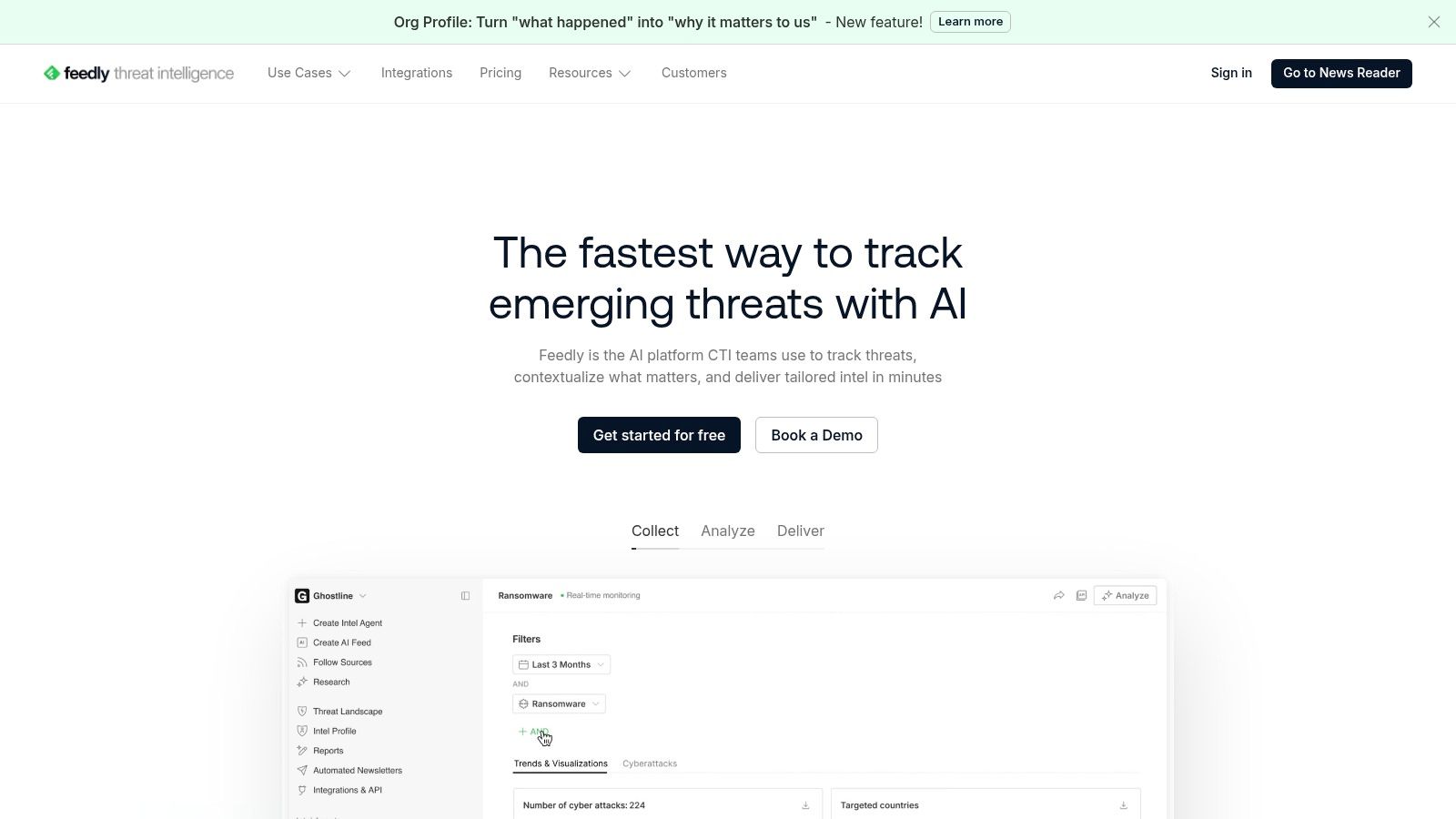
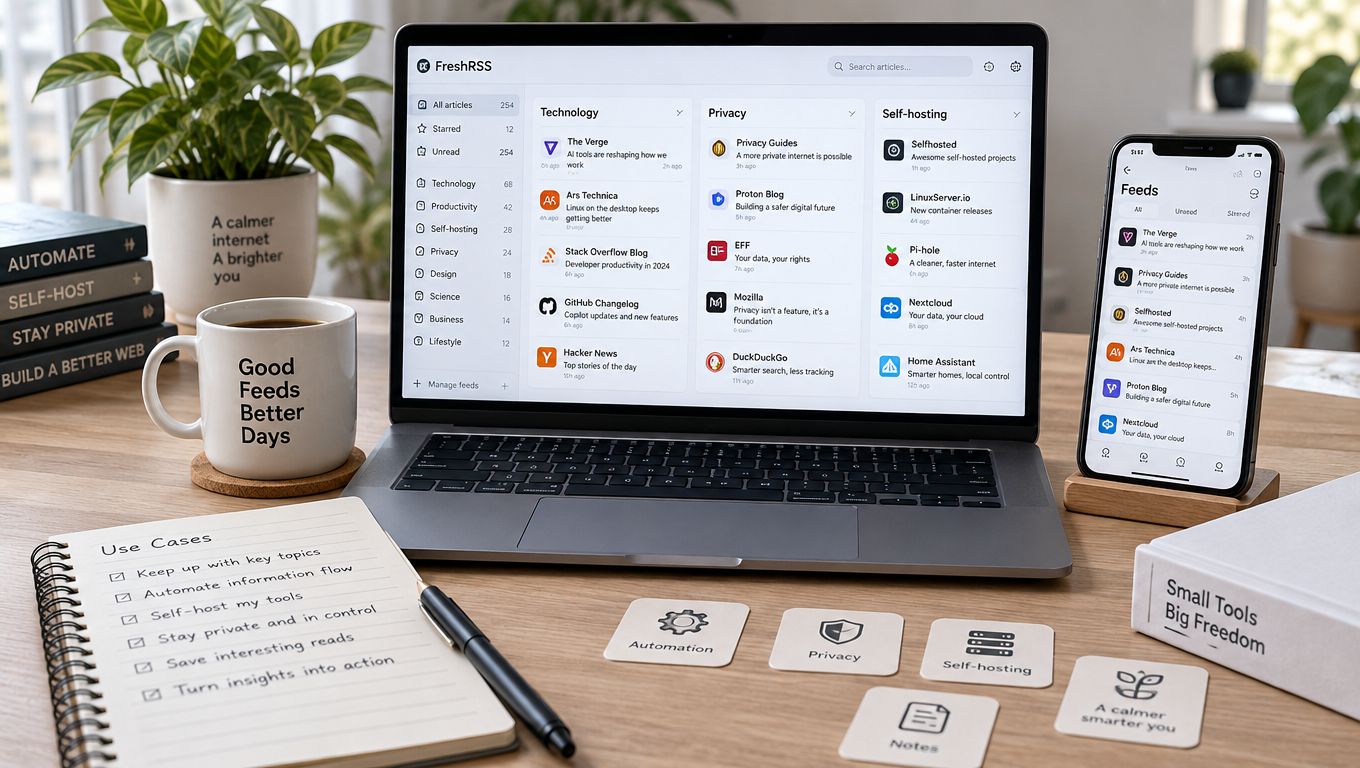
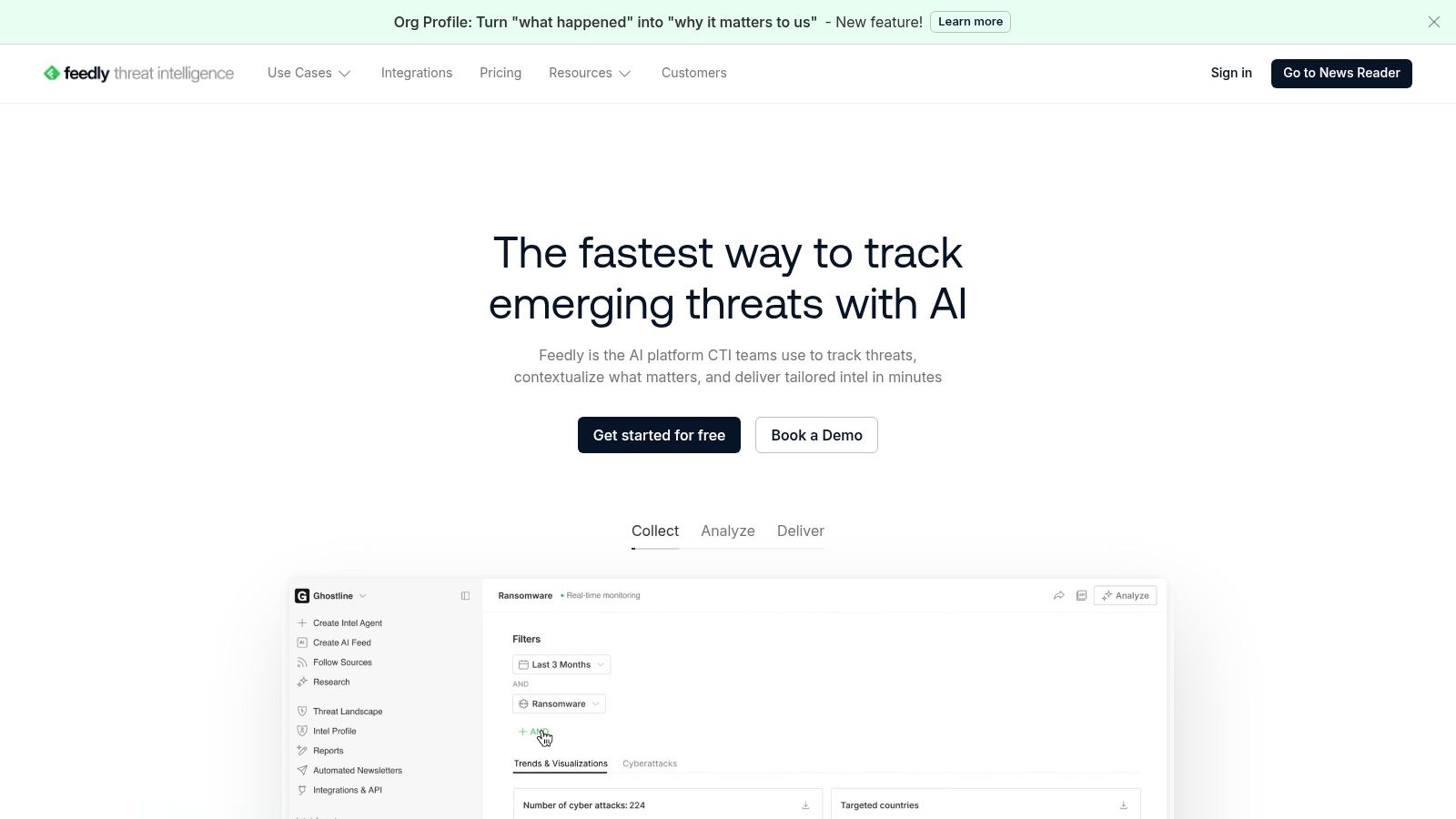
Choose a reader that fits your habits. Feedly and similar hosted readers offer a quick start, while self-hosted readers appeal to people who want greater control over storage and migration. The important feature isn't the brand. It's whether you can export subscriptions and organize them into useful folders.

A practical folder system might separate research, industry news, personal interests, and client monitoring. Keep the number of feeds manageable enough that the reader can scan titles without feeling buried. RSS has a major advantage here: it gives subscribers a stable URL they can move between compatible tools instead of locking their relationship to one delivery service.

If you're documenting the setup for beginners, explain what happens after the click:

  1. Locate the feed: Copy the site's post-feed URL, then identify the separate comments feed if discussion updates matter.
  2. Open a reader: Add the URL to a trusted feed reader rather than relying on repeated manual visits.
  3. Create a folder: Group related publications so new items can be scanned by topic.
  4. Review the delivery: Confirm that new posts appear with useful titles, links, dates, and readable summaries.

WordPress administrators should also monitor feed reliability. Caching can delay a newly published item, and a malformed plugin output can break parsing even when the homepage looks normal. Keep the feed URL stable, avoid unnecessary feed customizations, and test it after major theme or plugin changes.

RSS isn't obsolete because many readers don't know its name. It remains valuable because the subscription can travel with the reader.

For a practical foundation, the WordPress blog creation guide helps connect the publishing workflow with the feed that readers will use afterward.

Setting Up Email Digests Without Looking Like Spam

Email works best when the reader understands exactly what will arrive and how often. A form that says “Get updates” is weaker than one that says “Receive a weekly summary of new articles.” Clear expectations attract people who actually want the messages and reduce complaints from subscribers who misunderstood the offer.

Connect the form to a mailing service that supports WordPress, consent records, list segmentation, and a visible unsubscribe link. Don't import scraped addresses or add customers who never requested editorial updates. A smaller permission-based list is more useful than a large list that ignores, deletes, or reports messages.

Set a publishing rhythm

Match the digest to your publishing pace. Frequent publishers often need a digest that groups new articles, while occasional publishers may send an update only when there is something meaningful to share. An instant email can suit a time-sensitive publication, but it should be reserved for content where delay would reduce value.

Use a simple editorial format:

  • Subject line: State that new articles are available and identify the central topic.
  • Opening sentence: Tell subscribers what changed since the previous message.
  • Article list: Put the newest or most important item first, with a short useful description.
  • Action link: Send readers to the canonical article URL.
  • Preference path: Make unsubscribe and frequency controls easy to find.

Mobile readability matters more than elaborate design. Keep the content column narrow, use descriptive headings, provide sufficient contrast, and make links large enough to select comfortably. A plain email with strong hierarchy often serves readers better than a heavily decorated template.

Protect trust after publication

Send a test message to desktop and mobile inboxes before activating the automation. Check the subject line, preview text, featured image, article links, sender identity, reply address, and unsubscribe path. Make sure the digest doesn't expose broken HTML or repeat the same post after an edit.

List hygiene is an ongoing task. Remove invalid addresses through the mailing platform's normal process, watch for repeated delivery failures, and don't keep increasing frequency to compensate for weak engagement. Let subscribers change cadence or leave without friction.

A digest should feel like a useful editorial service, not a demand for attention. If a reader can tell why the message arrived, what changed, and how to stop receiving it, the system is doing its job.

Deciding Between Web Push and Lightweight Social Automation

Web push has a clear appeal. A browser can display an alert when the site isn't open, giving a new article a more immediate path to the reader than a feed they may check later. That visibility comes with a cost, permission, interruption, subscription management, and the possibility that a poorly timed message will cause the reader to revoke access.

The technical reach is broad. One industry compilation reports more than 96% global browser support for web push and cites 413 million web-push messages in 2024 compared with 266 million in 2023, an increase of approximately 55%. These are market estimates, not official government statistics, so they indicate channel scale rather than a guarantee for an individual publisher. The industry compilation is useful context, but it shouldn't replace testing on your own audience.

Ask for permission after the reader has seen enough context to understand the value. Avoid showing the browser prompt immediately on page load, especially when the visitor hasn't interacted with the site. Explain what the alerts cover, how often they might appear, and where the reader can change the choice later.

Compare the delivery choices
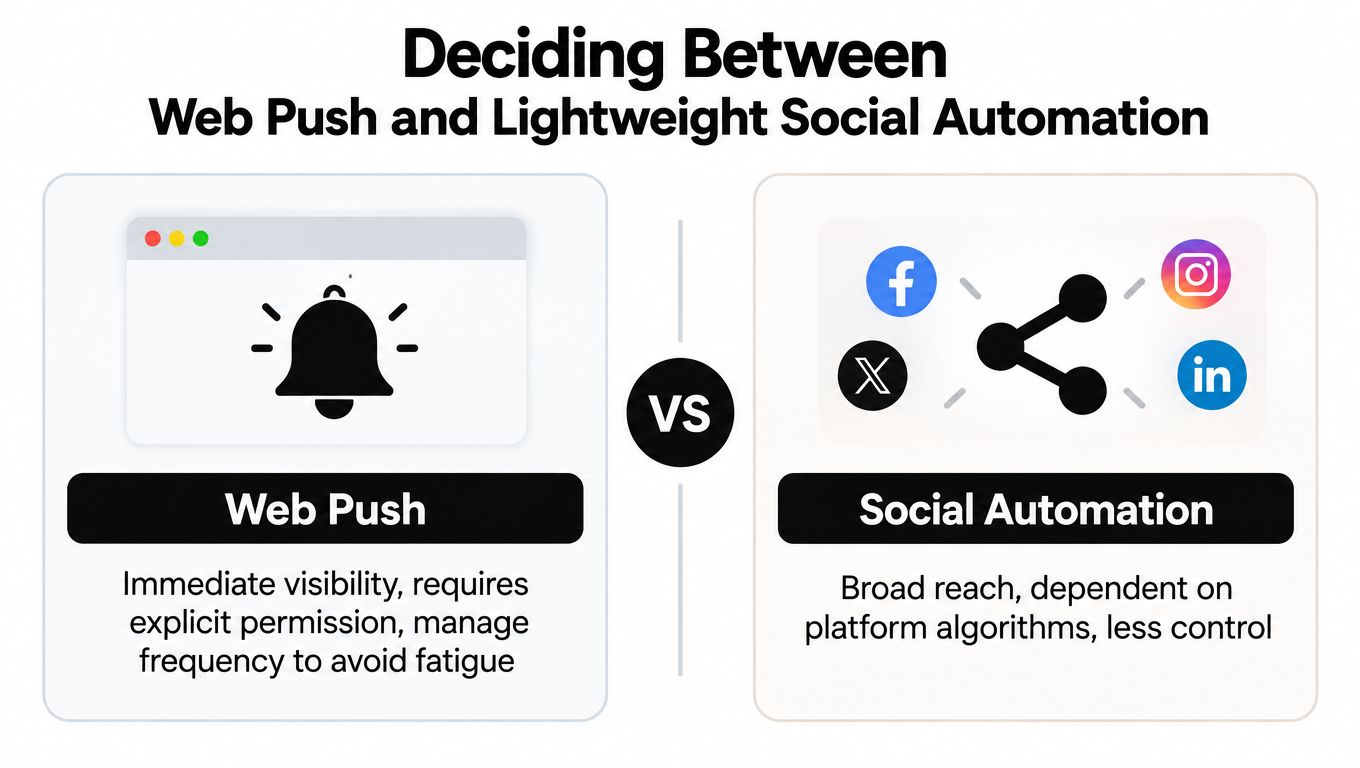
A comparison chart highlighting the pros and cons of using web push notifications versus social media automation.

ChannelStrong fitMain weaknessSensible control
Web pushReaders who want immediate alertsPermission and interruption fatigueOpt-in, frequency limits, pause, and unsubscribe
Social automationDiscovery and recurring visibilityPlatform algorithms control distributionSchedule selected posts and vary the copy
RSSPortable routine updatesReaders must use or understand a feed readerExplain the feed and provide a direct subscription path
EmailReaders who prefer a personal inboxList hygiene and inbox competitionDigest choices, clear content, and one-click unsubscribe

Social automation is useful when it extends distribution without pretending to be a direct subscription. Schedule a post when the article is published, use a concise description, and avoid sending every minor revision as a new alert. If you're comparing scheduling platforms, a guide to the best features in a scheduler can help you evaluate queueing, channel support, and reuse options.

Push needs operational discipline. After detecting a new feed item, generate a message with the title, canonical URL, and publication time. Queue it asynchronously, record the item ID, and make retries idempotent so a failed job doesn't create duplicates. Set a message TTL so an outdated alert expires instead of appearing long after the reader would find it useful.

Measure the funnel separately. Detection, enqueueing, delivery, display, clicks, unsubscribes, and duplicate alerts are different events. One reported industry dataset cites approximately 33% average push deliverability, while another reports a 26.3% blended view rate and a 38.1% median view rate among established senders. These benchmarks are operational context, not promises, and they appear in web-push performance statistics.

Combining Channels Into a Clear Reader Strategy

Readers shouldn't have to decode your subscription system. Present each option with a plain description of what it delivers, how quickly it arrives, and how the reader can stop or adjust it. “RSS for every post,” “weekly email summary,” and “push for selected alerts” communicate more than a row of unlabeled icons.

A useful strategy starts with channel roles rather than software. RSS handles the durable baseline. Email serves readers who want a scheduled editorial package. Push handles genuinely timely notices. Social posts help people discover the publication, but they don't provide the same control as a direct subscription.
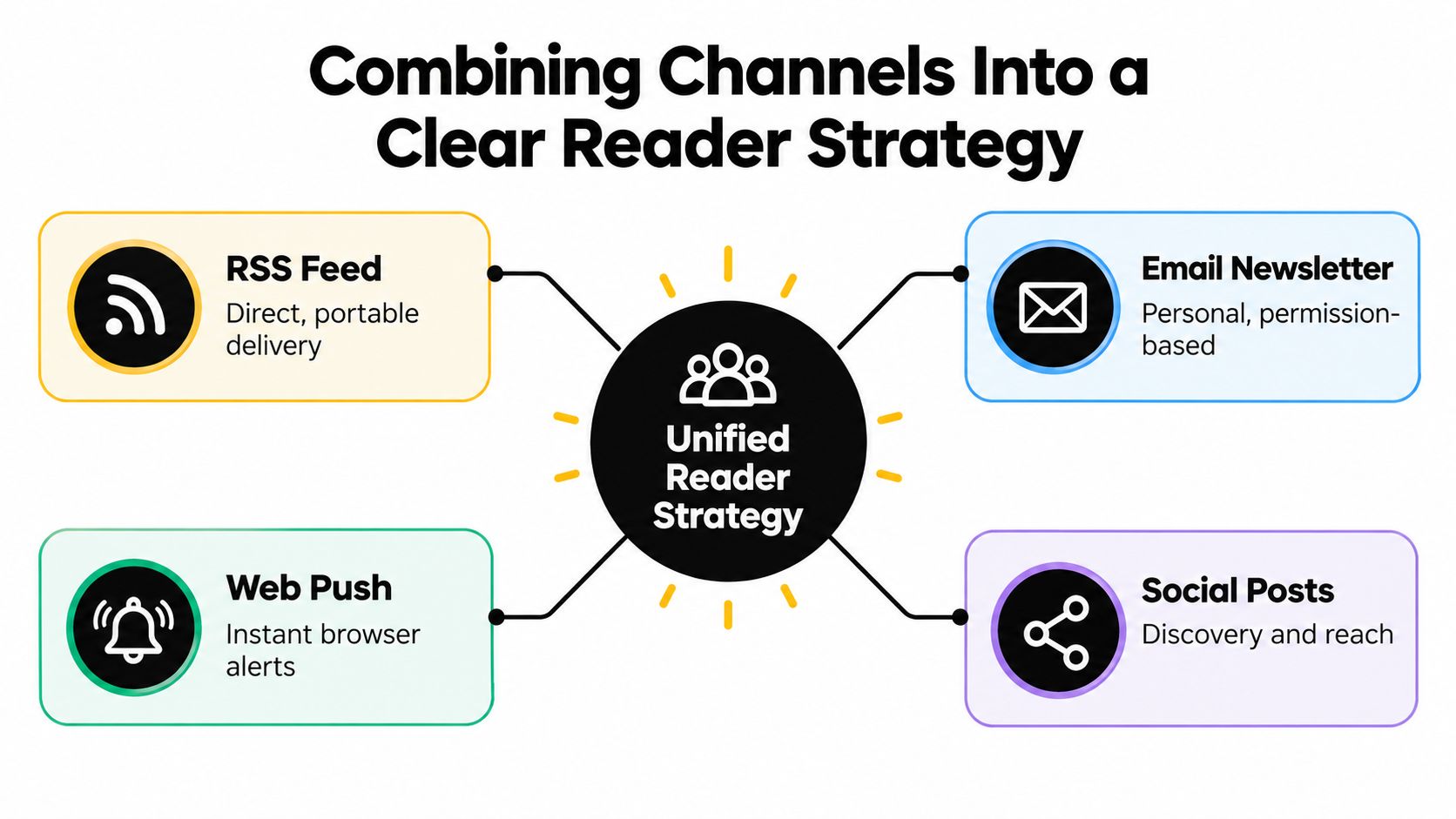
A diagram illustrating a unified reader strategy connecting RSS, email, web push, and social media channels.

Use a simple preference matrix

Reader preferenceRecommended pathMessage style
Wants quiet, portable accessRSSNew post appears in the reader
Checks email regularlyDigest emailCurated list with summaries
Needs immediate awarenessWeb pushOne concise alert with a direct link
Finds content through networksSocial automationScheduled discovery post
Follows discussion activityComments feedNew comment entries only

The interface should make these choices easy to find on desktop and mobile. Put the RSS link near the email form, state whether the email is instant or periodic, and provide a preference center for subscribers who want to switch channels. Use the same site name, logo treatment, and article naming conventions across every message so readers recognize the source quickly.

Accessibility belongs in the strategy, not just the implementation. WCAG guidance says status messages should be programmatically conveyed without forcing users to move focus, and unexpected context changes should be preventable or controllable. That supports a quiet default for routine updates, with accessible in-page confirmation after a subscription action rather than an unsolicited focus jump. The WCAG status message guidance provides the relevant implementation reference.

For teams producing content across many channels, scaling content with AI can help with repurposing and distribution planning, but automation should not decide the interruption level by itself. A human should approve what becomes a push alert, what belongs in a digest, and what can wait for the normal feed.

A small launch group can reveal confusing labels, duplicate messages, broken preferences, and timing problems before the system reaches the whole audience. Review the results by channel and by reader action, not by a single headline metric. The Read More Info blog provides the kind of article archive where these subscription paths should remain easy to discover.

Testing Your Notification Setup for Common Issues

Test the complete reader journey, not just the WordPress publishing screen. Publish a controlled post, confirm that it appears in the feed, check the email output, and verify whether push and social jobs use the same canonical URL.

Use different browsers and devices. Test a mobile feed reader, a desktop reader, a small-screen email inbox, and a browser with notifications denied. Confirm that a reader who declines push can still use RSS or email without seeing repeated permission prompts.

Launch checklist

  • Feed rendering: Open the post and comments feeds and confirm titles, dates, links, and content display correctly.
  • Feed changes: Check that a new item appears once, not repeatedly because of caching or unstable identifiers.
  • Email layout: Test subject, preview text, images, article links, sender details, and unsubscribe controls.
  • Push consent: Verify the explanation, permission state, pause option, expiry behavior, and duplicate prevention.
  • Social timing: Confirm that scheduled posts use the right publication time and destination URL.
  • Accessibility: Use a keyboard to operate subscription controls and test status messages with a screen reader.
  • Error handling: Confirm that failed jobs retry safely and don't send the same alert twice.

For feed polling, store the server's ETag and Last-Modified values. On later checks, send the matching conditional headers. An unchanged feed should return HTTP 304 without a response body, while a changed feed should return HTTP 200 with new XML. Parse entries only after the 200 response, then deduplicate with a stable guid or id, not just a title or date. The RSS parsing workflow guidance explains this cache-aware approach.

After launch, monitor detection delay, delivery failures, clicks, unsubscribes, and duplicate alerts. Use exponential backoff after errors, and don't poll so aggressively that a small publication creates avoidable server load.


Read More Info offers a straightforward WordPress publication with accessible articles, on-site search, and open RSS feeds for posts and comments. Visit Read More Info to explore the content and use the same practical, reader-controlled notification principles on your own site.

What Is RSS Feed: The Open Web Guide

An RSS feed is a machine-readable XML file that lets your reader pull site updates automatically, so you don't have to keep refreshing websites by hand. In RSS 2.0, the feed is an XML document with one <rss> root, one <channel>, and one or more <item> entries, each carrying the latest update metadata for a site.
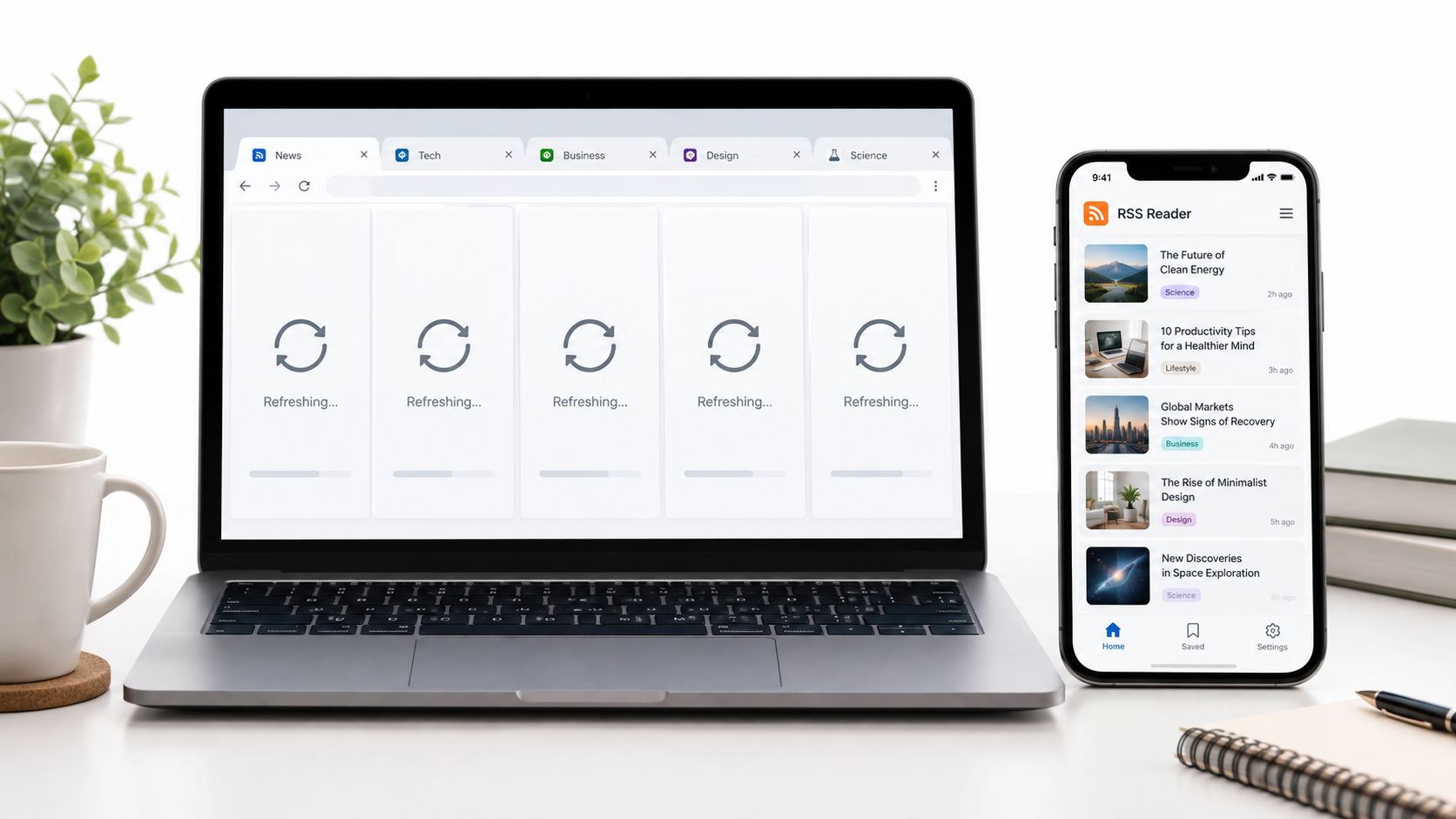
If you've ever opened a blog, checked for a new post, then jumped to three other tabs and done the same thing again, you already know the problem RSS solves. It gives you one structured stream instead of a scattered routine, which is why it fits so naturally with WordPress sites, lean publishing setups, and readers who want the open web without extra friction.

Table of Contents

Why Manual Checking Fails and What RSS Solves

A lot of people still treat websites like noticeboards. They open a homepage, scroll, come back later, and repeat the same check on every site they care about. That works for one or two sources, but it gets messy fast when you're following blogs, podcasts, documentation sites, or comment threads.

RSS changes that workflow by turning site updates into a subscription interface. A reader periodically checks a feed URL, compares what it finds with saved entries, and shows only the new items. That means you subscribe once, then let the reader do the repetitive part.

For WordPress users, that's especially practical. A post goes live, the feed updates, and a reader can pick it up without the visitor manually hunting for the latest content. The site stays the primary place to read, but the feed becomes a lightweight distribution layer for people who want updates in one place.

Practical rule: if you keep opening the same sites just to see whether anything changed, a feed reader is usually the cleaner workflow.

A modern laptop and smartphone displaying an RSS reader app interface on a clean, bright office desk.

The open-web part matters here. RSS predates modern social timelines and was designed for distributed publishing, not platform lock-in. It lets one publisher expose updates, while many different readers and aggregators interpret them in their own way, which is why it still works across simple blogs and more complex content workflows.

How an RSS Feed Actually Works Under the Hood

An RSS feed is not a separate website. It's an XML document that describes a channel of recent items, and the reader turns that document into a clean list. The structure is simple on purpose, because the point is to move update data around without dragging in webpage design.

At the top sits the channel, which contains the site title, feed link, and description. Under that, each item represents one post or update. Items usually carry a title, a canonical link, a description or excerpt, a publication date, and a unique identifier, so readers can tell whether something is new, edited, or already read.

That separation is why RSS works across very different websites. A news site, a WordPress blog, and a podcast feed can all expose updates in the same basic pattern even if the front-end designs look nothing alike. For a plain-language glossary that lines up with this idea, the RepurposeYourContent podcast glossary gives a useful definition in a podcasting context.

The mental model that helps most

  • Channel first: the feed describes the site as a whole.
  • Items second: the feed lists individual updates inside that channel.
  • Metadata matters: dates, links, and IDs are what let readers keep order.
  • Presentation stays separate: the feed carries data, not the site's visual layout.

A browser can show raw XML because the feed is meant for software first, not for direct reading like a normal page.

The technical details matter because they explain why feed readers can work reliably even when websites redesign their homepage. The reader isn't trying to recreate the site. It only needs the feed structure, and that structure stays much simpler than the page itself.

RSS Feed Versions and Syndication Formats Explained

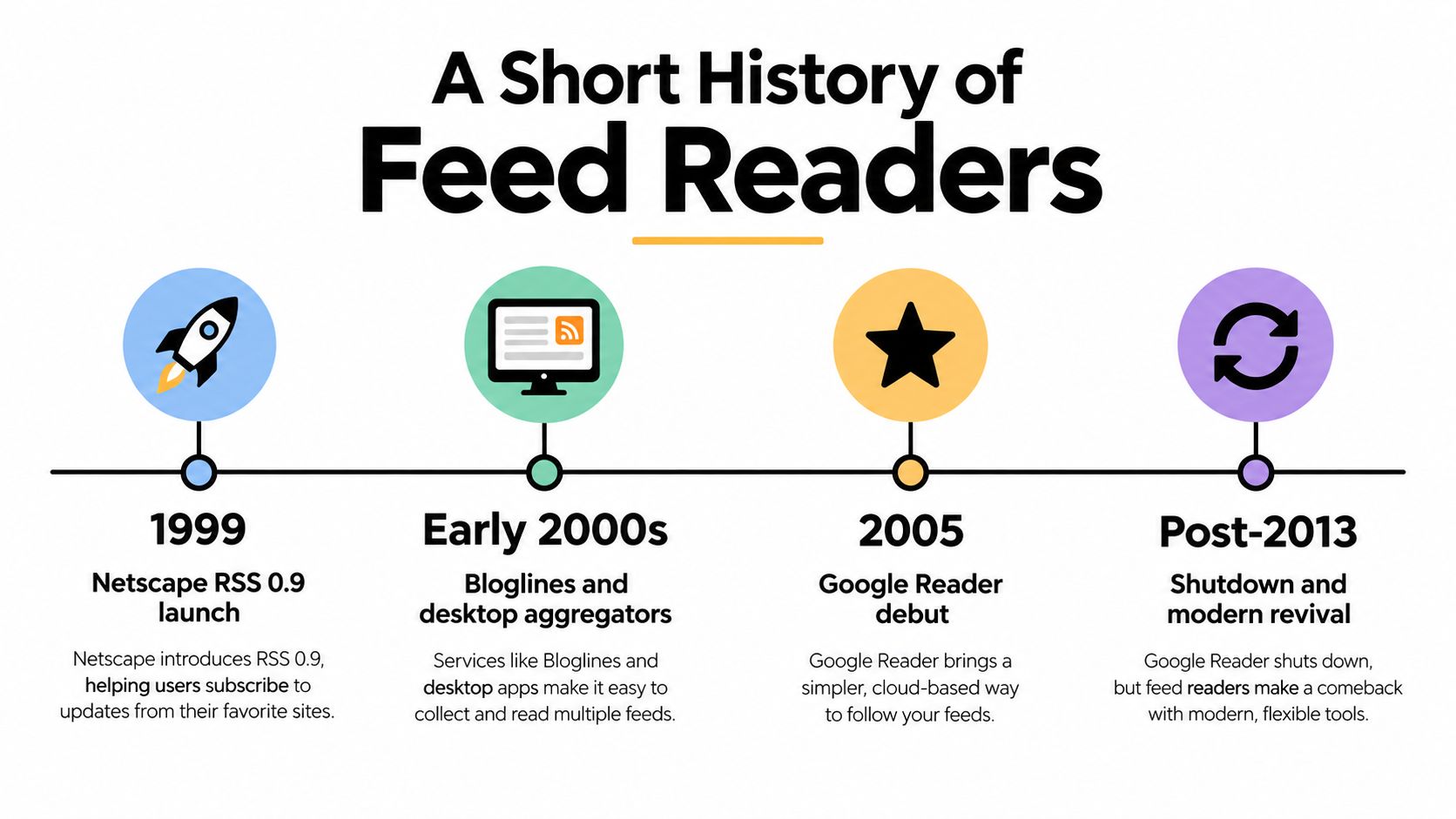
RSS has a history because it evolved in stages. The earliest public version was RSS 0.90 in March 1999, then RSS 0.91 followed in July 1999, RSS 1.0 arrived in December 2000, and RSS 2.0 came later in 2002. Those versions weren't just cosmetic renames, they reflected different design choices around XML structure and RDF concepts, which is why older documents sometimes sound inconsistent.

That history is also why you'll see several expansions of the acronym. Some references say RDF Site Summary, some say Rich Site Summary, and later usage settled on Really Simple Syndication. The label changed, but the practical job stayed the same, publish recent items in a machine-readable form so readers and aggregators can consume them.

Main feed versus comments feed

On a WordPress site, the main feed usually tracks posts, while a comments feed tracks discussion activity. The main feed is what most readers want if they care about new articles. The comments feed is useful when the conversation matters as much as the post itself.

Feed TypePrimary ContentTypical Use Case
Main site feedNew posts and updatesFollowing articles from a blog or news site
Comments feedNew comments and discussion activityWatching replies on a discussion-heavy site

Atom is related, but it's a distinct syndication format. That distinction matters mostly when you're comparing older documentation or trying to understand why one site exposes one feed style and another uses a different one. The big idea stays stable, though. RSS is a family of XML specifications built for syndication, not one single centrally governed format.

For a practical WordPress benchmark, Read More Info shows how a minimal site can expose both article updates and discussion activity without adding extra complexity to the public interface.

Site Feeds and Comments Feeds in Practice

A common mistake is subscribing to the wrong endpoint and then wondering why the feed does not match expectations. The main feed gives you content updates. The comments feed gives you activity around those posts. They solve different problems, so choose the one that fits the job you need done.

If you are following a WordPress site for new articles, start with the main feed. If you manage or join a discussion-heavy site, the comments feed can be just as useful because it surfaces replies without forcing you to open every article manually. That separation keeps your inbox, browser, or reader cleaner.

How to think about the two feeds

  1. Use the main feed when you want headlines, summaries, and article links.
  2. Use the comments feed when you want to watch reactions or moderation activity.
  3. Test the endpoint in a reader before you rely on it.
  4. Check for overlap if a site publishes both a site feed and category feeds.

WordPress sites often expose predictable feed patterns, so you can usually guess the right URL before you test it. The common examples are the site feed for posts and a separate comments feed for discussion activity. If the endpoint opens as XML in a browser, the feed is live. If it opens as HTML, you are on a normal page, not the feed.

Read More Info shows how a minimal site can expose both article updates and discussion activity without adding extra complexity to the public interface.

How to Subscribe and Read Feeds Correctly

To subscribe, paste the feed address into a compatible reader and let it fetch the channel. A reader then polls the feed on its own schedule, turns new items into a reading list, and keeps the older entries in place so you can catch up later. That's the whole workflow in plain terms.

The Harvard RSS specification overview describes RSS as a machine-readable XML document that publishes a site's updates for feed readers, search systems, and automation tools. That's the practical side most beginners care about, because the feed is built to move updates cleanly between systems.

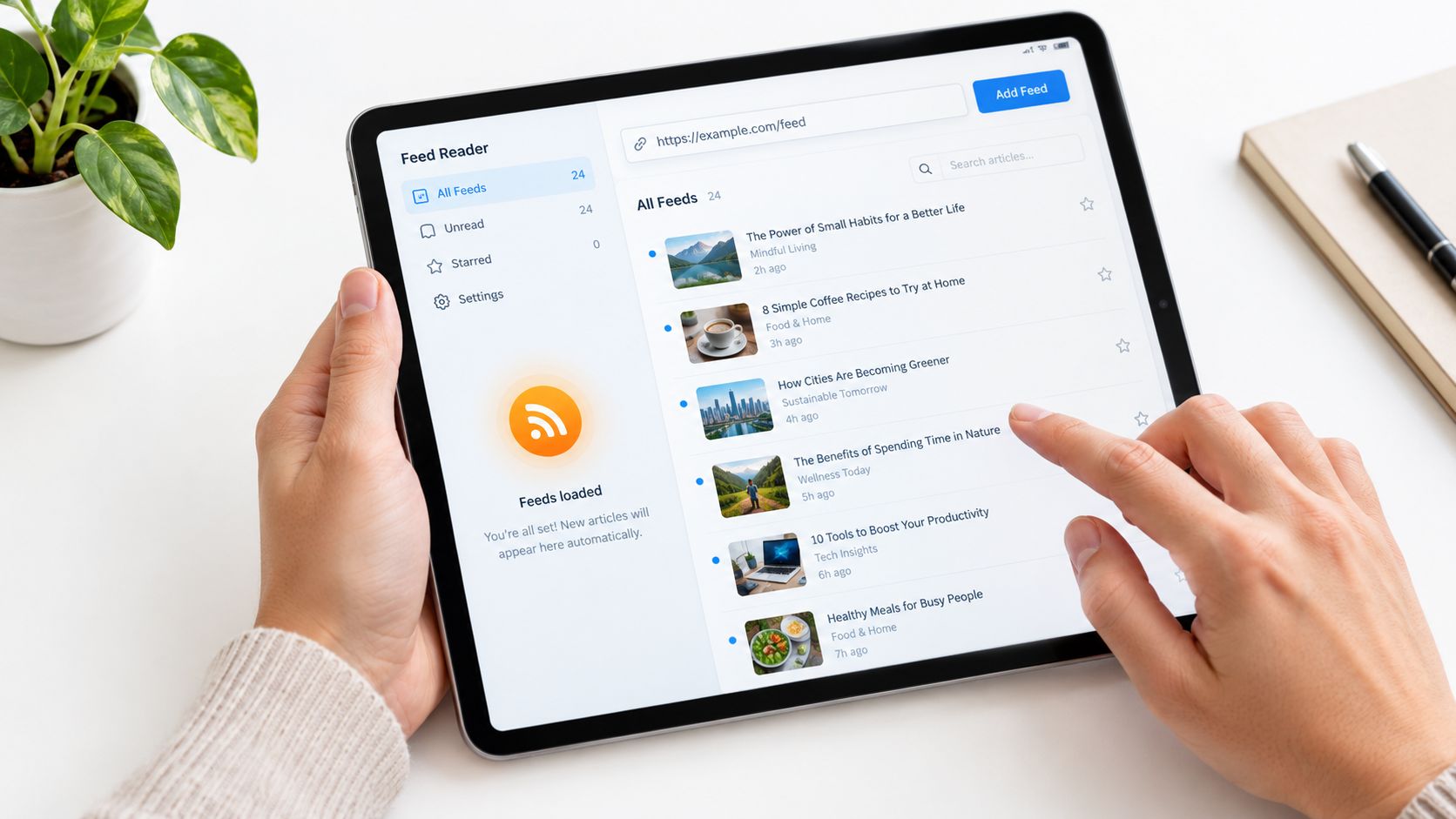
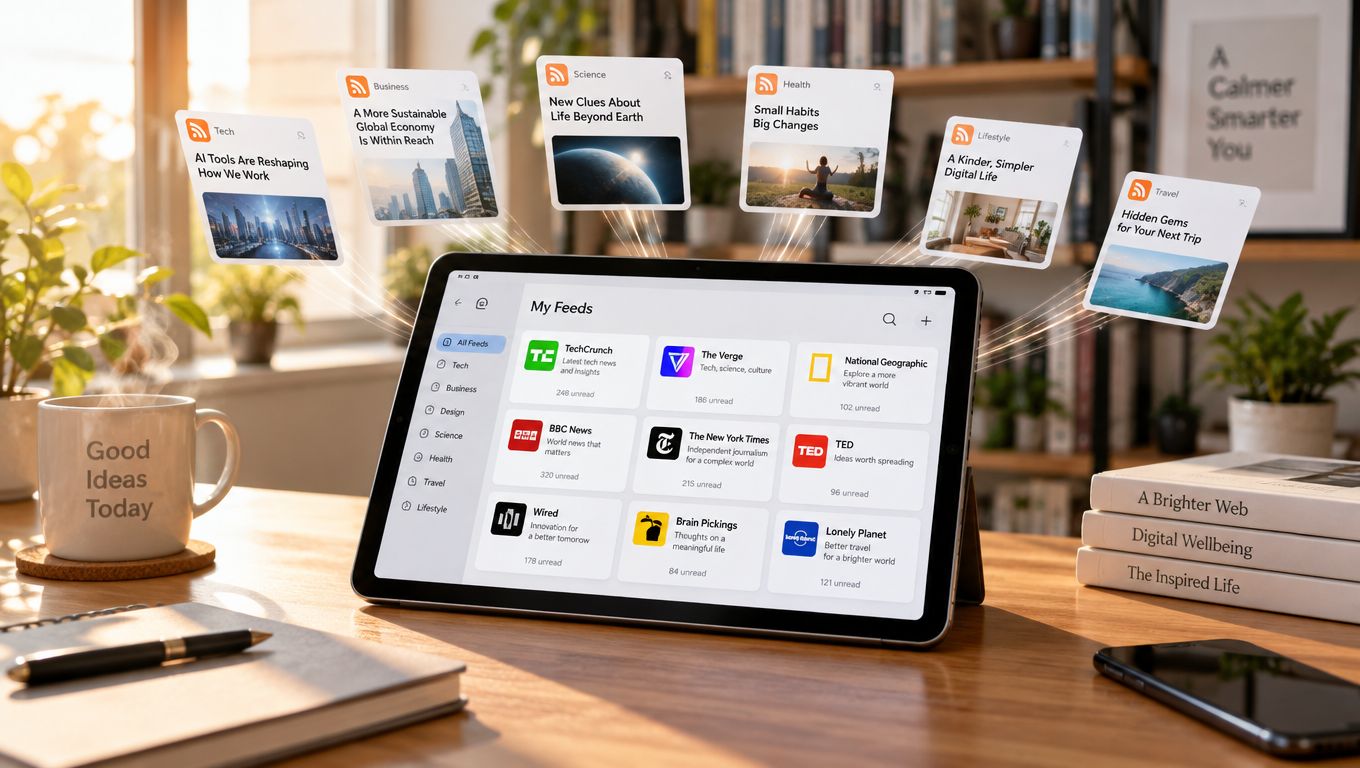
A person using a tablet to view an RSS feed reader app with various news articles displayed.

A good reader will also let you organize feeds, mark items as read, and keep different publishers separate. That matters once you subscribe to more than a few sources, because the benefit of RSS is consolidation, not another cluttered inbox.

What to check when a feed doesn't look right

  • Raw XML in the browser: that usually means the feed is loading, but you're not inside a reader.
  • Missing excerpts: some publishers choose partial content, so the feed may show only a summary.
  • Duplicate items: unstable identifiers can make an edited post look new.
  • Delayed updates: timing depends on reader polling and server caching, not on instant push delivery.

Feed readers are useful beyond simple reading too. They can support archive habits, lightweight automation, and search-friendly discovery workflows because the feed endpoint stays stable even when the site layout changes. That's why RSS still makes sense for WordPress sites that want an open, low-maintenance distribution layer.

RSS Privacy, Completeness, and Delivery Myths

RSS cuts down on manual checking, but it doesn't make the publisher invisible. A feed reader still requests the feed from somewhere, which means the update request reaches the publisher or an intermediary. That's normal for open syndication, but it's not the same as a private, sealed channel.

The content inside a feed can also vary. Some publishers include full articles, some include excerpts, some attach images, and some use tracking elements or other metadata choices. So if you assume every feed is complete in the same way, you'll run into surprises.

The MDN RSS glossary notes that RSS itself does not prescribe a particular polling interval, ranking algorithm, authentication model, or full-text policy, and delivery timing depends on reader configuration and server caching. That's the right mental model. RSS gives you a format, not a universal behavior layer.

What usually confuses readers

  • “It should be instant.” Not always. Readers check on intervals, and servers cache.
  • “It should be full text.” Not necessarily. The publisher chooses how much content to expose.
  • “It's private because I subscribed.” Not really. The feed still has to be fetched.
  • “If it looks broken, the site is down.” Sometimes the issue is malformed XML, dates, or duplicate IDs.

Malformed markup, unstable identifiers, and missing dates can all create inconsistent behavior in readers. That's why a feed should be treated as a deliberate publishing channel, not just a technical copy of a page. If you want to understand the legal and policy side of handling user data on a site, Read More Info's privacy policy is the right place to check for that kind of site-level detail.

RSS is powerful when you use it with realistic expectations. It's open, efficient, and portable, but it's still a syndication format with trade-offs, not a magic notification system.

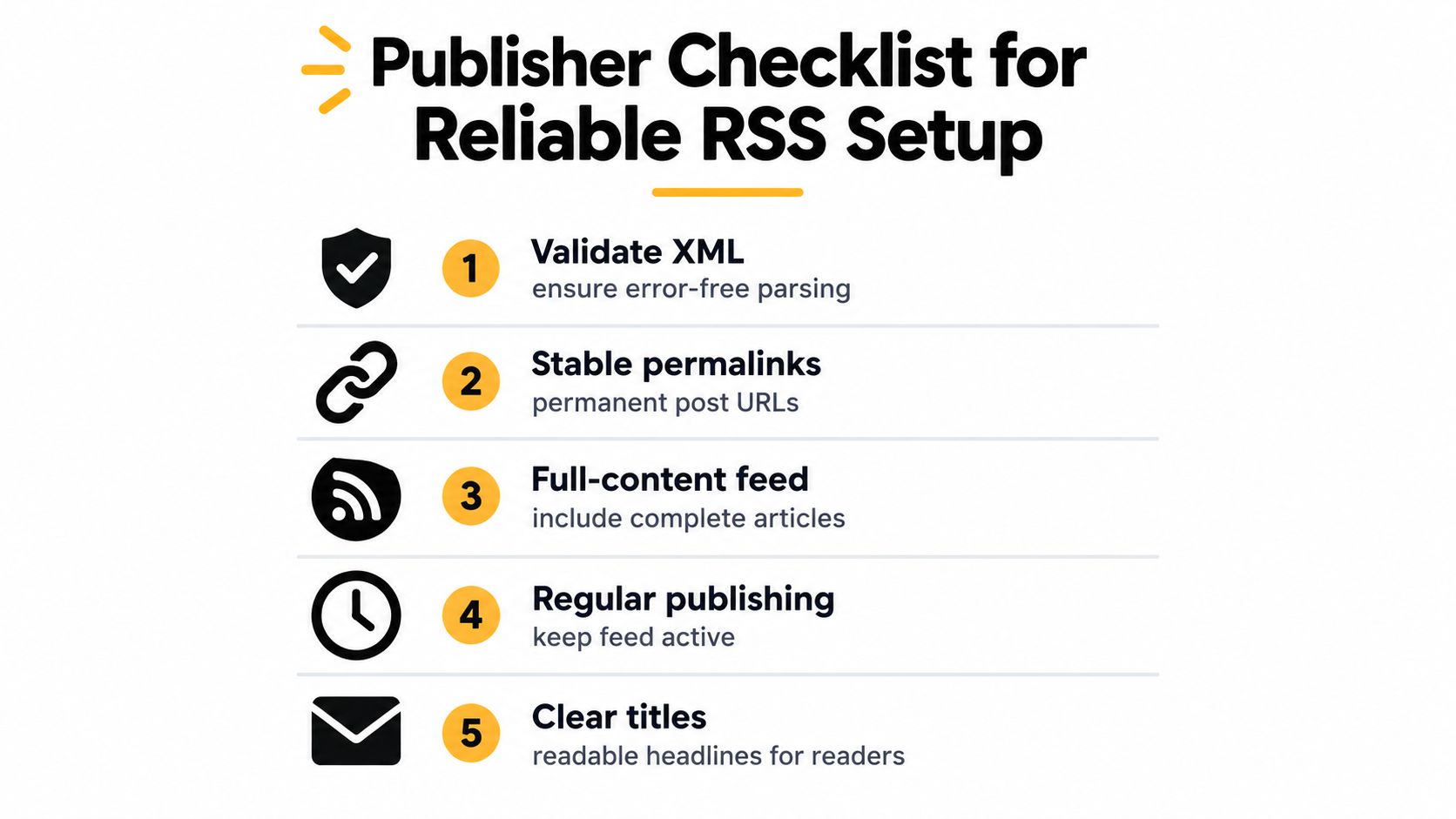
Publisher Checklist for Reliable RSS Setup

Good feeds feel boring in the best way. They load cleanly, keep the same links, and let readers trust that each item points to the right post instead of a moving target. That reliability comes from a few habits, not from any fancy plugin trick.

A checklist of five essential practices for creating and maintaining a reliable and effective RSS feed.

A compact setup checklist

  • Validate the XML: make sure the feed parses cleanly and does not break reader software.
  • Keep permalinks stable: once an item has a link, do not keep changing it.
  • Use consistent dates: publication dates help readers sort and compare items correctly.
  • Preserve item IDs: stable identifiers stop edited posts from appearing as brand-new entries.
  • Choose content depth deliberately: full text improves convenience, while excerpts can preserve more site visits.

The RSSBoard draft guidance reflects the same practical concerns, especially around stable links, dates, item identifiers, and how publishers should think about full or partial content. Those choices affect how well readers, aggregators, and automation tools interpret the feed over time.

For WordPress users, this usually means keeping the feed tied to the site's real publishing structure. If a post exists on the site, the feed should point to the canonical version of that post, and this guide to creating a WordPress blog shows the setup path behind that structure. If a comment exists, the comments feed should expose it without inventing a second path.

The safest mindset is simple. Treat the feed like a public contract, not a throwaway output. If the XML is clean, the links are stable, and the metadata stays consistent, subscribers get a feed that works in the background, the way open syndication should.

Site Search Best Practices for WordPress

You've landed on a WordPress site looking for something specific, but you're not sure which words the publisher used. You type “free AI tools online,” misspell a term, or search for “tools like Photoshop,” then get a blank page. The content may exist, but exact-match search has hidden it behind terminology you were never expected to know.

That failure isn't a minor interface problem. Search is a conversation between the visitor and the site, and the first response needs to help the visitor continue. The strongest site search best practices combine relevance, recovery guidance, accessibility, and analytics instead of treating search as a simple database query.

Table of Contents

Why Most Site Searches Fail on the First Try

A visitor searches a general information site for free office tools, free tools, or free writing tools. The relevant article is titled “Open-Source Productivity Software,” so a title-only, exact-match search misses the connection. The visitor sees no useful result and concludes that the site does not cover the topic.

Search failure also reduces the chance of a second attempt. A foundational usability study published by Nielsen Norman Group in 2002 found search success across tested e-commerce sites was 51% for a first query, 32% for a second query, and 18% for a third query. Nearly half of users whose first search failed abandoned immediately, according to the Baymard Institute summary of on-site search research.

That behavior should shape how a WordPress team evaluates its results page. Visitors can return to Google or another site instead of reformulating a weak query several times. A message such as “Nothing Found” offers no explanation, alternative wording, or path back into the content.

Practical rule: Treat the first results page as a recovery interface, not merely a database response.

The first response should retain the submitted wording, surface related concepts, and suggest a useful next move. A search for free OCR tools should connect with optical character recognition, document scanning, or text extraction when those subjects exist on the site. A search for free budgeting tools should also find a budgeting worksheet or monthly spending planner when those resources address the same task.

The same study assessed 20 sites against usability guidelines in mid-2002. The average site followed 48% of the guidelines, as reported in the same research collection noted above. Technology has changed since then, but the implementation lesson still holds: search quality depends on intentional relevance rules, clear content structure, and recovery paths that account for how visitors phrase requests.

Designing for Query Reformulation and Forgiveness

Exact matching assumes that visitors know your taxonomy, remember the exact title, and spell every term correctly. Real visitors search with fragments, synonyms, singular and plural forms, abbreviations, and combinations such as free editing tools for videos, free tools for video editing, and free drawing tools.

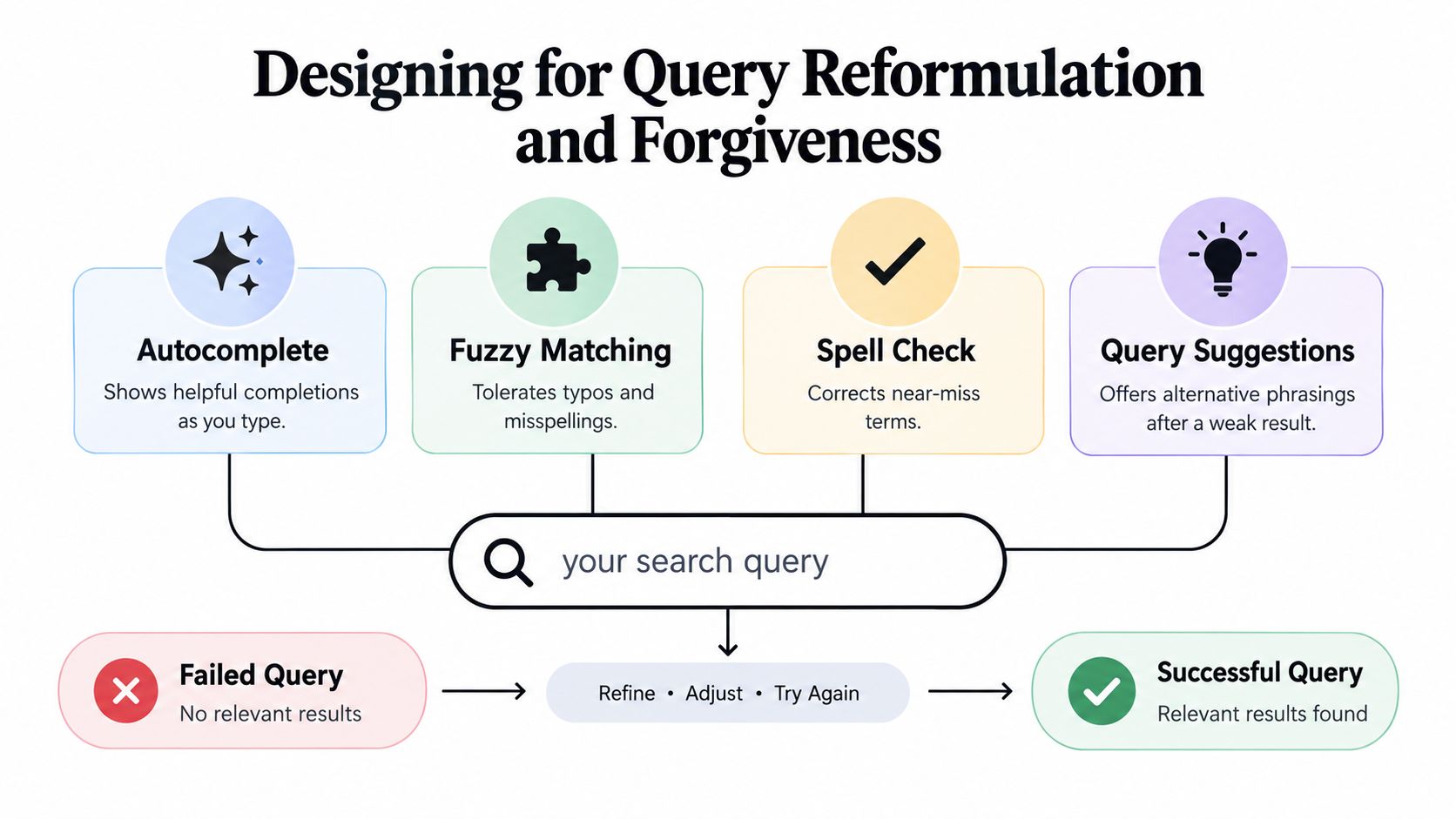
A diagram illustrating design principles for improving site search through query reformulation and user-friendly error correction methods.

A forgiving search layer should work across several dimensions:

  • Synonyms: Map phrases such as “video editing” and “editing videos” when the content supports both.
  • Stemming: Connect related word forms so “drawing,” “draw,” and “drawings” don't behave like unrelated terms.
  • Typo tolerance: Handle common mistakes without forcing the visitor to discover the correction alone.
  • Field weighting: Give titles and headings strong relevance while still indexing meaningful body copy.
  • Intent terms: Preserve topic combinations such as “free,” “online,” “download,” “keyword,” or “budgeting” when they distinguish one need from another.

The 2014 Baymard Institute e-commerce search study found that 64% of the 50 highest-grossing U.S. e-commerce sites didn't adequately support product-type searches and required exact internal jargon. The same study found that 34% provided poor or no results when a visitor misspelled even one character. The sample focused on commerce, but the underlying failure appears on article archives too. A WordPress reader shouldn't need to know whether an editor chose “free graphic design software” instead of “free tools like Photoshop.”

Make the index understand the archive

Start by indexing post titles, headings, excerpts, and useful body text. Excluding body content can make an article invisible when the visitor searches for a phrase that appears in the article but not its title. At the same time, don't index administrative pages, duplicate templates, or irrelevant utility content, because noise weakens ranking.

Build a controlled vocabulary from real content. Terms such as free daemon tools, free zip tools, free pro tools download, and pro tools free download can represent very different intentions, so map them deliberately rather than automatically treating every phrase as interchangeable.

A search backend can return a broader result set while displaying a transparent correction. For example, show the original query, then offer “Did you mean…” or “Related searches” instead of replacing what the visitor typed. Users can then decide whether the suggested interpretation is right.

W3C guidance supports this approach by recommending spelling correction, stemming, and synonyms, so users don't have to know a site's exact terminology. Relevance and recovery should be designed together, not added as separate enhancements.

Implementing Helpful Autocomplete and Search Suggestions

Autocomplete works best before the visitor has fully expressed an idea. It's less useful when the query is already long and specific, so don't treat a dropdown as the entire search strategy.

A naturalistic study of 90 Web users found that search-assist features were used for almost 40% of difficult queries. The research also found that autocomplete was most useful during initial formulation, while later reformulation benefited less from it. Successful tasks were more likely to involve query specialization through adding terms, as reported in the study of difficult Web queries.

Use suggestions at the right moment

As the visitor types “free keyword,” suggest meaningful completions such as free keyword tools and free keyword tool, provided those terms reflect actual indexed content. Don't fill the dropdown with unrelated popular searches only because they receive attention. A suggestion should help the visitor add a useful qualifier, not distract them with a generic page title.

For broad queries, encourage precise additions:

  • Year: “free keyword tools for current SEO research”
  • Audience: “free budgeting tools for beginners”
  • Format: “free wireframe tools online”
  • Category: “free BI tools for reporting”
  • Task: “free visualization tools for dashboards”

Keep the first interaction lightweight. Suggestions should be keyboard navigable, easy to dismiss, and clearly associated with the search field. On mobile, they must not cover the submit control or make the page jump unexpectedly.

Autocomplete can also support voice-driven interfaces, where spoken queries are longer and less predictable than typed phrases. If voice input is part of a commerce project, documentation such as the Magento 2 voice search module can help developers evaluate how voice capture fits into a broader search workflow. The important principle is unchanged: captured language still needs correction, ranking, and clear user control.

After submission, shift from autocomplete to result-page assistance. Offer spelling corrections, related searches, and filters based on the query that failed. Avoid expanding every term without explanation, because opaque rewriting can return results that appear unrelated and makes debugging difficult for both users and editors.

Building Accessible Search Interfaces for Every User

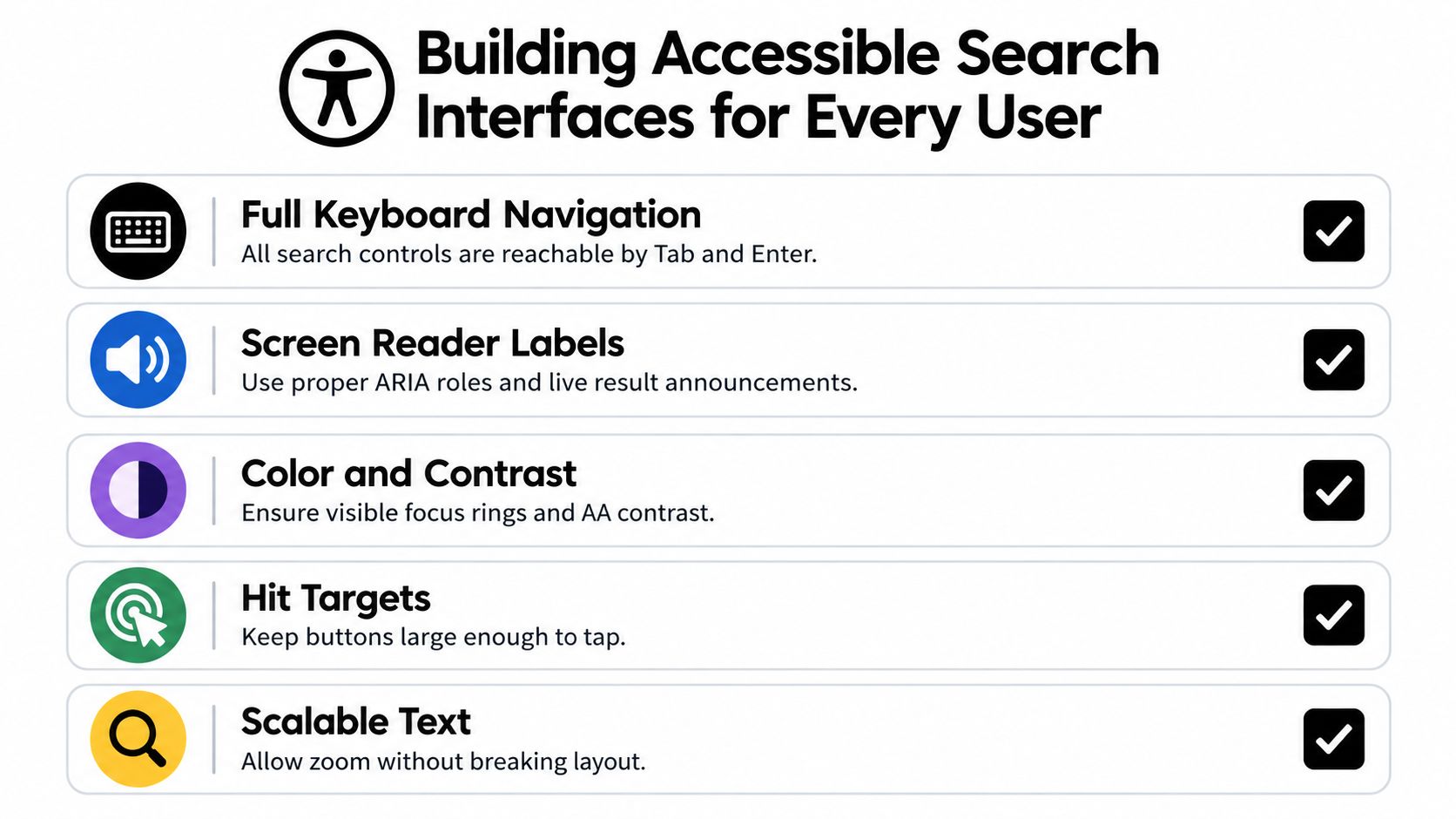
Search accessibility begins before relevance. A visitor using a keyboard, screen reader, magnification, or an alternative input method needs to locate the field, understand its purpose, submit a query, and interpret the response without relying on visual changes.

Give the search field a programmatic label, not just placeholder text. Associate it with a clear submit button, expose the result count as readable text, and identify an empty state in words. When a visitor submits a query, preserve a predictable focus position, ideally returning focus to the results heading or an appropriate status message instead of leaving the keyboard user at an unexplained location.

A graphic checklist detailing accessibility best practices for building search interfaces including keyboard navigation and screen readers.

Make correction guidance understandable

A red outline or color change isn't enough to explain that a query contains a typo. Use text such as “No results for ‘free wirefram tools'. Did you mean ‘free wireframe tools'?” Make the suggestion a real control that can be reached with the keyboard and understood by assistive technology.

W3C's guidance on providing suggestions for correcting input errors specifically connects accessible forms with spelling correction, synonyms, and stemming. That combination matters because a technically labeled search box still fails if the underlying system expects exact internal language.

Semantic HTML can do much of the work. Use a real form, a native input, a visible or programmatically associated label, a named button, and a results region that communicates updates without hijacking focus. Autocomplete should expose its relationship to the input and should not unexpectedly change context while someone is typing.

For WordPress teams reviewing broader page patterns, the best WordPress blog layouts are a useful reminder that visual simplicity and semantic structure can coexist. A minimal interface often improves search accessibility when it keeps controls obvious and reduces decorative elements that compete with status messages.

A component library can speed up implementation, but inspect its keyboard behavior and announcement patterns before adopting it. The ogBlocks accessibility component collection can provide starting points, yet every search interaction still needs testing with actual keyboard navigation and screen-reader output.

Handling Zero Results and Guiding User Recovery

A zero-result page can either end the session or redirect it. Compare these two messages:

Dead-end responseRecovery-oriented response
“Nothing Found.”“No results for ‘free visualization tools'. Try ‘data visualization', remove a term, or browse visualization articles.”
No search fieldOriginal query remains editable
No navigationLinks to categories, recent posts, or the homepage
No explanationSpelling and broader-term guidance

The second version acknowledges what happened and offers several low-effort next steps. Preserve the visitor's query so they can edit it rather than retyping. If the query contains a likely typo, show a correction while keeping the original wording visible.

Choose the right fallback

A broad query may need narrowing. A highly specific query may need broadening. The empty state should respond accordingly.

  • For a typo: Offer a visible corrected term.
  • For an overly narrow phrase: Suggest removing a qualifier or searching a broader topic.
  • For an unfamiliar term: Show related categories or synonyms.
  • For a genuine content gap: Link to recent posts, the homepage, or a contact path.
  • For an empty submission: Display popular categories or explain what the archive contains.

Don't redirect every failed query to the homepage. That hides the failure and forces the visitor to restart without context. A homepage link is useful as an escape route, but it shouldn't replace specific assistance.

The same principle applies to topics with many possible interpretations. Someone searching for free tools like Photoshop might want image editing, design software, or browser-based alternatives. The empty state can expose those broader concepts without pretending that every result is an exact match.

Using Search Analytics to Refine Content Strategy

Search logs reveal the language visitors use when navigation and page titles haven't done enough. Track the submitted query, result count, clicked result, repeated searches, refinements, and whether the visitor reformulated immediately after clicking.

A large-scale study covering 964,780 Web-search sessions and 1,523,072 queries found that reformulation and assistance represented approximately 45% of all query-reformulation events. It also identifies consecutive queries with substantial term overlap as a practical indicator of low satisfaction with the first query, as documented in the research on patterns of query reformulation during Web searching.

Turn logs into editorial decisions

Create a query-intent dictionary from recurring patterns. Group common misspellings, singular and plural variants, synonyms, and phrases that should lead to the same categories. Then review each group against the actual archive.

Suppose visitors search for free humanizer tools, free tools online, and free writing tools. Those phrases may point to overlapping content, but they may also signal separate needs. Review the clicked results and immediate refinements before adding a synonym. Search analytics should inform taxonomy, not flatten meaningful distinctions.

Flag these situations:

  • Repeated zero results: Check whether content exists but isn't indexed.
  • Many results with no click: Improve ranking, titles, excerpts, or terminology.
  • Repeated similar queries: Add correction guidance or query expansion.
  • Frequent category terms: Consider a dedicated archive or landing page.
  • Queries with no matching content: Add a topic to the editorial backlog.

For broader WordPress publishing guidance, how to create a WordPress blog provides useful context for structuring content before search has to retrieve it. Good search can't compensate for an archive with unclear subjects, weak headings, or missing supporting pages.

Review logs on a regular schedule, but protect privacy. Store only the search data needed for relevance and editorial decisions, apply suitable retention rules, and avoid collecting unnecessary personal information.

Your Site Search Implementation Checklist

A reliable search system needs a coordinated pass across the index, interface, recovery flow, and measurement. Use this checklist during an audit:

  1. Inspect the index. Confirm that published posts, headings, excerpts, and meaningful body text are searchable. Exclude duplicate and administrative content.
  2. Test everyday language. Search for variations such as free map tools, free CRM tools, free BI tools, and free visualization tools. Check whether the results reflect the visitor's wording rather than only editorial jargon.
  3. Add tolerance. Configure spelling correction, stemming, synonyms, and sensible fuzzy matching. Make corrections visible instead of silently rewriting queries.
  4. Review suggestions. Autocomplete should help visitors add useful terms. Post-submission assistance should focus on spelling, related phrases, filters, and broader navigation.
  5. Audit the form. Verify the programmatic label, named submit control, visible focus state, keyboard operation, readable result count, and text-based error messages.
  6. Rewrite empty states. Preserve the query, explain the failure, suggest alternatives, and provide links to categories, recent posts, or the homepage.
  7. Instrument behavior. Record query text, result count, clicks, repeated searches, refinements, and successful searches, with privacy-conscious retention.
  8. Create an improvement queue. Use zero-result and repeated-query patterns to update synonyms, tags, headings, and future articles.

Advanced teams may connect search with semantic retrieval or a retrieval-augmented generation layer. If you're evaluating custom generative AI development services, keep the same standards for transparency, accessibility, source matching, and user control. A more complex backend isn't automatically a better search experience.

Finally, test the public interface on the Read More Info blog with realistic phrases, misspellings, keyboard-only navigation, and mobile layouts. The best implementation is the one visitors can understand immediately and recover through when their first query isn't perfect.


Read More Info offers a straightforward WordPress information experience where readers can discover posts through site search, responsive pages, and RSS updates. Visit Read More Info to explore the publication and see how a lightweight content site can make discovery clearer and more forgiving.

10 Best RSS Reader Android Apps for Every Reader

Android represented 68.24% of worldwide mobile operating-system share in February 2026, making compatibility and background behavior central to any Android RSS recommendation. For most non-technical users, Feedly is the safest default, while Inoreader, FeedMe, Read You, or a self-hosted option may be better for automation, offline reading, or data ownership.

Popularity alone doesn't identify the best RSS reader Android users should install. A large user base may indicate polished onboarding, but it won't tell you whether an app preserves unread states, caches full articles, survives Android background restrictions, imports OPML cleanly, or keeps your reading history away from a hosted account.

RSS itself predates Android. Netscape released RSS 0.90 in March 1999, followed by RSS 0.91 in July 1999, RSS 1.0 in December 2000, and RSS 2.0 in September 2002. During the blogging boom, Syndic8.com grew from about 2,500 feeds in mid-2001 to 286,000 in January 2005, then indexed 546,069 feeds by August 2008, including RSS and Atom feeds (historical RSS milestones).

That history explains why a good reader should handle more than headlines. Look for dependable syncing, discovery, filtering, offline reading, full-text fallback, privacy controls, backend flexibility, integrations, and long-term maintenance. For testing, Read More Info's WordPress feed and comments feed provide a practical pair, one for posts and one for discussion updates.

The ten apps below are ranked by the reading problem they solve, not by a universal score. Before the list, one practical distinction matters: an RSS reader is part of a broader tool stack. People searching for free office tools, free tools, free AI tools online, free OCR tools, free editing tools for videos, free tools for video editing, free daemon tools, free zip tools, free pro tools download, pro tools free download, free keyword tools, free keyword tool, free tools like Photoshop, free budgeting tools, free humanizer tools, free tools online, free wireframe tools, free BI tools, free visualization tools, free writing tools, free drawing tools, free CRM tools, or free map tools usually need the same thing from RSS: a clear, manageable way to monitor trusted sources without surrendering control of the reading queue.

Table of Contents

1. Feedly

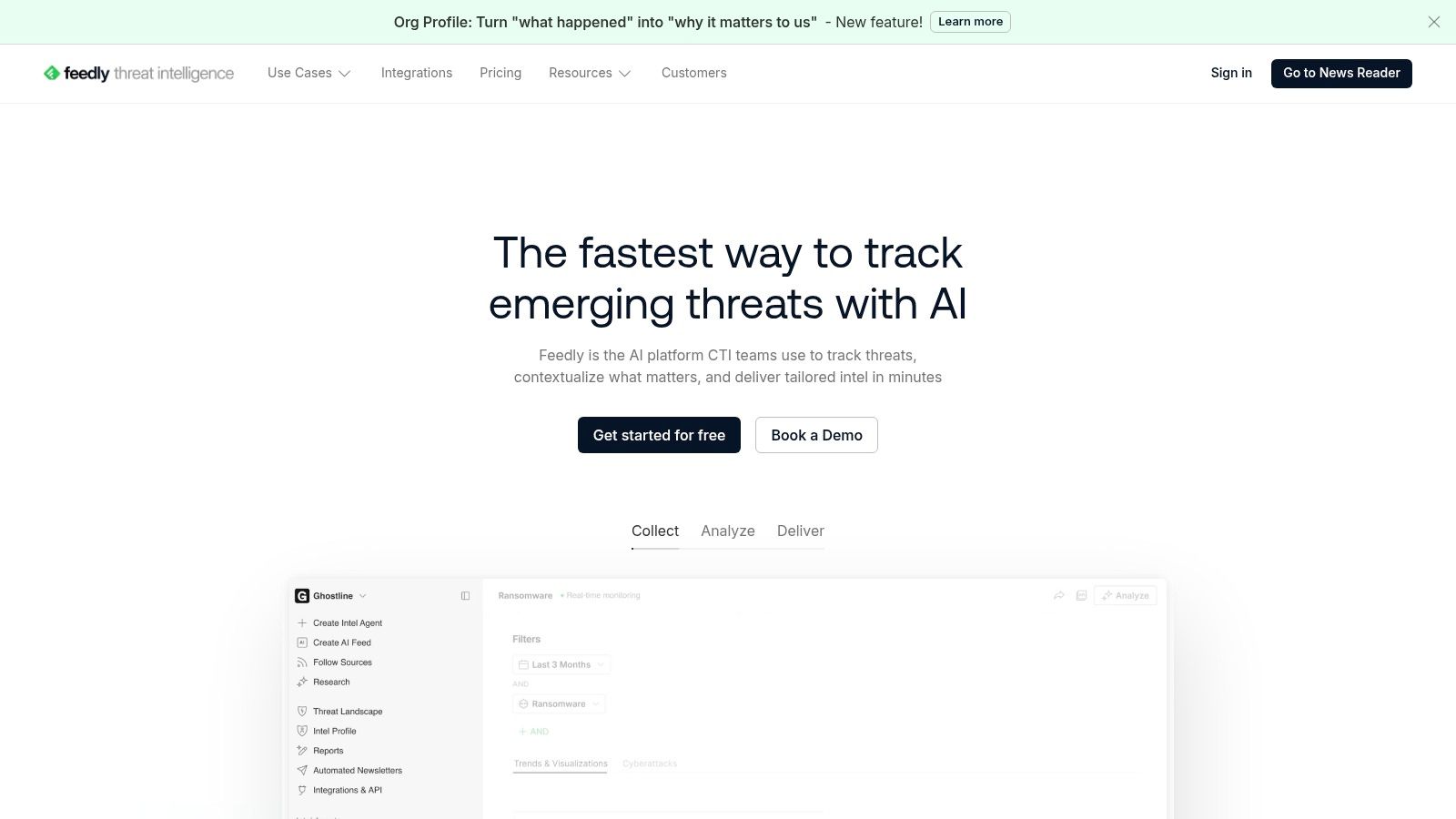
Feedly is the safest general recommendation because it removes the most friction between installing an Android app and reading useful sources. Its onboarding is polished, subscriptions can begin from the web or mobile app, and browser extensions make it easy to capture a site while researching topics such as WordPress blog creation.

Feedly

The strongest case for Feedly is simple cross-device continuity. It offers OPML import and export, a mature Android client, a web interface, browser extensions, and integrations with Zapier, IFTTT, Evernote, Pocket, and OneNote. Its discovery layer also suits readers who know the subject they want to follow but don't yet have a list of individual publishers.

The trade-off is that Feedly's most useful filtering and AI capabilities sit on higher tiers. AI Feeds, Mute Filters, RSS Builder, and Leo-style workflows aren't the reason to choose the free experience. Some free-tier users may also find item retention and advertising less comfortable than a local reader.

Best fit: Choose Feedly if you want a dependable hosted account, easy discovery, and the least demanding setup.

Feedly won't satisfy someone who wants local-only storage or deep backend control. For a non-technical Android user who reads across a phone and browser, though, it is the default that is least likely to create setup fatigue.

2. Inoreader

Inoreader solves a different problem: too much information arriving from too many places. Its Android app is useful on its own, but the value appears when you build rules, filters, keyword monitoring, newsletter ingestion, and output feeds around a larger research workflow.

The free tier supports 150 sources, while Pro supports up to 2,500 sources. Those limits are documented in the supplied comparison material, but the important practical distinction isn't the ceiling. It's whether you need the reader to make decisions before you open the app.

Where Inoreader earns its complexity

Inoreader can create web feeds for sites without usable RSS, ingest newsletters, follow Google News alerts, extract fuller article content, translate text, and provide text-to-speech. It also supports automation through Zapier, IFTTT, and n8n, with output feeds and an API for more controlled workflows. You can monitor YouTube, Telegram, and Bluesky alongside traditional RSS sources.

That power introduces a learning curve. A casual reader may spend more time configuring rules than reading articles, and advanced features require a Pro subscription. The interface also rewards users who understand folders, filters, tags, and automation triggers.

For a site owner researching WordPress blog layouts, Inoreader can separate design sources, competitor updates, comments, and newsletters into distinct streams instead of mixing everything into one unread count.

Best fit: Pick Inoreader when filtering, monitoring, automation, and source expansion matter more than simplicity.

It is the strongest option for a researcher, editor, or marketer who wants RSS to behave like an information operations layer. It isn't the best first app for someone who only wants a calm list of favorite blogs.

3. NewsBlur

NewsBlur is the independent alternative for readers who want a serious hosted service without defaulting to the biggest brands. Its defining feature is trainable filtering. You can teach the service what matters by title, author, tags, and full-text content, which is more useful than a simple folder system when a publication produces many kinds of stories.

The Android and iOS apps support offline reading and saved stories. NewsBlur can also create web feeds for sites that don't publish RSS and handle newsletters, extending its usefulness beyond standard feed URLs.

Why experienced readers choose it

NewsBlur feels more like a tool for people who have already developed a reading method. Its interface is denser than Feedly's, and the extra controls won't appeal to everyone. In exchange, users get thoughtful power features, active development, and an open-source server option for self-hosting.

The self-hosting route changes the responsibility model. You gain more control over the service and its data, but you also take responsibility for deployment, updates, backups, and availability. That makes NewsBlur a particularly good bridge between hosted convenience and ownership, rather than a purely local Android reader.

Its advanced tiers may cost more than basic competitors, so value depends on whether trainable filtering and self-hosting solve a real problem. If you only follow a small set of feeds, the extra depth may remain unused.

Best fit: Use NewsBlur if you want trainable filters, saved stories, and a credible path toward self-hosting.

NewsBlur is less immediately obvious than Feedly, but it rewards readers who want the feed queue to learn their editorial priorities.

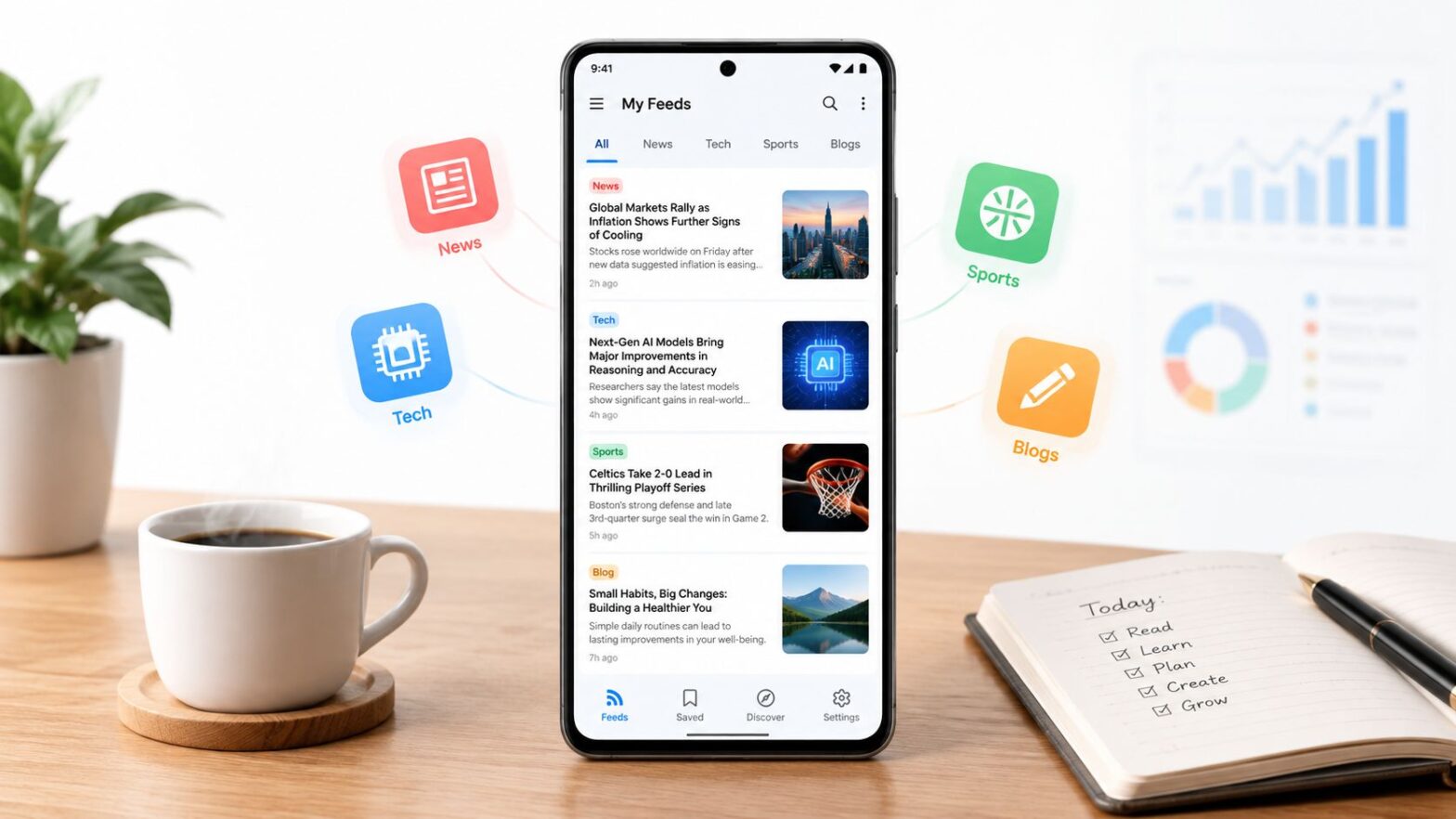
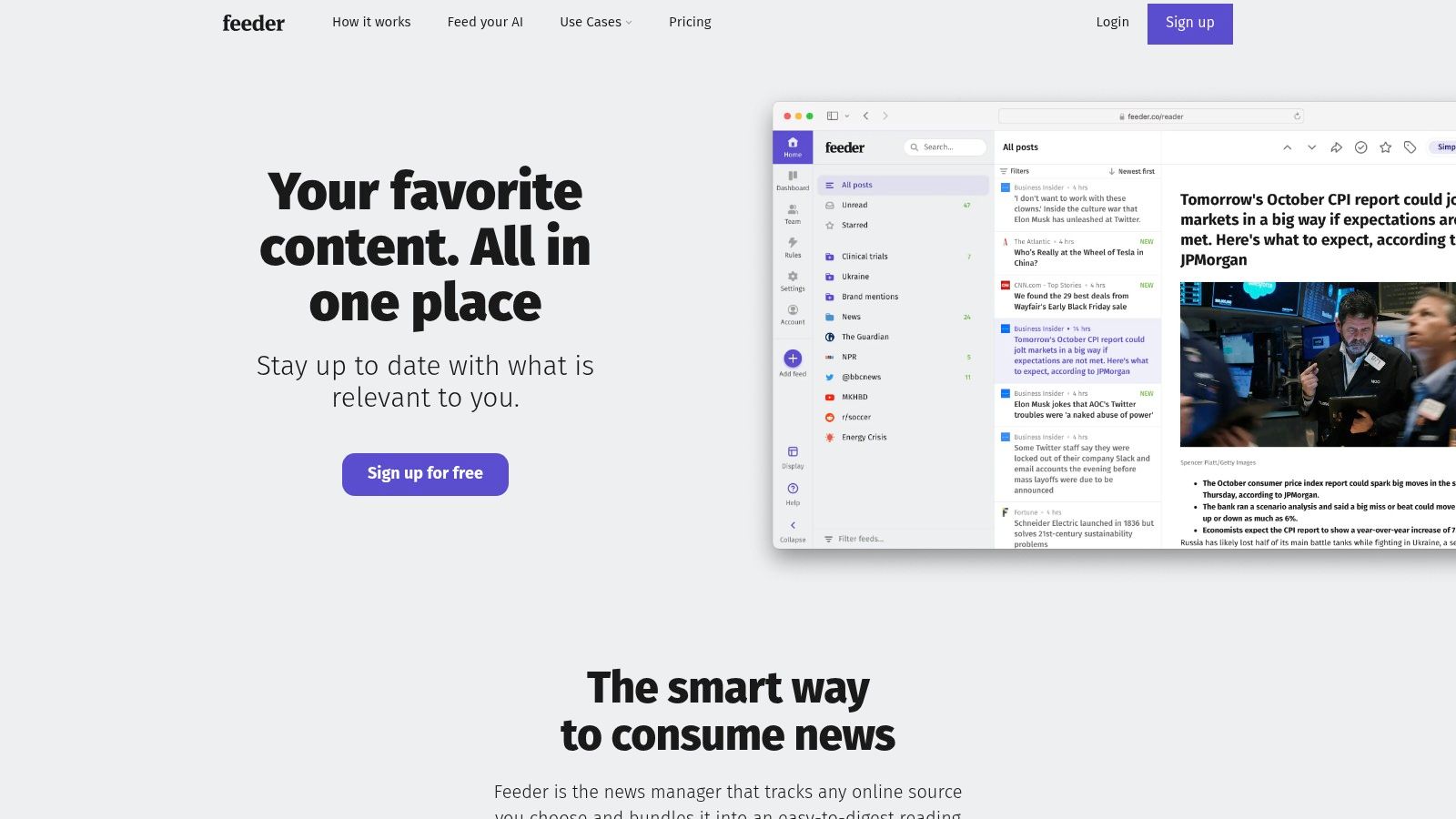
4. Feeder

Feeder from feeder.co is a lightweight hosted reader for alerts and monitoring. It should not be confused with the open-source NoNonsenseApps Feeder project. This service uses accounts, supports notifications, and offers cross-device access through Android, iOS, web, and browser extensions.

Feeder (feeder.co)

Feeder follows RSS feeds, YouTube channels, subreddits, and Google News searches. Its background updates and push notifications suit users who need to notice a new mention or announcement rather than process a large reading backlog. Higher tiers add team sharing and monitoring options, which makes the service more relevant to small editorial or marketing teams.

The interface is deliberately uncomplicated. That helps when you want to add a source quickly and check updates without learning a complex rule language. It also means the service has less depth than Inoreader for extensive filtering, output feeds, or elaborate automation.

Feeder's community and ecosystem are smaller than Feedly's or Inoreader's, so tutorials and third-party workflow examples may be harder to find. Advanced capabilities also require a paid plan.

For publishers exploring content distribution with RSS feeds, Feeder works well as an alert surface. It can show when a site publishes, a channel updates, or a search produces a relevant result.

Best fit: Choose Feeder when you want simple monitoring, fast notifications, and a clean cross-device service.

It isn't the right pick for readers whose main priority is local storage or self-hosted synchronization. Its strength is operational awareness, not maximum ownership.

5. FeedMe

FeedMe is the most practical choice for offline-first Android reading and backend flexibility. It can run as a standalone local reader or connect to services such as FreshRSS, Tiny Tiny RSS, BazQux, Inoreader, and The Old Reader through compatible APIs.

Its full-content fetching, readability mode, and offline caching are the features that matter during a commute, on unreliable mobile data, or when a publisher's feed contains only short excerpts. FeedMe also offers podcast playback, text-to-speech, per-feed styling, gestures, and mark-as-read-on-scroll behavior. Sync options include Google Reader and Fever APIs, which gives it unusually broad reach across hosted and self-hosted systems.

The app favors power users. You may need to understand the difference between local subscriptions and server-managed subscriptions, and a self-hosted setup can require extra configuration. That isn't a flaw if you already run FreshRSS or another backend, but it can make FeedMe feel less welcoming than Feedly.

A reported comparison of 12 Android RSS clients measured one leading 4.7-star app at 217 MB of RAM and 4.83 seconds to reach the first paragraph during background synchronization, describing it as more than 2.6 times slower than FeedMe. Because that report is a secondary technology article rather than a transparent benchmark, treat those figures as test targets, not universal results (reported Android RSS performance comparison).

Best fit: Install FeedMe when offline caching and backend choice matter more than beginner-friendly presentation.

6. FocusReader

FocusReader is for users who want a polished Android reading surface on top of an existing backend. It can operate locally or synchronize with Feedly, Inoreader, FreshRSS, Tiny Tiny RSS, BazQux, Feedbin, The Old Reader, and Fever-compatible services.

The app's reading controls are its main advantage. Readability and full-text extraction, per-feed settings, gestures, podcast support, translations, and multiple layouts let you shape the screen around how you consume articles. OPML import also makes it easier to start with an existing collection rather than rebuild subscriptions manually.

A strong middle ground

FocusReader occupies the space between a simple hosted reader and a technical local client. You can keep the backend that already contains your subscriptions while using a more Android-native interface, or start in local mode if you don't need multi-device continuity.

The downside is business-model friction. Advanced features such as filters, unlimited accounts, and backups require an optional subscription. Some users also report occasional syncing quirks, so test the app with your actual backend before moving a large collection.

FocusReader is particularly effective when the problem isn't finding feeds but reading them comfortably on a phone. It gives more attention to typography, gestures, media handling, and article extraction than a service designed primarily around web discovery.

Best fit: Try FocusReader if your reading comfort matters most and you already use, or may later adopt, a compatible sync service.

It won't deliver the same turnkey ecosystem as Feedly, but it gives Android reading a more deliberate, configurable feel.

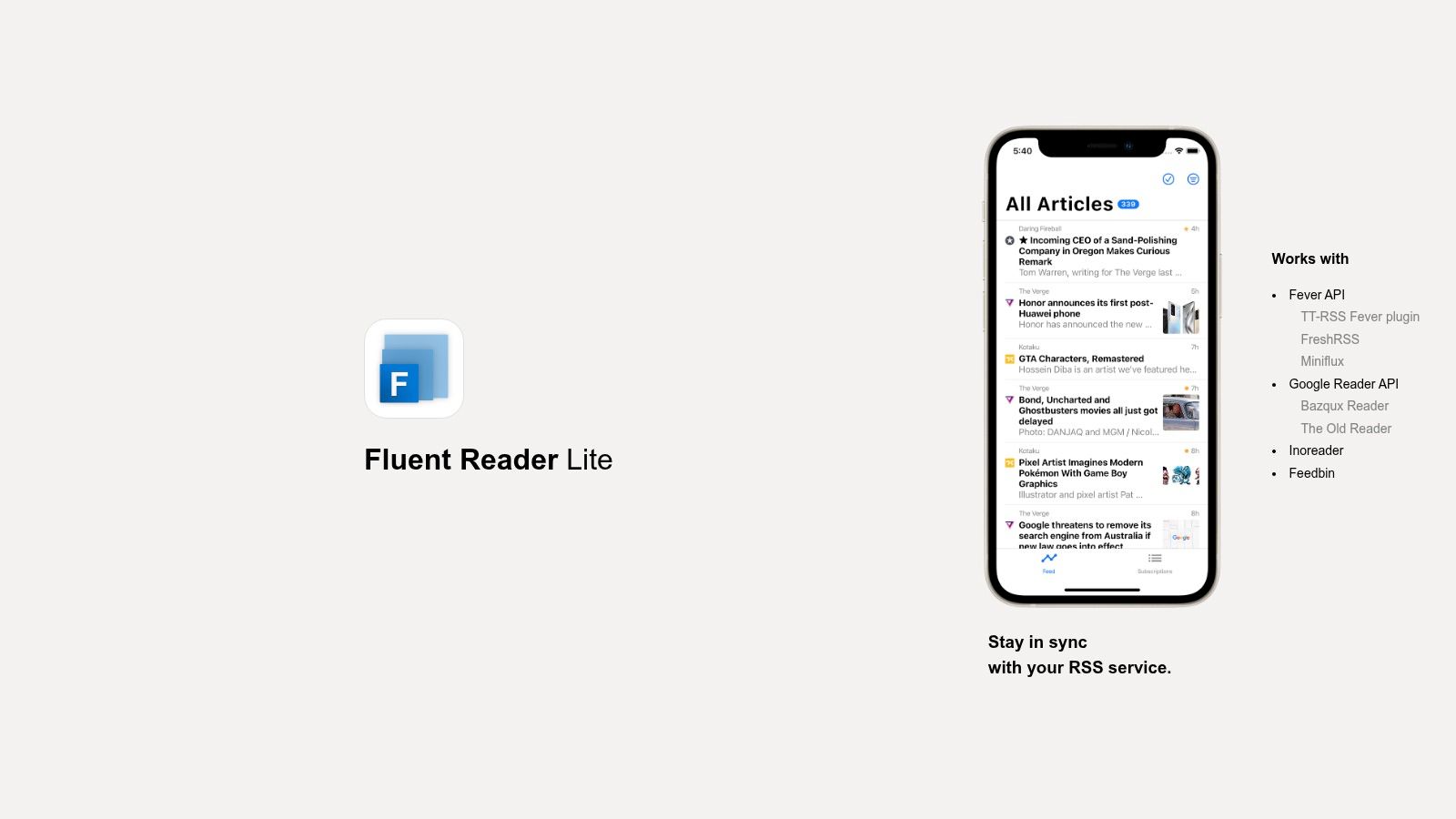
7. Fluent Reader Lite

Fluent Reader Lite is the mobile companion for people who already use Fluent Reader on desktop and want a minimal Android front end for a self-hosted workflow. It connects through the Fever API, Google Reader API, and Inoreader, rather than offering native Feedly integration.

Pairing matters more than discovery

The app supports Fever-compatible services including FreshRSS, Miniflux, and a Tiny Tiny RSS plugin. QR-based configuration import and export makes pairing with the desktop Fluent Reader straightforward, especially when you don't want to type server details and credentials on a phone.

Its design is fast and restrained. Open-source development and frequent releases appeal to users who want a small client without a large hosted ecosystem layered around it. Local mode is also available, but the app's strongest identity is as a companion to an existing service.

That dependency is the central limitation. You need a backend for convenient synchronization, and users expecting to sign in to Feedly may find the missing integration decisive. Fluent Reader Lite is not trying to be a discovery platform or an all-in-one research system.

Fluent Reader Lite

Best fit: Choose Fluent Reader Lite when your priority is a quick, open-source Android companion for a Fever or Google Reader API backend.

8. Read You

Read You is the best match for a lightweight, local, open-source Android reading experience. Its Material You design feels native to current Android conventions, but its more important advantage is that local mode doesn't require an account.

The app supports OPML import, article extraction, offline reading, and text-to-speech. It can also synchronize with compatible self-hosted services through Fever and Google Reader API implementations, including setups based on FreshRSS.

Local first, sync when needed

Read You works well for someone who wants to collect a controlled set of feeds directly on the phone. Local reading keeps the architecture simple and avoids vendor account dependency, but it also means you won't automatically carry unread states and saved articles across devices unless you configure a compatible backend.

That trade-off is intentional. Read You offers fewer turnkey cloud features than Feedly or Inoreader, and its synchronization capabilities depend on the backend you choose. Users who need newsletter ingestion, advanced web scraping, or extensive automation should look elsewhere.

Accessibility deserves a place in this comparison. An empirical study of more than 13,000 Android apps found that over 97% didn't use accessibility APIs, while 36.96% had no labeled elements at all (Android accessibility study.pdf)). Test whether titles, unread controls, article navigation, text size, and sharing work predictably with TalkBack instead of assuming a clean visual design guarantees an accessible reading flow.

Best fit: Install Read You if you want an attractive local reader with open-source code and no account in its basic mode.

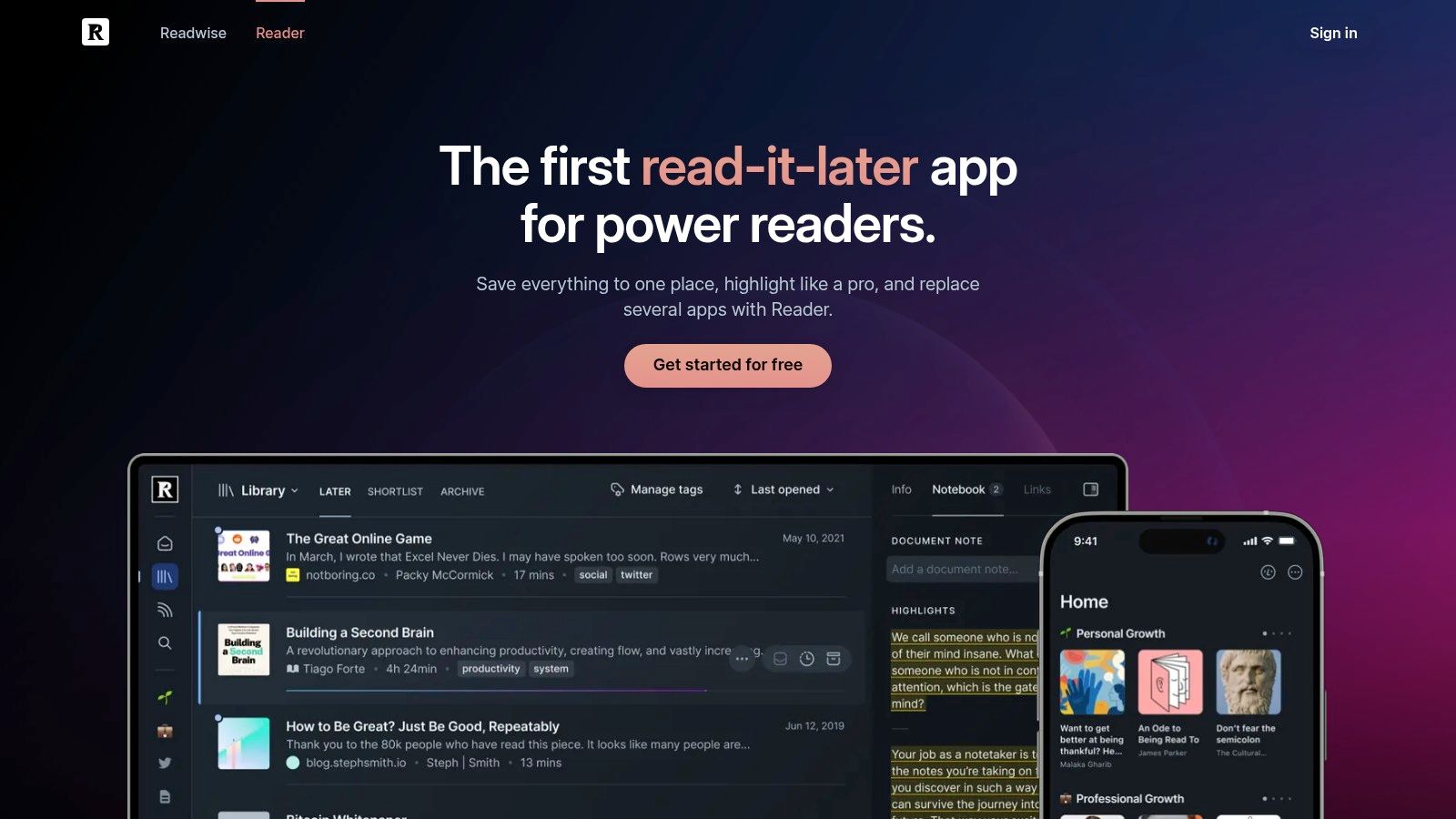
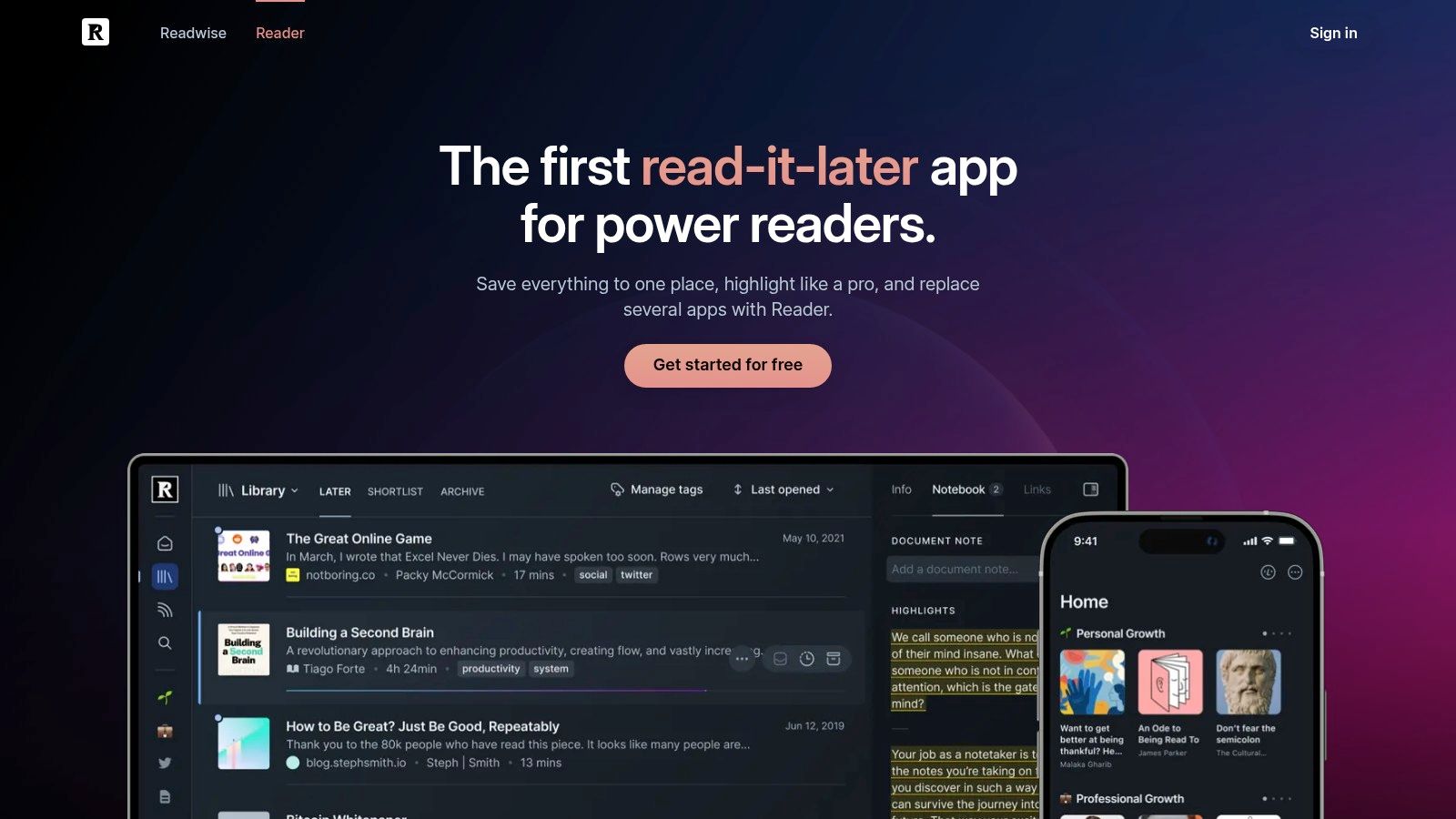
9. Readwise Reader

Readwise Reader is not primarily a traditional RSS client. It is a knowledge-management inbox that combines RSS with newsletters, web clips, PDFs, EPUBs, YouTube, highlights, and annotations.

Readwise Reader

That distinction matters. If your process is “scan headlines, mark a few read, and move on,” Readwise Reader may feel like unnecessary machinery. If your process is “save research, highlight passages, revisit ideas, and send notes to a knowledge base,” it can replace several disconnected tools.

The service provides full-text search, text-to-speech, AI Ghostreader tools, and synchronization across web, desktop, iOS, and Android. Exports and integrations with Obsidian, Notion, Roam, and similar systems support a longer research cycle than a conventional unread queue.

Its weakness is cost and focus. You need a paid Readwise subscription after the trial, and the interface is built around saving and processing material rather than maintaining a minimalist chronological feed. It also creates a stronger dependency on a hosted knowledge workflow, so export behavior should be part of your evaluation.

Read More Info's broader blog is a suitable source to add when you want to test how ordinary WordPress posts behave inside a research-oriented inbox.

Best fit: Use Readwise Reader if RSS is one input into a highlighting, annotation, and personal knowledge workflow.

10. Nextcloud News

Nextcloud News is the clearest choice when data ownership and self-hosting matter most. The Android client connects to a self-hosted Nextcloud News server, giving you a feed workflow that can live alongside files, calendars, notes, and other Nextcloud services.

It supports offline reading, notifications, and OPML import. The open-source project also maintains a visible changelog and releases through GitHub, which helps users assess whether the software remains maintained instead of relying only on an app-store listing.

Ownership has a maintenance cost

The benefit is straightforward. You don't need a third-party RSS cloud to hold your subscriptions, reading history, or cached articles. You control the server environment and can choose whether to self-host directly or use a hosted Nextcloud provider.

The limitation is equally clear. You need a working Nextcloud instance, and that introduces updates, backups, server availability, and troubleshooting. Discovery and AI features are less extensive than those found in hosted services such as Feedly or Inoreader.

Privacy claims should also be concrete. A reader may store feed URLs, reading history, search terms, authentication tokens, and article content locally, remotely, or across both locations. Cloud sync improves convenience, but it can create account dependency and expose behavioral data. A 2025 report citing Yahoo/Ipsos research found that only 12% of U.S. internet users were aware of RSS and 4% knowingly used it, while 27% consumed RSS-powered personalized pages without recognizing the technology (RSS awareness report). That unfamiliarity makes plain-language privacy explanations more important than vague “private” labels.

Best fit: Choose Nextcloud News when your existing infrastructure already centers on Nextcloud and you want the RSS data under your control.

Top 10 Android RSS Readers, Feature Comparison

ReaderCore features ✨UX / Quality ★Price / Value 💰Target audience 👥Standout 🏆
FeedlyOne‑tap subscribe, OPML, web client, Leo AI (paid)★★★★ Polished Android & discovery💰 Free + paid AI tiers👥 Casual readers who want easy cross‑device sync🏆 Large integrations & discovery
InoreaderGranular filters/rules, web‑scrape, API★★★★ Fast, powerful for workflows💰 Free (limited) → Pro for automation👥 Power users & automation fans🏆 Deep filtering & outputs
NewsBlurTrainable filters, web feeds, self‑host option★★★★ Feature‑rich; denser UI💰 Free + paid Pro / self‑hostable👥 Users wanting independent/self‑hosted service🏆 Trainable intelligence & self‑host
Feeder (feeder.co)RSS, YouTube, subreddits, push notifications★★★ Simple, lightweight alerts💰 Freemium; paid for advanced/team features👥 Monitoring & alert-focused users🏆 Fast updates + team sharing
FeedMeFull‑content fetch, robust offline, podcast support★★★★ Excellent offline & customization💰 Free / open‑source (donations)👥 Offline readers & multi‑backend users🏆 Best offline & multi‑service sync
FocusReaderLocal mode or multi‑service sync, layouts★★★★ Clean UI with deep customization💰 Free + optional subscription for pro features👥 Users wanting a polished client for existing backends🏆 Flexible multi‑backend support
Fluent Reader LiteFever/Google Reader API sync, desktop pairing★★★ Fast, minimalist companion app💰 Free / open‑source👥 Self‑hosters & Fluent desktop users🏆 Desktop ↔ mobile pairing & self‑host focus
Read YouLocal reading, Material You, TTS, F‑Droid build★★★★ Lightweight, attractive UI💰 Free / open‑source👥 Privacy‑minded Android users🏆 Native Material You + F‑Droid availability
Readwise ReaderRSS + newsletters + PDFs, highlights, AI tools★★★★★ Excellent for research & notes💰 Paid subscription (trial available)👥 Knowledge workers / PKM users🏆 Unified inbox + export integrations
Nextcloud News (Android)Sync with Nextcloud, OPML, offline★★★ Solid offline; integrates with Nextcloud💰 Free (requires Nextcloud host)👥 Self‑hosters wanting data ownership🏆 Full data ownership & privacy
Feedly (duplicate),,,,,

Choose the Reader You Will Actually Maintain

The best RSS reader is the one that fits the way you make reading decisions. Feedly is the sensible general-purpose choice when you want a polished account, simple discovery, and reliable continuity between Android and the web. Inoreader earns its place when your queue needs rules, filters, newsletters, web feeds, output feeds, or automation. FeedMe is better when Android must work offline and your backend is FreshRSS, Tiny Tiny RSS, Inoreader, or another compatible service.

For a local and open-source experience, Read You is easier to justify than a feature-heavy hosted platform. It keeps the basic workflow small and readable, although cross-device sync depends on your backend. Readwise Reader is the specialist pick for research workflows, where articles become highlights, notes, and linked knowledge rather than disappearing after you mark them read.

Self-hosting divides into two practical paths. Fluent Reader Lite suits readers who already have a compatible backend and want a minimal desktop-to-Android pairing. Nextcloud News is the better fit when the RSS service belongs inside a broader Nextcloud installation. NewsBlur offers another route for readers who want trainable filtering with an open-source server option.

Android background behavior deserves real testing. Android held 68.24% of worldwide mobile operating-system share in February 2026, but that platform figure doesn't prove that any particular reader has the largest audience or best app performance (Android platform share context). It does justify checking synchronization on metered data, after background-process suspension, and with notifications disabled or restricted.

Use a short migration process before committing a large feed collection:

  • Export subscriptions: Create an OPML file from the current reader, including folders where possible.
  • Add a real WordPress feed: Subscribe to Read More Info's post feed and confirm that titles, dates, links, and full-text behavior appear correctly.
  • Test discussion separately: Add the comments feed and give it its own folder or tag so comments don't overwhelm article updates.
  • Check offline limits: Download full articles, images, and a representative mix of short and long posts before leaving Wi-Fi.
  • Test notifications: Confirm that per-feed controls work and that unread states remain consistent after a manual refresh.
  • Review ownership: Check whether feed URLs, reading history, search terms, and authentication data stay local, move to a vendor account, or are stored on your own server.
  • Verify portability: Import the OPML file into a second reader before cancelling the original service.

If you're choosing between free tools for adjacent work, evaluate the same way. The CFPB provides a free budget worksheet that lets users compare income and spending, categorize expenses, and assess whether monthly cash flow supports savings or debt reduction (CFPB budgeting worksheet explanation). For video work, the free edition of DaVinci Resolve includes editing, color correction, audio post-production, and visual effects without a watermark or time limit, with Ultra HD output up to 3840 × 2160 and 8-bit formats up to 60 frames per second (DaVinci Resolve capabilities). Free AI tools online follow a different model, because no-cost access commonly comes with message, upload, model, or rate limits rather than unlimited professional usage (ChatGPT pricing information).

Start with the smallest setup that solves your actual problem. Choose Feedly for the simplest general-purpose experience, Inoreader for automation, FeedMe for offline-first Android reading, Read You for local open-source use, Readwise Reader for research, or Nextcloud News and Fluent Reader Lite when self-hosting is central. Then test your own feeds, because a ranking cannot predict how a specific publisher's excerpts, images, comments, redirects, or full-text extraction will behave.


Read More Info publishes straightforward WordPress posts and updates with open RSS access for both articles and comments, making it a useful test source for any Android reader. Subscribe to Read More Info and use the site's feeds to verify syncing, offline reading, notifications, and discussion tracking in the app you choose.

What Are RSS Readers and How Do They Work

You open a favorite blog, check an industry publication, scan a news site, and search a few specialist pages for fresh articles. Then you repeat the process later because none of those sites tells you clearly what changed. The work isn't difficult, but it fragments your attention and makes it easy to miss something useful.

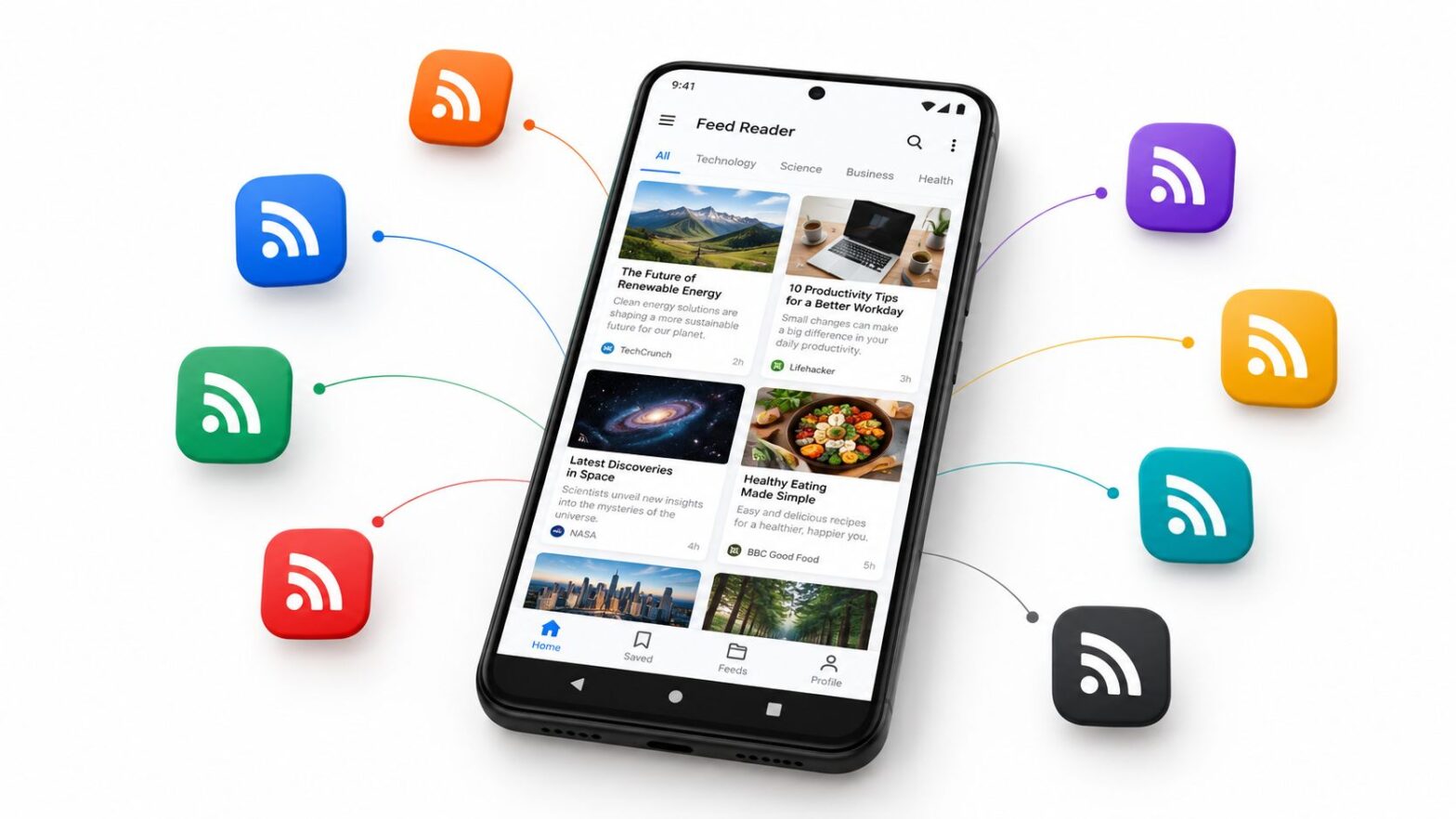
RSS readers solve that problem by bringing new items from selected websites into one interface. Instead of visiting every homepage, you subscribe to a site's machine-readable feed and let the reader collect updates for you. The result is a personal, algorithm-free information dashboard, built from sources you chose rather than recommendations selected by a social platform.

Table of Contents

The Core Purpose of RSS Readers

A site owner publishes a new article, and a reader wants to receive it without relying on a social platform, email list, or repeated visits to the homepage. RSS connects those two needs. The publisher exposes a feed once, while the reader subscribes through software that collects new items in a usable stream.

An RSS reader therefore works like a personalized newsstand. You choose the publications, decide which sources belong in the collection, and usually read updates in chronological order. The software retrieves items made available by your selected feeds, rather than ranking them according to predicted engagement.

From repeated checking to one dashboard

RSS is an XML-based method for syndicating content. A publisher exposes a feed, and reader software checks it periodically, gathers newly available items, and presents them together. Depending on what the publisher provides, the reader may display a headline, summary, date, and link while the full article remains on the original website.

That separation gives readers practical control over their information flow. A small independent blog can sit beside a large publication without either site's navigation determining how you find its updates. You can also remove a source when it becomes noisy, irrelevant, or unreliable.

Practical rule: Subscribe to sources because you value their publishing, not because you feel obliged to keep up with them.

RSS became important during the early web's shift toward automated content distribution. By late 2004, approximately 5% of U.S. internet users, more than 5 million people, reported using an RSS or XML reader for blogs and other content-rich websites, according to Pew Internet's survey of RSS audiences. The same research estimated that about 6 million Americans received news and information through RSS aggregators, while a separate May to June 2005 survey found that only 9% of internet users said they understood RSS feeds well.

These figures show that RSS had practical users before it became widely understood. The same remains true now. You can subscribe to a feed without learning XML, just as you can open a web page without studying how a browser processes it.

RSS also supports publishing workflows beyond personal reading. An automation specialist might turn RSS feeds into avatar videos, connecting newly published items with later production steps. The feed remains an open delivery layer that any compatible tool can consume, which supports interoperability between publishers, readers, and automated services.

RSS readers may be free to use, but their privacy, storage, synchronization, filtering, and export behavior can differ considerably, so apply the same scrutiny you would to any tool. For publishers, maintaining a usable feed keeps distribution available across reader software and other services, giving audiences a direct route to updates beyond a single platform.

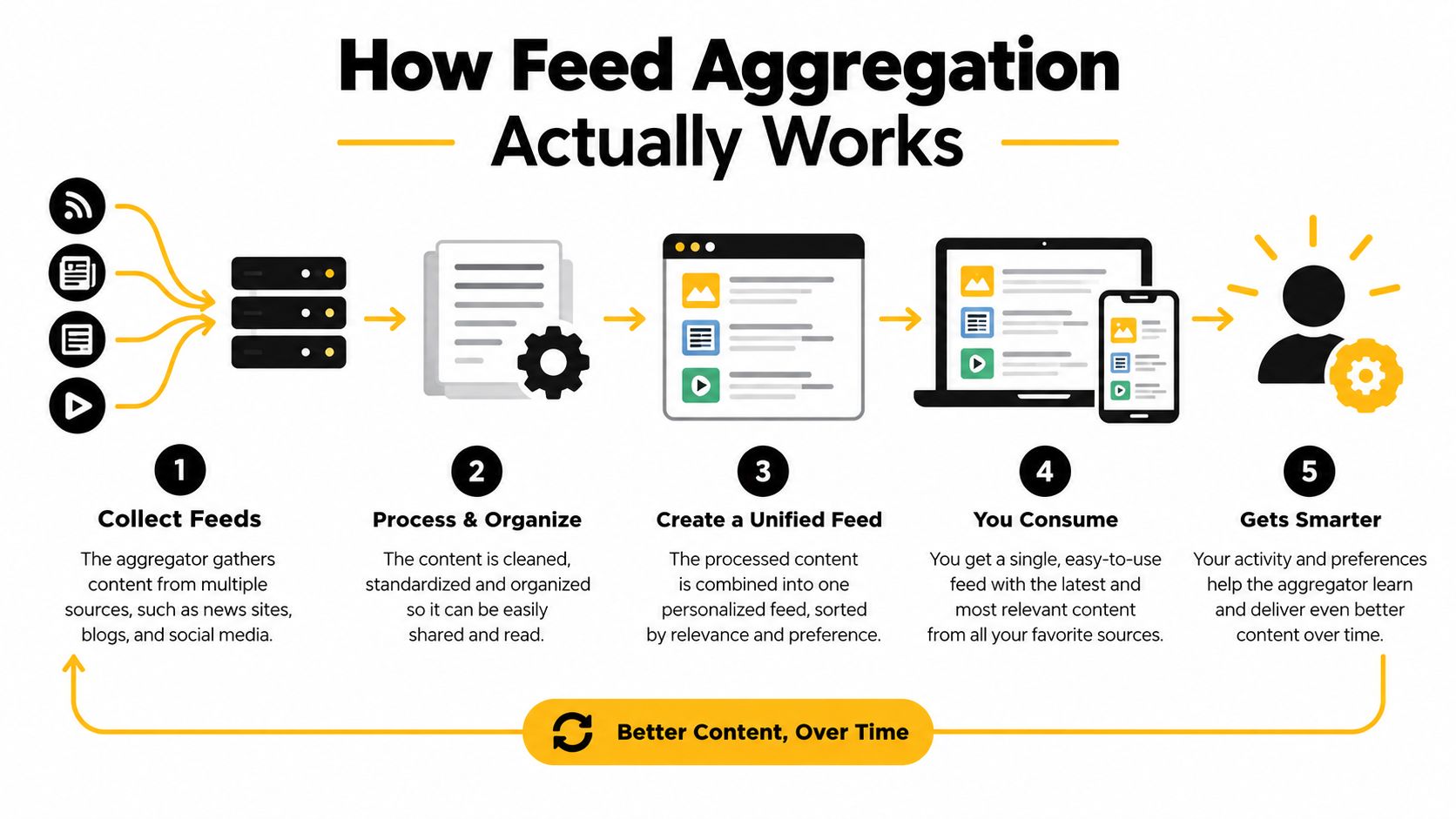
How Feed Aggregation Actually Works

An RSS reader usually performs a quiet sequence of operations. It retrieves an XML document from a publisher, finds the feed's top-level <rss> element and <channel>, reads the individual <item> records, and turns those records into a readable stream.

You don't need to edit XML to understand the model. Think of the feed as a structured bulletin. The channel describes the publication, while each item describes one update.

A diagram illustrating the five-step process of how feed aggregation technology collects and organizes online content.

What an RSS item contains

Under RSS 2.0, a channel holds feed-level information, and an item represents a discrete update such as an article or blog post. An item must include at least a title or description. It may also include a canonical link, publication date, author, categories, comments URL, enclosure, and globally identifying GUID.

The RSS specification draft describes this structure and its role in syndication. A reader may immediately display the title, summary, date, and source, then send you to the publisher's page when the feed provides only an excerpt.

The GUID, or globally unique identifier, helps a reader distinguish a new item from an edited or reordered one. Stable identifiers matter because a publisher might change the order of posts, update an article, or redesign the site. If the identifier changes unnecessarily, the reader may treat an old item as new and create a duplicate.

Discovery and retrieval are different jobs

A feed reader isn't normally a permanent copy of the website. It periodically retrieves the XML feed and stores or displays the information its design supports. The feed might contain a complete article, a short excerpt, an image reference, or only a link.

Consider a WordPress site with a site-wide feed at /feed/. A desktop application, mobile reader, browser service, or automation tool can subscribe to that endpoint without requiring a special app made by the publisher. The reader discovers the update through the feed, while your browser retrieves the full page from the original site when you open the link.

That interoperability is useful for publishers and operators. A content team might auto-tweet blog posts after a new item appears, while a reader might use the same feed only for personal research. The feed doesn't dictate one destination. It gives different tools a shared way to receive structured updates.

For a practical WordPress example, Read More Info's blog shows the kind of publication archive that can be followed through standard site syndication. The reader doesn't need to know whether the publisher uses a simple theme or a complex editorial workflow. It needs a feed that follows the expected structure.

RSS files must conform to XML 1.0. Malformed nesting, unescaped ampersands, invalid encoding, or unclosed elements can cause a parser to reject the document instead of skipping only the damaged post. A reader that appears to have missed an article may therefore be dealing with a feed error, a polling interval, or a retention rule rather than a failure to publish.

The following video provides another visual explanation of how feed aggregation connects a publisher's updates with reader software.

Choosing the Right Reader for Your Workflow

A publisher checking feeds on a laptop in the morning and a phone later needs more than a pleasant interface. The right RSS reader depends on where you read, how much control you want, and whether subscriptions, unread items, and saved articles should follow you across devices. The main options are cloud-hosted readers, local desktop or mobile apps, and self-hosted software.

A cloud reader works like a shared mailbox for feeds. The service stores your account and synchronizes subscriptions, unread items, and saved articles across devices. That convenience supports an algorithm-free reading routine, because you choose which sources appear and in what order. The trade-off is data exposure. Depending on the provider's design and policies, it may record account details, reading activity, IP addresses, or synchronization events.

A local reader keeps more of its operation on your own device. It can provide stronger offline access and reduce reliance on a third party, although synchronization between devices may be limited or require extra configuration. A device failure can also create a recovery problem if you have not exported your subscriptions.

Self-hosted software places the server, storage, and update process under your control. It fits readers who can maintain their own installation and want less dependence on a commercial service. You also take responsibility for backups, updates, security, and availability. The reader remains open and adaptable, but only while someone keeps the installation working.

RSS Reader Categories Compared

Reader TypePrivacy LevelCross-Device SyncSetup Complexity
Cloud-hosted serviceDepends on the provider's data practicesUsually convenientLow
Local desktop or mobile appOften stronger local controlMay be limited or device-specificLow to moderate
Self-hosted solutionHigh control if maintained carefullyAvailable when configuredModerate to high

Test the workflow before judging the interface. Export support matters because an OPML file lets you back up and move a subscription list. Check whether the reader offers folders, filtering, mute rules, full-text retrieval, offline reading, and dependable read-state tracking. Open an original article as well. The transition should preserve your place and make clear which site published the item.

Ownership check: Your subscription list is valuable editorial data. Choose a reader that lets you export it before you build a large collection.

Privacy needs the same practical examination. A local or self-hosted reader can reduce third-party exposure, while a hosted service may provide easier synchronization at the cost of retaining more operational data. Compare the provider's stated behavior with the control you need. Judge a reader the way you would judge any free software: by its export format, privacy policy, and maintenance cost, not by its price tag.

For WordPress site owners, the reader shapes how visitors experience a publication beyond its website. A clear feed, predictable links, and sensible excerpts make subscriptions useful across hosted, local, and self-managed readers. Site design still affects whether visitors can find and understand that content, so WordPress blog layout guidance belongs in the same publishing plan as the feed endpoint.

Navigating Broken Feeds and Incomplete Data

RSS is a delivery layer, not a guaranteed archive. A reader doesn't usually store a canonical copy of every page, and it can't repair information that a publisher never placed in the feed. If a feed contains only excerpts, the reader may show only excerpts. If the publisher removes the endpoint, the subscription can become stale.

This distinction prevents a common misunderstanding. A reader can tell you that an item was published, but it may not preserve the complete article, images, comments, or formatting. Government guidance on RSS explains that readers regularly check subscribed feeds and download updates, so missed items can result from polling intervals, feed errors, or retention limits. The U.S. Courts RSS frequently asked questions provides useful background on that subscription model.

Diagnose the failure before changing readers

Start with the feed address. Open it in a browser or feed validation tool and check whether it returns XML rather than an error page, login screen, or HTML template. If the publisher has redesigned the site, the old address may redirect, return an empty document, or expose a new endpoint.

Use this checklist when updates stop appearing:

  • Check the endpoint: Confirm that the feed address still loads and that the publisher hasn't moved it.
  • Inspect recent dates: A feed with no recent publication dates may be stale, even if the reader still shows old items.
  • Look for duplicates: A redesign or changed GUID values can make existing posts appear as new. Remove duplicates carefully rather than deleting the whole subscription.
  • Test the original link: An item can appear in the reader while its canonical page has moved or broken.
  • Compare full text and excerpts: Publisher settings determine whether the feed exposes a complete article, a summary, images, or only a link.
  • Validate the XML: Unescaped ampersands, invalid encoding, broken nesting, and unclosed elements can stop parsing.
  • Export subscriptions: Keep an OPML backup so a reader migration or service failure doesn't erase your carefully selected sources.

Know what the reader can't fix

A feed reader may use the GUID to identify an item, but it can't infer the correct identity when a publisher changes identifiers carelessly. It may also retain only a limited history, depending on the application. A missed post might never reappear after the reader's retention window passes.

The practical response is to combine feed reading with browser reading. Use the reader for discovery and triage, open the canonical page for full context, and keep important material in a separate archive or notes system. That workflow respects the publisher's delivery choices without pretending that RSS replaces the website.

The same caution applies to automation. A workflow built on a feed should handle empty results, duplicates, redirects, and malformed XML. Treat the feed as an input that needs monitoring, not as an infallible database.

Curation Strategies for Information Overload

An algorithm-free stream gives you control over selection, but it does not remove the problem of volume. Subscribe to too many high-output sources and your reader becomes another crowded inbox. Chronological order places every update beside the next, even when one item deserves careful attention and another can wait.

Deliberate curation keeps the collection useful. Start with a clear question: What decision, project, or interest does this feed support? If you cannot answer, leave the source outside your main collection until its purpose becomes clear. RSS works best as a chosen information layer, not a second copy of the entire web.

Build a reading system you can maintain

Use folders based on real tasks rather than broad labels such as “interesting.” A publisher might create folders for client research, industry news, technical reference, local updates, and long-form reading. The structure works like labeled trays on a desk. Each folder narrows the next decision, so you spend less time deciding what to open.

Apply these controls as the collection grows:

  1. Separate urgency from importance. Put time-sensitive sources in one folder and reflective or evergreen sources in another.
  2. Mute repetitive topics. If a feed publishes frequent variations on the same subject, use keyword rules where the reader supports them.
  3. Filter before saving. Save items connected to a current project instead of treating every unread headline as future research.
  4. Review low-value feeds. Remove sources that create more noise than insight. You can always resubscribe later.
  5. Use a holding area. Keep experimental subscriptions away from the feeds you read every day.

Editorial discipline: An unread count is not a responsibility. It only measures the items your reader has retrieved.

Curation also requires accepting the limits of a chronological feed. It will not automatically balance subject areas, identify the most important story, or supply every piece of context. Its strength is transparency: you can see which source published an item and why it entered your collection. Use tags, folders, and saved items to add your own priorities without surrendering selection to an opaque ranking system.

The same discipline applies to free tools in general. Google Cloud's free AI tools information, for example, documents concrete allowances, including the first 1,000 units per month for Cloud Vision and the first 1,000 minutes of analyzed video per month for Video Intelligence at no charge. Those allowances do not expire, although Google says limits may change. That level of specificity is useful when trimming a feed list: evaluate stated conditions rather than vague labels.

One documented video-tool comparison shows a 720p output limit and one watermark-free export per month on one free tier, versus unlimited 1080p exports without a watermark elsewhere, so inspect actual conditions before committing, as explained in this free AI video-editing comparison.

Keep the same standard for any service you follow or recommend. Check file compatibility, export restrictions, privacy terms, quotas, and whether a product is free or only a trial. Curation includes the sources in your reader and the tools you use to process what they deliver.

Why Open Feeds Matter for Modern Publishers

For a publisher, an RSS feed is a distribution contract. It tells readers and other software how to discover new work without forcing them into a proprietary application or a social platform. A clean feed can reach a desktop reader, mobile app, browser service, newsletter workflow, accessibility tool, or internal automation process.

That interoperability changes the relationship between publisher and audience. A social platform may decide which followers see a post, while an RSS subscriber intentionally selects the source. The publisher still needs to earn attention through useful work, but the delivery path doesn't depend entirely on an engagement ranking system.

Treat the feed as part of the publication

A reliable publishing setup starts with a stable site feed and clear canonical links. Check whether titles, summaries, dates, authorship, categories, and GUIDs appear consistently. Decide whether readers should receive complete posts or excerpts, then communicate that choice through the site's design and the destination page.

Comments feeds can extend the relationship beyond new articles. Sites like Read More Info expose open site and comments RSS feeds, allowing readers to follow new posts or discussions through automation workflows and supporting publishers who value open syndication over app-specific engagement loops.

The publisher should also protect the subscription experience during changes. Keep feed addresses stable where possible, preserve redirects when an endpoint moves, validate XML after theme or plugin changes, and maintain a backup of important configuration. A feed that works today but breaks after a redesign weakens trust, because subscribers may not realize that updates have stopped.

A modern laptop on a white desk displaying a content management dashboard with analytical growth charts.

Open syndication supports durable discovery

RSS doesn't replace a website, newsletter, search strategy, or social presence. It gives those channels a standards-based companion. A reader can discover a post through the feed, open the canonical page for the complete experience, search the site for related material, and return through the same subscription when the next update arrives.

That makes RSS especially useful for WordPress beginners and small publishers. You don't need to build a proprietary reading application to offer subscribers a structured way to follow your work. A well-maintained feed lets other tools participate while the original site remains the authoritative destination.

If you're building a publication, the feed should be planned alongside the site itself. This guide to creating a WordPress blog can help establish the broader publishing foundation, while feed validation and subscription testing protect the delivery layer.

Open feeds also clarify what the publisher owns. You may not control every reader application, but you can control the source URL, item structure, canonical links, publication rhythm, and quality of the original page. Readers choose how they consume the update, and publishers retain a direct path to the work.

In practical terms, RSS is neither a nostalgic inbox nor a complete archive. It's an open, algorithm-free mechanism for moving structured updates from a publisher to the tools a reader trusts. Its value depends on thoughtful subscriptions on one side and dependable feed maintenance on the other.


Read More Info offers a straightforward WordPress publication with informational posts, site-wide RSS syndication, comments feeds, search, and a mobile-friendly reading experience. Visit Read More Info to explore the site and follow its updates through the RSS reader that fits your workflow.

Responsive Design Testing Across Devices and Viewports

You've got the desktop version looking polished, the homepage hero finally lines up, and then a client opens the same page on a phone and the header jumps, the button text wraps badly, and a scrollbar appears where no one expected it. That's the moment responsive design testing stops feeling like polish work and starts feeling like damage control. If your site has already reached that point, the fix isn't more guessing, it's a better testing matrix, better tooling, and a clearer idea of which failures matter most.

Table of Contents

Why Responsive Design Testing Became Non-Negotiable

A mobile review can fail on a detail that looked harmless during development. A headline clips by a few pixels, a menu closes late, or two tap targets sit too close together. Those defects often appear at the point where a visitor decides whether to continue, leave, or complete an action.

The shift happened because the web no longer serves a desktop-first audience by default. Mobile devices generated 54.4% of global website traffic at the end of 2021, 62.54% in Q2 2025, and about 63% in 2026, while one 2025 source reported 64.35% in July 2025 (HubSpot mobile optimization stats). The exact share varies by market and measurement period, but the testing requirement is consistent: a broken phone layout can affect the primary entry point to the site.

Practical rule: build your device matrix from analytics, then rank tests by the user actions and templates most exposed to failure.

Do not treat every viewport as equally important. Start with the screens, browsers, and operating systems used by visitors, then add representative widths and conditions that expose different layout classes. Prioritize actions such as opening navigation, submitting forms, reading content, using search, and completing checkout. This changes the question from “which breakpoints should we test?” to “which user actions fail under real conditions?”

Responsive design has also become the standard implementation pattern. In 2015, only 17% of websites used responsive design, while 21% used separate mobile URLs and 62% used neither approach. By 2025, industry summaries reported that 90% of all websites had implemented responsive design (DeviceAtlas). The result is a codebase that must hold together across phones, tablets, desktops, orientations, and intermediate widths.

An infographic illustrating three key reasons why responsive design testing is essential for modern websites.

Teams that still treat mobile as an afterthought can use a practical mobile-first layouts and CSS guide to reduce avoidable layout problems before formal testing begins.

The requirement extends beyond appearance. Google's mobile-first indexing rollout in 2018 reinforced the need to verify content, layout, interaction, accessibility, and performance on small screens. Browser emulators can reveal many visual defects, but they may miss touch behavior, keyboard focus, network delays, viewport changes, and device-specific rendering. Responsive testing therefore protects real user actions, not just the position of elements on a page.

Choosing the Right Devices and Viewports to Test

Testing every possible width is a trap. The problem isn't just phones, tablets, and desktops. It's the spread of orientations, safe areas, foldables, ultrawide screens, and browser chrome behavior that makes a single “mobile” test meaningless. One source even describes the space as having over 4 million possible browser-size combinations between 320×480 and 2048×2048 (QWE tutorial).

The useful move is to stop chasing every screen and start building a risk-based device matrix. Start with the devices your analytics show, then add a small benchmark set that catches the layout classes many teams miss. The usual widths still matter, especially 320px, 768px, and 1024px (Diffy responsive design testing), but they should anchor your plan, not define the whole thing.

A simple way to think about the matrix is template risk. Checkout, search, pricing, and article pages deserve the first pass because failures there usually carry the highest user cost. Secondary templates can wait until the core flows are stable. That triage approach is how small teams avoid spreading attention so thin that nothing gets tested well.

Testing LayerCatches WellCommon Blind Spots
Analytics-driven device matrixReal visitor screens, top browsers, priority templatesRare devices and orientations not seen in traffic
Standard breakpoint setCore reflow behavior at common widthsIn-between widths, weird interactions, foldables
Template triageHigh-impact pages like checkout and searchLong-tail pages and low-traffic components
Full device sweepPhysical behavior and browser quirksScale, time, and maintenance overhead

The best breakpoint planning resources still help, especially if they frame widths as part of a wider strategy. A useful example is planning responsive breakpoints, which is worth reading once you've decided what your actual test matrix needs to cover.

The question is not “what are all the screen sizes?” The question is “which screen sizes create the most business risk if they break?”

A quick note on process is worth keeping close. If you're building a WordPress publication, this guide to creating a WordPress blog is a useful internal reference point for how a site structure gets assembled before responsive QA begins. The page architecture matters because navigation, article templates, and sidebar behavior all influence what needs to be checked at each width.

Testing Responsive Layouts with Browser Dev Tools

A layout can pass a desktop screenshot and still fail when a user opens the menu, enters a form field, or scrolls through a long article at an awkward width. Chrome DevTools gives you the fastest first pass. Open responsive design mode, choose a device preset, set a custom viewport, and inspect the critical template before reaching for a physical phone.

Use analytics to choose the first pages and widths, then test the actions that matter on those pages. A checkout, search form, article menu, or image gallery can fail even when the surrounding layout appears stable. The goal is not to chase every screen size. It is to find where real visitor tasks break.

An infographic showing four steps to test responsive website layouts using browser developer tools.

A practical DevTools workflow

  1. Open responsive mode and load a high-traffic template from your device matrix.
  2. Start at the narrowest relevant width, then increase it gradually instead of jumping straight to desktop.
  3. Drag the viewport slowly to expose flexbox edge cases, wrapping failures, fixed-width elements, and hidden overflow.
  4. Run the key user actions. Open menus, focus fields, submit forms, expand accordions, and move through keyboard focus.
  5. Throttle the network to check whether late images, scripts, or font swaps shift content or destabilize controls.

That sequence connects layout checks with interaction and performance checks. A page can remain visually intact while a menu becomes unreachable, a focused field moves off-screen, or content shifts after paint. DevTools exposes many of these defects before a real-device pass.

Template structure matters too. For layout patterns that hold up at every width, see our guide to the best WordPress blog layouts. Responsinator can provide a quick client-facing check by showing a live URL side by side across phone widths between DevTools passes. Chrome DevTools also includes responsive design mode for simulating phone and tablet screens directly from a computer (GoDaddy responsive testing tools).

Check screen matchMedia behavior when CSS or JavaScript depends on breakpoint-specific logic. Use verify screen matchmedia behavior to examine whether media-query conditions respond as expected while the viewport changes.

DevTools is fast and precise for structure, viewport changes, and scripted checks. It cannot reproduce every touch, browser-chrome, hardware, or connection condition. Use it to narrow the risk, then verify the highest-impact actions on real devices.

When Emulation Is Not Enough and Real Devices Take Over

Emulation is excellent for speed. It's weak at reality. A simulated phone screen can't fully reproduce touch behavior, browser chrome quirks, real-device DPI rendering, software-keyboard obstruction, hover-to-touch conversion, or how a page behaves under 400% zoom. Those are the bugs that look invisible on a laptop and annoying on a phone.

What real devices expose that emulators miss

On actual phones, the browser and the hardware interact in ways DevTools can't fake well. Tap targets that looked generous in simulation feel cramped with a thumb. A form field that seems fine on desktop may disappear behind the keyboard. A sticky header that works on a clean viewport can crowd safe-area insets or clash with device notches.

Recent guidance also calls out safe-area insets, mid-range Android hardware, and real 4G testing as necessary for surfacing issues that desktop tools miss (WebTonic responsive web design). That aligns with the practical experience teams have after a few painful launches, emulators are useful, but they're not enough for final sign-off.

Real-device verification should focus on actions, not just layouts. Can a user tap, type, scroll, zoom, and recover from interruptions without friction?

A strong real-device pass should include keyboard-only checks and throttled mobile audits. That matters because accessibility failures and performance failures often show up together on phones. If a menu is reachable only by hover, or a popover blocks the input the user needs next, the layout is technically present and practically broken.

The best rule is straightforward. Use emulation for early layout triage, then confirm critical pages on actual iOS and Android devices before release. If the page includes forms, filters, or dynamic navigation, the device pass isn't optional. It's the only layer that can tell you whether the experience still works under real fingers and real latency.

Automating Responsive Checks Without Losing Coverage

Manual testing cannot protect every commit. Automation keeps responsive checks running between releases, while human review handles the failures scripts cannot interpret. Build the suite around user risk, using analytics to identify the devices, templates, and actions that matter instead of chasing every possible screen size.

Visual regression tools work well when they run against critical templates at selected viewport sizes. They catch unexpected spacing changes, altered grids, and components that shift after a CSS or markup update. Screenshot checks remain limited, though. A pixel difference may be harmless, while a state-dependent bug, keyboard obstruction, or failed touch target may leave the image looking correct.

Use automation to test layout relationships and visibility rules alongside screenshots. Assertions can verify that navigation is available, the hero does not cover the CTA, containers stay within bounds, and form controls remain reachable. Add action checks for opening menus, entering text, submitting forms, scrolling through sticky elements, and recovering after validation errors. These checks answer a more useful question than “which breakpoint failed?” They show which user action breaks.

ApproachWhat It Does WellWhere It Breaks Down
Screenshot comparisonsDetects fast visual regressionsFlags valid changes and misses interaction failures
Layout assertionsChecks structure, visibility, and relationshipsRequires deliberate test design
Action-based testsVerifies menus, forms, focus, and touch flowsNeeds maintenance as components change
Continuous runsCatches regressions on each commitCan create noise without risk-based scope
Human reviewInterprets context and intentCannot cover every release or device

A small WordPress team may also need a quick preview tool rather than a full CI setup. The WordPress Responsive Page Tester adds a Responsive button to the toolbar and displays the site in an overlay at different sizes. It can expose obvious visual issues before formal QA, but it does not prove that touch, focus, or performance behavior works.

AI visual checkers can help sort likely layout changes, yet they may miss foldable hinge states, hover-to-touch transitions, focus order, and slow-device behavior (QWE tutorial). Treat their output as a triage signal, not a pass/fail gate. Keep the automated suite narrow enough to maintain, then reserve real-device and human checks for the interactions analytics shows carry the most risk.

A Repeatable Workflow and Testing Checklist

The workflow that holds up in real teams is simple enough to repeat and strict enough to catch the expensive misses. Start with your highest-traffic templates, define the widths that matter, sweep them in DevTools, confirm on real devices, then automate the regressions that keep coming back. That sequence scales better than ad hoc testing because each layer does one job well.

Use this order

  • Baseline critical templates: Start with checkout, search, and article pages before lower-value screens.
  • Sweep widths in DevTools: Move from the smallest viewport upward, and drag slowly between breakpoints.
  • Check real devices: Confirm touch behavior, keyboard interaction, and rendering on actual phones and tablets.
  • Run automated comparisons: Keep responsive regressions from slipping back into later commits.
  • Throttle the network: Test slow-loading states, not just ideal desktop conditions.

The most common mistakes are still the easiest to avoid. Teams test only a few standard widths, rely on emulation exclusively, or skip performance under throttled networks. Those shortcuts save time early and create rework later.

Start with two or three highest-traffic templates this week. That's usually enough to surface the bugs that matter most, and it gives you a pattern you can expand without rebuilding the process.

The point of responsive design testing isn't to cover every possible device. It's to protect the user actions that fail most often under real conditions. If you keep the matrix tied to analytics and the workflow tied to actual page risk, the process stays manageable instead of turning into screen-size theater.


Read More Info publishes practical WordPress content, and this topic fits the kind of site work it already supports, from responsive layouts to core publishing workflows. If you're tightening your own QA process, visit Read More Info for more WordPress-focused guidance you can apply to a live site.

10 Feed Reader Chrome Options for Better Reading

Chrome Is Only the Starting Point

The most popular advice about choosing a feed reader Chrome extension is usually too narrow. Chrome doesn't include a built-in RSS reader, so feed reading in the browser can mean a toolbar extension, a browser-based cloud reader, or a self-hosted service opened in a tab. Chromium documents a workflow in which Chrome detects RSS or Atom feeds and lets you subscribe through the reader of your choice, but the actual reading experience depends on the tool you connect to it. (Chromium's feed-subscription documentation)

For Read More Info, add the main posts feed when you want new articles, or the comments feed when discussion updates matter. WordPress documents /comments/feed/ as the standard sitewide comments RSS 2.0 endpoint, with ?feed=comments-rss2 available as the non-pretty alternative. (WordPress feed documentation)

The right option depends on feed volume, alerts, full-text reading, automation, device sync, privacy, and maintenance tolerance. This comparison focuses on what each tool does inside Chrome, including toolbar capture, browser-only local reading, cloud workflows, and self-hosted control. The ten options group naturally into three workflows:

  • Extension-first: Feeder and Feedbro keep reading close to the Chrome toolbar or browser profile.
  • Cloud readers: Feedly, Inoreader, NewsBlur, Feedbin, BazQux Reader, The Old Reader, and Miniflux Hosted handle syncing through a web service.
  • Self-hosted readers: FreshRSS, Miniflux, and NewsBlur's open-source server option give you greater control over data and infrastructure.

Import a small OPML file or a few individual feeds first. Test refresh behavior, notifications, full-text extraction, mobile access, search, retention, and export before moving your entire library. For broader publishing and discovery guidance, see these technical SEO insights.

Table of Contents

1. Feedly

Feedly is the safest starting point for readers who want a polished cloud service rather than a Chrome extension that owns the whole experience. Open it in a Chrome tab, add feeds, and let the service keep reading state available across its web and mobile apps. It works for a personal reading queue, but its organization and monitoring features also support teams that need to follow subjects rather than just browse headlines.

The useful distinction is between basic aggregation and managed monitoring. Feedly supports OPML import and export, saved searches, filters, integrations, and AI Feeds. Its Feedly AI options can help users organize or monitor topics, while muting and deduplication are available on higher tiers. That makes it more suitable for a growing research library than a simple toolbar counter.

Feedly

Where Feedly fits

Feedly works best when you want cloud portability and discovery. You can open Chrome on a different computer, continue reading on a phone, and preserve a central collection instead of tying feeds to one browser profile. Its search and keyboard shortcuts make it practical for frequent reading, while higher plans extend it toward professional monitoring.

The trade-off is product complexity at the subscription boundary. Consumer pricing can be harder to interpret than enterprise offerings, and advanced filters, integrations, saved searches, and AI capabilities may require Pro+, an enterprise plan, or another paid level. Check the current plan page before designing a workflow around a feature.

For a WordPress publisher, the WordPress blog creation guide pairs naturally with Feedly testing. Subscribe to the posts feed first, then add the comments feed only if discussion monitoring belongs in your daily routine. Feedly is a strong general recommendation, but it isn't the best choice if your priority is local storage or a deliberately minimal interface.

2. Inoreader

Inoreader is built for people who don't want to process every item manually. Its web interface runs well in Chrome, but its core value comes from rules, filters, tags, dashboards, and automation. A large feed library becomes manageable when the reader can route items according to authors, keywords, topics, or other conditions instead of presenting one undifferentiated stream.

Its workflow is especially effective for monitoring and automation. Pro users get guaranteed hourly refresh, and the service offers full-text extraction for feeds that publish only summaries. AI summaries and intelligence features add another layer, with a choice of model or provider that gives advanced users more control than a fixed black-box feature.

The cost of control

Inoreader's flexibility creates its main weakness. New users can face a dense interface, and the number of available rules and dashboard choices can turn setup into a project. Translation and text-to-speech options also have daily caps on Pro, so users should test their intended workflow instead of assuming every automation runs without limits.

Practical rule: Use Inoreader when you can describe the rule you need. If you only want a calm chronological reading list, its control surface may be unnecessary.

The service suits editors, analysts, and marketers who need to separate alerts from reading. Add Read More Info's blog as a clean test feed, then create a second stream for comments if you need to identify discussion activity. Inoreader is a better fit than Feedly when filtering depth matters more than simplicity, but it demands more configuration discipline.

3. NewsBlur

NewsBlur takes a more personal approach to filtering. Instead of relying only on folders and unread counts, it lets readers train the service around authors, tags, titles, and full text. That makes it useful when a publication produces a mixture of subjects and you want the reader to learn which parts deserve priority.

Its River of News view provides a continuous reading mode, while text-view extraction can make partial feeds easier to consume. NewsBlur also offers web and native mobile apps, and its open-source server option gives technically confident users a path toward self-hosting without abandoning the same general product concept.

A practical middle ground

NewsBlur sits between a minimalist reader and a large monitoring platform. It has enough intelligence for selective reading, but its interface is more utilitarian than fashionable. That can be an advantage because the design keeps attention on the feed rather than on dashboard decoration.

The service is also appealing to individuals who want straightforward pricing and generous site limits. The least expensive tier omits some archive and AI capabilities, so the important question isn't whether NewsBlur has those features in principle. It's whether your reading habit depends on them.

For Chrome users, NewsBlur is a good choice when trainable filtering matters but enterprise-style automation feels excessive. It also offers a more credible self-hosting route than most cloud-first readers. Choose it when you want a reader that can grow with your habits, not when you need toolbar notifications as the center of the experience.

4. Feedbin

Feedbin is for readers who open Chrome to read, not to manage a complicated information system. Its interface emphasizes typography, speed, and a clean queue. Automatic full-text extraction can turn partial feeds into more comfortable reading experiences, while powerful search helps recover articles after the unread queue has disappeared.

The service also accepts newsletters through a built-in email address and supports podcasts and YouTube. That broader input model matters for people who want one reading environment without turning the browser into a collection of separate tabs and inbox searches.

Reading without dashboard fatigue

Feedbin's strongest trade-off is focus. It has app sync endpoints and useful actions, but it doesn't expose the same depth of rules and automation as Inoreader. That limitation is intentional enough to be valuable. Readers who want fewer decisions can get through a queue without constantly maintaining categories, filters, and smart streams.

There isn't a free tier, so the service needs to justify itself through reading quality rather than casual experimentation. In return, one plan includes most features without a long list of add-ons. That makes the purchase easier to understand, even though it removes the low-commitment entry point.

Feedbin suits a full-text reading habit across Chrome and mobile devices. It's less appropriate for people who need toolbar alerts, self-hosting, or complex topic surveillance. If your main objective is to read articles comfortably and search them later, its restraint is a feature.

5. BazQux Reader

BazQux Reader stands out when comments and threads are part of the material you read. It can display comments, discussions, and threads alongside normal feed entries, which makes it a particularly relevant option for testing a WordPress comments feed. Its mixed and magazine views provide different ways to scan a collection without forcing every source into one layout.

The reader also converts summary feeds into full-text views and includes smart stream filters. The interface is fast and lightweight, with typography that favors dense but readable browsing. Chrome is just the access point, so there's no extension installation to maintain and no toolbar dependency when you move between devices.

Best for discussion-heavy reading

BazQux is a paid-only service with a trial rather than a permanent free tier. It also isn't designed around posting content to social networks from inside the reader. Those limitations matter less if your workflow is private reading, research, and discussion tracking.

Its independent positioning brings a different trade-off from larger platforms. You get a focused product without ads or tracking, but you shouldn't expect the broad integration ecosystem or discovery features associated with bigger cloud services. The support model also feels more like an indie tool than a corporate platform.

Use BazQux when comments, full text, and speed matter more than social sharing. Add a sitewide feed for regular articles and a comments feed for discussion activity. It's one of the more distinctive choices in this list because it treats conversations as first-class feed content rather than an afterthought.

6. The Old Reader

The Old Reader is the choice for readers who miss the social feel of classic Google Reader. Its interface is familiar and minimal, with keyboard shortcuts that make ordinary scanning quick. The service also supports public sharing through blurblogs and community discovery, so it can expose you to feeds and recommendations beyond your private subscriptions.

The free plan supports up to 100 feeds, while Premium lifts limits and adds full-text search and longer retention. (The Old Reader) Those limits make the service easy to evaluate for casual monitoring, but heavier users need to understand when archive depth and search become paid features.

Social discovery versus automation

The Old Reader isn't trying to compete with Inoreader's rule engine or NewsBlur's trainable filtering. Its appeal is lower friction. You can add a familiar set of sites, read in Chrome, and optionally share items publicly without building a complex monitoring system.

Public pricing isn't always clearly listed before signup, with the premium price shown during the account process. That can make budgeting less transparent than services with a detailed plan page. Check the current terms before moving a large archive or relying on a premium retention feature.

Choose The Old Reader when social discovery and simple reading are more important than automation. It works well for a personal list of publications, but it won't be the first recommendation for technical SEO monitoring, complex editorial alerts, or a large rules-driven library.

7. Feeder

Feeder is strongest when reading starts in Chrome's toolbar rather than in a dedicated dashboard. Its extension lets you add a feed from the page you are viewing and receive browser notifications as new items arrive. That suits casual monitoring and alert-led workflows, especially if opening a cloud reader throughout the day is unnecessary.

A web reader and mobile apps extend the service beyond the browser, while OPML import and export provide an exit route if your setup changes. Paid tiers can create feeds for sites without RSS through AI Feeds. Plus or Pro may matter for faster polling and stronger search as subscriptions grow, so compare plan costs with the value of timely alerts and archive access before committing.

Alerts first, reading second

Feeder reduces capture friction: discover a site, subscribe from Chrome, and continue browsing. Test Read More Info's main RSS feed alongside its comments feed to see whether article updates or discussion alerts better match your routine.

The trade-off is attention and depth. Notifications support casual monitoring, but full-text reading and long-term research may require another workflow. Search and automation are less central than in a cloud reader built around rules. Privacy depends on accepting a hosted service, while technical maintenance stays low because Feeder handles the service side. Social discovery is also secondary, since its value lies in capture and alerts rather than community features.

Choose Feeder for alerts, quick subscription, and browser proximity. It fits readers who check updates promptly and want low setup effort. Choose another tool if advanced automation, extensive research, social discovery, or self-hosted control matters more than toolbar access.

8. Feedbro

Feedbro keeps the entire reading workflow inside Chrome. It runs as a local-first RSS, Atom, and RDF extension without requiring an external account, which makes it attractive to readers who want advanced rules while keeping feed data in the browser profile.

Multiple viewing modes, keyword highlights, filters, and full-text extraction give it more depth than a basic notification extension. It can also handle sources associated with social platforms, YouTube, and Reddit, and it supports offline operation through the Chrome profile. OPML import and export provide a practical escape route if you later change tools.

Local control has a portability cost

Feedbro's privacy and subscription model are straightforward because there's no external service account required for ordinary use. The downside is device continuity. Syncing depends on Chrome profile sync rather than a dedicated reader cloud, so the experience is less independent of Chrome than Feedly, Feedbin, or Inoreader.

A very large library may also put pressure on the browser because the extension handles storage and processing locally. That isn't a reason to reject it, but it is a reason to start with a controlled set of feeds and observe performance.

Feedbro is a strong option for users who value local reading, offline access, and no subscription. A site owner can test both article updates and conversation tracking with these WordPress blog layout examples, then decide whether local filtering is enough. It won't offer the same effortless multi-device workflow as a cloud reader, but it gives Chrome users unusually direct control.

9. FreshRSS

FreshRSS turns Chrome into a window onto infrastructure you control. It's an open-source web reader that can be self-hosted or placed with a managed host, so the browser experience resembles any other web application while the data and update cadence remain under your administration.

The software supports multiple viewing modes, keyboard shortcuts, themes, multi-user access, and extensive documentation. It's lightweight enough to run on low-resource servers, which makes it practical for a solo creator or small team that wants ownership without operating a large application stack.

Privacy means accepting maintenance

FreshRSS gives you control over storage, upgrades, backups, and access policies. That's meaningful for readers who don't want a third party to hold their subscriptions and reading history. It also introduces responsibilities that cloud services absorb for you, including installation, security updates, server availability, and recovery planning.

Full-text extraction for partial feeds may require plugins or external tools. Before migrating, test the feeds you care about rather than assuming every article will appear in full. A self-hosted reader can be private and reliable, but only when someone actively maintains it.

FreshRSS is the best fit when data ownership and self-hosting outweigh convenience. It works particularly well for editors, small businesses, and technical users who already maintain a server. Choose a managed host if you want the privacy model without handling every operational task yourself.

10. Miniflux

Miniflux strips RSS reading down to the parts that matter. Its interface is fast, keyboard-centric, and intentionally sparse, with categories, tags, and star or save actions rather than a crowded collection of dashboards. You can access the hosted service from Chrome or run the open-source application on your own server.

The hosted option uses the same open-source codebase as the self-hosted version. That makes the transition between convenience and control more predictable than a service that changes its hosted product substantially. The maintainer also discloses data location, which gives privacy-conscious users a concrete detail to evaluate.

Minimalism is a deliberate boundary

Miniflux doesn't try to provide every social, AI, or automation feature. That keeps it stable and quick, but it also means users who want rich discovery, complex rules, or extensive integrations may find it too limited. Its pragmatic retention policy reinforces the idea that a feed reader should help you process information, not become a permanent archive of everything.

Hosted accounts require manual annual renewal rather than automatic renewal. That is easy to overlook, so add it to your operational routine if you depend on the hosted service for daily reading.

Miniflux suits focused readers who want speed, privacy, and low cognitive overhead. Self-host it when you want control, or use the hosted version when you want the same general experience without server administration. It isn't the universal answer, but its limitations are clear and often refreshing.

Top 10 Chrome Feed Readers Comparison

Reader✨ Key features★ UX / Quality💰 Price & value👥 Best for🏆 Unique selling point
FeedlyWeb + mobile; AI feeds; dedupe; saved searches★★★★☆ (4/5)Free + Pro/Pro+; 💰 scales from casual→teams👥 Casual readers → teams/monitoring🏆 Mature ecosystem & AI options
InoreaderRules, filters, dashboards; AI summaries★★★★☆ (4/5)Free + Pro; clear limits; 💰 strong for heavy use👥 Power users & researchers🏆 Deep automation & fast refresh
NewsBlurTrainable filters; text view; optional self-host★★★★ (4/5)Free + Premium; 💰 good individual value👥 Individuals who want control & training🏆 Trainable prioritization & self-host
FeedbinFull-text extraction; newsletter ingestion; podcasts★★★★ (4/5)Paid-only (single plan); 💰 simple predictable pricing👥 Privacy-minded, distraction-free readers🏆 Excellent typography & newsletter ingest
BazQux ReaderComments/threads; full-text; lightweight UI★★★★ (4/5)Paid (trial available); 💰 paid-for speed👥 Readers who value speed & threaded comments🏆 Fast, clean UI with thread reading
The Old ReaderSimple UI; sharing (blurblog); keyboard shortcuts★★★ (3/5)Free (≤100 feeds) + Premium; 💰 casual-friendly👥 Casual readers who miss Google Reader🏆 Community sharing & familiar UX
FeederChrome extension + web/mobile; notifications; AI feeds★★★★ (4/5)Free + Plus/Pro; 💰 great for extension-first workflow👥 Chrome users wanting real-time alerts🏆 Toolbar extension with quick notifications
FeedbroLocal-first Chrome extension; rules; offline mode★★★★ (4/5)Free extension; 💰 no subscription needed👥 Users wanting local/offline control🏆 Runs entirely in browser; offline operation
FreshRSSSelf-hostable; lightweight; multi-user & theming★★★★ (4/5)Free OSS (hosting cost); 💰 low-cost self-host option👥 Self-hosters & privacy-focused users🏆 Full data control + light resource use
MinifluxMinimal, keyboard-centric UI; hosted & self-host★★★★ (4/5)Free OSS; hosted paid with manual renewal; 💰 minimalist pricing👥 Minimalists seeking speed & simplicity🏆 Extremely fast, privacy-first minimal reader

Choose the Workflow You Will Maintain

There isn't one universal winner because the important decision is where reading begins and who maintains the system. If Chrome toolbar access and immediate alerts are central, start with Feeder. It makes feed discovery and notifications feel native to the browser. Choose Feedbro when you want that browser-first relationship without an external account and you're comfortable tying storage and device continuity to Chrome.

For cloud-based discovery and monitoring, Feedly and Inoreader are the strongest starting points. Feedly offers the more approachable path from casual reading to professional monitoring, while Inoreader rewards users who will invest time in rules, filters, dashboards, and automation. NewsBlur belongs in the same general cloud category, but its trainable filtering and optional self-hosting make it a better match for readers who want a more personal system.

Focused readers should compare Feedbin and Miniflux. Feedbin is the cleaner choice for full-text reading, newsletters, podcasts, and a polished experience across devices. Miniflux is better when minimalism, keyboard control, and privacy matter more than discovery features. BazQux Reader deserves special consideration when comments and threads are important content rather than incidental metadata. The Old Reader remains the practical choice for a familiar interface with optional community discovery.

Self-hosting changes the maintenance equation. FreshRSS gives you a broad, documented platform with multi-user support and themes. Miniflux provides a more deliberately constrained experience, while NewsBlur offers an open-source server path for users who want its filtering model. Self-hosting doesn't remove operational work. It moves responsibility for updates, backups, access, and uptime to you or your managed host.

Start with a small test set instead of importing everything at once. Add Read More Info's posts endpoint, /feed/, and its comments endpoint, /comments/feed/, when discussion monitoring is relevant. Then check notification timing, full-text behavior, search quality, retention, mobile access, and backup or OPML export. A reader that looks excellent with a few feeds may become frustrating once filters, archive expectations, and device switching enter the workflow.

Chrome's extension ecosystem has become a substantial alternative to a native RSS feature. One Chrome Web Store RSS reader listing reports 500,000 users and 7,400 ratings, illustrating the scale of the browser workaround. (Chromium's feed-subscription background) Another listing reports availability in 42 languages, compatibility with Chrome 109 and later, and a 4.3-star rating from 7.4K ratings, with an update date of August 31, 2026 visible on the listing. (Chrome Web Store RSS reader listing) Those details indicate a maintained category, but they don't eliminate the need to test privacy, portability, and plan limits for yourself.

Review each service's current pricing and feature limits before committing. Plans, polling rules, AI capabilities, retention, and renewal terms can change, so the best reader is the one whose ongoing maintenance matches the way you read.


Read More Info publishes WordPress posts and updates through a clean main RSS feed, while its comments feed lets you follow new discussion activity without checking every page manually. Visit Read More Info to test both endpoints in the Chrome reader that fits your workflow and discover more practical information for everyday reading.

What Is Feed Reader

You open your browser on Monday morning and find a familiar mess waiting for you. News sites, blogs, podcasts, research pages, and industry publications are scattered across dozens of tabs. You refresh the same pages, skim headlines between tasks, close a few tabs, then reopen them because you're not sure whether you missed something important.

The problem isn't a lack of information. It's the repeated effort of checking every source separately. A feed reader gives those updates one place to go, so you can follow new content without manually revisiting every website.

Table of Contents

The Moment You Realize You Have Too Many Tabs Open

By mid-morning, your browser feels like an unfinished to-do list. One tab contains a technology blog you meant to read last week. Another holds a newspaper section you check several times a day. A third is a podcast page, and somewhere behind them is a research site you don't want to lose.

You scroll through ads, dismiss cookie notices, and refresh pages that may not have changed. Even after all that work, you still can't tell whether you've seen every new article. The mental cost is easy to underestimate. Each tab asks you to remember why it matters, when you last checked it, and whether the latest item deserves your attention.

A woman drinking coffee while working on her laptop in a bright and cozy home office.

Most of those websites probably publish an RSS feed, a small, machine-readable stream of updates. You don't usually need to understand the file itself. You subscribe to the feed in an app, and the app gathers new items into one reading queue. Instead of visiting ten sites to look for changes, you open one place and scan what has arrived.

That same principle can help when you're evaluating newer ways to reduce repetitive browser work. For a broader look at automated browsing workflows, explore browser use AI tools 2026. A feed reader isn't a browser agent, though. It follows publisher feeds and organizes their updates, leaving you in control of what you read.

A simple WordPress publication such as this example site can provide a useful starting point. Add its feed to a reader, add a few other sources you trust, and the scattered tabs become a single, chronological stream.

The important shift is psychological as much as technical. You stop asking, “Which sites should I check?” and start asking, “What new items have arrived?”

A Feed Reader in Plain English

A feed reader is software that collects updates from websites and displays them in one ordered stream. It may be a web app, desktop program, browser extension, or mobile app. You might also hear RSS reader, news aggregator, or feed aggregator. In everyday use, these terms describe tools that subscribe to feeds and present their contents for reading.

The simplest analogy is a set of mailboxes. Each website places new notices in its own mailbox. Your feed reader acts like a homeowner who checks all those mailboxes on a repeating schedule, brings the new notices inside, and places them in one inbox.

The website isn't sending a personal email every time it publishes. It updates a public feed, and your reader checks that feed. The reader then shows information such as:

  • Title: The name of the new article, episode, or update.
  • Link: The address that takes you to the original item.
  • Summary: A short description, when the publisher provides one.
  • Date: A signal that helps the reader order entries and identify changes.

RSS itself is an XML-based format for syndicating web content. The format is the mailbox, not the person collecting the mail. The app is the reader, while the feed is the structured document that carries the publisher's updates. RSS 2.0 remains the most widely deployed version, according to the RSS 2.0 profile.

A diagram illustrating how a feed reader works by collecting content from websites into one stream.

A useful feed reader definition is therefore: an application that checks subscribed content feeds, identifies new entries, and presents them in a readable list. When someone searches for “what is feed reader,” “what is a feed reader app,” or “RSS reader meaning,” they're usually trying to understand this relationship between the website, the feed, and the application.

You don't need to open an XML file to use one. The reader translates the structured data into headlines, dates, excerpts, folders, and reading controls. You can mark an item read, save it, open the original page, or remove a subscription.

The practical model: Websites publish. Feeds carry the updates. Feed readers collect and organize them.

That model is enough to begin. The technical details explain why the system can follow many sources without requiring you to keep checking each site.

How a Feed Reader Actually Works Behind the Scenes

A feed reader repeats a small cycle. It contacts a feed, receives structured information, compares that information with what it already knows, and displays anything new. The process sounds technical, but it resembles checking a shared noticeboard and remembering which notices you've already read.

First the reader requests the feed

The reader stores the address of every feed you subscribe to. At intervals, it sends a request to each address. Many readers use a schedule that may range from 15 to 60 minutes, as represented in the process diagram below, while other systems use different defaults or allow manual refreshes.

A diagram explaining the three steps of how an RSS feed reader works behind the scenes.

The website's server returns an XML document. In a typical RSS 2.0 structure, one rss element contains a channel, and that channel contains item elements. The RSS implementation overview describes this basic arrangement.

Think of channel as the information about the publication itself. It may include the site's name, description, and feed address. Each item is one entry, such as a blog post or podcast episode.

Then the reader parses the XML

The reader looks inside each item for familiar fields:

  • title gives the entry its headline.
  • link points to the original web page.
  • pubDate helps establish when the item was published.
  • description or a similar field may provide an excerpt.
  • guid gives the item a persistent identifier that helps distinguish it from other entries.

XML uses tags to label information for software. A human can read the labels, but the reader doesn't need visual design, advertising scripts, or page layout to understand that one item has a title and another has a link.

The reader compares the identifiers and metadata with its local record of previously seen entries. If an item has a new identifier, or the publisher has changed relevant information, the reader can place it in the stream or mark it as updated.

Finally it displays the change

New items generally appear near the top of a reverse-chronological list. You can scan several sources together, open only the entries that interest you, and leave the rest marked as read. The reader may also store your folders, saved items, and read status, depending on the product.

This is why a feed reader can monitor many sites with relatively little effort. The publisher maintains the feed, the reader performs the checking, and you review the resulting list. Podcast publishers use the same subscription model for audio distribution, and a specialized secure audio delivery guide can help explain how private podcast feeds apply the same underlying idea.

A reader doesn't necessarily download a complete web page every time. Conditional requests let the client ask whether the feed has changed before transferring the full document. Caching can reduce repeated work for both the server and the device, while WebSub can support faster push-style notifications where the publisher and reader support it. The RSS best-practice guidance discusses compatibility, content types, full-content feeds, conditional retrieval, and WebSub.

A Short History of Feed Readers and Why They Came Back

RSS began as a way to make changing web content easier for software to distribute and collect. Netscape introduced the underlying standard in 1999, and later milestones included RSS 1.0 in December 2000 and RSS 2.0 in September 2002. Each stage made it easier for publishers and applications to exchange updates through a common structure, as documented in the history of RSS and feed readers.

The format gained credibility when major publishers adopted it. In 2002, The New York Times began offering RSS feeds, helping move the technology beyond a niche developer audience. By the middle of the 2000s, readers could use feeds to collect posts from blogs and updates from news sites instead of visiting every publication independently.

A timeline graphic illustrating the evolution of feed readers from 1999 to post-2013 developments.

Browser support helped make the concept more visible. In 2005, Internet Explorer, Firefox, and Safari began supporting feeds directly. Google Reader launched on October 7, 2005, making inbox-style feed reading familiar across devices. For many readers, the attraction was straightforward: subscribe once, then return to one list instead of maintaining a personal map of changing websites.

The turning point came when Google shut Reader down on July 1, 2013. The closure showed how dependent many users had become on a single service, but it also fragmented the market. People moved to different readers, followed publishers through social platforms, or relied on newsletters and dedicated podcast applications.

The technology itself didn't disappear. RSS remained embedded in publishing systems, podcast distribution, and independent web communities. A technical survey of RSS feeds found that more than 98% of the 97,720 feeds examined were in RSS format, illustrating how widely the format was used in practice. The same Cornell RSS survey also discusses the reader behavior and feed characteristics that support this model.

That persistence explains the renewed interest in feed readers. People who want a chronological, cross-site reading space can use an open standard instead of depending entirely on a platform's ranking system. The experience feels less like chasing updates across separate services and more like maintaining a personal publication shelf.

Feed Readers Versus Newsletters and Algorithmic Feeds

A newsletter arrives in your email inbox. A social feed appears inside a platform. An AI-curated timeline selects and orders information for you. A feed reader collects the sources you chose and usually presents their entries in a reverse-chronological stream.

The difference is control. A newsletter publisher controls the delivery schedule and email format. A social platform controls which posts receive visibility. An AI summary tool controls what it considers relevant enough to show. With RSS, you choose the publication, add its feed, and decide what to open.

MethodWho Controls OrderTypical PrivacySubscription Effort
Feed readerYou and the reader's sorting settingsUsually limited to the reader and subscribed feedsCopy or discover a feed, then add it
NewsletterPublisher and email serviceEmail address and email interaction data may be involvedEnter an address and manage email delivery
Social feedPlatform ranking systemPlatform account and behavior data are involvedCreate or use an account, then follow sources
AI-curated timelineAI service and its configurationDepends on the service, account, and connected dataConnect sources and adjust preferences

Newsletters can be useful when a writer intentionally produces a digest. They also compete with ordinary email, promotional folders, spam filters, and crowded inboxes. A feed reader separates publication updates from personal correspondence, which makes scanning easier for readers who want a dedicated information space.

Social feeds offer discovery and conversation, but they don't promise that you'll see every post from every account you follow. Ranking systems may place popular, recent, sponsored, or personalized content ahead of quieter updates. AI-curated timelines can reduce reading effort, yet summaries may hide the original context or make it harder to tell what the source published.

RSS has trade-offs. Setup takes a little more initiative, and some publishers don't expose a feed or provide only short excerpts. You may also need to open the original page for the full article. Still, the subscription remains easy to remove, and the reading list doesn't depend on a platform deciding which update deserves your attention.

A feed reader is best for deliberate follow-through, not endless discovery. Choose the sources first, then let the reader handle collection.

Where to Find Feeds and How to Subscribe in Real Life

Finding a feed is usually easier once you know what signals to look for. Start on a site you already visit, such as a blog, newspaper section, research publication, or podcast page.

Use the visible clues first

Look for an orange RSS symbol, or text such as RSS, XML, Subscribe, Feed, or Alerts. The link may appear in the site's footer, navigation menu, sidebar, or browser interface. Select it and see whether your browser displays a structured page containing repeated titles and links. That page is often the feed itself.

Some browsers and extensions can detect a feed through the page's auto-discovery information. If you inspect the page source, look for a link element identifying an RSS or Atom document. You don't need to edit the source. You're only confirming that the publisher has exposed a feed address.

A quick test is to paste the suspected address into a feed reader. If the reader shows a publication name and a list of entries, you've found a usable feed. A standard WordPress site often uses /feed/ for its main posts feed, while /comments/feed/ can provide a separate stream for site-wide discussion. WordPress documentation describes both the site-wide comments endpoint and individual post comment feeds in its guide to WordPress feeds.

Add the address to a reader

Copy the feed address, open Feedly, Inoreader, NetNewsWire, or another reader, and choose its add-subscription option. Paste the address, confirm the matching publication, and place it in a folder such as News, Industry, Research, or Podcasts.

If the site has categories, check whether each category exposes its own feed. A category feed is useful when you want one topic rather than every post from the publication. WordPress publishers can also expose individual comment feeds, which helps readers follow discussion without repeatedly opening each article.

You can use this WordPress blog example to practice the discovery process. Look for the site's feed link or test the standard feed path in your reader, then confirm that the publication title and recent posts appear.

Troubleshoot the common failures

A 404 response usually means the address is wrong, the publisher removed the feed, or the site uses a different endpoint. Try searching the site for RSS or Subscribe, checking its footer, or adding the site's main address directly inside the reader.

A feed may show headlines and short summaries rather than full articles. That's a publisher choice, not necessarily a reader error. Open the original link for the complete text, and check whether the reader offers a setting to display the source page.

Use the HTTPS version when the publisher provides one. If a reader rejects an insecure or redirected address, find the secure feed link and add that instead.

Keep this checklist nearby:

  • Choose a source: Start with a site you already trust.
  • Find its signal: Search for RSS, Feed, Subscribe, or Alerts.
  • Test the address: Paste it into a reader and check the entries.
  • Sort the subscription: Put it in a folder you'll recognize.
  • Check the result: Open one item and confirm that the link reaches the original page.

Choosing a Feed Reader and Getting Started This Week

The best reader is the one that fits the way you already work. A web-based reader such as Feedly is convenient if you move between computers and phones. A desktop application such as NetNewsWire suits readers who prefer keyboard shortcuts, a focused reading window, and local app behavior. A self-hosted option such as FreshRSS appeals to people who want more control over where their subscriptions and reading data reside.

Reader StyleBest ForTypical CostLearning Curve
Web-based readerBeginners and people using several devicesFree tiers or paid plans may be availableLow
Desktop appKeyboard-focused reading on a computerOften free, with features depending on the appLow to moderate
Self-hosted readerTechnical users who want data ownershipSoftware may be available at no charge, but hosting requires setupModerate to high

Don't choose based only on the longest feature list. Check whether the reader syncs read status between your devices, whether it has a mobile app, how it handles full-text feeds, and whether its folders match your habits. A reader that opens quickly and makes subscriptions easy will serve you better than a powerful tool you avoid.

A practical starting plan can fit into one week:

  1. Today: Pick one reader and subscribe to five sources you genuinely want to follow.
  2. By day three: Remove feeds that publish too often, no longer interest you, or add noise.
  3. Later in the week: Create a small folder structure, perhaps News, Work, Ideas, and Audio.
  4. At the end of the week: Save a few useful articles and decide on a regular reading time.

You can also use a guide to creating a WordPress blog if you're considering publishing a feed of your own. The same standard that helps you follow other sites can make your future posts easier for readers to discover.

The goal isn't to collect every possible subscription. It's to build a calm, useful stream that replaces repetitive checking with a habit you can maintain.


Read More Info offers WordPress-based articles, site updates, and RSS feeds that make it easy to follow new posts in the reader you choose. Visit Read More Info to explore its content and use the site as a practical first subscription while you build your personal feed collection.

10 RSS Feed Reader Best Picks for Every Platform

The most popular advice about the rss feed reader best is usually wrong because it assumes every reader wants the same thing. A solo researcher handling a large queue needs different controls from someone who follows a few blogs on an iPhone. Your real decision depends on source volume, triage habits, platform, privacy expectations, full-text reading, automation, and whether you're willing to maintain a server.

RSS works because the format is open and predictable. RSS 2.0 is an XML-based syndication format built around a standard channel and item structure, which lets one reader collect updates from many websites through a common interface. The RSS 2.0 specification documents that structure. For a practical test, subscribe to Read More Info's main RSS feed and its separate comments RSS feed. WordPress documents that comments can be syndicated independently from site content through a comments feed, which makes this a useful test of both publishing and discussion monitoring. WordPress feed documentation explains the distinction.

This roundup compares how ten readers behave in real workflows, including their limitations, platform fit, and implementation effort. It moves from managed, automation-heavy services to focused native apps, browser tools, and self-hosted options. The aim isn't to repeat promotional feature lists. It's to help you build a daily reading system you'll actually keep using.

Table of Contents

1. Feedly

Feedly is the sensible starting point for people who want a managed cloud reader with broad discovery and a mature ecosystem. It handles folders, tags, saved searches, newsletter capture, and integrations with automation services such as Zapier and IFTTT. The interface is approachable enough for a first subscription, but it also gives researchers and teams room to build more deliberate monitoring workflows.

The Newsletter-to-RSS inbox is particularly useful when a publisher offers email updates but no public feed. You subscribe using a unique Feedly email address, then keep those messages beside ordinary RSS sources. That prevents newsletters from becoming a separate reading queue. Feedly can also support workflows around creating a WordPress blog, where the site's feed becomes the reliable distribution layer after publication.

Feedly

Best for managed discovery

Feedly's strongest advantage is the combination of easy onboarding and ecosystem depth. It works well when you want one service to discover sources, read them, save items, and pass selected stories into other applications. Its apps and integrations also make it a practical backend for third-party reader clients.

The compromise is plan complexity. AI-assisted filtering, summarization, market monitoring, and threat intelligence workflows are concentrated in higher tiers, so the most advanced experience isn't the basic reader experience. Individual and business plans also serve different needs, which can make the pricing path harder to understand than the clean interface suggests.

Practical rule: Choose Feedly when reducing setup friction matters more than maximizing local control.

It's a strong fit for marketers, analysts, and teams that need discovery plus automation. It's less attractive if you want a permanently free, minimalist reader or if you prefer to keep reading and data management outside a large hosted ecosystem.

2. Inoreader

Inoreader suits power users who want the reader to perform triage before they open an article. Its core strength is automation through rules, filters, tags, and notes. Instead of scanning every headline manually, you can route items based on words, sources, or other conditions and create a more purposeful stream.

That distinction matters once a subscription list becomes noisy. Inoreader can monitor standard RSS feeds alongside YouTube channels, podcasts, newsletters, social sources, and web feeds for sites that don't expose a native RSS endpoint. Its mobile apps also support rules and filters, so the automation isn't limited to a desktop session.

Best for high-volume monitoring

The service is at its best when you already know what you want to capture. A researcher can separate alerts from background reading. A content team can collect mentions, competitor updates, and industry sources into different workflows. A small business owner can use tags and notes to turn the reader into a lightweight research inbox rather than a simple headline list.

The trade-off is that advanced controls sit behind paid tiers, and plan details can vary by locale. That means you should test the exact rule, web-feed, and newsletter functions you need before importing a large source list. A feature can exist in the product while remaining unavailable to the plan you selected.

Inoreader also rewards maintenance. Rules need clear names, overlapping filters need occasional review, and automatic tagging can create clutter if every possible condition becomes a separate workflow. It isn't the best choice for someone who only wants a quiet chronological list.

Use it when the question isn't merely “What was published?” but “Which new items deserve my attention, and where should they go?”

3. Feedbin

Feedbin takes a quieter approach. It's a paid, ad-free reader built around chronological reading, full-text extraction, reliable synchronization, and native-app support. That focus makes it especially appealing to readers who don't want a discovery platform crowded with recommendations or business-oriented dashboards.

Its full-text extraction can turn a truncated feed into a more complete reading experience. Newsletter capture gives email-based publications a place in the same queue, while podcast and YouTube channel support extends the system beyond conventional articles. Powerful search and automatic actions help you retrieve and sort material without turning every reading session into an exercise in configuration.

Best for focused paid reading

Feedbin works particularly well with NetNewsWire and Reeder, giving Apple users a capable backend while preserving a clean native reading experience. It also fits people who want full-text access without manually opening every source website. The reading model is straightforward: subscribe, scan in order, save what matters, and return to search when you need it.

The major limitation is just as clear. There's no free tier, so Feedbin is a poor fit for readers who are still deciding whether RSS belongs in their routine. The paid-only model is easier to understand than a crowded tier structure, but it still creates an upfront commitment.

A good paid reader should remove recurring friction, not merely add more controls.

Feedbin is worth considering when ads, algorithmic ranking, and inconsistent feed content interfere with reading. It's less suitable if discovery, social monitoring, or broad automation is your primary requirement. For a small, deliberate source list and a full-text reading habit, its restraint is the feature.

4. NewsBlur

NewsBlur combines a hosted RSS service with an open-source path for users who want greater control. Its distinctive feature is trainable filtering. You can teach the reader which authors, tags, and words matter, allowing the system to separate interesting material from recurring noise.

The “River of News” folder view is designed for reading multiple feeds as one continuous stream. Text view extraction and full-text search make it more useful when publishers provide incomplete feeds, although some of those capabilities require paid access. Native iOS and Android apps keep the service practical for people who move between devices.

Best for a trainable workflow

NewsBlur is a good middle ground between a simple hosted reader and a fully self-managed installation. You can begin with the hosted service, learn how your reading habits work, and consider self-hosting through Docker if data ownership becomes more important. That path is valuable because it avoids forcing a server decision before you know whether you'll maintain it.

The self-hosting option also changes the responsibility boundary. You control the deployment and data, but you become responsible for updates, backups, availability, and troubleshooting. Hosted plans remove much of that work, while higher plans may be needed for faster fetching, archive depth, or full-text search.

The service's pricing is comparatively transparent, and its Premium option is generous for readers who want more than a basic account. Still, NewsBlur isn't frictionless for everyone. Trainable filters need attention, and a poorly designed training habit can hide useful articles along with irrelevant ones.

Choose it if you want the reader to learn your preferences and you value a credible route toward self-hosting. Choose a simpler service if you'd rather apply no rules at all.

5. The Old Reader

The Old Reader is for people who miss a familiar, uncluttered web reading experience. Its Google Reader-style interface puts the emphasis on subscriptions, unread items, folders, and straightforward scanning. The design feels less like a research platform and more like a dependable reading shelf.

That simplicity is useful for beginners. You can add a few sources, open the unread queue, and read in a predictable order without learning a large automation system. Social sharing and community features, including the blurblog, add a layer of interaction for readers who want to share or follow public activity around feeds.

Best for a familiar browser routine

The Old Reader makes sense when your primary device is a browser and your ideal reader is visually restrained. It's also a useful option for people who want a free entry point before paying for features such as full-text search and faster refresh.

The limitation is that the free tier has smaller feed caps than paid plans. Premium pricing and fuller plan details are presented during checkout rather than clearly exposed in a public comparison, so verify the current limits before committing to a large import. That lack of pricing visibility can make long-term planning harder, especially for teams or heavy users.

Its social features are a benefit only if you'll use them. Readers looking for private, solitary reading may find the blurblog model unnecessary. Conversely, someone seeking advanced rules, web monitoring, or newsletter automation will likely outgrow the service.

The Old Reader is best when the product's restraint matches your routine. It won't win on the longest feature list, and that's precisely why it remains appealing to readers who want fewer decisions between opening the app and reading an article.

6. BazQux Reader

BazQux Reader is a focused paid reader for people who care about speed, privacy, and getting the article into the reading pane. Its interface is intentionally minimalist, and its full-text conversion is one of the more practical reasons to choose it. Truncated feeds are less disruptive when the service can retrieve a fuller version for in-reader reading.

BazQux also brings article comments into the reader. That makes it useful for publications where discussion is part of the value, not merely an afterthought. It can monitor some social pages, including Facebook, Telegram, and VK, which gives it more range than a strict RSS-only tool without turning it into a general-purpose social dashboard.

Best for low-distraction full text

The interface feels fast because it avoids unnecessary layers. You can work through a queue, open the converted article, and keep your attention inside one reading environment. The no-ads design also supports a more private, concentrated workflow than many broad content platforms.

The drawbacks are concrete. There are no native mobile apps, so mobile use depends on the web app and the quality of your browser experience. BazQux is also paid-only beyond its trial, which rules it out for readers who need a permanent free option.

That trial is important. Use it to test the sources you read, because full-text extraction depends on how each publisher structures its feed and page. Also test comments if discussion monitoring is central to your work. A reader can advertise full-text support while still behaving differently across sites.

BazQux is a strong pick for someone who wants a fast, private reading surface and doesn't need a native app. It's not the right choice if mobile application polish or a free long-term plan outranks full-text convenience.

7. NetNewsWire

NetNewsWire is the clearest choice for an Apple-centered workflow. It's a free, open-source native reader for macOS and iOS with a modern interface, strong performance, and iCloud sync. The app feels like a native utility rather than a web service placed inside an application shell.

You can use iCloud for synchronization or connect NetNewsWire to external backends such as Feedbin, Feedly, and Inoreader. That flexibility matters because it separates the reading client from the service that fetches and stores feeds. You can choose a hosted backend for convenience or a different arrangement when control and portability matter more.

Best for Apple ergonomics

The main benefit is not an unusual feature. It's speed, keyboard-friendly navigation, and platform consistency across Mac and iPhone. If you already spend your working day in Apple environments, NetNewsWire removes the need to maintain a separate browser tab or learn a visually unrelated service.

Its limitation is decisive. There's no official Android or web app, so mixed-device households and teams may find the platform boundary inconvenient. The app also depends on the capabilities and availability of whichever sync backend you choose. A native client can't compensate for a backend that lacks the full-text or automation functions you need.

Pick the client first only when your devices are stable. Otherwise, pick the sync service first.

NetNewsWire is ideal for Apple users who value local-feeling performance and open-source software. It's less suitable for people who work across Windows, Android, and browser sessions or who need powerful server-side rules. In those cases, Feedly, Inoreader, or a compatible backend may matter more than the client itself.

8. Reeder

Reeder is built for Apple users who care about design, navigation, and a unified reading timeline. It brings RSS, read-later workflows, sharing extensions, and third-party backends into an elegant interface. The result is less utilitarian than NetNewsWire, which makes Reeder attractive when the reading experience itself affects whether you return each day.

It supports external services and iCloud synchronization for key data, so you aren't limited to one backend model. Reeder Classic offers a one-time purchase route, while newer Reeder variants can include subscription-based cross-device features. Those choices give users some flexibility, but they also mean that the exact feature set depends on which version and account arrangement they select.

Best for a polished Apple reading system

Reeder is especially good for readers who save articles as part of a wider system. A clean unified timeline reduces the need to jump between separate feed, read-later, and sharing tools. It also fits a content workflow that starts with scanning and ends with choosing WordPress blog layouts or another publishing task.

The trade-off is platform exclusivity. Reeder is Apple-only, so it won't solve a cross-platform requirement involving Android or Windows. Feature limits also vary between Reeder variants, and the purchase model can make comparisons less direct than with a single-purpose free client.

Reeder works when you want the app to make reading feel effortless and attractive. It isn't the strongest choice for self-hosting, server-side automation, or a browser-first organization system. If the main challenge is getting yourself to read consistently on Apple devices, however, a polished interface can matter more than an exhaustive rules engine.

9. FreshRSS

FreshRSS is the strongest option here for readers who want maximum control and are willing to run the infrastructure. It's a free, open-source, self-hostable web reader that can run on a server or NAS. You manage the installation, storage, updates, and access rather than handing those responsibilities to a hosted vendor.

It supports Linux, Windows, and macOS environments, Docker, and multiple database backends, including MySQL, PostgreSQL, and SQLite. Multiple view modes and an extensions ecosystem let you adapt the interface to different reading styles. Its Google Reader-compatible API also allows third-party clients to connect, which keeps the service from locking you into one web interface.

Best for ownership and extensibility

FreshRSS makes sense for technically comfortable users, privacy-conscious teams, and anyone who wants a stable personal service under their own administration. It can perform well with large feed lists, and its extensibility gives you more room to tailor the workflow than a tightly controlled hosted app. For a WordPress publisher, it also provides a useful private destination for blog updates without requiring a proprietary reader account.

The cost is operational rather than purely financial. You need a server, installation knowledge, update habits, backups, and a plan for secure remote access. Hosting costs depend on your environment, but even inexpensive infrastructure still demands attention. If the server goes down and you don't notice, your reading queue may stop updating without your realizing it.

FreshRSS is not a “set it up once and forget it” product. It rewards people who enjoy managing their tools and frustrates people who want support, automatic upgrades, and a polished mobile experience without configuration.

Self-hosting is a control decision, not a shortcut to less work.

Choose FreshRSS when privacy, ownership, extensibility, and client compatibility outweigh convenience. Choose a managed service when maintaining another application would become the reason you stop reading.

10. Feedbro

Feedbro is a browser-first RSS and Atom reader for people who discover sources while browsing. Its Chrome and Firefox extensions make adding a feed from the page in front of you quick, and it includes a full-page reader for a more comfortable view. A Feedbro account can synchronize the reading experience across supported browsers.

The extension model is the product's central advantage. You don't need to open a separate application every time you find a useful publication. You can capture it while researching, then return to the queue later. Rules and filters add automation, while server-side AI summaries are available as service features.

Best for browser-based capture

Feedbro works well for researchers, marketers, and writers whose RSS list grows out of daily web discovery. The free plan lowers the entry barrier, and support across major browsers makes it easier to use on different desktop environments. It's also a practical choice for someone who doesn't want to maintain a separate mobile or desktop reader.

The limitations follow directly from the extension architecture. Heavier or faster-fetch functions require the paid Coffee Club plan, and your experience depends on browser extension availability and support. A browser update, organizational policy, or unsupported environment can affect access more directly than it would with a dedicated native app.

Feedbro is best when capture speed matters more than a tightly integrated cross-device system. It won't be the ideal replacement for a full self-hosted service, a polished Apple client, or an advanced enterprise monitoring platform. It does, however, make the basic action of turning a discovered page into a feed subscription unusually direct.

Top 10 RSS Feed Readers, Feature Comparison

ServiceCore features ✨UX/Quality ★Value/Price 💰Best for 👥Standout 🏆
FeedlyFolders/tags, AI summaries, newsletter→RSS, integrations ✨★★★★☆💰 Freemium, AI on higher tiers👥 Individuals & teams🏆 Discovery & ecosystem
InoreaderRules/filters, web feeds, socials & podcasts, mobile rules ✨★★★★☆💰 Freemium, advanced paid tiers👥 Power users & automators🏆 Automation & multi-source aggregation
FeedbinFull-text extraction, newsletter capture, podcast support ✨★★★★☆💰 Paid-only (ad‑free)👥 Privacy-minded readers, native app users🏆 Clean, chronological reading
NewsBlurTrainable filters, text extraction, native apps, self-host ✨★★★★☆💰 Freemium + self-host option👥 Users wanting self-hosting & control🏆 Self-hosting & transparent pricing
The Old ReaderGoogle Reader–style UI, social sharing, premium search ✨★★★☆☆💰 Freemium (limited free tier)👥 Users preferring simple, social web UI🏆 Familiar, uncluttered interface
BazQux ReaderFull-text conversion, in‑reader comments, social monitoring ✨★★★★☆💰 Paid (trial available)👥 Speed-focused, privacy-minded users🏆 Fast UI + in-reader comments
NetNewsWireNative macOS/iOS app, iCloud sync, backend support ✨★★★★★💰 Free & open-source👥 Apple-centric users🏆 Native performance & iCloud sync
ReederElegant UI, unified timeline, read‑later & share extensions ✨★★★★★💰 Paid (one-time/subscription options)👥 Apple users who want polish🏆 Design & ergonomics
FreshRSSSelf-hostable (Docker), extensions, Google Reader API ✨★★★★☆💰 Free (self-host; hosting cost applies)👥 Self-hosters & privacy-focused admins🏆 Extensibility & scale
FeedbroBrowser extension, full-page reader, rules & AI summaries ✨★★★★☆💰 Freemium (Coffee Club paid features)👥 Browser-centric users🏆 In-page feed discovery & quick add

Choose the Reader You Will Actually Maintain

The right choice becomes clearer when you map the reader to the job rather than to a feature count. Feedly or Inoreader are the practical shortlist for discovery, mixed sources, newsletter capture, and automation. Feedly is easier to enter and works well across a broad ecosystem. Inoreader is the stronger choice when rules, filtering, web feeds, and multi-source monitoring will carry much of the workload.

Choose Feedbin or BazQux Reader for focused paid reading. Feedbin offers a clean service with strong native-app compatibility and full-text extraction. BazQux Reader is more minimalist and puts unusual emphasis on speed, privacy, full-text conversion, and comments inside the reader. Neither is the right answer if a permanent free plan is essential.

NewsBlur fits readers who want trainable filtering and a possible self-hosting route without committing to that route immediately. The Old Reader is better for a familiar, simple web experience, especially if you prefer straightforward chronological reading over extensive automation. For Apple users, NetNewsWire or Reeder should be the first comparison. NetNewsWire favors open-source utility and flexible backends, while Reeder emphasizes polished design and a unified reading experience.

FreshRSS is the maximum-control option. It makes sense when you're comfortable with servers, backups, extensions, and maintenance. Feedbro is the browser-first choice for capturing sources as you research, particularly when installing and maintaining a separate app would add unnecessary friction.

A practical setup sequence keeps the decision reversible:

  • Start with a small source set: Add Read More Info's main feed and, if discussion monitoring matters, its comments feed.
  • Create useful folders only: Separate work, research, publishing, and personal reading if those categories change what you do next. Don't build a taxonomy for its own sake.
  • Test full-text behavior: Open several articles from different publishers and check whether the reader keeps you inside the reading view or sends you back to the source site.
  • Check refresh and sync: Read an item on one device, then confirm that its state appears correctly on another device or client.
  • Review the queue after several days: Remove sources you skip repeatedly before importing more. A smaller queue you trust is more valuable than a large queue you avoid.

If you publish through WordPress or manage feeds for a team, test the workflow from both sides. A publisher can use Scheduler.social's RSS setup for Outlook when feed delivery needs to connect with an inbox-based process. A reader should also verify that the feed exposes the content and discussion updates they want, rather than assuming every endpoint behaves identically.

RSS remains useful because it gives readers a predictable, chronological way to follow chosen sources. One study reported that only 12% of users knew about RSS, while 4% knowingly used it and 27% consumed it indirectly through personalized start pages. Among direct users, the average subscription load was 6.6 feeds, with 4.1 hours per week spent reading them. The study summary also shows why reader design matters: the best product is the one that makes your particular queue manageable.

Start with the platform you use every day, then judge the filtering model, full-text behavior, cost, privacy position, and maintenance demands. The best RSS feed reader isn't the one with the longest feature list. It's the one that fits your actual routine closely enough that you keep opening it.


Read More Info publishes accessible WordPress posts and updates with a standard content feed, a separate comments feed, search, and a responsive reading experience. Use it as a practical test source while comparing readers, then visit Read More Info to explore the site and follow future updates.

10 Best Feed Reader Android Apps for 2026

The popular advice says the best feed reader Android users can choose is the app with the most downloads, the highest store rating, or the longest feature list. That approach misses the actual decision. A reader that excels at cloud discovery may be poor for private, offline reading, while a lightweight local app may frustrate anyone who needs cross-device sync, newsletters, or advanced monitoring.

This comparison evaluates ten Android feed readers by the reading problem they solve. The practical criteria are Android usability, synchronization, feed handling, full-text access, offline behavior, privacy, paid limits, notification control, and setup effort. The list includes cloud services, local apps, open-source clients, self-hosted backends, discovery tools, filtering systems, and knowledge-capture workflows.

RSS still connects readers to a very large open web. BuiltWith trend data records 38,136,800 live websites using RSS and 86,771,786 total websites identified as RSS customers, which helps explain why Android readers remain useful despite the decline of individual reader apps. RSS trend data also puts the category in context: the value is aggregation across many publishers, not dependence on one closed platform.

Read More Info is a useful example of the publishing model. It's a lightweight WordPress publication with public content and comments feeds, so you can test how a reader handles both articles and discussion updates. If you're also building a publication, practical feed clickthrough rate tips can help turn subscriptions into visits.

Table of Contents

1. Feedly

Feedly is the safest recommendation for readers who want a polished cloud service without spending time configuring every part of the system. Its Android app works alongside web, desktop, and iOS access, and the interface makes it easy to discover publications, arrange folders, save articles, and return to unfinished reading.

Best for discovery and cross-device continuity

Feedly is particularly effective when your reading list changes often. Discovery tools help you find sources by topic, while filtering and mute controls reduce repeated or irrelevant coverage. Newsletter ingestion, RSS Builder tools, automations, and integrations extend the service beyond ordinary feed reading, especially for research and content workflows.

The trade-off is control. You'll need an account, and the most powerful filtering, search, newsletter, and automation capabilities sit behind paid plans. Offline reading is also less compelling than in Android-first apps designed around local caching.

Practical rule: Choose Feedly when convenience across devices matters more than keeping every subscription and article entirely on your phone.

For a non-technical user, Feedly's onboarding is easier than assembling a self-hosted stack. It's also a sensible front end for a WordPress blog because public RSS feeds can be added without special publishing work. Choose it for polished discovery, integrations, and organizational scale, not for a local-only privacy model.

Feedly

2. Inoreader

Inoreader suits people who treat RSS as a monitoring system rather than a casual newspaper. The Android app connects to the service's web and iOS clients, keeping subscriptions, folders, saved items, and reading decisions available across devices.

Best for rules and site monitoring

Its strength is granular control. Rules can route articles, apply tags, trigger automations, or separate high-priority material from general reading. Inoreader can also follow websites without conventional RSS feeds and turn newsletters into feeds, which is valuable when important sources publish inconsistently.

That flexibility creates a steeper learning curve. A casual reader may find the settings excessive, while advanced features and higher limits require Pro or Team plans. Plan structures have evolved, so check the current terms before building a workflow around a particular capability.

For monitoring, Inoreader is more suitable than a simple local reader because the service can watch sources and process incoming material continuously. It's a strong fit for analysts, editors, marketers, and anyone tracking competitors or niche topics. It can also handle a publication such as the Read More Info blog as one source within a larger monitoring system.

Use Inoreader when: Your problem is not finding feeds, but deciding what should trigger an alert, receive a label, or disappear from the main queue.

The app is powerful, but it can make reading feel like administration if you only follow a small group of sites.

3. NewsBlur

NewsBlur is a veteran reader for people who want filtering that learns from their reading without handing the entire experience to an opaque algorithm. It has native Android and iOS apps plus a web interface, so it works for users who move between phone and computer.

Best for human-guided filtering

NewsBlur's intelligence training lets you indicate which stories, topics, and sources deserve attention. That approach is useful when a feed is valuable but noisy. Instead of abandoning the source, you can teach the service which patterns matter and use different views to move between the original page, a readable text version, and an expanded article.

The “Read the Full Story” behavior is important for feeds that publish excerpts. The “Original Site” view provides a fallback when extraction doesn't work. Per-feed mobile notifications are also practical for a small number of high-priority sources, although enabling alerts for everything quickly recreates the interruption problem RSS is supposed to solve.

Premium plans are needed for capabilities such as broad full-text search and larger site counts. That's a reasonable trade if you value a straightforward service model, but less attractive if you want a completely local setup.

NewsBlur works best when you want privacy-minded filtering and dependable reading modes rather than a large automation platform. It's less focused on newsletter ingestion and knowledge management than Feedly or Readwise Reader, but it handles imperfect feeds with useful flexibility.

4. Readwise Reader

Readwise Reader is not merely an RSS inbox. It combines feeds with newsletters, saved web pages, PDFs, and EPUBs, then gives you tools for highlighting, annotation, review, and export.

Best for turning reading into knowledge

The distinction matters. A conventional feed reader helps you process headlines and articles. Readwise Reader is designed for the next step, when you need to preserve an argument, mark a passage, or move research into Obsidian, Notion, or another notes system.

Its Android, iOS, desktop, and web access make the workflow portable. Offline controls help when you want to prepare a reading queue before commuting, while article highlights and annotations remain useful after the original feed item leaves the front page. AI-assisted reading and review can support summarization, but the core value is still the annotation pipeline.

The cost is higher than that of a basic RSS app. After the free trial, Readwise requires a subscription, so it's difficult to justify if you only want a stream of headlines. It also introduces more concepts than a minimal reader, including document types, highlights, exports, and review workflows.

Reading insight: If you regularly save articles but rarely revisit them, a reader with strong annotation and review tools may solve a bigger problem than a faster inbox.

Choose Readwise Reader for knowledge capture, research, and long-form reading. Choose something else if privacy, local storage, or a no-account setup is your primary concern.

Readwise Reader

5. Feeder

Feeder keeps the reading experience focused. Its Android app emphasizes straightforward subscriptions, quick updates, push notifications, OPML import, and a clean interface rather than a broad ecosystem of research features.

Best for alerts without excessive complexity

Feeder is a good choice when a feed matters because it publishes timely updates. You can configure notifications around selected sources instead of relying on a general news app's algorithm. That makes it useful for release notes, industry announcements, company blogs, and publications where missing a new item has a practical cost.

The setup is uncomplicated, and the plan structure is easy to understand. Team-friendly features add value for shared workflows, while frequent polling and larger limits are reserved for higher plans. If you follow a large number of feeds or need extensive history, those limits deserve attention before you commit.

Feeder's privacy-minded positioning makes it more appealing than a reader built around social recommendations. Still, it's a cloud service, so it isn't the same as a local-only reader with no account. Faster updates and advanced capabilities may also require payment.

A strong implementation starts with a small set of alert-worthy feeds. Use ordinary feeds for background reading, then reserve push notifications for sources that justify immediate attention. That distinction keeps Feeder useful instead of turning it into another notification channel.

Feeder

6. FeedMe

FeedMe is the practical pick for Android users who care about offline reading, speed, and backend flexibility more than visual polish. It can work locally with OPML imports or connect to services including Feedly, Inoreader, BazQux, The Old Reader, Tiny Tiny RSS, and FreshRSS.

Best for commuters and heavy skimmers

FeedMe's offline behavior is its clearest advantage. You can download articles and images before leaving a reliable connection, then read through a queue without waiting for every page to load. Text-to-speech and gesture controls make it suitable for hands-free listening or fast, one-handed triage.

An independent Android benchmark found FeedMe had the fastest sync latency among eight actively maintained clients, with a median 1.42 seconds from feed-update notification to a fully rendered article list across 500 RSS sources on Android 14 using identical Pixel 7 Pro devices. The same benchmark measured 11.8 MB RSS idle RAM for FeedMe, compared with 41.5 MB for Feedly. The benchmark details make memory and responsiveness meaningful selection criteria for mid-range phones and busy background-app environments.

A separate task-completion evaluation found that a highly rated reader took 4.83 seconds on average to display and scroll to the first full paragraph, more than 2.6 times slower than FeedMe, while using 217 MB of RAM during background sync. That Android evaluation illustrates why store ratings don't always predict reading speed or resource cost.

The compromise is an utilitarian interface. FeedMe rewards configuration and repeated use, but it won't feel as immediately refined as Feedly.

FeedMe (by Seazon)

7. FocusReader

FocusReader concentrates on the Android reading surface. Its Material interface, gesture navigation, readability options, translation tools, and per-feed full-text controls make it appealing when the act of reading matters more than administration.

Best for comfortable full-text reading

The app supports a broad range of backends, including Feedly, Inoreader, The Old Reader, Feedbin, BazQux, Tiny Tiny RSS, FreshRSS, and Fever. That gives you a polished front end without forcing you to abandon a service or self-hosted system you already trust.

Its readability pipeline is useful for difficult feeds. A publisher may provide only a short excerpt, use cluttered markup, or format its page in a way that performs poorly inside ordinary readers. FocusReader can offer a more consistent article view and translation when language is part of the reading workflow.

The trade-off is business-model friction. Some capabilities require in-app purchases, and development may feel less predictable than with larger hosted services. You'll also want to test the feeds that matter most, because full-text extraction can vary by publisher.

FocusReader fits readers who spend substantial time inside the Android app and want gestures, typography, and navigation to feel deliberate. It's less suitable if you want a completely local, account-free reader.

8. Read You

Read You takes the local-first route. It's a free, open-source Android reader built with Kotlin and Jetpack Compose, using a Material You design that feels current without requiring a cloud account.

Best for local control and simplicity

Read You manages feeds locally and supports OPML import and export. That's enough for readers who want to subscribe, browse, save a small number of items, and keep control of where subscriptions live. Distribution through F-Droid and GitHub also suits users who prefer open-source release channels.

The absence of sign-in is the central benefit. You don't have to create another service account, hand subscriptions to a hosted provider, or accept a cloud layer merely to read public feeds. That makes Read You a strong fit for privacy-conscious users who read primarily on one Android device.

There's a real limitation, though. Built-in service integrations are narrower than those of Feedly, Inoreader, FeedMe, or FocusReader. If you switch frequently between phone and desktop, need server-side search, or want a shared reading state, local simplicity can become manual work.

Choose local storage when: Your priority is reducing dependence on a service, and you're comfortable giving up some cross-device convenience.

Read You is not the most powerful app in this list. It's one of the clearest answers for lightweight, private, account-free RSS reading.

9. Readrops

Readrops sits between a local app and a commercial cloud reader. It's open source, supports local use, and connects to self-hosted services such as FreshRSS and Nextcloud News.

Best for self-hosted synchronization

This is the right direction for readers who want multi-device sync without placing their subscriptions in a large commercial platform. Your server becomes the source of truth, while Readrops provides the Android interface for reading, sorting, and keeping progress consistent.

The setup requires more ownership than Feedly or Feeder. You need a compatible backend, a working server, and a willingness to handle updates and troubleshooting. That effort is worthwhile for users who already run FreshRSS or Nextcloud, but it's unnecessary for someone who only wants to follow a few public blogs.

Readrops has a Material 3 redesign and Android 14 compatibility, and it's distributed through F-Droid, GitHub, and the Play Store. Its open-source model reduces vendor lock-in and keeps software costs near zero, although a smaller development team can mean that bug fixes and feature changes take longer than they do in a commercial product.

Use Readrops when private sync is the problem. Use Read You when local reading is enough. Use FeedMe when you need to connect to several kinds of hosted or self-hosted backends from one Android client.

10. Fluent Reader Lite

Fluent Reader Lite is aimed at readers who want a clean mobile companion to the Fluent Reader desktop ecosystem. Built with Flutter for Android and iOS, it keeps the interface lightweight and avoids the density of a monitoring platform.

Best for a minimal cross-platform setup

OPML import makes the initial move straightforward, while simple full-text reading handles the basic job of opening articles without sending you through a maze of options. Regular releases and public issue tracking provide useful visibility for open-source users.

Fluent Reader Lite works well when your needs are modest: follow feeds, read items, keep a consistent experience between desktop and mobile, and avoid unnecessary account layers. It isn't designed to replace Inoreader's rules or Readwise Reader's annotation system.

That limited scope is both the attraction and the weakness. Heavy users may miss deeper filtering, richer offline controls, advanced notifications, or broad backend integrations. A minimalist app can also feel incomplete if your reading workflow has grown into research, team sharing, or content automation.

For a small personal feed list, Fluent Reader Lite is refreshingly direct. It's especially suitable for people who already use Fluent Reader on desktop and want the same general philosophy on their phone. It also pairs naturally with a publication built around simple WordPress blog layouts, where clear content matters more than a complex reading interface.

Top 10 Android Feed Readers, Comparison

ReaderCore features ✨UX / Quality ★Price / Value 💰Best for 👥Standout 🏆
FeedlyAndroid/web/iOS, AI filters, newsletter→RSS, many integrations★★★★ polished, easy onboarding💰 Freemium (Pro/Pro+/Enterprise)👥 Non-technical users & teams🏆 Discovery & integrations
InoreaderRules/automations, web feeds, fast updates, newsletter→feed★★★★ power-user controls💰 Freemium (Pro/Team for higher limits)👥 Power users & site monitors🏆 Granular filters & rules
NewsBlurIntelligence training, per-feed notifications, Original/Text view★★★★ privacy-minded, reliable mobile💰 Affordable paid tiers, transparent👥 Privacy-focused readers🏆 Flexible view modes & feed expansion
Readwise ReaderRSS + newsletters + PDFs, highlights, exports to Obsidian/Notion★★★★ focused on knowledge workflows💰 Subscription after trial (higher-end)👥 Researchers & note-takers🏆 Best highlight/export workflow
FeederFast polling, push notifications, OPML, team features★★★★ minimal, dependable alerts💰 Freemium (Plus/Pro/Enterprise)👥 Users needing timely alerts🏆 Reliable push notifications
FeedMe (Seazon)Excellent offline download, TTS, sync with many backends★★★★ optimized for heavy skimming💰 One-time / affordable paid app👥 Commuters & offline readers🏆 Best Android offline experience
FocusReaderMaterial UI, readability/full‑text, translation, many backends★★★★ polished, fast navigation💰 Free + in-app purchases👥 Android users switching services🏆 Readability & translation pipeline
Read YouLocal feeds, OPML, Material You, no sign-in (FOSS)★★★★ clean, lightweight💰 Free & open-source👥 Privacy-preferring local users🏆 No-account, open-source simplicity
ReadropsMulti-backend (FreshRSS/Nextcloud), Material 3, FOSS★★★★ self-host friendly💰 Free & open-source👥 Self-host/FreshRSS users🏆 Seamless self-hosted sync
Fluent Reader LiteCross-platform mobile, OPML, simple full-text reading★★★★ distraction-free, consistent💰 Free & open-source👥 Users pairing with desktop app🏆 Lightweight mobile + desktop parity

Choose the Reader You Will Actually Use

The best feed reader Android users can choose depends on where reading friction appears first. Feedly is the practical starting point for polished discovery, easy onboarding, cross-device sync, and integrations. Inoreader is better when you need rules, monitoring, web feeds, newsletter ingestion, and granular automation.

Choose NewsBlur if you want human-guided filtering, flexible article views, and a privacy-minded service model. Choose Readwise Reader if the important result isn't marking an article read, but extracting an idea, annotating a passage, and moving it into your knowledge system.

Feeder is the notification-focused option. It's a good fit for readers who want dependable alerts and a straightforward interface without turning every subscription into a complicated workflow. FeedMe is the strongest choice for heavy Android reading, offline queues, backend interoperability, and efficient skimming.

FocusReader suits users who care about reading comfort, readability tools, translation, and the freedom to connect different backends. Read You is the clean local open-source option for people who don't want an account. Readrops is the better answer when you want private synchronization through FreshRSS or Nextcloud News. Fluent Reader Lite works for a minimal mobile experience that complements its desktop ecosystem.

RSS also remains a practical open publishing layer. WordPress sites include built-in feeds, and adding /feed/ to a site address is the standard way to access the main feed. WordPress also provides /comments/feed/ for following discussion activity, while its documentation distinguishes comment-only feeds from feeds containing site content. WordPress feed documentation explains the public endpoint pattern, and the developer documentation for comment feeds covers site-wide and per-post discussion feeds.

Read More Info makes a useful test case because it offers both the main article feed and the comments feed. Add the content feed first, then test whether your chosen app can display article text cleanly, cache it for offline use, preserve unread state, and handle new discussion entries without mixing them into the main reading queue.

Keep the implementation small at the start:

  • Subscribe selectively: Begin with a few reliable feeds instead of importing every source you've collected.
  • Use OPML when moving: Export an OPML file from the old reader when available, then import it into the new app and check folders manually.
  • Test full text: Open several articles from different publishers because extraction quality varies by feed.
  • Test offline behavior: Download a reading queue before leaving Wi-Fi and confirm that images, article text, and saved items behave as expected.
  • Configure notifications carefully: Alert only on feeds where immediacy matters, and leave routine publications for scheduled reading.

The local-versus-cloud decision deserves equal attention. Cloud readers provide convenience, server-side processing, cross-device continuity, discovery, and automation. Local readers reduce account dependence and give you more control, but they may require manual export, separate device setup, or your own server. Neither model is universally superior.

The same evaluation discipline applies beyond RSS. If your wider workflow includes free office tools, free tools, free AI tools online, free OCR tools, free editing tools for videos, free tools for video editing, free daemon tools, free ZIP tools, free Pro Tools download, Pro Tools free download, free keyword tools, free keyword tool, free tools like Photoshop, free budgeting tools, free humanizer tools, free tools online, free wireframe tools, free BI tools, free visualization tools, free writing tools, free drawing tools, free CRM tools, or free map tools, compare each product by the job it removes, not by the number of features shown on its landing page.

Start with the reader you'll open every day. Subscribe to a small set of public feeds, test the experience on your actual Android device, and only then build folders, rules, alerts, or self-hosted infrastructure around it.


Read More Info offers straightforward WordPress posts, public RSS syndication, comments RSS, search, and a responsive reading experience for general audiences. Visit Read More Info to explore the publication and add its open feeds to the Android reader that best matches your workflow.