
You remember the phrase, but not the page. You type it into a site search box, get nothing useful, switch to Ctrl+F, and end up scrolling through the wrong article while the browser insists there's no match. That's the common failure mode behind search site for word. The problem isn't just finding text, it's choosing the right search path for the scope you need.
Table of Contents
- Why Searching a Site for a Word Is Harder Than It Looks
- Using Browser Find to Search a Page for a Word
- Searching a Whole Site for a Word With Google Operators
- Using WordPress Site Search the Right Way
- Why Site Search Quietly Fails for Natural Language Queries
- Choosing the Right Method for the Job
- Troubleshooting When Nothing Comes Back
Why Searching a Site for a Word Is Harder Than It Looks
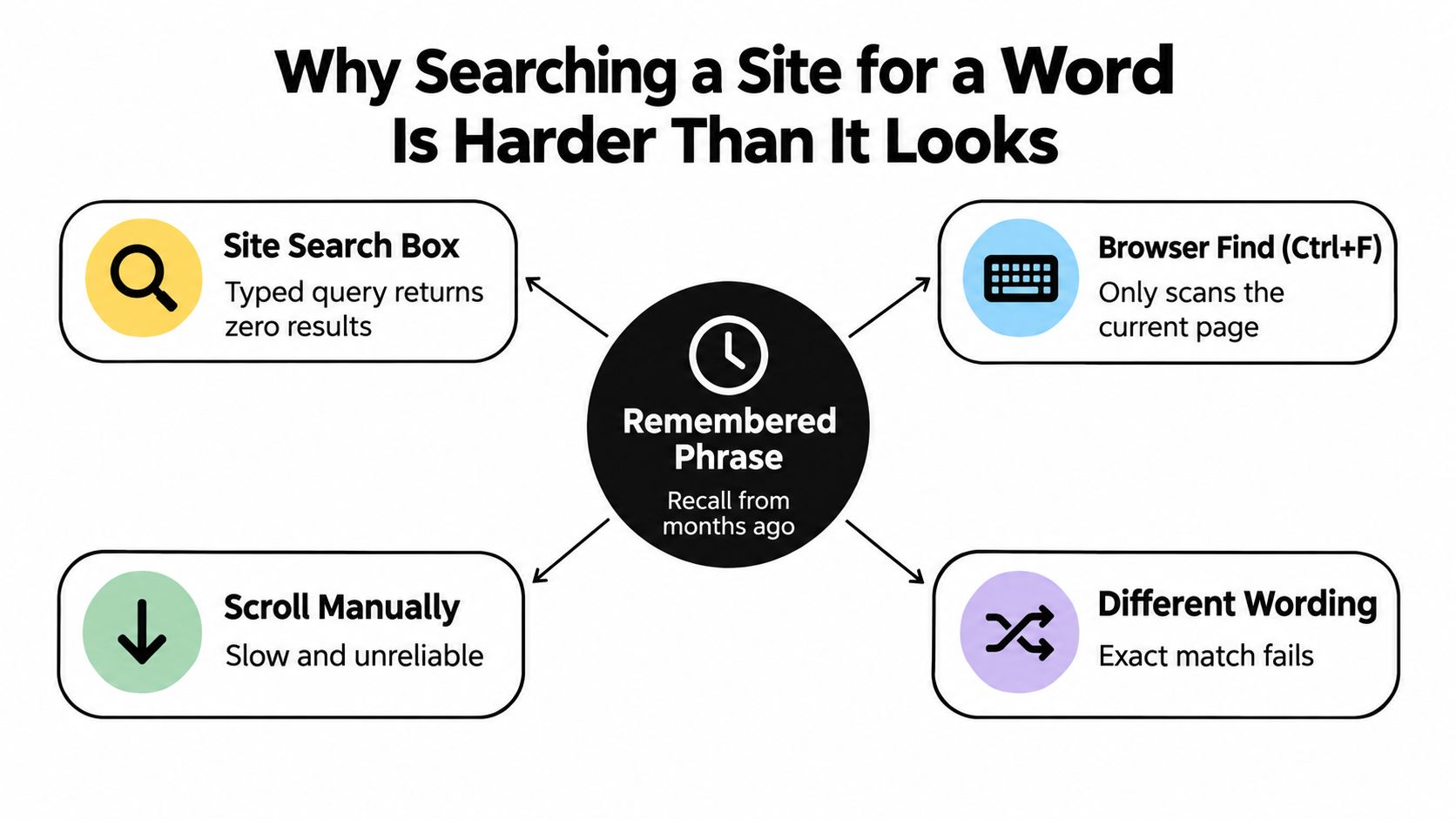
A single remembered phrase can live in three different places at once, and each one needs a different tool. If the text is on the page you've already opened, browser find is the fastest option. If it's somewhere on the domain but you don't know where, Google's site: operator is the better route. If the content sits inside the site's own database, WordPress search is the built-in path.
Three tools, three scopes
Browser find only scans what the browser has already rendered on the current page. That's why it's brilliant for a quick in-page lookup and useless for finding a word buried elsewhere on the site. Google search looks across the web index, but only for pages it has crawled. WordPress search queries the content your site owner has stored and exposed through the theme and database.
The practical mistake is treating them as interchangeable. A user will often start with the site search box because it feels “official,” then move to Ctrl+F because it feels immediate, then give up before trying a domain search. When a query fails, the failure usually says more about scope than about the missing word itself.
Practical rule: start with the narrowest tool that can possibly work, then widen the scope only when the first path comes up empty.
The same phrase can also fail because the page uses different wording. A post about “account recovery” might never say “reset password,” even though a human would treat those as the same idea. That's why the tool choice matters as much as the search term.
Using Browser Find to Search a Page for a Word
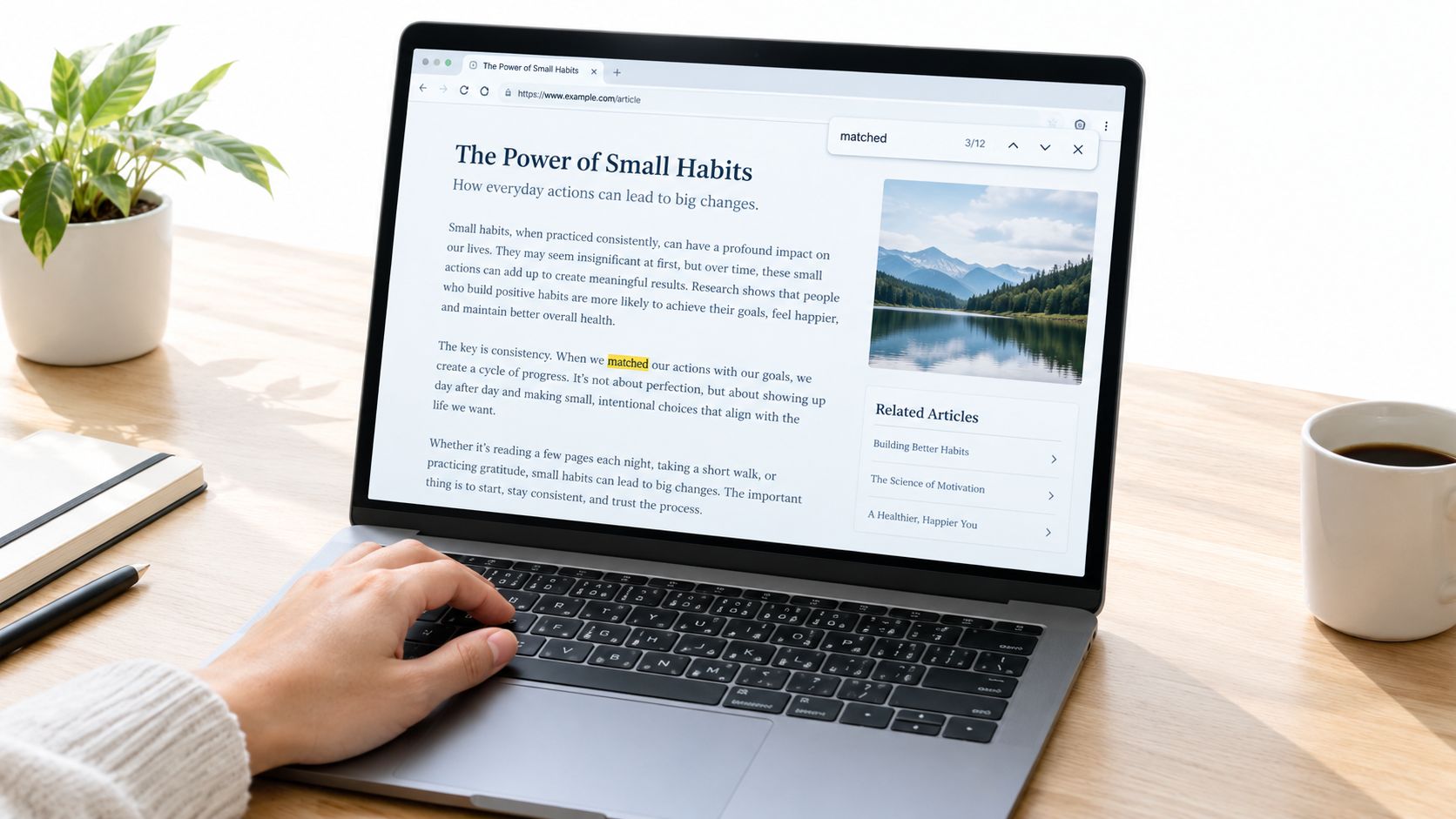
Browser find is the cleanest move when the page is already open and you just need to locate a word fast. On Windows and Linux, press Ctrl+F. On macOS, press Cmd+F. The browser opens a find bar, usually at the top or bottom of the window, and you can jump straight to the match.
Type the word once, then use Enter or the down arrow to move forward through each occurrence. Shift+Enter moves backward. That makes it ideal for checking whether a term appears multiple times in a long article, a documentation page, or a product page with dense copy.
When Ctrl+F misses what you expect
Browser find can miss content that hasn't been rendered yet. Collapsed accordions, iframes, shadow DOM elements, and some dynamically loaded sections are common blind spots. If the page loads content only after scrolling or clicking, the browser may not search it until that content exists in the DOM.
Case sensitivity is usually off, which helps in real use. Whole-word matching is also off, so partial substrings can match inside longer words. That's useful when you're not sure about spelling, but it can also create false positives if you're searching for a short fragment.
A simple trick solves a lot of these misses. Open the page in reader mode or print preview, then try Ctrl+F again. Those views often flatten the layout and expose text that a live page hides behind scripts.
The key is to treat browser find as a page-local scanner, not a site-wide search engine. It's fast, reliable, and brutally limited by design.
If the word is visible on the page but Ctrl+F can't find it, the problem is usually rendering, not spelling.
Searching a Whole Site for a Word With Google Operators
When the word lives somewhere on a site but you don't know which page, Google operators are the most efficient route. The basic pattern is simple: site:example.com followed by the word or phrase. If you want an exact phrase, put it in quotes. So site:example.com "concrete resurfacing" only returns pages that contain that exact wording.
You can narrow the hunt further with intitle: and inurl:. site:example.com intitle:"pricing" is useful when you want a pricing page. site:example.com inurl:blog "keyword" is better when you want posts instead of product pages. If you want to exclude a section, add a minus sign, like site:example.com -inurl:forum.
Query patterns that actually help
| Operator | What It Does | Example |
|---|---|---|
site: | Limits results to one domain | site:example.com word |
| Quotes | Forces an exact phrase match | site:example.com "concrete resurfacing" |
intitle: | Looks for the term in the page title | site:example.com intitle:"pricing" |
inurl: | Looks for the term in the URL | site:example.com inurl:blog keyword |
| Minus sign | Excludes a path or term | site:example.com -inurl:forum |
The weakness is index coverage, not syntax. If a page hasn't been crawled yet, is blocked, or is set to noindex, Google won't return it no matter how clever the query is. That makes Google excellent for discovering published content and unreliable for fresh or hidden content.
For broader keyword work, tools like Google Keyword Planner can still help with baseline ideas, but its range-based data is less precise than exact-volume tools. If you're shaping content around search intent rather than just page discovery, that difference matters.
Using WordPress Site Search the Right Way
WordPress search is the right tool when you want the site's own database to do the work. On a standard setup, you can trigger it with /?s=yourword, a search widget, or a search block in the header. If the header search is missing, the footer shortcut on a straightforward WordPress site is often the quickest route back in.
The search results usually sort by date, not by relevance, so the best match can sit lower than you expect. That's why a result list can look “wrong” even when the word is present. If you're searching for a phrase, try entering it exactly as written, with quotes if the theme and search setup honor them.
Where native WordPress search is useful and where it isn't
Native WordPress search is fine for blog archives, simple publishing sites, and quick checks inside the public site. It's weaker when the content lives in custom fields, taxonomies, PDFs, or other data the stock loop doesn't index well. In those cases, a plugin like SearchWP or Relevanssi usually gives you better coverage.
Empty queries can behave differently depending on the theme. Some setups return all posts, while others show a blank page or a “Nothing Found” state. If you run a site like the one documented in how to create a WordPress blog, the search experience should be tested from the header, the widget, and any fallback footer link so visitors don't hit a dead end.
WordPress search is best when the site is self-contained and you want controlled discovery inside that publishing system. It's not the best answer when you're trying to approximate Google inside the site.
Why Site Search Quietly Fails for Natural Language Queries
Users don't type keywords anymore, they type questions. A query like “how do I reset my password” feels natural to the user, but a basic WordPress search often breaks that sentence into separate terms and expects the page to contain all of them in a useful way. That's why conversational queries can return nothing even when the answer exists.
A good technical primer on natural language processing, including how systems interpret meaning instead of raw keywords, is how SupportGPT uses NLP. That distinction matters because site search usually doesn't understand synonyms, intent, or phrasing the way a person does.
Keyword matching versus intent matching
WordPress's default behavior is closer to a keyword filter than a conversation engine. It can find exact or near-exact terms, but it struggles when a visitor says “change” and the article says “reset,” or when a page answers the question without repeating the question's wording. Google tends to do better here because its index is built to interpret broader relevance.
That's why native site search often feels fine for product names, article titles, and short labels, then falls apart on real questions. The more conversational the query gets, the more visible the gap becomes. If the site doesn't expand synonyms or understand intent, users will think the content is missing.
The failure isn't that the content doesn't exist. The failure is that the search box can't recognize how a human would ask for it.
The fix is usually structural, not magical. Better titles, clearer tags, and more deliberate internal indexing beat raw content volume almost every time.
Choosing the Right Method for the Job
Start with scope, then choose the tool. If you already have the page open, use browser find. If you need to search the domain, use Google operators. If you need to search the site's own content database, use WordPress search.
| Method | Best For | Limitations |
|---|---|---|
| Browser Find | Words on a page you're already viewing | Only sees rendered content on the current page |
| Google Operators | Finding a word or phrase across a whole domain | Only works on indexed pages |
| WordPress Search | Searching the site's own posts and archives | Often weak on relevance and conversational queries |
A practical decision tree is simple. If the text is visible, start local. If the page is unknown, search the domain. If the content is inside your own WordPress archive and Google isn't helping, use the site search or improve it. For a deeper layout-and-discovery mindset, the structure notes in best WordPress blog layouts help because search gets easier when the information hierarchy is cleaner.
Teams that want to measure search quality rather than guess at it should look at AI search analytics for startups. Good search isn't just about returning results, it's about seeing which queries are failing, which terms are drifting, and where users are giving up.
Troubleshooting When Nothing Comes Back
When every method fails, don't assume the word doesn't exist. First, check spelling and try a close variant. If you searched for the exact plural but the site uses the singular, WordPress may miss it because the stock search is blunt about word forms. Then switch to Google with a wider site: query and no quotes to see whether the page is indexed at all.
Quick fixes that separate the failure modes
- Check the path: Use a domain-scoped Google search to see whether the page exists in the index, especially if the content is new or hidden.
- Look for a different entry point: If the header search is missing, a footer shortcut or sidebar widget may be the only usable on-site route.
- Broaden the wording: Remove quotes, try a stem variant, or search for a related phrase rather than the exact sentence.
- Test for exclusions: If the page exists but never surfaces, it may be blocked by a plugin setting, marked noindex, or excluded from search.
- Refresh and retry: Clear cache, reload, and test again before assuming the result is permanent.
If you're dealing with a dead-end inside a content site, the site's own archive can still reveal patterns. The post list at Read More Info blog is a good reminder that content discovery only works when the structure is predictable, the search entry point is visible, and the indexing rules are consistent.
The best fix is usually to reduce ambiguity before users start searching. Clear labels, cleaner titles, and better internal search behavior prevent most of the “nothing found” moments that waste time.
If you want clearer search paths, stronger content structure, and a WordPress site that's easier to explore, visit Read More Info. It's built for readers who need straightforward discovery, not guesswork, and this topic sits right at that intersection.