
An OPML file is a plain XML document that stores a tree-shaped outline, and users often first encounter it when moving a list of RSS feed subscriptions from one feed reader to another. It carries the feeds, the folders and the labels you gave them, and the current version of the format is OPML 2.0.
So why does the same small text file work as a book plan or a research list? Because feeds were never the reason the format existed. It was designed for outlines, and a subscription list happens to be one outline among many. Once you see the tree underneath, the export button stops looking like magic and a failed import stops feeling arbitrary.
Table of Contents
- What an OPML File Is and Why It Exists
- How an OPML File Is Built, Element by Element
- What a Subscription File Stores for Each Feed
- How to Export and Import an OPML File
- Where OPML Files Break and How to Fix Them
- Common Misconceptions and Other Uses
- Back Up Your Feed List as an OPML File This Week
What an OPML File Is and Why It Exists
What can a list of feeds and a plan for a book have in common? Both can be stored as outlines: structured lists in which items can have child items beneath them. An OPML file is a plain XML document for this kind of structure. Its name means Outline Processor Markup Language, and the format can hold branches for feed addresses, book chapters, or other organized information.
A folder tree in a file manager offers a useful comparison. Folders contain files and other folders, and the arrangement shows how items relate. OPML records a similar hierarchy in plain text, so another program can read the structure without needing the same icons or interface. A plain list of addresses loses the parent-child relationships, order, and labels. OPML preserves them in a machine-readable form. The Library of Congress format description describes the format as a way to browse, edit, and exchange structured information between outliners and internet services.
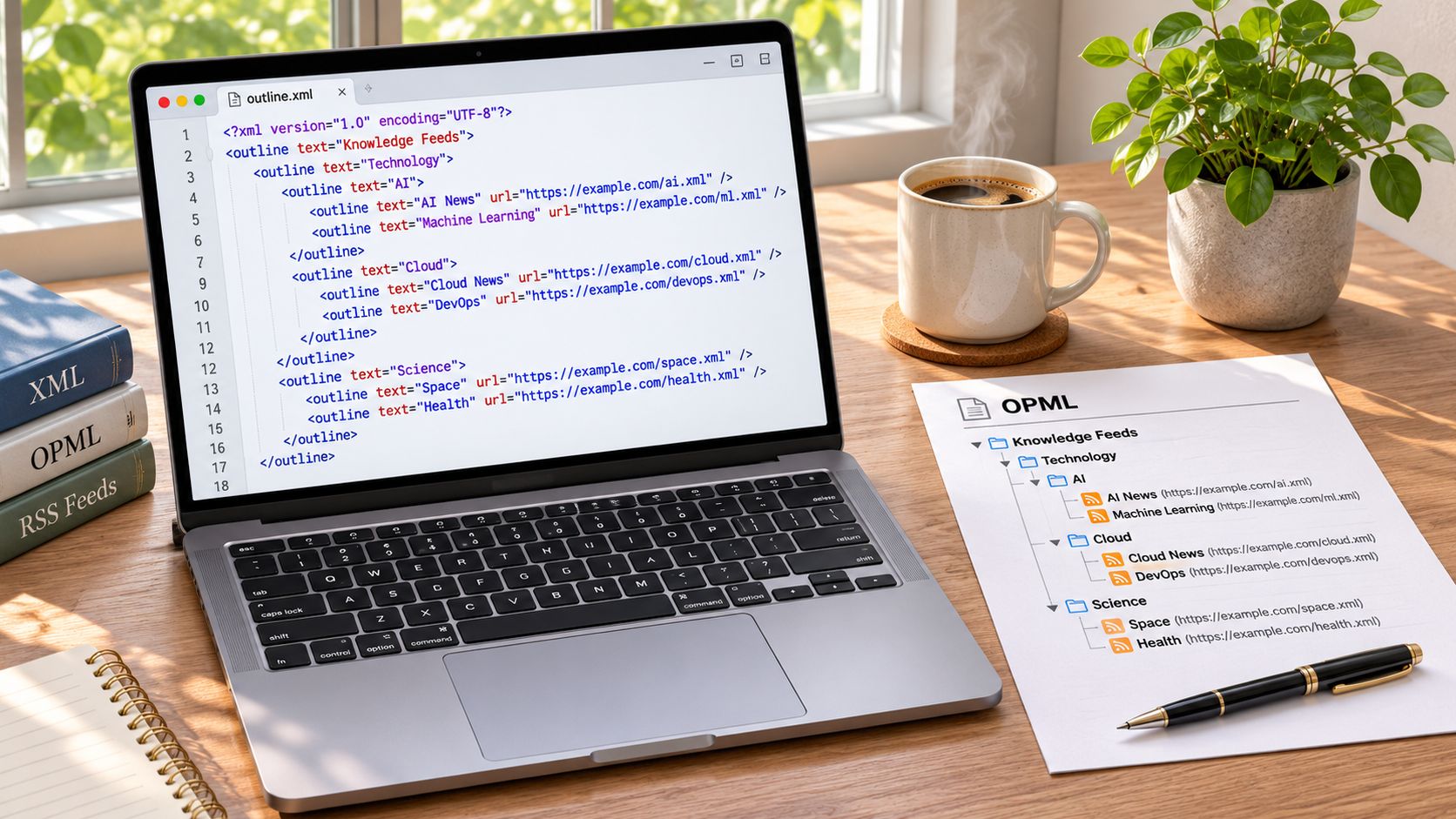
OPML is an outline format first and an RSS tool second. Feed readers use that structure to group and move subscriptions, but the same format can also represent notes or a project plan. Its usefulness depends on whether another program understands OPML and how that program handles the outline's contents. For a closer look at how blog RSS feeds work, see how feeds deliver updates to readers. The basics of what an RSS feed is explain the addresses that feed outlines can contain.
How an OPML File Is Built, Element by Element
Here's the smallest OPML file that does real work:
<opml version="2.0"><head><title>My Feeds</title></head><body><outline text="News"><outline text="Example feed"/></outline></body></opml>
One line, four elements, and the whole model is visible: a root that names the format and its version, a head for metadata, a body for content, and outlines nested inside the body. The OPML 2.0 specification is strict about which parts must be present. The document must contain an <opml> root element with a required version attribute, plus one <head> and one <body>. Every <outline> element must carry at least a text attribute, may carry others, and may contain zero or more nested outlines.
| Element or attribute | Required | What it holds |
|---|---|---|
| opml (root element) | Yes | Wraps the whole document and carries the version attribute |
| version attribute | Yes | Format version written as x.y, such as 2.0 |
| head | Yes | Document metadata, such as a title |
| body | Yes | The outline tree itself |
| outline | Yes, at least one per body | One node in the tree |
| text attribute on outline | Yes, for every outline | The label shown for that node |
| Nested outline | Optional | Child items, such as feeds inside a folder |
The nesting carries the meaning. A folder isn't a special element type; it's an outline that contains other outlines, so a "News" node with three children reads as one category holding three feeds.

Head and body do different jobs, and mixing them up is a common source of confusion. The head describes the document, usually with a title. The body holds the actual tree you care about.
Reading an OPML file in a text editor
OPML is XML 1.0, so tags are case-sensitive and every opening tag needs a matching close. To inspect any file, open it in Notepad, TextEdit or a code editor, find the body element, then walk the outline tree from the top level down. Each level of indentation you see is a level of nesting in the outline.
The version number follows an x.y numeric format. Version 1.0 refers to the 2000 specification and 2.0 is the current one, so a modern export should say version 2.0. Version 2.0 also adds an include mechanism, where an outline with type="include" points to another OPML file by URL. If attribute-value pairs still feel foreign, this walkthrough of step-by-step XML basics for beginners covers tags, nesting and attributes in a sensible order, and you'll spot the same structure in any RSS feed format example.
What a Subscription File Stores for Each Feed
An OPML file works as a portable inventory. Each subscription is commonly one <outline> element carrying attributes such as text, title, type and xmlUrl, while nesting preserves the folders or categories you built. The xmlUrl attribute holds the feed address the reader fetches, and type usually marks the entry as an RSS feed.
A worked example makes the pattern obvious. A folder outline reads text="Technology" with no xmlUrl, because it isn't a feed. Nested inside it sit two outlines, each with type="rss", a display label, and an xmlUrl pointing to that publication's feed. Import the file and the folder reappears with both feeds inside it, in the order you had them.
That interoperability grew out of OPML's use in Radio UserLand, an RSS aggregator and blogging tool, and it later made the format a common exchange route between feed readers. The Library of Congress format notes describe the result well: a lightweight file built from XML elements and string-valued attributes rather than a large database schema.
What travels is narrow by design. The file stores only what whoever wrote it chose to put in, so your read or unread state, your starred items and any cached articles usually stay behind in the reader that created them. If you're moving a list of shows rather than articles, a podcast RSS feed finder helps you get the right address before you add it to the outline.
Practical check: open the file in a text editor and look for the
xmlUrllines. Each one is a subscription, and their absence means you exported something else.
How to Export and Import an OPML File
The transfer itself takes minutes. The fiddly part is knowing which menu holds the option, because readers label it differently.

- Find the export menu in your current reader. Open settings or preferences and look for a section labelled subscriptions, feeds or OPML. Names vary, so scan for the file format rather than the heading.
- Choose export and save the file. The download usually ends in
.opmlor.xml. Keep that extension, because renaming it can make the next app refuse it. - Store it somewhere you'll find it. Your desktop or downloads folder is fine for a few minutes. Use cloud storage instead if the reader is on a phone and the new app is on a laptop.
- Import in the new reader. Look for an import or subscribe option, then select the saved file. Most readers accept OPML from any other reader, since the structure is shared.
- Check folders and labels once it loads. Confirm your categories came back as folders rather than a flat list. If everything landed in one pile, the export probably flattened the tree.
- Compare counts. Match the
xmlUrlentries you can see in the file against the number of feeds the new reader now shows. A gap of one or two usually means a duplicate address or a dead feed. - Keep the old reader running for a few days. Leave it active until the new one has refreshed every feed at least once, in case a few addresses need re-adding by hand.
If you're still choosing where to land, this guide to what RSS readers are sorts the main types by how they handle imports and syncing.
Three slips account for most failed moves. Exporting a filtered or search-limited view leaves feeds behind without warning. Importing the same file twice creates duplicate entries that clutter the list. Importing into a reader that rejects a feed whose address has changed leaves a silent gap.

This video is hosted by YouTube (Google). Pressing play loads the video from YouTube, which may set cookies and share data with Google.
Success looks boring: every folder present, every feed refreshing, and the counts matching on both sides.
Where OPML Files Break and How to Fix Them
What should you check when an OPML file will not open? Start with its basic structure, then look at the details that connect each outline item to a feed. OPML has two published versions, 1.0 and 2.0, as described in the technige open-source project. The version attribute uses an x.y format, such as 2.0.
Next, confirm that the file contains both head and body elements. These act like the cover and contents of an outline: the head carries document information, while the body holds the nested items.
- Missing head or body: Add the missing element. Both are part of the expected structure.
- Unclosed tag: Add its matching closing tag. XML is case-sensitive, so
<outline>and</Outline>are different names. - An outline without text: Give each node a label, including folders, so readers can display what the item represents.
- A version value not in x.y form: Correct it to 1.0 or 2.0.
- Attributes one reader ignores: Re-export from the original app. The common
textandxmlUrlattributes are more likely to transfer between readers. - A feed address that moved: Update the
xmlUrlin the file, or add the feed again in the new reader. - A file saved with the wrong character encoding: Re-save it as UTF-8, the encoding readers expect.
Check one issue at a time, like tracing a misplaced label in a paper outline. If the structure and feed details look right but the file still will not load, the receiving reader may be the problem. Try its other export or import route before rebuilding the file.
Common Misconceptions and Other Uses
Could a file made for feed subscriptions also hold a reading list or project plan? Yes. OPML is a portable outline format first, and an RSS subscription tool second. Its nested structure can organize different kinds of labeled items, though an app must support OPML to open the file, and it may interpret the outline differently.
An OPML file does not contain feed articles. It stores feed addresses and their arrangement, like a labeled map of places rather than the places themselves. Opening the file shows an inventory, not a reading experience.
It also does not usually carry your reading state. Read and unread status, starred items, and cached articles generally remain in the reader that created them. Importing the OPML file into another reader gives you the subscriptions, but not that saved activity.
The same outline structure works for other lists. A novelist could place parts above scenes, a researcher could group reading items by topic, and a project lead could arrange tasks under larger work areas. In each case, the parent-and-child relationships show how the items belong together. The labels and extra attributes provide the information an outline needs.
For example, a feed list might look like this:
News
- Local news: feed address
- World news: feed address
Research- Document tools: note about a tool
- Video tools: note about a tool
The folder names group related entries, while each child outline carries a label and can include details. Those details can be plain notes, too. A comparison of free editors reports that DaVinci Resolve's free edition supports 4K exports at 60 frames per second in 8-bit color. The MiniCPM-OCR project reports a score of 93.68 on Real5-OmniDocBench, a benchmark for document parsing. Either figure could be saved as outline text beside a relevant item, rather than kept in memory.
Compatibility has limits. A reader built to import RSS subscriptions may recognize feed addresses and folders but ignore notes or other attributes. An outliner may preserve the hierarchy without treating feed addresses as subscriptions. OPML carries the outline; the app decides what it can do with each item.
For a single article, sharing its URL is simpler. OPML is useful when the relationships among many items matter, whether those items are feeds, notes, or tasks.
Back Up Your Feed List as an OPML File This Week
A subscription list takes years to build and one bad migration to lose. The export is the backup, and it takes less time than reading this section.

- Export your list now. The export captures every feed and folder as they stand today, which is the only version worth keeping.
- Name the file with a date, such as
feeds-2026-01-15.opml, so older copies stay distinguishable. - Store two copies, one in cloud storage and one on a separate local drive, so a single failure can't remove both.
- Open the file and check the
xmlUrllines and folder names before you trust it. - Re-export after any large change, adding or removing a group of feeds, so the backup never lags behind the list.
- Test a restore once a year by importing the file into a spare reader and confirming the folders arrive intact.
Adding a feed between exports is simple: paste the feed address into the reader's add-feed or subscribe box, and the new entry joins the list that the next export saves. Read More Info publishes articles on RSS and feed readers, site search, responsive design and web basics, so the reasoning behind each step is easy to follow up.
The backup only works if it's current. Run the export after every change, not once a year.
A feed list is a small piece of infrastructure, and Read More Info treats it that way, with plain guides on RSS, feed readers and the web basics that keep a subscription list working. If this walkthrough helped, keep the export habit and read more at Read More Info, where the WordPress and web explainers pick up where the file format leaves off. Your next move is one click in your reader's settings: export, name the file, and store it somewhere you'll find it again.