
Use a post when the content should join the newest-first blog stream and posts feed; use a page for standing information organized through menus and parent-child paths. The choice is about how readers will find the content, not how polished the editor makes it look.
You've finished a draft, added an image, and checked the headings. Then you notice you've written a tutorial under Pages, or an About introduction under Posts. Both look fine in preview, but publishing them in the wrong place can leave subscribers without the tutorial and visitors searching an archive for your introduction.
Table of Contents
- Why the Post or Page Choice Comes First
- Posts and Pages Compared Side by Side
- How Readers Find Posts Through Time and Feeds
- How Pages Hold the Permanent Site Structure
- Which Content Type Fits Common Site Jobs
- What Changes When You Convert a Post or Page
- Choose a Post or a Page Before You Publish
Why the Post or Page Choice Comes First
Say you're preparing a service announcement and a permanent description of that service. Both drafts contain paragraphs, headings, images, and a button. They may even use the same layout, yet they have different jobs.
The announcement belongs in Posts because readers should encounter it as an update. The service description belongs in Pages because prospective customers need a dependable destination they can open from your menu.
A news item published as a page won't reach the normal posts feed. An About introduction published as a post will age beside your articles.
This is why the WordPress post vs page decision should come before design polish. Blocks control what you put into the draft. The content type helps determine which listings, navigation structures, and publishing channels can include it.
Choose by the reader's next action
Ask what someone should do after you publish. Should a subscriber receive something new, or should a visitor find a standing answer while exploring your business?
A tutorial can remain useful for years and still belong in Posts. A Contact page can change frequently and still belong in Pages. Evergreen doesn't automatically mean page, and updated doesn't automatically mean post.
The 2025 State of Enterprise WordPress report found that 83% of surveyed organizations used WordPress daily, up from 65% in 2024, but it measures publishing and content-management usage rather than counts of posts and pages. That finding doesn't tell you which publishing choice fits your draft.
Use these practical tests instead:
- Delivery: Should existing readers receive this as a new article?
- Location: Should visitors expect a permanent menu destination?
- Organization: Does it belong among related articles or beneath a standing parent page?
You don't need a different writing style for each type. You need a clear discovery job for the next draft.
Posts and Pages Compared Side by Side
WordPress posts and pages at a glance
| Decision point | Post | Page |
|---|---|---|
| Purpose | Dated articles, news, announcements, and updates | Evergreen site information such as About, Contact, Services, and policies |
| Order | Newest first on the blog homepage | Outside the blog chronology |
| Organization | Categories and tags | Parent and child pages |
| Discovery | Archives, taxonomies, on-site search, and the posts RSS feed | Menus, internal links, and the page URL |
| Address | Its own slug, often grouped by category archive | A stable path that can nest under a parent |
| Discussion | Comments are commonly useful | Comments are often turned off on utility pages |
| Scale | Built for a growing archive | Built for a small, stable navigation tree |
| Search ranking | Indexable; the label is not a ranking boost | Indexable; the label is not a ranking boost |
The official WordPress pages documentation distinguishes posts from pages by purpose and chronology: posts normally appear newest first, while pages hold information outside that blog sequence. WordPress treats them as separate default post types, allowing themes, queries, and navigation tools to handle them differently.
Start with purpose, then order. A launch announcement needs a place in the publication's history; a Services overview needs a recognizable home. Hiding a date in the design doesn't change either job.
Organization is different from appearance
Posts use categories and tags, collectively called taxonomies, to connect related articles. Pages use parent-child relationships to create a navigational structure. A category archive isn't a parent page, even if both display links to related content.
For example, a post might use the path /how-to-schedule-posts/ and also appear in a WordPress category archive. A page might use /about/, while a child page could use /services/design/. These are illustrative paths, not requirements for your permalink settings.
The post's category membership doesn't necessarily appear in its address. Likewise, assigning a parent page doesn't automatically add a dropdown to every theme's menu. Content relationships and visible navigation need separate checks.
Comments can be enabled on either type. They're commonly useful beneath tutorials and commentary, while utility pages usually work better without an unrelated discussion thread.
Neither type gets an automatic SEO advantage
Both posts and pages can be indexed when your site permits indexing. The label itself isn't a ranking boost; the practical differences are the internal links, archives, menus, and feed routes through which people can discover the content.
Scale means editorial organization here, not a promise about server speed. A growing article collection is easier to classify with taxonomies than with an expanding menu tree.
A static page can serve as the homepage while another page lists posts. That configuration doesn't turn the homepage into a post.
Before choosing, identify the table row that would fail if you picked the wrong type. If subscribers would miss an article or customers would lose a standing destination, you've found the decisive difference.
How Readers Find Posts Through Time and Feeds
Follow a hypothetical tutorial from publication to discovery. You publish an article explaining scheduled posts, then publish related guides about layouts and themes during the same month. Each new entry normally moves above the previous one in the blog listing.
Readers don't have to encounter those articles in publication order. Someone might browse a topic archive, search for a specific problem, or receive the latest guide through an RSS reader.
The discovery routes work together:
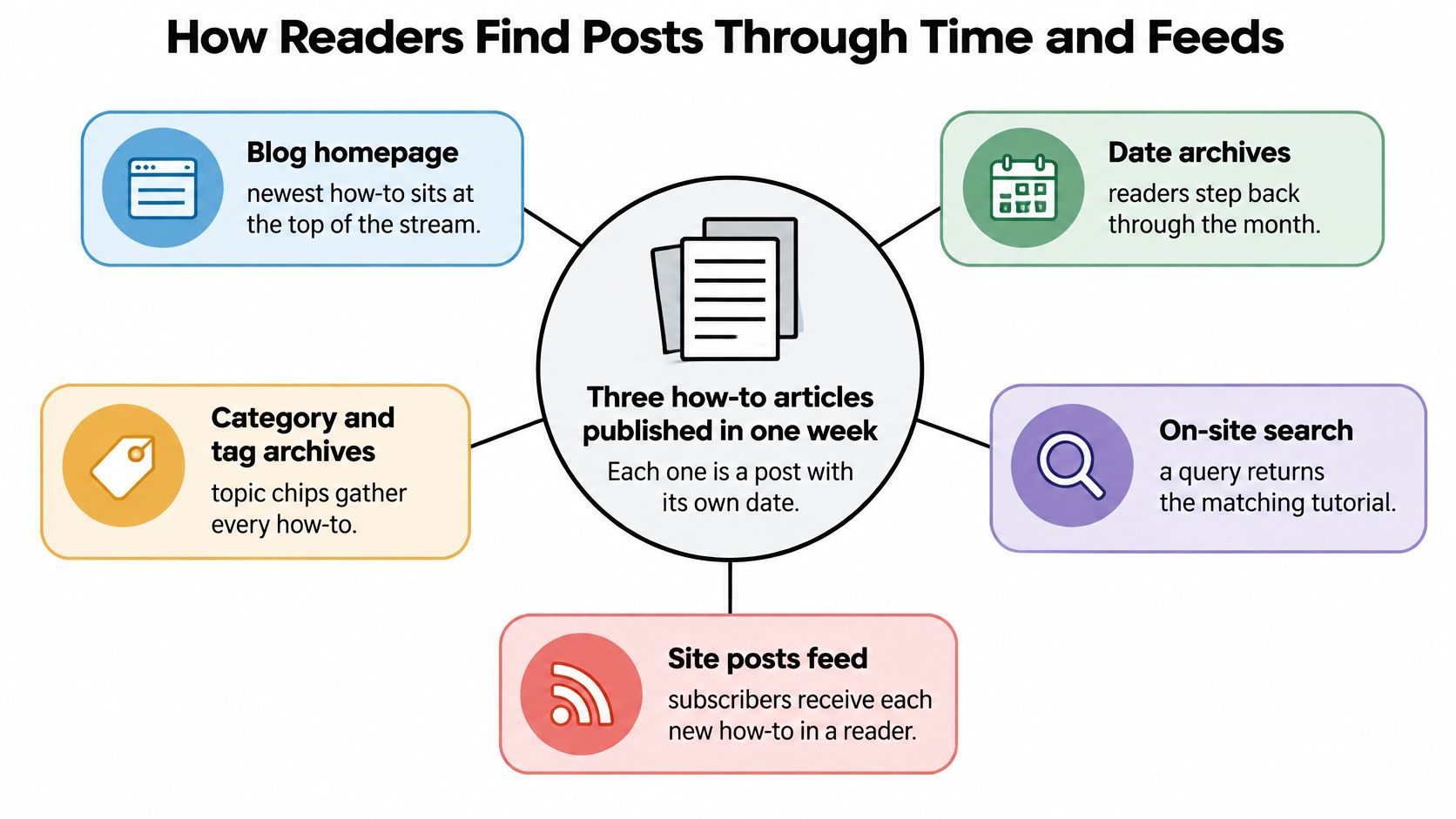
Follow the article through the site
- Blog homepage: The newest tutorial appears near the top of the normal chronological stream.
- Date archives: Readers can browse the publication's history by date when the theme exposes those routes.
- Category and tag archives: Related articles remain grouped after they leave the first screen.
- On-site search: A visitor can search for words associated with the tutorial.
- Posts feed: A subscriber's feed reader can retrieve the new entry without a manual site visit.
The WordPress post-type reference explains the underlying distinction: posts support chronological discovery, taxonomies, archives, and feeds, while pages aren't included in the normal WordPress feeds. Publishing a new tutorial as a page therefore leaves it outside the ordinary posts subscription channel.
A visitor might still find that page through search or a direct link. That doesn't replace delivery to someone who subscribed specifically to receive new posts.
Categories aren't folders full of child pages
Use categories for broad editorial topics and tags for useful, narrower connections. Don't create a new child page whenever you publish another tutorial. That approach makes you maintain a navigation tree where an article archive would do the job more naturally.
If the distinction between the listing and its articles is confusing, this explanation of a WordPress post category page helps separate the archive from the individual posts it collects.
Read More Info uses a lean publication model: articles remain posts, visitors can search by keyword, and the public RSS feed can syndicate updates. A custom homepage doesn't replace these discovery routes; the posts listing, archives, and feed still handle the publication stream.
If the piece should reach a feed subscriber or appear in a topic archive as a new article, publish it as a post.
How Pages Hold the Permanent Site Structure
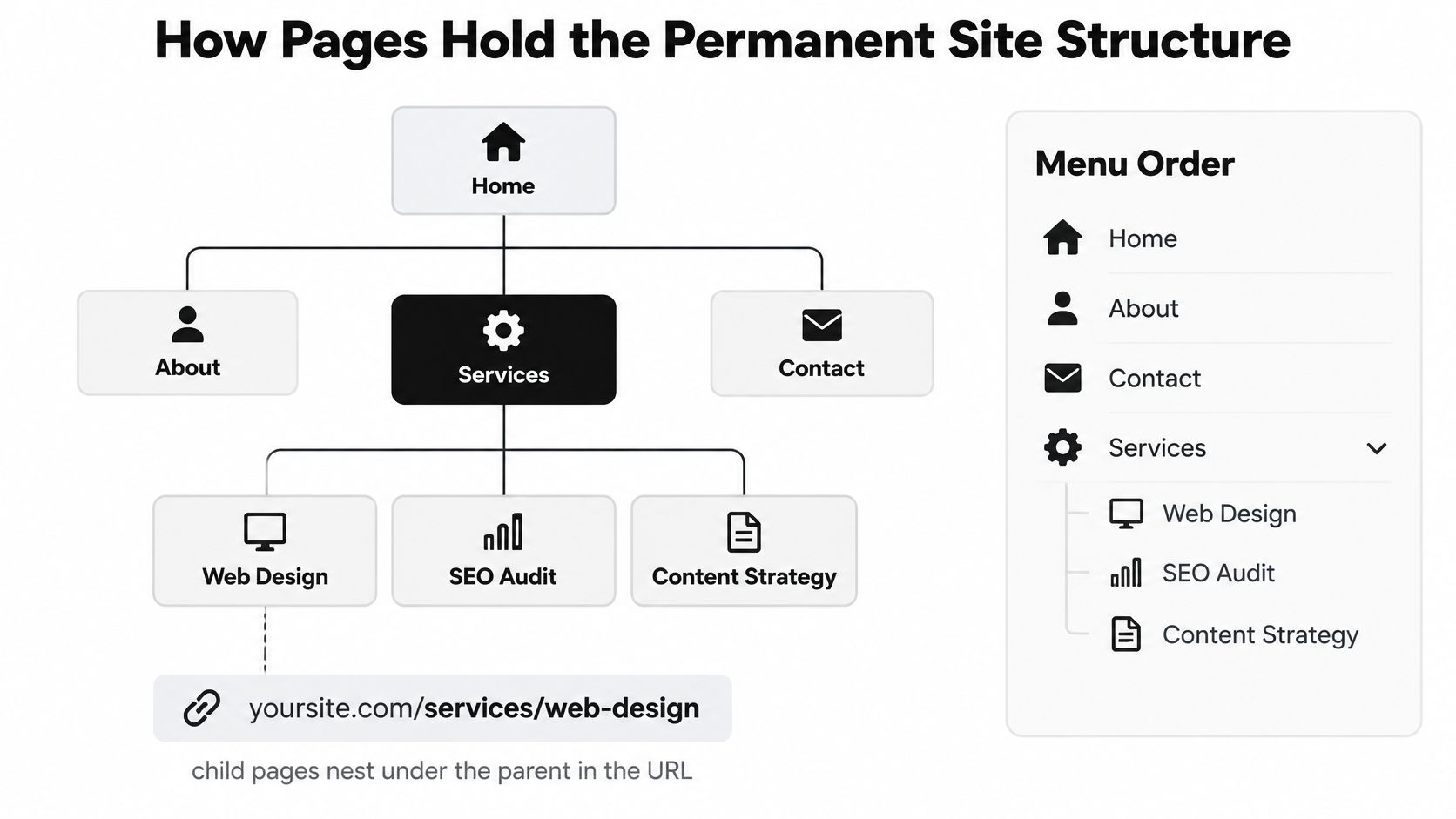
Build your page structure around destinations visitors can recognize without knowing your publishing history. A solo service business might use this small tree:
- Home: Introduce the business and direct visitors to the right service.
- About: Explain who does the work.
- Contact: Provide a clear way to get in touch.
- Services: Summarize the offer.
- Web Design: Describe the design service.
- SEO Audit: Explain the audit scope.
- Content Strategy: Outline the planning service.
A child page beneath Services can use a nested path such as /services/web-design/. Keep Services in the main menu, then add selected children to a dropdown or link to them from the parent. You don't need every destination in the top-level navigation.
The page relationship and menu can follow this structure:
Set a static homepage and a posts page
Create a Home page and a separate page named Blog or Articles. Then open Settings → Reading in the WordPress dashboard.
- Select A static page under the homepage display setting.
- Choose Home as the Homepage.
- Choose Blog or Articles as the Posts page.
- Save the changes and visit both destinations.
Visitors now see the chosen Home page at the site root and the dated article list at the posts-page destination. The assigned posts page is a listing location, so don't assume text entered into its editor will appear above the articles. Your theme's listing template controls that presentation.
This setting doesn't create another content type, and it doesn't make the homepage a post. You're choosing where WordPress displays existing kinds of content.
Keep the tree maintainable
Editing a Services page doesn't push an article down the blog listing. That's useful when you're correcting an offer or updating contact details without publishing news.
Trouble starts when every new article becomes another child page. Menus become cumbersome, and those pages don't gain the standard date and category archive routes available to posts.
Use a maintenance test: would you still expect this item in the main menu a year from now, without needing its publication date? It probably belongs in Pages. If the proposed tree would gain a child every week, put that growing stream in Posts instead.
Hierarchy organizes a stable map, not a newsroom.
Which Content Type Fits Common Site Jobs
Which type to use for common jobs
| Job | Publish as | Why |
|---|---|---|
| News, announcements, and how-to articles | Post | Date, archives, and the posts feed matter |
| About, Contact, and editorial guidelines | Page | Visitors expect them in the menu year-round |
| Services or product overview | Page | A parent page can hold a few child pages |
| Individual service that must stay in navigation | Child page | The path and menu stay stable |
| Project that is part of a permanent portfolio | Page | It should not sink in a date archive |
| Ongoing commentary or a tutorial series | Posts in one category | Categories scale better than new menu items |
| Privacy policy or other legal text | Page | It is reference material, not news |
| Evergreen hub plus later updates | Page for the hub, posts for updates | The hub stays put while new posts link to it |
These common jobs make the choice easier to visualize:
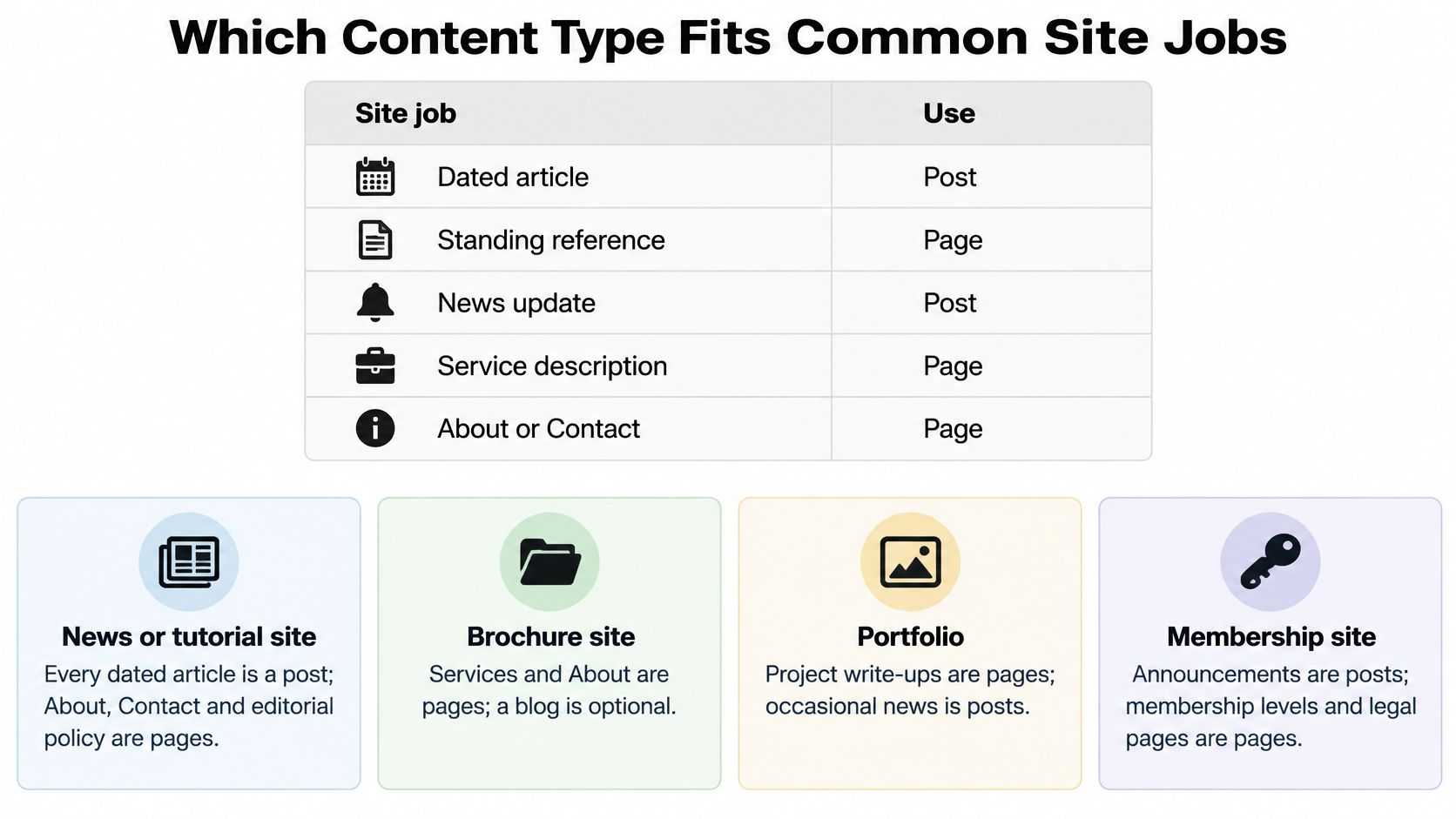
Match the publishing model to the business
A news or tutorial site publishes articles as posts and keeps its About, Contact, and editorial guidelines in Pages. At Read More Information, we publish how-to guides on WordPress themes, scheduled posts, blog layouts, and site setup. Our articles on RSS and feed readers, site search, responsive design, and web basics belong in the same post stream.
Our comments are held for review before they appear. That supports discussion beneath articles without making a Contact page the place for tutorial questions.
A small business can start with service and contact pages, adding posts only when it has actual updates to publish. If you're still choosing the wider publishing system, SleekPost's guide to small business CMS provides context for that decision beyond individual drafts.
A portfolio can use pages for permanent project write-ups and posts for process notes. A hybrid publication can maintain an evergreen reference page while publishing developments as posts linked back to it.
Hybrid pattern: Keep the reference destination stable, and publish each new development as an article that connects readers to it.
For a visual explanation of the basic distinction, use this walkthrough:

This video is hosted by YouTube (Google). Pressing play loads the video from YouTube, which may set cookies and share data with Google.
Apply the same rule to a resource directory
Say you're planning a directory of free tools. Standing sections might cover free office tools, free budgeting tools, free crm tools, free bi tools, free visualization tools, and free map tools. Creative sections might organize free tools like photoshop, free drawing tools, and free wireframe tools.
Your editorial calendar could instead contain reviews about free ai tools online, free ocr tools, free writing tools, free humanizer tools, and free tools online. Comparisons targeting free editing tools for videos or free tools for video editing would also fit the article stream.
Utility topics such as free daemon tools and free zip tools follow the same rule. Searches for free pro tools download or pro tools free download need careful coverage of legitimate access, not an assumption that any download is authorized. Articles about free keyword tools or choosing a free keyword tool remain posts when their job is to deliver editorial advice.
Those phrases don't determine content type. The resource's job does. If a directory needs structured entries beyond ordinary articles and pages, consider custom post types and taxonomies rather than forcing everything into the menu.
Label your next draft ideas with the table's Publish as column before opening the editor.
What Changes When You Convert a Post or Page
Before changing a published item, record its current discovery routes. A conversion can preserve the words while changing how readers reach them.
- Record the address and links. List the current URL, menu entries, and important in-content links pointing to it.
- Record article classification. Note categories, tags, archive appearances, and whether the item appears in the posts feed.
- Check structural dependencies. Identify any parent page, child pages, or homepage setting attached to the item.
Take a backup before using a conversion plugin or moving content into a replacement item. Work on a staging copy when possible, especially if the URL already receives visitors.
Turning a post into a page
The item no longer participates in the normal post category archives, tag archives, or posts feed. You'll need a replacement route, such as a menu entry or a link from an appropriate parent page.
Check the address separately. A change in content type or permalink structure can change the URL, but it doesn't always do so. Don't assume the old menu entry will reach the correct destination just because its label still looks right.
Watch the category the post leaves behind. If it was the only item there, visitors may reach an archive with no remaining articles.
Turning a page into a post
The item joins the article chronology according to its publication date. It may need a suitable category, a post template, and different discussion settings.
A menu entry isn't guaranteed to disappear during an in-place conversion, but replacing the original page with a new post can leave navigation pointing to the old item. Test it rather than assuming either outcome.
Treat these cases with extra care:
- Homepage: Assign a valid replacement before changing the page used as the front page.
- Page with children: Reassign the children and inspect their paths.
- Linked reference page: Update related articles so they lead directly to the replacement.
WordPress content types aren't cosmetic labels. Confirm the new template, menu behavior, archives, and feed after the change, then relink affected content.
As the last required URL-migration step, add a redirect from the old address if the address changed, and test it. Convert only after the replacement discovery path is ready, not as an experiment on a live URL.
Choose a Post or a Page Before You Publish
A site built around regular articles should default to posts, adding only the standing pages visitors expect. A brochure site should default to pages, adding posts when there's a genuine update to publish. A hybrid should keep its permanent structure in Pages and its developing coverage in Posts.
These publishing patterns keep the decision practical:
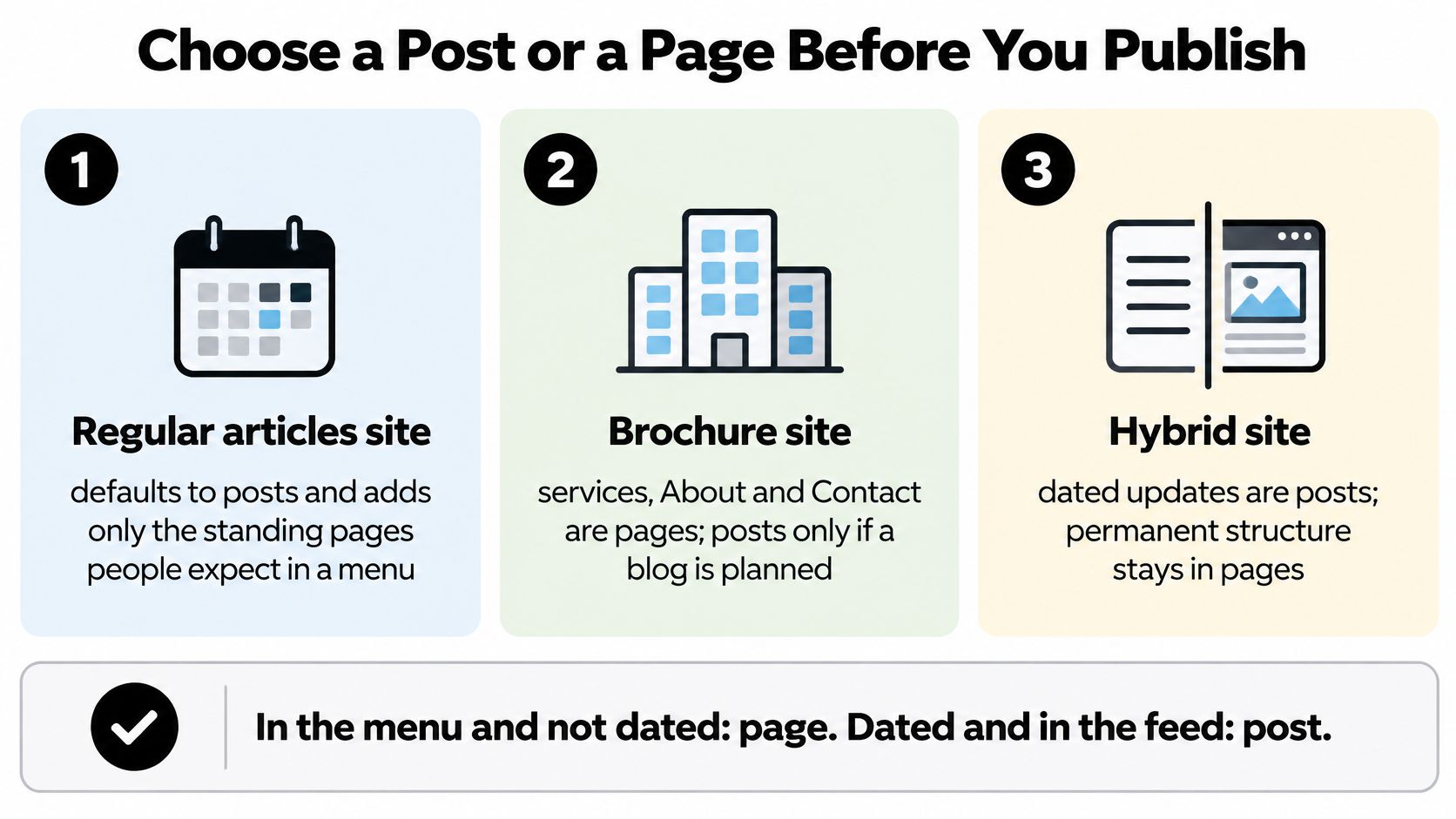
A static homepage with a separate posts listing is a display setting, not a reason to create a pretend homepage post. Choose that arrangement when visitors need an introduction before they browse the article stream.
Make the first publication easy to check
- Create the standing information. Write About, Contact, and a short editorial or services page.
- Choose the front-page arrangement. Assign the homepage and posts page if you want a static introduction.
- Publish an article. Follow our guide to creating posts in WordPress, assign a relevant category, and check the published result.
If the draft needs to go live later, FoPost's steps to schedule your first post offer a practical scheduling reference. Scheduling comes after choosing the right content type, not instead of that choice.
Read More Information is a blog about WordPress and practical web topics, run by a single editor. Our lean model keeps practical guides in Posts, with search and an open feed supporting discovery.
After publishing, open the blog listing and feed to confirm the article appears. Check that your standing pages are accessible through the menu and absent from the normal posts feed. Test those routes as a visitor, not just from the editor preview.
Date and feed mean post; a year-round menu item means page.
Visit Read More Info for practical guides to WordPress posts, themes, layouts, and site setup. Use them to build your standing pages, publish your next article in the right place, and check how readers will find it.


