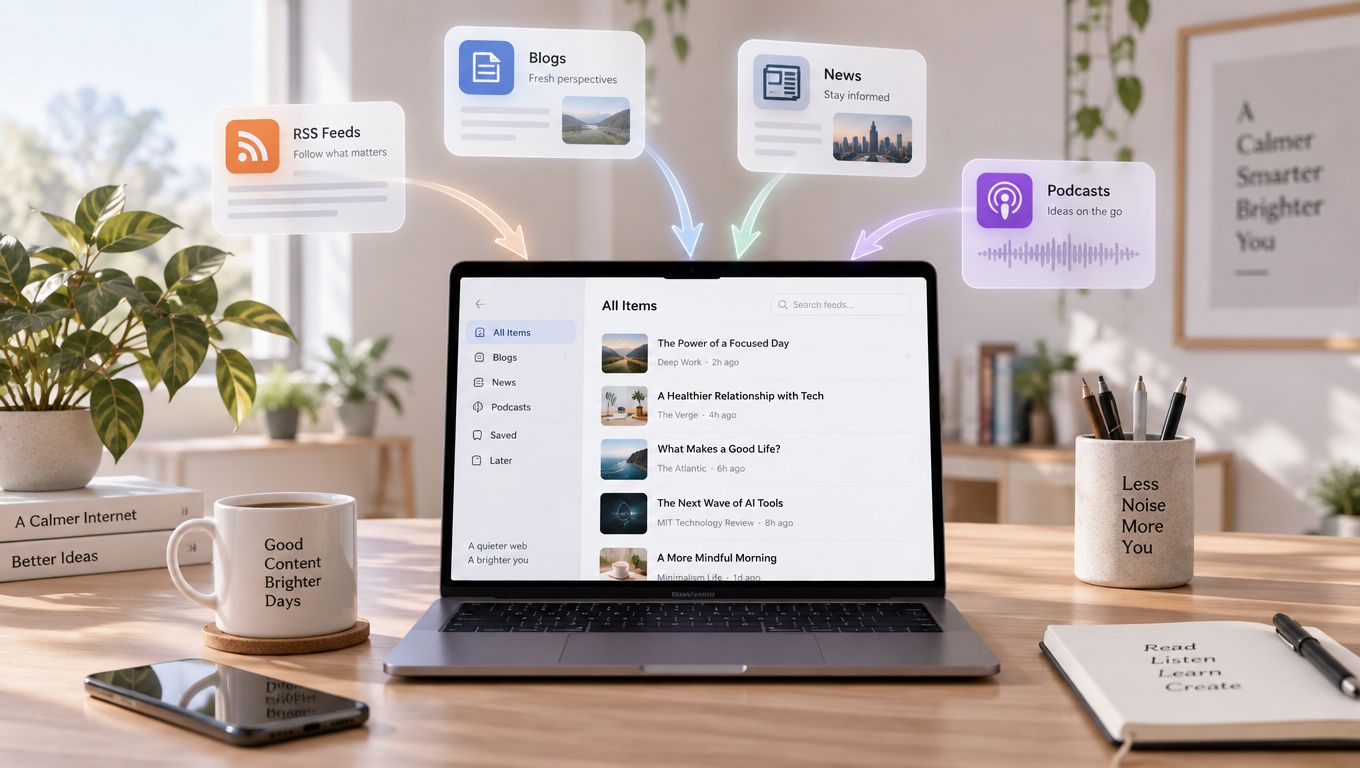
You open your browser on Monday morning and find a familiar mess waiting for you. News sites, blogs, podcasts, research pages, and industry publications are scattered across dozens of tabs. You refresh the same pages, skim headlines between tasks, close a few tabs, then reopen them because you're not sure whether you missed something important.
The problem isn't a lack of information. It's the repeated effort of checking every source separately. A feed reader gives those updates one place to go, so you can follow new content without manually revisiting every website.
Table of Contents
- The Moment You Realize You Have Too Many Tabs Open
- A Feed Reader in Plain English
- How a Feed Reader Actually Works Behind the Scenes
- A Short History of Feed Readers and Why They Came Back
- Feed Readers Versus Newsletters and Algorithmic Feeds
- Where to Find Feeds and How to Subscribe in Real Life
- Choosing a Feed Reader and Getting Started This Week
The Moment You Realize You Have Too Many Tabs Open
By mid-morning, your browser feels like an unfinished to-do list. One tab contains a technology blog you meant to read last week. Another holds a newspaper section you check several times a day. A third is a podcast page, and somewhere behind them is a research site you don't want to lose.
You scroll through ads, dismiss cookie notices, and refresh pages that may not have changed. Even after all that work, you still can't tell whether you've seen every new article. The mental cost is easy to underestimate. Each tab asks you to remember why it matters, when you last checked it, and whether the latest item deserves your attention.
Most of those websites probably publish an RSS feed, a small, machine-readable stream of updates. You don't usually need to understand the file itself. You subscribe to the feed in an app, and the app gathers new items into one reading queue. Instead of visiting ten sites to look for changes, you open one place and scan what has arrived.
That same principle can help when you're evaluating newer ways to reduce repetitive browser work. For a broader look at automated browsing workflows, explore browser use AI tools 2026. A feed reader isn't a browser agent, though. It follows publisher feeds and organizes their updates, leaving you in control of what you read.
A simple WordPress publication such as this example site can provide a useful starting point. Add its feed to a reader, add a few other sources you trust, and the scattered tabs become a single, chronological stream.
The important shift is psychological as much as technical. You stop asking, “Which sites should I check?” and start asking, “What new items have arrived?”
A Feed Reader in Plain English
A feed reader is software that collects updates from websites and displays them in one ordered stream. It may be a web app, desktop program, browser extension, or mobile app. You might also hear RSS reader, news aggregator, or feed aggregator. In everyday use, these terms describe tools that subscribe to feeds and present their contents for reading.
The simplest analogy is a set of mailboxes. Each website places new notices in its own mailbox. Your feed reader acts like a homeowner who checks all those mailboxes on a repeating schedule, brings the new notices inside, and places them in one inbox.
The website isn't sending a personal email every time it publishes. It updates a public feed, and your reader checks that feed. The reader then shows information such as:
- Title: The name of the new article, episode, or update.
- Link: The address that takes you to the original item.
- Summary: A short description, when the publisher provides one.
- Date: A signal that helps the reader order entries and identify changes.
RSS itself is an XML-based format for syndicating web content. The format is the mailbox, not the person collecting the mail. The app is the reader, while the feed is the structured document that carries the publisher's updates. RSS 2.0 remains the most widely deployed version, according to the RSS 2.0 profile.

A useful feed reader definition is therefore: an application that checks subscribed content feeds, identifies new entries, and presents them in a readable list. When someone searches for “what is feed reader,” “what is a feed reader app,” or “RSS reader meaning,” they're usually trying to understand this relationship between the website, the feed, and the application.
You don't need to open an XML file to use one. The reader translates the structured data into headlines, dates, excerpts, folders, and reading controls. You can mark an item read, save it, open the original page, or remove a subscription.
The practical model: Websites publish. Feeds carry the updates. Feed readers collect and organize them.
That model is enough to begin. The technical details explain why the system can follow many sources without requiring you to keep checking each site.

How a Feed Reader Actually Works Behind the Scenes
A feed reader repeats a small cycle. It contacts a feed, receives structured information, compares that information with what it already knows, and displays anything new. The process sounds technical, but it resembles checking a shared noticeboard and remembering which notices you've already read.
First the reader requests the feed
The reader stores the address of every feed you subscribe to. At intervals, it sends a request to each address. Many readers use a schedule that may range from 15 to 60 minutes, as represented in the process diagram below, while other systems use different defaults or allow manual refreshes.

The website's server returns an XML document. In a typical RSS 2.0 structure, one rss element contains a channel, and that channel contains item elements. The RSS implementation overview describes this basic arrangement.
Think of channel as the information about the publication itself. It may include the site's name, description, and feed address. Each item is one entry, such as a blog post or podcast episode.
Then the reader parses the XML
The reader looks inside each item for familiar fields:
titlegives the entry its headline.linkpoints to the original web page.pubDatehelps establish when the item was published.descriptionor a similar field may provide an excerpt.guidgives the item a persistent identifier that helps distinguish it from other entries.
XML uses tags to label information for software. A human can read the labels, but the reader doesn't need visual design, advertising scripts, or page layout to understand that one item has a title and another has a link.
The reader compares the identifiers and metadata with its local record of previously seen entries. If an item has a new identifier, or the publisher has changed relevant information, the reader can place it in the stream or mark it as updated.
Finally it displays the change
New items generally appear near the top of a reverse-chronological list. You can scan several sources together, open only the entries that interest you, and leave the rest marked as read. The reader may also store your folders, saved items, and read status, depending on the product.
This is why a feed reader can monitor many sites with relatively little effort. The publisher maintains the feed, the reader performs the checking, and you review the resulting list. Podcast publishers use the same subscription model for audio distribution, and a specialized secure audio delivery guide can help explain how private podcast feeds apply the same underlying idea.
A reader doesn't necessarily download a complete web page every time. Conditional requests let the client ask whether the feed has changed before transferring the full document. Caching can reduce repeated work for both the server and the device, while WebSub can support faster push-style notifications where the publisher and reader support it. The RSS best-practice guidance discusses compatibility, content types, full-content feeds, conditional retrieval, and WebSub.
A Short History of Feed Readers and Why They Came Back
RSS began as a way to make changing web content easier for software to distribute and collect. Netscape introduced the underlying standard in 1999, and later milestones included RSS 1.0 in December 2000 and RSS 2.0 in September 2002. Each stage made it easier for publishers and applications to exchange updates through a common structure, as documented in the history of RSS and feed readers.
The format gained credibility when major publishers adopted it. In 2002, The New York Times began offering RSS feeds, helping move the technology beyond a niche developer audience. By the middle of the 2000s, readers could use feeds to collect posts from blogs and updates from news sites instead of visiting every publication independently.
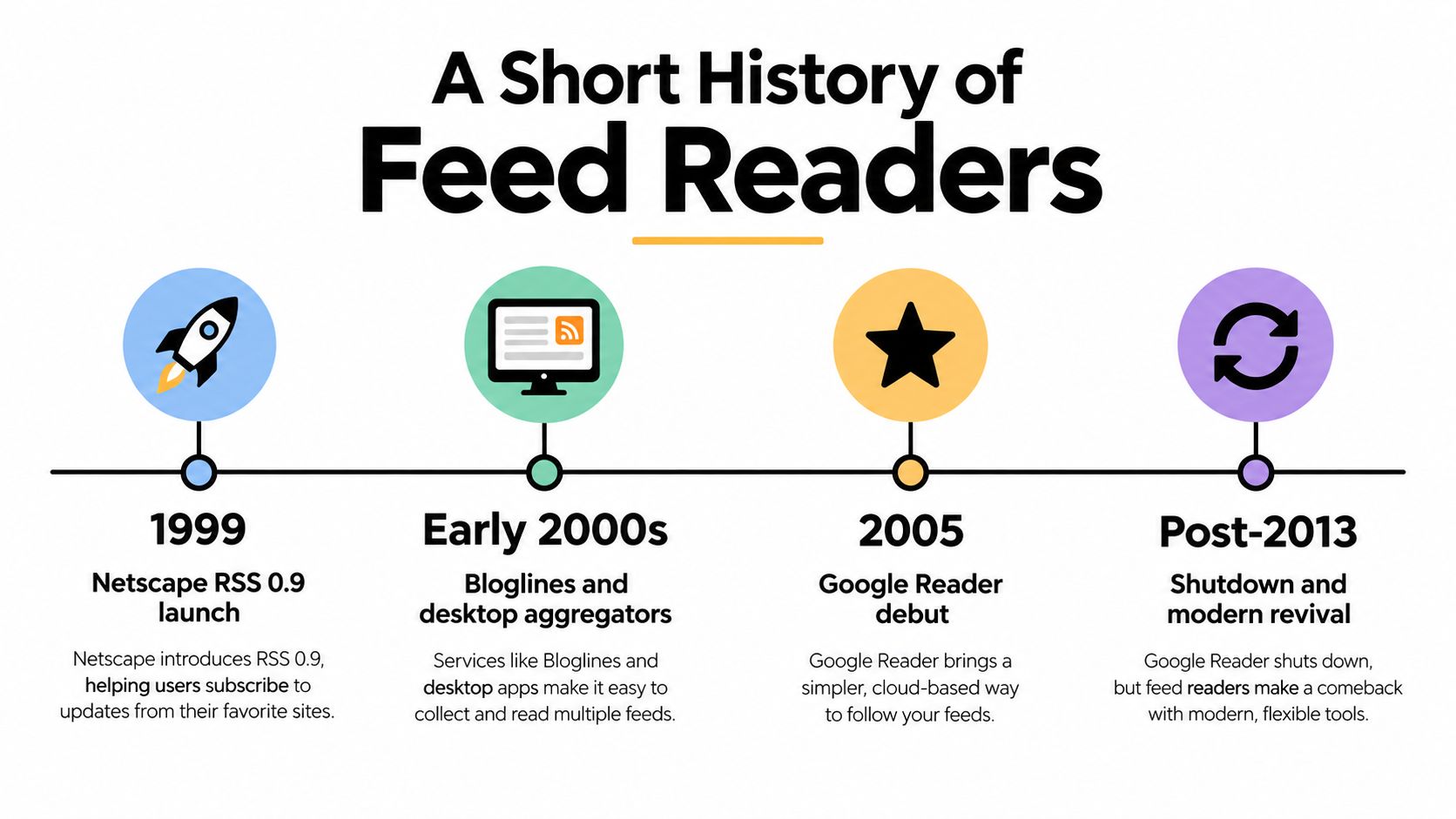
Browser support helped make the concept more visible. In 2005, Internet Explorer, Firefox, and Safari began supporting feeds directly. Google Reader launched on October 7, 2005, making inbox-style feed reading familiar across devices. For many readers, the attraction was straightforward: subscribe once, then return to one list instead of maintaining a personal map of changing websites.
The turning point came when Google shut Reader down on July 1, 2013. The closure showed how dependent many users had become on a single service, but it also fragmented the market. People moved to different readers, followed publishers through social platforms, or relied on newsletters and dedicated podcast applications.
The technology itself didn't disappear. RSS remained embedded in publishing systems, podcast distribution, and independent web communities. A technical survey of RSS feeds found that more than 98% of the 97,720 feeds examined were in RSS format, illustrating how widely the format was used in practice. The same Cornell RSS survey also discusses the reader behavior and feed characteristics that support this model.
That persistence explains the renewed interest in feed readers. People who want a chronological, cross-site reading space can use an open standard instead of depending entirely on a platform's ranking system. The experience feels less like chasing updates across separate services and more like maintaining a personal publication shelf.
Feed Readers Versus Newsletters and Algorithmic Feeds
A newsletter arrives in your email inbox. A social feed appears inside a platform. An AI-curated timeline selects and orders information for you. A feed reader collects the sources you chose and usually presents their entries in a reverse-chronological stream.
The difference is control. A newsletter publisher controls the delivery schedule and email format. A social platform controls which posts receive visibility. An AI summary tool controls what it considers relevant enough to show. With RSS, you choose the publication, add its feed, and decide what to open.
| Method | Who Controls Order | Typical Privacy | Subscription Effort |
|---|---|---|---|
| Feed reader | You and the reader's sorting settings | Usually limited to the reader and subscribed feeds | Copy or discover a feed, then add it |
| Newsletter | Publisher and email service | Email address and email interaction data may be involved | Enter an address and manage email delivery |
| Social feed | Platform ranking system | Platform account and behavior data are involved | Create or use an account, then follow sources |
| AI-curated timeline | AI service and its configuration | Depends on the service, account, and connected data | Connect sources and adjust preferences |
Newsletters can be useful when a writer intentionally produces a digest. They also compete with ordinary email, promotional folders, spam filters, and crowded inboxes. A feed reader separates publication updates from personal correspondence, which makes scanning easier for readers who want a dedicated information space.
Social feeds offer discovery and conversation, but they don't promise that you'll see every post from every account you follow. Ranking systems may place popular, recent, sponsored, or personalized content ahead of quieter updates. AI-curated timelines can reduce reading effort, yet summaries may hide the original context or make it harder to tell what the source published.
RSS has trade-offs. Setup takes a little more initiative, and some publishers don't expose a feed or provide only short excerpts. You may also need to open the original page for the full article. Still, the subscription remains easy to remove, and the reading list doesn't depend on a platform deciding which update deserves your attention.
A feed reader is best for deliberate follow-through, not endless discovery. Choose the sources first, then let the reader handle collection.
Where to Find Feeds and How to Subscribe in Real Life
Finding a feed is usually easier once you know what signals to look for. Start on a site you already visit, such as a blog, newspaper section, research publication, or podcast page.
Use the visible clues first
Look for an orange RSS symbol, or text such as RSS, XML, Subscribe, Feed, or Alerts. The link may appear in the site's footer, navigation menu, sidebar, or browser interface. Select it and see whether your browser displays a structured page containing repeated titles and links. That page is often the feed itself.
Some browsers and extensions can detect a feed through the page's auto-discovery information. If you inspect the page source, look for a link element identifying an RSS or Atom document. You don't need to edit the source. You're only confirming that the publisher has exposed a feed address.
A quick test is to paste the suspected address into a feed reader. If the reader shows a publication name and a list of entries, you've found a usable feed. A standard WordPress site often uses /feed/ for its main posts feed, while /comments/feed/ can provide a separate stream for site-wide discussion. WordPress documentation describes both the site-wide comments endpoint and individual post comment feeds in its guide to WordPress feeds.
Add the address to a reader
Copy the feed address, open Feedly, Inoreader, NetNewsWire, or another reader, and choose its add-subscription option. Paste the address, confirm the matching publication, and place it in a folder such as News, Industry, Research, or Podcasts.
If the site has categories, check whether each category exposes its own feed. A category feed is useful when you want one topic rather than every post from the publication. WordPress publishers can also expose individual comment feeds, which helps readers follow discussion without repeatedly opening each article.
You can use this WordPress blog example to practice the discovery process. Look for the site's feed link or test the standard feed path in your reader, then confirm that the publication title and recent posts appear.
Troubleshoot the common failures
A 404 response usually means the address is wrong, the publisher removed the feed, or the site uses a different endpoint. Try searching the site for RSS or Subscribe, checking its footer, or adding the site's main address directly inside the reader.
A feed may show headlines and short summaries rather than full articles. That's a publisher choice, not necessarily a reader error. Open the original link for the complete text, and check whether the reader offers a setting to display the source page.
Use the HTTPS version when the publisher provides one. If a reader rejects an insecure or redirected address, find the secure feed link and add that instead.
Keep this checklist nearby:
- Choose a source: Start with a site you already trust.
- Find its signal: Search for RSS, Feed, Subscribe, or Alerts.
- Test the address: Paste it into a reader and check the entries.
- Sort the subscription: Put it in a folder you'll recognize.
- Check the result: Open one item and confirm that the link reaches the original page.
Choosing a Feed Reader and Getting Started This Week
The best reader is the one that fits the way you already work. A web-based reader such as Feedly is convenient if you move between computers and phones. A desktop application such as NetNewsWire suits readers who prefer keyboard shortcuts, a focused reading window, and local app behavior. A self-hosted option such as FreshRSS appeals to people who want more control over where their subscriptions and reading data reside.
| Reader Style | Best For | Typical Cost | Learning Curve |
|---|---|---|---|
| Web-based reader | Beginners and people using several devices | Free tiers or paid plans may be available | Low |
| Desktop app | Keyboard-focused reading on a computer | Often free, with features depending on the app | Low to moderate |
| Self-hosted reader | Technical users who want data ownership | Software may be available at no charge, but hosting requires setup | Moderate to high |
Don't choose based only on the longest feature list. Check whether the reader syncs read status between your devices, whether it has a mobile app, how it handles full-text feeds, and whether its folders match your habits. A reader that opens quickly and makes subscriptions easy will serve you better than a powerful tool you avoid.
A practical starting plan can fit into one week:
- Today: Pick one reader and subscribe to five sources you genuinely want to follow.
- By day three: Remove feeds that publish too often, no longer interest you, or add noise.
- Later in the week: Create a small folder structure, perhaps News, Work, Ideas, and Audio.
- At the end of the week: Save a few useful articles and decide on a regular reading time.
You can also use a guide to creating a WordPress blog if you're considering publishing a feed of your own. The same standard that helps you follow other sites can make your future posts easier for readers to discover.
The goal isn't to collect every possible subscription. It's to build a calm, useful stream that replaces repetitive checking with a habit you can maintain.
Read More Info offers WordPress-based articles, site updates, and RSS feeds that make it easy to follow new posts in the reader you choose. Visit Read More Info to explore its content and use the site as a practical first subscription while you build your personal feed collection.