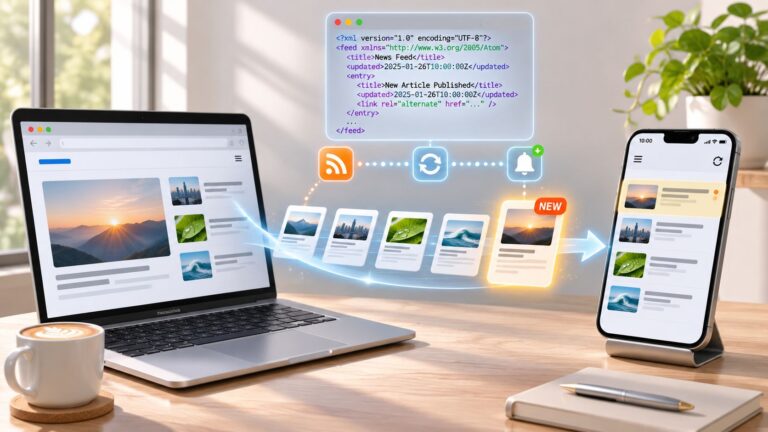
You've got a dozen sites bookmarked, and every morning you open the same tabs to see whether anything new appeared. Half of them haven't changed since last week. Two of them buried the one post you wanted under a homepage full of older links. Meanwhile, your inbox is full of newsletters you signed up for just to hear about updates, and each one required your email address.
There's a quieter way to do this. Learning how to subscribe to RSS feed updates takes about a minute per site, and after that the new posts come to you in one list, in the order they were published, with no signup form anywhere.
Table of Contents
- Subscribe to a Feed in Three Steps
- Choosing a Feed Reader That Fits Your Devices
- Finding the Feed URL When a Site Hides It
- Fixing Feeds That Won't Add or Update
- Subscribing From Your Phone
- Keeping Subscriptions Portable and Private
Subscribe to a Feed in Three Steps
The entire procedure is pick, copy, paste. Here's the shape of it before any detail.
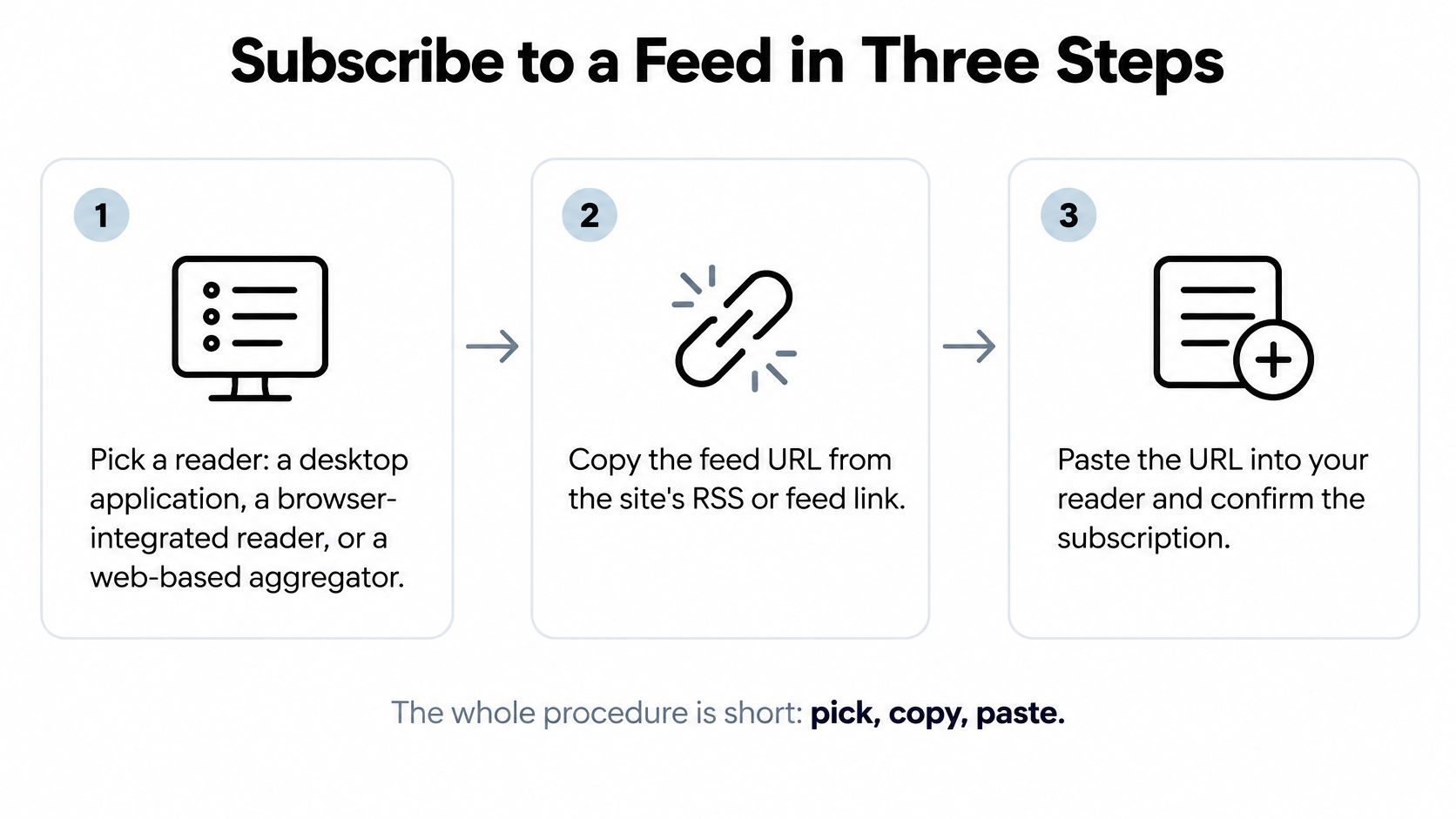
- Pick a reader. Choose a desktop application, a browser-integrated reader, or a web-based aggregator. The reader is the app that does the checking for you, so you need one before anything else works.
- Get the feed address. Either click the site's RSS button and let your reader handle the subscription, or copy the feed URL from your browser and paste it into the reader's subscription field. The US Sentencing Commission's RSS FAQ describes both methods as equivalent, so use whichever your software makes easy.
- Confirm the feed inside the reader. Open the new subscription and check that recent entries appear. A feed that loads entries is a working subscription, not a pending one.
For a worked example, use this site. The Read More Info article feed lives at https://readmore.info/feed/, and discussion activity has its own separate address at https://readmore.info/comments/feed/. Copy the first one into your reader's "Add subscription" box, press enter, and you should see the latest posts within a few seconds.
What happens after you paste the URL
Your reader contacts the site's web server on a schedule and pulls down anything published since its last check. That's the whole mechanism. Nothing gets emailed, nothing gets pushed, and the site never learns who you are.
Practical rule: RSS isn't a newsletter. You don't hand over an email address, and updates land inside your reader instead of your inbox.
The button labels change from app to app. One reader says "Add Feed", another says "Subscribe", a third shows a plain plus sign in the sidebar. Don't hunt for exact wording, hunt for the field that accepts a web address. The three milestones stay identical across every reader and every country, because feeds are just web addresses serving structured text.
One quick check to close: if entries load, you're subscribed and you can stop. If the field turns red or nothing loads at all, the problem is almost always the URL, and the fixes are further down.
Choosing a Feed Reader That Fits Your Devices
Four kinds of reader exist, and they differ mainly in where your subscription list physically lives.
| Reader type | Where subscriptions are stored | Reads offline | Exports OPML |
|---|---|---|---|
| Desktop application | Your computer | Usually yes | Usually yes |
| Browser-integrated reader | Your browser profile | Limited | Rarely, check its export menu |
| Web-based aggregator | The service's servers | No | Usually yes |
| Mobile app | Your phone, synced through an account | Partly | Depends on the app |
A desktop application gives you files you can see and back up, plus reading on a plane. A hosted aggregator gives you the same list on your phone and your laptop with almost no setup, at the cost of keeping that list on someone else's machine. Neither choice is wrong. They suit different reading habits.
Three tests before you commit
- Does it run on every device you read on? A Windows-only desktop app is a poor fit if half your reading happens on an Android phone during a commute.
- Does it sync your list, or can you export it? Sync is convenience. Export is insurance. You want at least one of them, ideally both.
- Does it accept an OPML file on import? OPML is the standard file format for a bundle of feed subscriptions. If a reader can't import one, moving your list in means retyping every address by hand.
If you're a non-technical WordPress beginner or a small business owner reading on a phone and a laptop, start with a hosted reader that supports OPML export. If you'd rather have no account and full control, install a desktop app and accept that the list stays on that machine.
Feeds worth adding once your reader works
Tool roundups are a good second subscription after a blog, because free tiers change over time. Group them by what you do:
- Design and media: free tools like photoshop, free drawing tools, free wireframe tools, free editing tools for videos, free tools for video editing.
- Files and documents: free office tools, free ocr tools, free zip tools, free daemon tools, free pro tools download, pro tools free download.
- Writing and research: free keyword tools, a single free keyword tool you trust, free humanizer tools, free writing tools.
- Business and data: free budgeting tools, free crm tools, free bi tools, free visualization tools, free map tools.
- Broad roundups: free tools, free tools online, free ai tools online.
Marketing automation is its own category, and the AI and HighLevel how-tos from PurpleCow Digital Marketing are worth a folder if you run campaigns alongside your content site.
Switching readers later is entirely possible, provided your list can leave the app. That's the part worth checking before you add fifty feeds, not after.
Finding the Feed URL When a Site Hides It
Some sites make this a single click. Others bury the feed link so deep you'd swear it doesn't exist. Work through the search in this order.
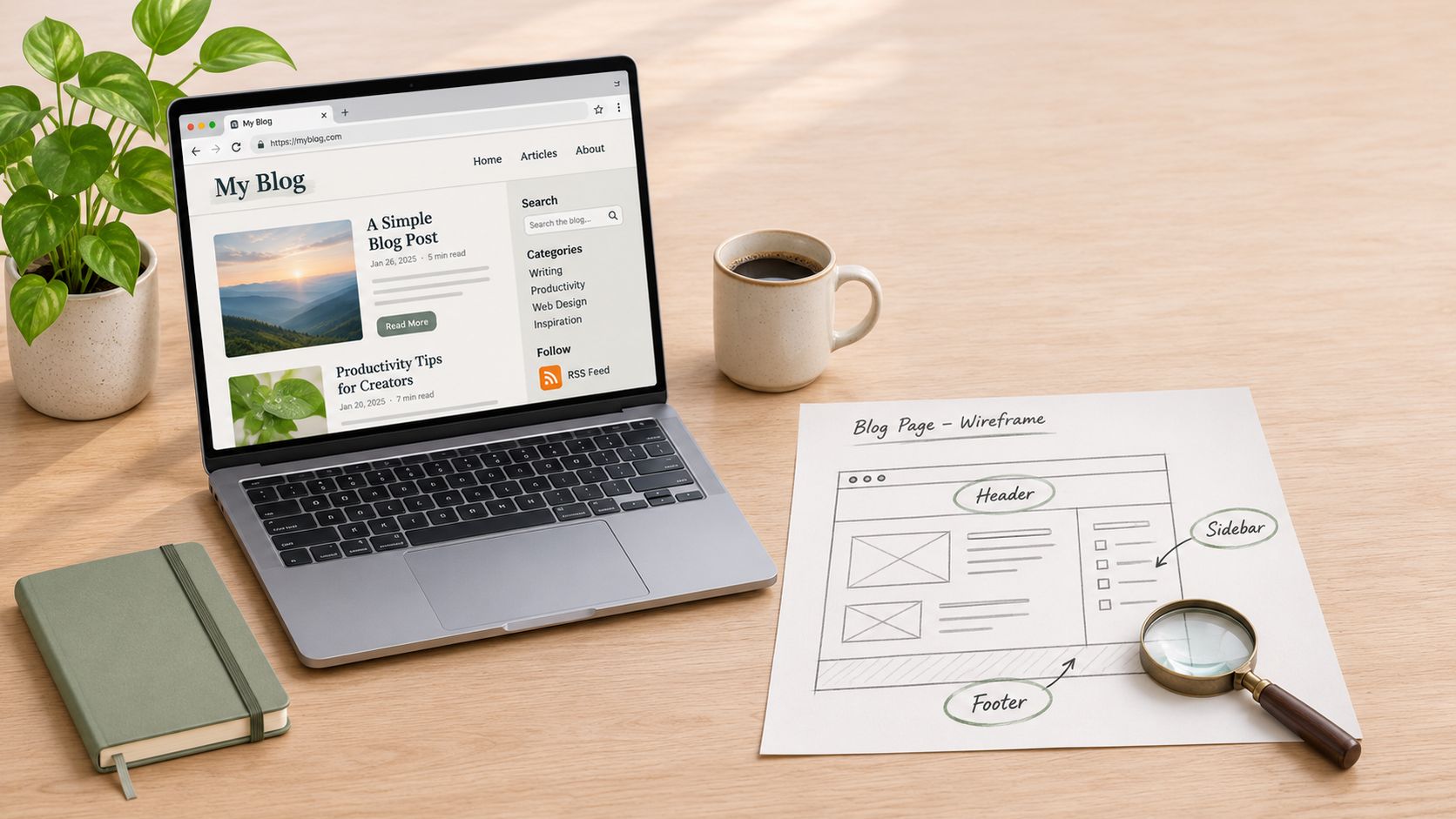
- Look for an RSS or feed icon in the header, footer or sidebar. Some themes also put it on the about or contact page, so check those before giving up.
- Paste the homepage address into your reader's discover feed field. Most readers will find the feed themselves.
- If that fails, view the page source and search for
application/rss+xml. The address inside that element is the feed URL. - On WordPress sites, try the site address followed by
/feed/, which is exactly howhttps://readmore.info/feed/is built.
Step two works because of a convention called autodiscovery. The RSS Advisory Board's autodiscovery specification explains that software can locate a feed through an HTML <link rel="alternate" type="application/rss+xml"> element, which is the same element you're searching for manually in step three. Your reader and your eyes are looking for identical information.
Label each feed as you add it
Name the subscription the moment it lands. Call the main endpoint "Read More Info Articles" and the discussion endpoint "Read More Info Comments". Without labels, two feeds from one domain look like duplicates, and you'll delete the wrong one.
A feed URL should return structured text, not a normal web page. If your browser shows a tree of tags and headlines, you found the right address.
If you run the site yourself rather than just reading it, the same discovery element is what makes your feed findable, and our guide to adding an RSS feed to WordPress covers the publisher side of that setup.
Here's the process in action, including what the discovery step looks like inside a real reader.

This video is hosted by YouTube (Google). Pressing play loads the video from YouTube, which may set cookies and share data with Google.
When a site publishes no feed at all
Don't guess addresses like /rss/ or /rss.xml. A wrong guess returns an error page and tells you nothing about whether a feed exists. If the icon search, the discovery field and the page source all come up empty, the site probably has no feed.
Fall back to whatever the site does offer: an email newsletter, a podcast, or a social account it links to from the footer. Those are worse than a feed for reading, but they're better than manual tab-checking. A page-change monitor is another workable substitute, since it watches a specific URL and reports edits, which is close to what a feed does for a site that never built one.
Fixing Feeds That Won't Add or Update
Nearly every failure traces back to a handful of causes. Match your symptom first, then apply the fix.
| Symptom | Likely cause | Fix |
|---|---|---|
| Reader says no feed found | Article or homepage URL pasted instead of the feed | Paste the feed endpoint, such as https://readmore.info/feed/ |
| Browser shows an HTML error page | Wrong path or a server error | Confirm the complete HTTPS address and retry later |
| Reader rejects the feed as invalid | Malformed XML or wrong content type | Run the address through the W3C Feed Validation Service |
| New post missing for hours | Reader refresh interval or cached entries | Refresh manually and check the reader's polling setting |
| Duplicate entries appear | Comments feed and articles feed added together | Remove one or label each feed separately |
| Only summaries appear | The feed publishes excerpts | Open the entry link to read the full article |
| Address redirects or asks for a login | URL moved or access is restricted | Copy the final URL after redirect and check access |
The three checks, in order
- Open the feed address in a browser tab. You're looking for XML, not an HTML error page. This single check separates "the feed is broken" from "my reader is confused".
- Retry with the complete HTTPS address, including the
/feed/path. Dropping that path is the most common mistake, followed closely by pasting a normal article URL. - If the reader still calls it invalid, run the address through the W3C Feed Validation Service, which checks syntax against the published rules.
The RSS 2.0 specification requires an XML document with a top-level rss element carrying version="2.0", and a channel containing title, link and description. A valid feed should also be delivered with the application/rss+xml content type, and a generic or incorrect type can trigger validation warnings and reader compatibility problems.
Delays aren't the same as failures
Readers refresh on their own schedule, so a post published a minute ago may not show up yet. Hit manual refresh once. If the entry appears, the feed is fine and you arrived between polls.
A feed that looks like a wall of angle brackets in your browser isn't broken. Browsers aren't subscription services, and ugly rendering means nothing about validity.
Two more situations worth recognizing. A redirect means the address moved, so copy the final URL from your address bar and resubscribe with that. A login prompt means the feed sits behind an access wall, which no reader setting will get you past.
Subscribing From Your Phone
Same three milestones, different controls. Install a reader app from your phone's app store, and if you already use a reader on your laptop, pick one that syncs with it. Our walkthrough of choosing an RSS reader for Android covers what to look for on that platform.
Open the app's add-feed screen and paste https://readmore.info/feed/. Many apps also accept a share action, which is faster: open the site in your mobile browser, tap the share menu, choose your reader, and the address fills itself in.
If the app has a discover feed field, use it with the homepage address. Mobile browsers hide the page source, so the manual search method isn't practical on a phone, and discovery does the same job in one step.
Confirm the first entries load, then be selective with notifications. Turn them on only for feeds you read every day. A phone that buzzes for forty subscriptions trains you to ignore all of them.
The fastest way to fill a new phone reader is to import the OPML file you exported from your desktop app, which moves the entire list in one action instead of forty. Recent reader coverage, including this roundup of RSS feed readers, repeatedly recommends OPML export precisely so you aren't trapped in one application. Sync and import are your two routes to matching lists on phone and laptop, and import works even when the two apps come from different companies.
Keeping Subscriptions Portable and Private
Subscribing is a data decision as much as a setup task. Following a public feed doesn't identify you to the site owner, because the site just serves the same file to everyone who asks. The exposure sits with whatever fetches that file on your behalf.
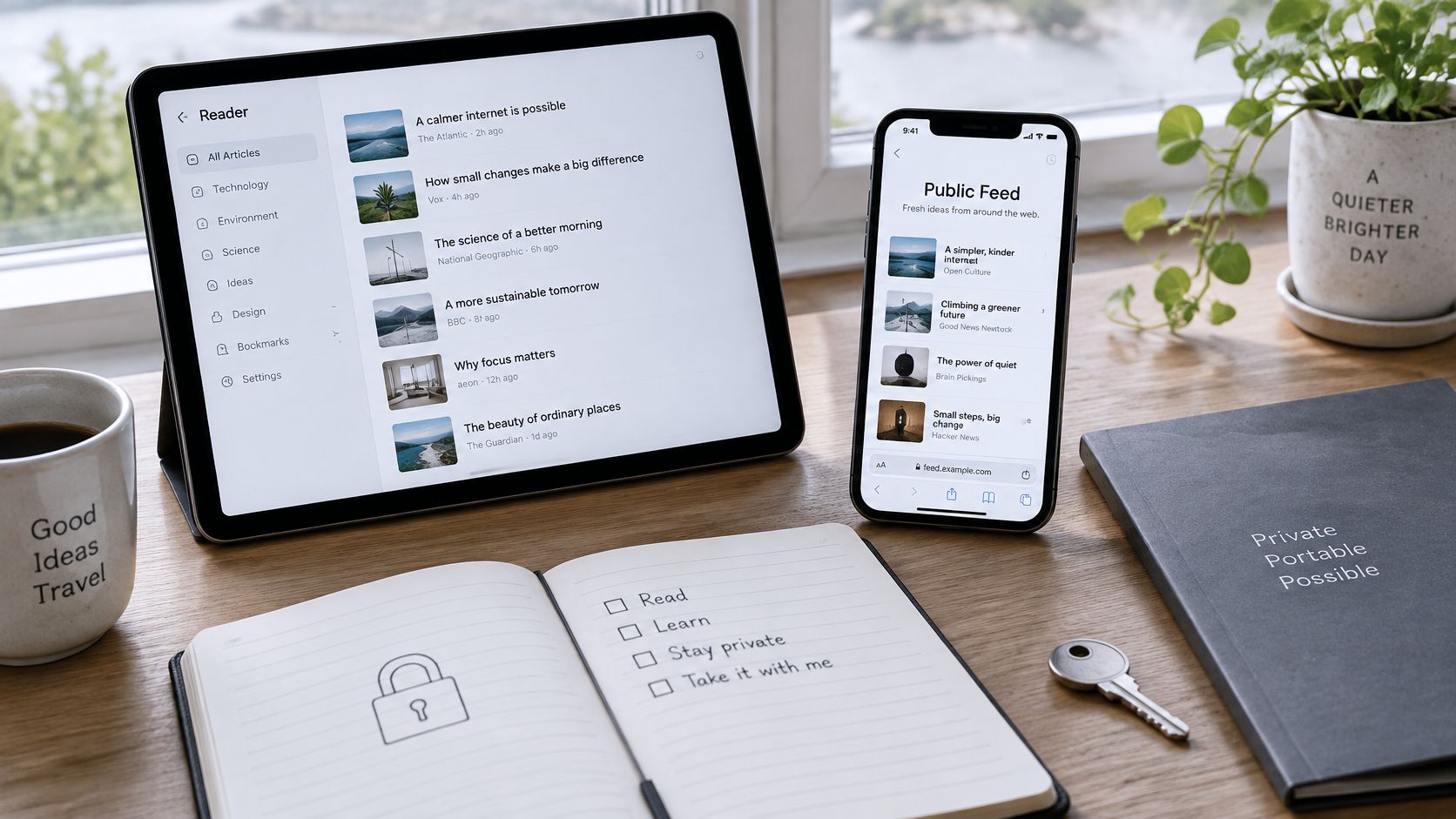
Guidance from PrivacyTools on RSS feed readers points out that a reader may store your subscription list, reading history and fetch activity on a third-party server, and recommends comparing local or self-hosted readers with hosted services. Four questions settle it:
- Who fetches the feed on your behalf, you or the service?
- Where do your subscription list and reading history live?
- Does the reader load tracking pixels embedded in entries?
- Is the software open source, and does it support OPML import and export?
A free hosted reader can be less portable and less private than a local application. Self-hosting flips that, giving you control in exchange for maintenance you have to do.
The export routine
- Export first. Save your subscriptions as an OPML file from the current reader, before you cancel anything. Our explainer on what an OPML file is shows what's inside it.
- Import second. Load that file into the new reader and let it rebuild the list.
- Count both lists. Compare the number of feeds in each reader. A mismatch means something didn't transfer, usually a feed behind a login.
- Store the file elsewhere. Keep a copy outside the reader, in your cloud drive or on a USB stick.
Run that export every few months and put a reminder in your calendar. A discontinued app or a lost phone then costs you five minutes of importing instead of an afternoon of remembering which forty sites you used to follow.
Read More Info publishes plain-language guides on WordPress setup, feed readers, site search and the web basics that trip up first-time site owners, and both our article feed and our comments feed are open for you to practice on. Paste https://readmore.info/feed/ into your reader as your first subscription, then export that list as an OPML file so the habit starts with a backup. Browse the rest of our walkthroughs at Read More Info and add the ones you want to keep up with.