If a website has no RSS icon, does that mean it has no feed, or just that you're looking in the wrong place? A missing button tells you very little. The useful address may be declared in the page's HTML or available through the platform's standard feed path.
To learn how to find an RSS feed URL, separate discovery from verification. Find a likely endpoint, check what it returns, then subscribe. A normal webpage address and a machine-readable feed address aren't interchangeable, even when both open successfully in your browser.
Table of Contents
- Feed Paths by Platform and WordPress Variants
- How to Find the Feed Link in Page Source
- Validate the Feed Before You Subscribe
- Fix a Feed URL That Will Not Load
- Subscribe With the Verified Feed URL
Feed Paths by Platform and WordPress Variants
Which platform runs the site? Start with that question, because it gives you a sensible address to test instead of a collection of guesses. Use the matching pattern below, replacing placeholder names with the actual site, blog, subreddit, or channel identifier.
Standard feed URL patterns by platform
| Platform or site type | Feed URL pattern to test | Where to confirm it |
|---|---|---|
| WordPress site | yourdomain.com/feed/ |
Autodiscovery link in page head |
| WordPress with plain permalinks | yourdomain.com/?feed=rss2 |
Feed link in page source |
| Blogger blog | blogname.blogspot.com/feeds/posts/default |
Feed link in page source |
| Tumblr blog | blogname.tumblr.com/rss |
Open the endpoint and inspect its XML |
| YouTube channel | youtube.com/feeds/videos.xml?channel_id=CHANNEL_ID |
channelId value in channel page source |
| Reddit subreddit | reddit.com/r/subreddit/.rss |
Append .rss to the listing URL |
These are candidate paths, not guarantees that every installation exposes a public feed. In 2024, Digital Information World's feed-discovery guide identified more than 10 methods for finding RSS feed URLs, including source inspection and appending /feed or /rss. Start with the platform pattern rather than trying every method indiscriminately.
For Blogger and Tumblr, substitute the actual blog hostname. A custom domain may obscure the platform, so an advertised feed link is a better confirmation than the site's appearance.
For YouTube, replace CHANNEL_ID with the identifier from the channel page source, not its display name or @handle. Search the source for channelId and check that the value belongs to the channel you intend to follow. For Reddit, use the relevant listing address rather than an individual discussion's address if you want new subreddit submissions.
Choose the right WordPress endpoint
WordPress is a useful starting point because feeds are built into the platform. The WordPress feeds documentation identifies /feed/ as the standard posts-feed pattern and documents separate feeds and formats.
The important distinction is what the feed contains:
- Published posts:
/feed/is the practical starting point for following a site's articles. - Discussion activity:
/comments/feed/follows site-wide comments rather than newly published articles. - Specific formats:
/feed/rss2/and/feed/atom/request RSS and Atom variants. - Plain permalinks:
?feed=rss2is the query-based alternative when the installation doesn't use readable permalink paths.
You don't need to subscribe to every format. Choose the working endpoint that contains the material you want and that your reader accepts.
WordPress also supports narrower feeds, including /category/news/feed/, /tag/name/feed/, and /author/name/feed/. Replace those example slugs with the site's actual category, tag, or author slug. A valid category feed can be the wrong subscription if you expected every article.
Practical rule: Choose the site-wide feed unless you deliberately want a particular topic, author, or discussion stream.
For a concrete WordPress example, the Read More Info posts feed is the main content endpoint, while the Read More Info comments feed follows discussion entries. Subscribe to the posts feed for articles, and add comments only if you want those conversations.
Platform clues aren't proof
A familiar blog layout doesn't establish which software publishes it. If you're planning your own site and want to understand the architectural difference, Cleffex Digital ltd.’s explanation can help you compare Jamstack and WordPress builds. For feed discovery, though, inspect the actual site rather than inferring its capabilities from its design.
Open your candidate address in a browser tab. If it fails, inspect the page source instead of repeatedly changing the suffix. Even a path that works might be an archive-specific feed rather than the best subscription for your needs.
How to Find the Feed Link in Page Source
A site that hides its feed icon may still declare its feed in the HTML head. This method finds the publisher's advertised endpoint without requiring you to recognize the platform.
The WHATWG HTML specification defines feed autodiscovery through alternate links with RSS or Atom media types. The first matching feed declaration is generally treated as the default, but inspect the labels when several appear.
Read the feed declaration
Open the homepage in Chrome, Edge, or Firefox. Start there because an individual post or category page may advertise a narrower feed.
Open View Page Source. Use
Ctrl+Uon Windows or Linux, orCmd+Option+Uwhere supported on a Mac; the browser's menu or right-click option is a reliable alternative because shortcuts differ.Search for
alternate. PressCtrl+F, orCmd+Fon a Mac, to locate alternate-link declarations quickly rather than reading the entire document.Check the
typeattribute. Look forapplication/rss+xmlorapplication/atom+xml, becausealternatealone can also describe something other than a feed.Copy the matching
hrefvalue. If it's relative, resolve it against the page's base address so your reader receives a complete address rather than an incomplete path.Open the full address in a new tab. Look for structured XML containing entries, links, and dates rather than assuming that any page that loads is suitable.
The visual below summarizes the source-inspection process.

Check the browser's other clues
Before guessing another path, look for a feed icon or subscription link in the footer or sidebar. You can also press F12, open Elements, and search for rel="alternate"; this can reveal declarations in the current document.
The Network tab offers another diagnostic view. Reload the page and inspect responses that return XML, but remember that the homepage won't necessarily request its feed, so an empty search doesn't prove there isn't one.
Don't reject an Atom declaration merely because you expected RSS. This explanation of what an Atom feed is helps distinguish the formats without mistaking a compatible feed for an error.
Success means you have a complete feed address, not just visible page text or a copied category-page link. Properly resolve relative paths, including parent-directory references, instead of blindly joining strings.
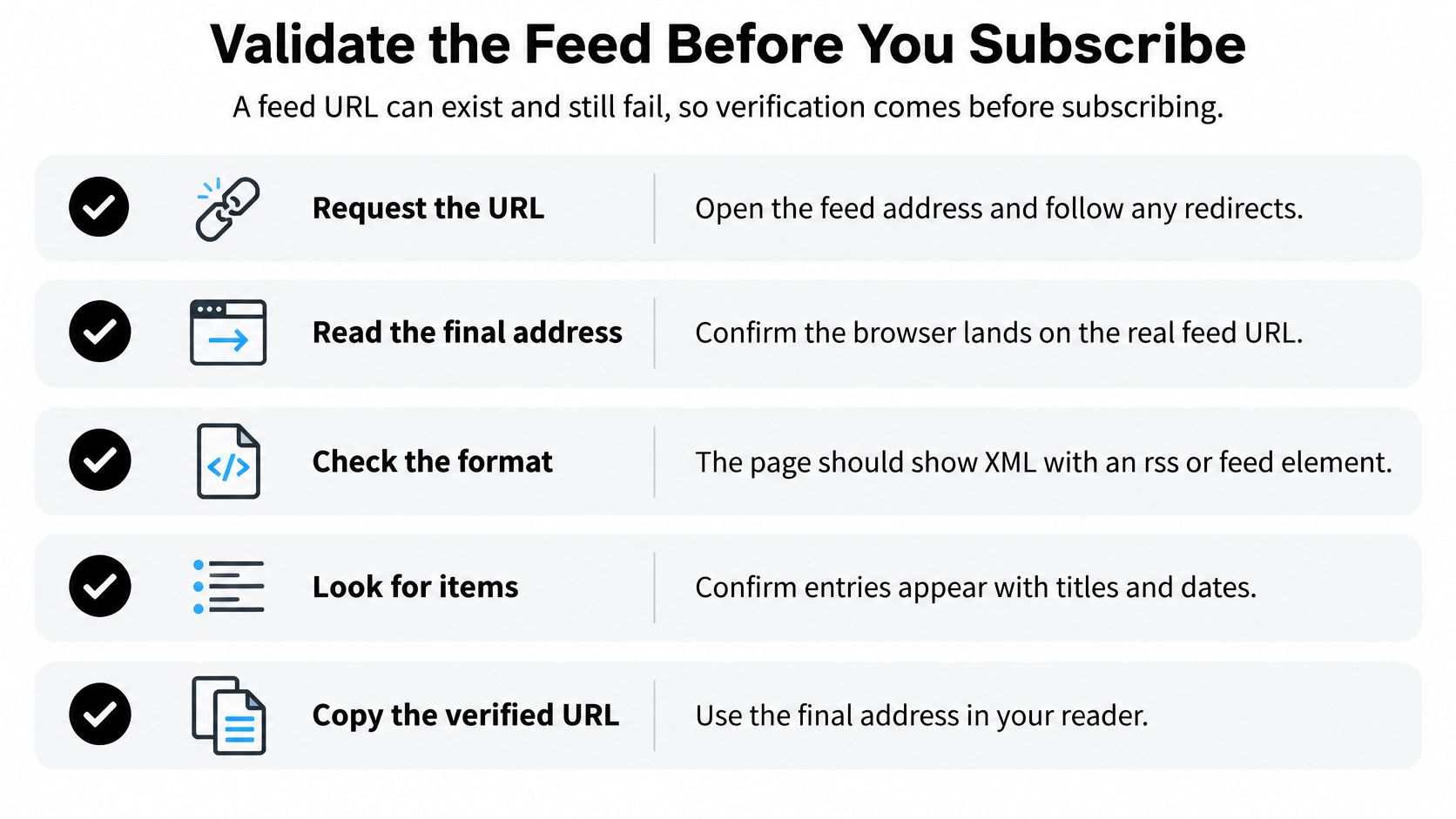
Validate the Feed Before You Subscribe
An HTTP 200 response doesn't prove you've found a working feed. It means the server successfully returned a response, which could still contain a login screen, an HTML error page, or malformed XML.
The WHATWG feed-autodiscovery explanation describes how publishers advertise feed addresses. Treat that declaration as a discovery clue, then inspect the actual response before handing it to your reader.
Use this checklist while the candidate address is open.
Apply a pass-or-fail check
- Destination passes: The request follows normal redirects to a feed endpoint, not an account sign-in page or an unrelated homepage. Record the final destination.
- Response body passes: The content is XML, not a bot challenge, styled error template, or empty document. DevTools' Network response view can help when the browser's display is ambiguous.
- Structure passes: An RSS document has an
<rss>root, while Atom uses<feed>. An unrelated XML export isn't a feed just because it contains angle brackets. - Entries pass: Look for
<item>or<entry>elements with stable article links and publication timestamps. Compare a recent entry with the site itself. - Parsing passes: Try the address in independent readers or parsers. If one accepts it and another fails, investigate rather than assuming the more tolerant application proves everything is correct.
For a readable structural reference, compare the response with an RSS feed format example. You're checking the document's organization, not expecting identical titles or text.
Don't judge by the filename
A .xml suffix isn't a certificate of validity. Conversely, /feed/ can serve perfectly usable XML without any filename extension.
RSS and Atom are both valid subscription formats. The deciding issue is whether your reader can parse the actual document and retrieve the intended entries.
A successful web request and a successful subscription are different tests.
For a practical cross-check, use two independent tools and inspect their results, not just their success messages. Your pass rule is straightforward: the address returns feed XML, both tools parse it, and the latest published post appears first for the current-post subscription you're setting up.
Fix a Feed URL That Will Not Load
When a candidate fails, use a consistent diagnostic order: test /feed/ for WordPress, inspect the source declaration, then try a query-based or platform-specific endpoint. Don't interpret every failed request as evidence that the site has abandoned RSS.
Liquid Web's WordPress RSS guide explains why a standard-looking path isn't universal, including the query-based ?feed=rss2 alternative for plain permalinks. A hidden feed, an incorrect address, an access restriction, and an unavailable feed need different fixes.
Feed problems, causes and fixes
| Symptom | Likely cause | Fix |
|---|---|---|
/feed/ returns 404 |
Plain permalinks or feed disabled | Test ?feed=rss2 and check permalink settings |
| Feed shows an HTML page or login | Bot challenge, caching or access restriction | Load in a private window, purge cache, check security plugin |
| No feed link in page source | Theme removed the head link or feed is hidden | Use the platform path from the first table |
| Reader shows broken items | Relative href or truncated feed |
Use the full absolute URL and check the XML |
| Feed shows only one topic | Category or tag feed used by mistake | Switch to the site-wide /feed/ |
| Feed stops updating | Feed moved or discontinued | Check redirects and search the site for a new feed address |
Separate reader fixes from publisher fixes
A private-window test helps distinguish a public endpoint from one that works only because you're logged in. If the feed opens in your regular browser but requires authentication in a private window, a reader may face the same restriction.
Only site administrators can purge the site's cache, change permalink settings, or adjust a security plugin. If you're a subscriber, don't spend time looking for controls you don't have. Send the publisher the failing address, the final destination, and the visible error.
For your own WordPress site, investigate recent theme, plugin, cache, and security changes before making broad edits. Back up the site before changing configuration, and retest the endpoint after each adjustment so you know which change helped.
Useful distinction: No visible feed button is a discovery problem. A feed request that returns an access challenge is a delivery problem.
Correcting a typo, using an absolute address, or switching subscription scope usually requires only a reader-side change. Missing declarations, malformed output, blocked automated requests, and disabled feeds require publisher attention.
For problems involving our site, you can reach us through our contact form. Include the candidate endpoint and what your browser or reader displays so we can identify the affected request.
Subscribe With the Verified Feed URL
Add the verified endpoint to your reader rather than relying on another round of automatic discovery. That gives you control over which publication, topic, or discussion stream you follow.
The image illustrates the final handoff from browser to reader.

Add and check your subscription
- Copy the complete verified address, including
https. - Paste it into your reader's Add feed or Subscribe box.
- Check that the expected articles load with dates.
- Add a separate comments subscription only if you want discussions.
- Record when you verified the endpoint so future troubleshooting has a starting point.
If you haven't chosen an application, our guide to RSS feed reader options can help you decide where to manage subscriptions.
Organize subscriptions around what you read. Say you're tracking sites about free tools and free tools online: an office folder might cover free office tools, free writing tools, free ocr tools, free zip tools, free daemon tools, and free budgeting tools.
A creative folder could separate free editing tools for videos, free tools for video editing, free tools like photoshop, free drawing tools, and free wireframe tools. Keep searches such as free pro tools download and pro tools free download distinct from a publisher's name, and verify download claims at the official product site.
Other useful topic labels include free ai tools online, free humanizer tools, free keyword tools, free keyword tool, free bi tools, free visualization tools, free crm tools, and free map tools. These are organizational examples, not promises that a subscription provides those products.
For a video accompaniment, use the embedded player below.

This video is hosted by YouTube (Google). Pressing play loads the video from YouTube, which may set cookies and share data with Google.
Make a monthly subscription check part of your routine, and retest your own site after theme or plugin changes. An empty subscription shouldn't be your only warning that an endpoint stopped working.
Read More Info publishes articles on RSS and feed readers, site search, responsive design, and web basics. Visit Read More Info for practical help with subscriptions, then subscribe today using the feed URL you verified.